How to lock objects in Miro

Locking objects in Miro prevents accidental edits and movements, keeping your board organized and your design intent protected. This guide walks you through the process of securing objects so only intentional changes can be made.
Quick summary
In this tutorial, you'll learn how to lock objects in Miro to protect them from unintended modifications. You'll discover how to access the lock feature and apply it to multiple elements on your board.
Why this matters
Locking objects is essential when collaborating with team members or working on complex boards where precision matters. It reduces the risk of accidentally moving, resizing, or deleting important elements, allowing you to focus on active work areas while keeping finalized content secure.
Step-by-step guide
- 1
Access the object menu
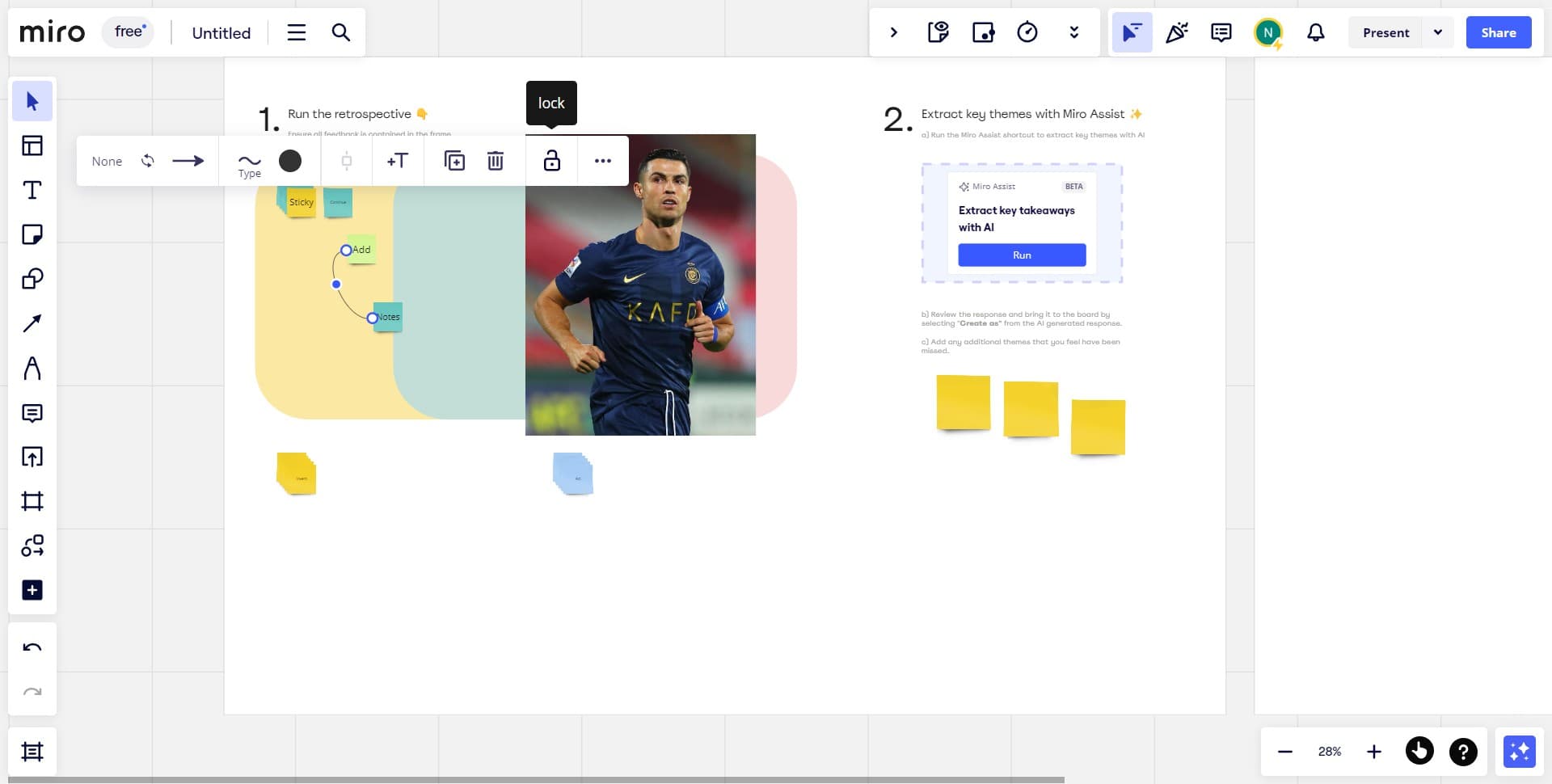
Click on the object you want to lock to select it. A menu or toolbar will appear with various options for managing the selected element.
- 2
Upload or confirm selection
Select the upload option from the menu to prepare the object for locking. This ensures the object is properly registered in the system.
- 3
Activate the lock function
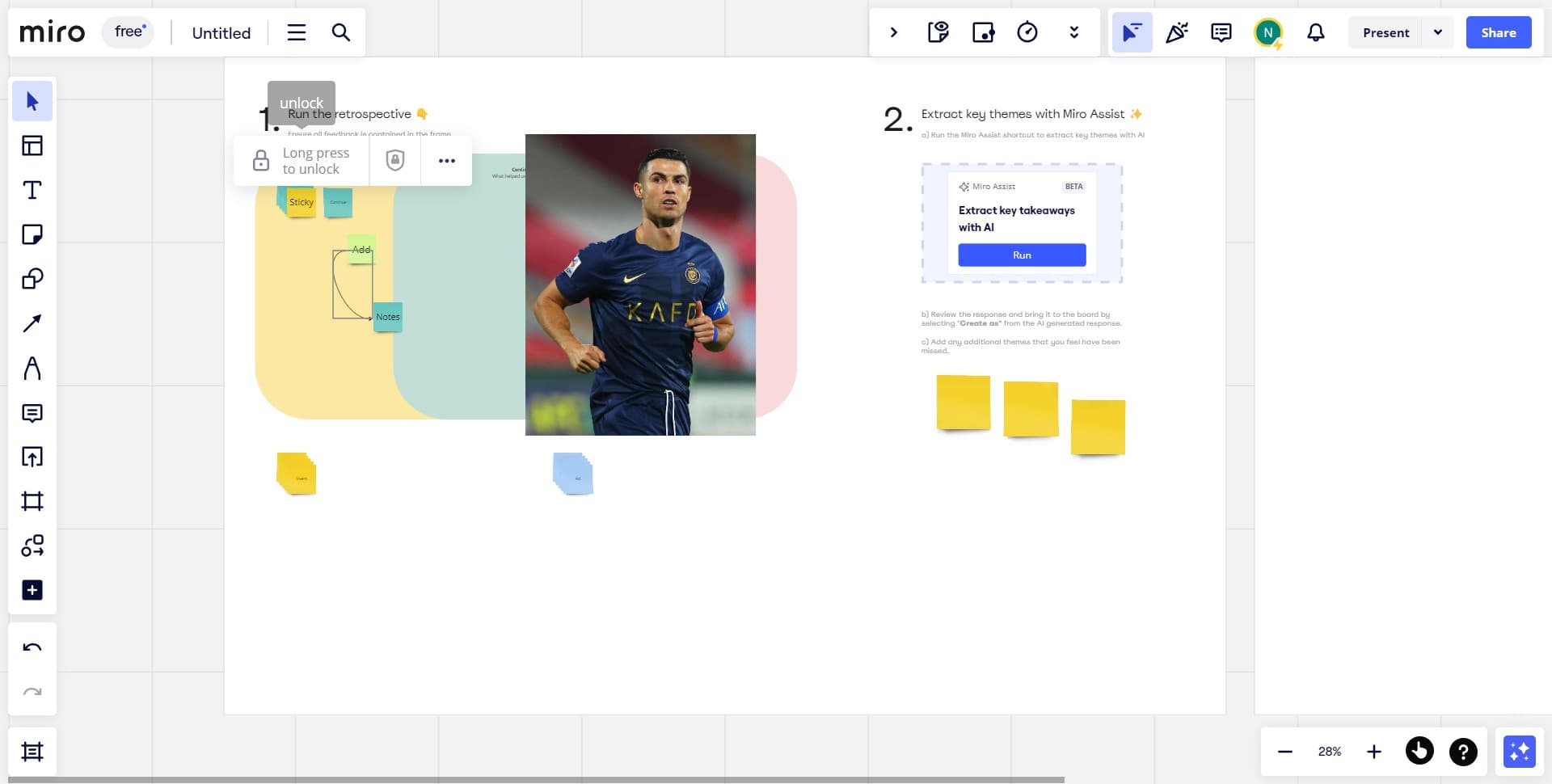
Click on the 'Long press to unlock' option to lock the object. This indicates that the object is now secured and will require a long press action to unlock it later.
- 4
Access additional object menu
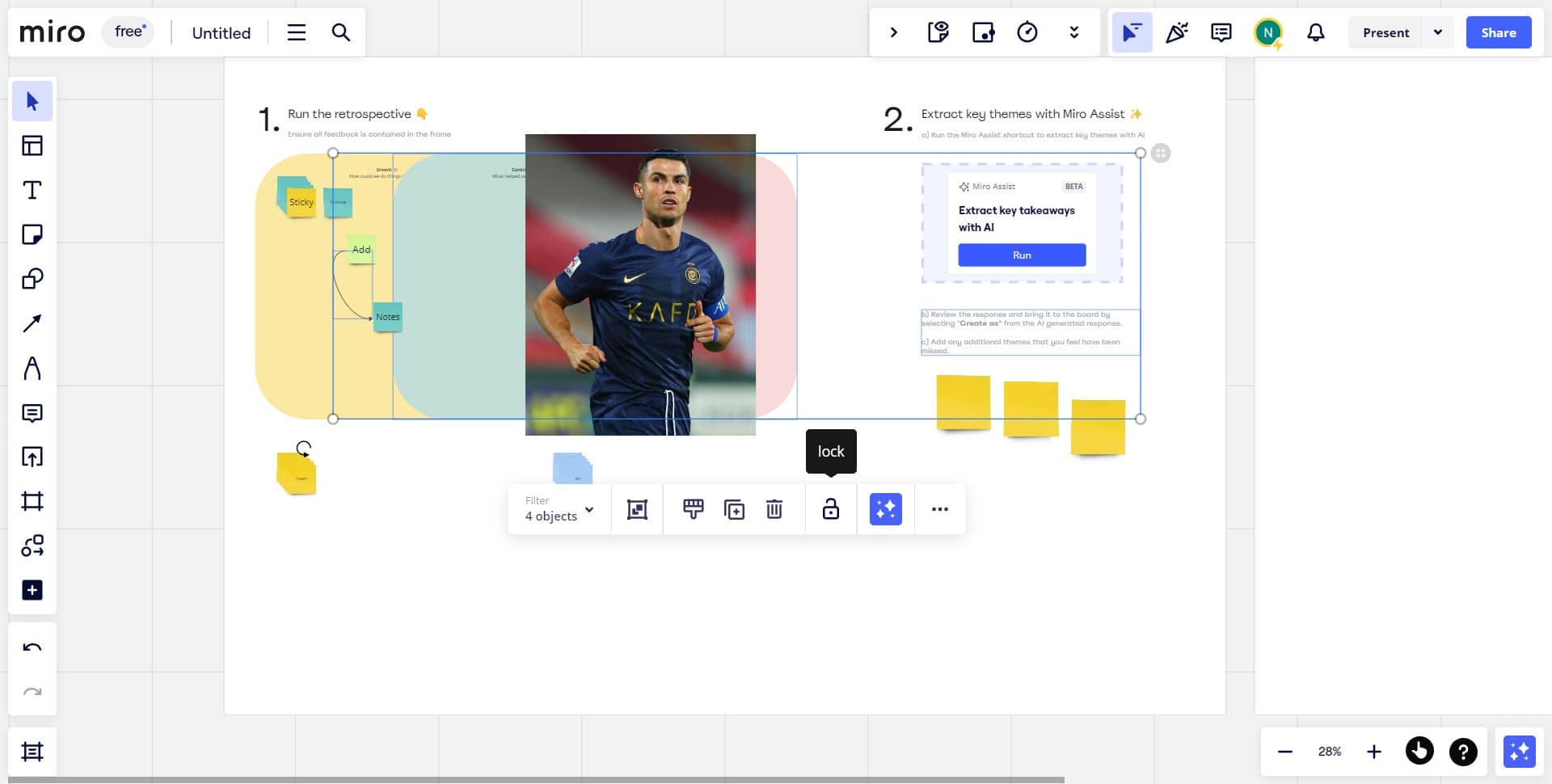
Click on another object or location to access the menu for additional elements. This allows you to apply the same locking process to multiple objects on your board.
- 5
Upload and lock second object
Select the upload option and then activate the lock function by clicking 'Long press to unlock' for this second object. You can repeat this process for as many objects as needed on your board.
Frequently asked questions
Common questions about how to lock objects in miro.
To unlock a locked object, perform a long press action on the object as indicated by the 'Long press to unlock' label. After the long press is complete, the object will be unlocked and you can edit or move it freely.
Yes, you can lock multiple objects by selecting each one individually and applying the lock function to each. Follow the same process for every object you want to secure on your board.
Locked objects prevent accidental edits and movements for all users on the board, including collaborators. This helps maintain consistency and protects important design elements during team collaboration.
Miro requires you to lock objects individually using the lock feature. For boards with many elements, you'll need to select and lock each object separately through the menu.
Locked objects display a 'Long press to unlock' indicator, making them visually identifiable on your board. This visual cue helps you quickly identify which elements are protected from accidental changes.