How to Ungroup in Miro

Ungrouping objects in Miro allows you to separate grouped elements so you can edit, move, or delete them individually. This is essential when you need to modify specific components of a design that were previously grouped together for organization.
Quick summary
In this tutorial, you'll learn how to ungroup objects in Miro by selecting a grouped object and using the ungroup command. By the end, you'll be able to break apart grouped elements and work with individual items independently.
Why this matters
Grouping objects in Miro is useful for keeping related elements organized, but ungrouping becomes necessary when you need to make granular edits or rearrange specific components. Mastering this workflow helps you maintain flexibility in your designs and collaborate more efficiently with team members who may need to modify individual elements.
Step-by-step guide
- 1
Select the grouped object
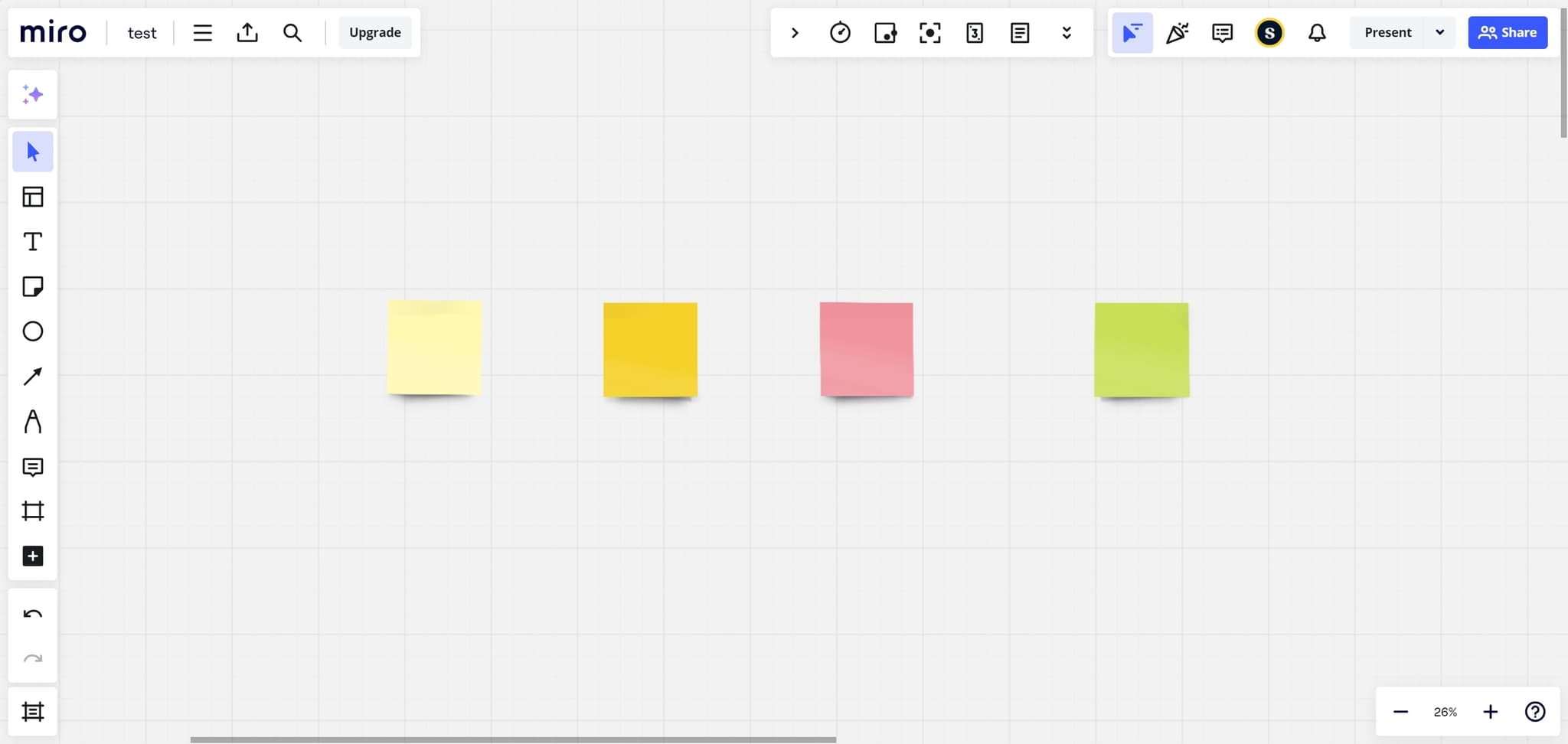
Click on the grouped object you want to ungroup in your Miro board. The selection handles will appear around the entire group, indicating it's selected and ready for action.
- 2
Access the ungroup option
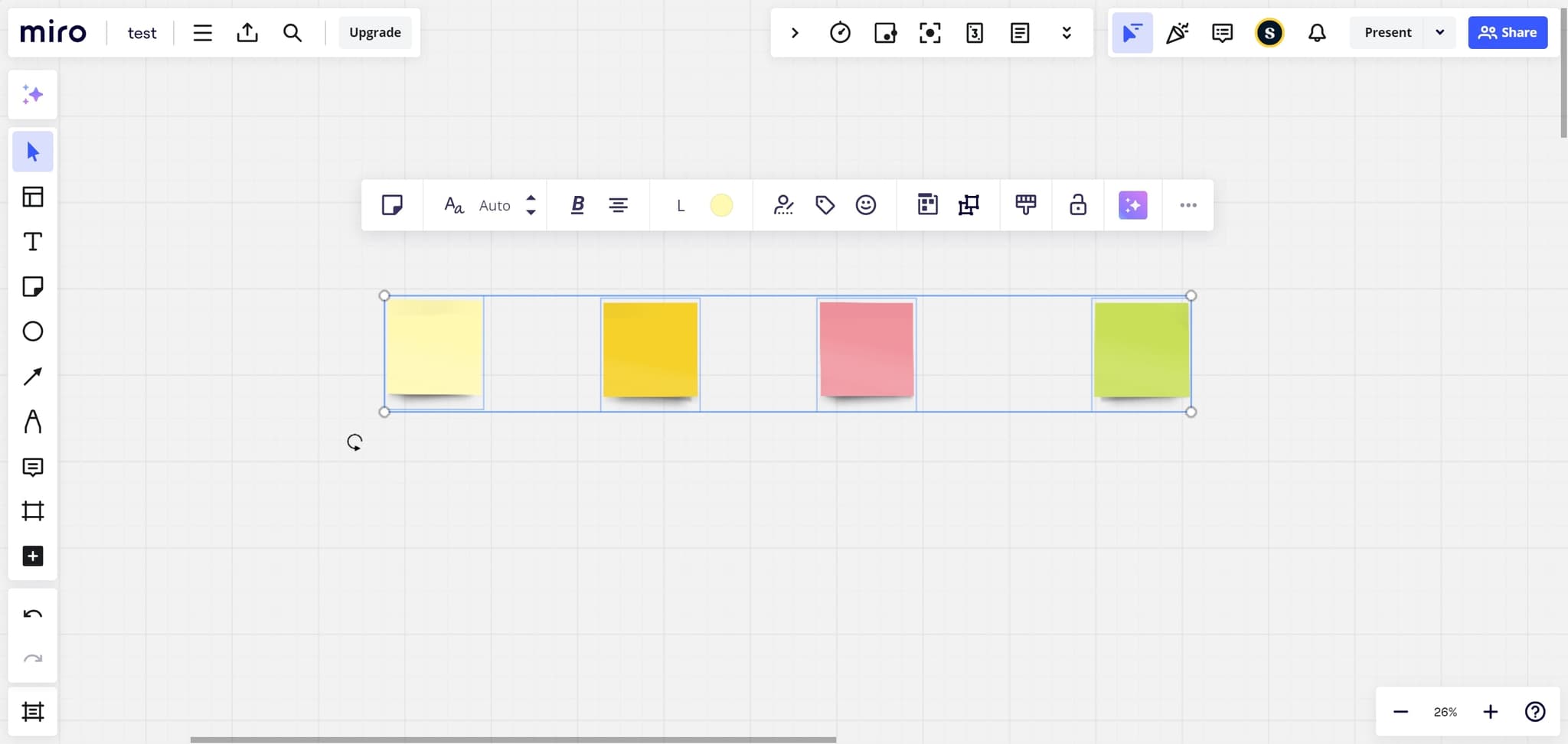
Click the ungroup command from the context menu or toolbar. This action will separate all the individual elements that were grouped together.
- 3
Upload or finalize changes
Your ungrouped objects are now ready to be edited individually. Save your changes to ensure they're preserved in your Miro board.
Frequently asked questions
Common questions about how to ungroup in miro.
Yes, you can undo an ungroup action by pressing Ctrl+Z (Windows) or Cmd+Z (Mac) immediately after ungrouping. This will restore the group and all its elements to their original state.
Individual objects retain their original formatting, colors, and properties when ungrouped. No styling is lost during the ungroup process, only the grouping relationship is removed.
Yes, if you have nested groups, ungrouping will separate one level at a time. You may need to ungroup multiple times to completely separate all nested elements into individual objects.
Yes, after selecting a group, you can use Ctrl+Shift+G (Windows) or Cmd+Shift+G (Mac) to quickly ungroup objects without accessing the menu.
Yes, you can select multiple groups by holding Shift and clicking each one, then ungroup them all simultaneously. This is helpful when you need to ungroup several objects in your board quickly.