How to vote in Miro

Voting in Miro allows teams to quickly gather feedback and make collaborative decisions on ideas, designs, and priorities. This feature streamlines decision-making by enabling multiple participants to express their preferences simultaneously on the same board.
Quick summary
In this tutorial, you'll learn how to set up and execute a voting session in Miro. You'll discover how to initiate votes, configure voting options, and interpret results to drive team consensus.
Why this matters
Voting in Miro eliminates lengthy email chains and meeting discussions by providing instant, visual feedback on team preferences. This structured approach ensures all voices are heard and decisions are made efficiently, reducing meeting time while improving team alignment.
Step-by-step guide
- 1
Open your Miro board
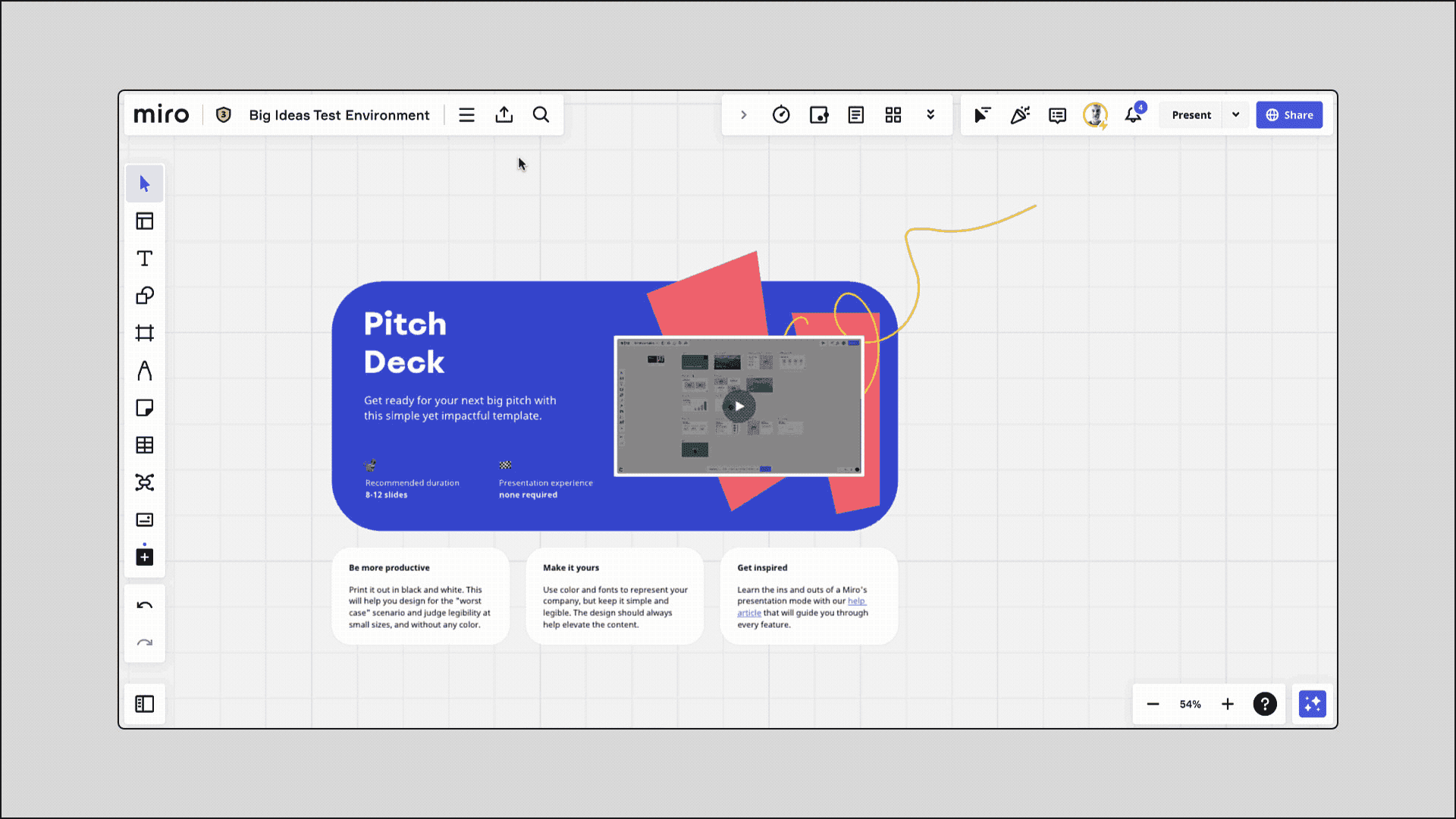
Navigate to the Miro board where you want to enable voting. Ensure you have edit permissions and that all team members you want to participate have access to the board.
- 2
Locate the voting tool
Access the voting feature from Miro's toolbar or main menu. This tool is designed to gather quick input on specific items or decisions you've placed on your board.
- 3
Select content to vote on
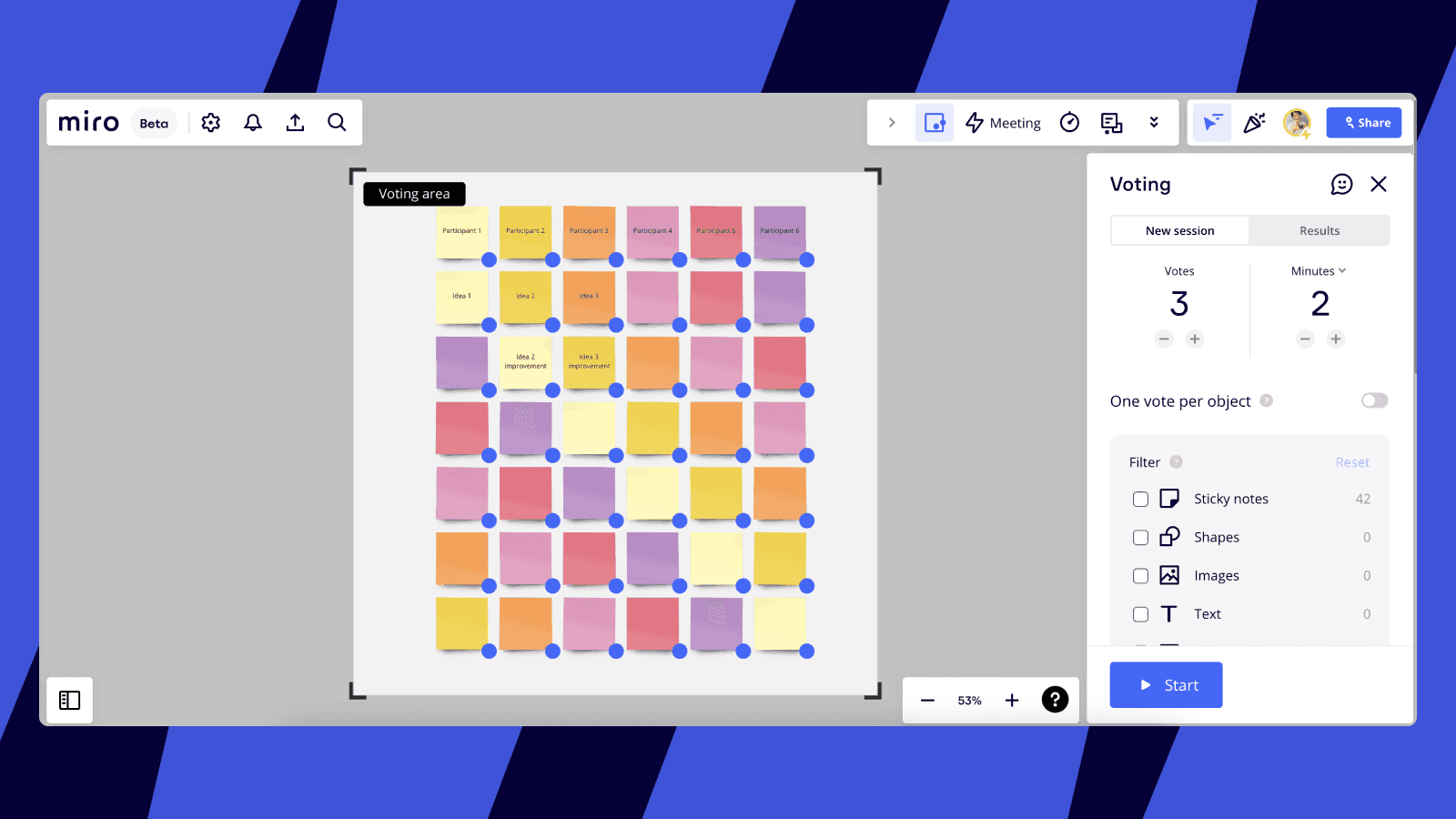
Choose the frame, card, sticky note, or other element that you want team members to vote on. This becomes the focus item for your voting session.
- 4
Configure voting options
Set up the voting parameters, including the voting method (thumbs up/down, multiple choice, rating scale) and whether votes should be anonymous. Specify any deadline or time limit for voting.
- 5
Share and collect votes
Distribute the voting link to your team or ensure all participants have access to the board. Monitor votes in real-time and review the results once voting concludes to inform your next steps.

Frequently asked questions
Common questions about how to vote in miro.
Yes, Miro supports anonymous voting options. When you configure your voting session, you can toggle the anonymity setting to hide voter identities. This encourages honest feedback and prevents bias during decision-making processes.
Miro offers multiple voting formats including thumbs up/down, dot voting, rating scales, and multiple-choice options. The method you choose depends on your use case, whether you're prioritizing items, gauging sentiment, or selecting between specific options.
Yes, Miro displays voting results in real-time as participants cast their votes. This live feedback helps maintain engagement and allows you to adjust discussions based on emerging consensus or points of disagreement.
Miro voting can accommodate all board members and invited participants without limit. The platform is designed to scale across teams of any size, making it suitable for small groups and large organizations alike.
Yes, you can capture voting results directly within your Miro board or take screenshots for documentation. Miro also allows you to reference votes in board comments and follow-up actions, keeping all decision context in one place.