How to create a roadmap in Pendo

Pendo roadmaps help you visualize and communicate your product development plans to stakeholders and team members. This guide walks you through the process of creating a comprehensive roadmap in Pendo, from initial setup through adding initiatives and swimlanes.
Quick summary
In this tutorial, you'll learn how to create a roadmap in Pendo by accessing the Roadmaps section, creating a new roadmap, adding initiatives, organizing them into swimlanes, and saving your work. You'll discover how to structure your roadmap with multiple initiatives and customize swimlanes to match your team's workflow.
Why this matters
Roadmaps are essential for keeping your product team aligned on priorities and timelines. By creating a clear, visual roadmap in Pendo, you enable better communication across departments and help stakeholders understand your product direction and upcoming changes.
Step-by-step guide
- 1
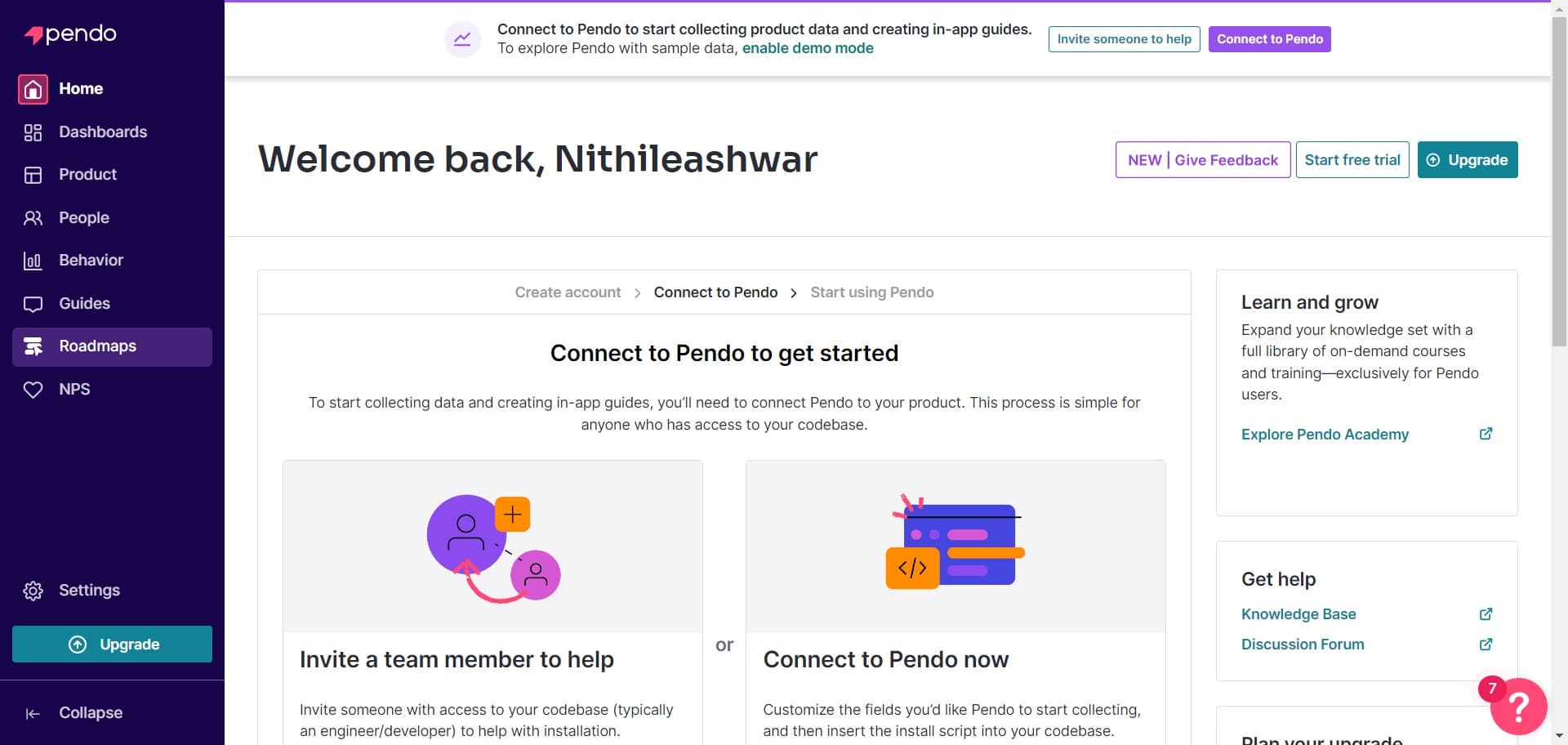
Navigate to Roadmaps
Start by clicking on the 'Roadmaps' section in Pendo's main navigation. This will take you to your roadmaps dashboard where you can view and manage all your product roadmaps.
- 2
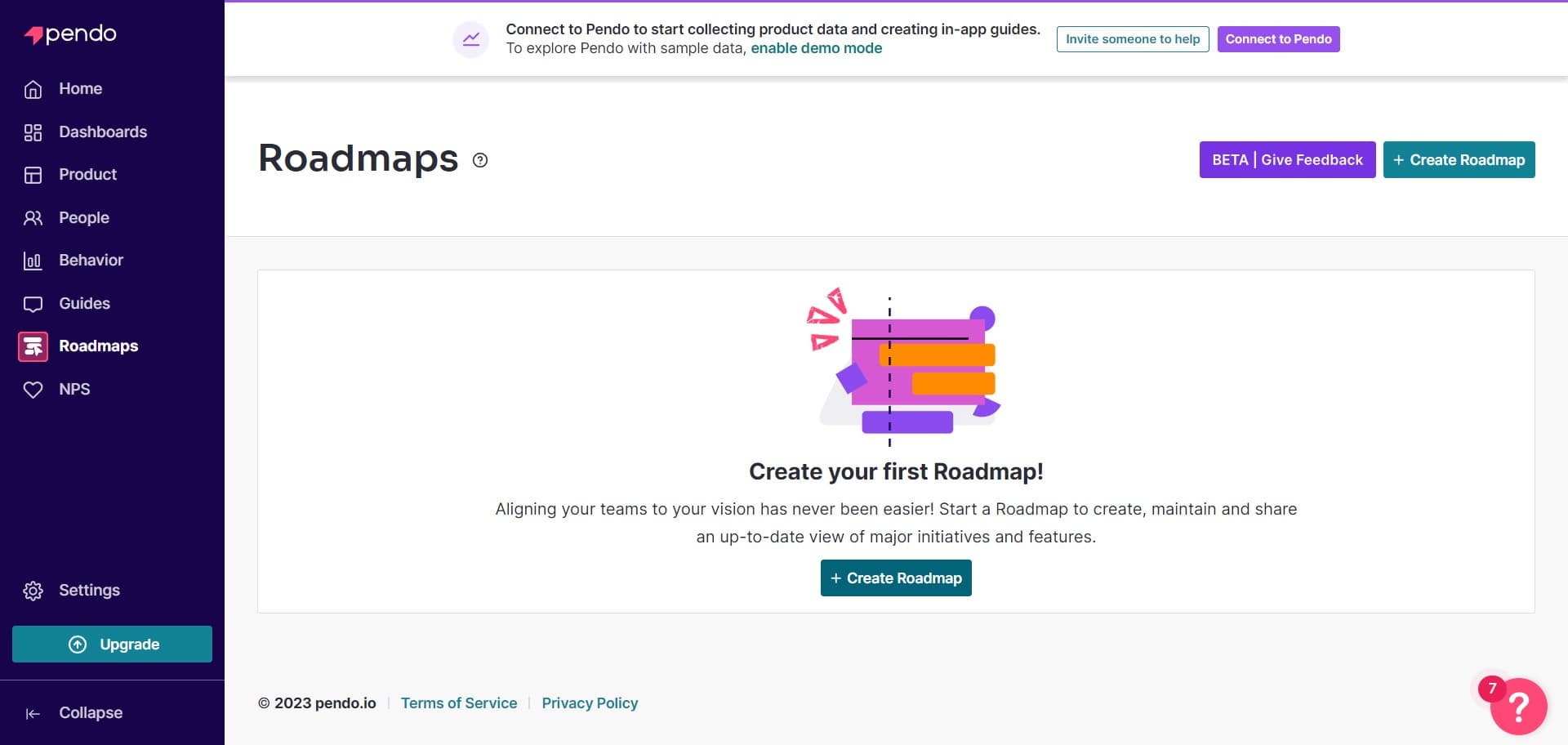
Click Create Roadmap
Select the 'Create Roadmap' button to begin building a new roadmap. This action opens the roadmap creation interface where you'll set up your roadmap structure.
- 3
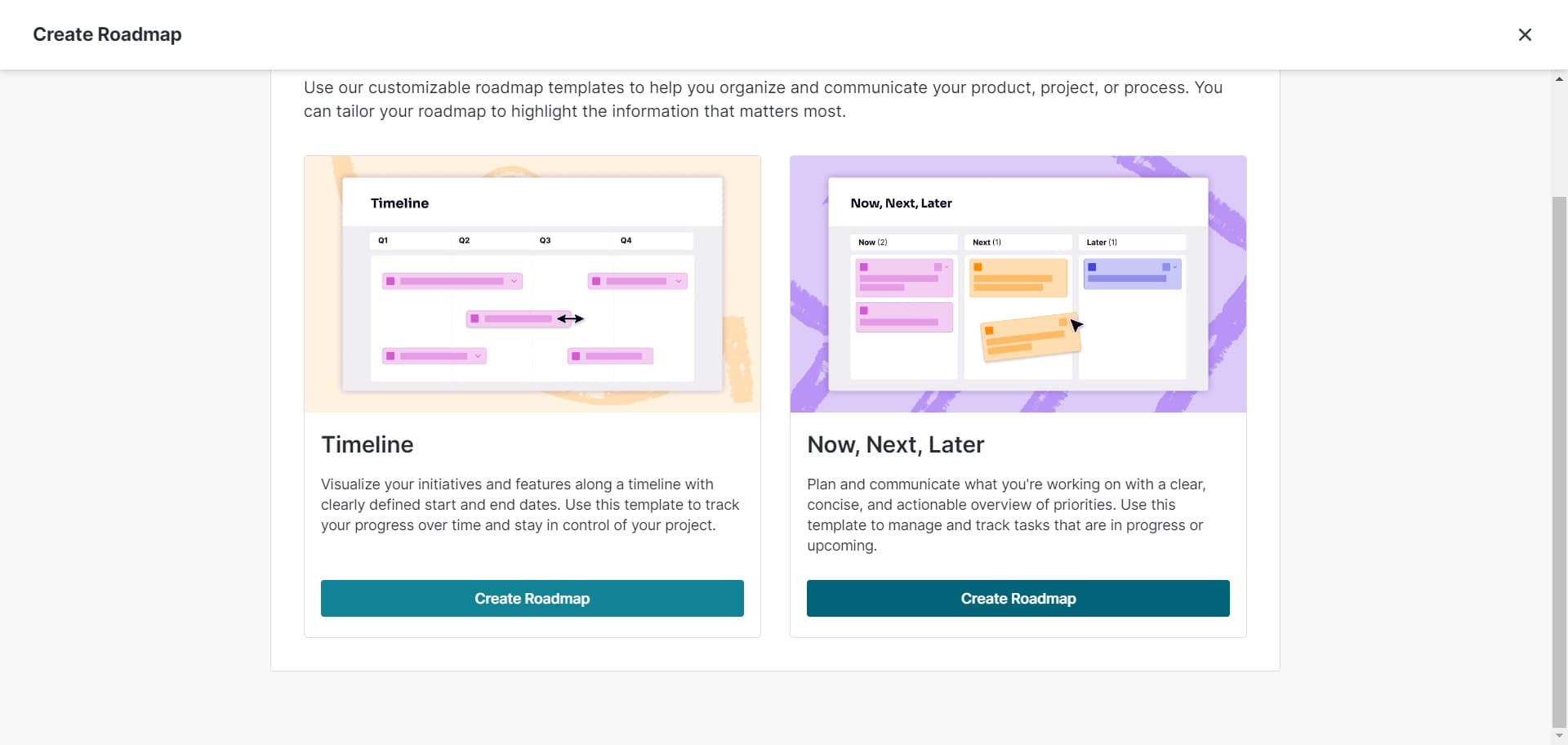
Upload roadmap content
Use the upload option to import your roadmap data or content. This allows you to add information from external sources or templates to accelerate your roadmap creation.
- 4
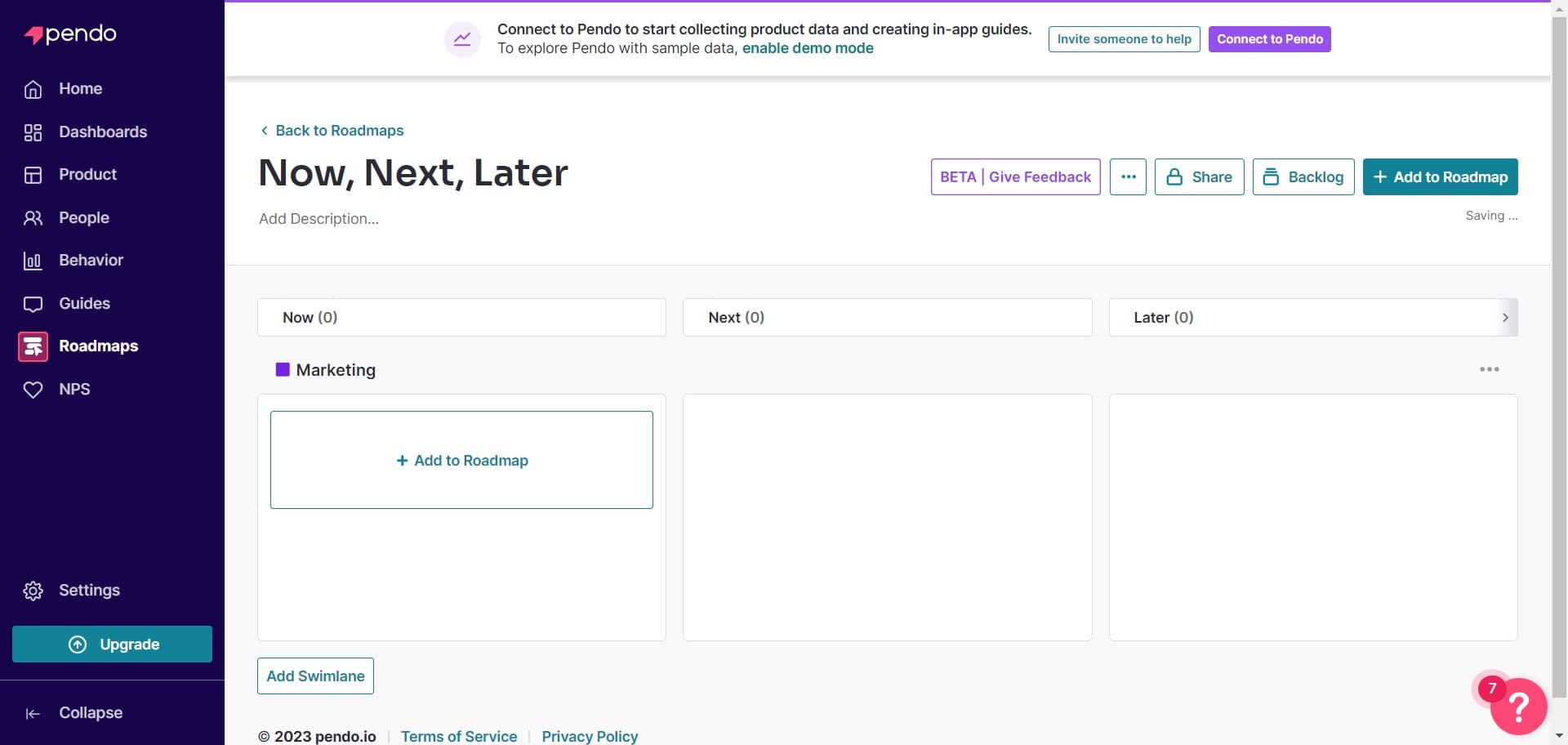
Add content to roadmap
Click on 'Add to Roadmap' to include items or initiatives in your roadmap. You can add multiple items from your uploaded content or manually input new initiatives.
- 5
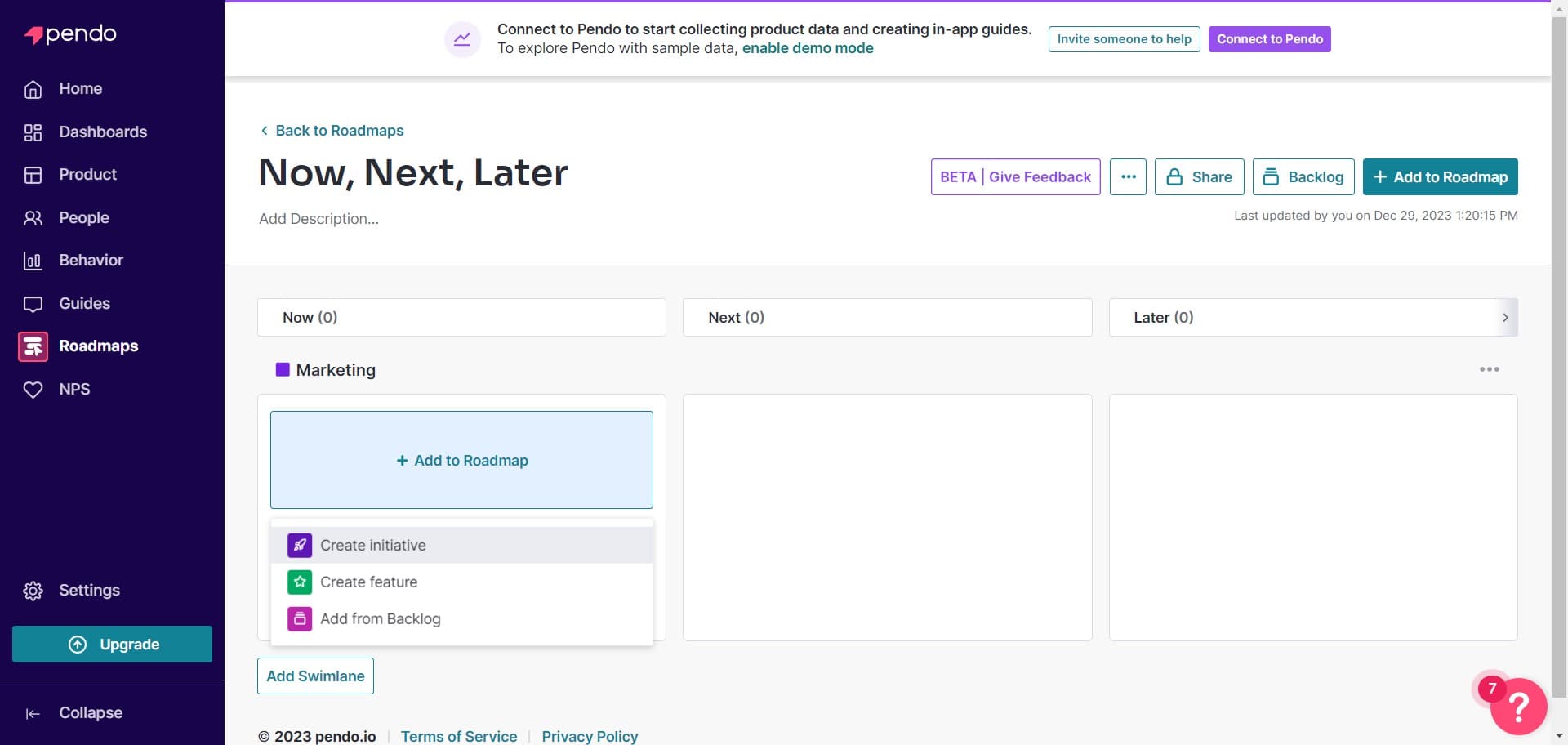
Create a new initiative
Click on 'Create initiative' to add a distinct item to your roadmap. Each initiative represents a product feature, improvement, or project that you want to track and communicate.
- 6
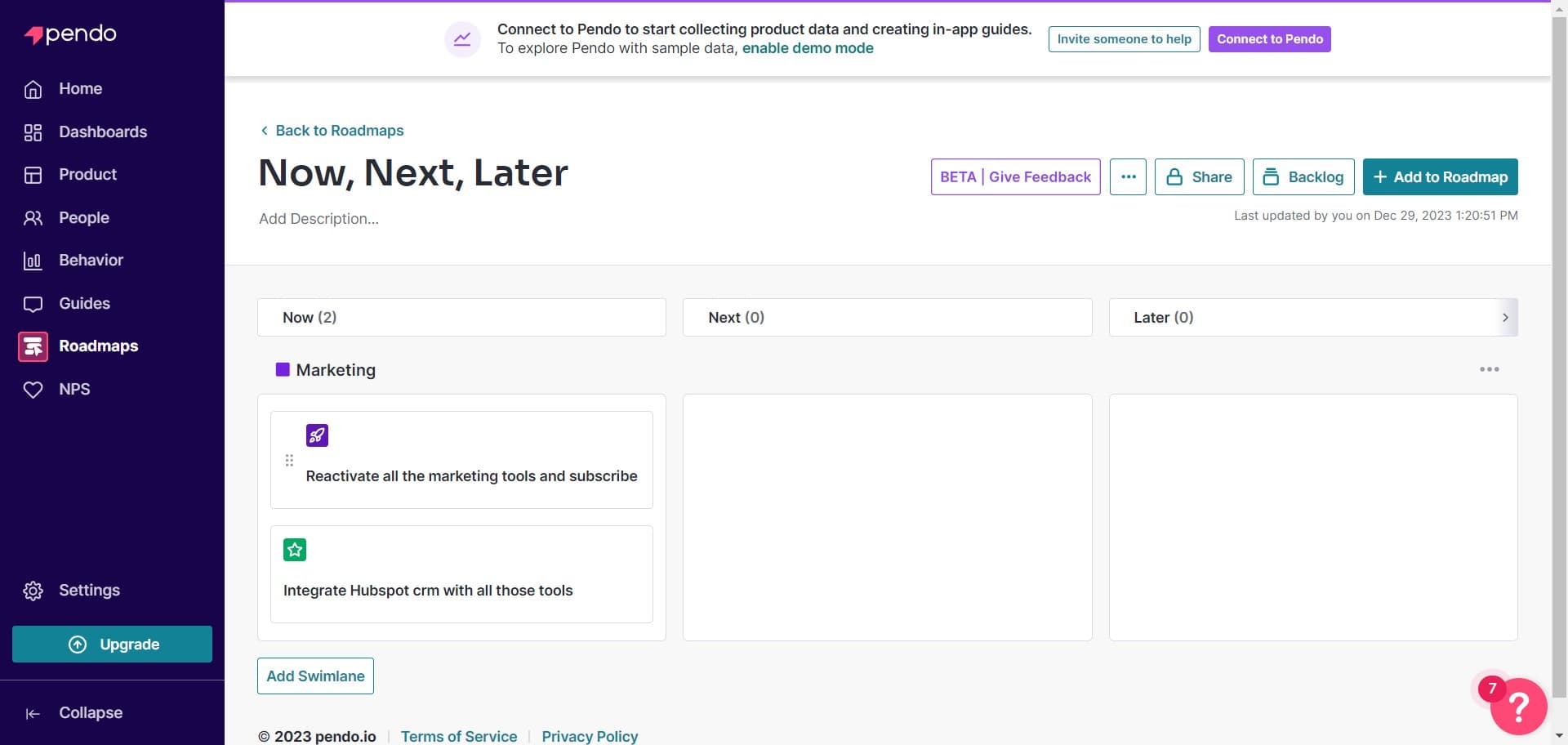
Reactivate initiatives
Click on 'Reactivate all' to restore previously inactive initiatives to your roadmap. This is useful if you want to bring back items that were previously paused or archived.
- 7
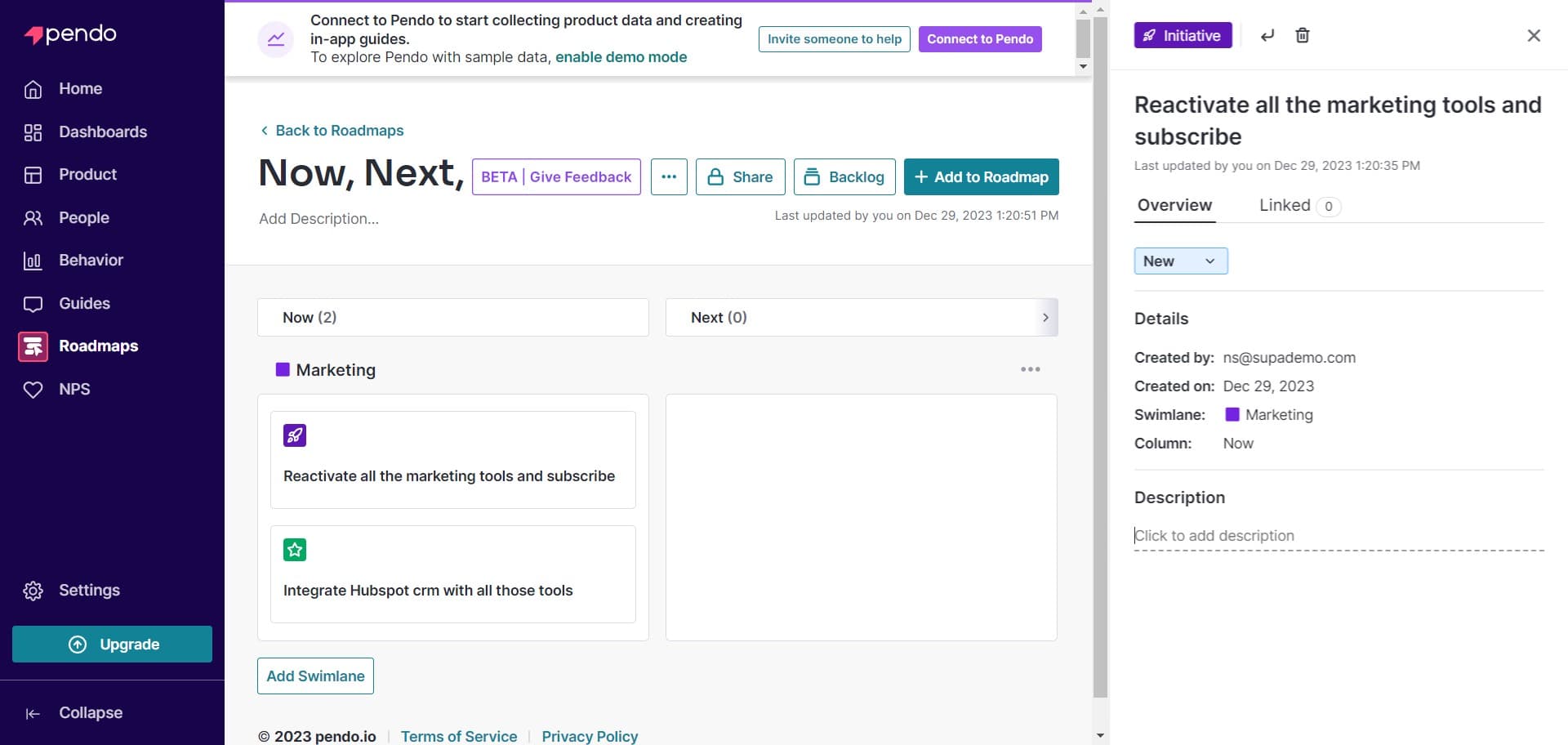
Confirm your changes
Click the confirmation button to proceed with your current selections. This ensures your initiatives and changes are properly registered in the roadmap creation process.
- 8
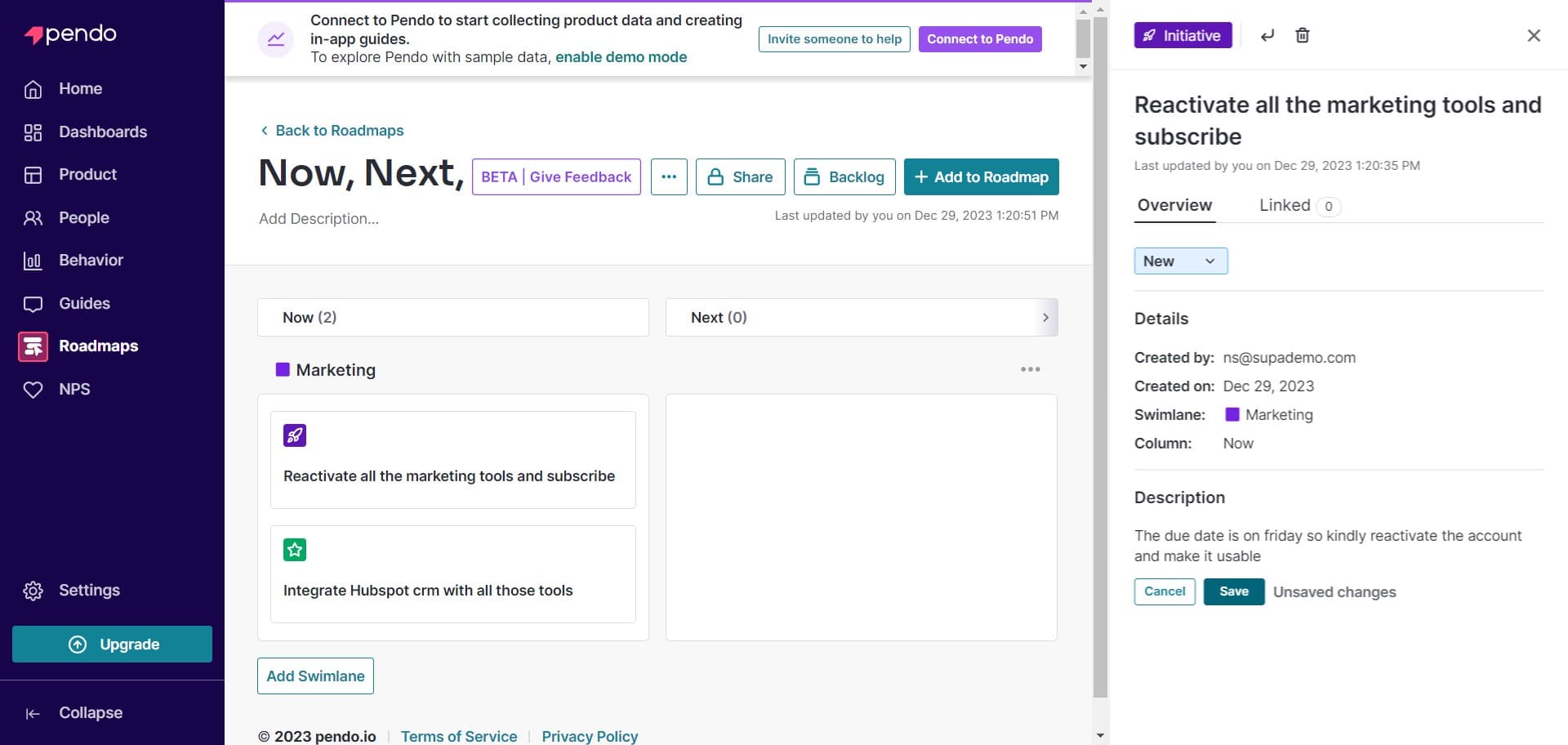
Save your roadmap
Click on 'Save' to finalize and store your roadmap. Your roadmap is now created and will be available for viewing and sharing with your team.
- 9
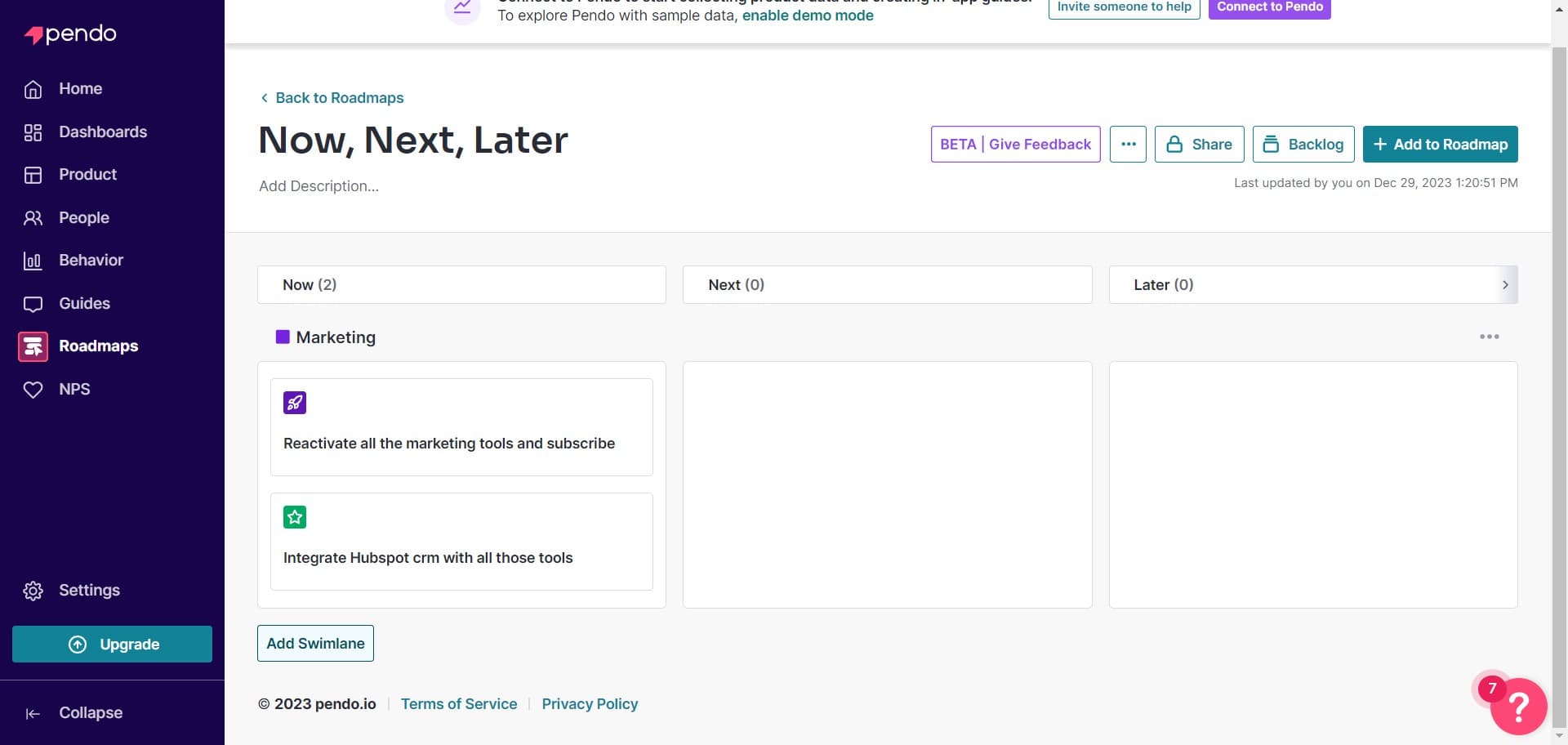
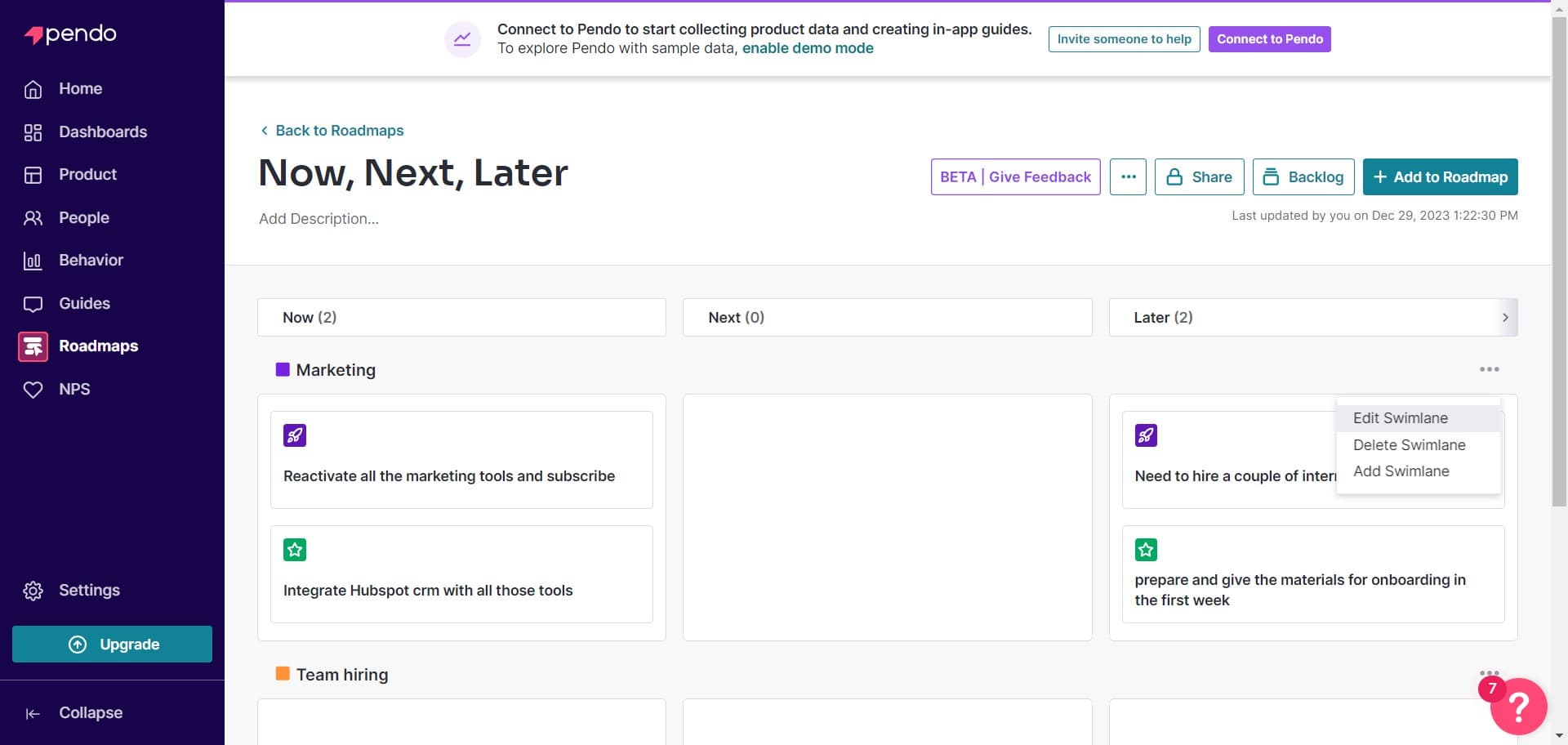
Add a swimlane
Click on 'Add Swimlane' to create horizontal lanes within your roadmap. Swimlanes help organize initiatives by team, theme, or any other categorization that makes sense for your workflow.
- 10
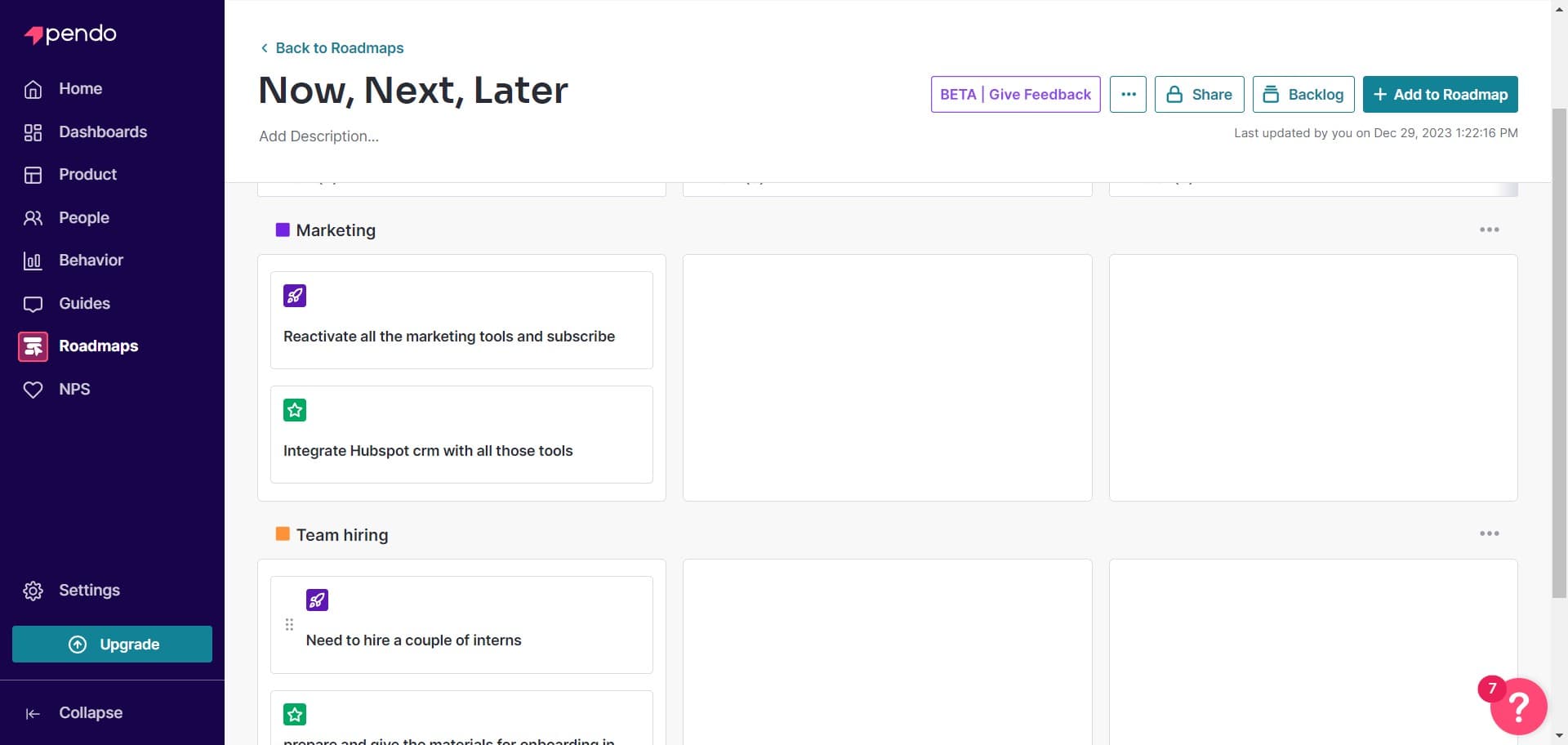
Select or create initiative
Click on 'Need to hire a couple of interns' or another initiative title to select it. This allows you to assign the initiative to a specific swimlane or modify its properties.
- 11
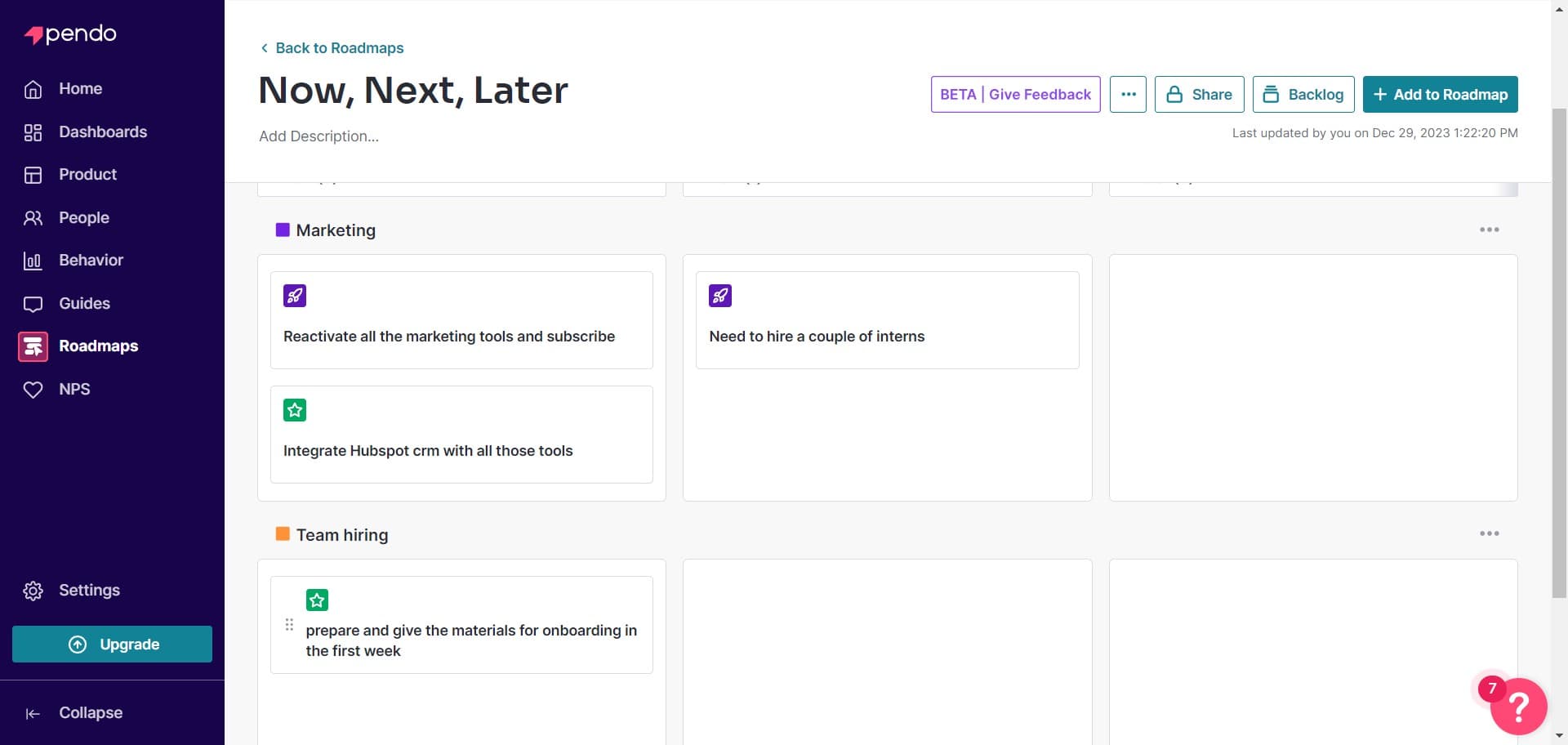
Edit initiative details
Click on 'prepare and giv...' to expand and edit the details of an initiative. You can add descriptions, timelines, and other metadata that provide context for your team.
- 12
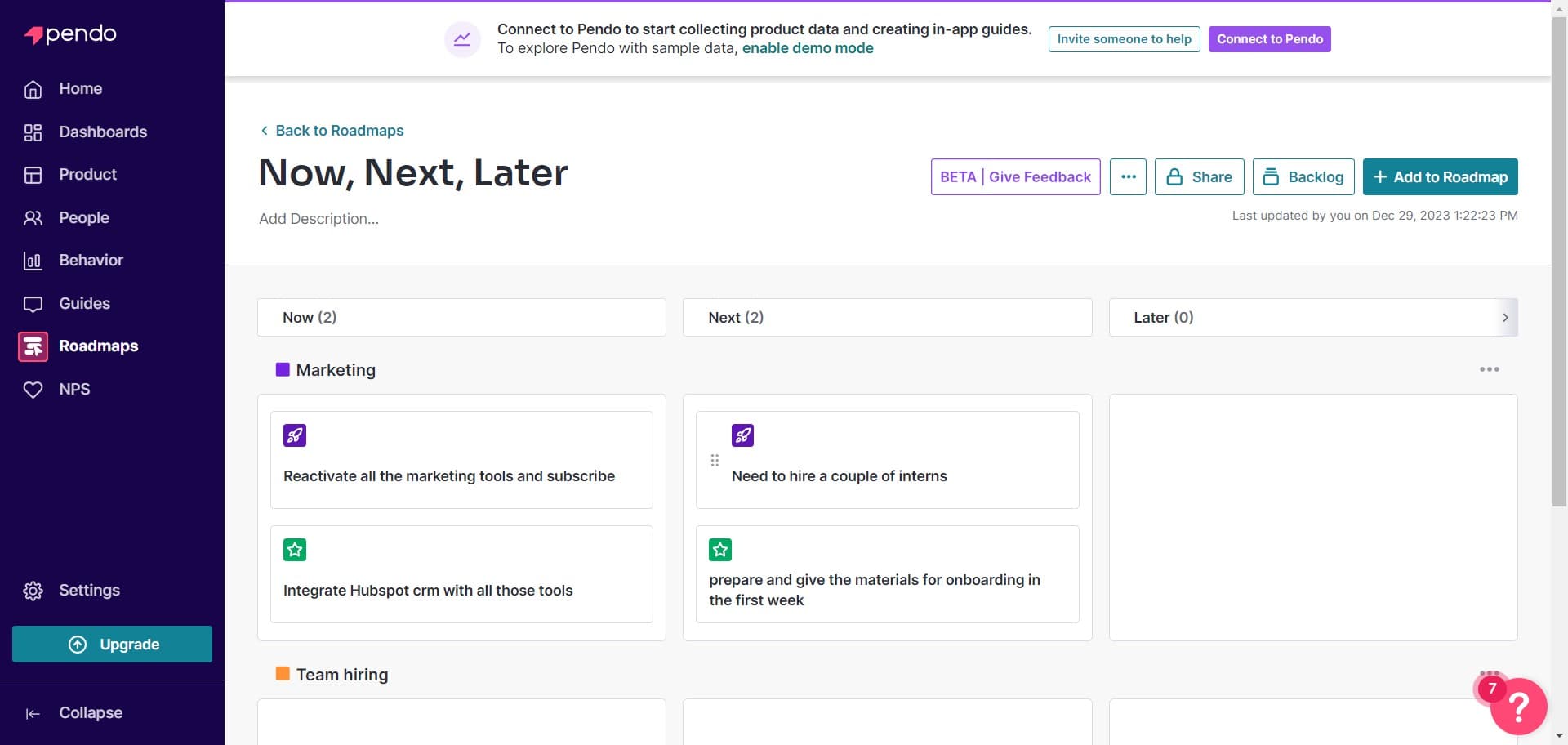
Assign to swimlane
Click on 'Need to hire a couple of interns' again to confirm assignment to the appropriate swimlane. This organizes your initiatives logically within your roadmap structure.
- 13
Upload additional assets
Use the upload feature to add images, documents, or other supporting materials to your roadmap. This enriches your roadmap with visual aids and reference materials.
Frequently asked questions
Common questions about how to create a roadmap in pendo.
A swimlane is a horizontal section of your roadmap that organizes initiatives by category, such as team ownership, product area, or development theme. Swimlanes help structure your roadmap visually and make it easier for stakeholders to understand how initiatives are grouped and prioritized.
Yes, you can edit or delete initiatives after they've been added to your roadmap. Simply select the initiative and modify its details, timeline, or swimlane assignment. You can also reactivate previously deleted initiatives if needed.
After saving your roadmap, Pendo provides sharing options that allow you to distribute it to team members and stakeholders. You can typically generate a shareable link or export the roadmap in various formats depending on your Pendo subscription level.
The best organization depends on your team's structure and goals. Common approaches include organizing by team (Frontend, Backend, Design), by product area (Feature A, Feature B), or by initiative type (bugs, features, improvements). Choose the structure that makes most sense for your stakeholders.
Yes, Pendo allows you to upload roadmap content from external sources, which is useful if you're migrating from another tool or using templates. The upload feature streamlines the process of getting your existing roadmap data into Pendo format.