How to Use Pipedrive

Pipedrive is a powerful CRM platform designed to help sales teams manage leads, deals, and customer relationships efficiently. This guide walks you through the essential workflow for adding and managing leads in Pipedrive, so you can start building your sales pipeline immediately.
Quick summary
In this tutorial, you'll learn how to navigate Pipedrive's interface and add new leads to your pipeline. You'll discover how to input lead information, upload relevant documents and files, and organize your prospects for follow-up activities.
Why this matters
Managing leads effectively is critical to sales success, and Pipedrive streamlines this process by centralizing all prospect information in one place. By mastering the lead creation and file upload workflows, you'll ensure no opportunity is missed and your team stays organized and focused on closing deals.
Step-by-step guide
- 1
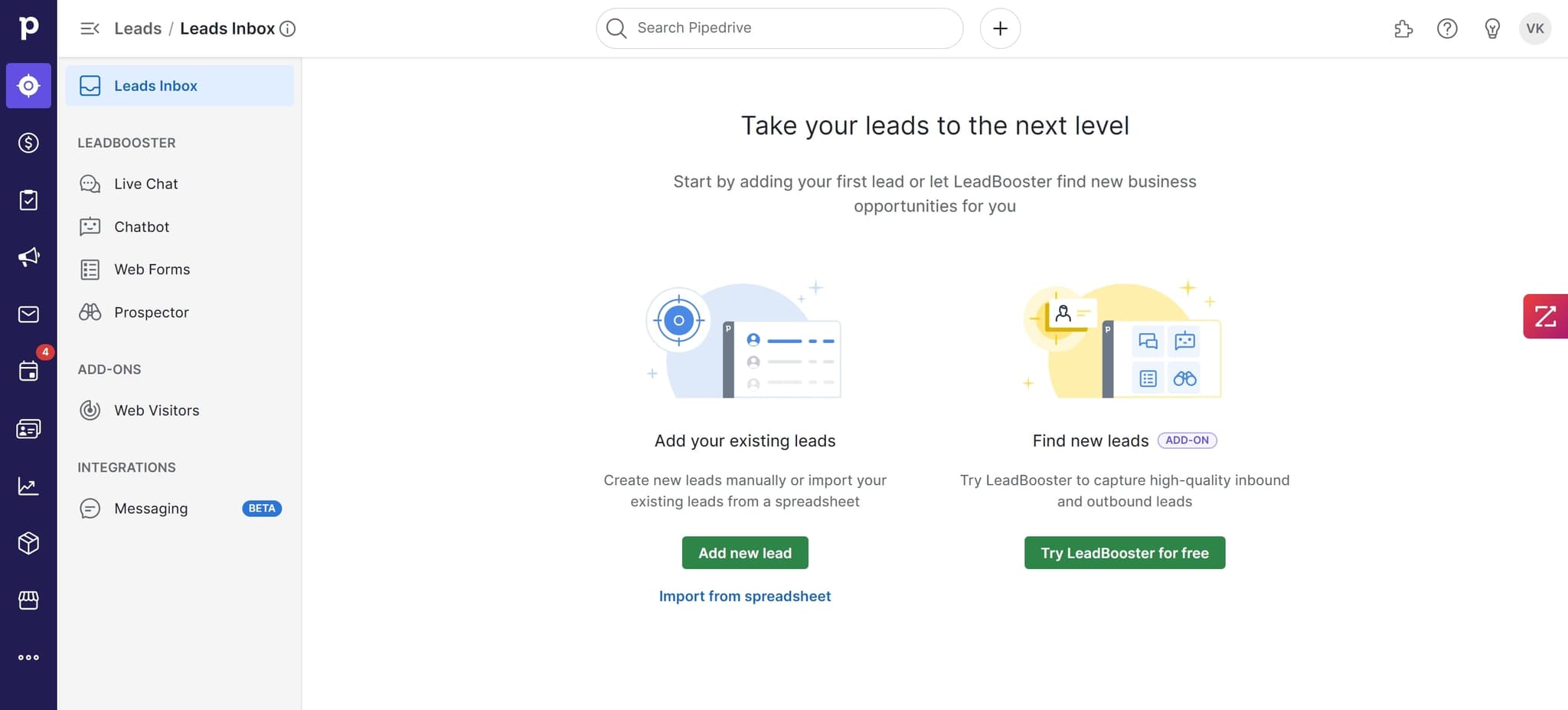
Access the main dashboard
Start by clicking the designated area to open Pipedrive's main interface. This will display your current deals, leads, and pipeline overview.
- 2
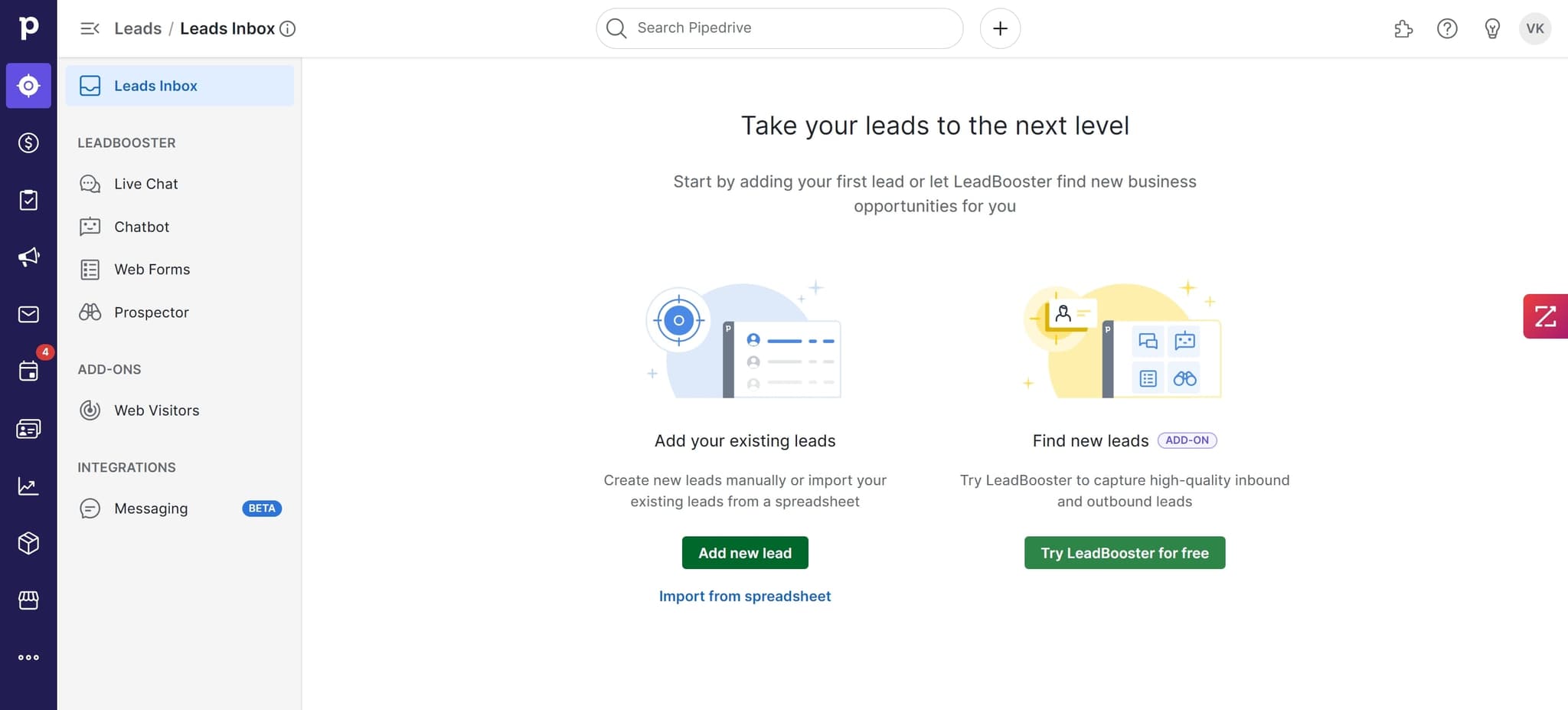
Add new lead
Click on the 'Add new lead' button to initiate the lead creation process. A form will appear where you can begin entering prospect information.
- 3
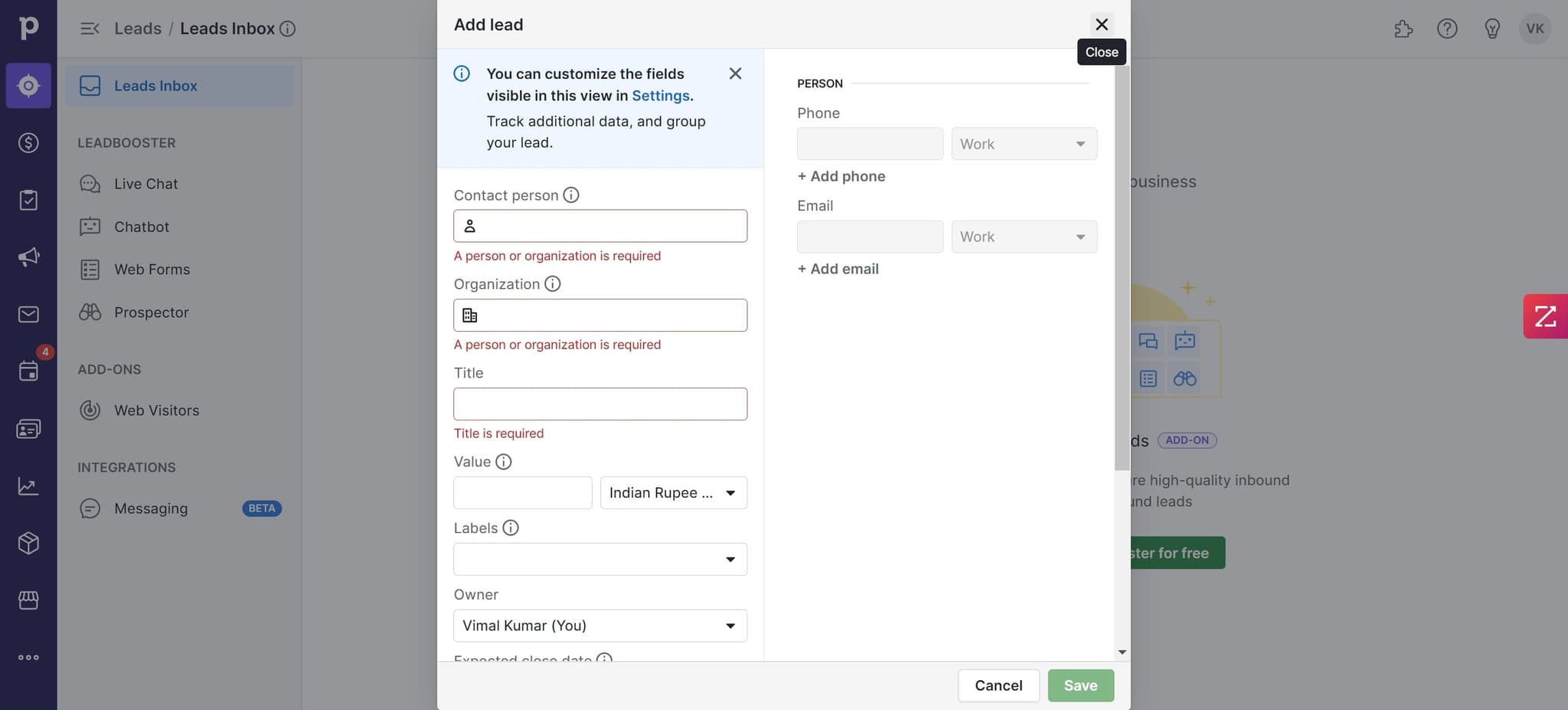
Enter lead details
Click on the appropriate field to start filling in your lead's contact information. Input details such as name, email, phone number, and company to create a complete lead profile.
- 4
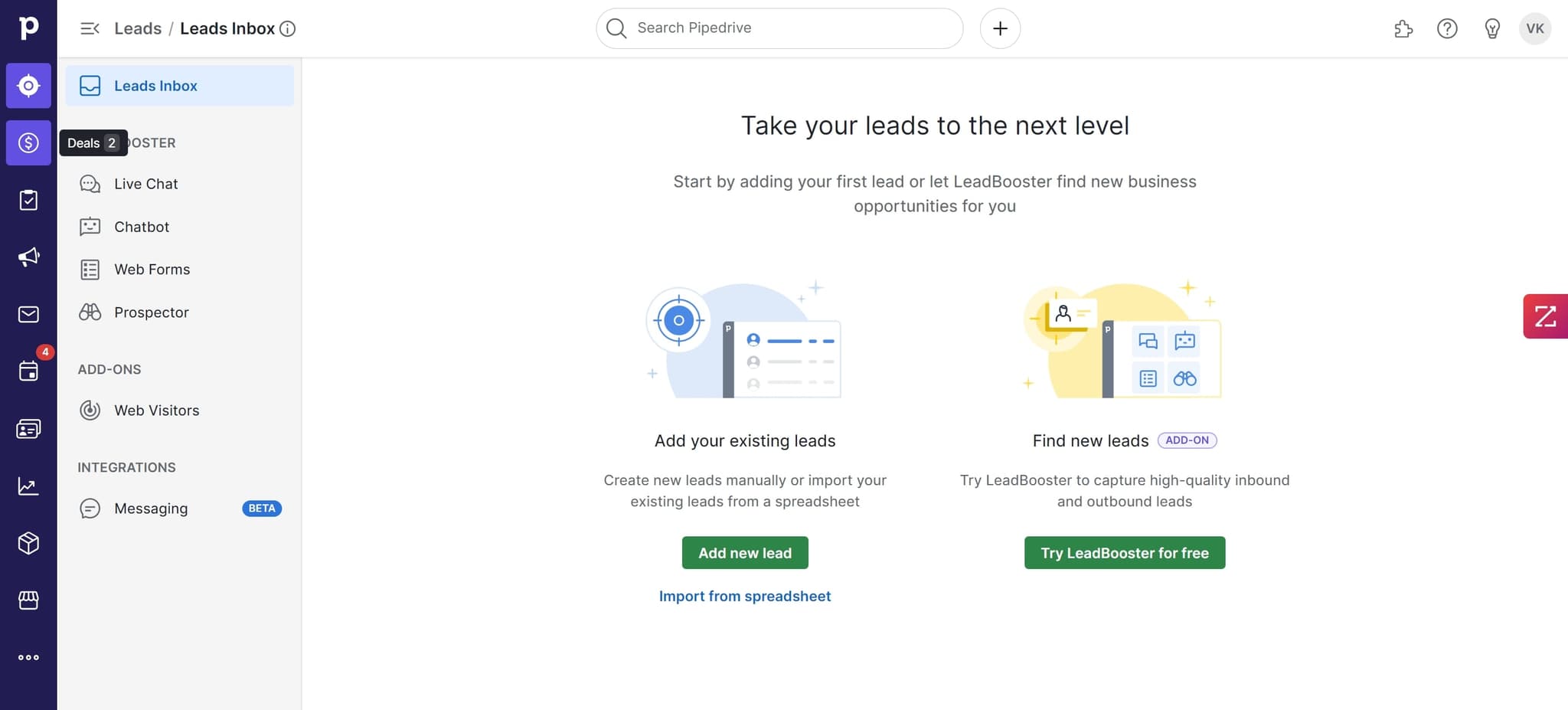
Select lead category or status
Click on the element to assign a category, status, or pipeline stage to your new lead. This helps organize leads by their current position in your sales process.
- 5
Continue filling out information
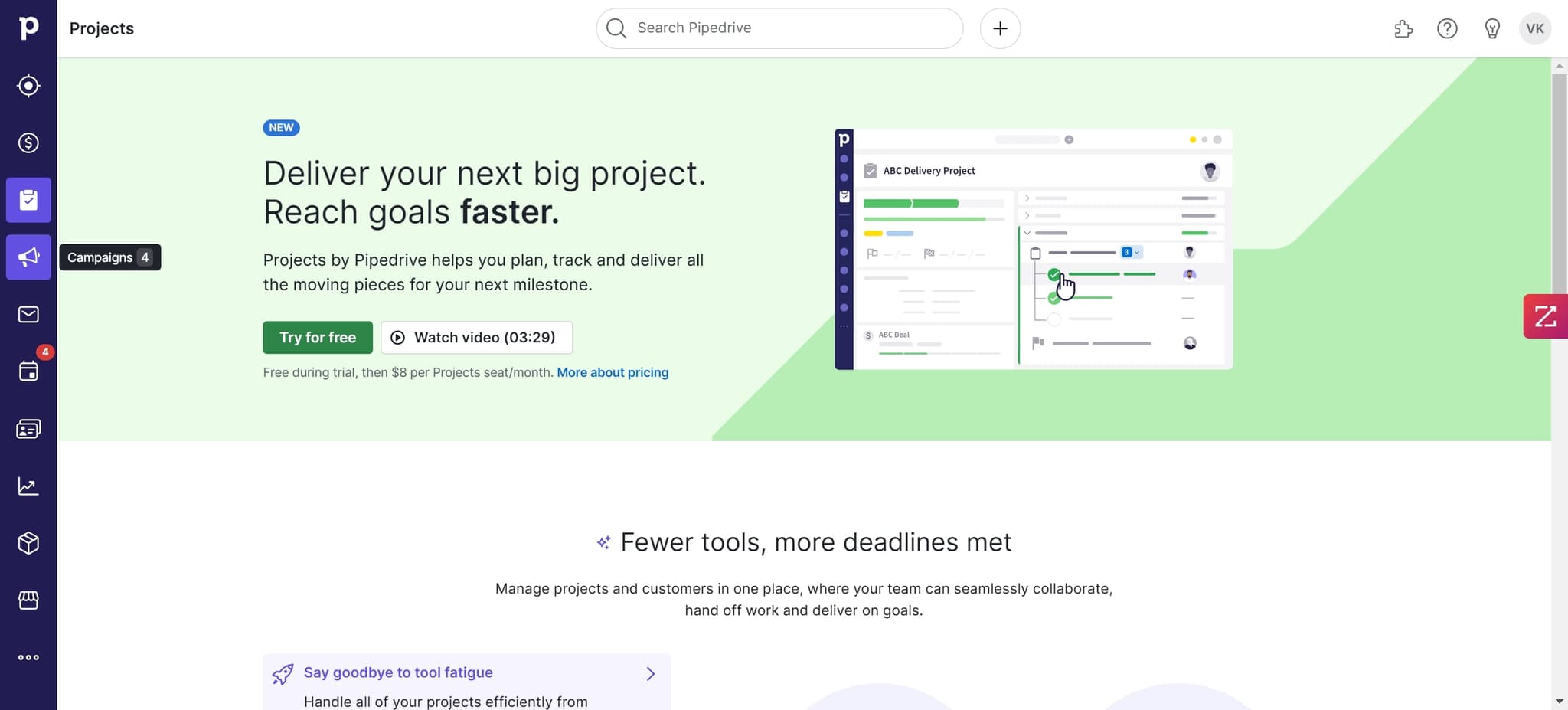
Click on the next field to add additional details about your lead. This might include job title, company size, or other custom fields relevant to your sales process.
- 6
Complete lead profile setup
Click on the final required element to ensure all necessary information is captured. This prepares your lead record for file attachments and follow-up activities.

- 7
Upload supporting documents
Upload relevant files such as contracts, proposals, or communication records to the lead's profile. These documents are now associated with the lead for easy reference by your team.
- 8
Confirm document attachment
Click to verify that the first file has been successfully uploaded to the lead record. You should see confirmation that the attachment is now part of the lead's profile.

- 9
Add additional files
Upload more supporting documents or notes related to the lead. You can attach multiple files to build a comprehensive file collection for each prospect.
- 10
Organize file attachments
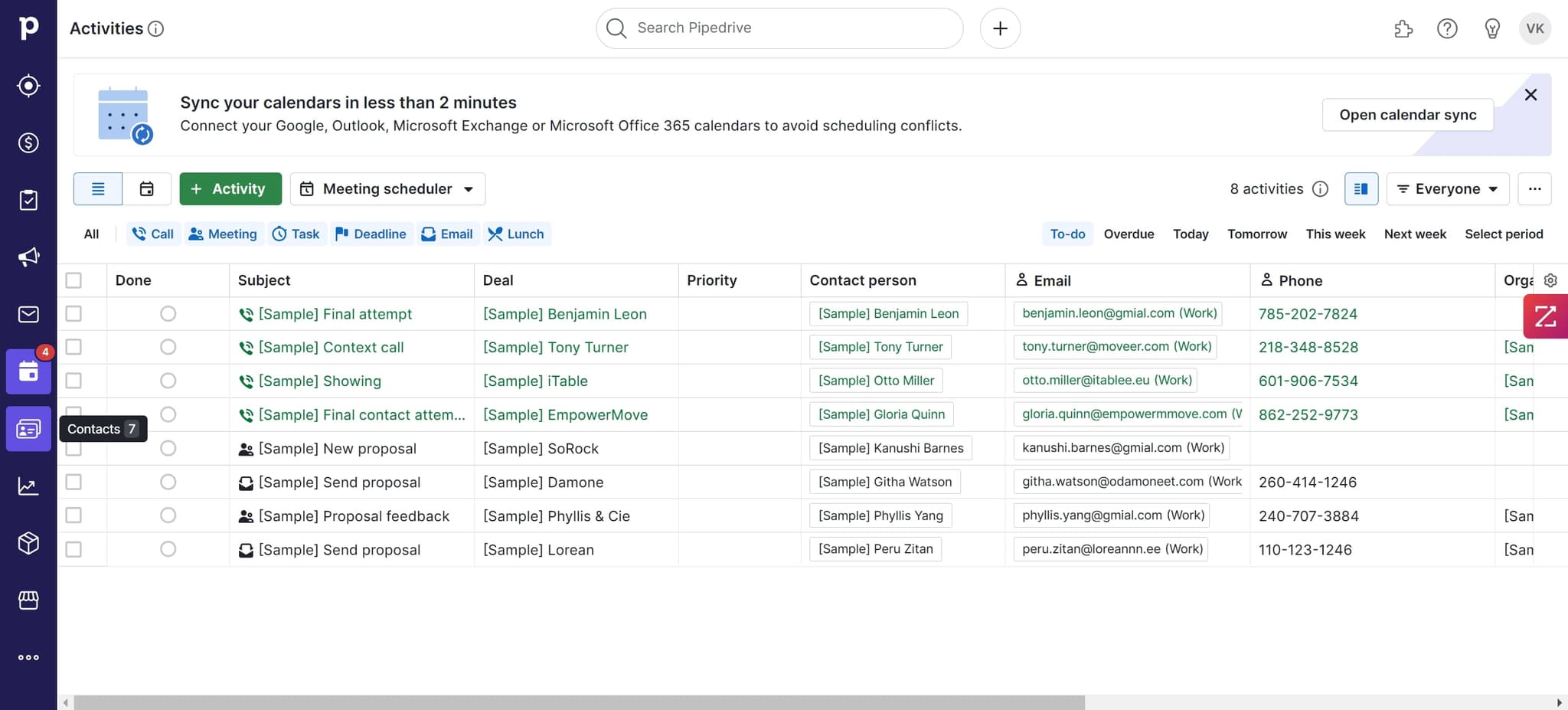
Click on the element to manage how your uploaded documents are organized or labeled within the lead record. This ensures your team can quickly locate relevant files.
- 11
Upload final documents
Add any remaining files, such as meeting notes or follow-up action items, to complete the lead's documentation. All attachments are now centralized in the lead's profile.
- 12
Review lead setup
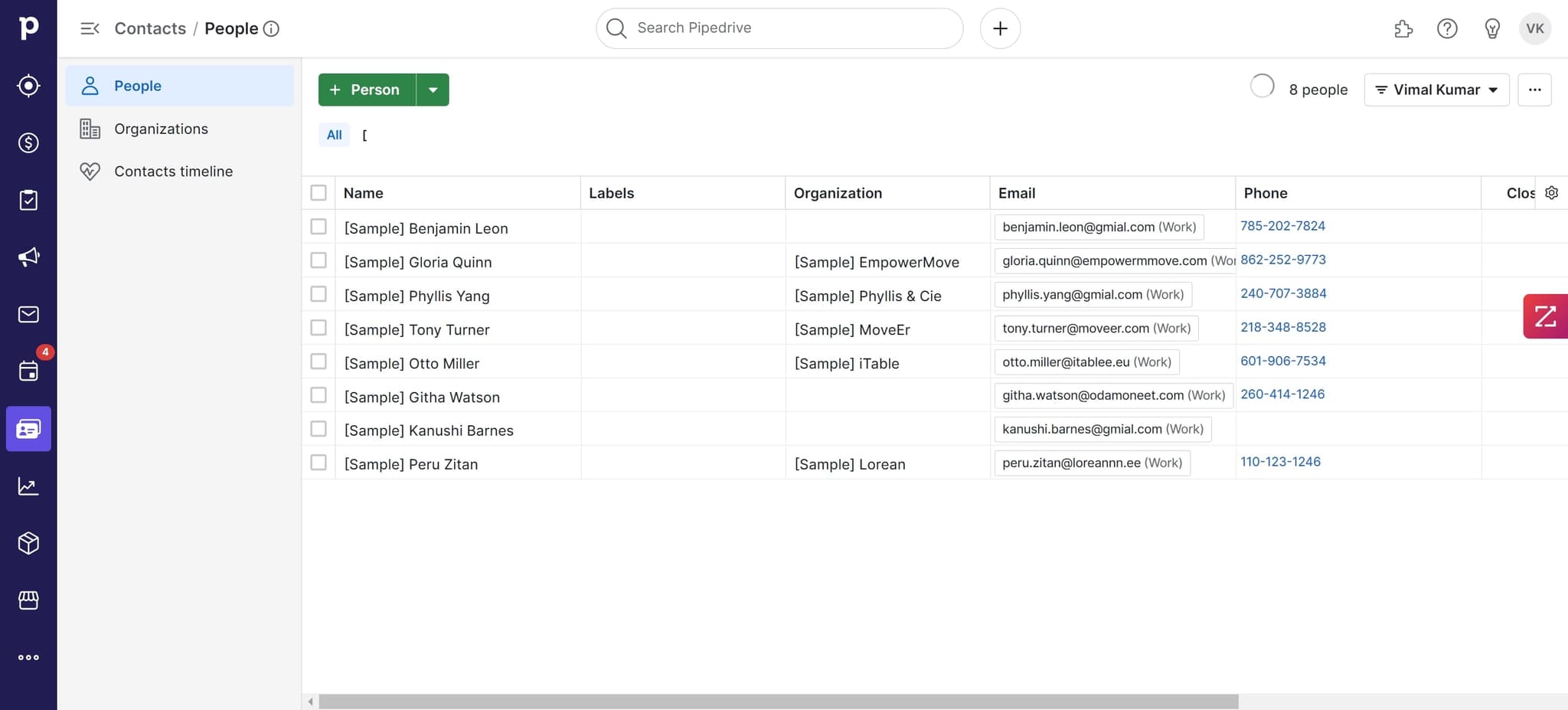
Click to review all information entered for the lead, including contact details, status, and uploaded files. This is your final opportunity to verify accuracy before saving.
- 13
Save and activate lead
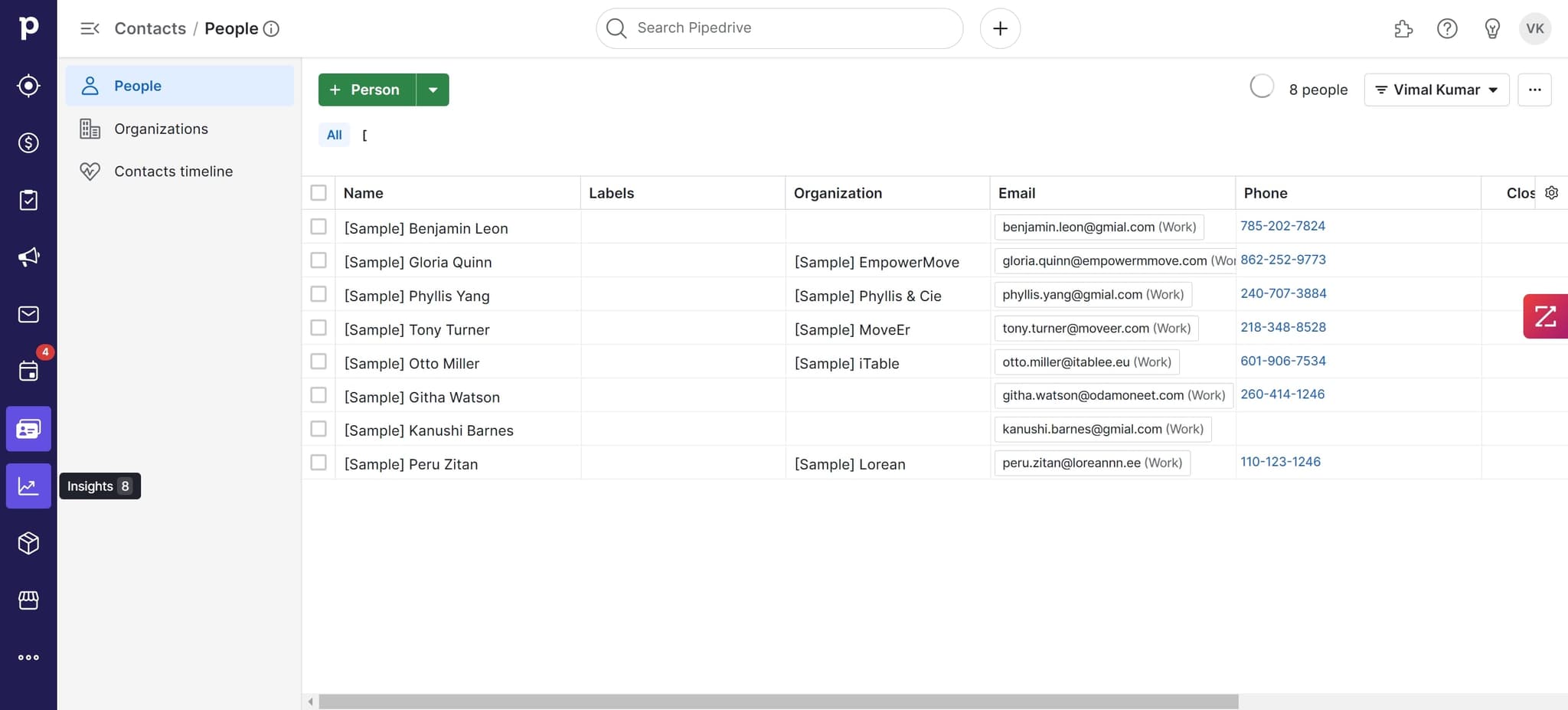
Click on the element to finalize and save your new lead to Pipedrive. The lead is now active in your pipeline and ready for follow-up activities.
Frequently asked questions
Common questions about how to use pipedrive.
At minimum, you'll need the lead's name and contact information such as email or phone number. However, adding additional details like company name, job title, and deal value helps your sales team prioritize follow-ups and better understand the prospect. The more complete your lead profile, the more effective your sales outreach will be.
Yes, Pipedrive allows you to upload multiple documents and files to each lead's profile. You can attach contracts, proposals, notes, and other supporting documents. This centralizes all relevant information about a prospect in one accessible location for your entire team.
Lead statuses and pipeline stages help you track where each prospect is in your sales process. You can customize these stages to match your specific sales workflow, such as 'New Lead,' 'Qualified,' 'Proposal Sent,' or 'Negotiating.' Moving leads through stages keeps your team aligned on next steps.
Once saved, your lead becomes part of your active pipeline and is visible to your entire sales team based on access permissions. You can continue editing the lead's information, adding notes, scheduling follow-ups, and converting it to a deal when the prospect is ready to move forward.
Yes, Pipedrive supports bulk importing leads from CSV files or integrating with other tools like email clients and web forms. However, learning the manual process first helps you understand how to structure and organize your lead data effectively.