How to create an automation in Trello

Automations in Trello help you save time by automatically moving cards, updating fields, and triggering actions based on specific conditions. This guide walks you through the process of creating your first automation rule in Trello, enabling you to streamline repetitive tasks across your boards.
Quick summary
In this tutorial, you'll learn how to access Trello's automation features and create a custom rule that automatically handles tasks based on your defined triggers and actions. By the end, you'll understand how to set up basic automations that improve your team's workflow efficiency.
Why this matters
Automations reduce manual work and human error by handling routine card management tasks automatically. Whether you're organizing a project board or managing a customer pipeline, automations ensure consistent processes and free up time for higher-value work.
Step-by-step guide
- 1
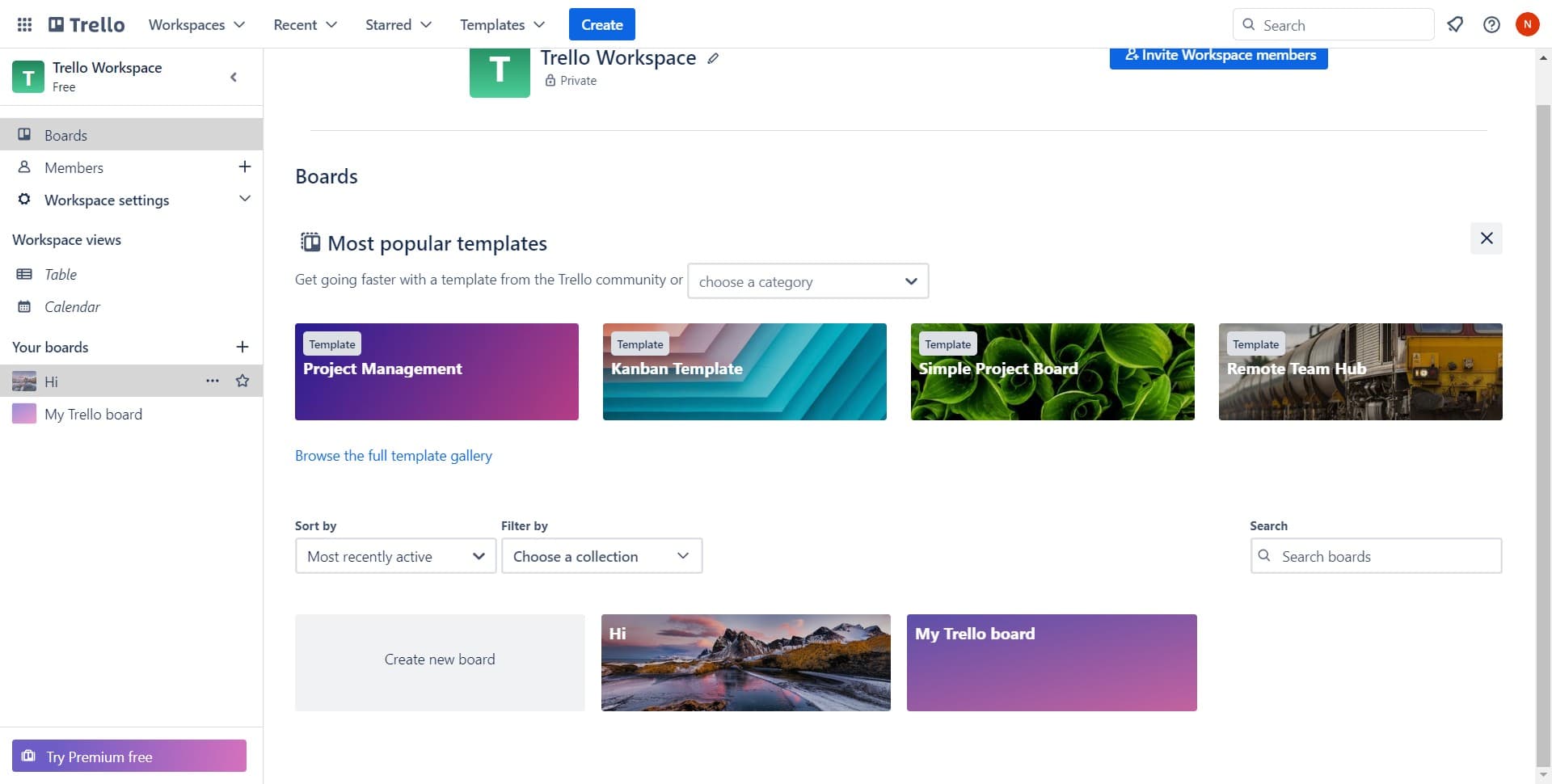
Click on the menu button
Start by clicking the 'Hi' button or menu icon in your Trello workspace. This opens the main navigation menu where you can access board-level settings and automation features.
- 2
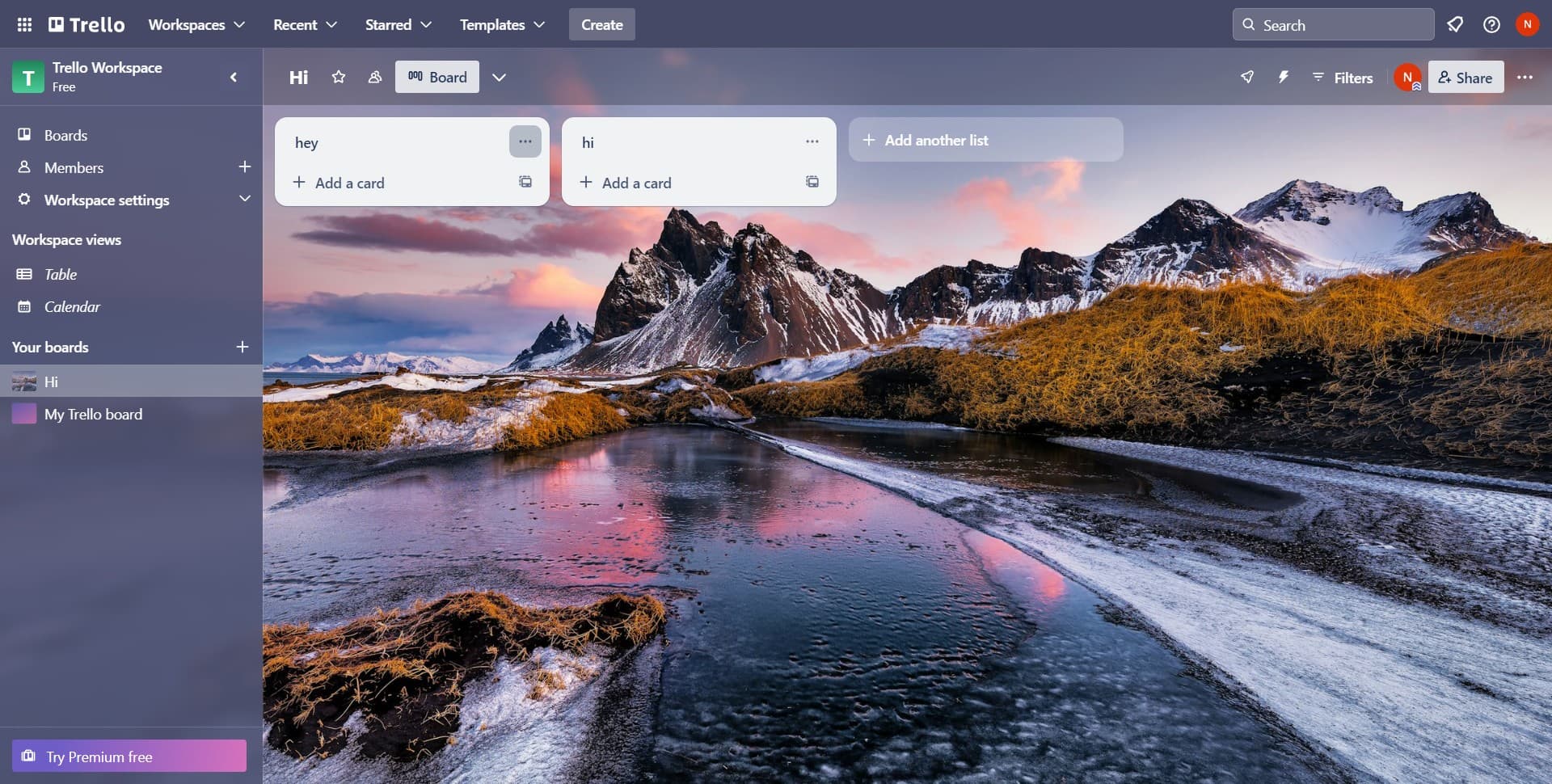
Navigate to the automation section
Click on the designated automation option to open the automation dashboard. You'll see a list of existing automations and options to create new ones for your board.
- 3
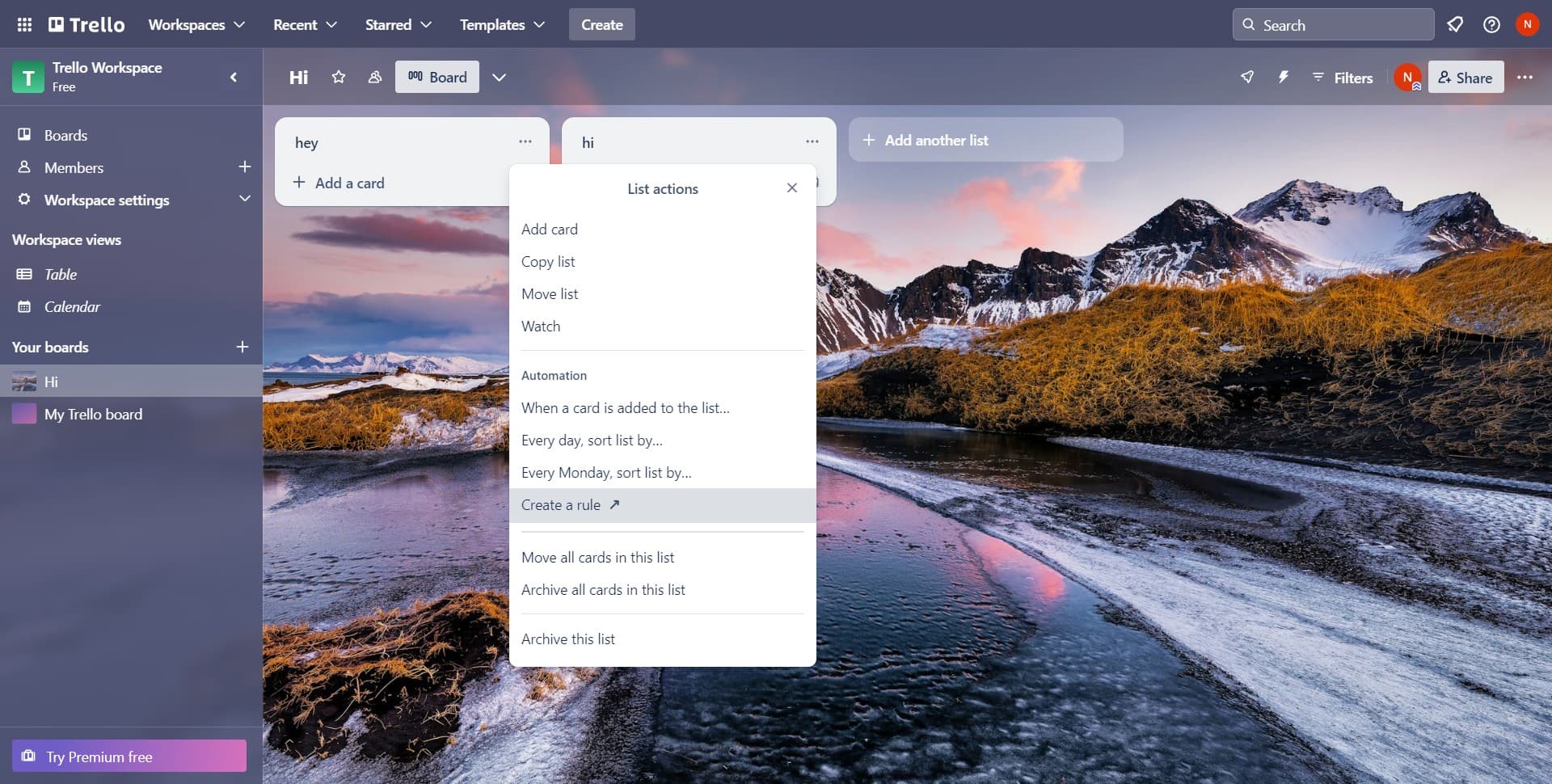
Create a new automation rule
Click on 'Create a rule' to start building your first automation. This opens a form where you'll define the trigger (what causes the automation to run) and the action (what the automation will do).
Frequently asked questions
Common questions about how to create an automation in trello.
Trello automations support triggers like card movements between lists, due date changes, label additions, and comment activity. The available triggers depend on your board's structure and card properties. You can combine multiple conditions to create more specific automation rules.
Automations in Trello typically apply to new actions going forward. For existing cards, you may need to manually trigger the condition or use bulk edit features. Some automations can be set to retroactively apply depending on your workspace settings.
The number of automations depends on your Trello plan. Free and standard plans have limitations, while premium plans offer more automation capacity. Check your plan details in account settings to see your current automation allowance.
Yes, you can edit, disable, or delete automations at any time from the automation dashboard. Simply find the rule you want to change and update its trigger or action settings without affecting other board automations.
Trello processes simultaneous automations in sequence, so multiple rules can execute on the same card action. This means you might see several changes happen in quick succession. Be mindful of rule order when creating interdependent automations.