How to embed Supademo in Wix

Embedding interactive product demonstrations into your Wix website enhances user engagement and helps visitors understand your product features without leaving your site. This guide walks you through the process of integrating a Supademo embed into your Wix pages using the platform's built-in HTML widget.
Quick summary
In this tutorial, you'll learn how to locate your embed code in Supademo, copy it, and integrate it into a Wix page using an HTML element. By the end, your interactive demo will be live and accessible to your website visitors.
Why this matters
Embedding demos directly on your Wix site reduces friction in the user journey and increases conversion rates by letting potential customers explore your product interactively. This approach keeps visitors engaged on your domain while showcasing your product's capabilities in real-time.
Step-by-step guide
- 1
Access your Supademo dashboard
Log in to your Supademo account and navigate to your project dashboard. This is where you'll find the demo you want to embed.

- 2
Click on Embed Code
Locate and click the Embed Code option within your demo settings. This will reveal the embedding options available for your demo.

- 3
Add widgets and customization options
Click on Add widgets and related settings to configure how your embed will appear. You can adjust sizing, behavior, and display preferences here.

- 4
Confirm your embed settings
Review your customization choices and confirm they meet your requirements. This ensures your demo will display correctly on your Wix page.
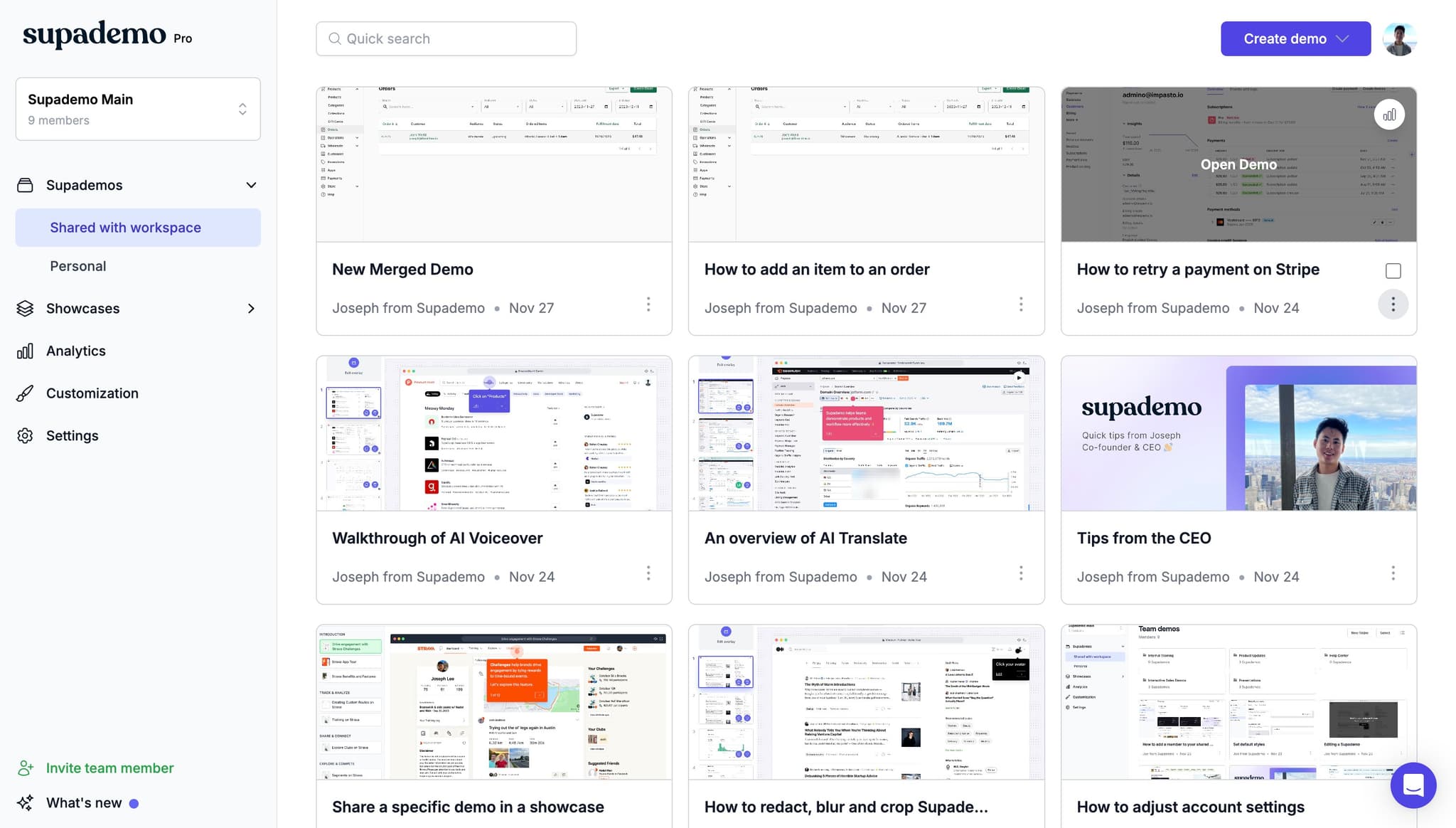
- 5
Click on Share
Select the Share option to access sharing and embedding features. This opens the tools you need to generate your embed code.
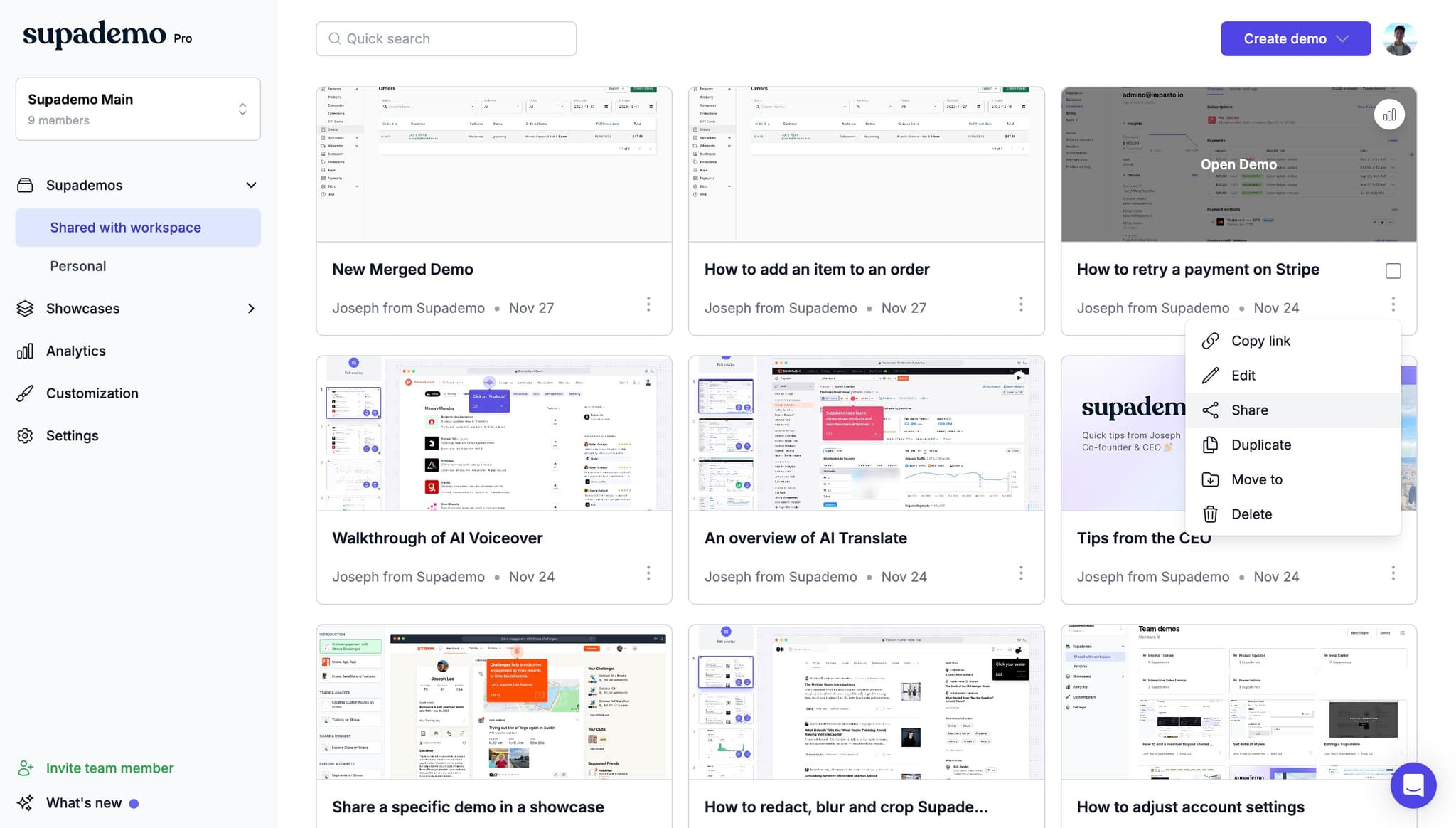
- 6
Select Embed option
Click on Embed from the sharing menu to prepare your embed code for Wix integration. This generates the HTML code needed for your website.
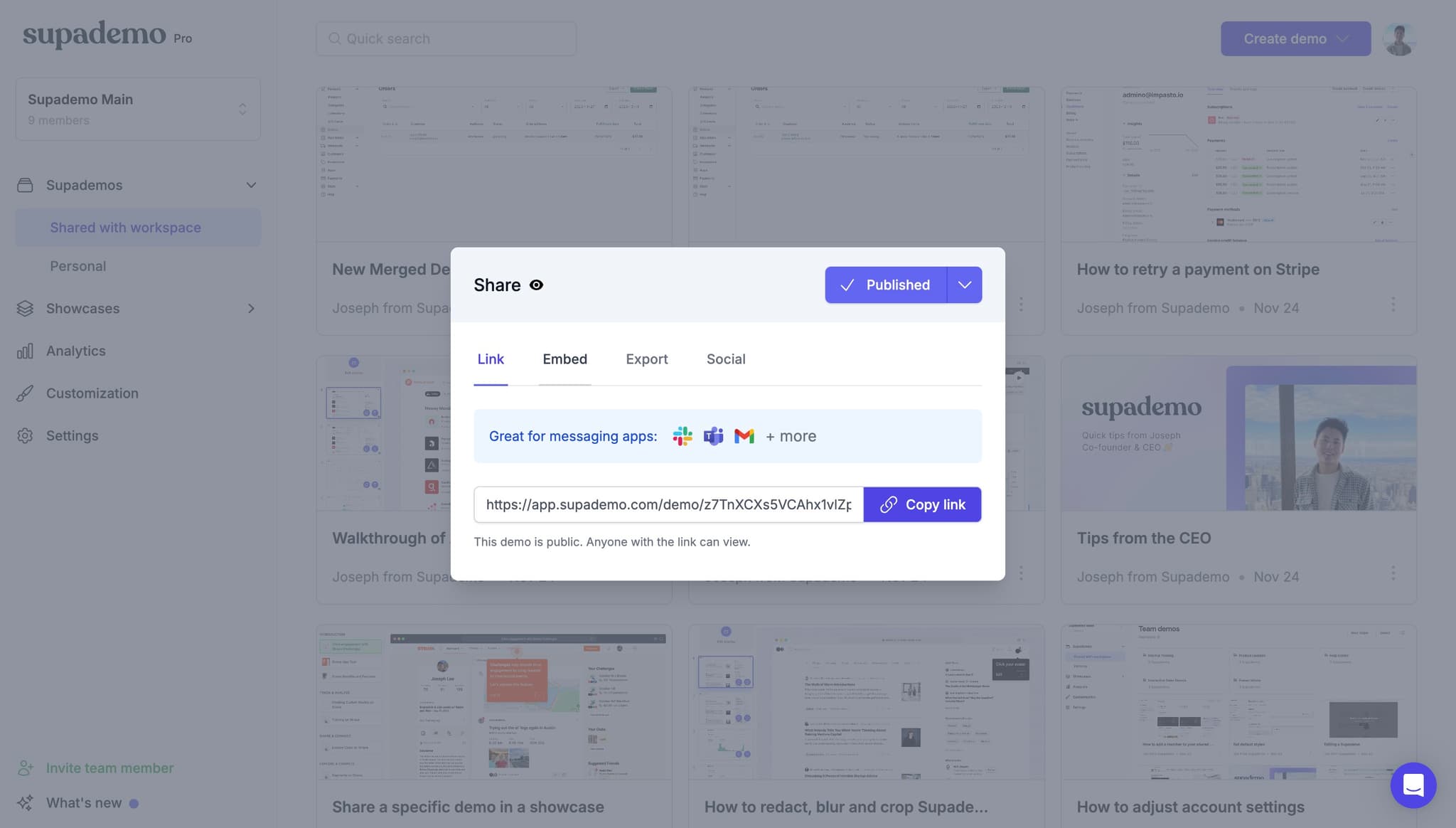
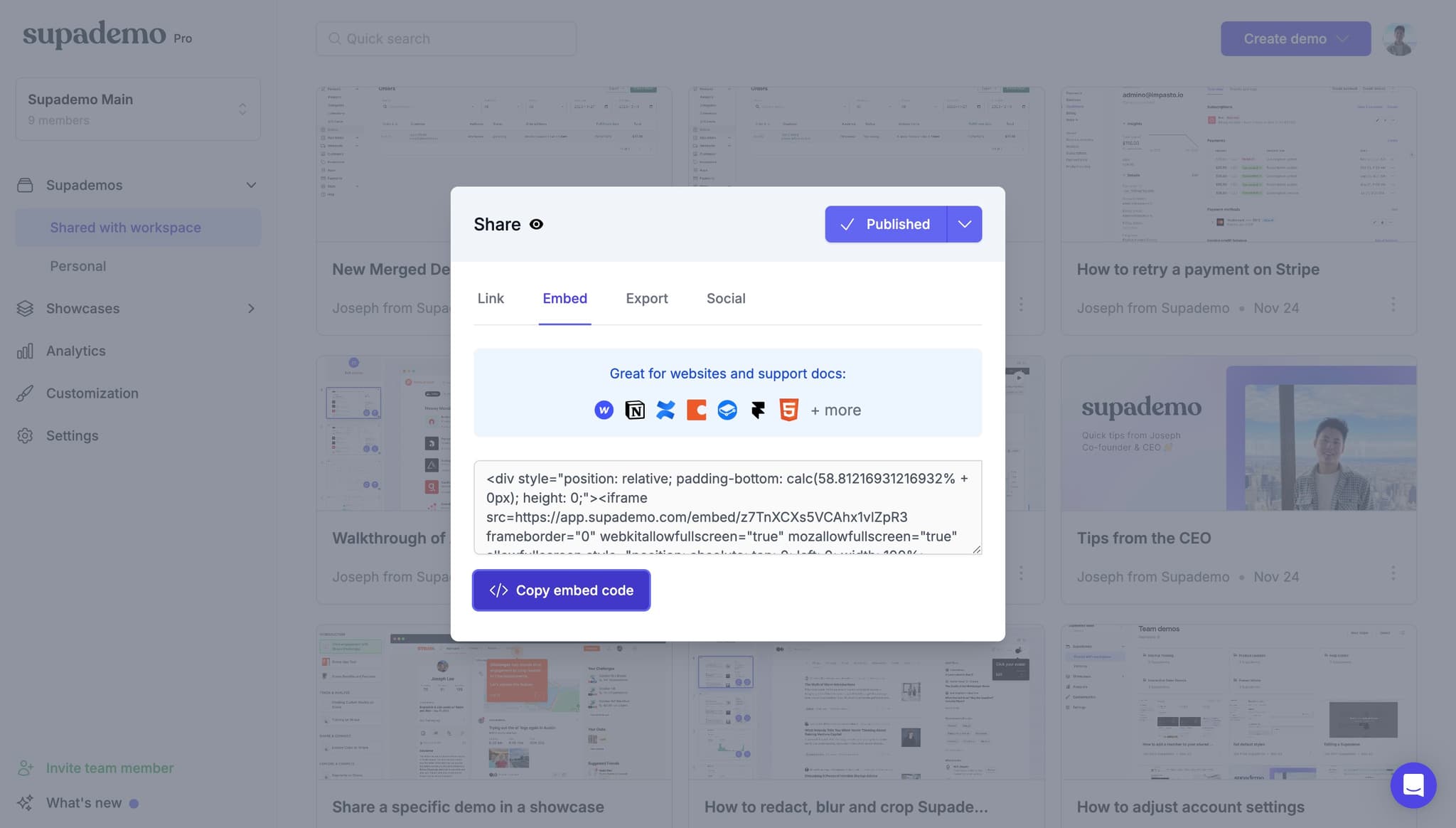
- 7
Copy your embed code
Click Copy embed code to copy the HTML to your clipboard. Save this code as you'll need it when adding the widget to Wix.
- 8
Log in to your Wix editor
Open your Wix website and enter the editor for the page where you want to add the demo. Navigate to the specific page and prepare to add the widget.
- 9
Access the Add Elements panel
Click on the Add section in your Wix editor to view available widgets and elements. This panel contains all the building blocks you can add to your page.

- 10
Insert an HTML element
Find and select the HTML widget from the available options, then drag and stretch it to your desired size on the page. This creates the container where your embed will display.
- 11
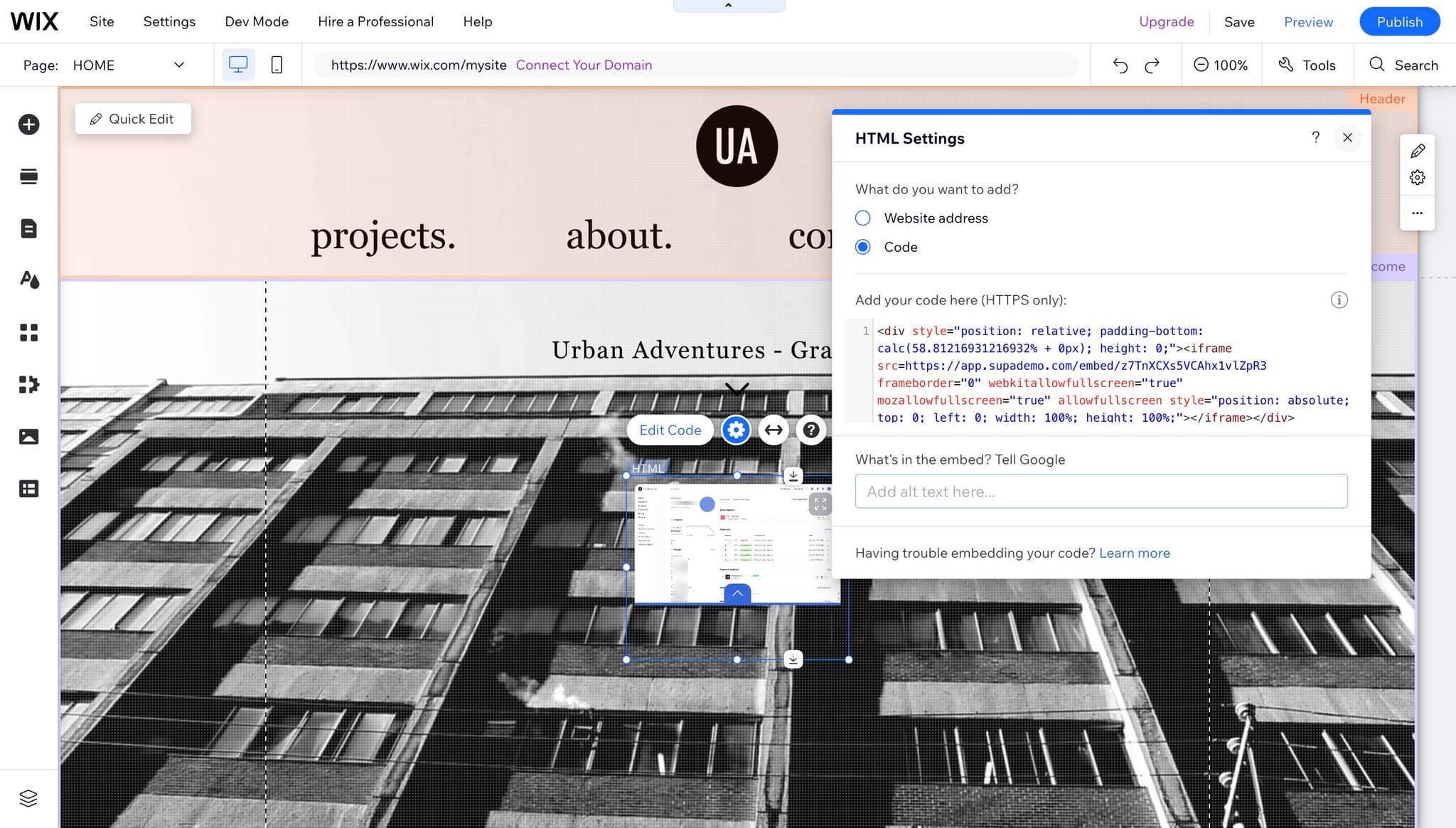
Paste your embed code
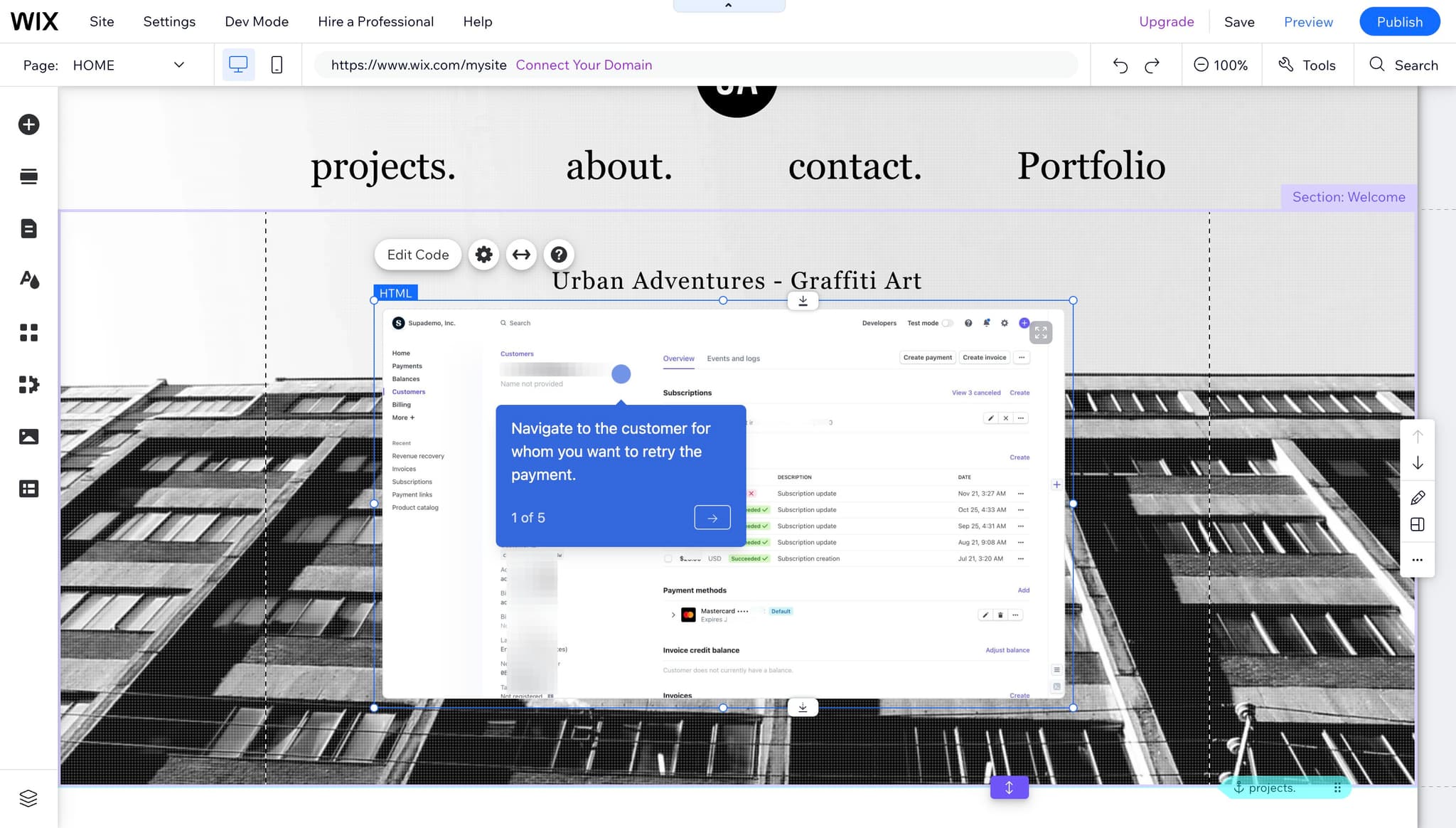
Click inside the HTML element and paste the embed code you copied from Supademo. The demo should now appear within the element on your Wix page.
- 12
Publish your changes
Save and publish your Wix page to make the embedded demo live. Your visitors can now interact with the demo directly on your website.
Frequently asked questions
Common questions about how to embed supademo in wix.
Yes, you can customize the appearance and behavior of your embed in Supademo's embed settings before copying the code. Additionally, you can resize the HTML widget on your Wix page to fit your layout. Both platforms offer sizing and display options to match your design.
Ensure you've pasted the complete embed code into the HTML widget without modifications. Check that the HTML widget is properly sized and that your Wix page has been published. If issues persist, verify that your Supademo embed settings are configured correctly.
Yes, you can add multiple HTML widgets to your Wix page and paste different embed codes into each one. Simply repeat the process for each demo you want to display, ensuring each widget is properly sized and positioned.
No, visitors do not need a Supademo account to interact with your embedded demo. The demo runs within the embed on your Wix page, making it accessible to all your website visitors.
Supademo provides analytics and tracking features within your dashboard to monitor how visitors interact with your demo. You can access detailed engagement metrics by logging into your Supademo account and reviewing your project analytics.