How to add flows to your sticky notes in Miro

Adding flows to sticky notes in Miro enhances your brainstorming and retrospective sessions by connecting ideas visually. This guide walks you through the process of integrating flows with your sticky notes to create a more organized and interconnected workspace.
Quick summary
In this tutorial, you'll learn how to add flows to sticky notes in Miro, enabling you to create visual connections between ideas and improve collaboration. By the end, you'll be able to link multiple sticky notes together and establish clear relationships within your board.
Why this matters
Flows help teams visualize the relationships between ideas, making it easier to identify patterns, dependencies, and sequences during planning sessions. This approach is particularly valuable in retrospectives and brainstorms where understanding how concepts connect is as important as the concepts themselves.
Step-by-step guide
- 1
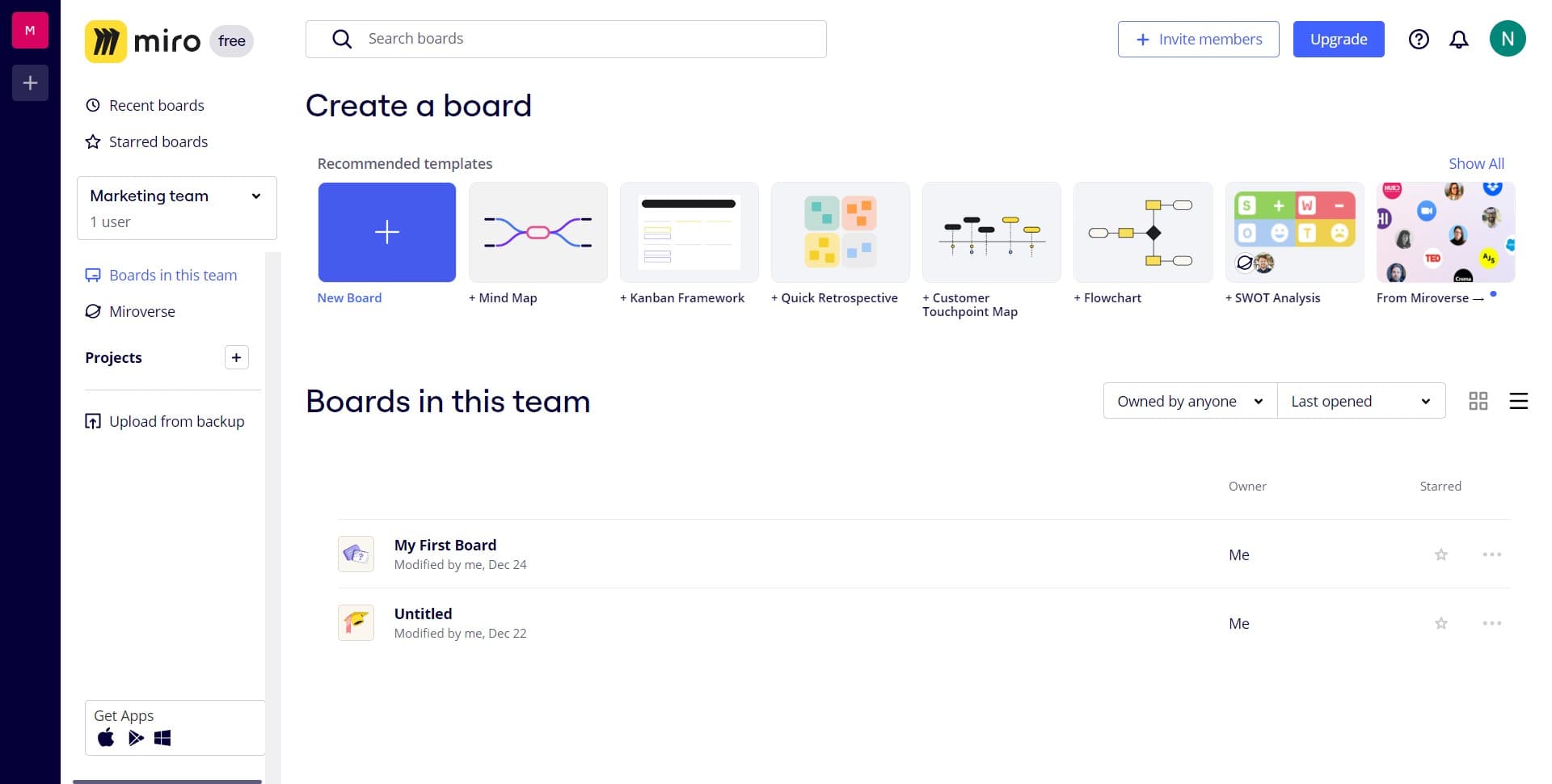
Open your Miro board
Navigate to your Miro workspace and select the board where you want to add flows to sticky notes. Ensure you have the sticky notes already created that you'd like to connect.
- 2
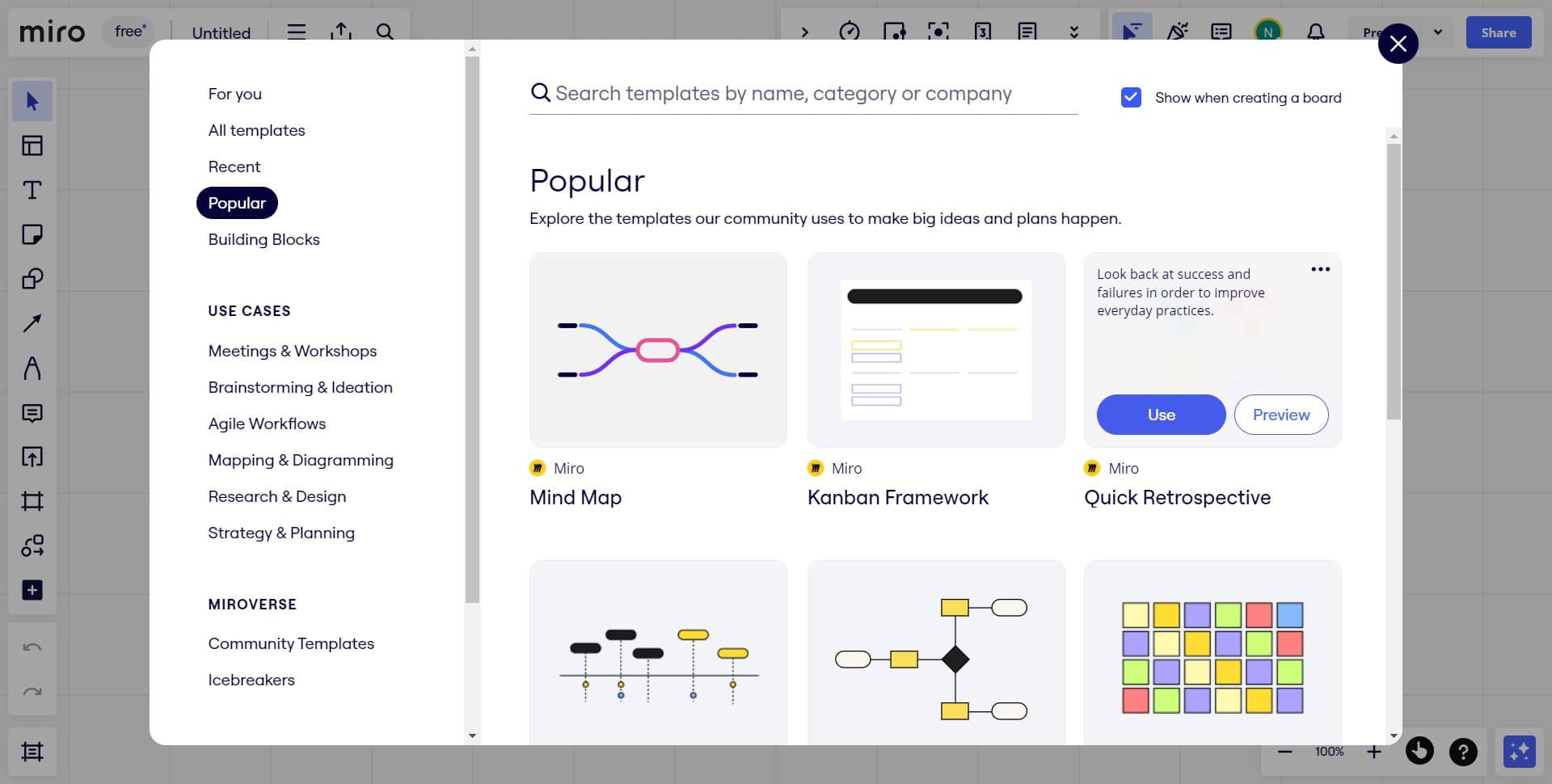
Select the Quick Retrospective template
Click on 'Use Quick Retrospective' to load a pre-structured template designed for retrospective sessions. This template provides a framework that works well with flows connecting different feedback categories.
- 3
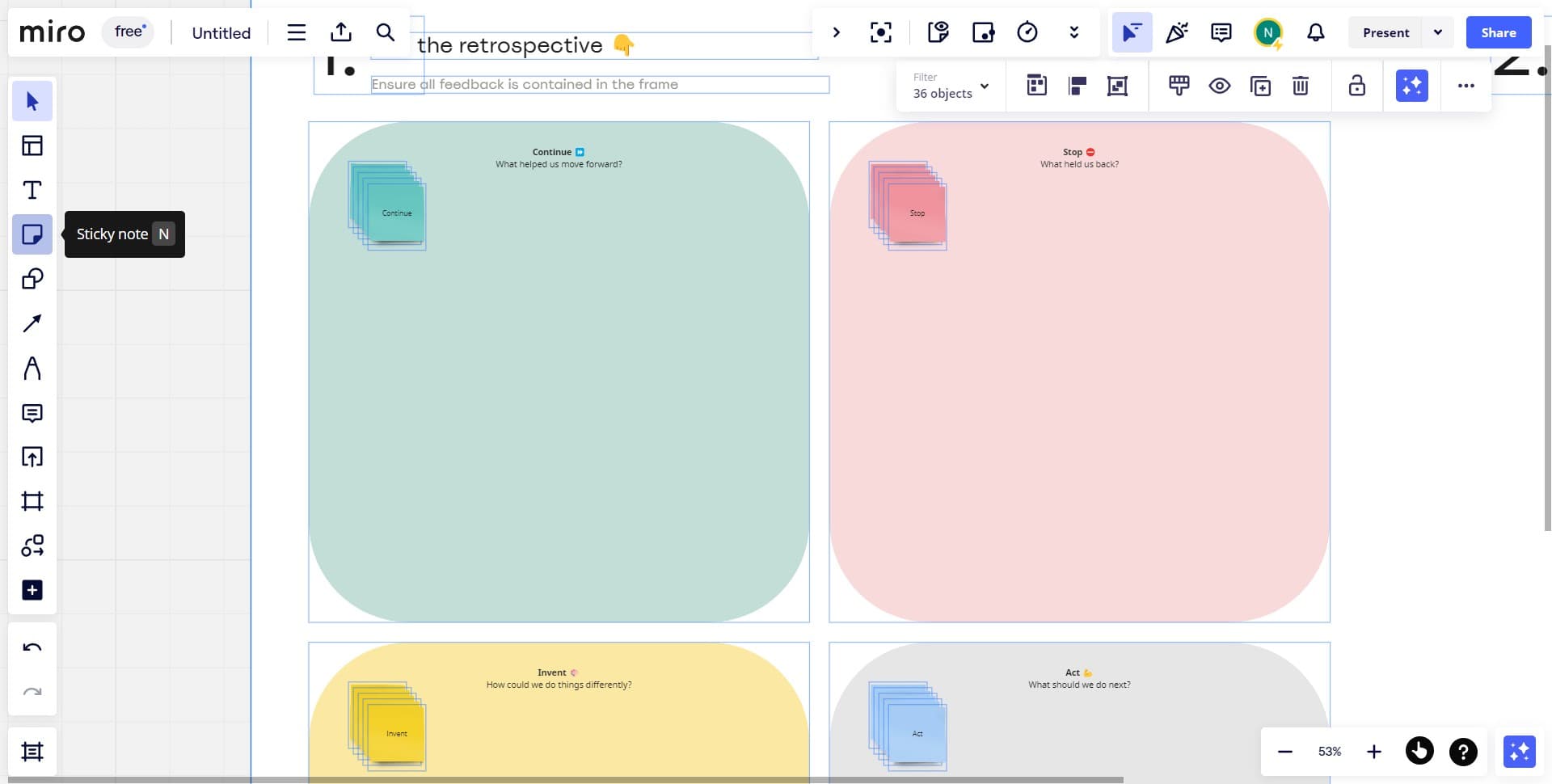
Access the flow creation tool
Click on the flow connector tool in your Miro toolbar to begin drawing connections between sticky notes. This tool allows you to visually link related notes.
- 4
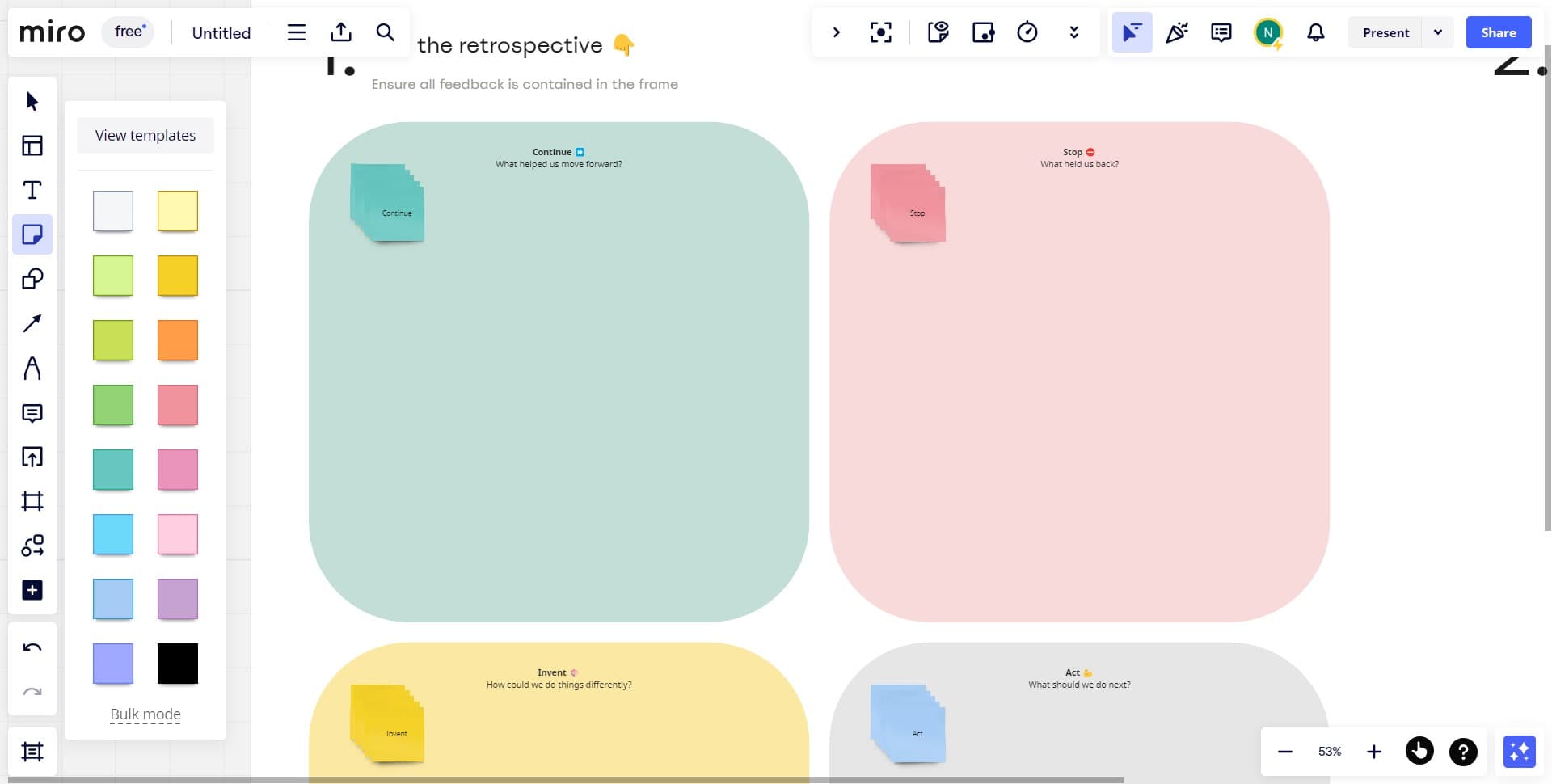
Connect your first pair of sticky notes
Click and drag from one sticky note to another to create the first flow connection. This establishes the visual relationship between the two ideas.
- 5
Continue adding additional flows
Repeat the process to connect more sticky notes, building out your complete flow structure. You can create multiple connections from a single note to show how ideas relate across your board.
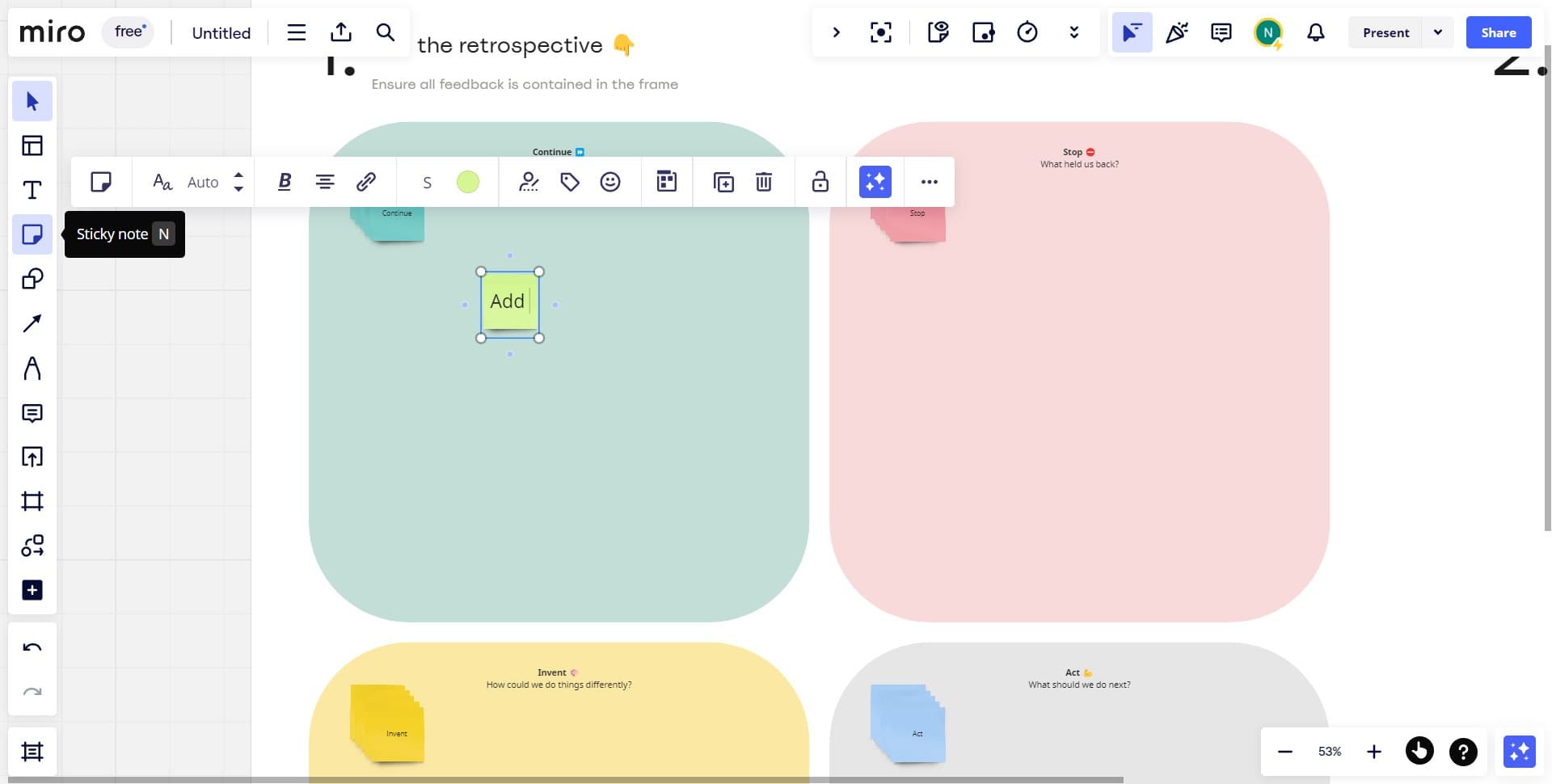
- 6
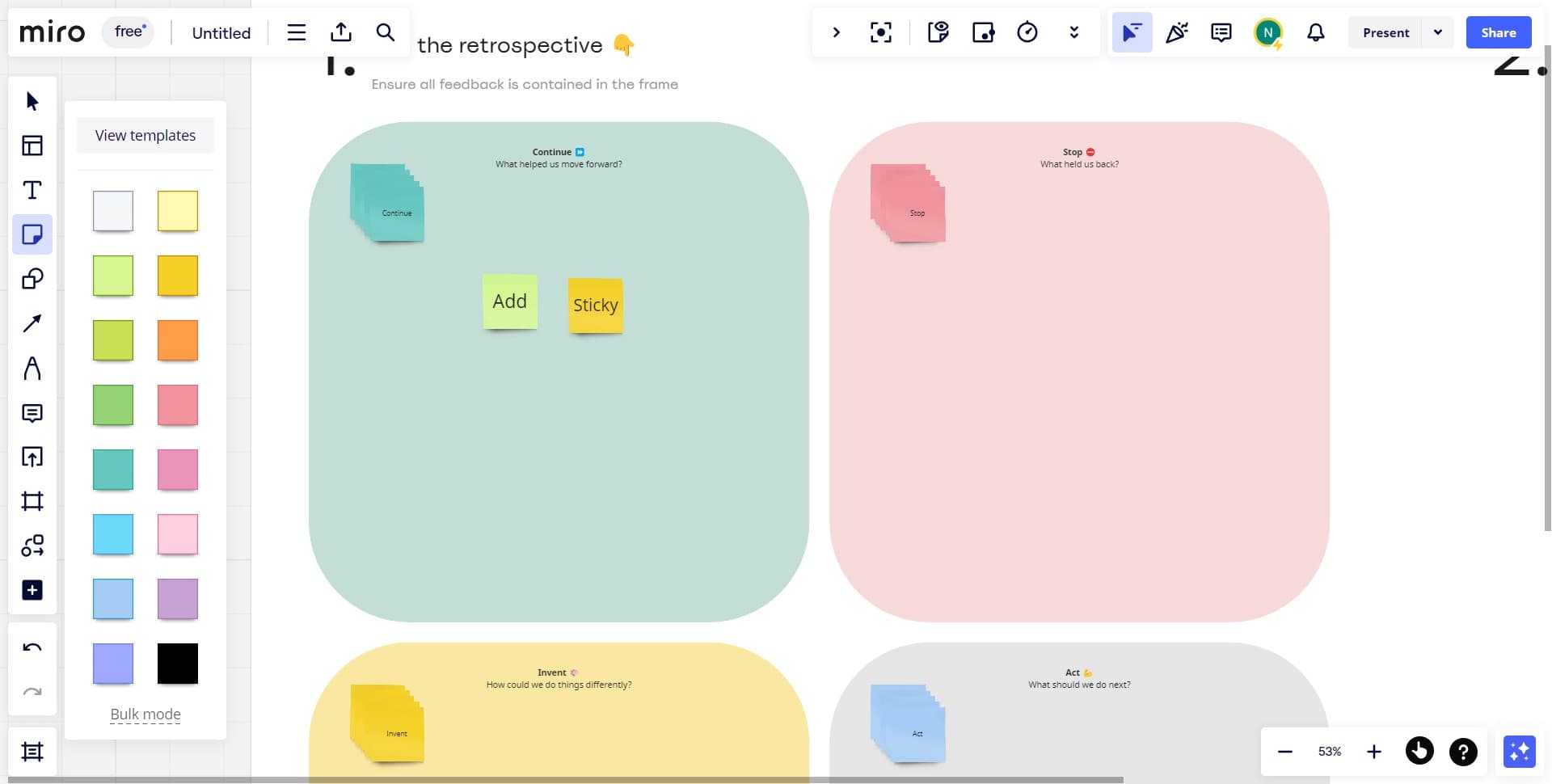
Finalize and organize your flows
Arrange your flows to ensure clarity and readability across your board. Step back to review the complete visualization and make adjustments as needed to improve the overall flow structure.
Frequently asked questions
Common questions about how to add flows to your sticky notes in miro.
Yes, flows work with various object types including sticky notes, shapes, and other board elements. You can create connections between any compatible objects to build comprehensive relationship maps and workflows.
Group related sticky notes by category (went well, improvements, action items) and then connect them with flows that show dependencies or themes. This helps the team see patterns and understand which feedback items relate to each other.
Yes, Miro allows you to adjust flow colors, line styles, and labels to match your board's visual hierarchy. Customizing flows makes it easier to distinguish between different types of connections or priorities.
Click on the flow line to select it, then use the delete key or right-click menu to remove it. To edit, select the flow and adjust its endpoints or properties using the toolbar options.
Yes, all flows are visible to team members with access to your Miro board, and they update in real-time as you make changes. This ensures everyone stays aligned on the visual relationships you're establishing.