How to Change the Primary Field in Airtable

The primary field in Airtable serves as the unique identifier for each record and appears as the first column in your table. Changing it allows you to customize which field serves as your record's main reference point, improving organization and usability across your base.
Quick summary
In this tutorial, you'll learn how to change the primary field in Airtable by navigating to your table settings, selecting a new field type, and configuring it to replace your current primary field. By the end, you'll understand how to set up formula fields or other field types as your primary identifier.
Why this matters
Changing your primary field is essential when your default field no longer represents the most relevant information for your workflow. A well-chosen primary field makes records easier to identify at a glance, improves linked record references, and creates a more intuitive data structure for your team.
Step-by-step guide
- 1
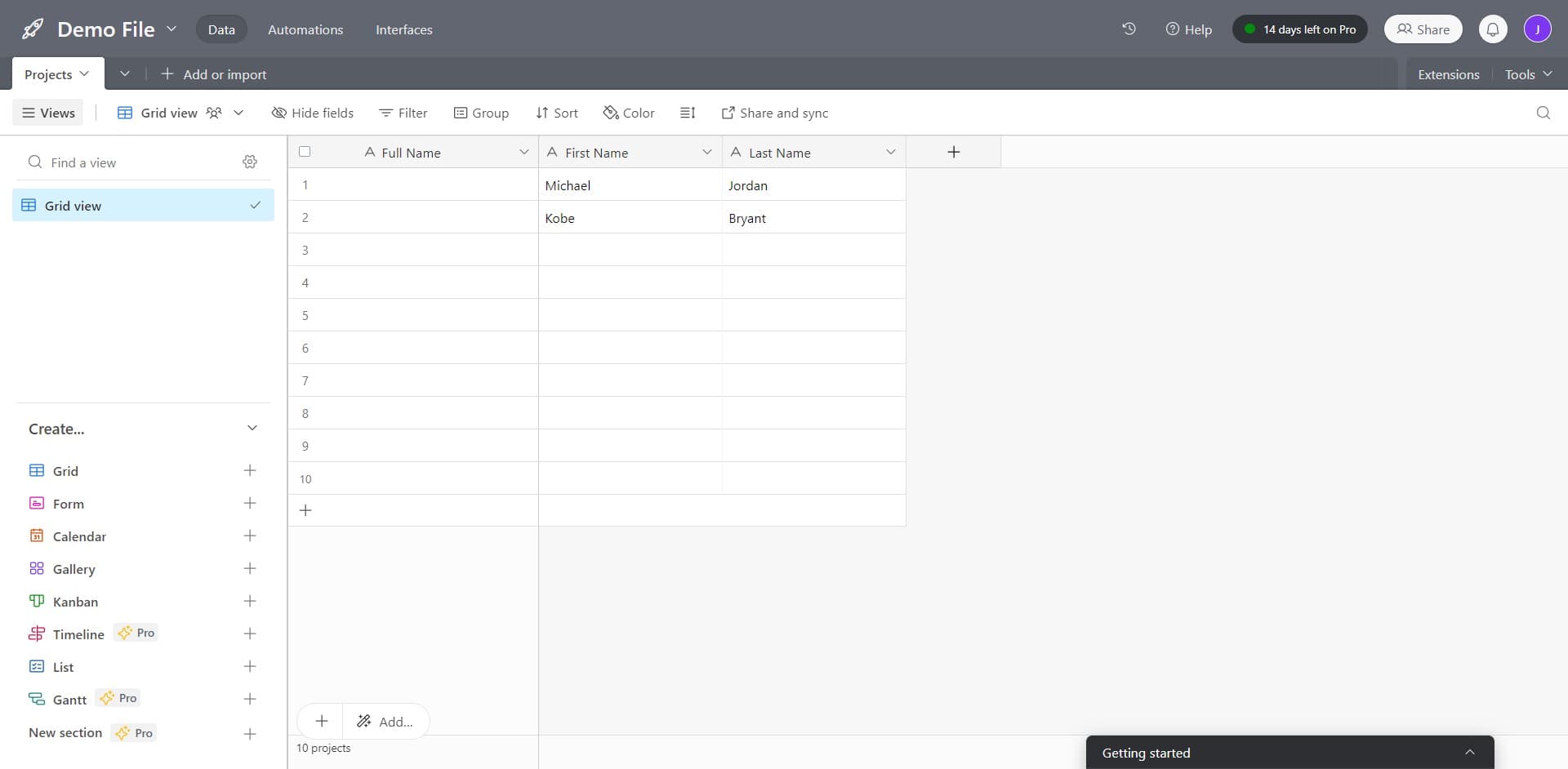
Open your Projects table
Navigate to the Projects table in your Airtable base. Click on 'Projects' in the table list to ensure you're viewing the correct table where you want to change the primary field.
- 2
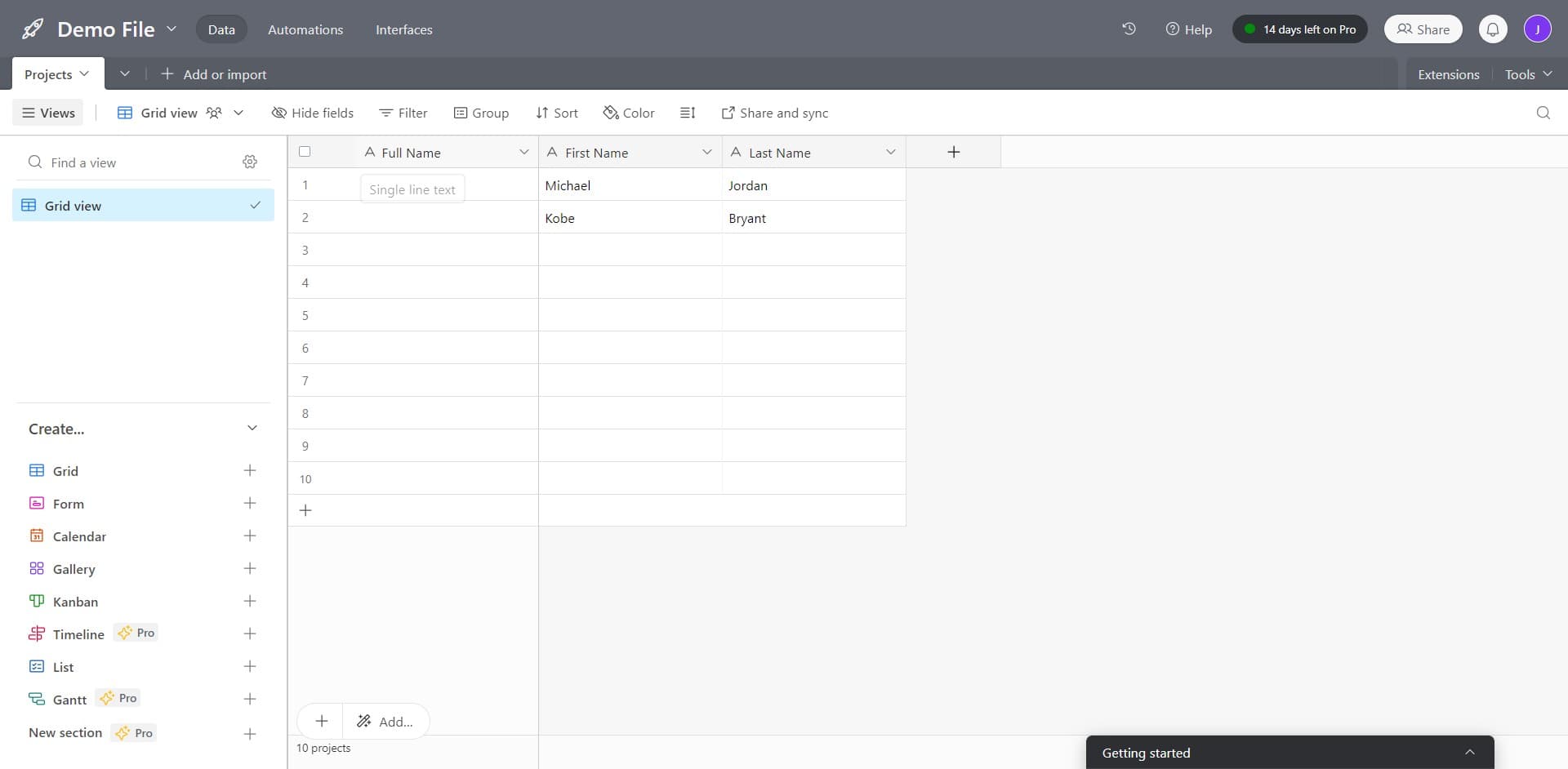
Access the field menu
Look for the primary field column and click the dropdown menu or settings icon next to the field name. This opens the field configuration options.
- 3
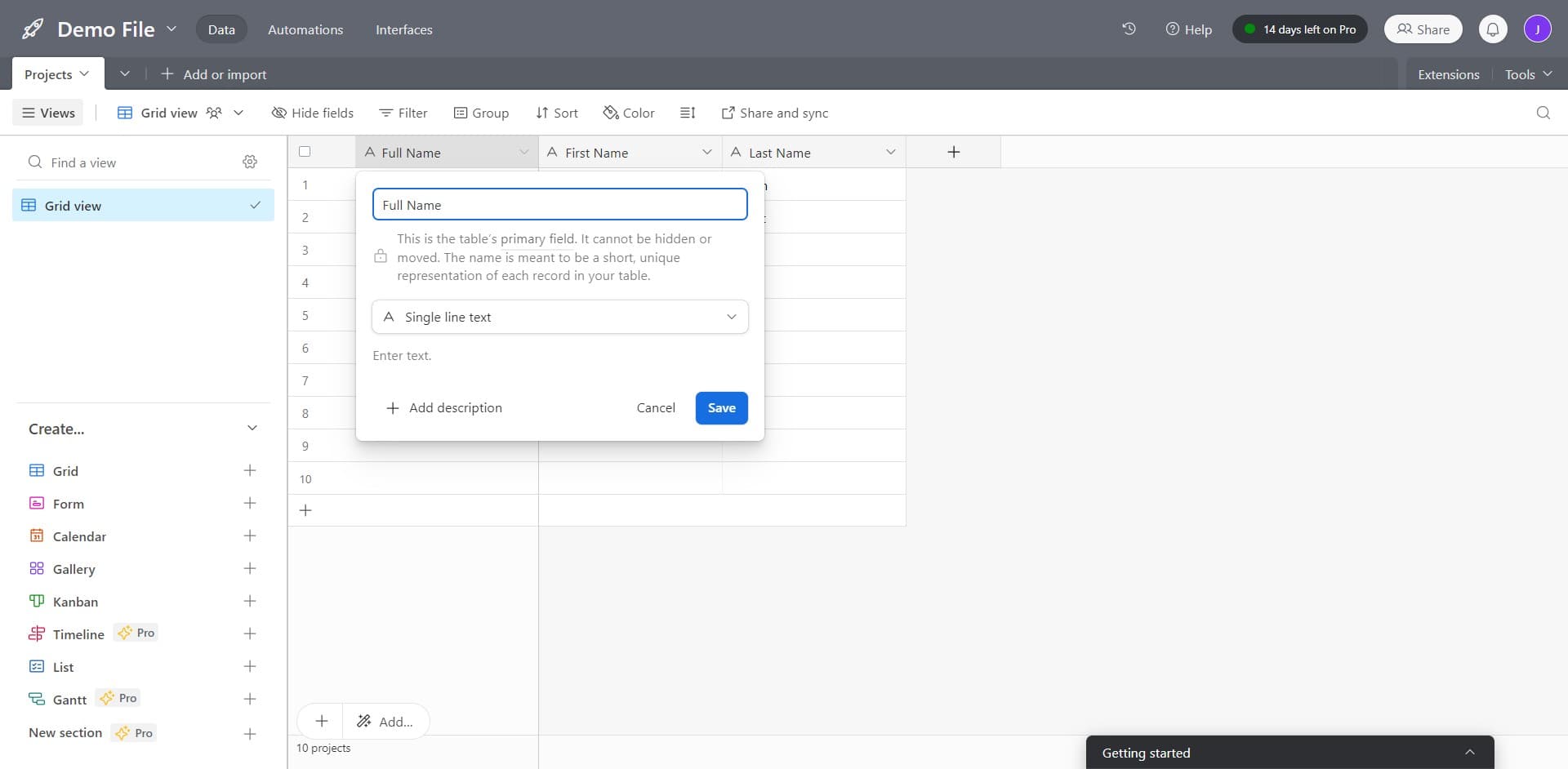
Select Single line text option
From the field type menu, choose 'Single line text' if you want to create a simple text-based primary field. This is a common choice for record identifiers.
- 4
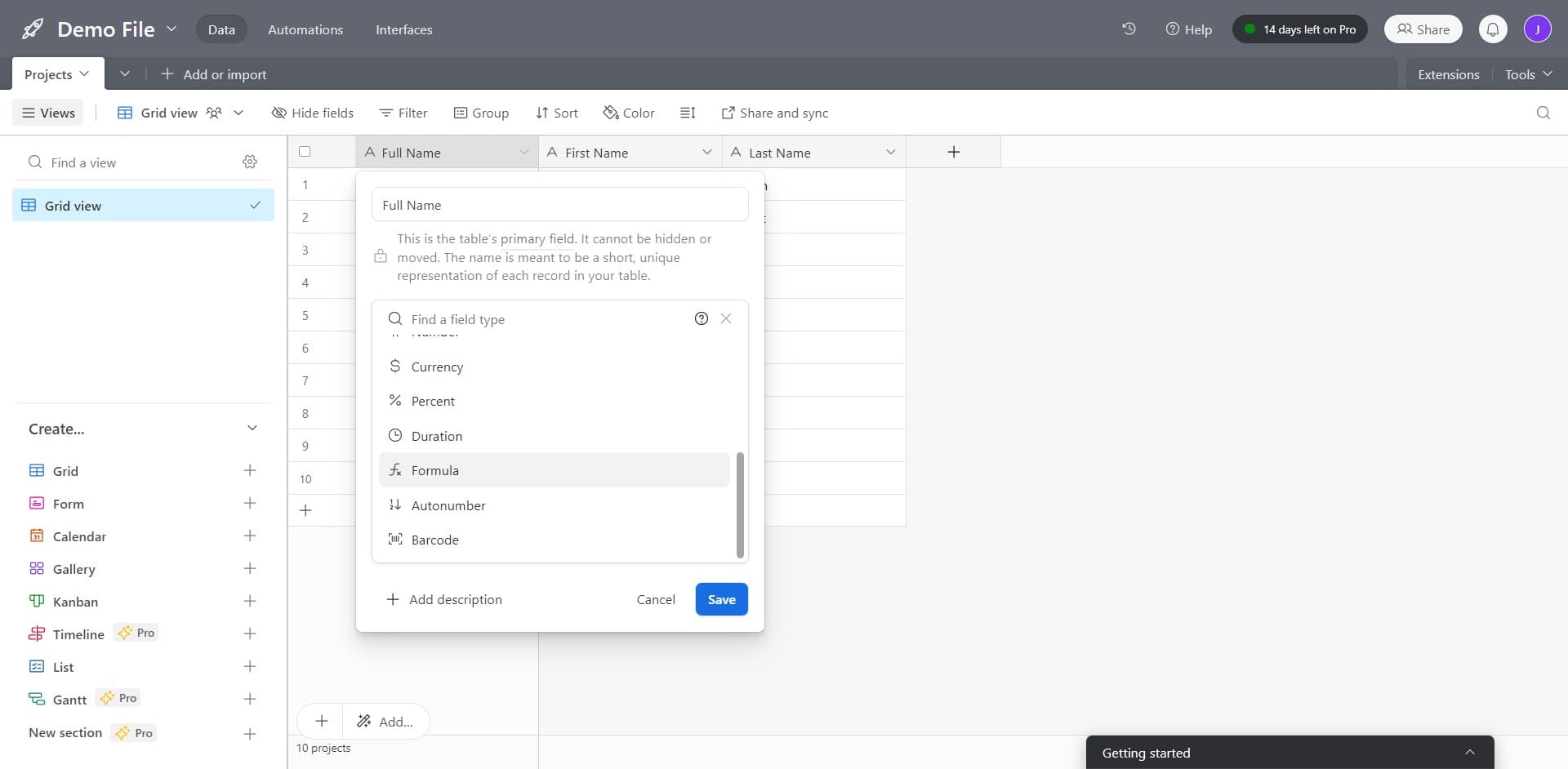
Switch to Formula field type
Change the field type to 'Formula' to create a computed primary field. This allows you to combine multiple fields into a single identifier using Airtable's formula language.
- 5
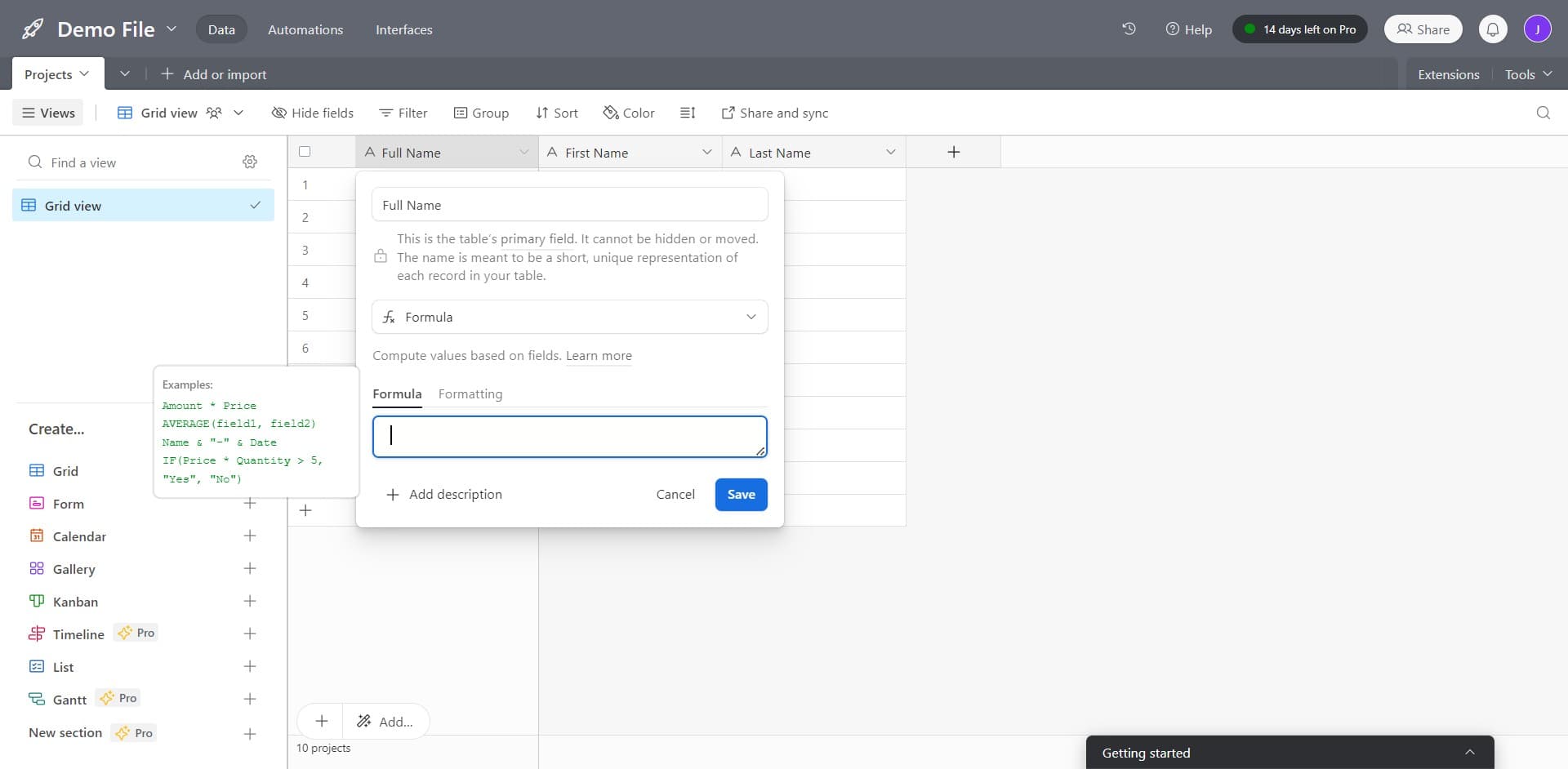
Configure the formula
Click on the formula input area to add your formula. Select 'CONCATENATE' or another appropriate function to combine field values into your new primary field identifier.
- 6
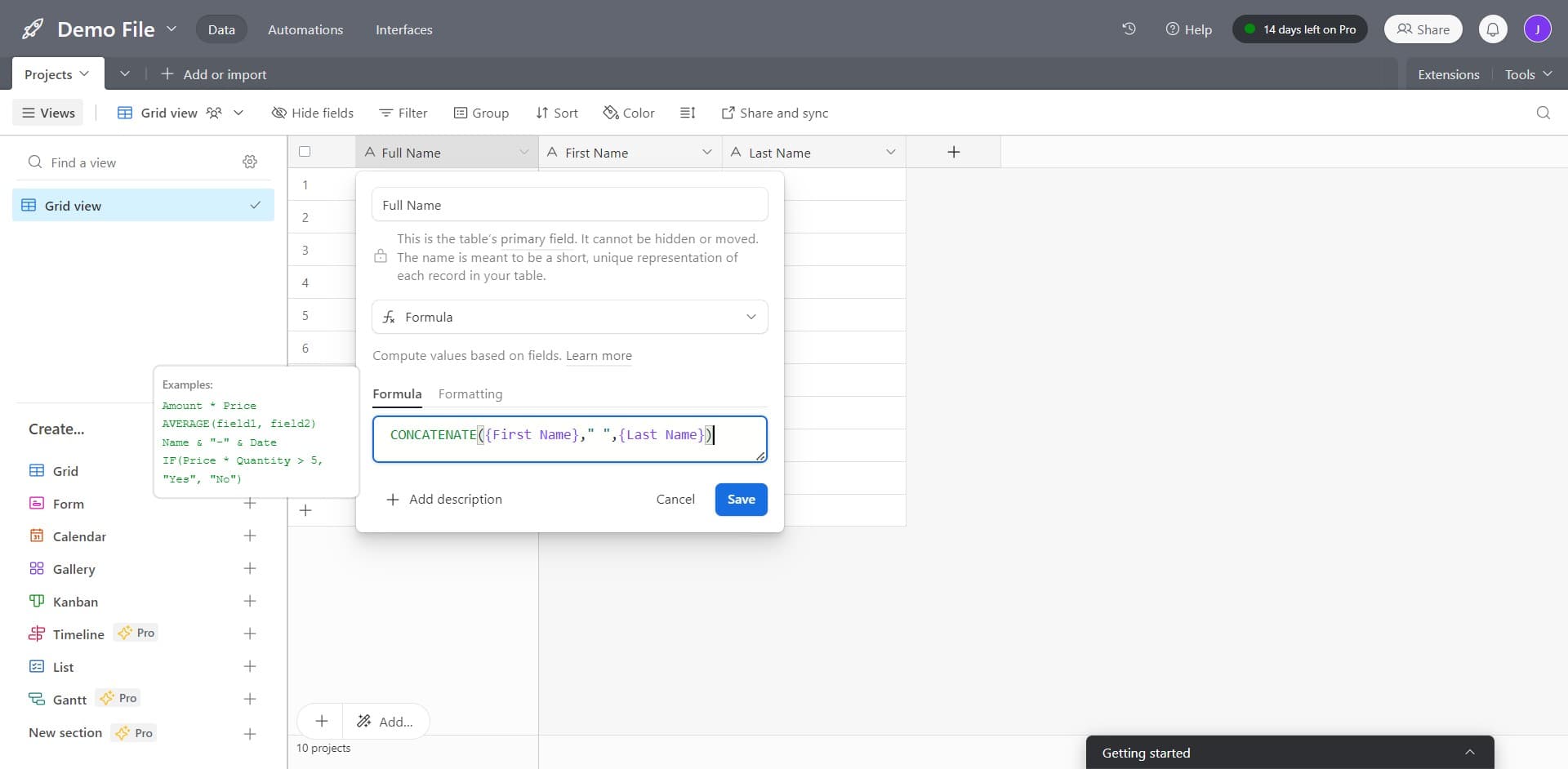
Apply the CONCATENATE formula
Use the CONCATENATE function to merge multiple fields together, such as first and last names. The formula bar will show your selected formula syntax like 'CONCATENATE({Field1}, {Field2})'.
- 7
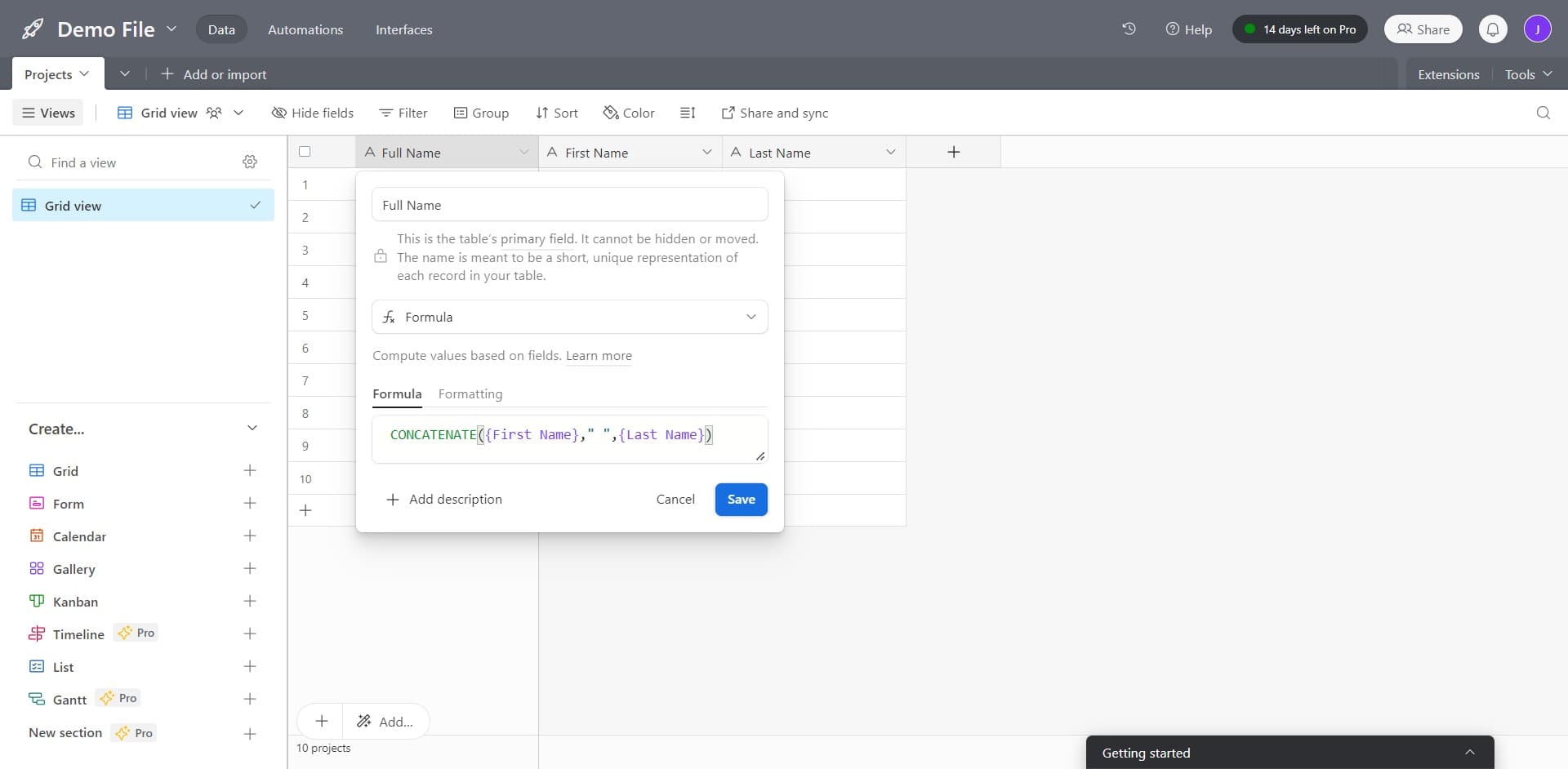
Save the field changes
Click 'Save' to apply your new primary field configuration. Airtable will update your table structure and make this formula field your primary identifier.
- 8
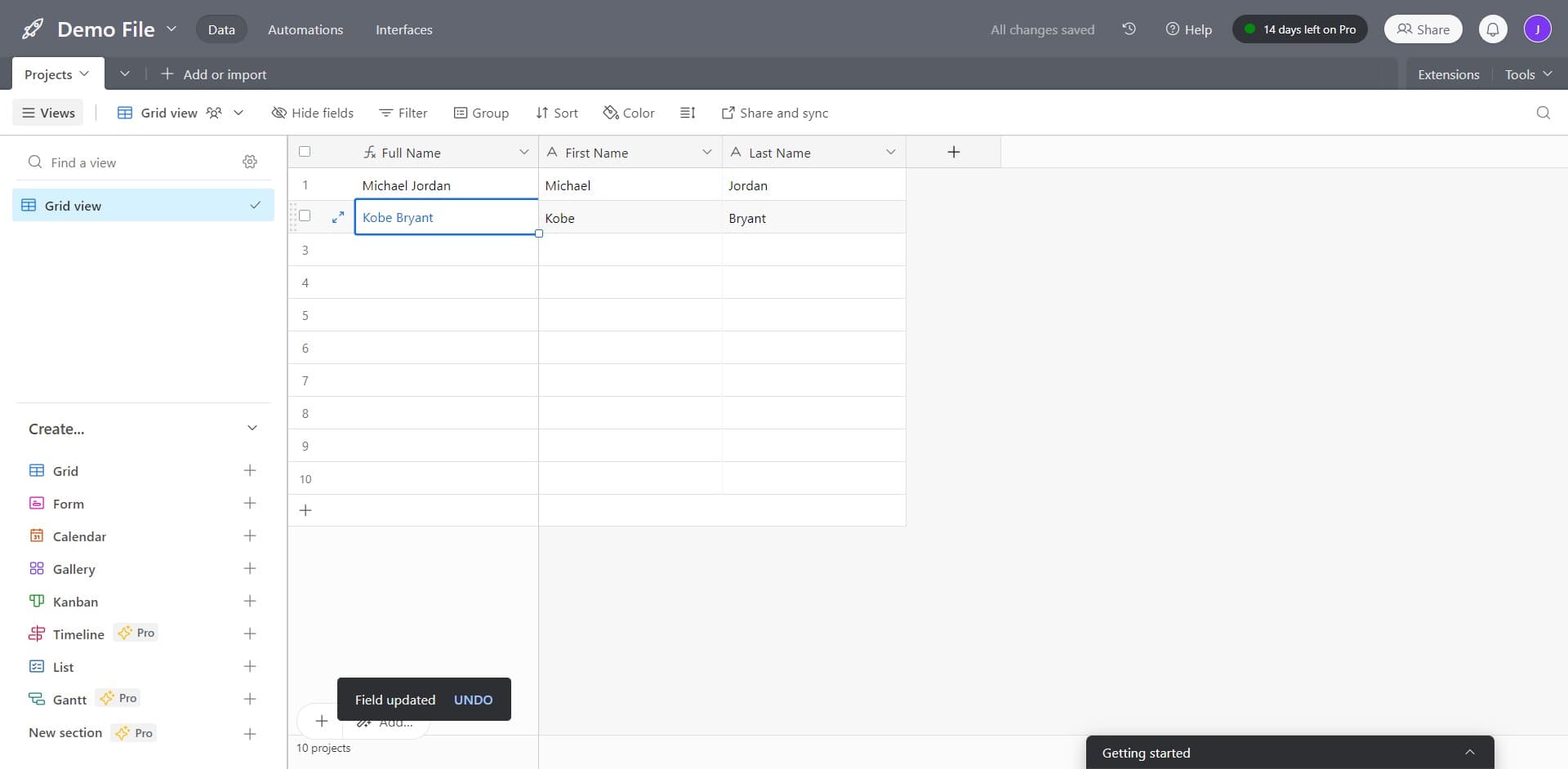
Verify the new primary field
View your table to confirm the change has been applied. Click on a record like 'Kobe Bryant' to verify that your new primary field is now displayed as the main record identifier.
Frequently asked questions
Common questions about how to change the primary field in airtable.
No, not all field types can be primary fields. Airtable only allows certain field types like Single line text, Number, Formula, Barcode, and Button fields to serve as primary fields. You cannot use attachment, collaborator, or checkbox fields as primary fields.
Changing the primary field may affect how linked records display in other tables, but the underlying relationships remain intact. The linked records will show your new primary field value instead of the old one, which can actually improve clarity if you choose a more descriptive identifier.
Your old primary field doesn't get deleted—it remains in your table as a regular field. You can keep it for reference or delete it manually if you no longer need it. This gives you flexibility to test changes before fully committing to the new structure.
Yes, formula fields work excellently as primary fields. You can use CONCATENATE, IF statements, and other formulas to create dynamic primary identifiers that combine information from multiple fields. This is particularly useful for creating codes or composite identifiers.
Airtable doesn't have a direct 'undo' for primary field changes, but you can change it back manually by repeating the process and selecting your previous field. If you made significant changes, check your table's revision history if available in your plan to review what was modified.