How to Create and Manage Lists in Attio

Lists in Attio help you organize and manage your contacts, companies, and deals in a structured way. Whether you're building a prospect pipeline or tracking customer accounts, mastering list creation and management is essential for effective CRM workflows.
Quick summary
In this tutorial, you'll learn how to create new lists in Attio, customize list views, apply filters and sorting, and manage list settings to streamline your workflow. By the end, you'll be able to build and maintain lists that match your specific business needs.
Why this matters
Lists are the backbone of any CRM strategy—they let you segment data, prioritize work, and track progress toward goals. Properly configured lists save time by automating data organization and ensuring your team always has visibility into the information that matters most.
Step-by-step guide
- 1
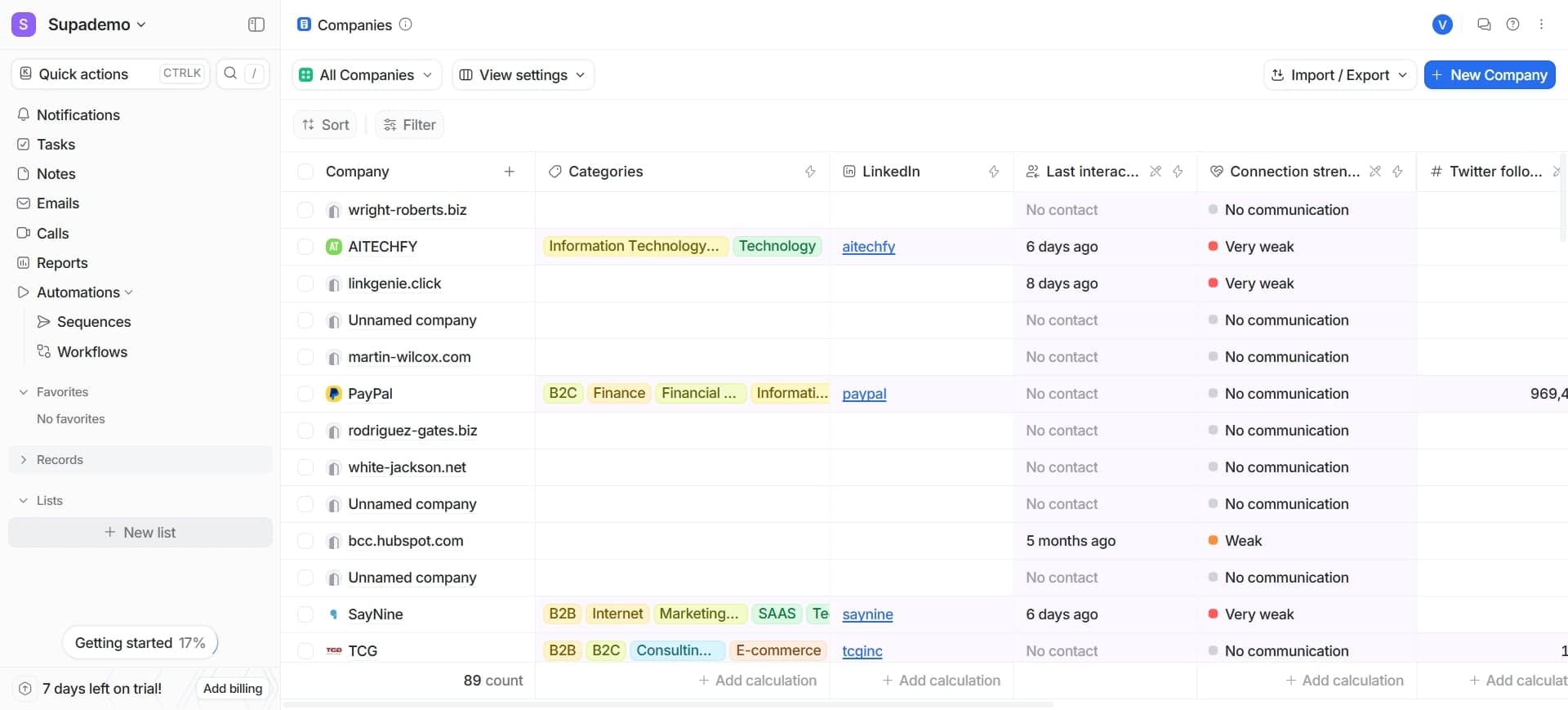
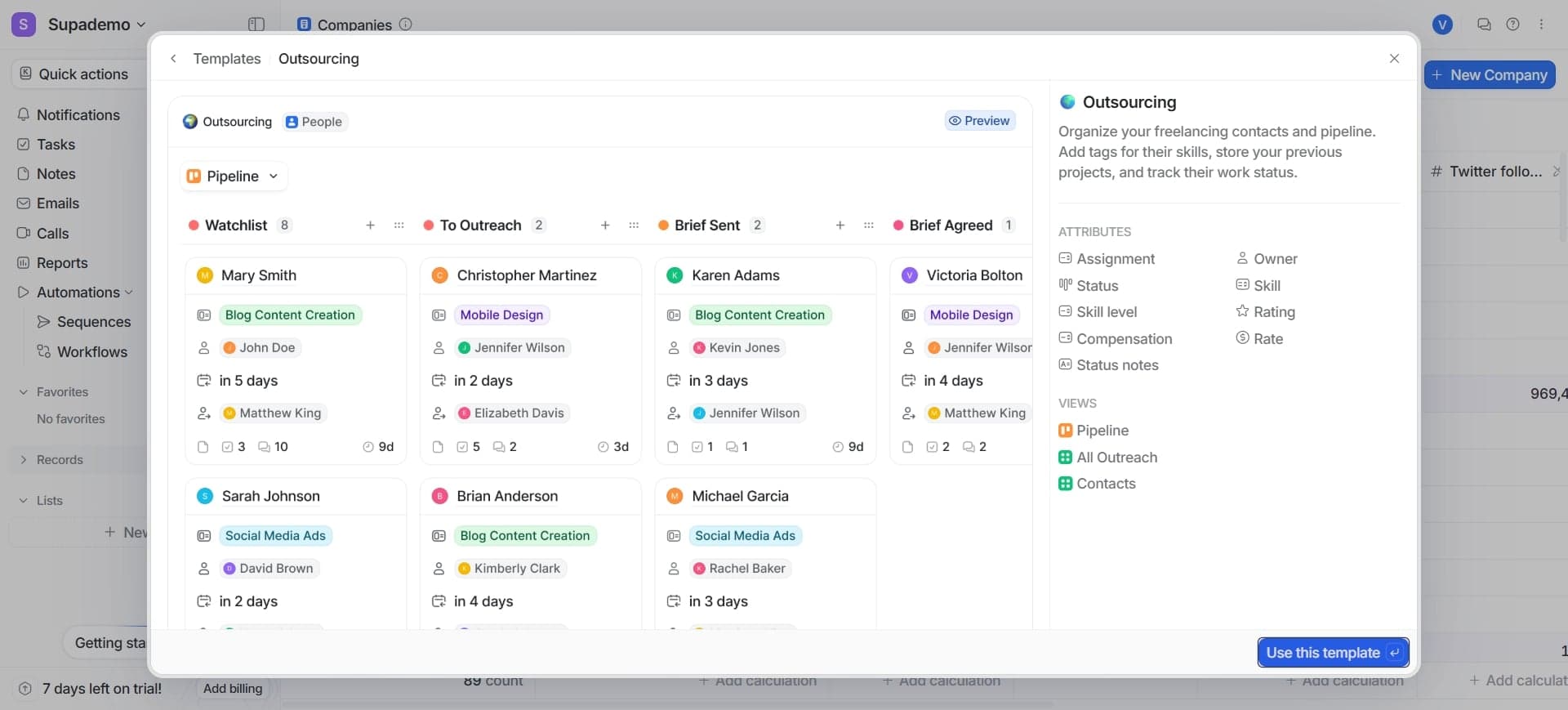
Navigate to the Lists section
Open your Attio workspace and locate the Lists tab in the main navigation. This is where you'll access all existing lists and create new ones for your workspace.
- 2
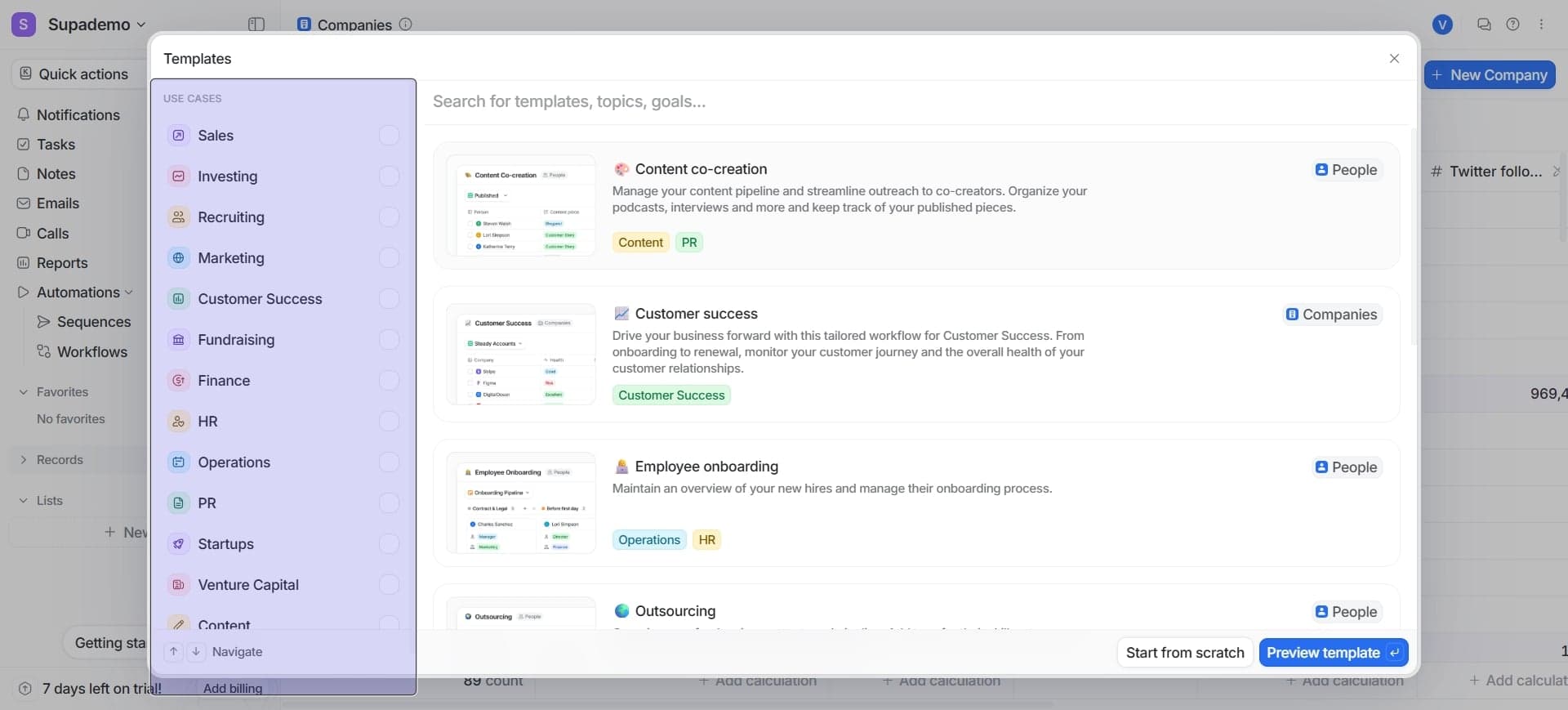
Click Create New List
Select the Create New List button to start building your first list. You'll be prompted to choose the record type you want to list.
- 3
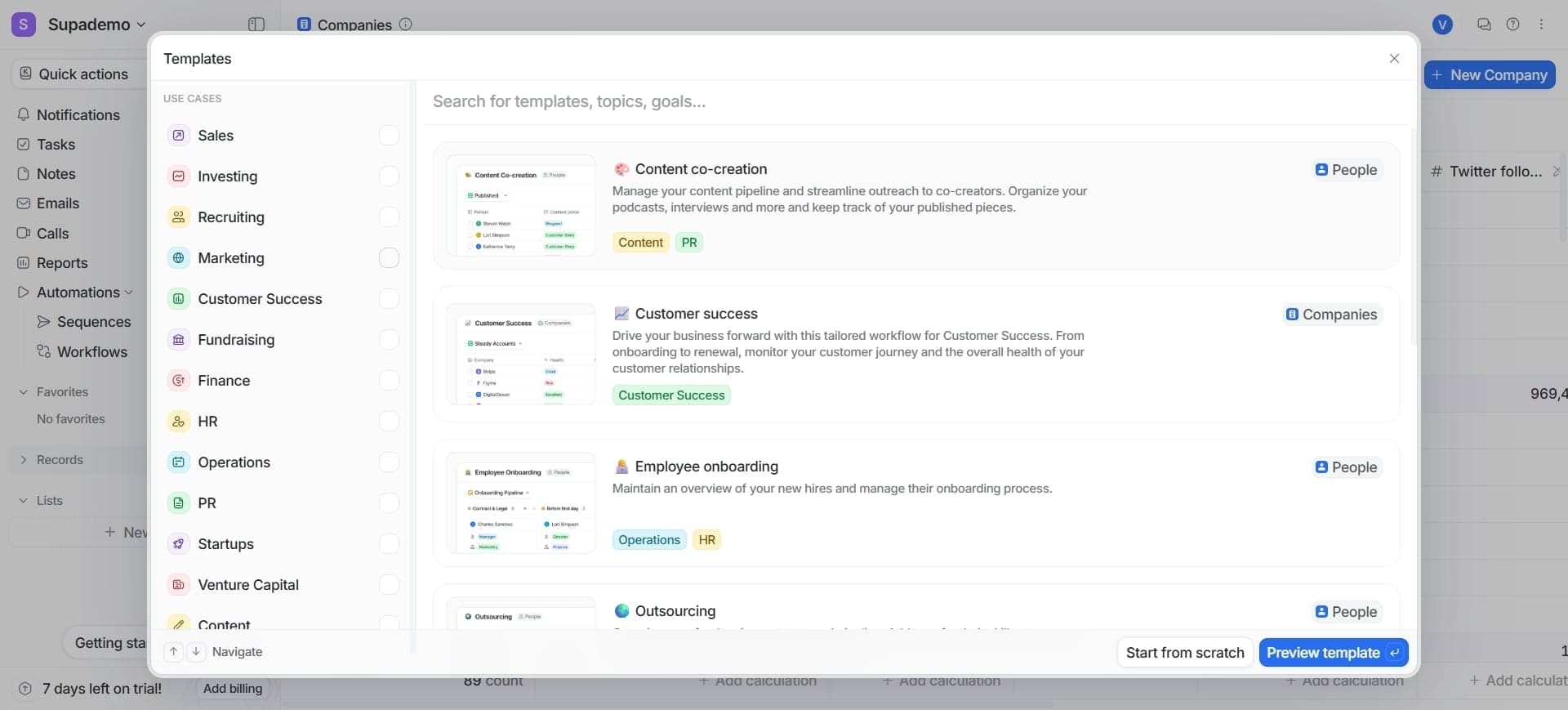
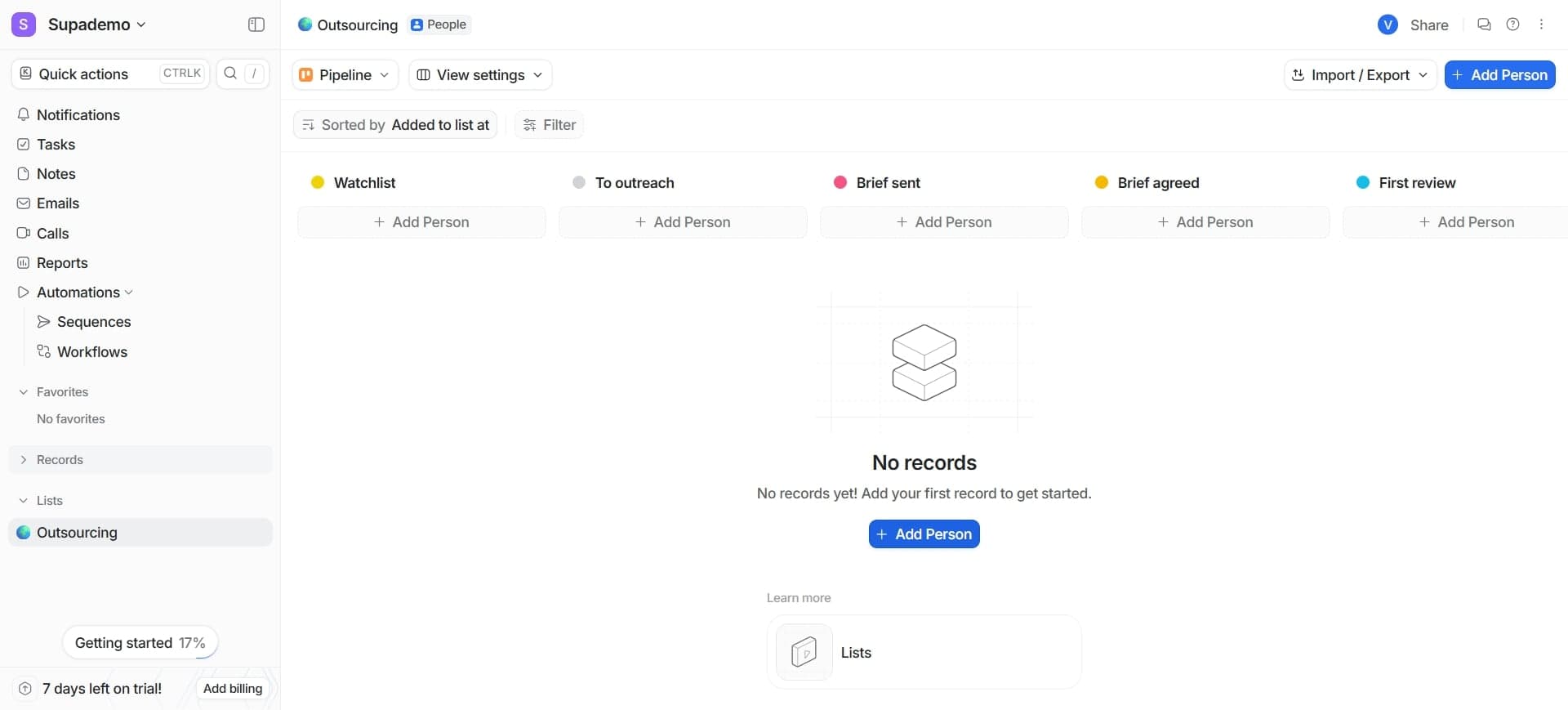
Choose your record type
Select from Contacts, Companies, Deals, or any other custom record types available in your workspace. Your choice determines what data you'll see and manage in this list.
- 4
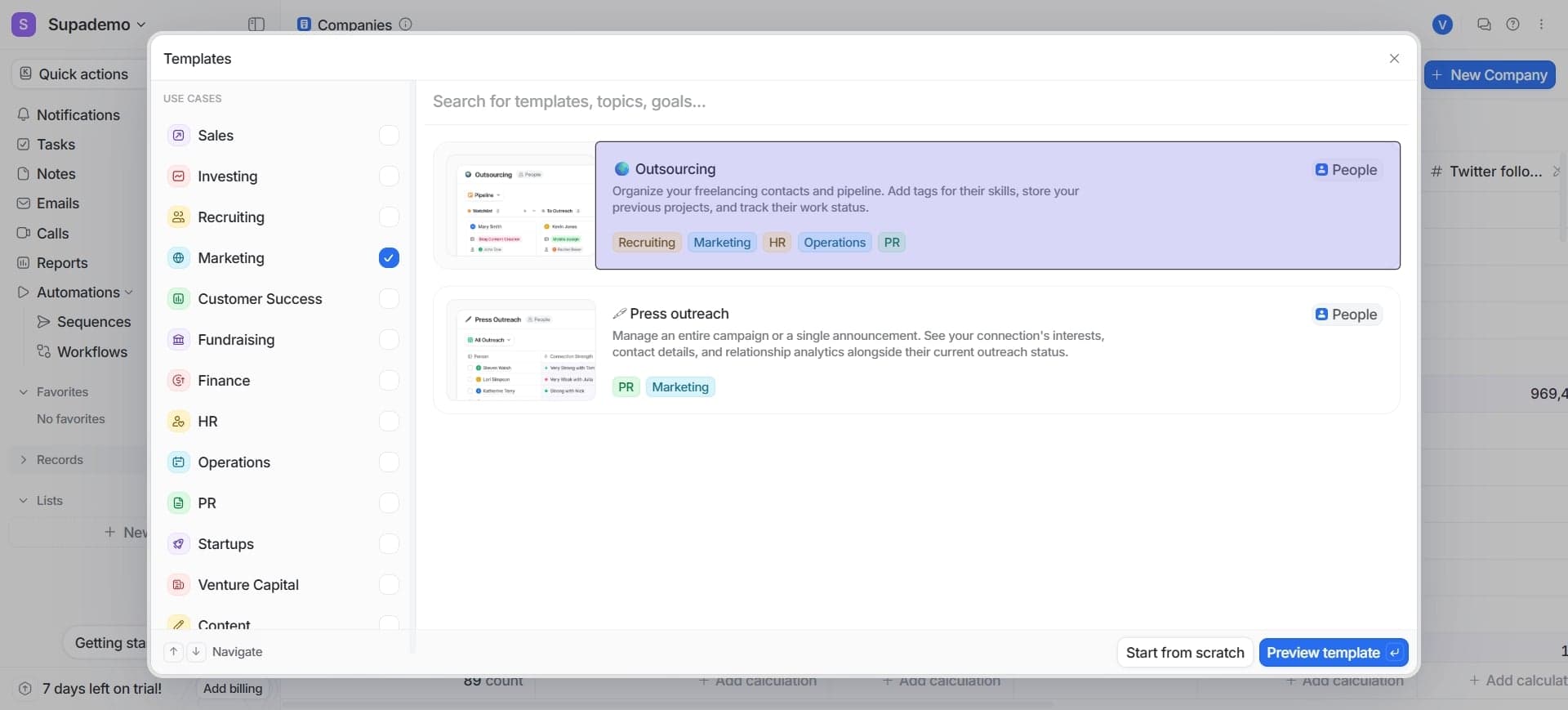
Name your list
Enter a descriptive name for your list that reflects its purpose, such as 'Active Prospects' or 'High-Value Accounts'. A clear name helps your team quickly identify the list's function.
- 5
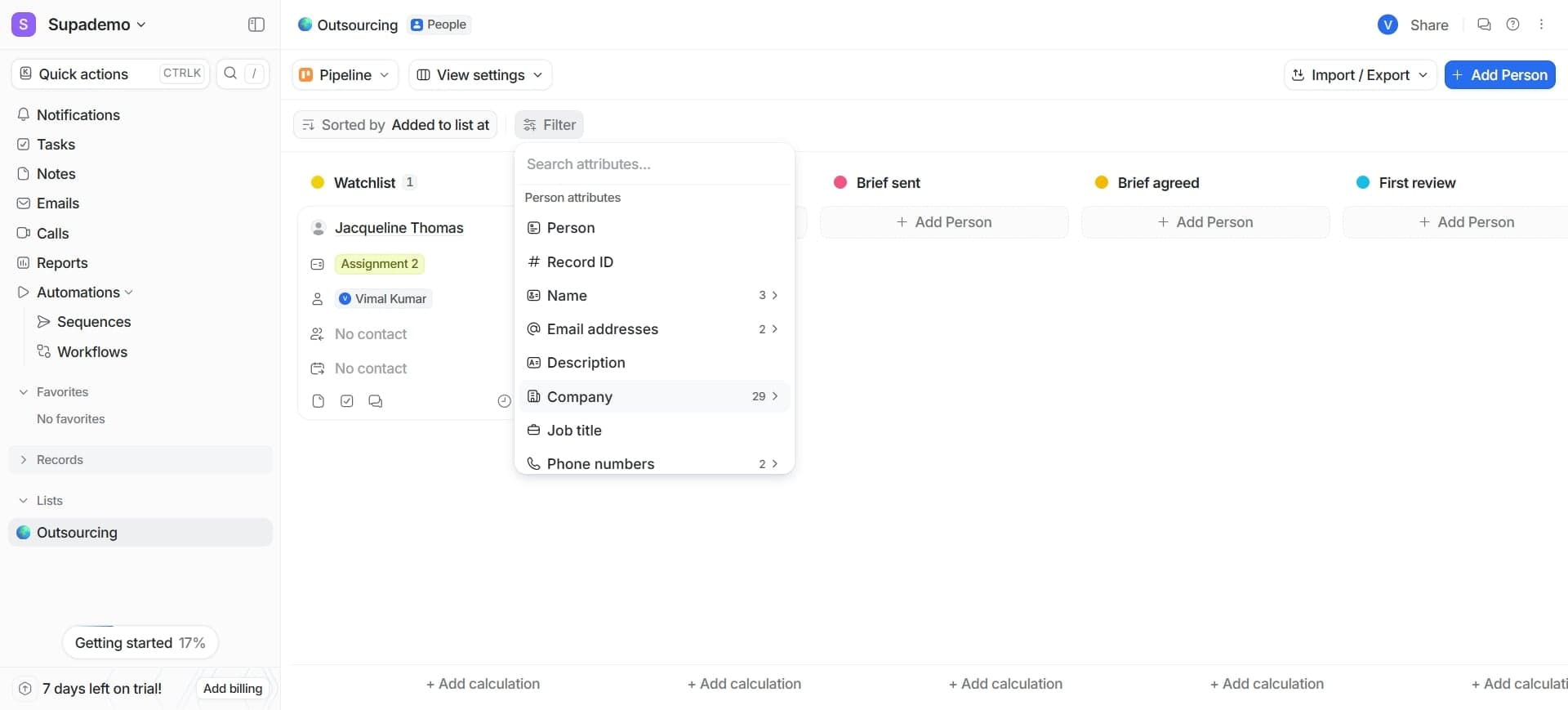
Add filters to refine data
Click the Filters button and set criteria to display only the records you need. For example, filter by stage, company size, or last contact date to focus on specific segments.
- 6
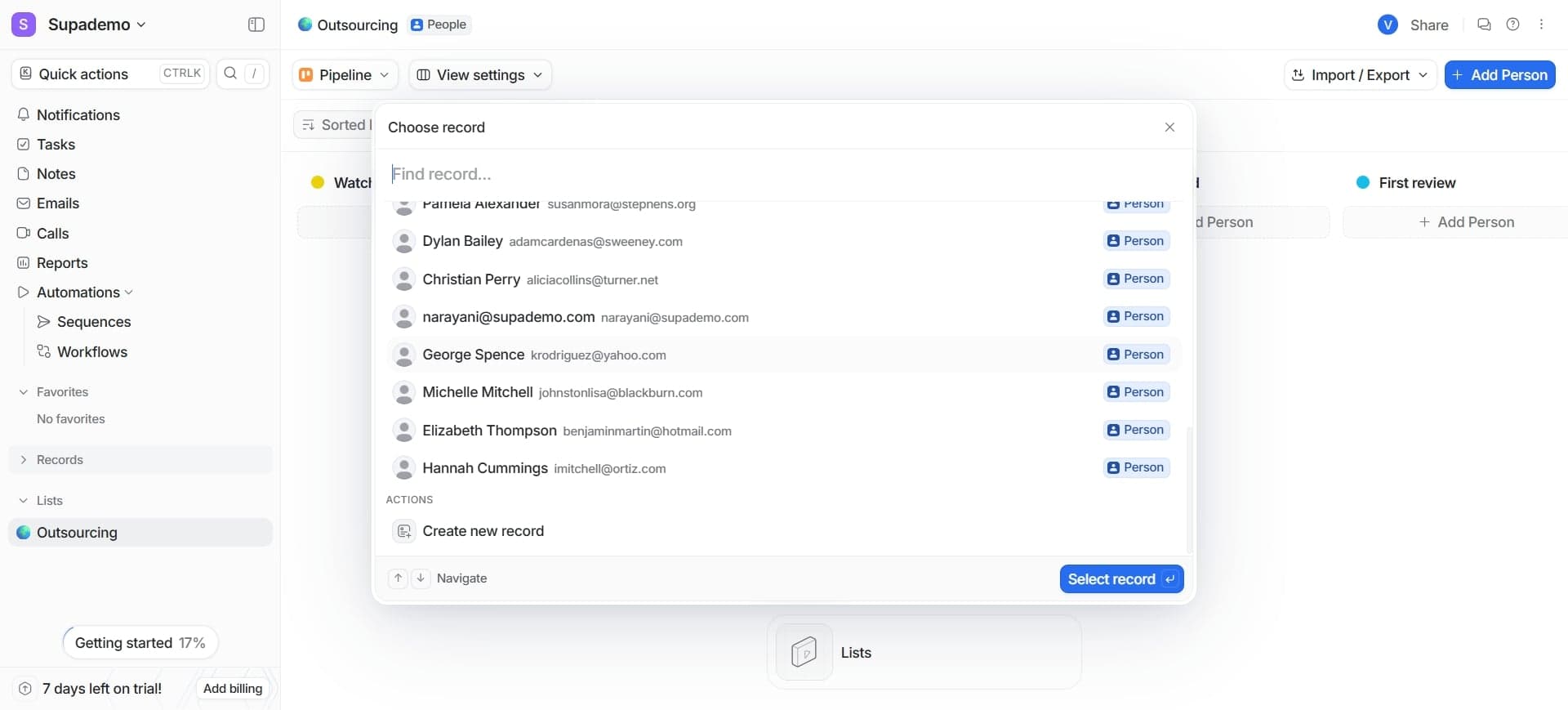
Configure column visibility
Click the Columns option to choose which fields appear in your list view. Drag to reorder columns or hide irrelevant fields for a cleaner, more focused display.
- 7
Set up sorting preferences
Choose a primary sort field, such as date created or deal value, and specify ascending or descending order. This ensures records appear in the order most useful for your workflow.
- 8
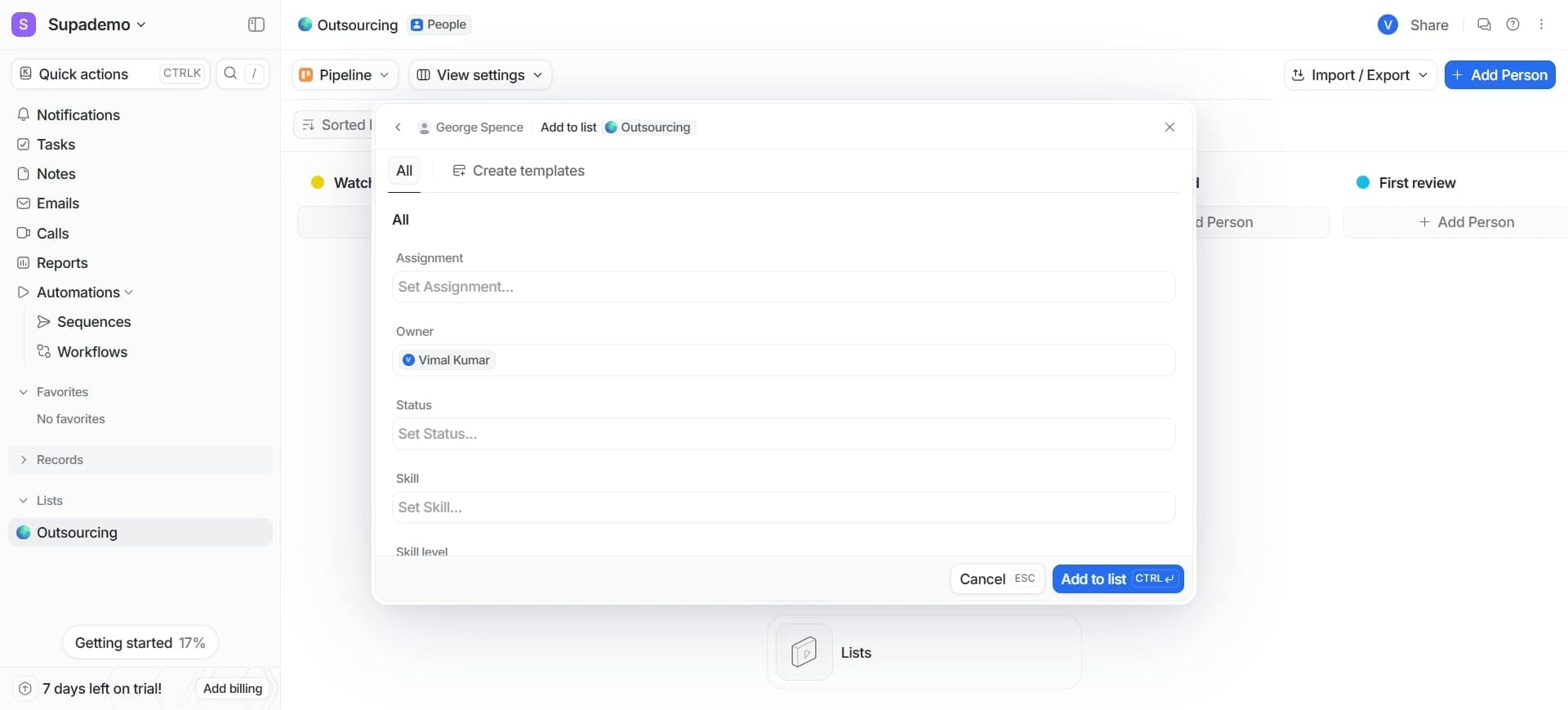
Save your list configuration
Click Save to preserve all your filter, column, and sorting settings. Your list is now ready to use and will retain these configurations the next time you open it.
- 9
Apply bulk actions to records
Select multiple records using the checkboxes and use the bulk action menu to update properties, assign ownership, or change status across multiple records at once.
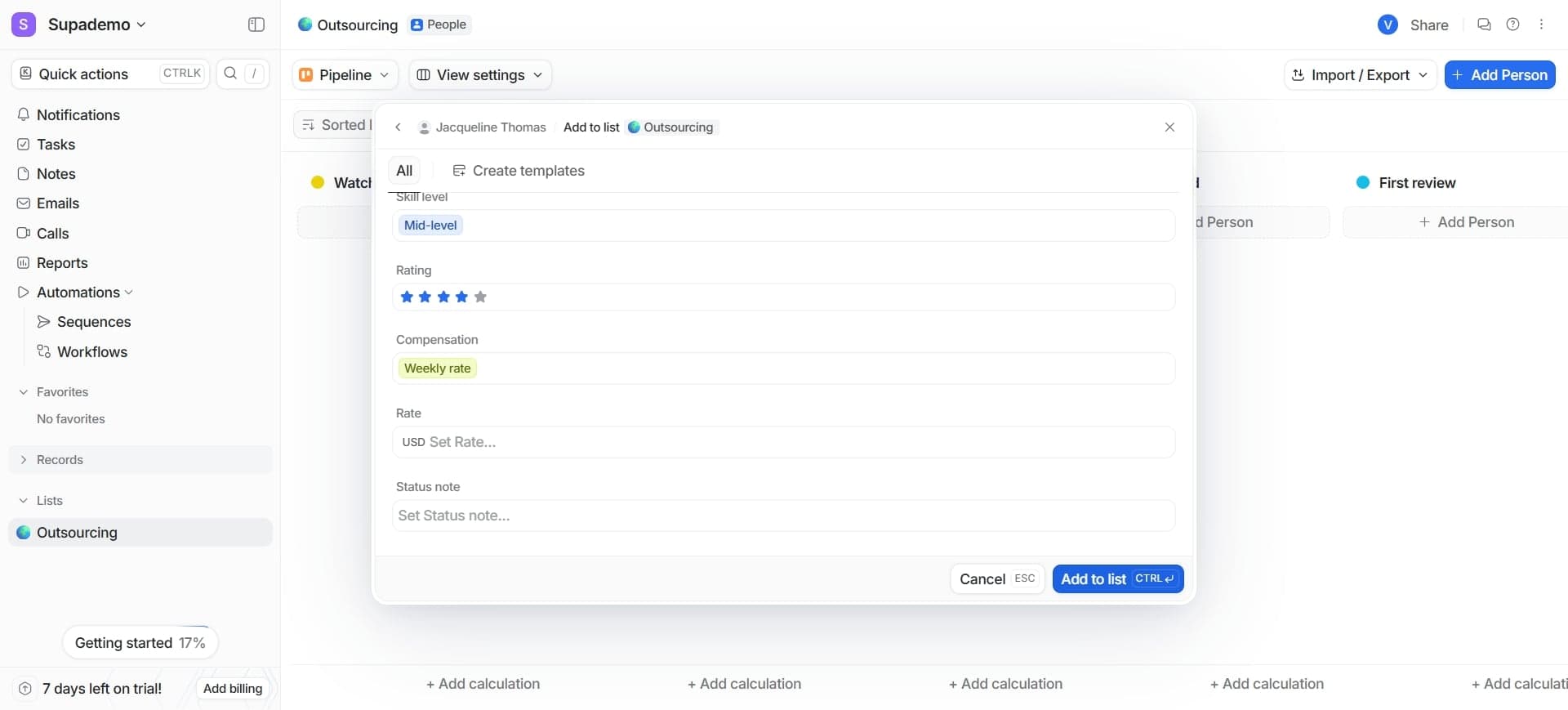
- 10
Create a smart list with automation
Enable the Smart List toggle if available to automatically populate your list based on criteria you've set. This keeps your list up-to-date without manual updates.
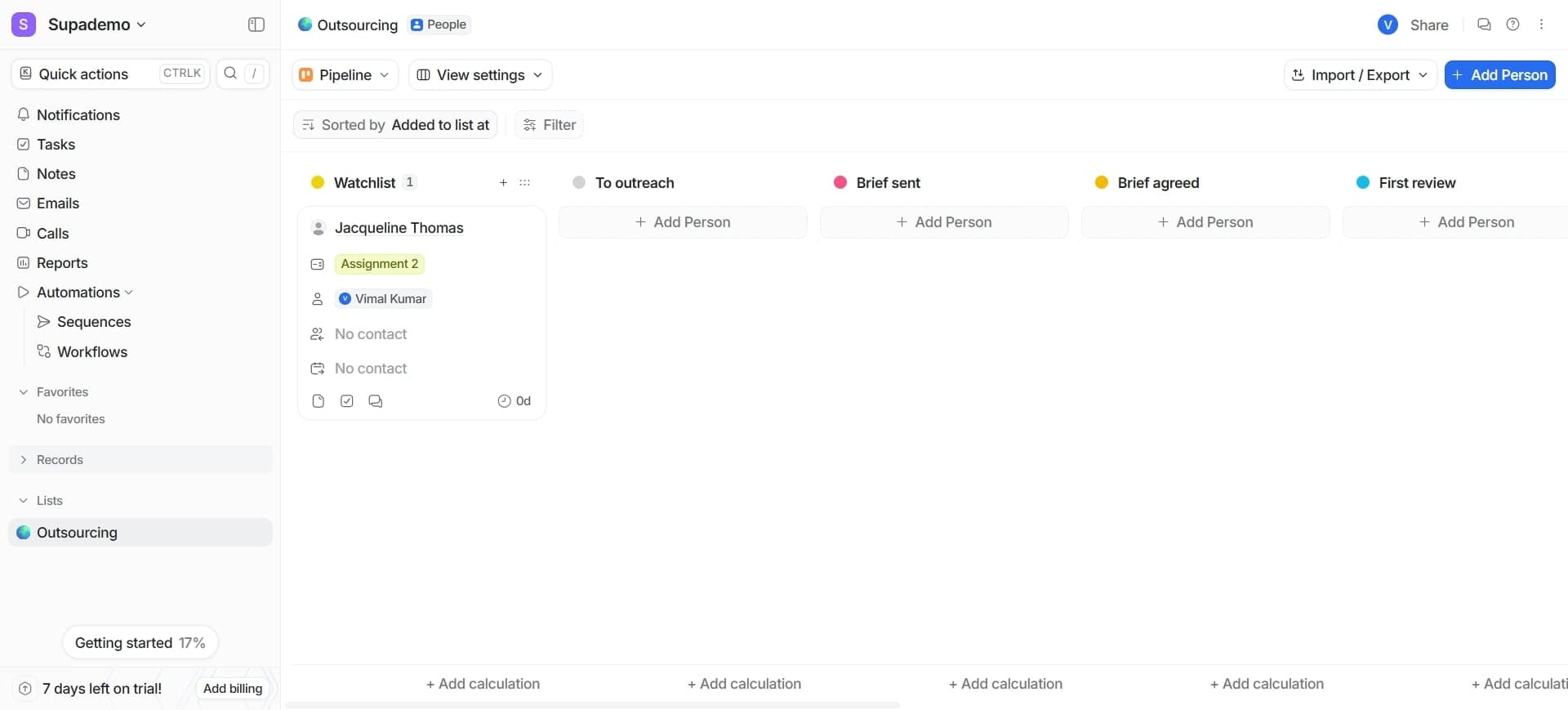
- 11
Share list access with team members
Click the Share button to grant specific team members or groups access to your list. Choose whether they can view only, edit, or manage the list.
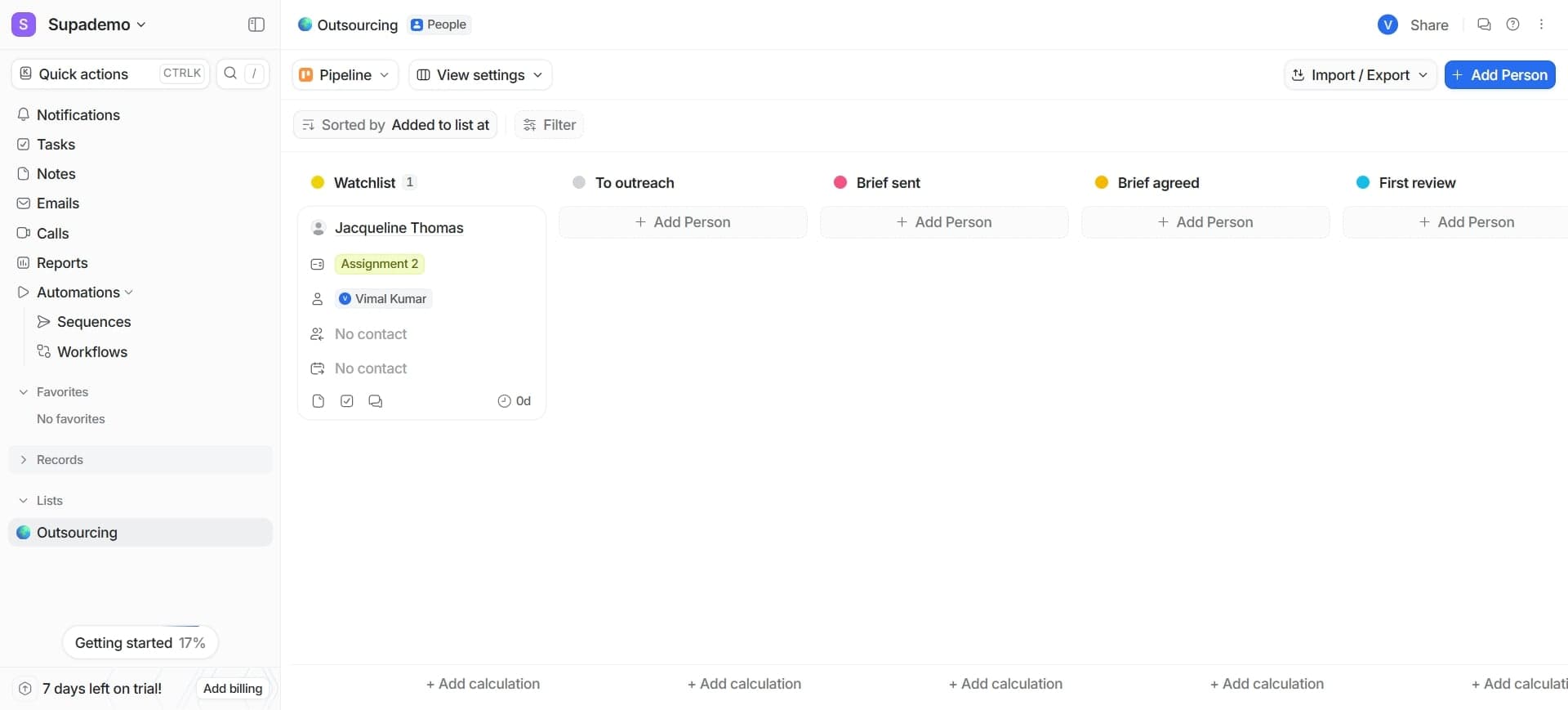
- 12
Export list data
Use the Export button to download your list as CSV or another supported format for reporting, analysis, or integration with external tools.
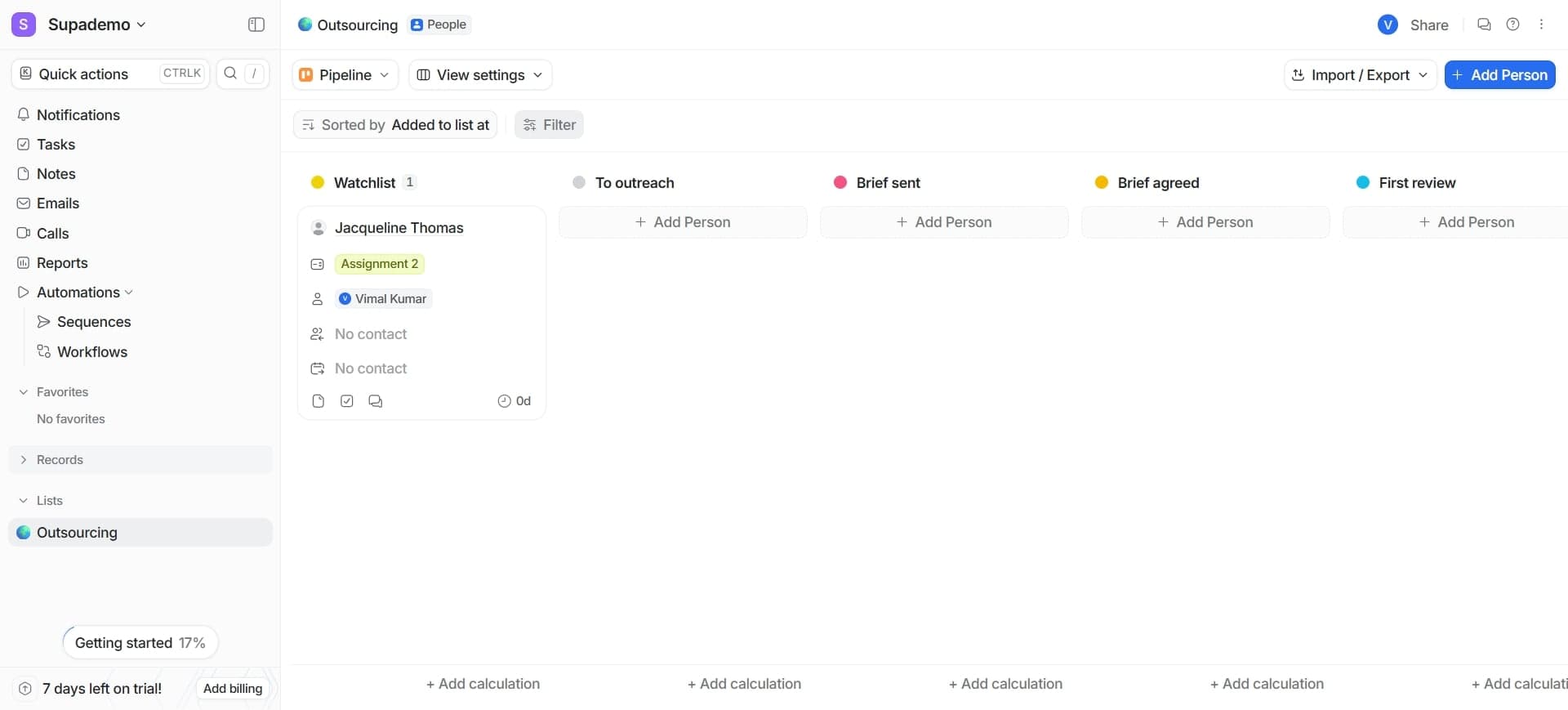
- 13
Customize list views for different needs
Create multiple views of the same list by saving new filter and sort combinations under different names. This lets team members view the same data from different angles without creating duplicate lists.
- 14
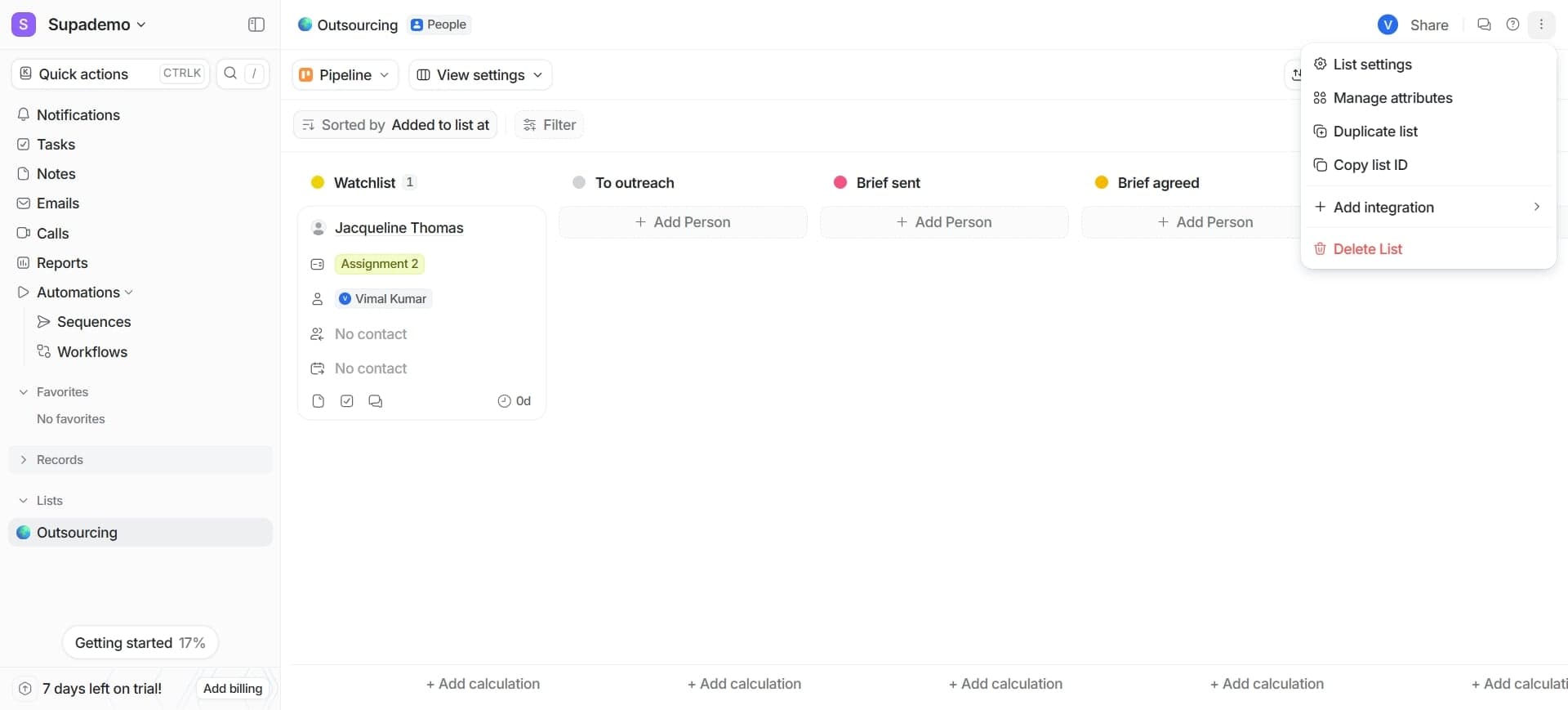
Monitor and update list settings regularly
Review your filters and configurations periodically to ensure your lists remain relevant as your business priorities change. Update criteria, add new fields, or adjust visibility as needed.
Frequently asked questions
Common questions about how to create and manage lists in attio.
No, each list is tied to a single record type. However, you can create separate lists for Contacts, Companies, and Deals, then use filters and views to manage different subsets of data. If you need to view related records across types, you can use Attio's relationship features to connect them.
Select the records you want to update using the checkboxes on the left side of the list. Click the bulk action menu that appears and choose the fields you want to modify. Enter new values and confirm—all selected records will be updated at once.
A regular list shows records based on static filters you set once. A smart list automatically updates to include any records that match your criteria, so new records meeting those conditions appear without manual action. Smart lists are ideal for dynamic segments like 'deals closing this month.'
Yes, click the Columns button in your list view. You can drag columns left or right to reorder them, hide columns you don't need, or unhide columns you want to display. These changes are saved to your list configuration.
Click the Export button in your list view and select your preferred format, typically CSV or Excel. The exported file will contain all visible columns and records currently displayed in your list, making it easy to share data or use it in external tools.