How to Use the ZoomInfo Extension on LinkedIn

Vimal Kumar
Vimal Kumar·
How to Use the ZoomInfo Extension on LinkedIn
Interactive demo powered by Supademo

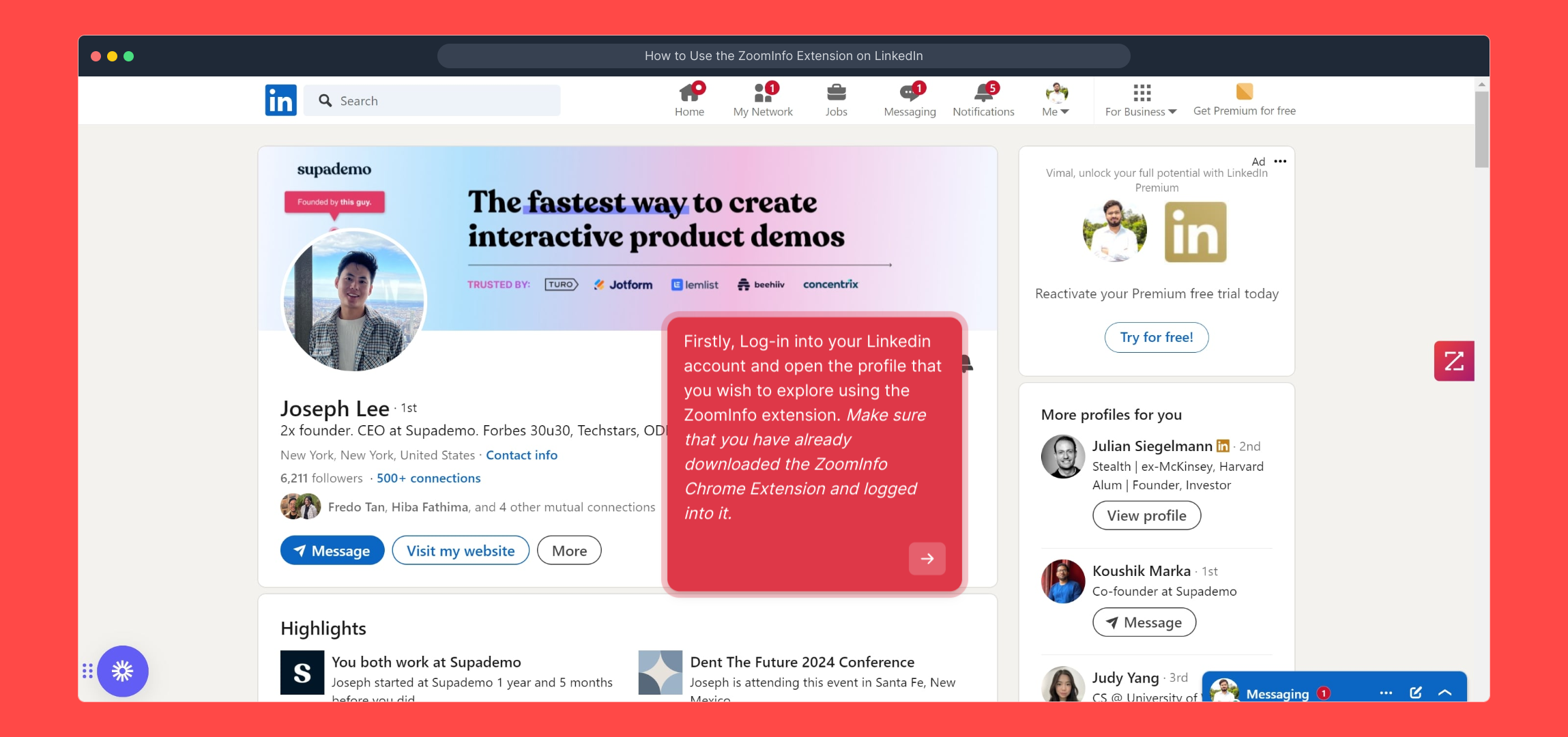
1. Firstly, Log-in into your Linkedin account and open the profile that you wish to explore using the ZoomInfo extension. Make sure that you have already downloaded the ZoomInfo Chrome Extension and logged into it.

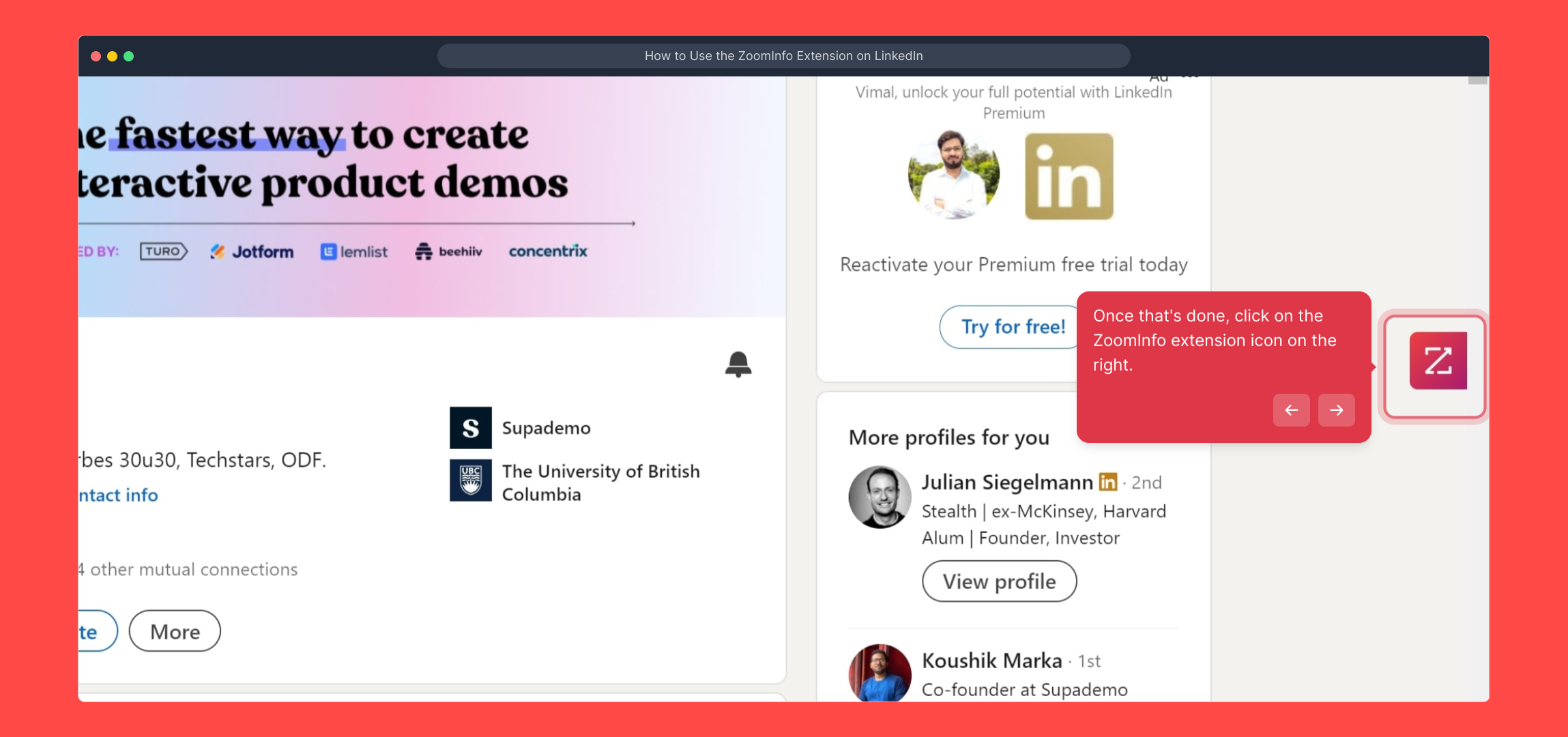
2. Once that's done, click on the ZoomInfo extension icon on the right.

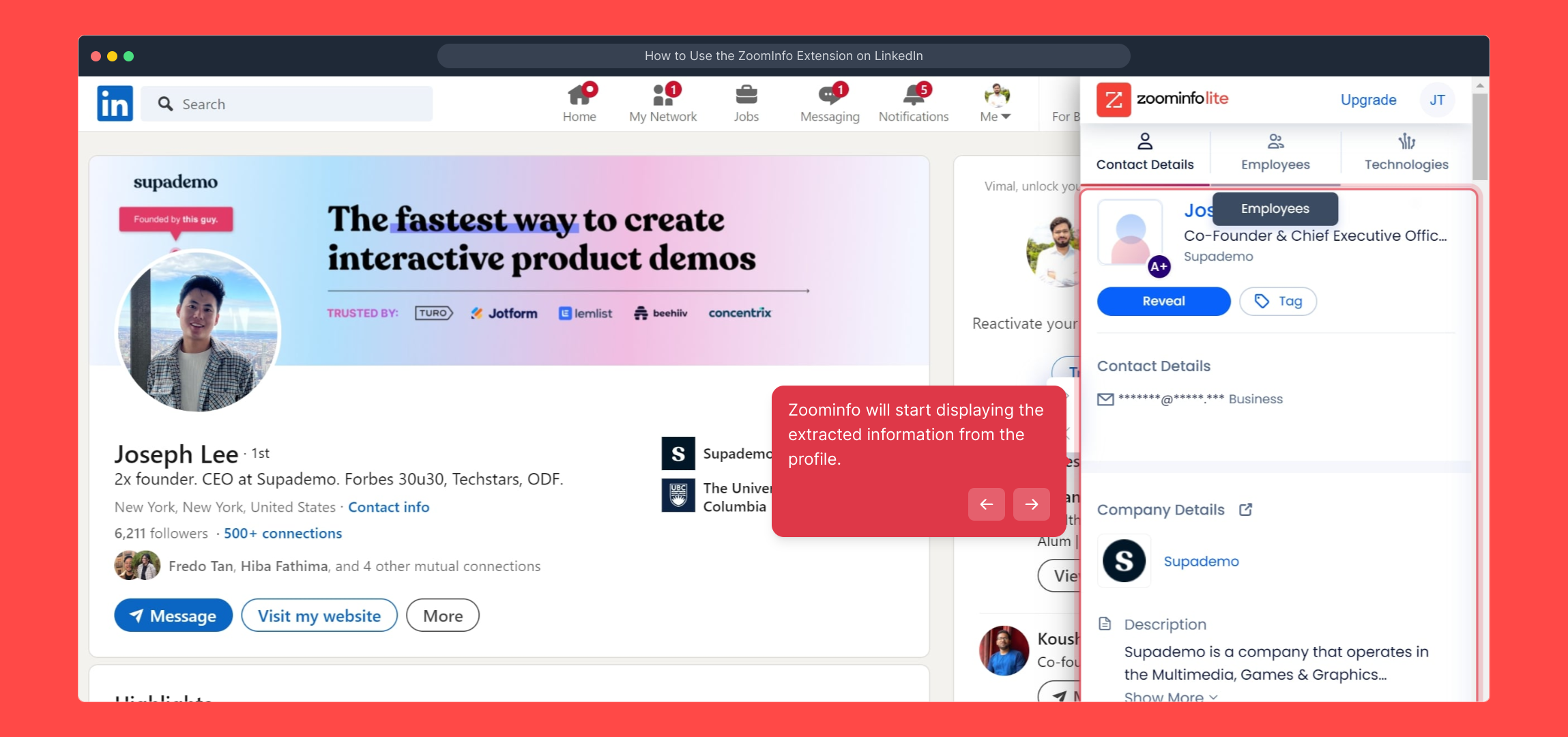
3. Zoominfo will start displaying the extracted information from the profile.

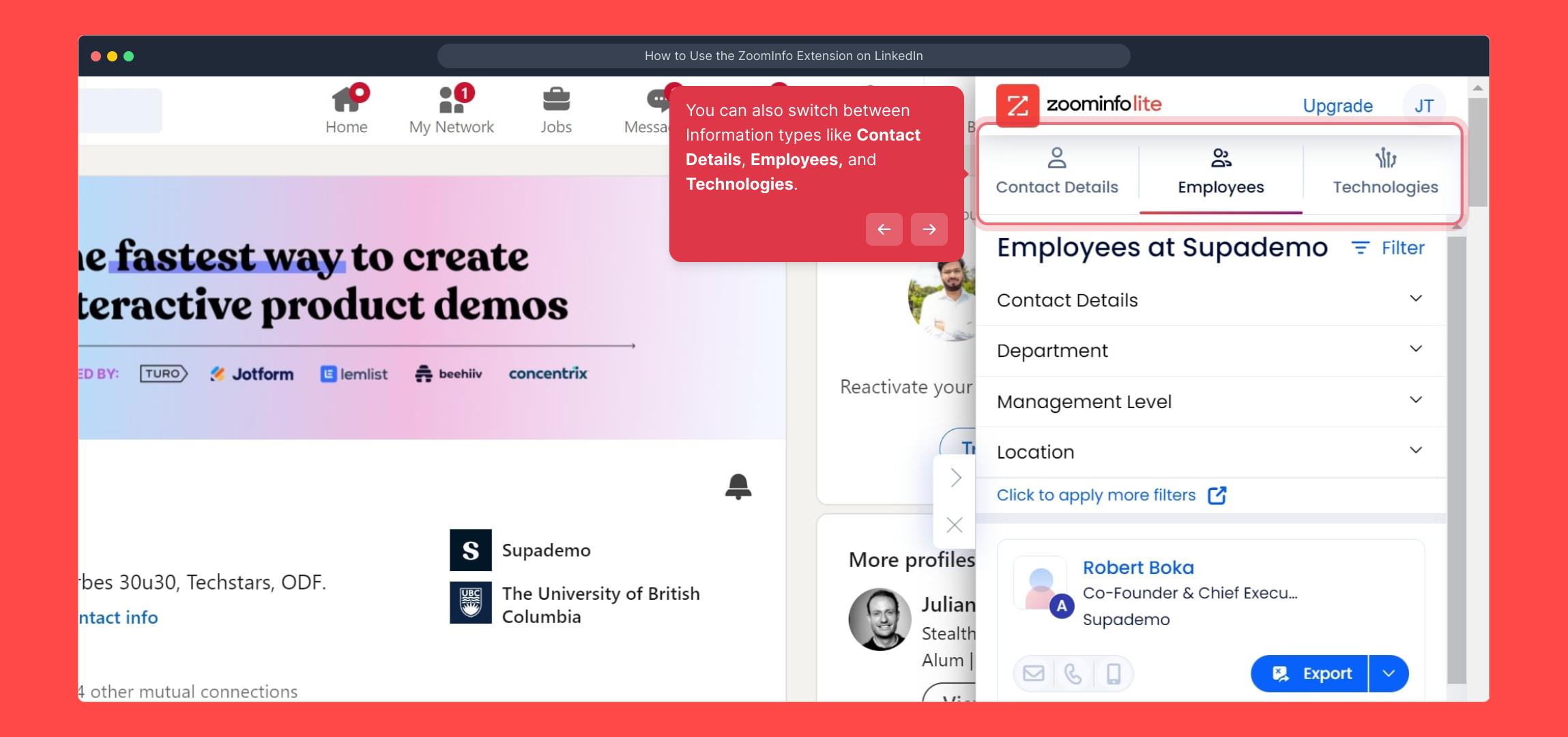
4. You can also switch between Information types like Contact Details, Employees, and Technologies.

5. Create a Supademo in seconds

This interactive demo/guided walkthrough on How to Use the ZoomInfo Extension on LinkedIn was created using Supademo.


How to Use the ZoomInfo Extension on LinkedIn : Step-by-Step Guide

Begin by logging into your LinkedIn account and navigating to the profile you want to investigate further. Before you continue, ensure that the ZoomInfo Chrome Extension is installed and you’re signed into it, as this will enable seamless access to additional insights.
1

Next, look for the ZoomInfo extension icon located in your browser’s toolbar, usually towards the upper right corner. Click this icon to initiate the process of gathering detailed information from the LinkedIn profile you’re viewing.
2

Shortly after clicking, the ZoomInfo extension will begin pulling together key data from the profile. You’ll see relevant information displayed, providing a richer picture of the person or company you’re researching.
3

To explore the insights more thoroughly, you have the option to toggle between different categories such as Contact Details, Employees, and Technologies. This flexibility helps you focus on the specific type of information you need.
4

Finally, with all this data at your fingertips, you’re ready to create a Supademo quickly and efficiently—making use of the information you’ve gathered to streamline your workflow.
5

Create your own interactive demos in < 5 mins with Supademo

You can create your own interactive product demo in minutes using Supademo. Drive growth, scale enablement, and supercharge product-led onboarding with Supademo. Sign up for free here with no credit card required.


FAQs

Commonly asked questions about this topic.

What is the ZoomInfo extension for LinkedIn?

The ZoomInfo extension is a browser plugin that enriches LinkedIn profiles by providing detailed contact, company, and technology information to enhance your prospecting and research efforts directly within LinkedIn.

How do I install the ZoomInfo Chrome extension?

You can install the ZoomInfo Chrome extension by visiting the Chrome Web Store, searching for “ZoomInfo,” and clicking “Add to Chrome.” After installation, log in with your ZoomInfo credentials to activate it.

Do I need a ZoomInfo account to use the extension?

Yes, you must have a ZoomInfo account and be logged in to the extension to access enriched data and unlock the full functionality of the ZoomInfo LinkedIn integration.

Is the ZoomInfo extension free to use?

The ZoomInfo extension requires a paid subscription to access most features. However, some limited data may be available for free, but full access requires an active ZoomInfo plan.

What types of information does the ZoomInfo extension display?

The extension shows contact details, company employee data, technologies used by companies, and other relevant insights to help with sales and marketing research on LinkedIn profiles.

How does the ZoomInfo extension enhance my LinkedIn workflow?

It provides instant data enrichment on LinkedIn profiles, enabling you to gather valuable insights without switching platforms, improving efficiency and accuracy in lead qualification and outreach.

Can I toggle between different types of information within the extension?

Yes, the extension allows you to switch between Contact Details, Employees, and Technologies tabs to focus on the specific data relevant to your prospecting or research needs.

Is my data safe when using the ZoomInfo extension?

ZoomInfo follows standard security measures to protect user data. However, always review ZoomInfo’s privacy policy to understand how your data is collected, used, and secured.

What should I do if the extension doesn't display information on a LinkedIn profile?

If no data appears, ensure you are logged into the extension and that the profile is public. Also, try refreshing the page or reinstalling the extension if issues persist.

Can I use the ZoomInfo extension on browsers other than Chrome?

The ZoomInfo extension is primarily designed for Chrome. Some Chromium-based browsers may support it, but official support for others like Firefox or Safari is limited or unavailable.

Vimal Kumar

Vimal Kumar

Product Operations Associate

Vimal Kumar helps build and grow Supademo’s team and GTM efforts, with a focus on figuring out growth levers and improving product traction.

More from the blog

How to Add Products to Shopify

How to Add Products to Shopify

Learn step-by-step how to add products to your Shopify store effortlessly, including tips on product details, images, pricing, and inventory management to boost your online sales.

Vimal Kumar
Vimal KumarDec 17, 2025
How to Deactivate Your Shopify Store

How to Deactivate Your Shopify Store

Learn step-by-step how to deactivate your Shopify store easily, including important considerations and tips to pause or close your shop without losing data.

Vimal Kumar
Vimal KumarDec 17, 2025
How to Remove 'Powered by Shopify'

How to Remove 'Powered by Shopify'

Learn how to easily remove the 'Powered by Shopify' text from your online store with step-by-step instructions and tips to customize your Shopify storefront.

Vimal Kumar
Vimal KumarDec 17, 2025
How to Create a Shopify Account

How to Create a Shopify Account

Learn step-by-step how to create a Shopify account quickly and easily, set up your online store, and start selling your products in no time.

Vimal Kumar
Vimal KumarDec 17, 2025
How to Create a Stripe Account

How to Create a Stripe Account

Learn how to create a Stripe account quickly and easily with our step-by-step guide, perfect for beginners looking to start accepting online payments.

Vimal Kumar
Vimal KumarDec 17, 2025
How to Contact Stripe Support

How to Contact Stripe Support

Learn the easiest ways to contact Stripe support for quick assistance with your payment processing, account issues, and technical questions.

Vimal Kumar
Vimal KumarDec 16, 2025