How to add formulas to fields in Airtable

Formulas in Airtable allow you to perform calculations, manipulate text, and automate data transformations within your fields. This capability is essential for building dynamic databases that compute values automatically based on your data.
Quick summary
In this tutorial, you'll learn how to add formulas to fields in Airtable by navigating to the field configuration and selecting the formula field type. You'll discover how to access the formula editor and save your configuration to start automating calculations.
Why this matters
Using formulas in Airtable saves time by eliminating manual data entry and ensures consistency across your database. Whether you're calculating totals, concatenating text, or deriving values from other fields, formulas are fundamental to creating intelligent, self-updating bases.
Step-by-step guide
- 1
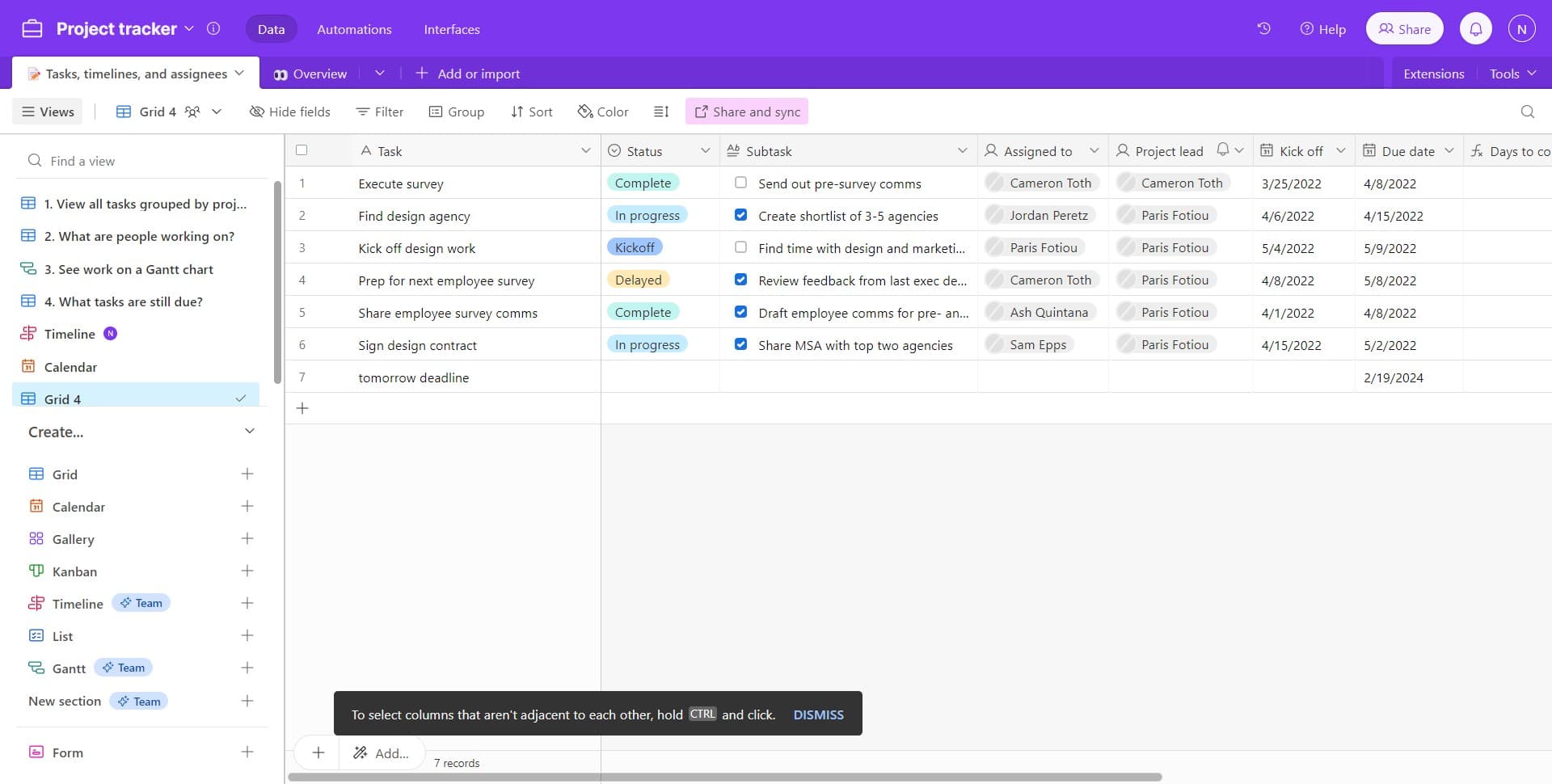
Click on the Task field
Start by selecting the Task field in your Airtable base. This is the field you'll modify to add your formula functionality.
- 2
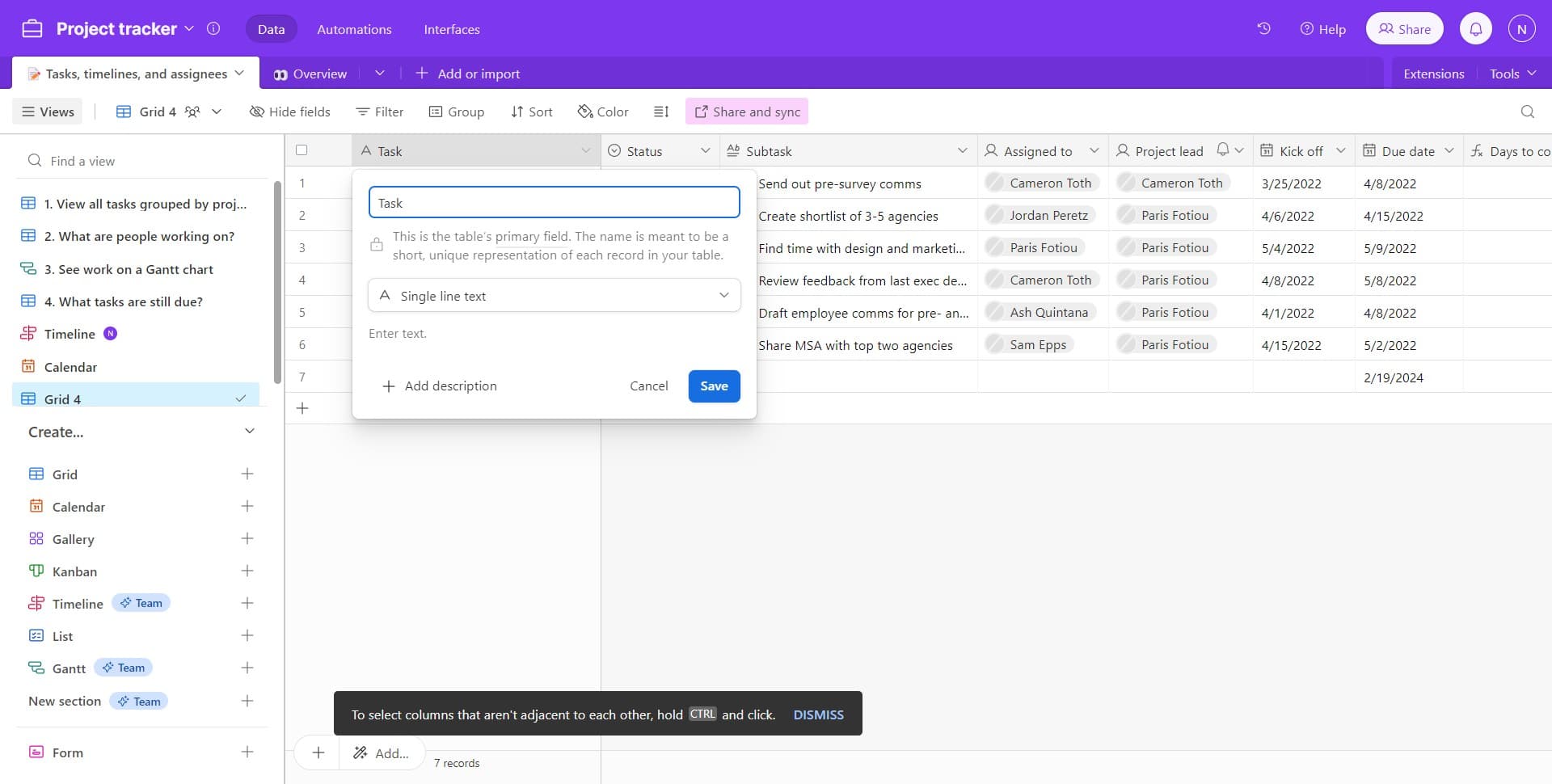
Select Single line text field type
Click on the Single line text option to see the available field types. This step shows you the current field configuration before conversion.
- 3
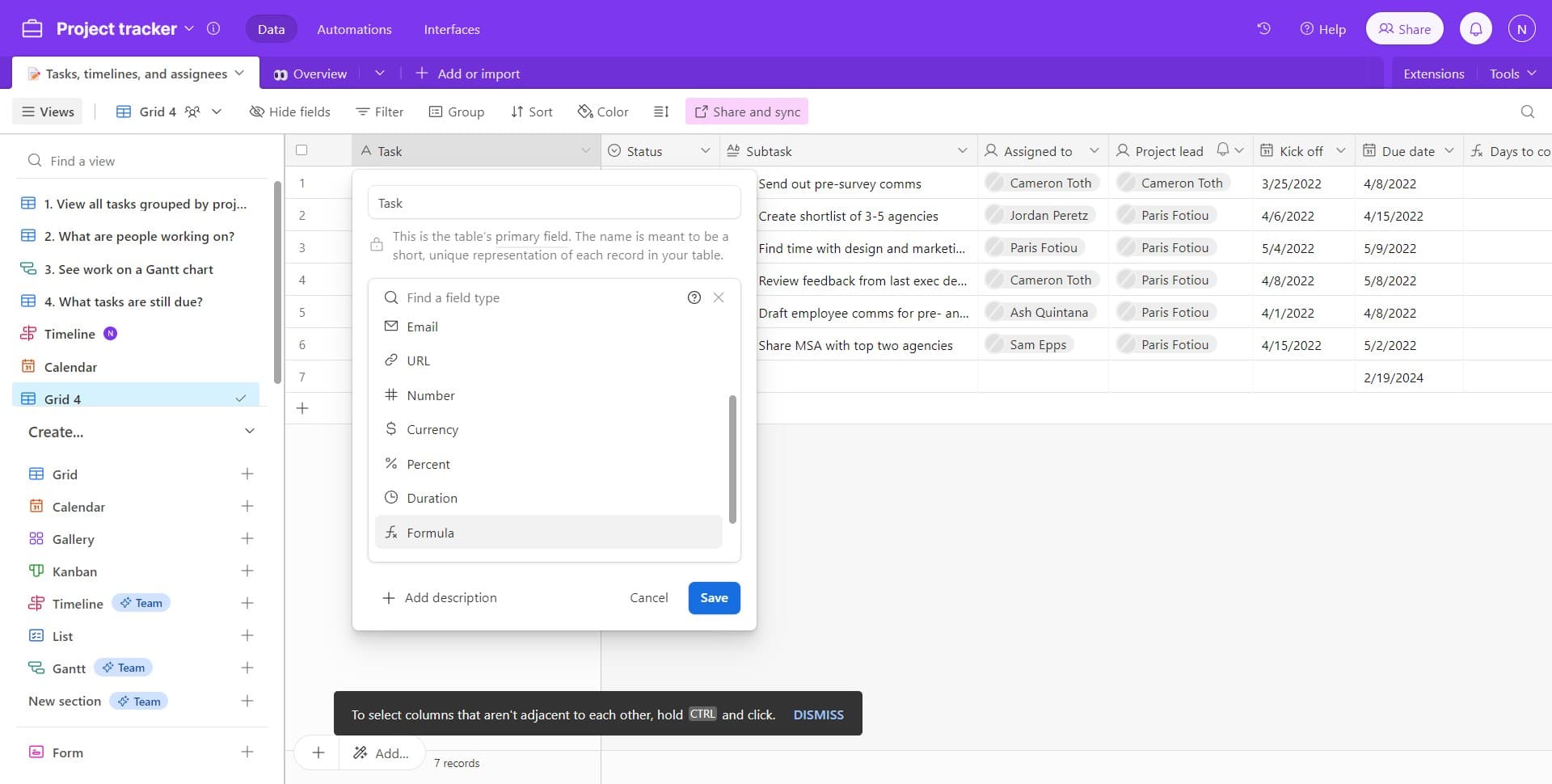
Choose the Formula field type
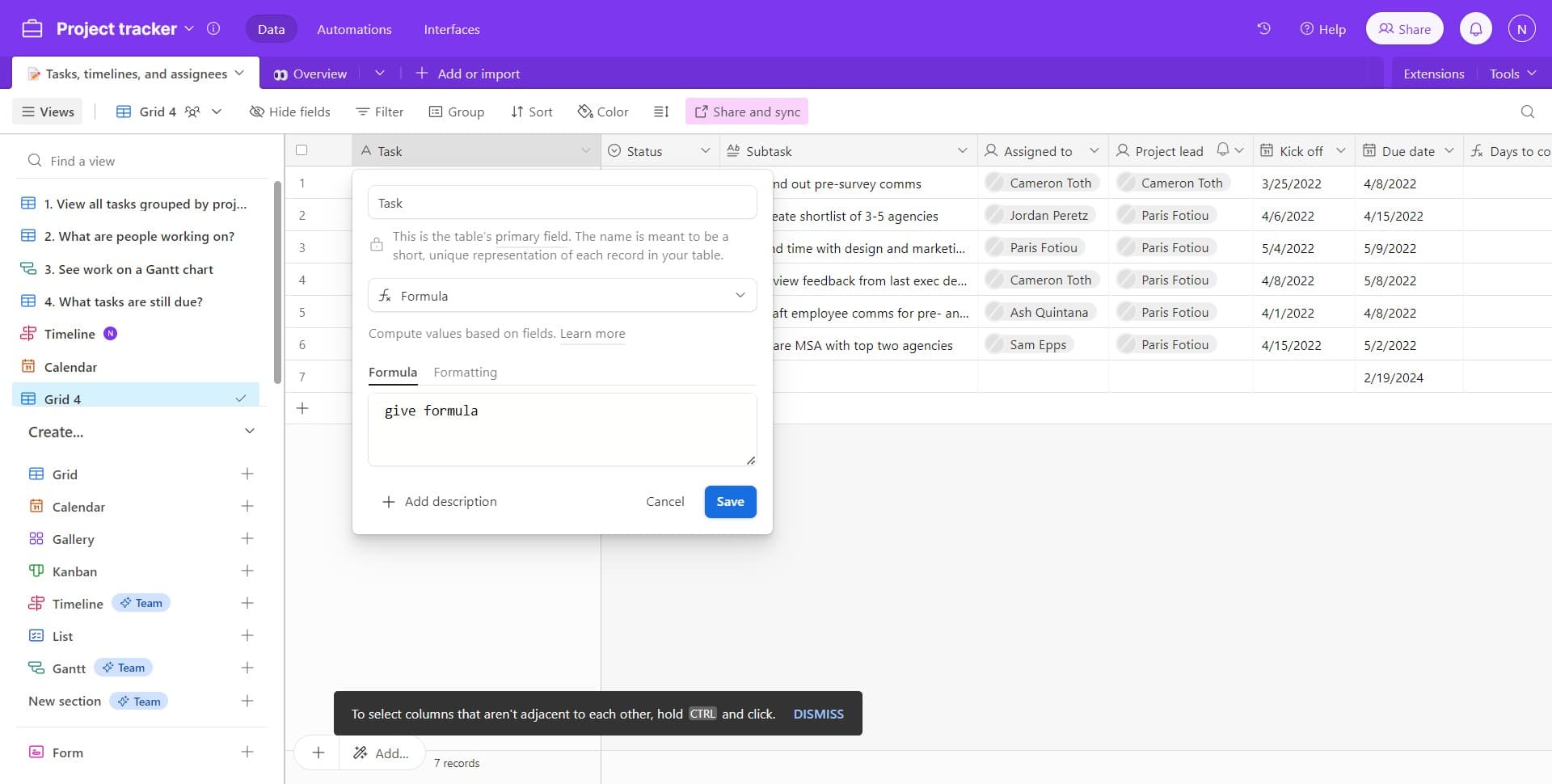
Click on Formula to convert your field to a formula field. This opens the formula configuration interface where you can define your calculation or transformation.
- 4
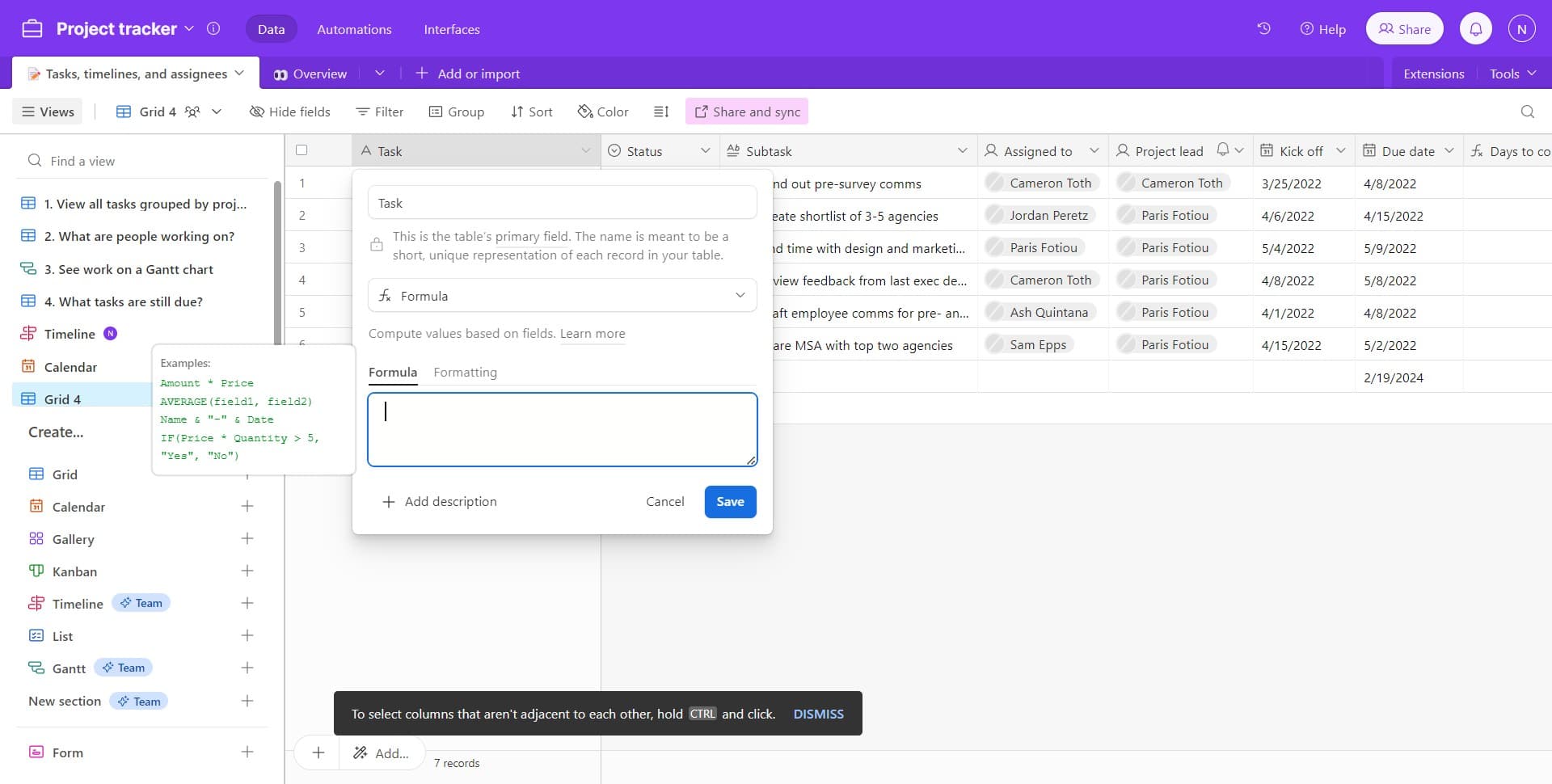
Enter your formula expression
Click in the formula editor area and type your formula using Airtable's formula language. You can reference other fields, use functions, and create complex expressions based on your needs.
- 5
Save your formula field
Click the Save button to confirm your formula and apply it to the field. Your formula will now automatically calculate values for all records in that field.
Frequently asked questions
Common questions about how to add formulas to fields in airtable.
Airtable supports a wide range of formulas including mathematical operations, text manipulation, date calculations, logical conditions, and more. You can reference other fields in your base and use built-in functions to create complex automations tailored to your specific needs.
Yes, you can edit a formula at any time by clicking on the field configuration. Simply modify the formula expression and save your changes. The updated formula will immediately recalculate for all records in your base.
Formulas can handle empty or missing data, but the result depends on how you structure your formula. You can use conditional functions like IF to check for empty values and handle them appropriately, ensuring your formulas don't produce errors.
Yes, formulas can reference linked record fields and lookup fields to perform calculations across related data. This allows you to create powerful automations that span multiple tables in your Airtable base.
While Airtable handles most formulas efficiently, extremely complex nested formulas may impact performance. For optimal results, keep formulas straightforward when possible and test them with your full dataset to ensure they perform as expected.