How to create a form in Airtable

Airtable forms provide a user-friendly way to collect data and submissions without requiring users to interact directly with your base. This guide walks you through creating a form view in Airtable, customizing its appearance, and managing incoming submissions.
Quick summary
In this tutorial, you'll learn how to create a form in Airtable, add visual branding elements like logos and cover images, and access submission data. You'll discover how to transform a standard table into an interactive data collection tool in just a few clicks.
Why this matters
Forms are essential for gathering structured data from clients, team members, or the public without exposing your entire Airtable base. Using Airtable forms streamlines data entry, reduces errors, and keeps your workflow organized while maintaining data security and control.
Step-by-step guide
- 1
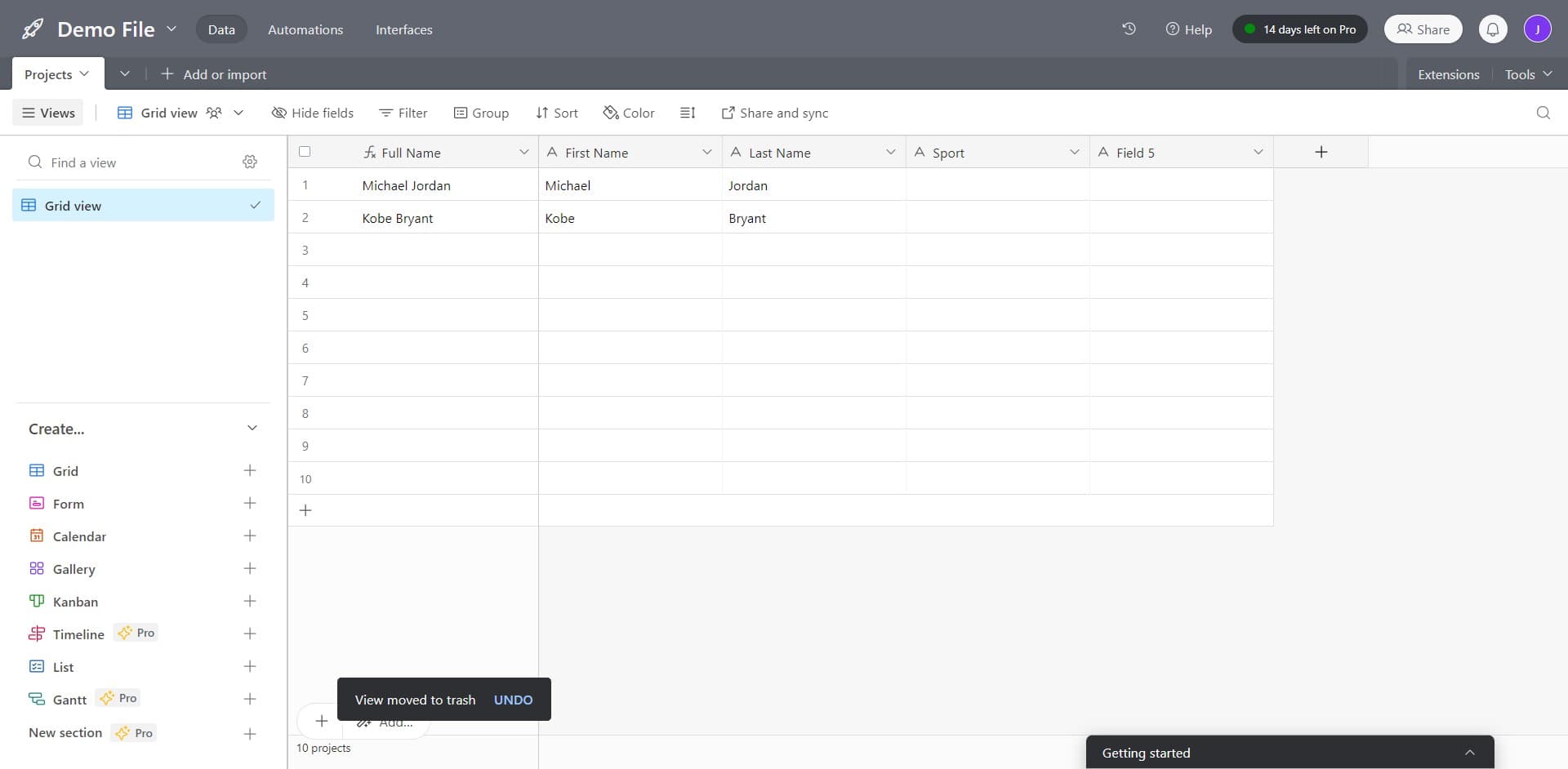
Click on Projects Add or Import
Start by selecting the Projects option or choosing to add or import data into your Airtable workspace. This opens the environment where you'll create your new form view.
- 2
Click on Form
Select the Form option from the available view types. This initiates the form creation process for your selected table or data set.

- 3
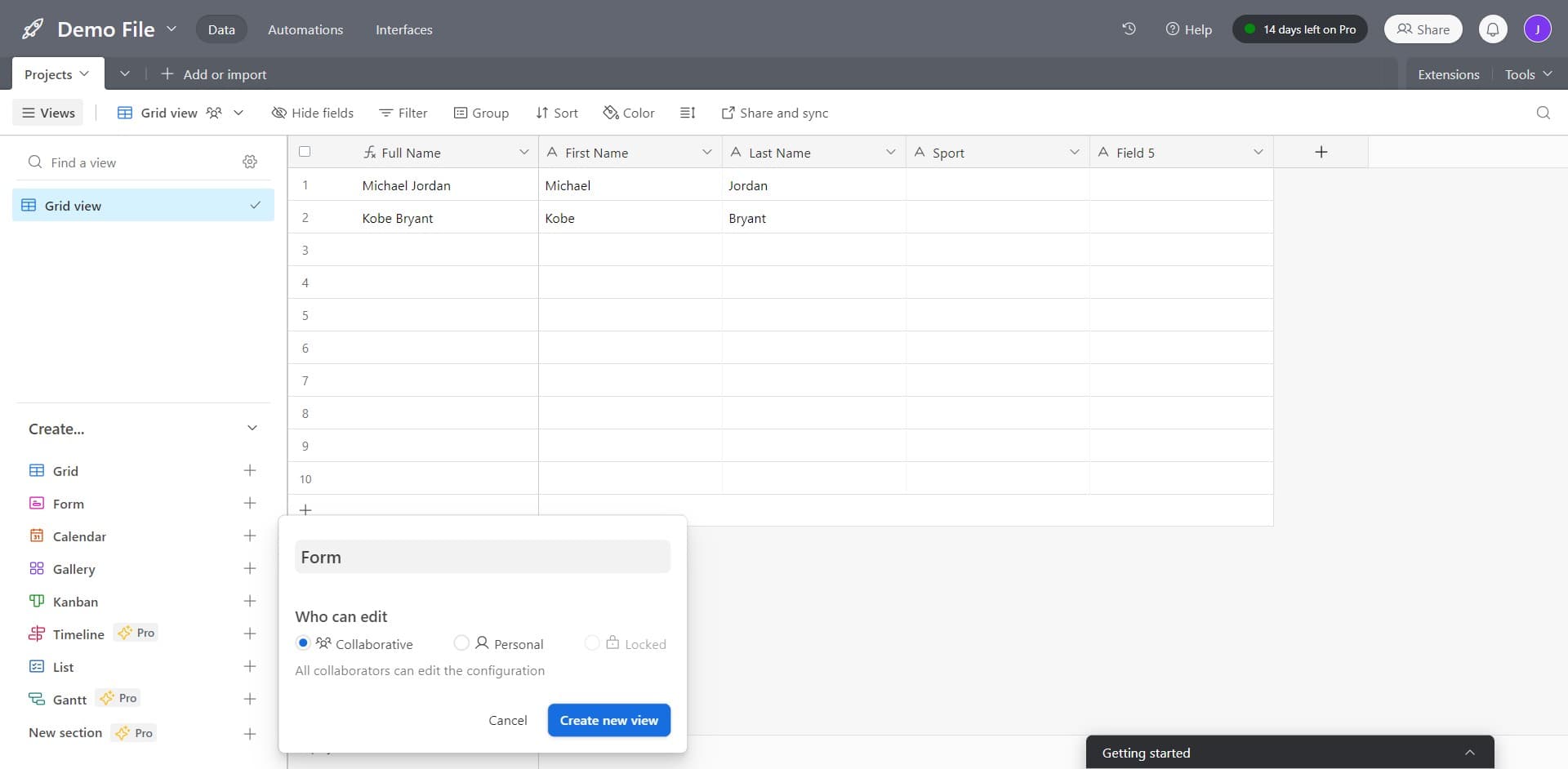
Click on Create New View
Create a new form view by clicking this option. A fresh form template will be generated, ready for customization.
- 4
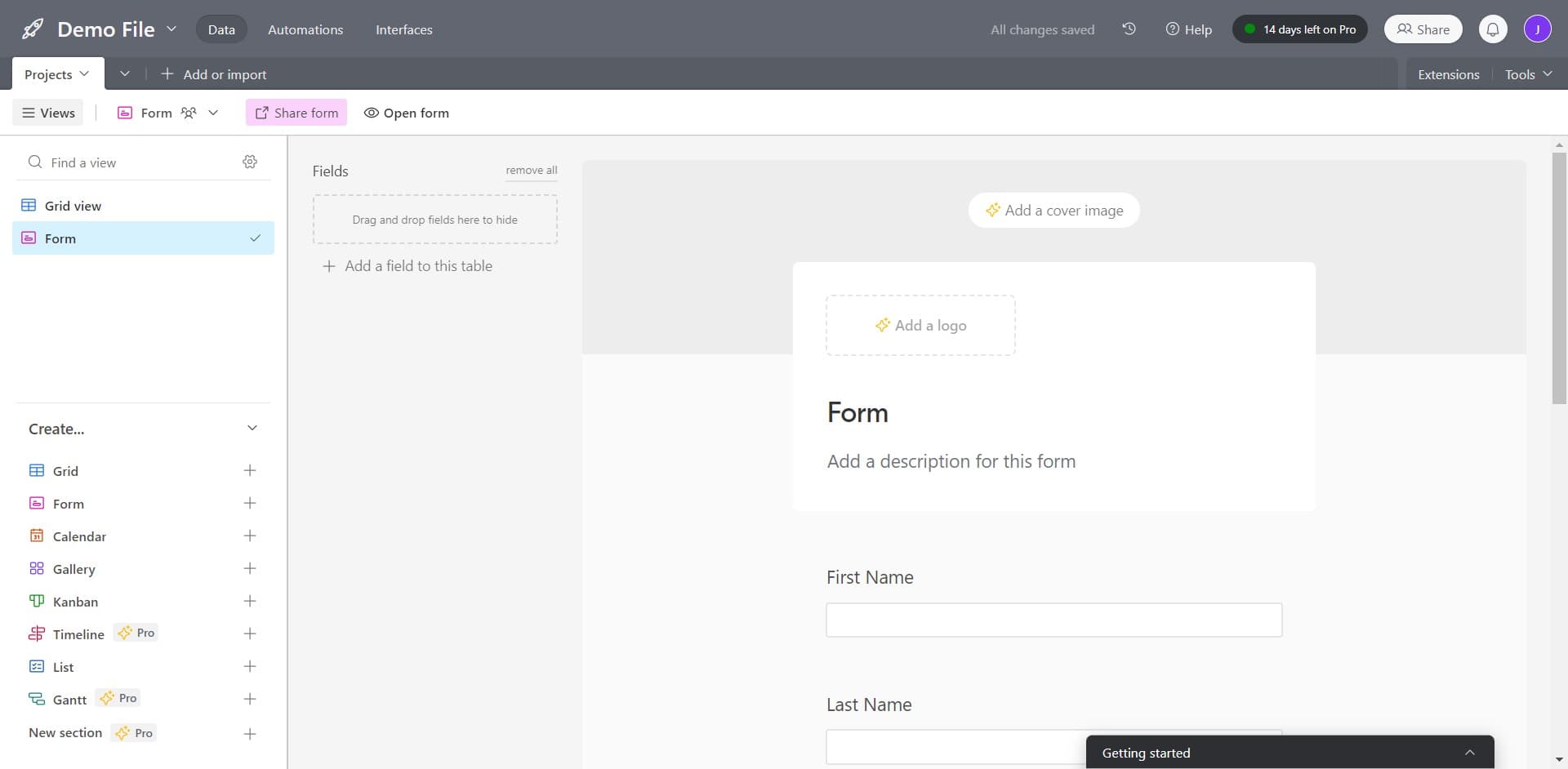
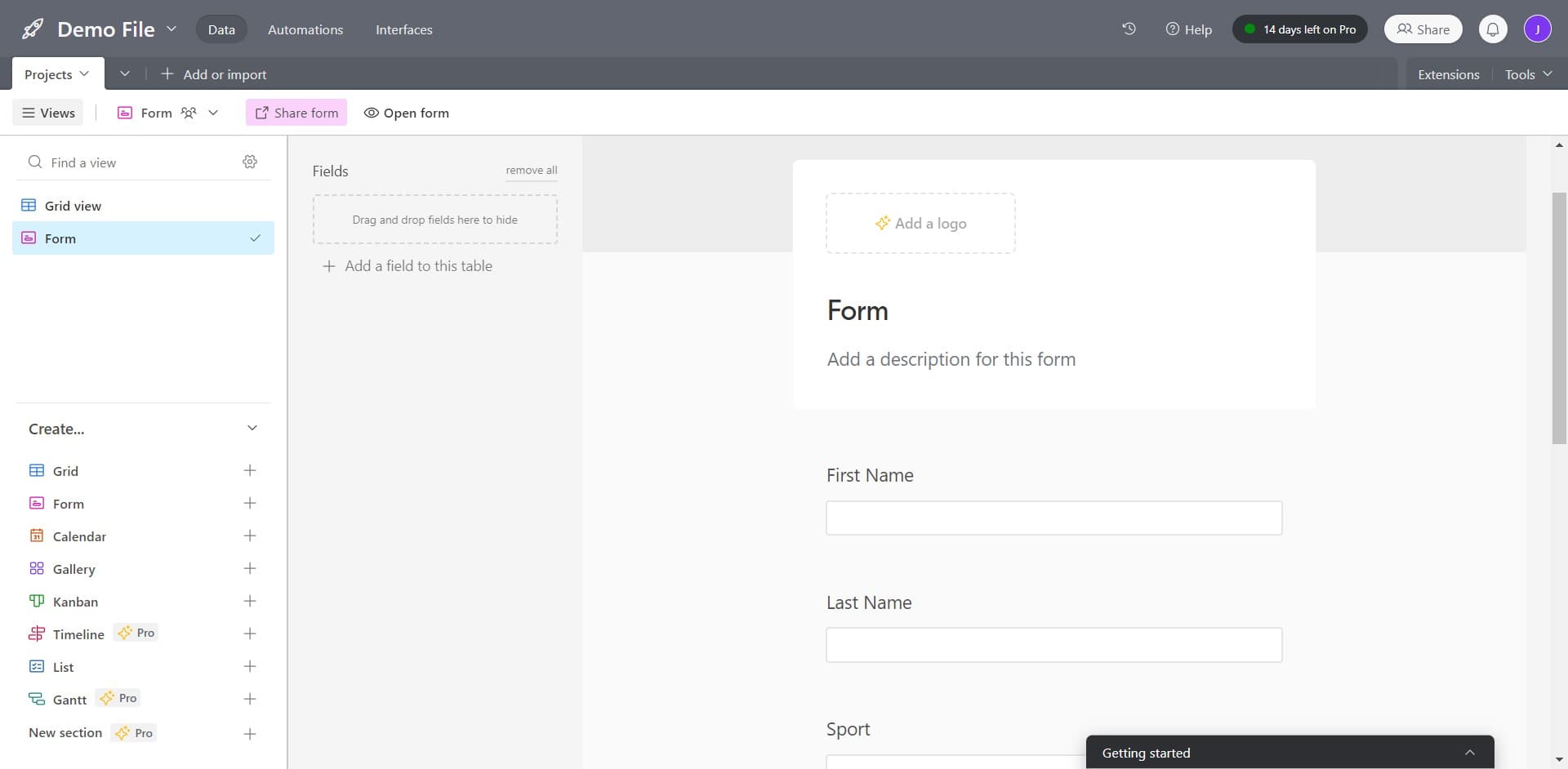
Click on Add a Logo
Upload your organization's logo to personalize the form. The logo will appear prominently on your form, reinforcing your brand identity to form submitters.
- 5
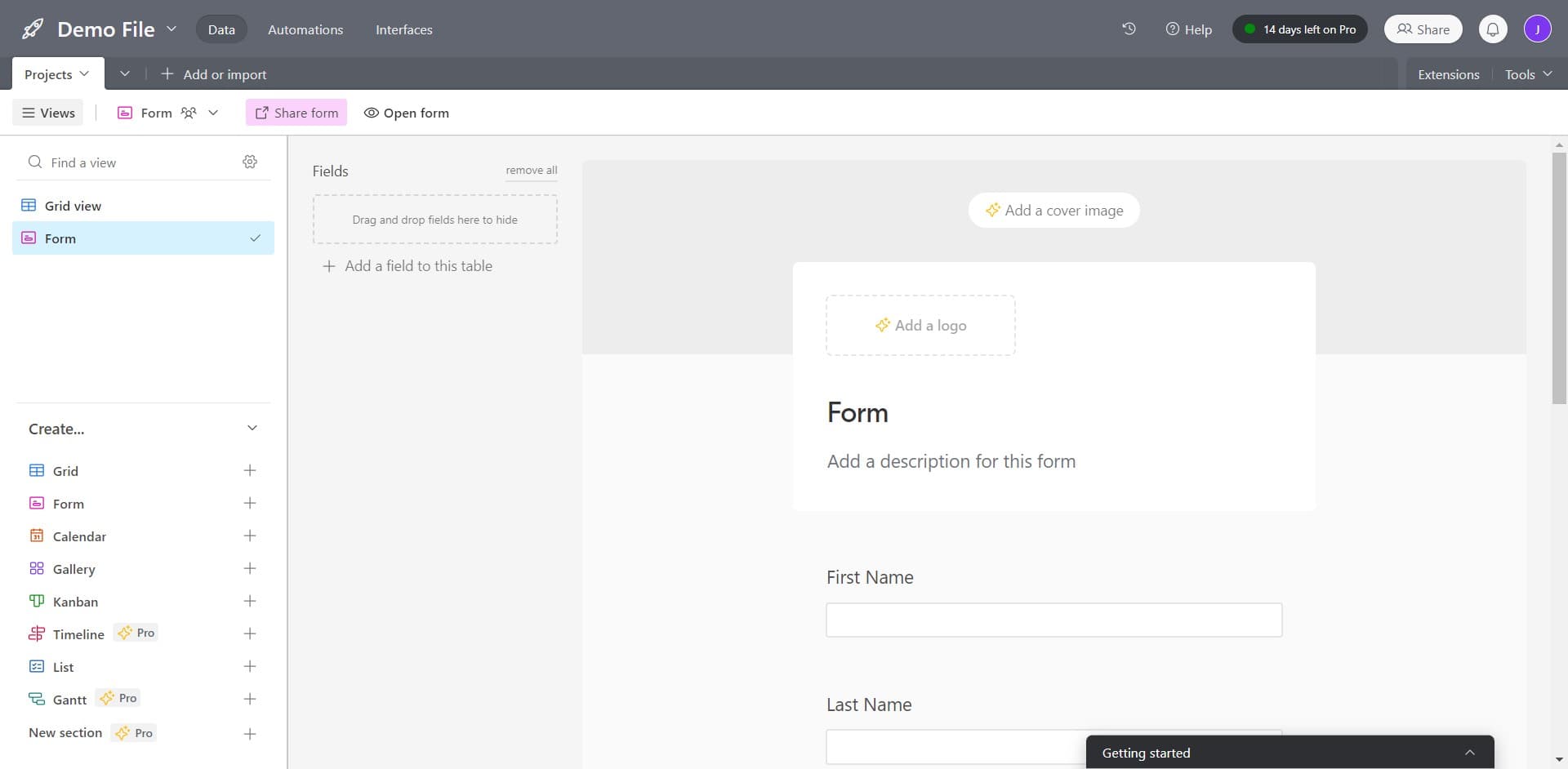
Add a Cover Image to Form
Upload a cover image that will display at the top of your form. This visual element helps set the tone and context for the information you're requesting.
- 6
Finalize Logo and Branding
Confirm your logo placement and branding settings. These customizations are now saved as part of your form's visual presentation.
- 7
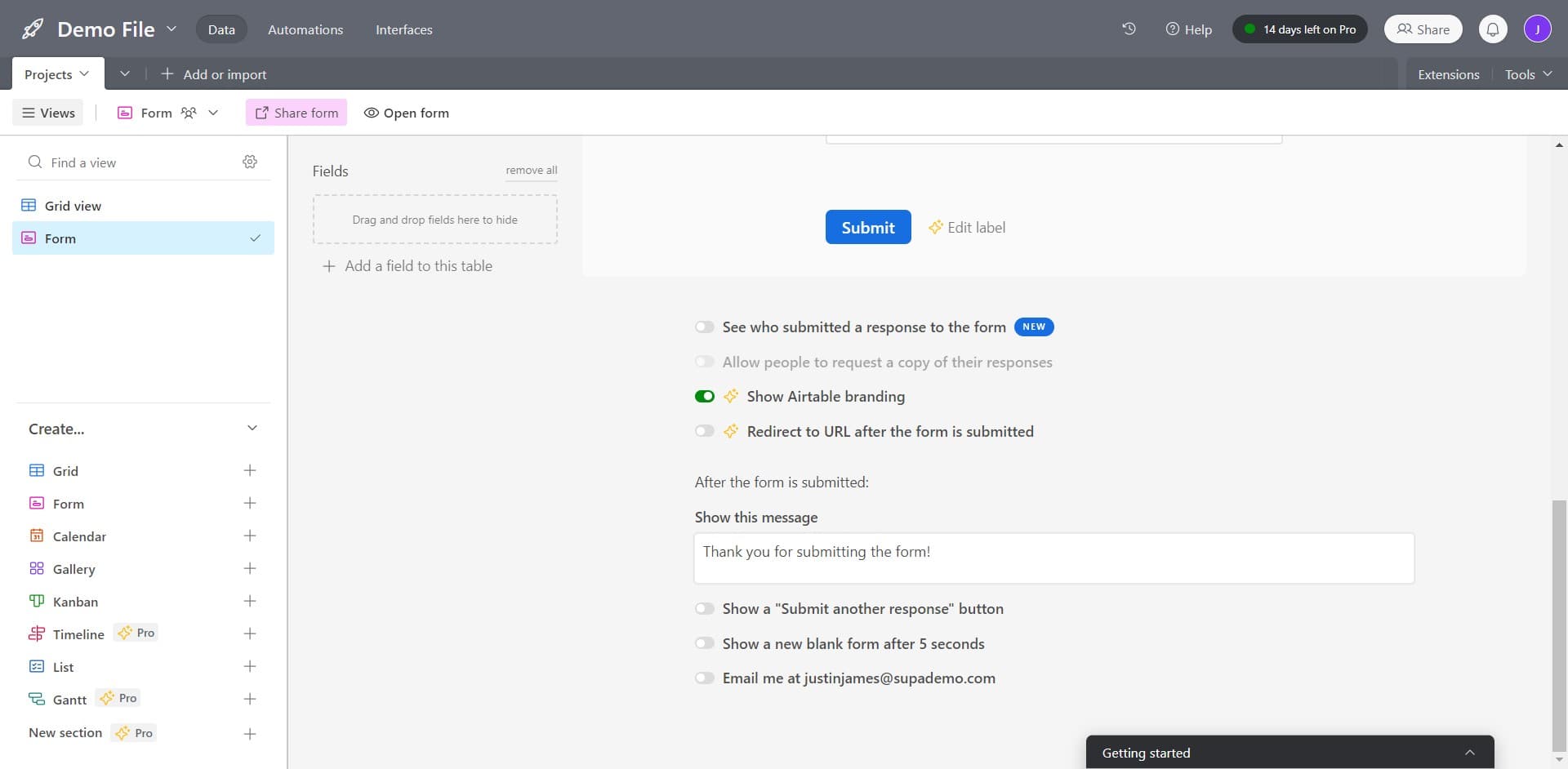
View Form Submissions
Click on See who submitted to view and manage incoming form responses. This section displays all submissions in an organized, easy-to-review format.
- 8
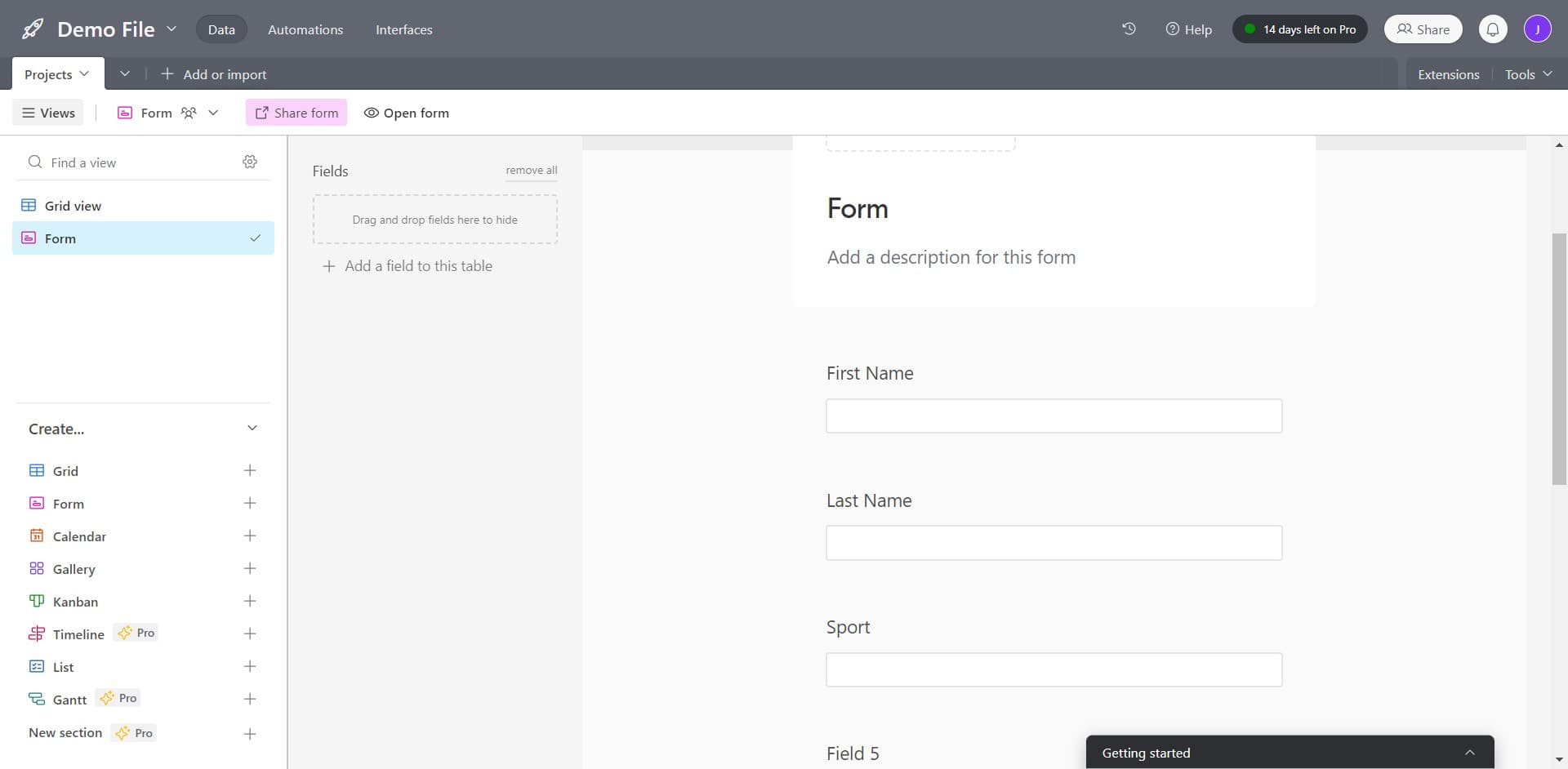
Complete Form Setup
Finalize your form configuration and prepare it for distribution. Your form is now ready to collect data from respondents.
Frequently asked questions
Common questions about how to create a form in airtable.
Yes, Airtable allows you to select which fields from your table appear in the form and in what order. You can toggle fields on or off, making the form as simple or comprehensive as needed for your use case.
After creating your form, Airtable generates a shareable link that you can copy and distribute via email, social media, or your website. Recipients can submit data through this link without needing an Airtable account.
All form submissions automatically populate as new records in your Airtable base. You can view, filter, and analyze responses just like any other data in your table, and set up automations to trigger actions based on submissions.
Airtable forms support conditional field visibility, allowing you to show or hide fields based on previous answers. This creates a more personalized experience and helps streamline the data collection process.
Airtable does not impose a limit on the number of form submissions you can receive. However, storage limits may apply based on your Airtable plan, so check your account tier for specific restrictions.