How to create a form in Airtable

Airtable forms provide a user-friendly way to collect data from respondents without requiring them to access your base directly. This guide walks you through creating a form in Airtable, from initial setup through publishing and sharing.
Quick summary
In this tutorial, you'll learn how to create a functional Airtable form by configuring fields, customizing the form interface, and publishing it for others to use. By the end, you'll be able to generate a shareable link to distribute your form to data collectors.
Why this matters
Forms streamline data collection by presenting a clean, focused interface that guides users to enter information accurately and consistently. Rather than giving people access to your entire base, forms allow you to control exactly which fields are visible and how data flows into your tables.
Step-by-step guide
- 1
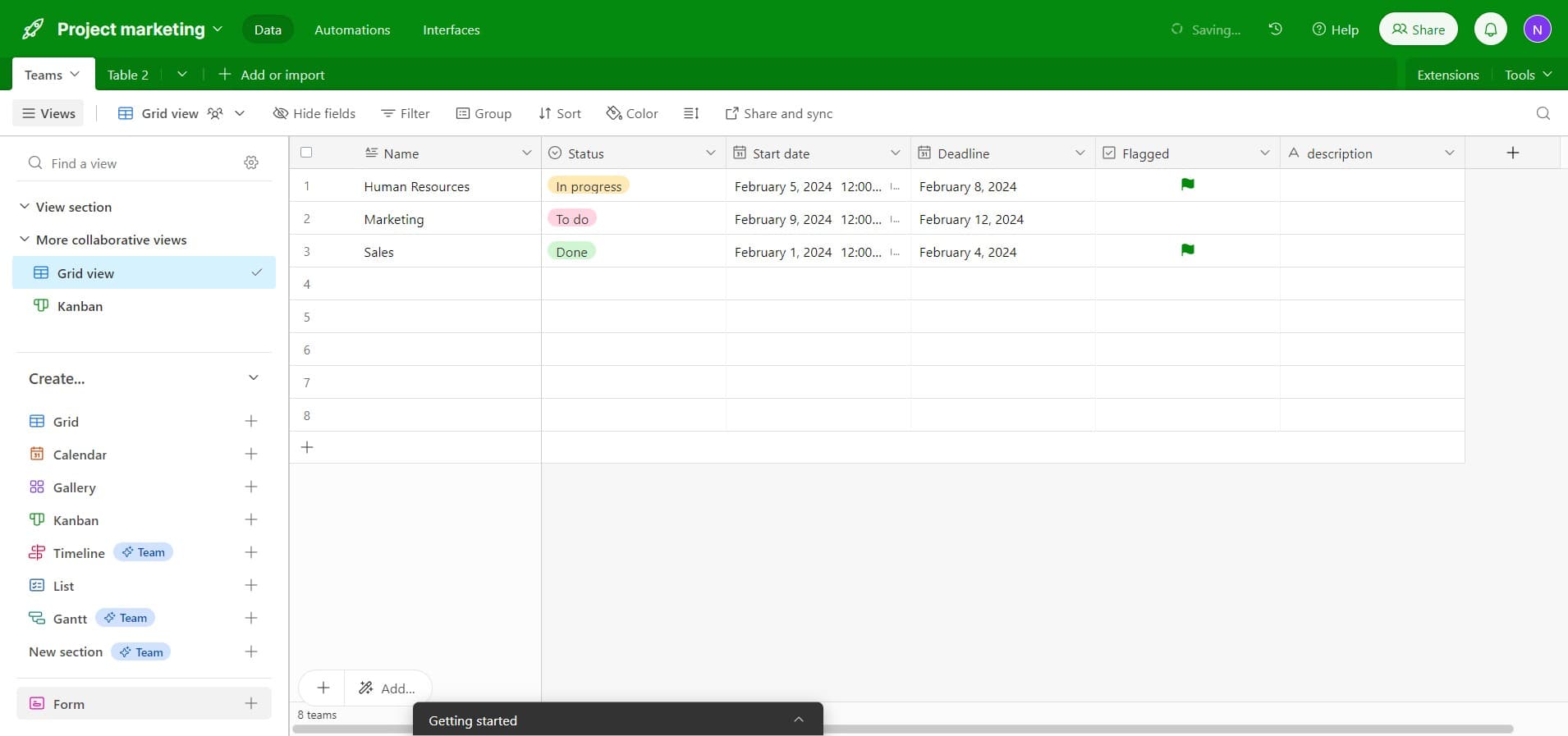
Click on Form
Start by selecting the Form option from your Airtable interface. This initiates the form creation process for your current table.
- 2
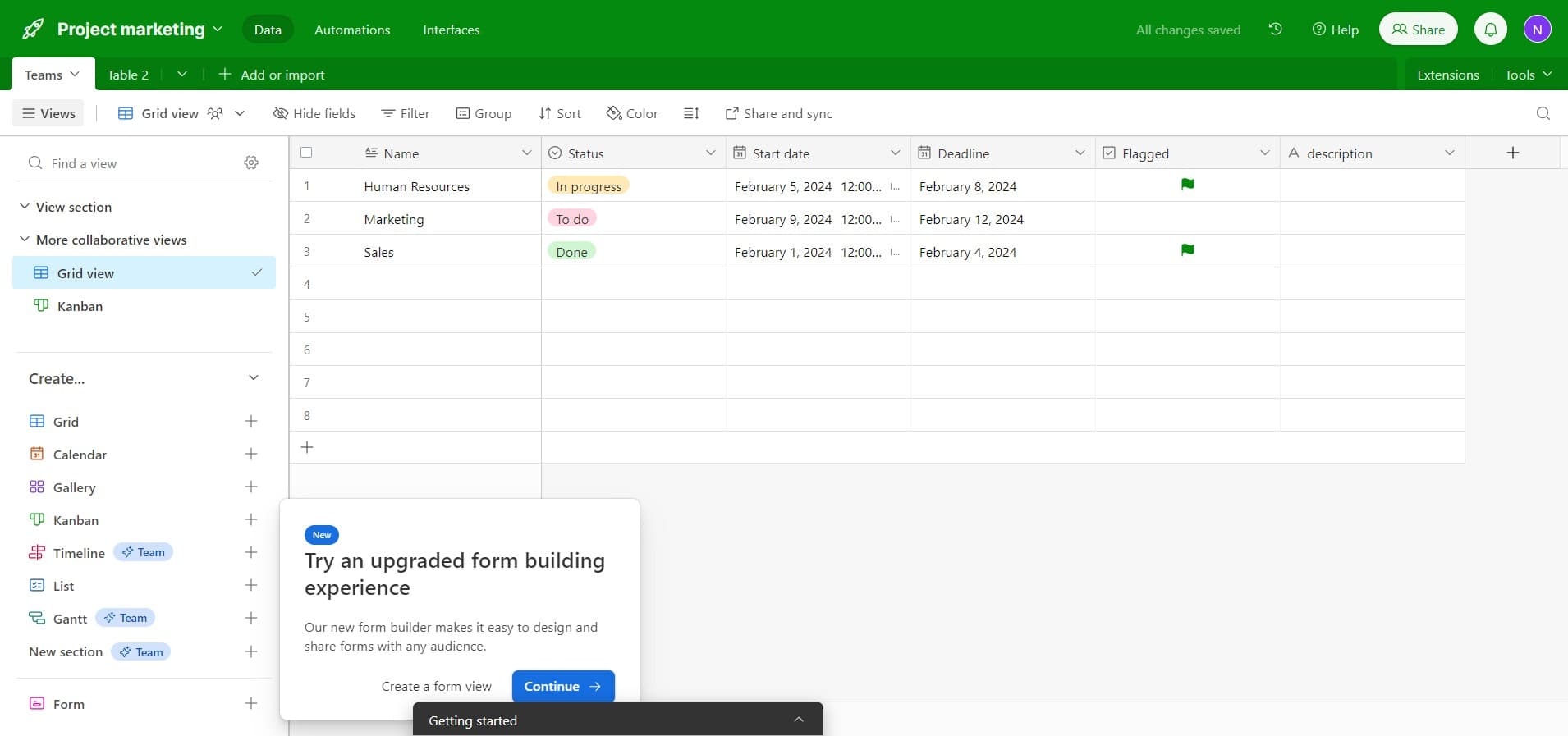
Click on Continue
Confirm your form creation by clicking the Continue button. This moves you forward in the form setup wizard.
- 3
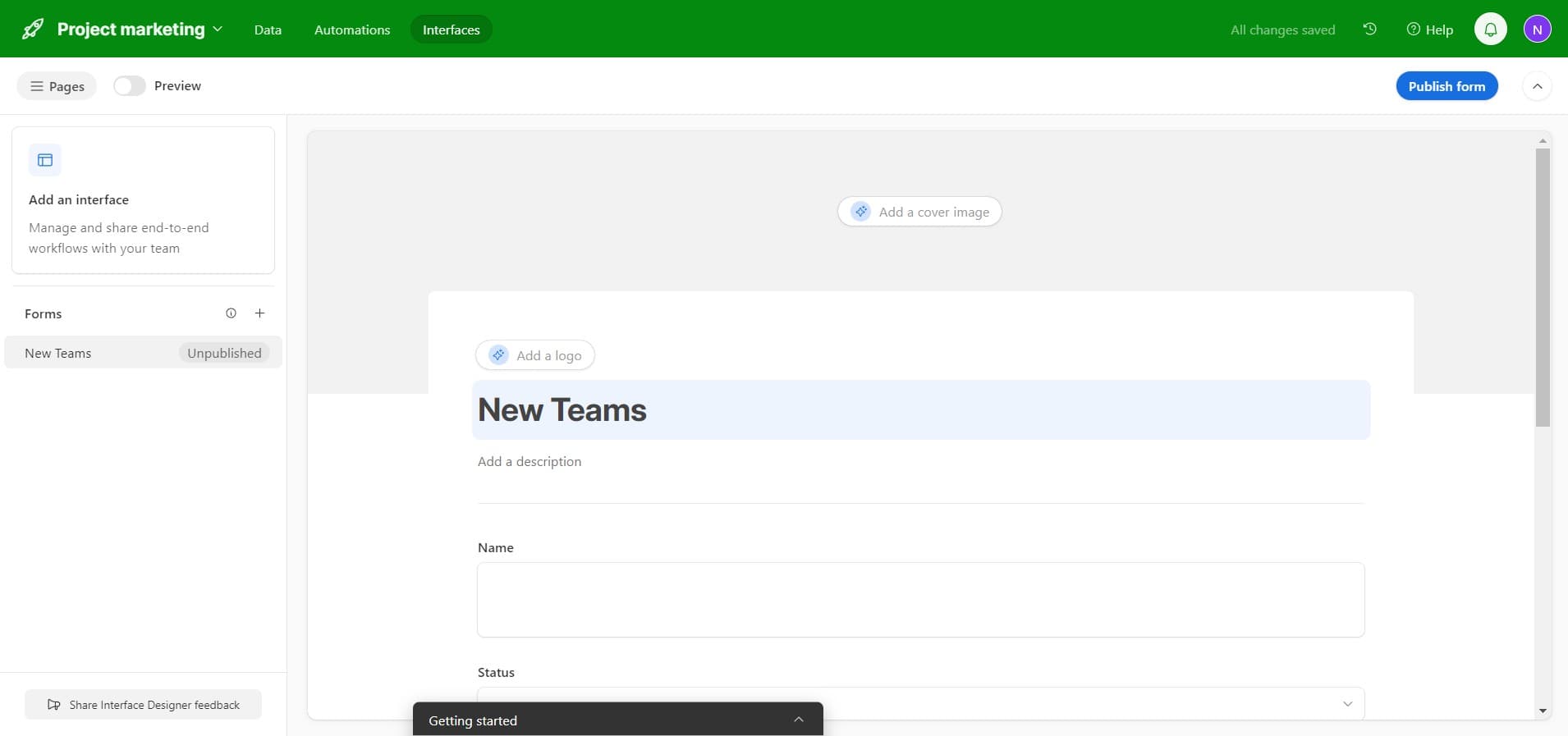
Configure first field
Select and configure your first form field according to your data collection needs. This establishes the foundation of your form structure.
- 4
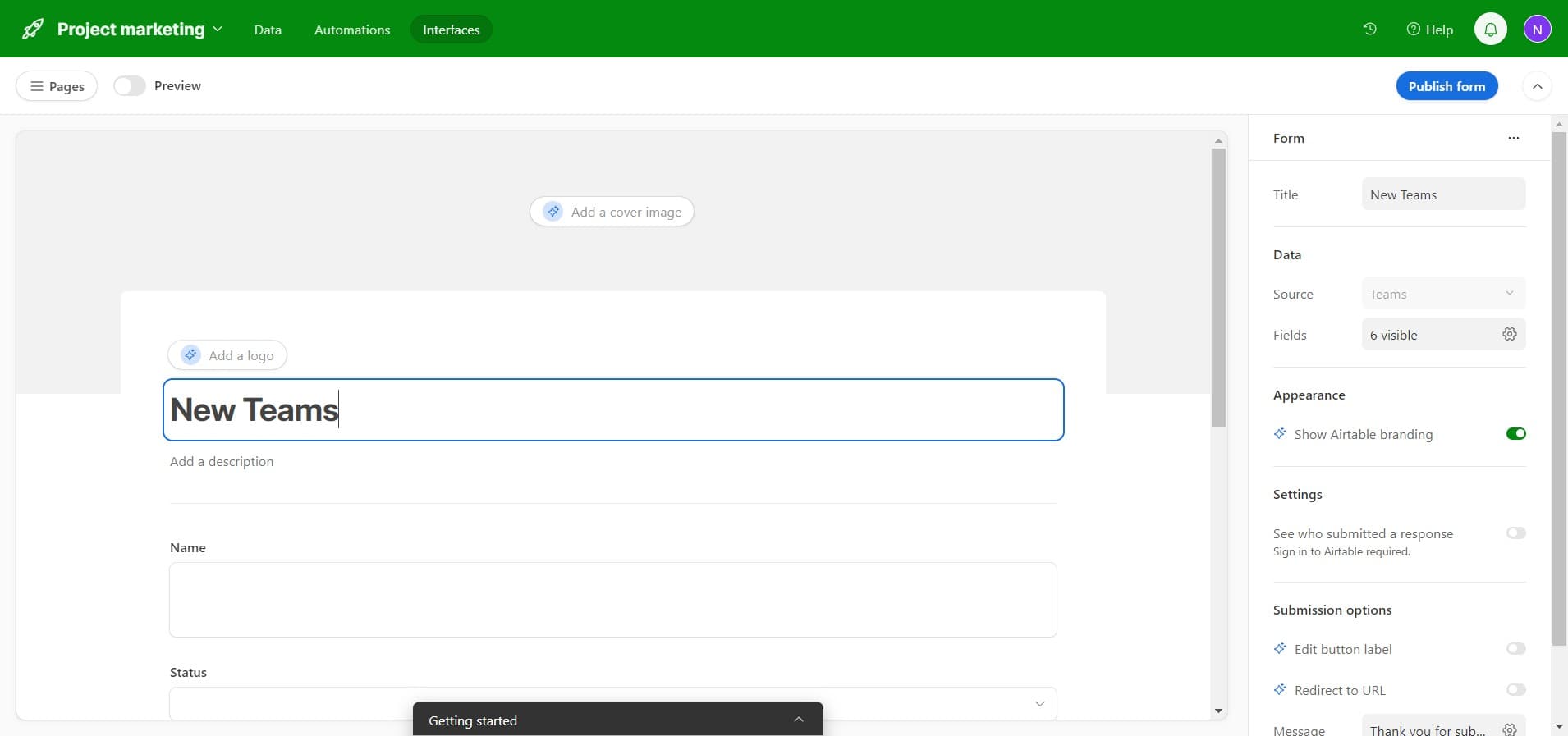
Add additional fields
Continue adding more fields to your form by clicking the designated area. Build out all the fields required for your data collection workflow.
- 5
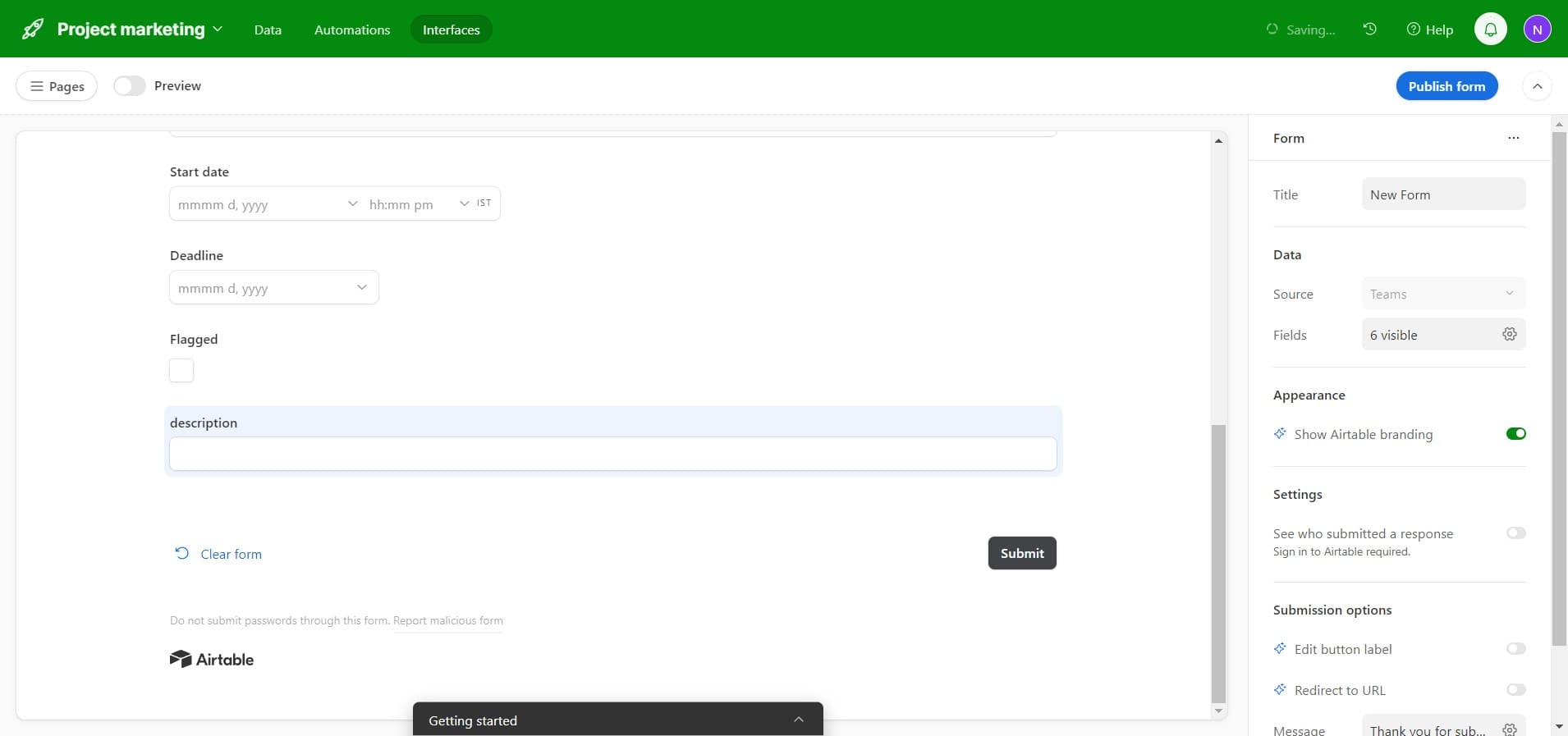
Click on description
Select the description field to add helpful text that guides respondents on how to complete that particular field. Clear descriptions improve data quality and user experience.
- 6
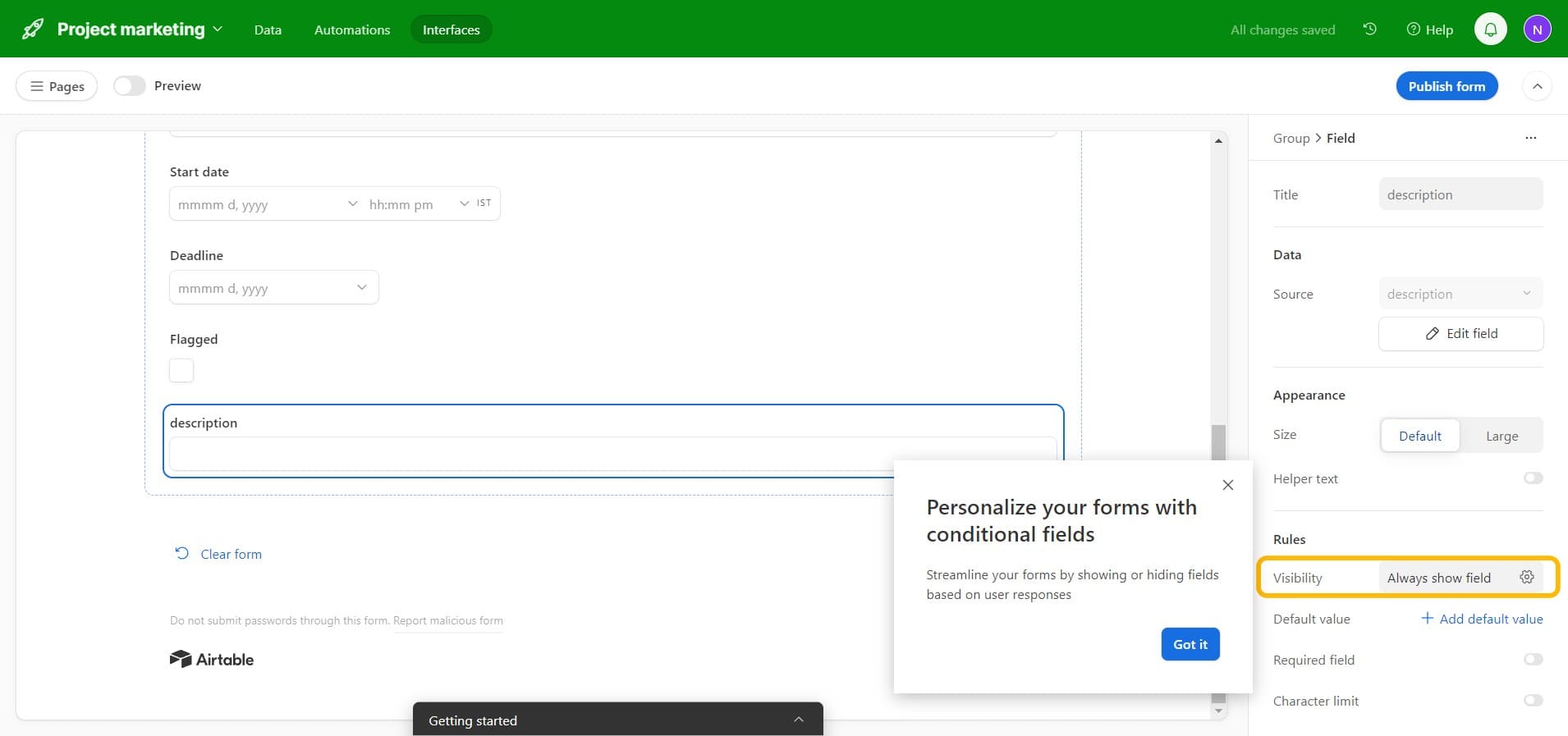
Customize field settings
Configure additional settings for your field such as requirement status, field type, and validation rules. These settings ensure data accuracy and consistency.
- 7
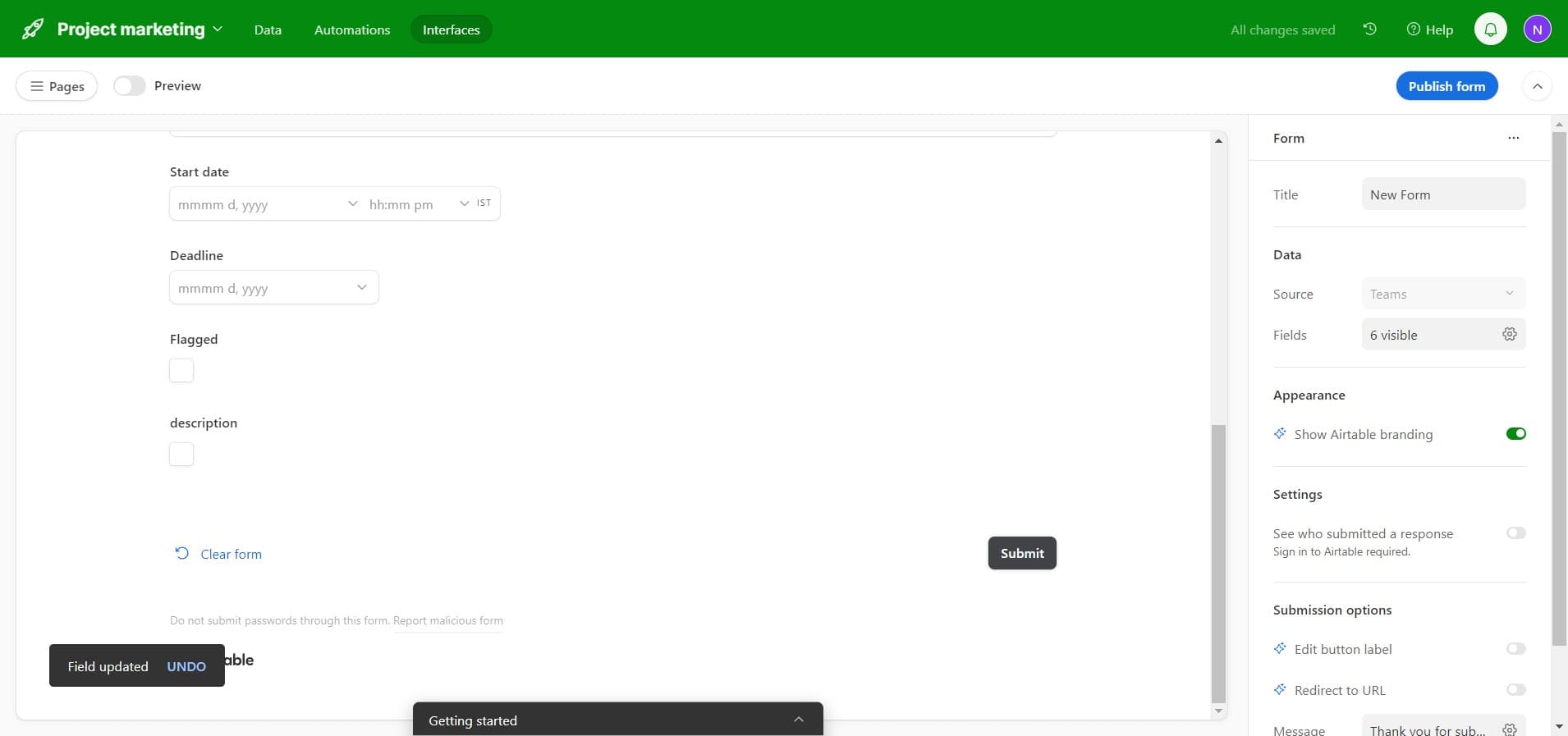
Click on Submit
Configure or review the submit button settings for your form. This button is what respondents will click to send their completed form data.
- 8
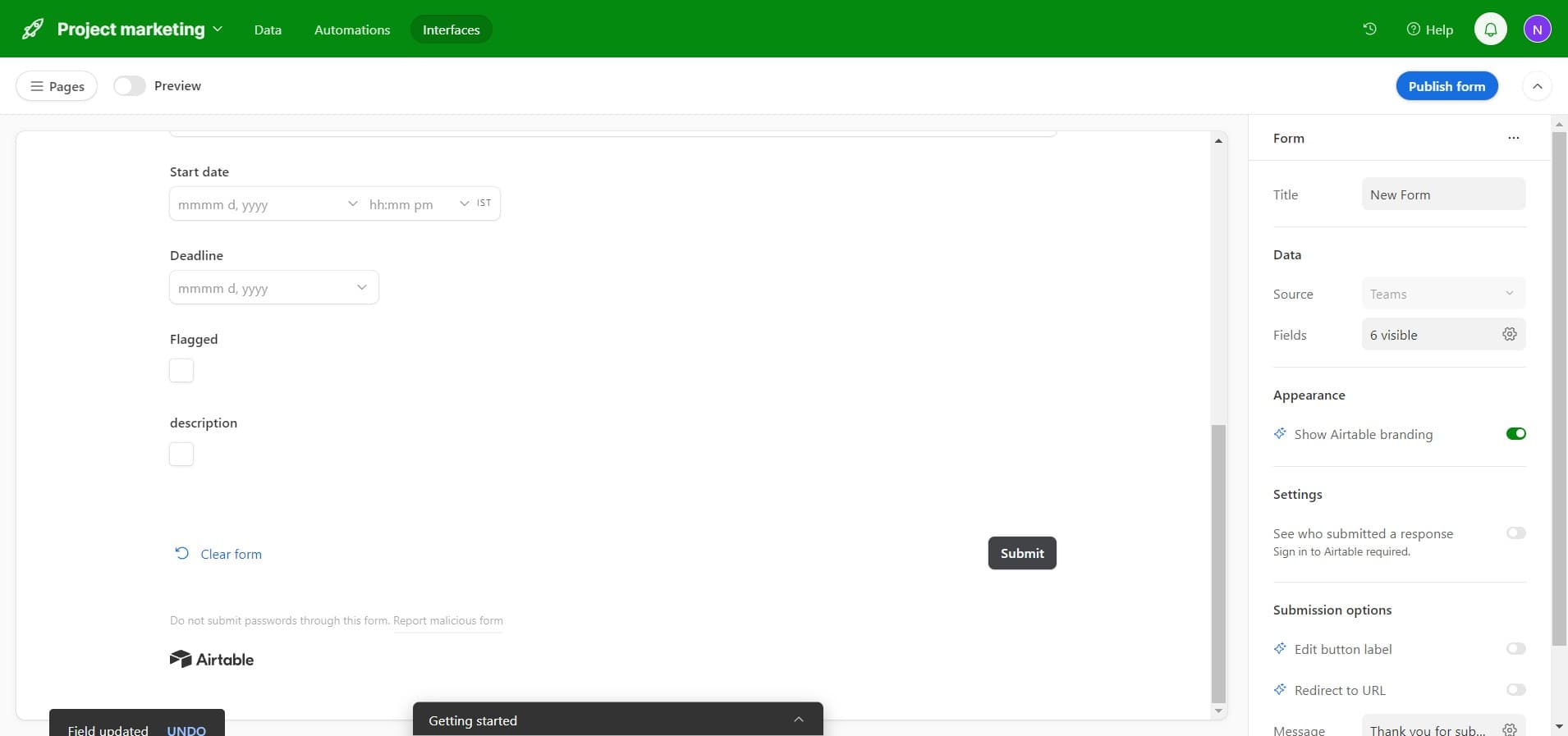
Click on Publish form
Once your form is configured, click Publish form to make it active and ready for use. This finalizes your form design.
- 9
Review published form
Take a moment to review how your published form appears to respondents. Verify that all fields, descriptions, and the submit button are displayed correctly.
- 10
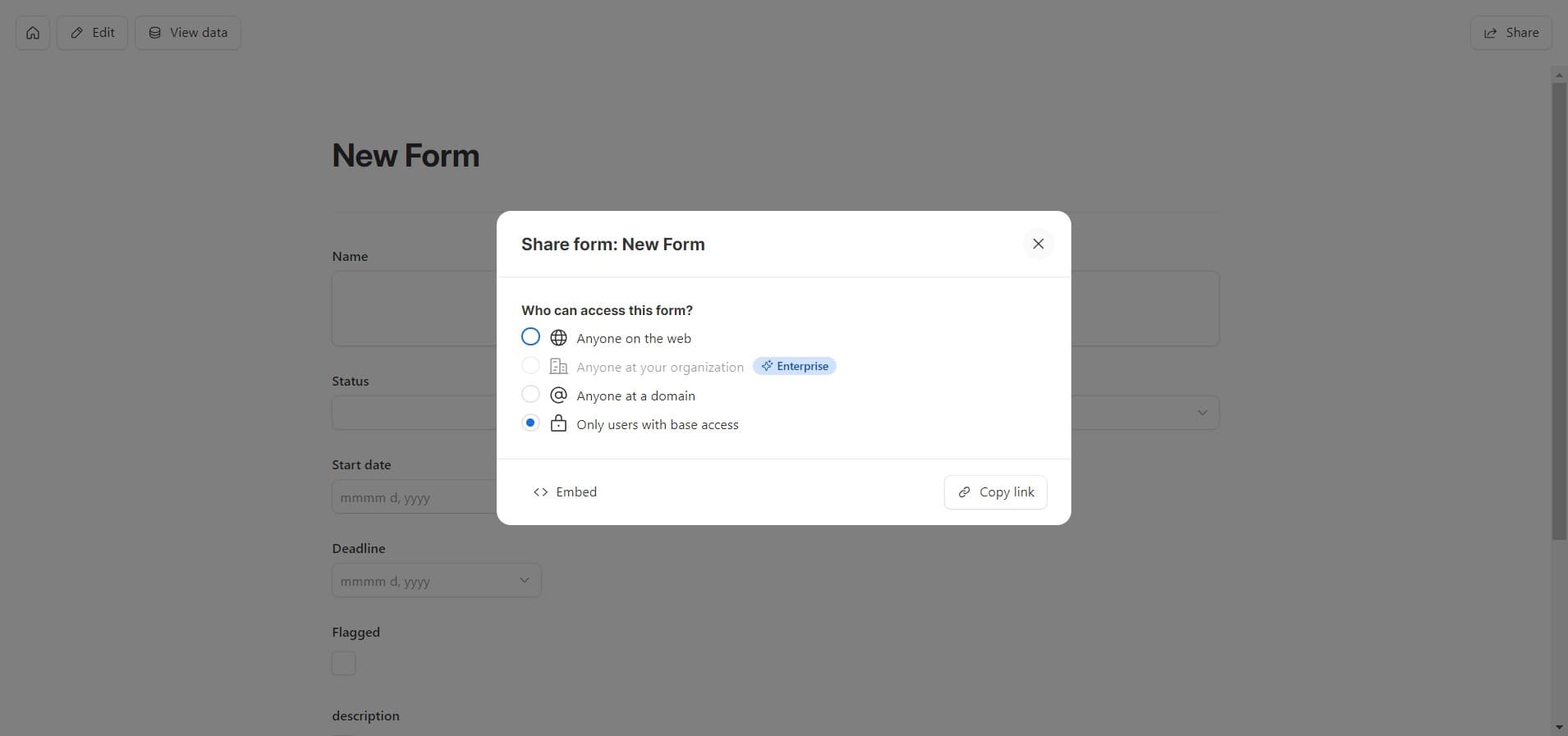
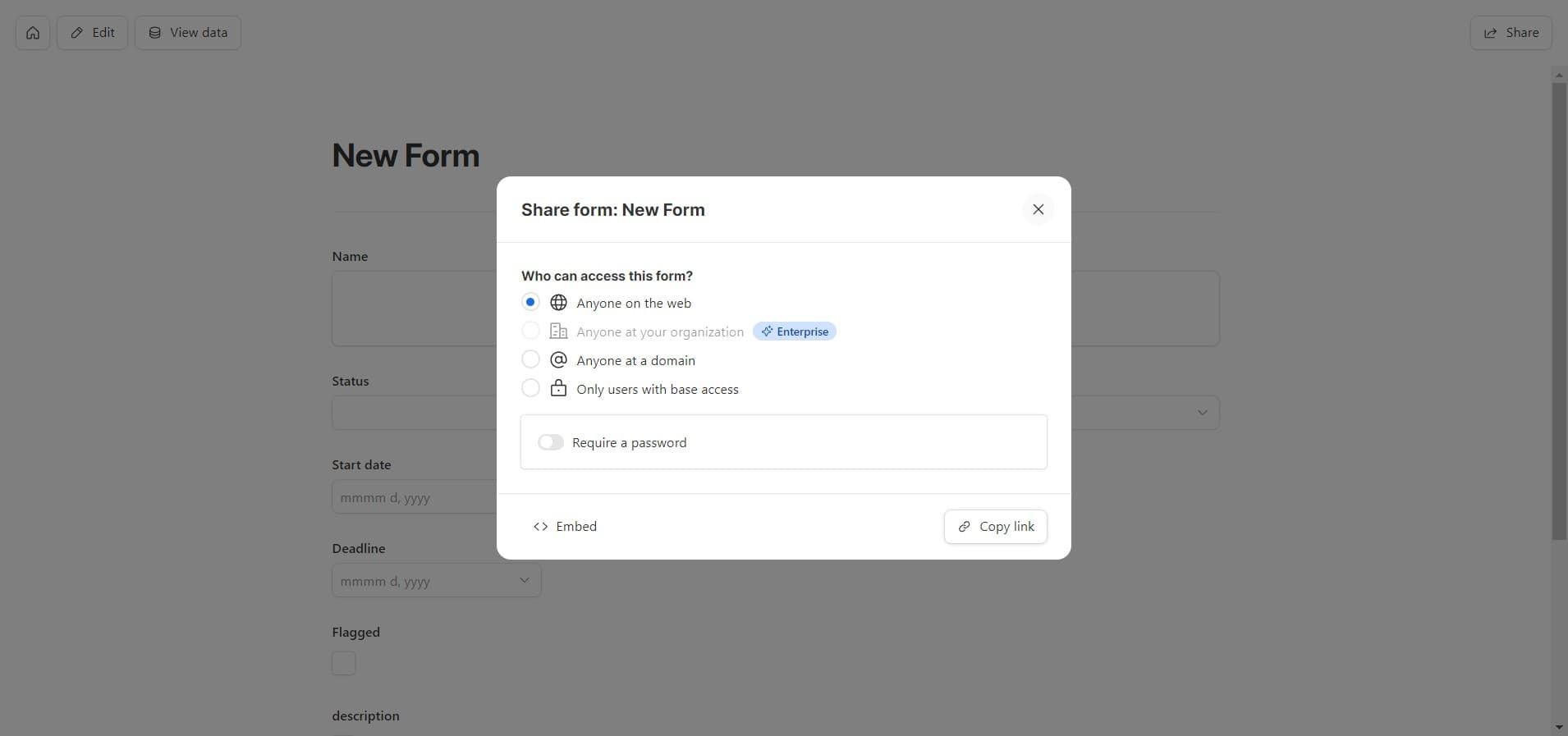
Click on Copy link
Copy the shareable form link to your clipboard so you can distribute it to respondents. This link is what you'll send to anyone who needs to fill out your form.
Frequently asked questions
Common questions about how to create a form in airtable.
Yes, Airtable allows you to mark fields as required so respondents must fill them in before submitting the form. You can set this requirement individually for each field during the form configuration process.
Yes, you can edit your form after publishing without affecting responses already collected. Simply access the form editor and make your changes, then save or republish as needed.
Airtable supports most field types including text, long text, number, single select, multiple select, date, checkbox, and more. The available field types match those you've already created in your base.
Respondents click the Submit button after completing the form, which automatically adds their responses as a new record in your Airtable base. The form then typically shows a confirmation message or resets for the next submission.
Airtable provides options to customize form appearance including colors, descriptions, and field order. However, white-label customization options may vary depending on your Airtable plan.