How to delete fields and teams in Airtable

Managing your Airtable workspace often requires removing outdated or unnecessary fields and teams. This guide walks you through the process of deleting both fields and teams to keep your base organized and your workspace clean.
Quick summary
In this tutorial, you'll learn how to delete fields from your Airtable tables and remove teams from your workspace. We'll cover the step-by-step process for both tasks, ensuring you can efficiently manage your base structure and team members.
Why this matters
Deleting unused fields reduces clutter and improves table readability, while removing inactive teams maintains workspace security and access control. Regular cleanup of fields and teams helps keep your Airtable environment efficient and easier to navigate for all collaborators.
Step-by-step guide
- 1
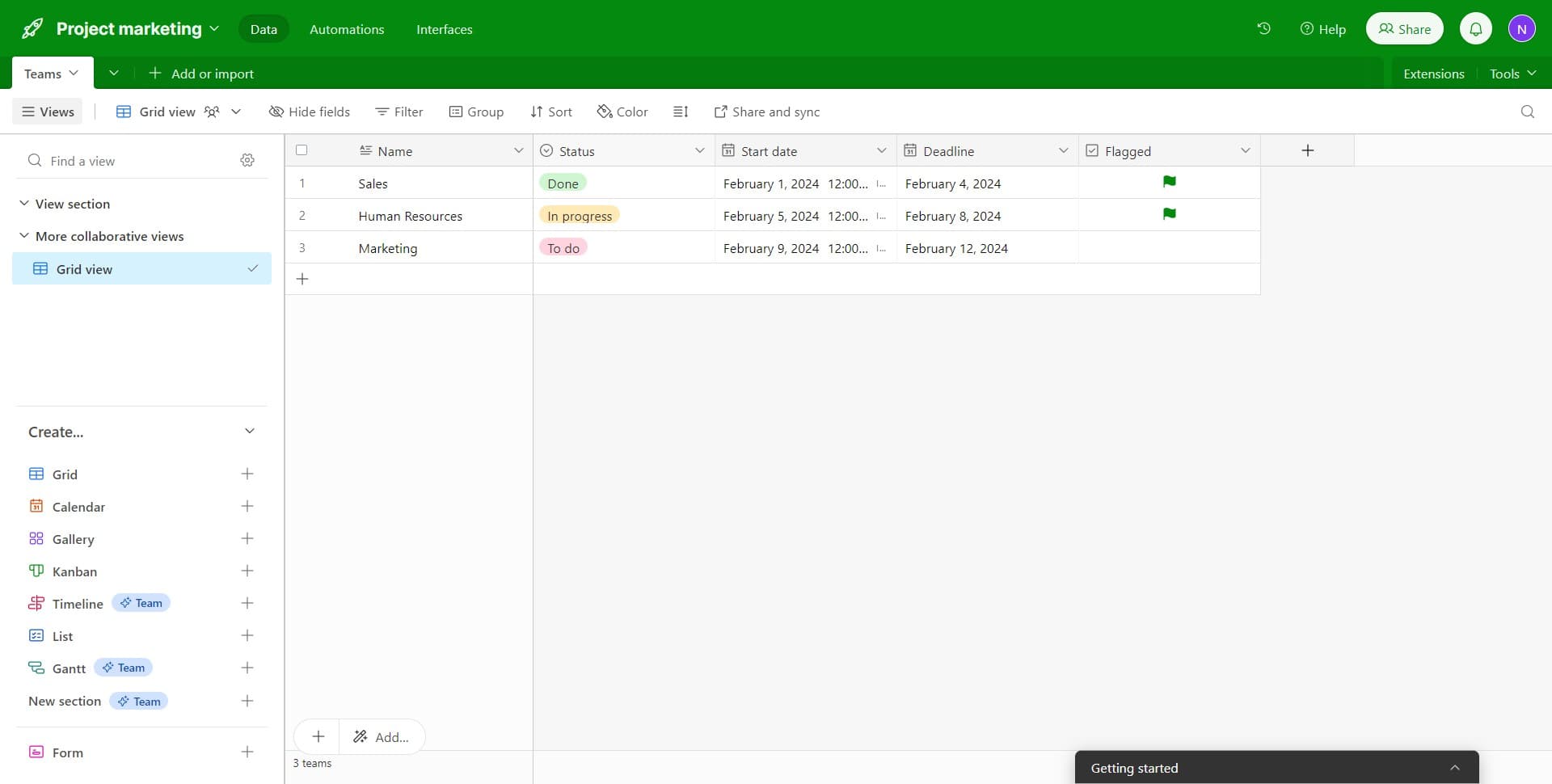
Click on the Status field
Begin by locating and clicking on the field you want to delete, such as 'Status'. This selects the field and opens its options menu.
- 2
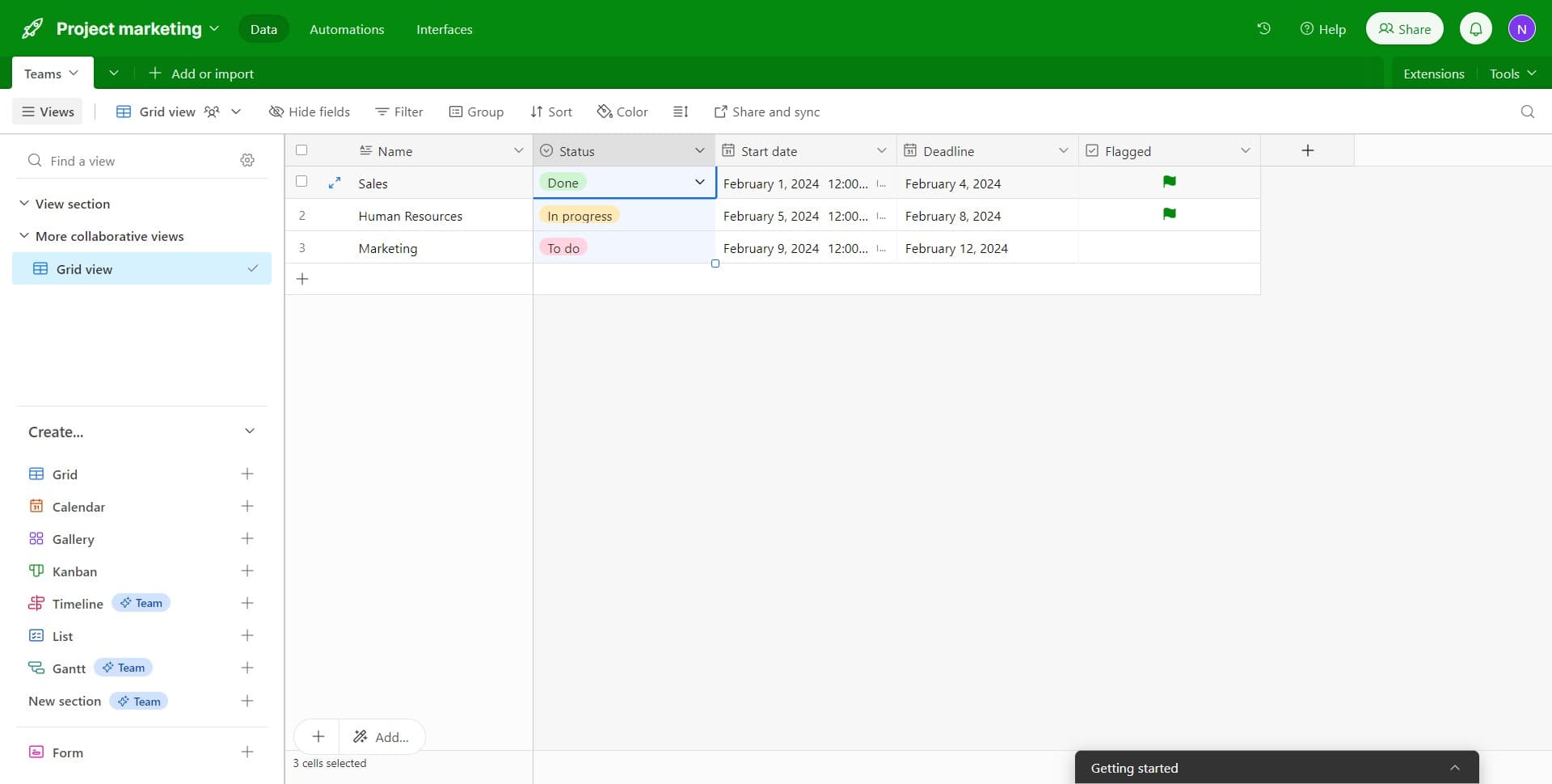
Access the field options menu
Click on the dropdown or options icon to reveal the available actions for the selected field. This displays a menu with various field management options.
- 3
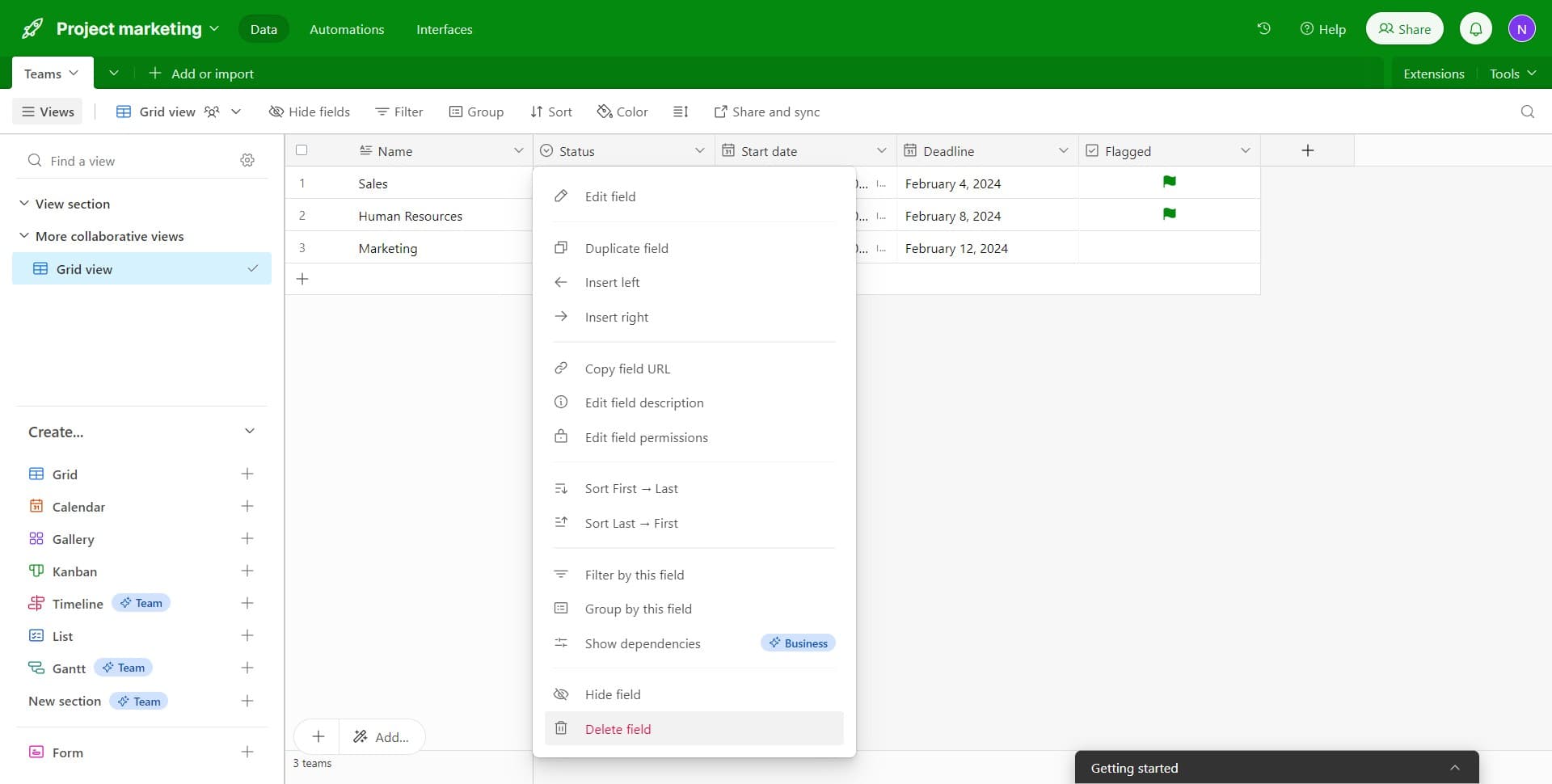
Select Delete field
From the menu, click on 'Delete field' to initiate the deletion process. Airtable will confirm your action before permanently removing the field from your table.
- 4
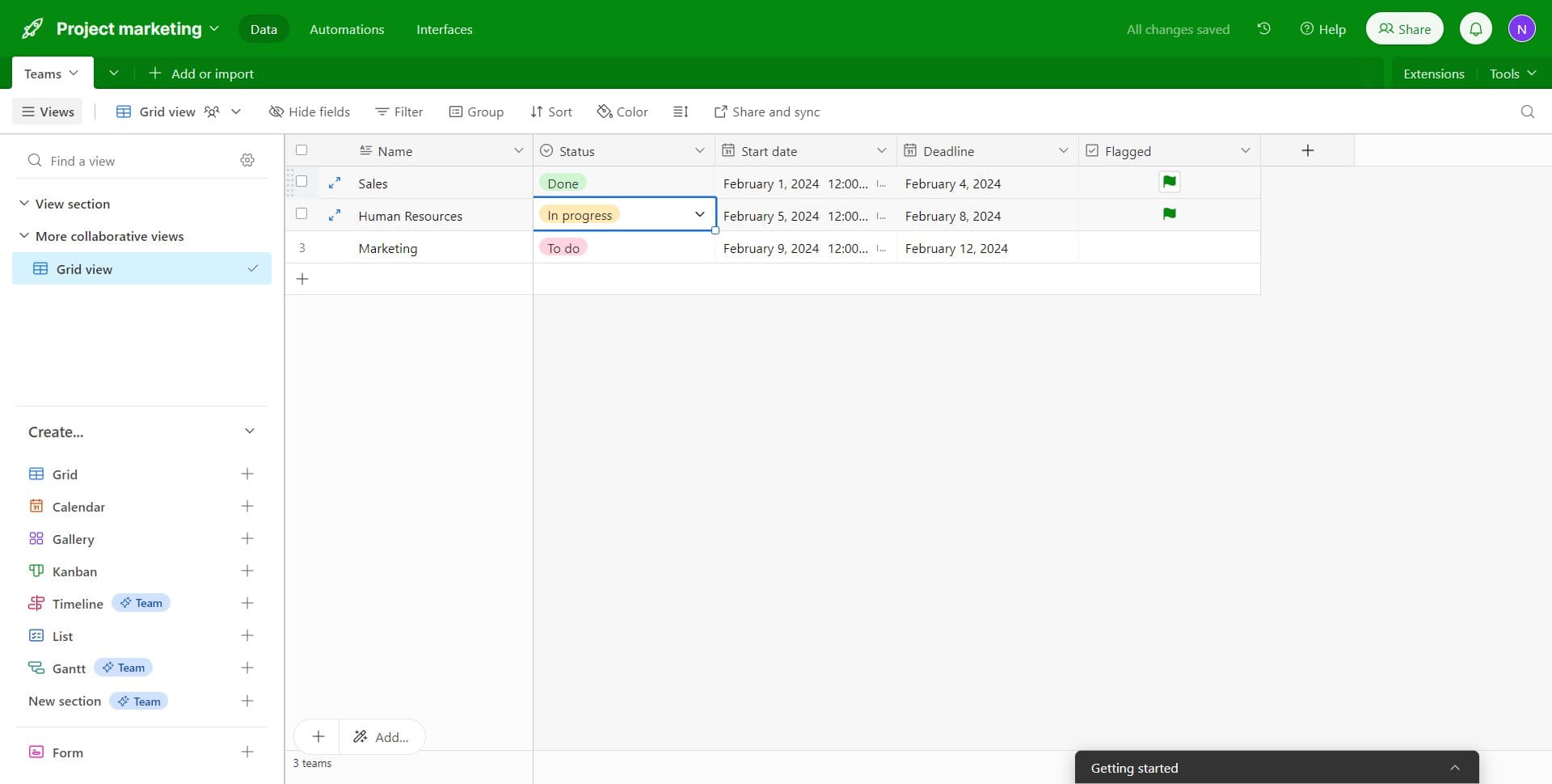
Confirm the field deletion
Complete the deletion by confirming your choice in the confirmation dialog. The field will be immediately removed from your table and cannot be recovered.
- 5
Navigate to team settings
Access your workspace settings to find the teams section. Look for the teams or members area where you can manage team access and permissions.
- 6
Locate the team to delete
Find the specific team you want to remove from your workspace. Ensure you have the appropriate permissions to delete teams before proceeding.
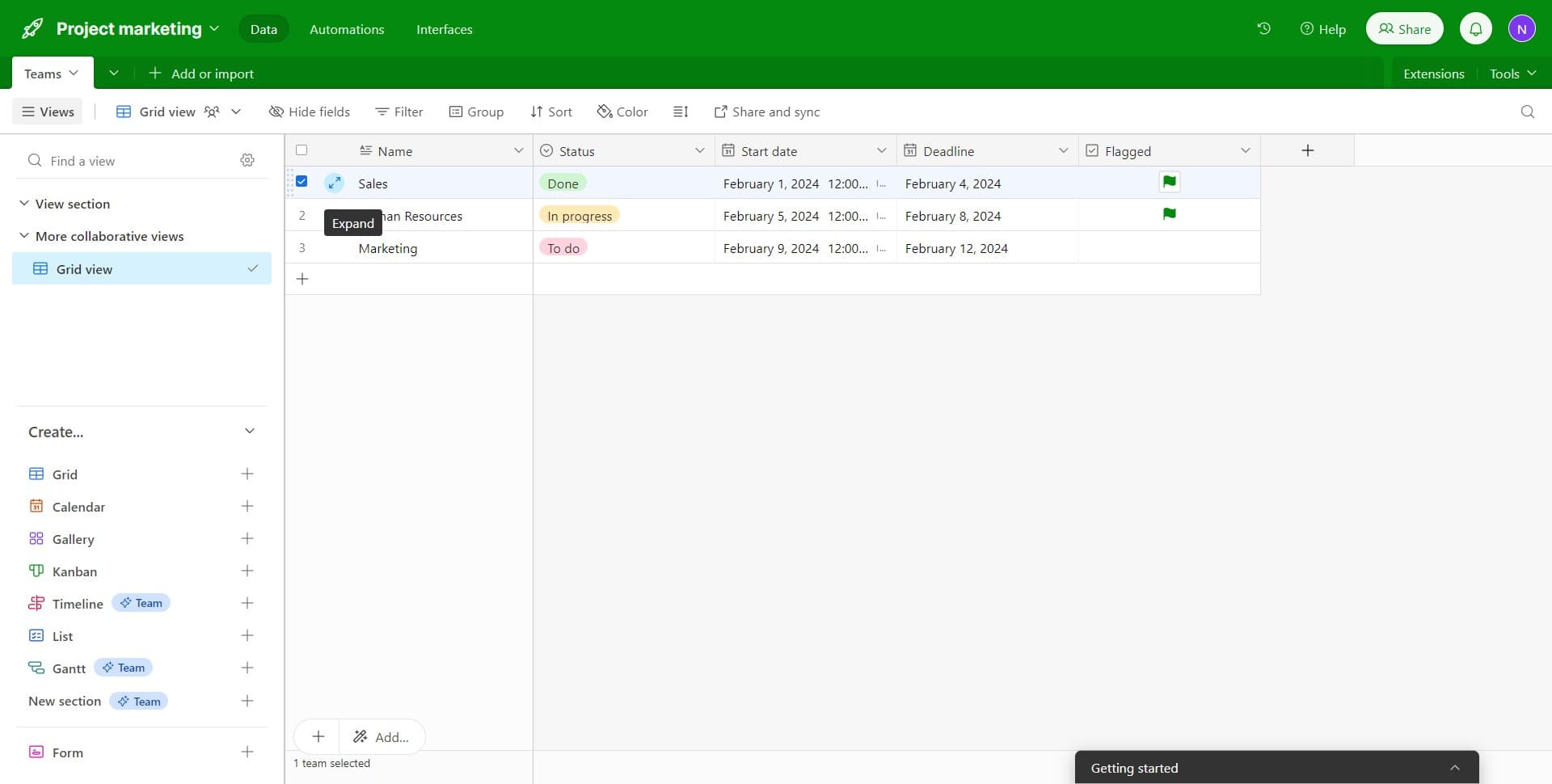
- 7
Open team options
Click on the options or menu icon next to the team name to reveal available actions. This will display the management options for that team.
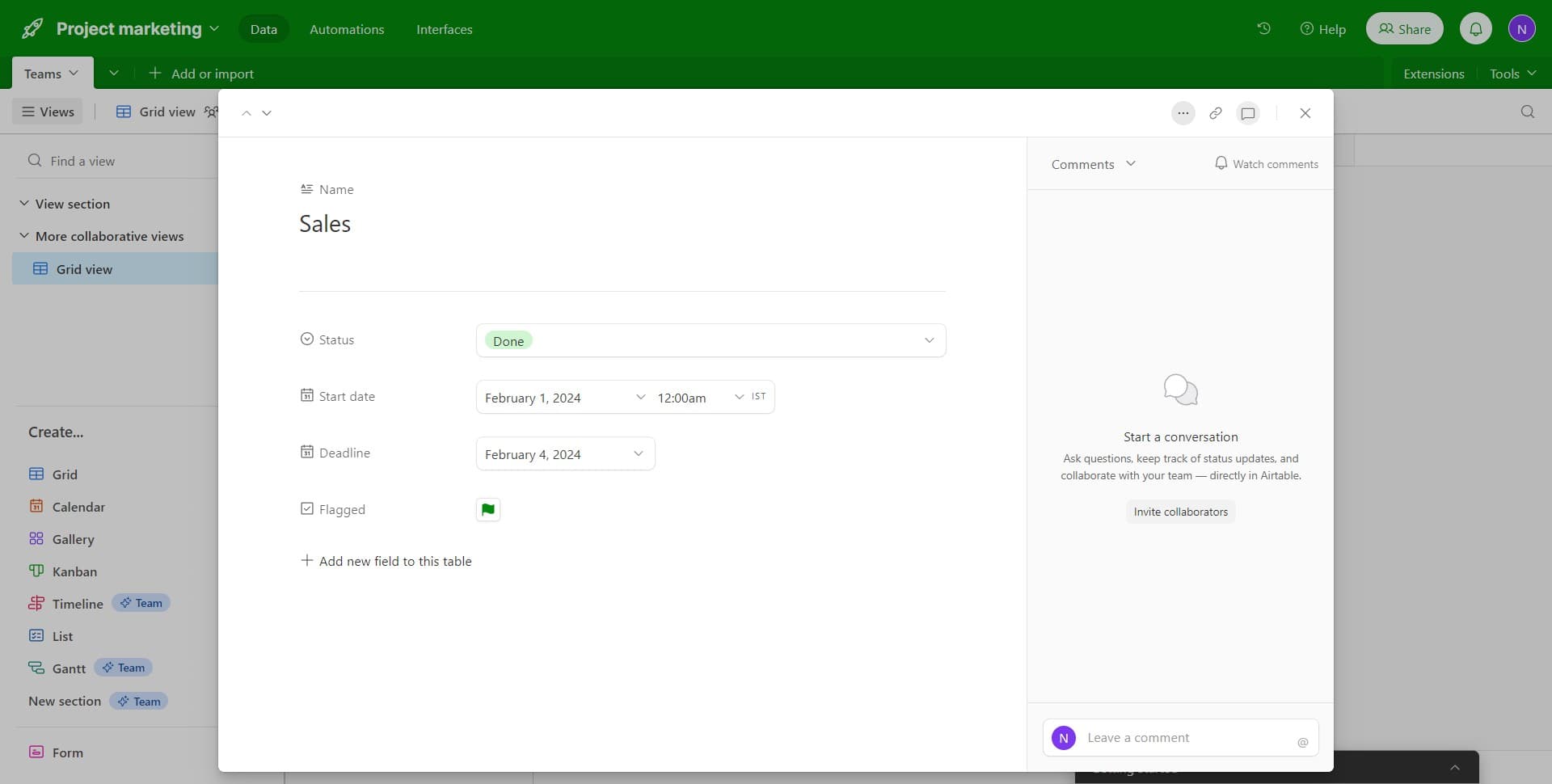
- 8
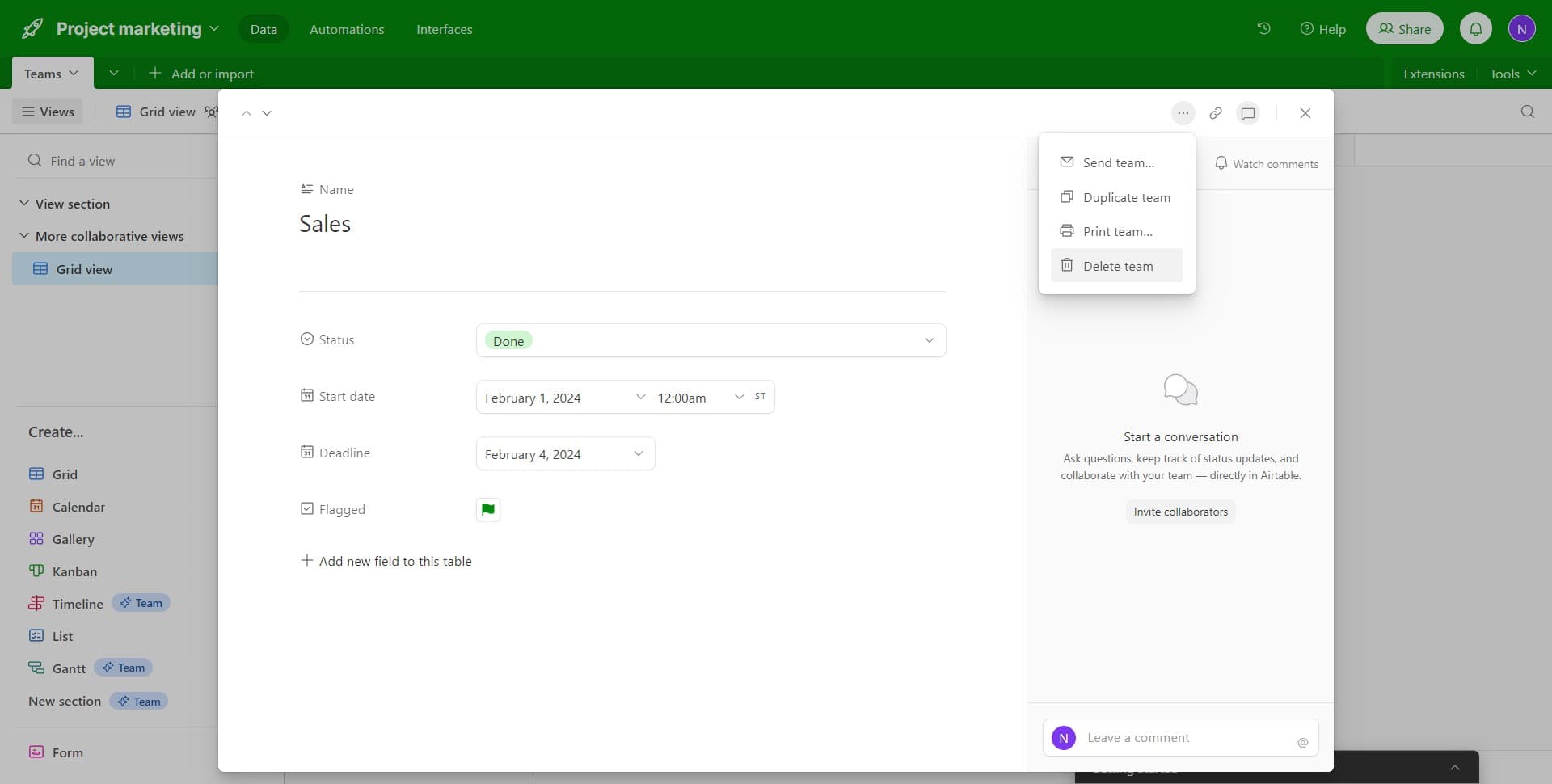
Click on Delete team
Select 'Delete team' from the options menu to remove the team from your workspace. Confirm the deletion when prompted, and the team will be permanently removed.
Frequently asked questions
Common questions about how to delete fields and teams in airtable.
No, once you delete a field, it cannot be recovered. Airtable permanently removes the field and all associated data. If you're unsure about deleting a field, consider hiding it instead by using the field visibility toggle.
All data stored in that field is permanently deleted along with the field itself. Before deleting a field containing important information, you may want to export or back up that data to ensure you don't lose it.
Typically, only workspace owners and administrators have permission to delete teams. If you're unable to see the delete option, you may need to request that someone with admin privileges perform the deletion.
When you delete a team, the team itself is removed from your workspace, but team members retain their individual access based on their user role. You may need to adjust individual permissions afterward to ensure appropriate access levels.
Yes. Deleting a field permanently removes it and all its data, while hiding a field simply hides it from view without removing the data. Hiding is reversible, making it a safer option if you might need the field again in the future.