How to add a script to your Airtable base

Scripts in Airtable allow you to automate tasks, manipulate data, and extend your base's functionality without leaving the platform. This guide walks you through the process of adding a script to your Airtable base, enabling you to streamline workflows and boost productivity.
Quick summary
In this tutorial, you'll learn how to navigate Airtable's Extensions menu and add a script to your base. You'll discover where to find the scripting tools and how to integrate them into your workflow for custom automation.
Why this matters
Adding scripts to your Airtable base empowers you to automate repetitive tasks, reduce manual data entry errors, and create custom solutions tailored to your specific needs. Scripts can save significant time and ensure consistency across your base operations.
Step-by-step guide
- 1
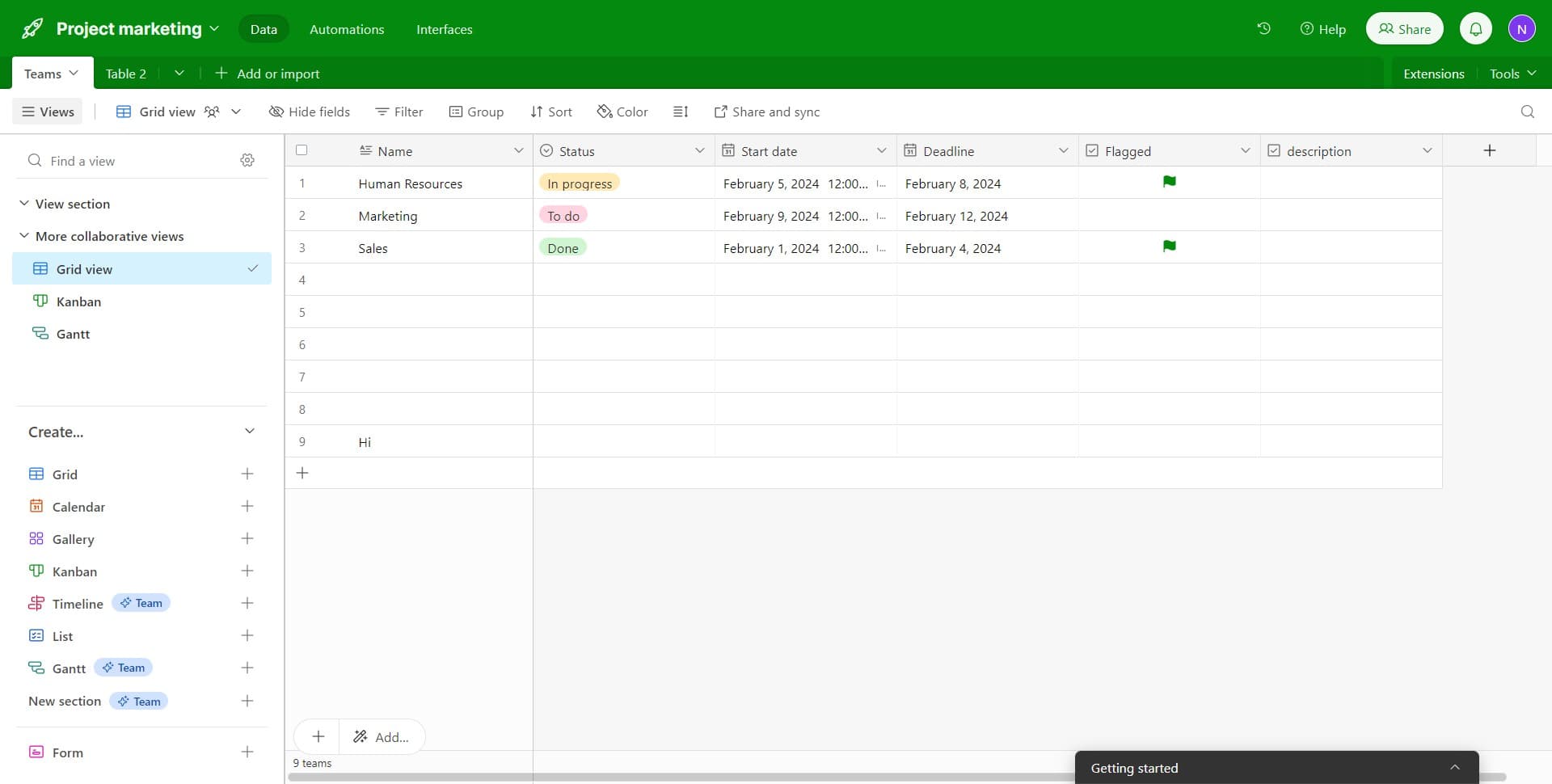
Open the Extensions menu
Click on the 'Extensions' option in your Airtable base interface. This menu provides access to all available extensions and scripting tools for your base.
- 2
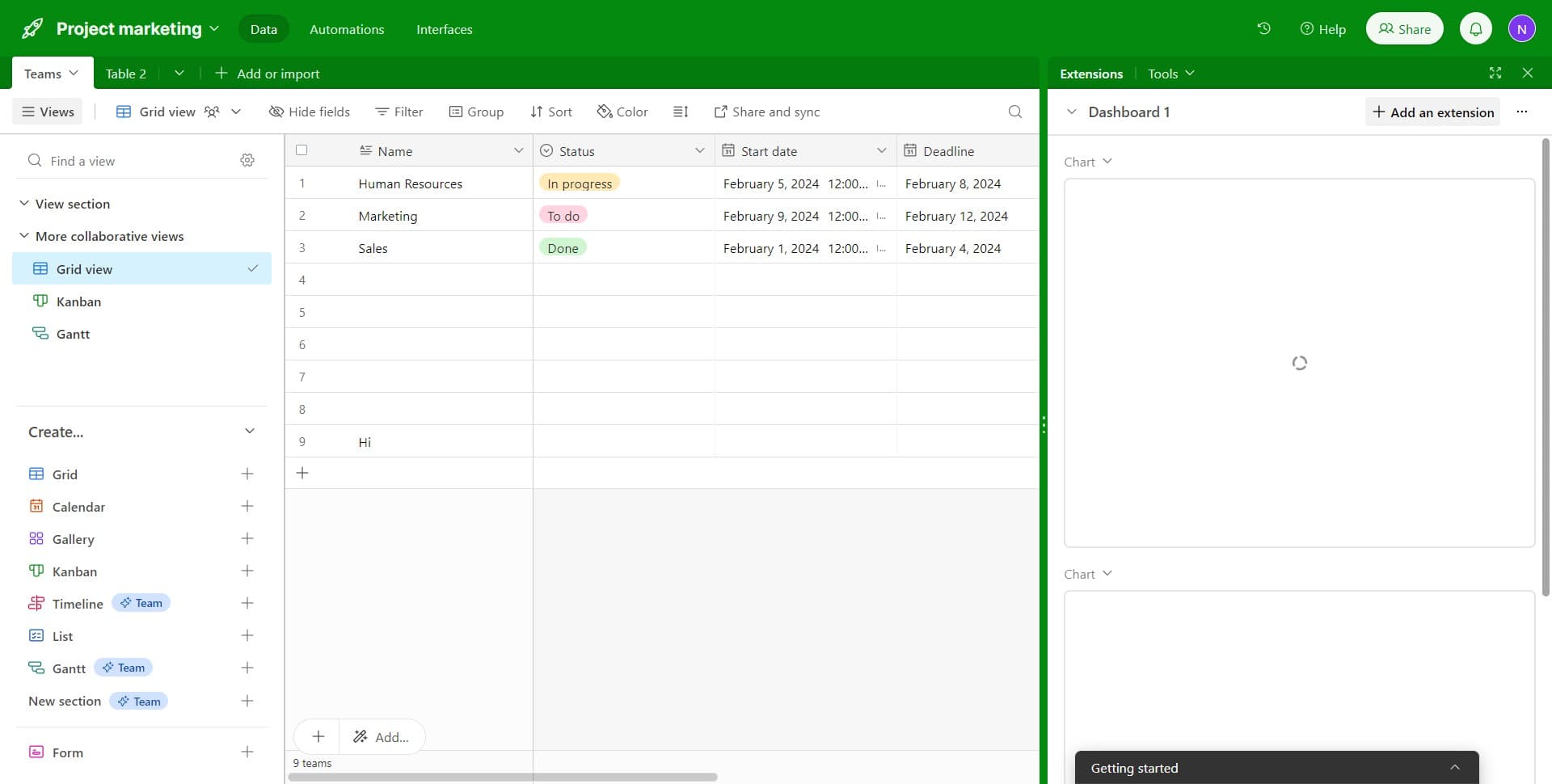
Select Add an extension
Click on 'Add an extension' to view available options. You'll see a list of extensions you can integrate into your base.
- 3
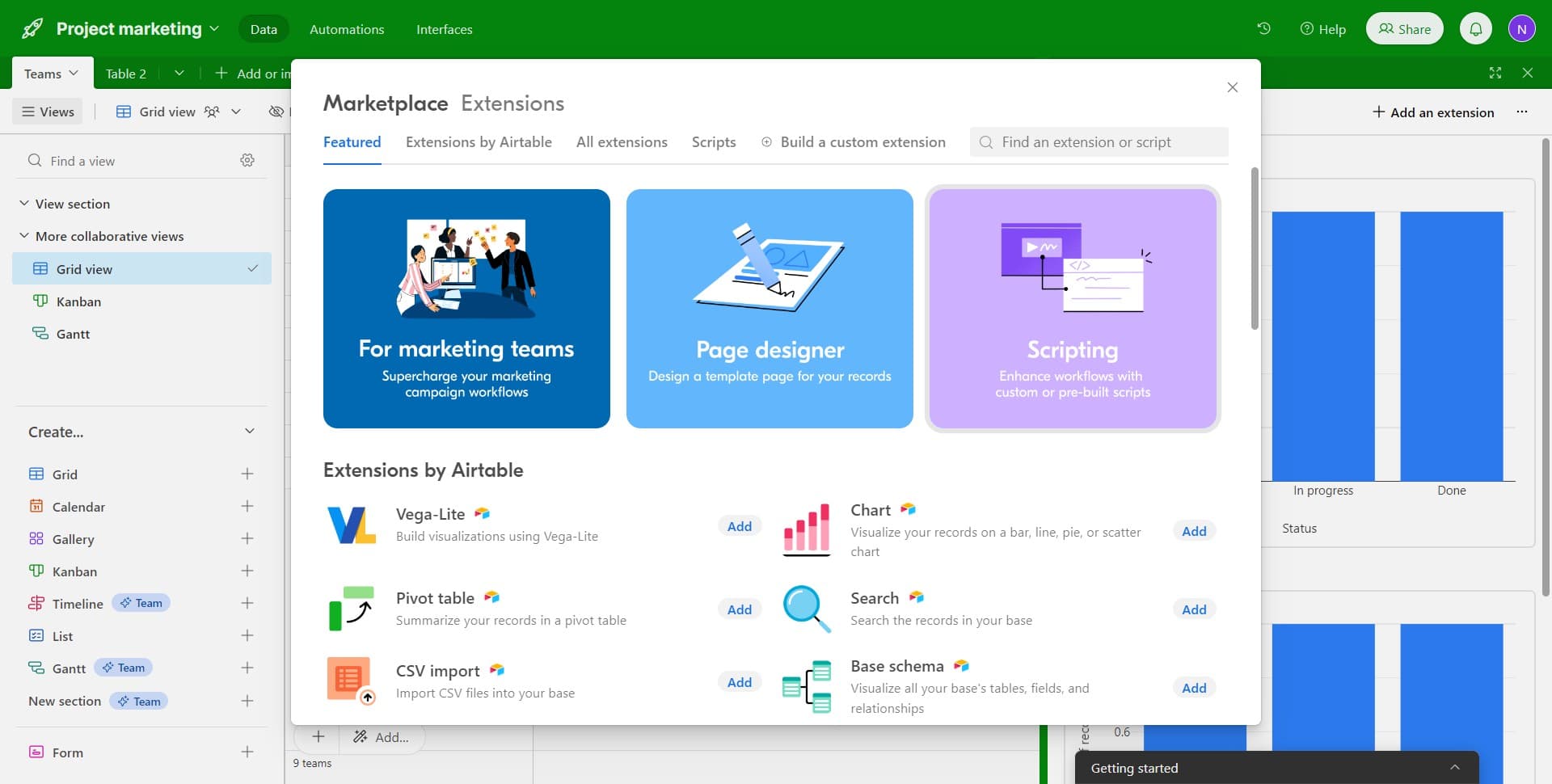
Navigate to the scripting option
Click on the scripting option from the available extensions. This will allow you to start creating or adding a custom script.
- 4
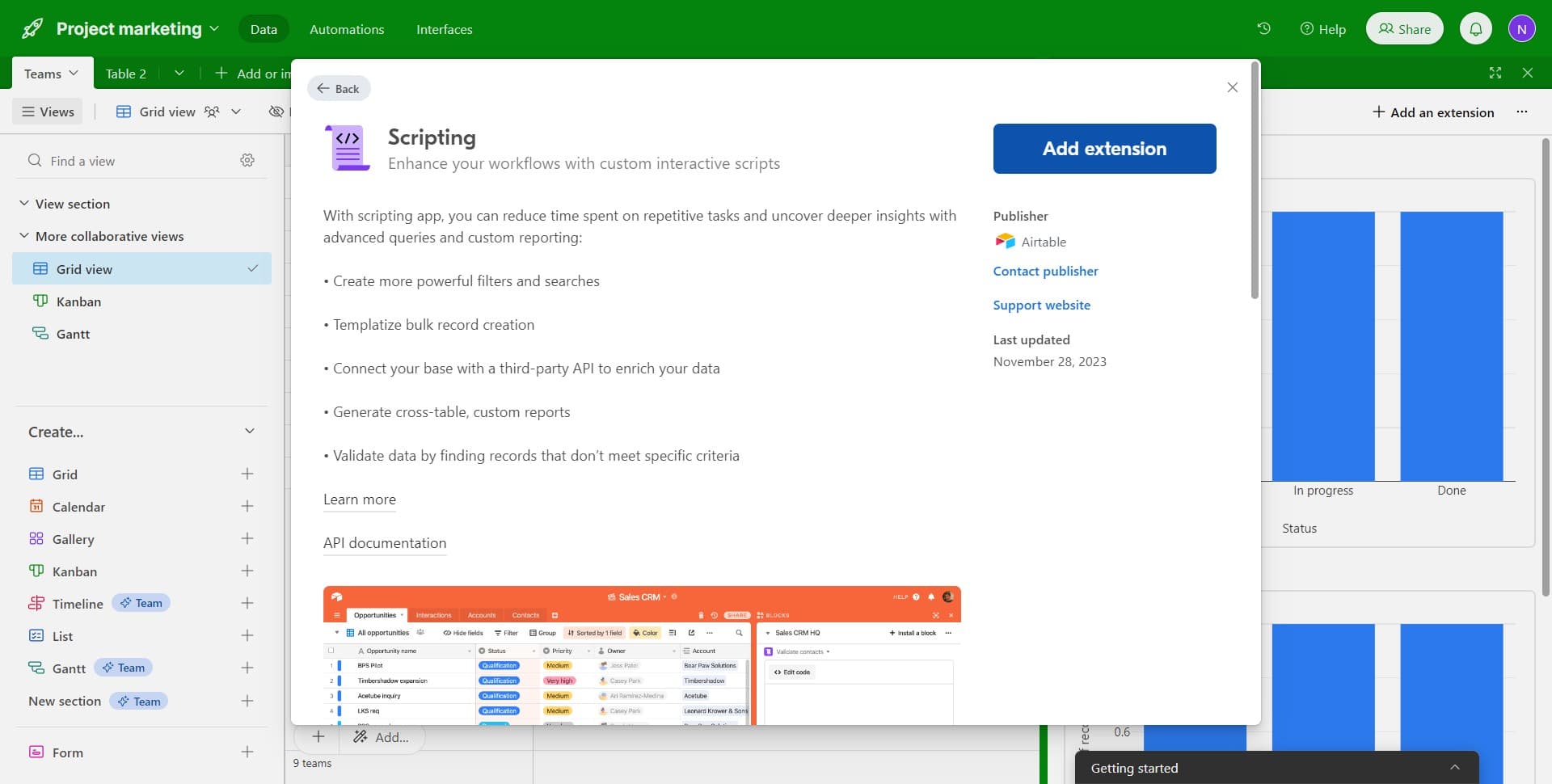
Confirm adding the extension
Click on 'Add extension' to confirm your selection. The scripting extension will now be added to your base.
- 5
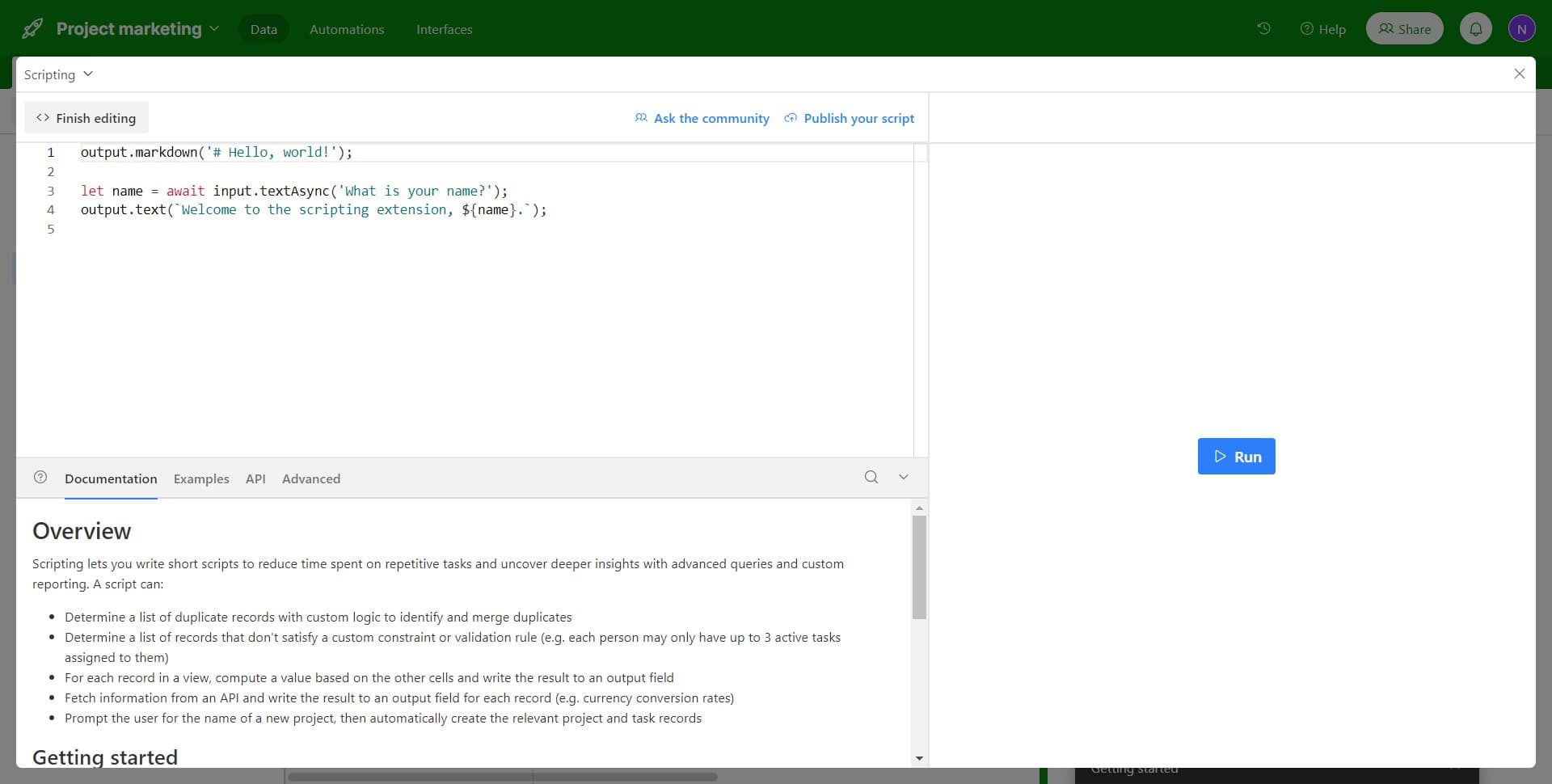
Access the script editor
Click on the script editor area to open the interface where you can write and manage your code. This is where you'll input your custom script logic.
- 6
Upload your script file
Upload your script file using the upload option. Ensure your script file is properly formatted and contains the automation logic you want to implement.
- 7
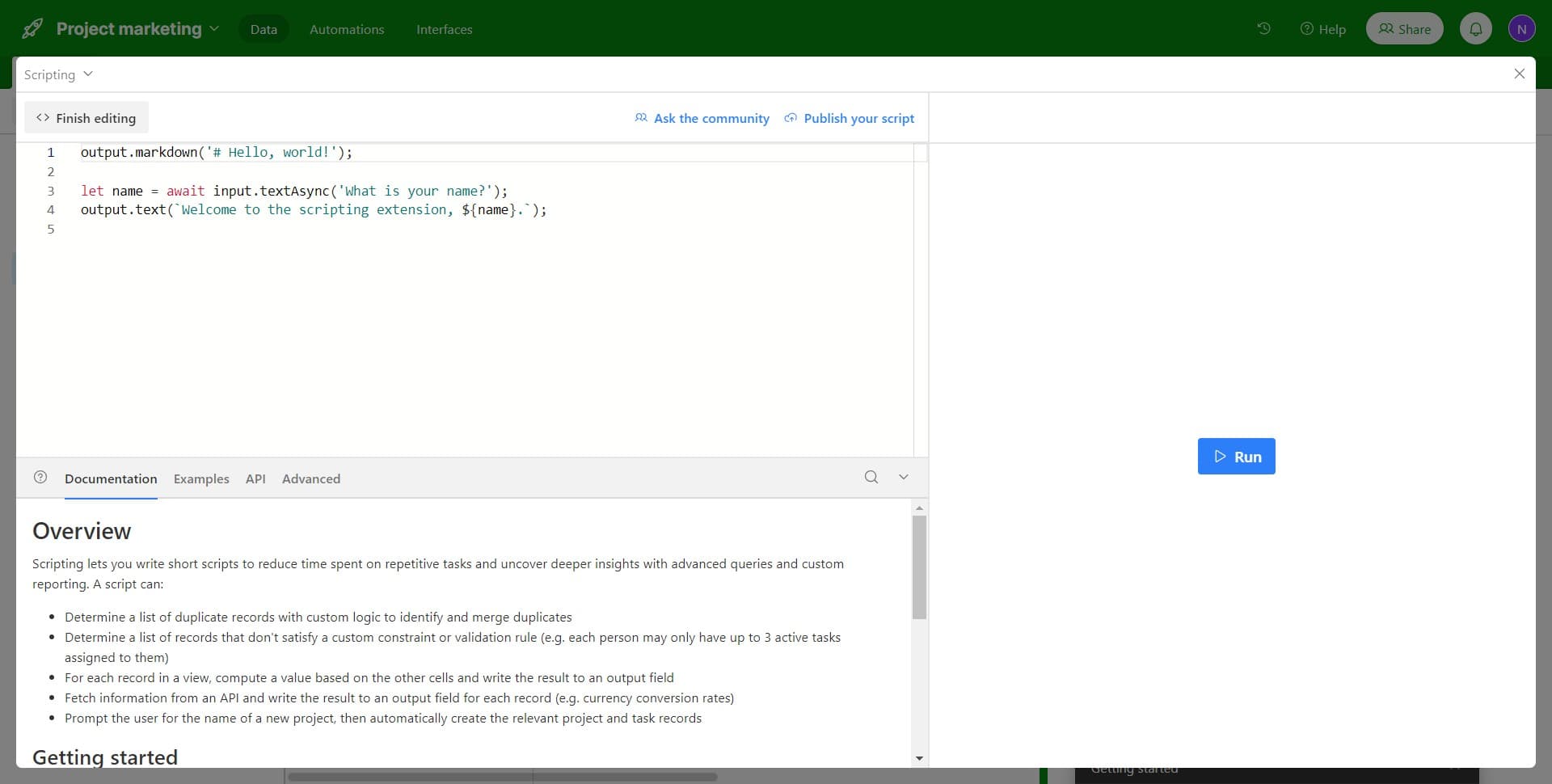
Finalize the script setup
Click to complete the setup process. Your script is now ready to run and will execute according to your automation rules.
Frequently asked questions
Common questions about how to add a script to your airtable base.
Airtable's scripting extension uses JavaScript. You can write custom scripts using JavaScript syntax to automate tasks and manipulate your base data. The platform provides a built-in editor with helpful documentation and examples.
Yes, Airtable offers templates and examples within the script editor to help you get started. You can also find community-shared scripts and resources online that you can adapt for your specific use case.
While basic JavaScript knowledge is helpful, Airtable's script editor includes documentation and examples that make it accessible to beginners. Starting with simple scripts and gradually building complexity is a good approach for those new to coding.
Scripts can automate many tasks, but they operate within Airtable's API limitations and execution time constraints. Some operations like bulk data processing have timeouts, so you should design scripts with these limitations in mind.
Airtable's script editor includes error messages and a console output that help identify issues. Check your console for error details, verify your field names and table references are correct, and review Airtable's scripting documentation for syntax examples.