How to generate a new link in Airtable

Sharing your Airtable base with others often requires generating a secure, shareable link. This tutorial walks you through the process of creating a new sharing link in Airtable, enabling you to control access and permissions for your collaborators.
Quick summary
In this tutorial, you'll learn how to generate a new sharing link in Airtable by accessing the Share and sync menu, confirming your action, and copying the link for distribution. By the end, you'll be able to quickly create secure sharing links whenever you need to grant access to your base.
Why this matters
Generating shareable links is essential for collaborating with team members, clients, or stakeholders who need access to your Airtable base without requiring individual account management. This streamlined approach saves time and ensures consistent access control across your sharing workflow.
Step-by-step guide
- 1
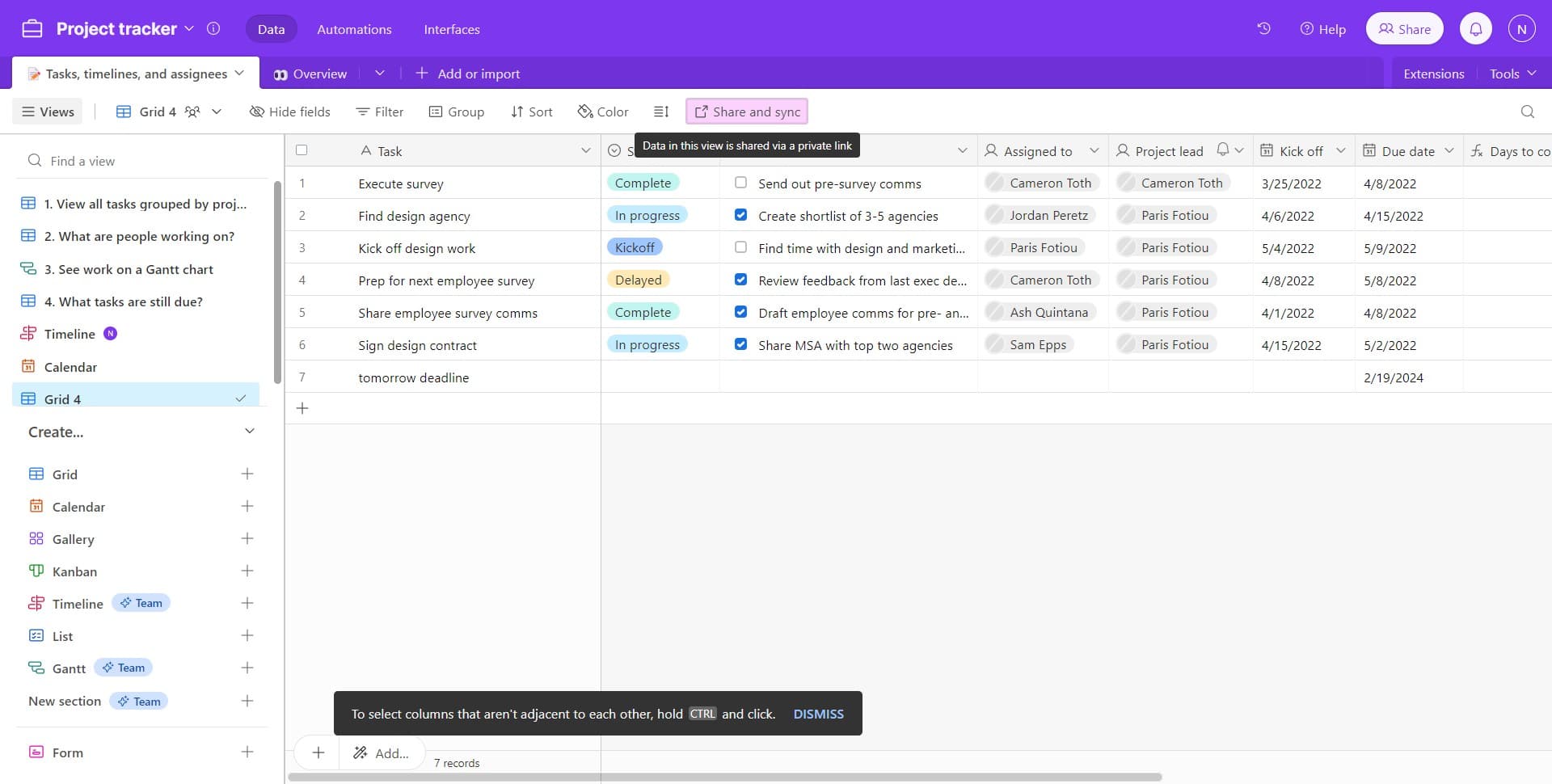
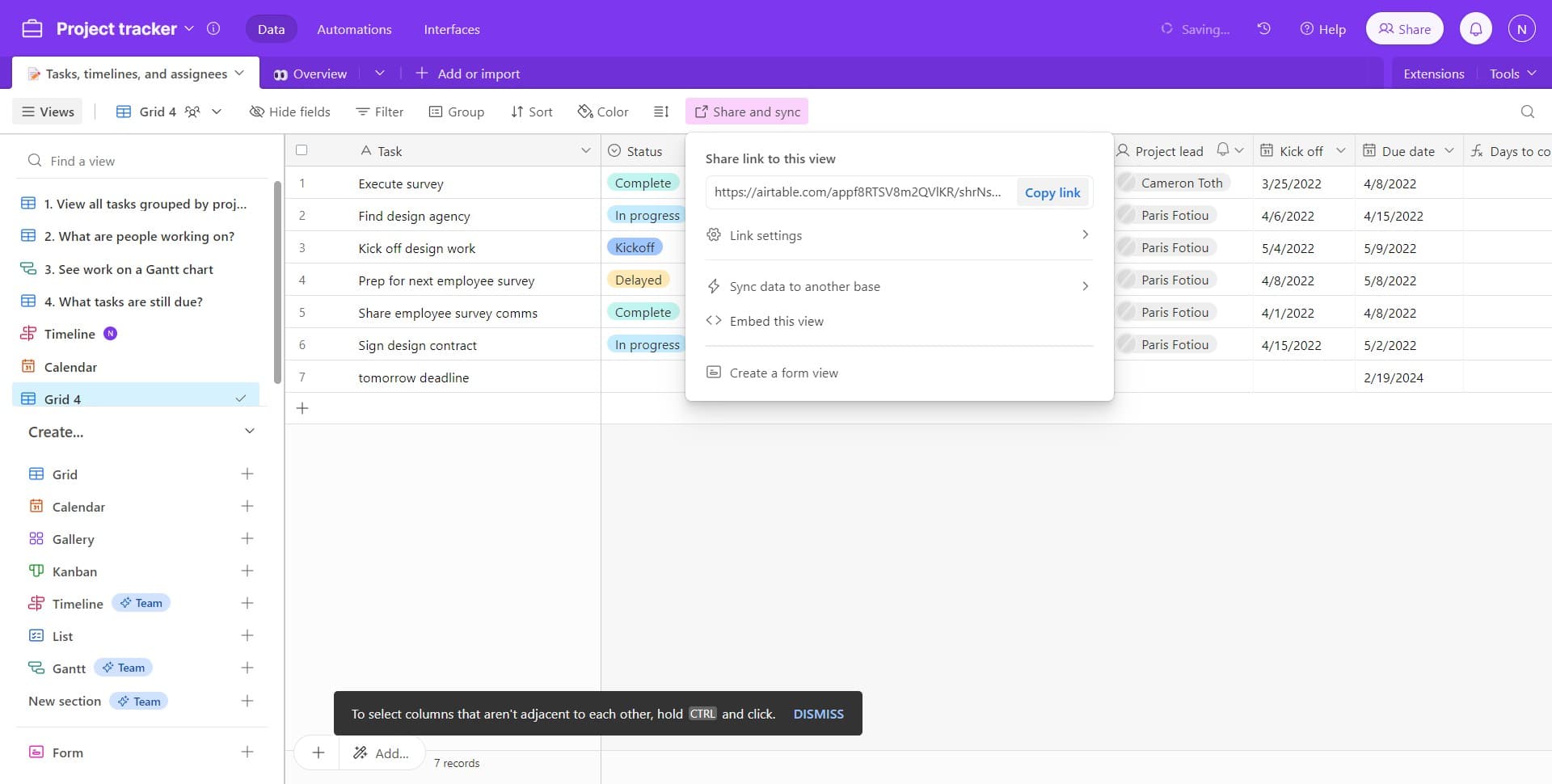
Click on Share and sync
Locate and click the 'Share and sync' button in your Airtable interface. This opens the sharing menu where you can manage access permissions and generate new links.
- 2
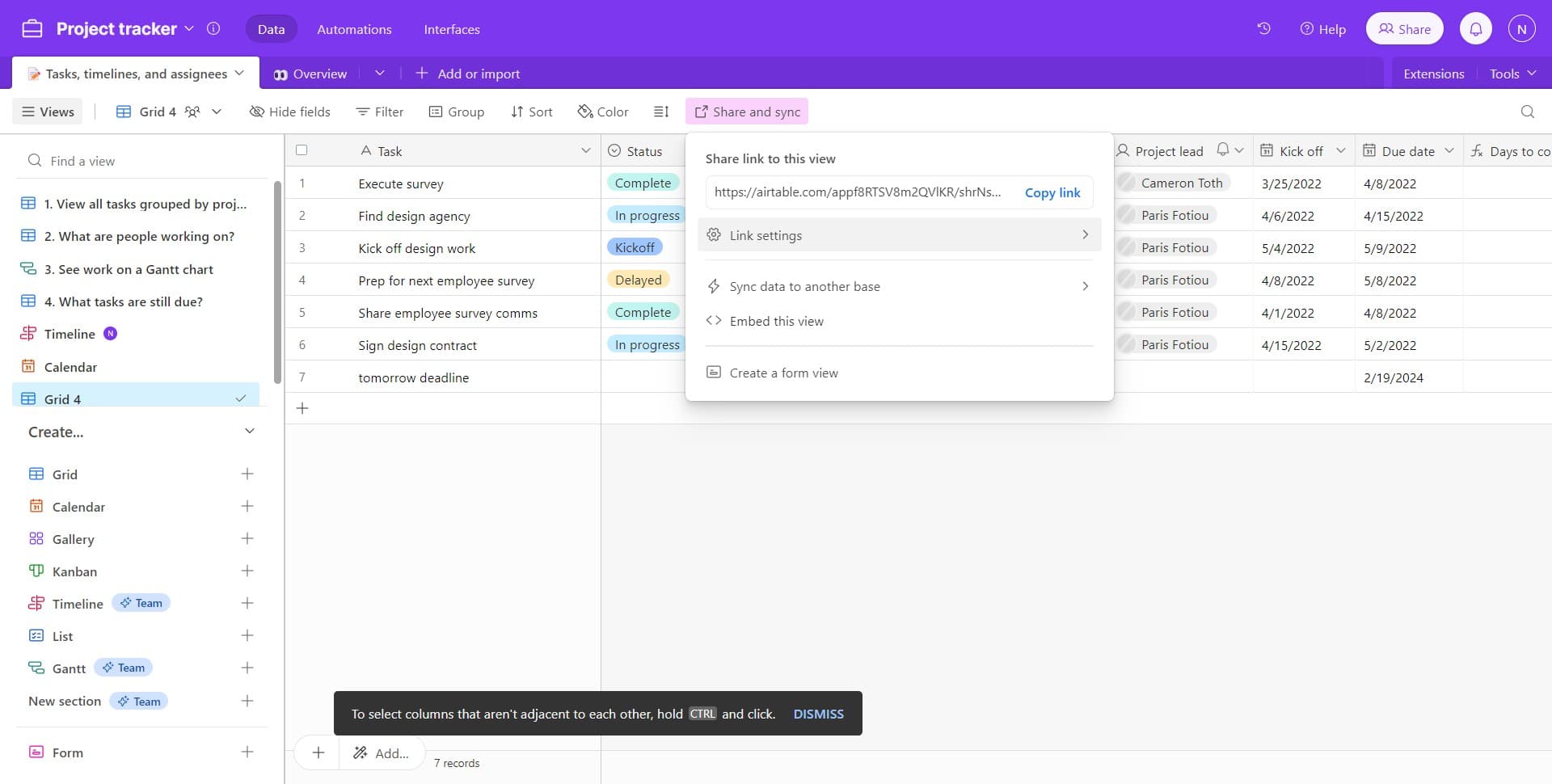
Access the link generation menu
Click on the designated option to proceed to the link generation interface. This section allows you to create and manage all your shareable links in one place.
- 3
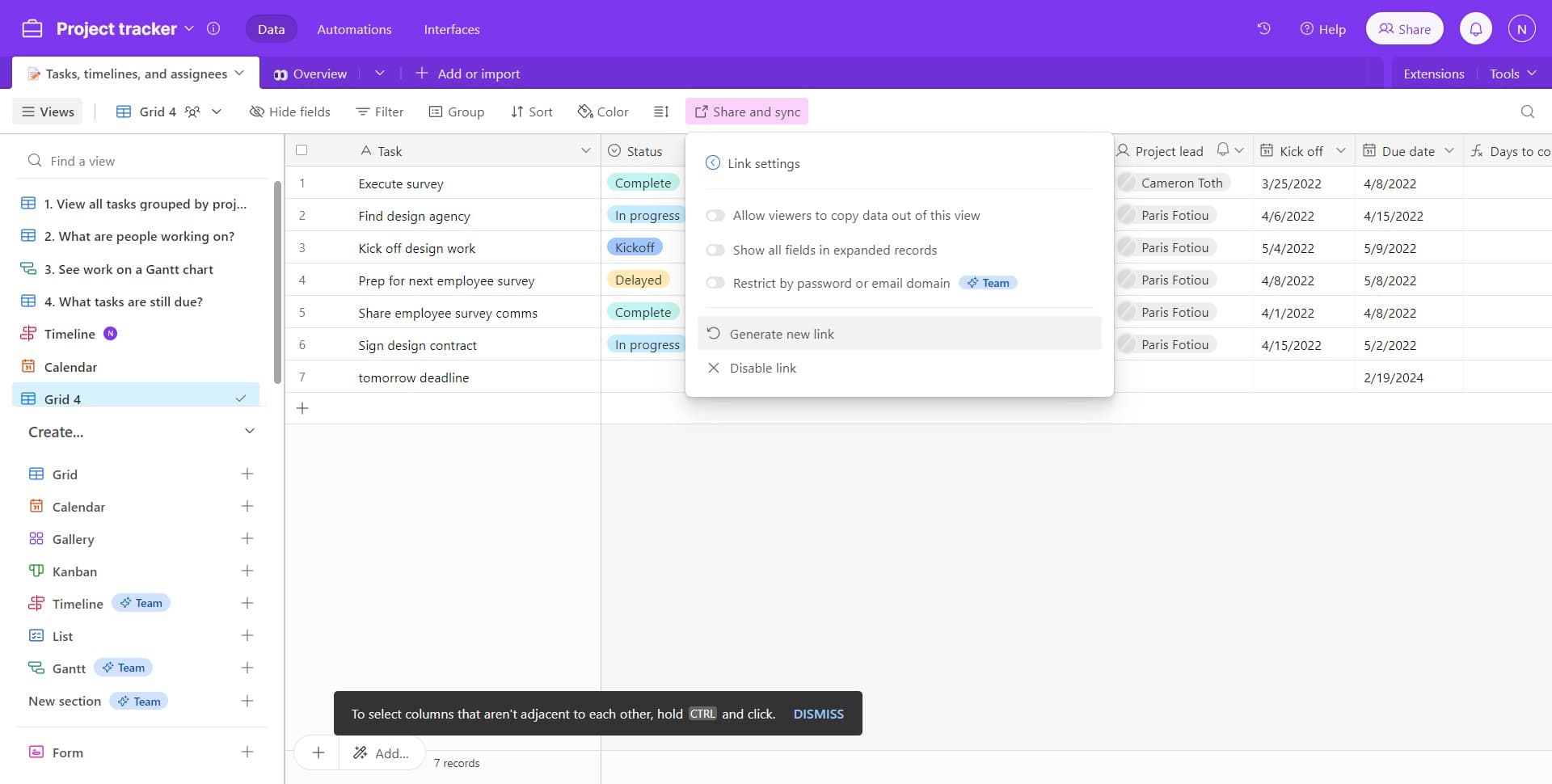
Click on Generate new link
Select the 'Generate new link' option to initiate the creation of a fresh sharing link. Airtable will prepare a new secure link with default permissions settings.
- 4
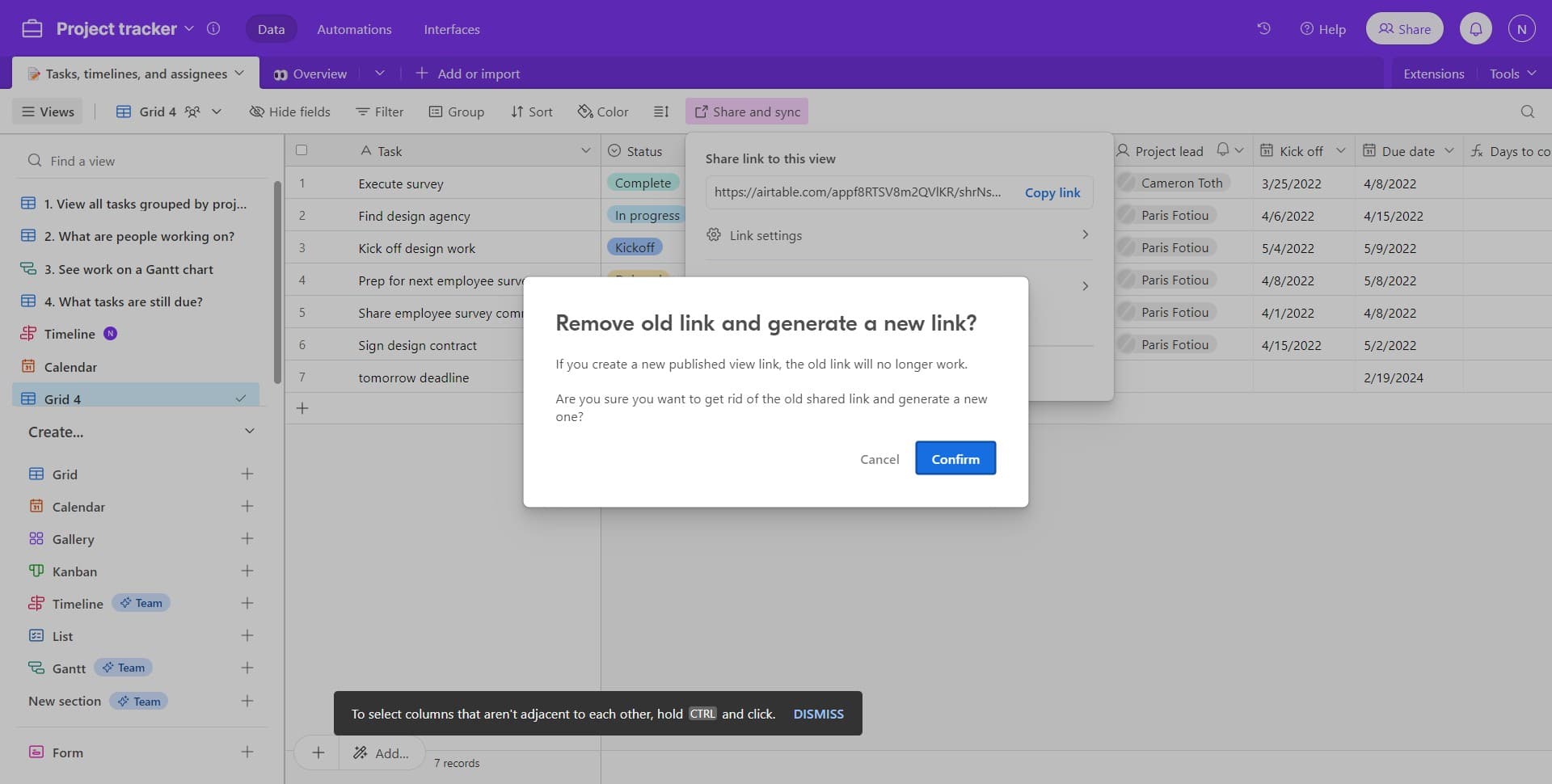
Click on Confirm
Click the 'Confirm' button to finalize the generation of your new sharing link. This action creates the link and makes it ready for distribution.
- 5
Click on Copy link
Click the 'Copy link' button to copy the newly generated URL to your clipboard. You can now paste this link anywhere you need to share access to your Airtable base.
Frequently asked questions
Common questions about how to generate a new link in airtable.
Yes, Airtable allows you to set specific permissions for each shared link, such as view-only or edit access. You can configure these settings in the Share and sync menu before or after generating the link, depending on your Airtable plan and settings.
Generating a new link creates a publicly shareable URL that anyone with the link can access, while sharing with individuals sends invitations to specific email addresses. Links are useful for widespread sharing, while individual sharing is better for controlling exactly who has access.
Yes, you can manage all your generated links in the Share and sync menu. You have the option to disable or delete links at any time, which immediately revokes access for anyone using that specific URL.
By default, shared links grant access to the entire base, but you can customize permissions to restrict what viewers can see and do. You can limit access to specific views or set read-only permissions depending on your needs and Airtable plan.
Airtable allows you to generate multiple links for the same base, which is useful for sharing with different groups with different permission levels. Each link can have its own custom permissions and access settings.