How to sync Airtable calendar to external calendar and share

Syncing your Airtable calendar with external calendar applications enables seamless scheduling and collaboration across your workflow. This guide walks you through creating a calendar view in Airtable and generating a shareable link that integrates with external calendar platforms.
Quick summary
In this tutorial, you'll learn how to create a calendar view from your Airtable tasks and timelines, configure it with a date field, and generate a shareable link for external calendar integration. By the end, you'll have a synchronized calendar view that keeps your team aligned across multiple platforms.
Why this matters
Maintaining separate calendars across tools creates scheduling conflicts and reduces visibility into project timelines. By syncing your Airtable calendar externally, your team accesses up-to-date scheduling information in their preferred calendar application, improving coordination and reducing missed deadlines.
Step-by-step guide
- 1
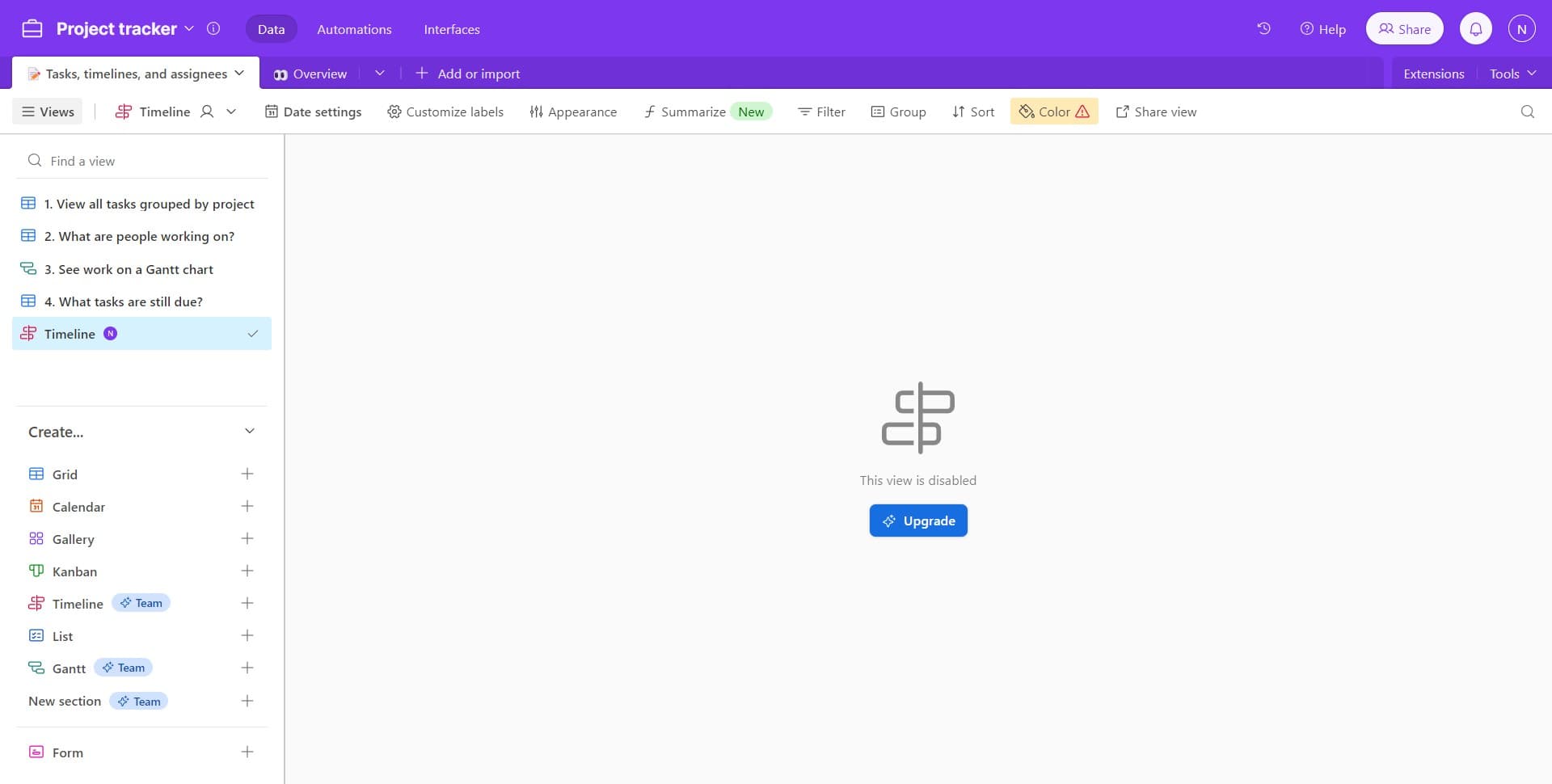
Open Tasks, Timelines, and Assignees
Start by clicking on the 'Tasks, timelines, and assignees' base within your Airtable workspace. This base contains the data you'll use to create your calendar view.
- 2
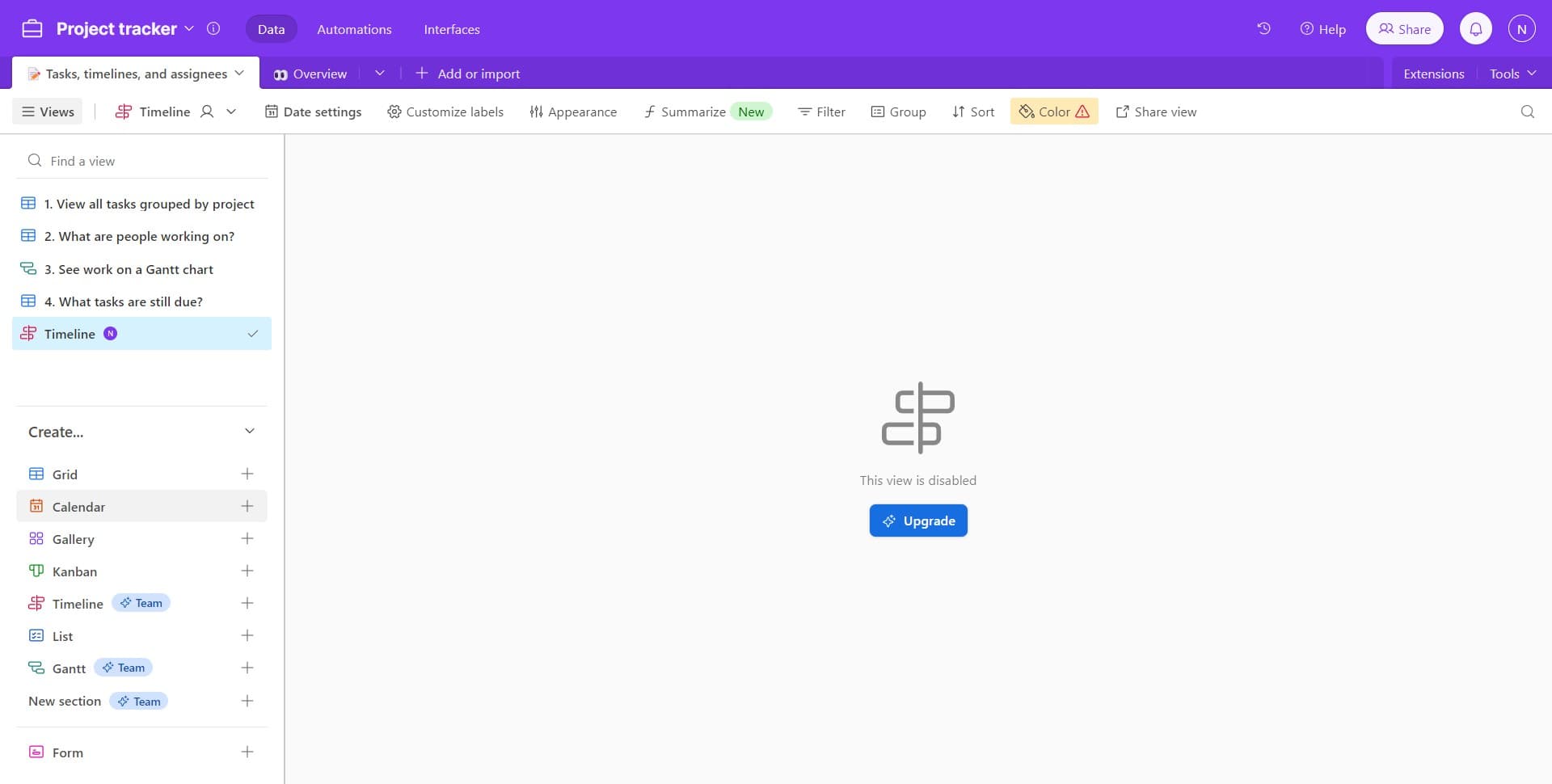
Access the Base Content
Click the indicated area to navigate to the table or workspace containing your calendar data. This ensures you're working with the correct dataset for your calendar sync.
- 3
Navigate to View Options
Click on the next prompt to access the view management interface. This is where you'll set up your calendar configuration.
- 4
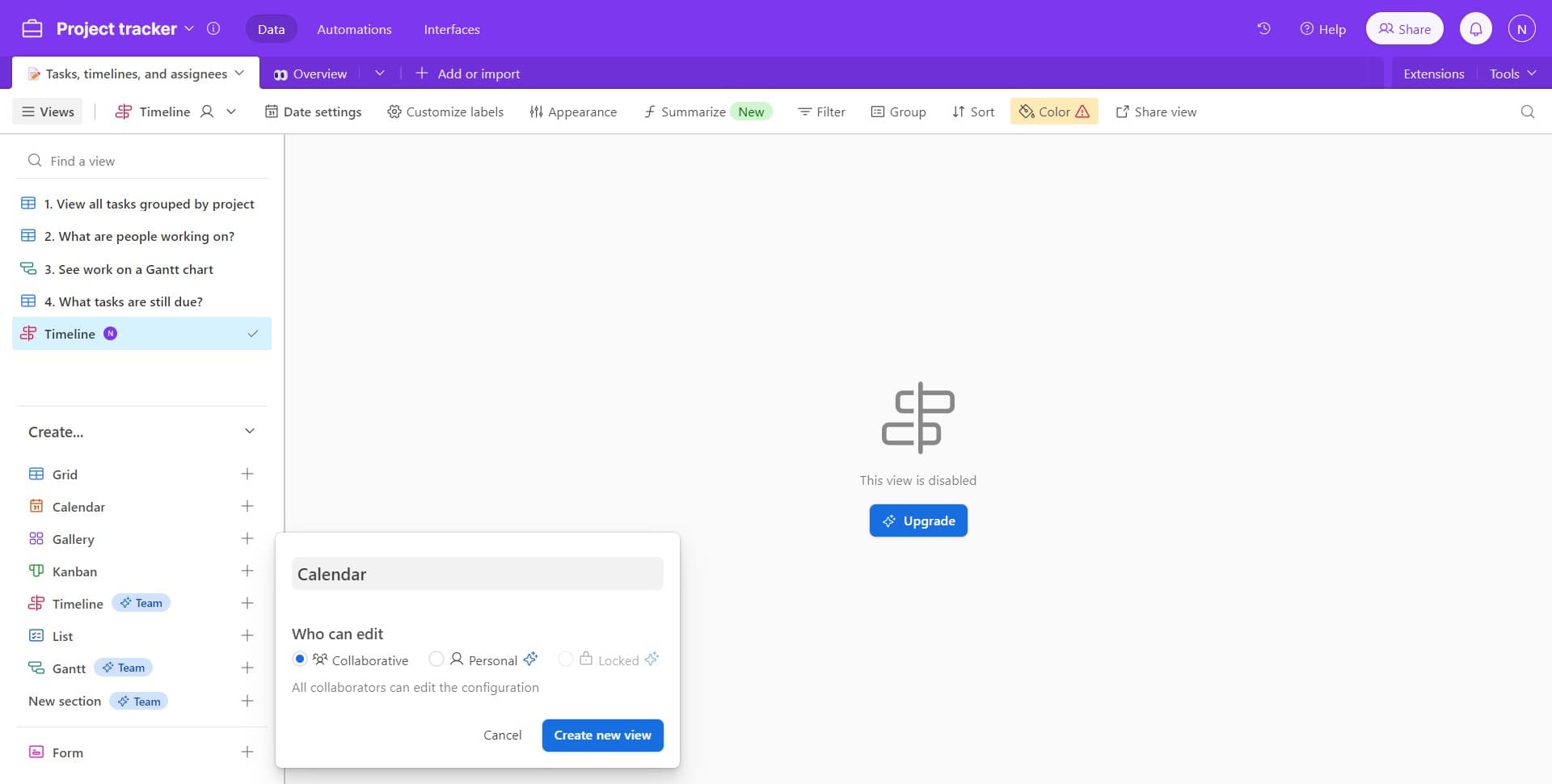
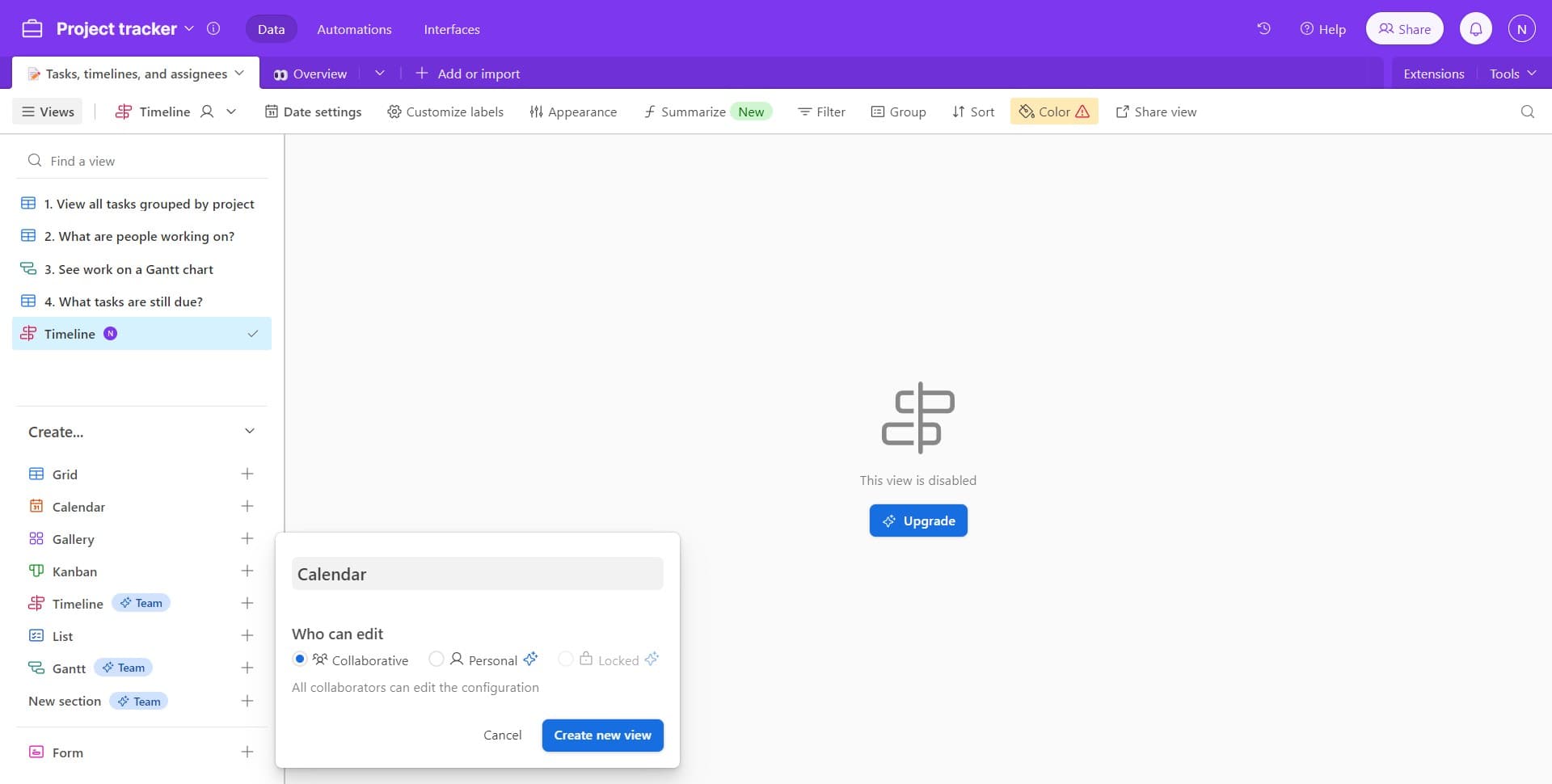
Create New View
Click on 'Create new view' to start building your calendar view. Airtable will prompt you to select a view type and configure it.
- 5
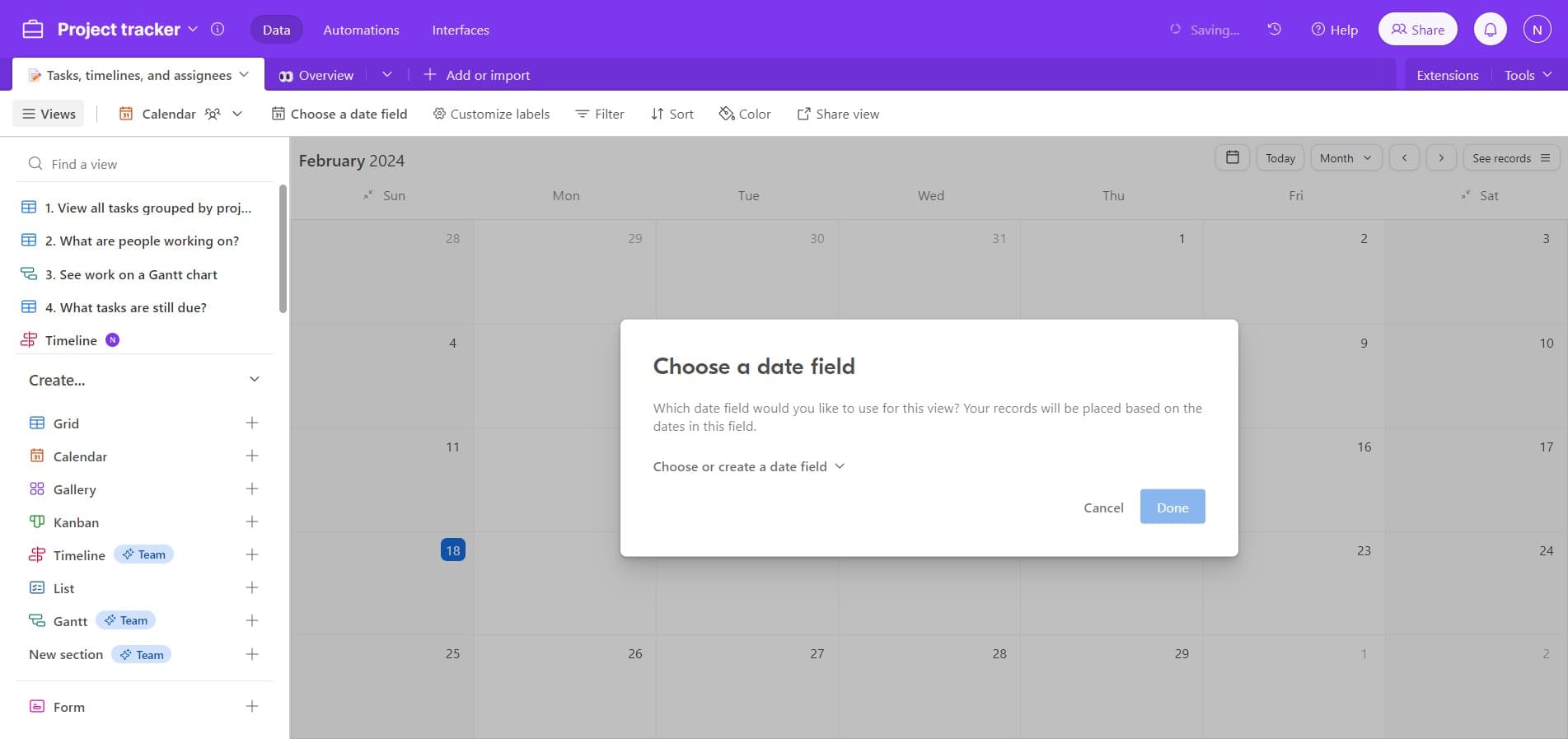
Select or Create Date Field
Click on 'Choose or create a date field' to designate which field will drive your calendar's timeline. Select an existing date field from your table or create a new one if needed.
- 6
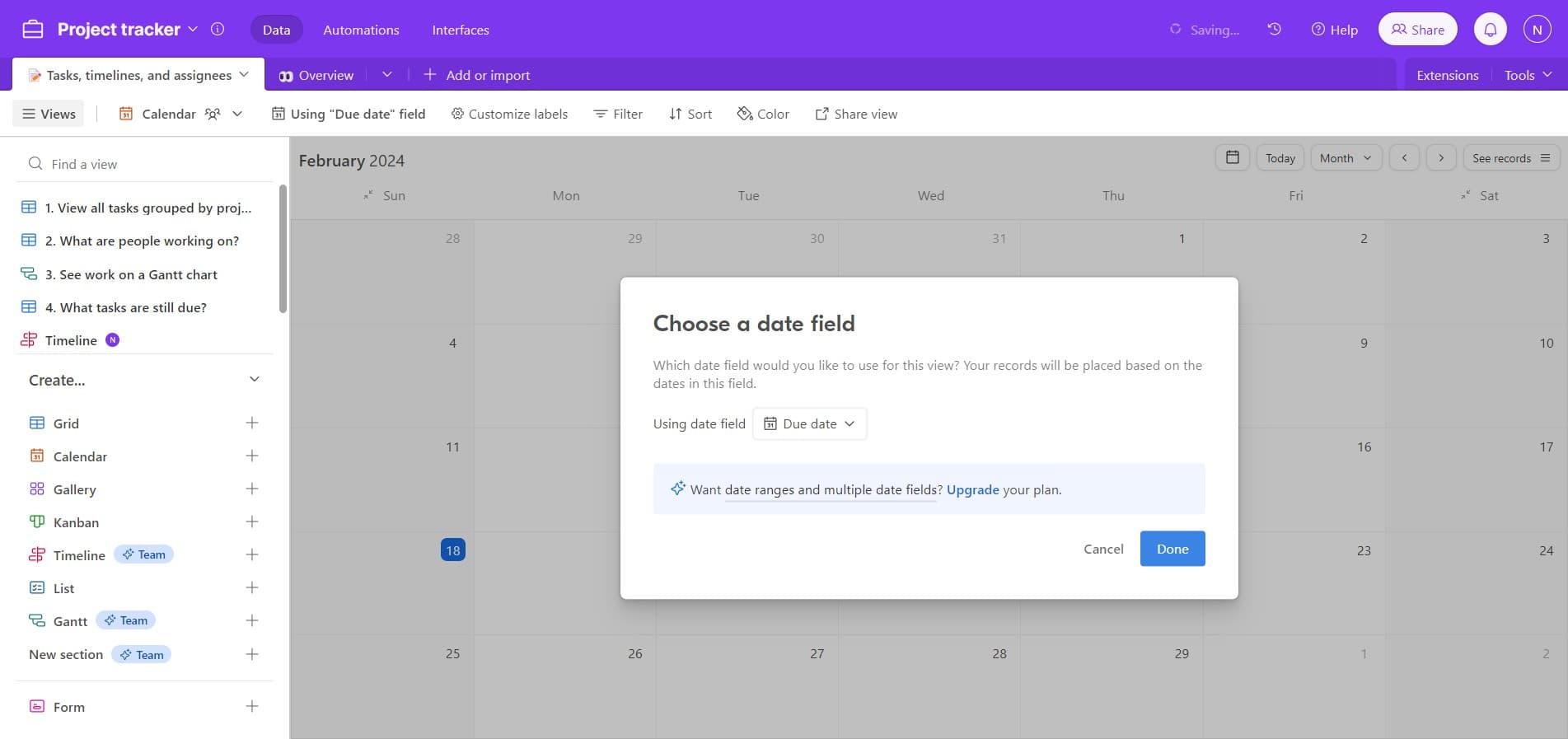
Complete Date Field Setup
Click 'Done' to finalize your date field selection and return to the calendar view configuration. Your calendar will now populate events based on the selected date field.
- 7
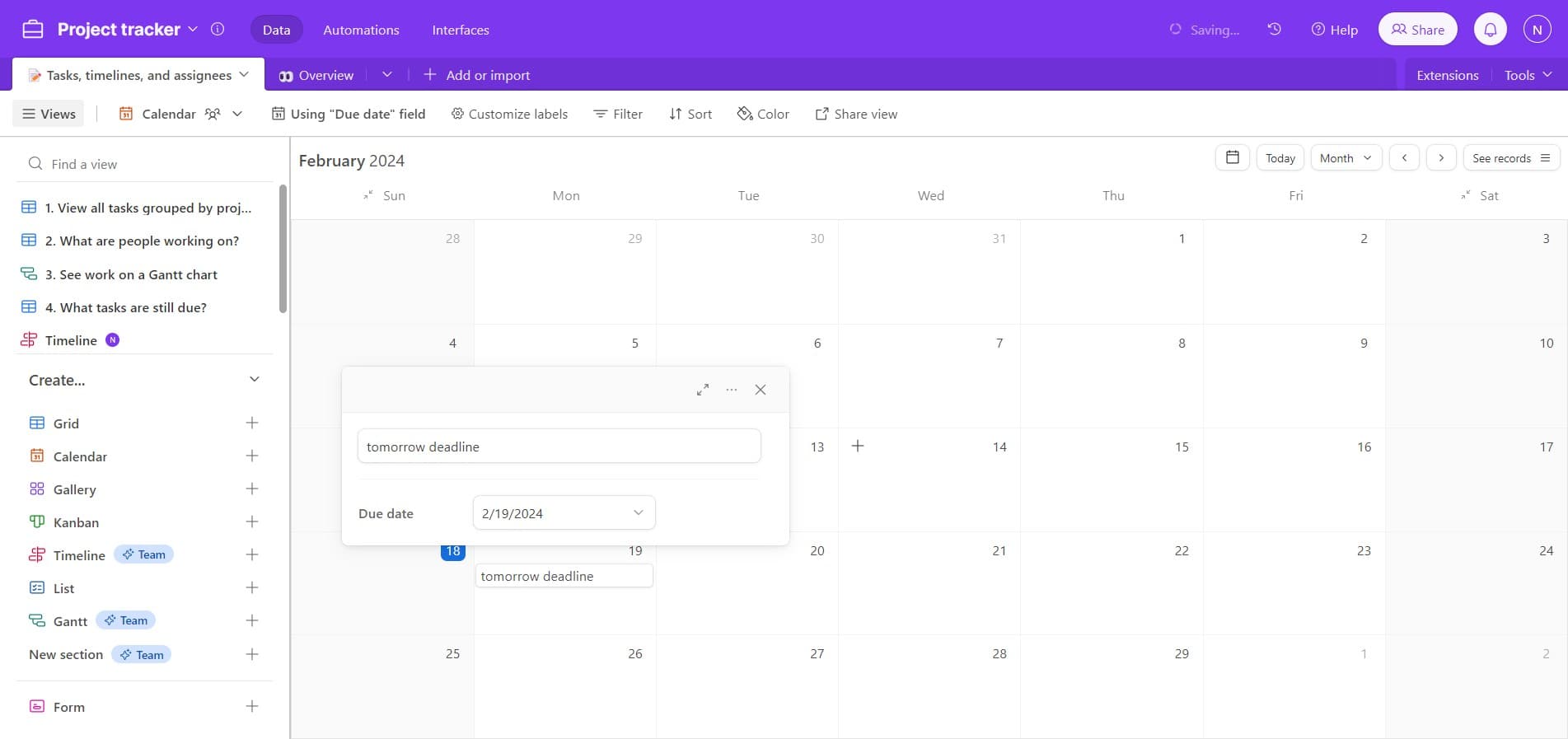
Review Calendar Display
Click on '14' or your target date to preview how events display on your calendar. This confirms your calendar view is properly configured and showing the correct data.
- 8
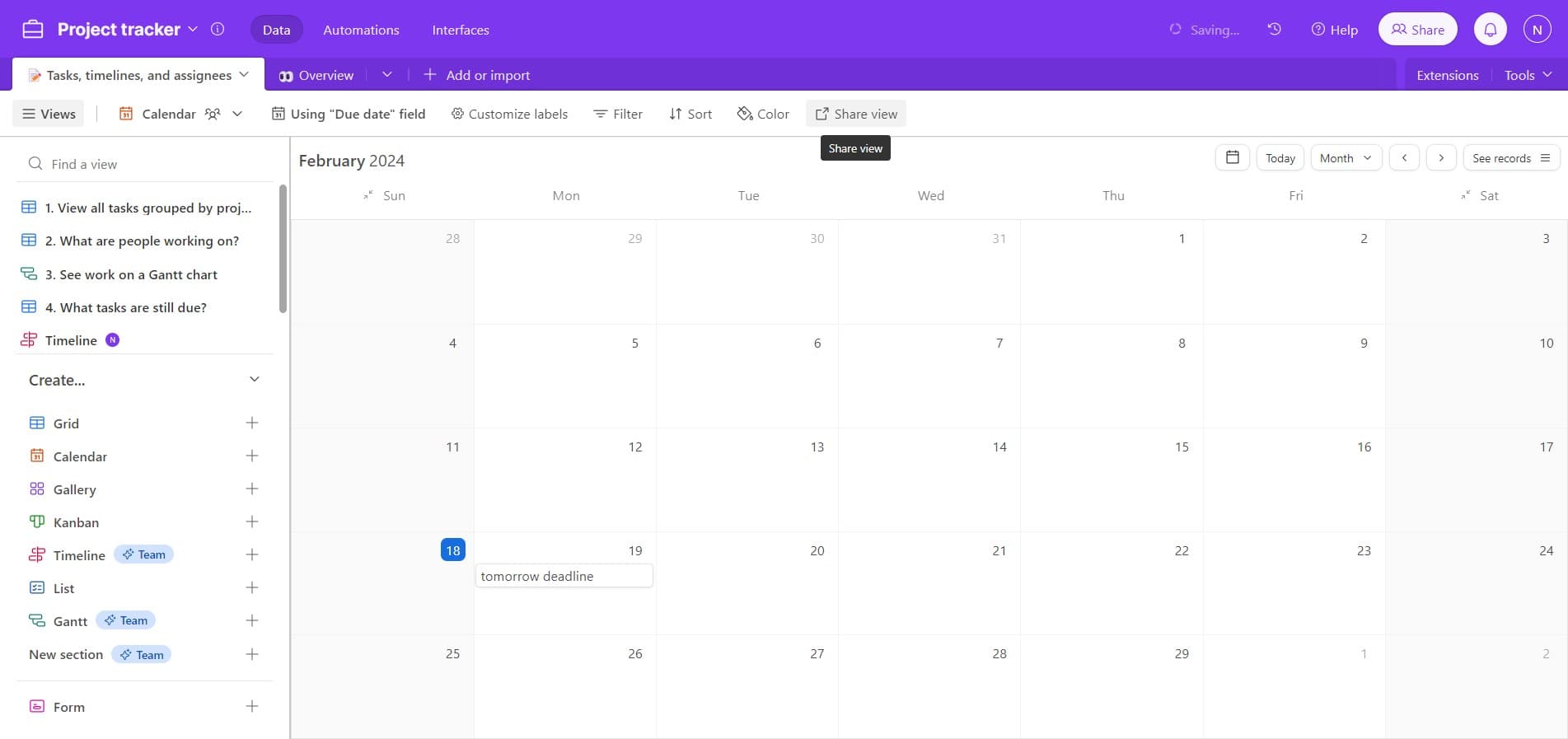
Access Share Options
Click on 'Share view' to open the sharing interface. This menu allows you to generate links and control access permissions for your calendar.
- 9
Generate Shareable Link
Click on 'Create link to view' to generate a URL that can be shared with external calendars or team members. This link enables calendar integration and synchronization.
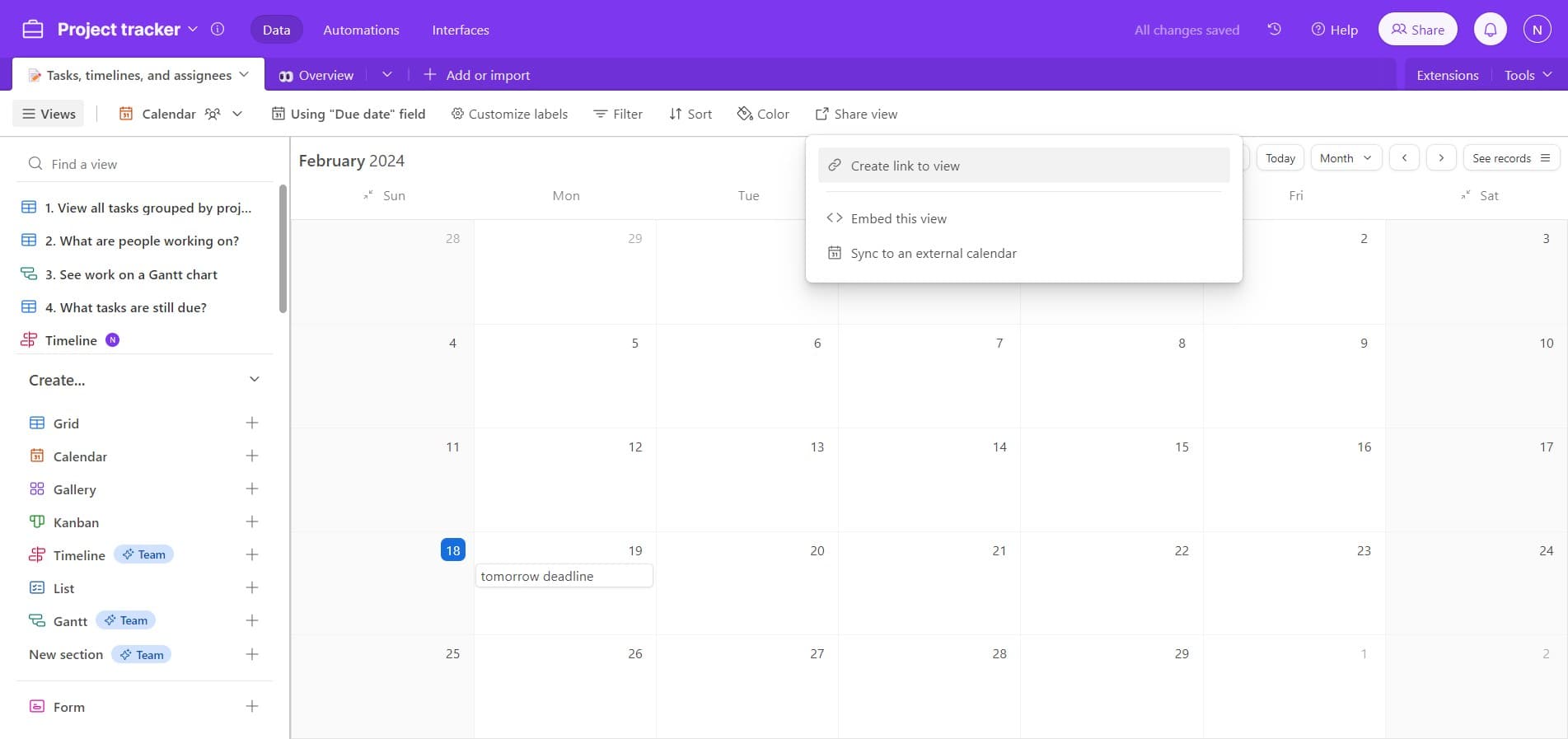
- 10
Upload or Export Calendar
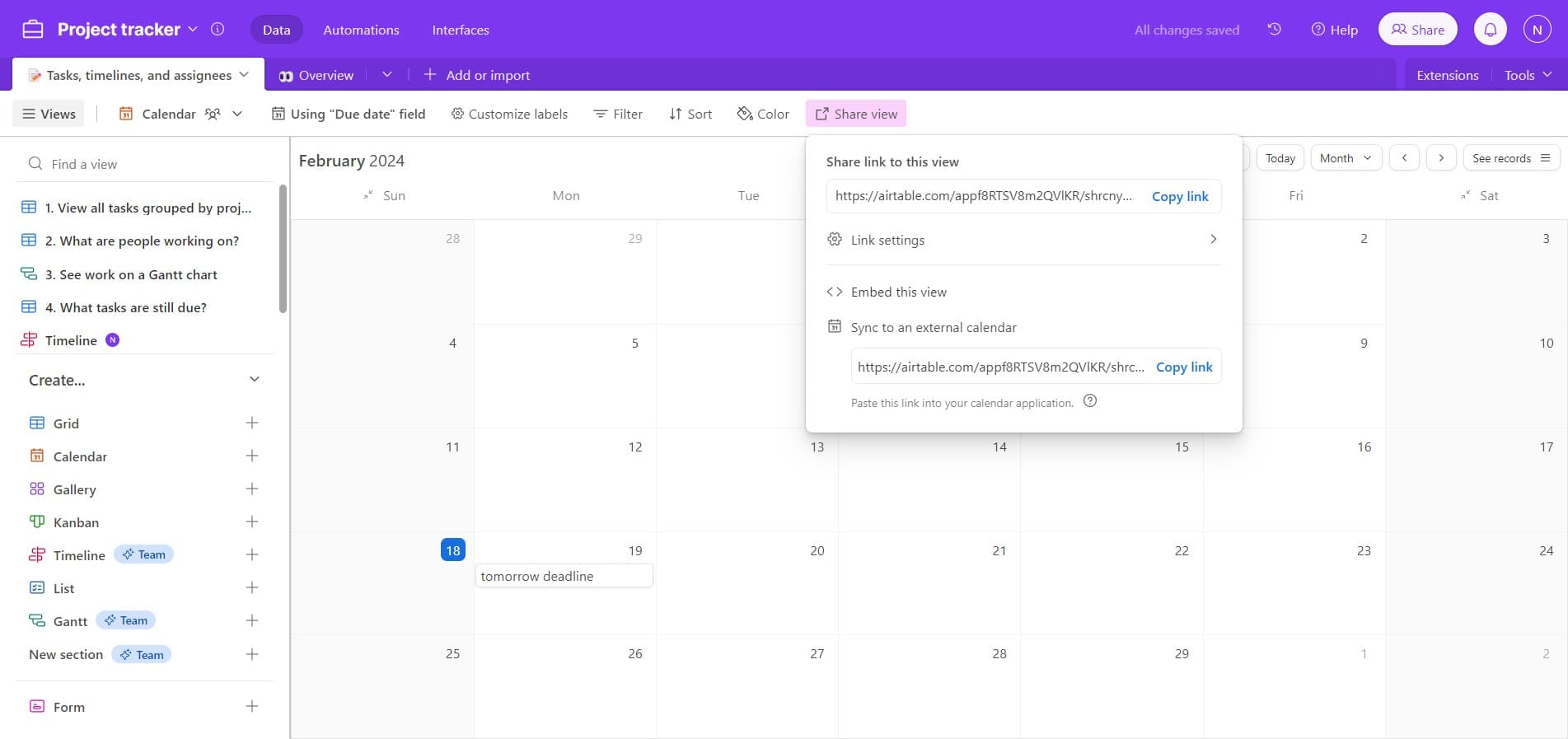
Upload your calendar link to your external calendar platform or import the shared view into your preferred calendar application. Your Airtable calendar is now synced and accessible across tools.
Frequently asked questions
Common questions about how to sync airtable calendar to external calendar and share.
No, a calendar view in Airtable is built around a single date field. However, you can create multiple calendar views from the same table, each using a different date field to display various timelines or deadlines.
Airtable calendar views can be shared via public links that work with most calendar applications including Google Calendar, Outlook, Apple Calendar, and others. You can typically import the shared link using the import or subscribe functionality in your calendar app.
Yes, when you share a calendar view link, external calendars can subscribe to it for real-time updates. Any changes made to dates or events in Airtable will reflect in connected external calendars automatically.
When creating a link to your view, Airtable provides sharing options to control permissions. You can choose whether the shared view is read-only or editable, and restrict access using link sharing settings.
Yes, you can filter your calendar view before sharing to exclude specific records. Apply filters to show only relevant events, then generate the shareable link from the filtered calendar view.