How to forward all emails in Gmail

Email forwarding in Gmail allows you to automatically send copies of incoming messages to another email address, ensuring you never miss important communications. This feature is particularly useful when you're transitioning email accounts, consolidating multiple inboxes, or need to share messages with a colleague automatically.
Quick summary
In this tutorial, you'll learn how to set up email forwarding in Gmail by accessing your account settings, enabling the forwarding feature, and configuring your preferred forwarding address. You'll also discover how to enable IMAP access to ensure your emails sync properly across devices.
Why this matters
Setting up email forwarding is essential for maintaining productivity when changing email providers or managing multiple accounts. It prevents missed messages during transitions and ensures continuity in communication without requiring manual intervention.
Step-by-step guide
- 1
Access your Gmail account
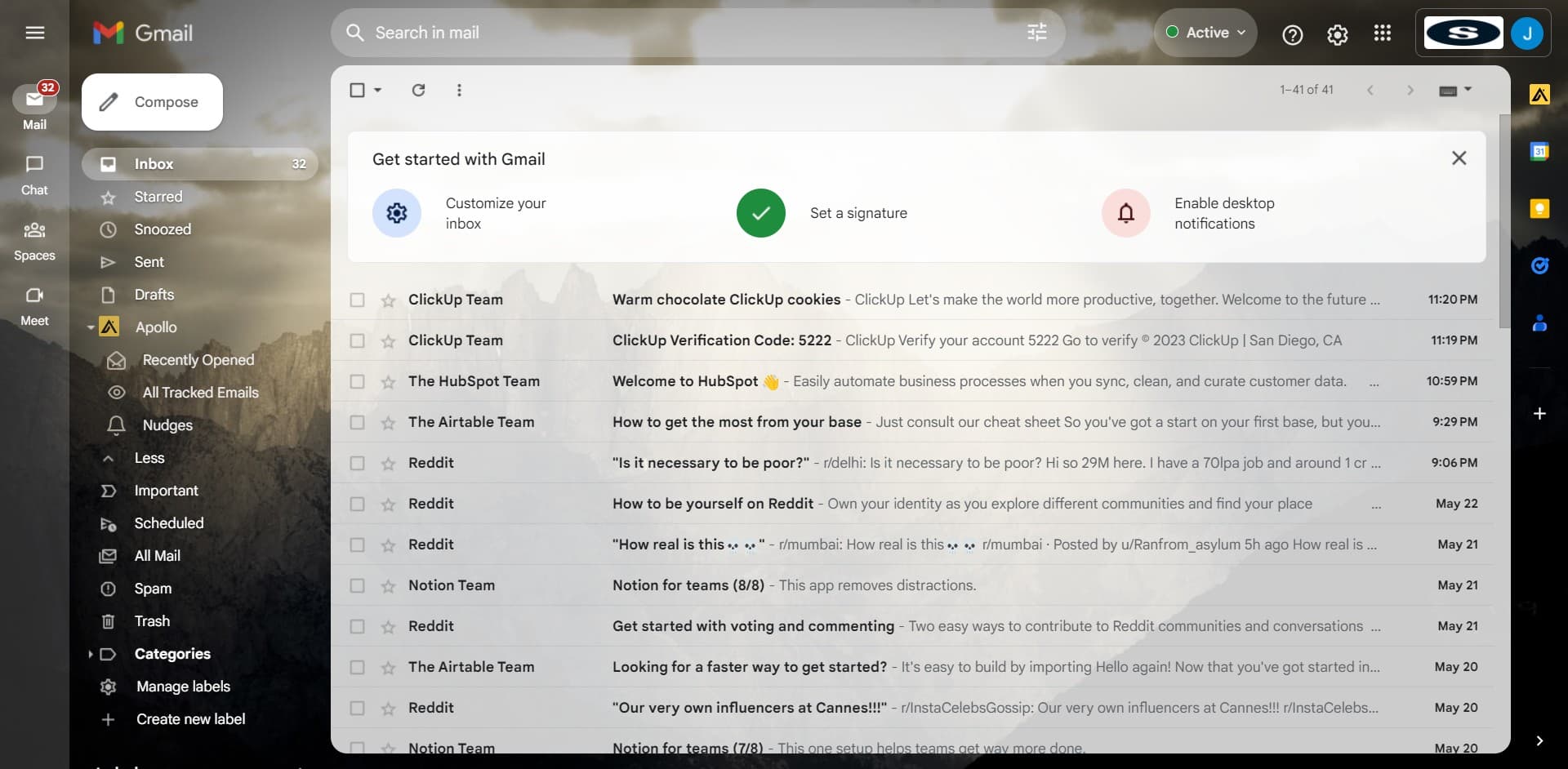
Start by locating and clicking on the display showing your total number of emails (1-41 of 41). This confirms you're in your Gmail inbox and ready to access settings.
- 2
Open the settings menu
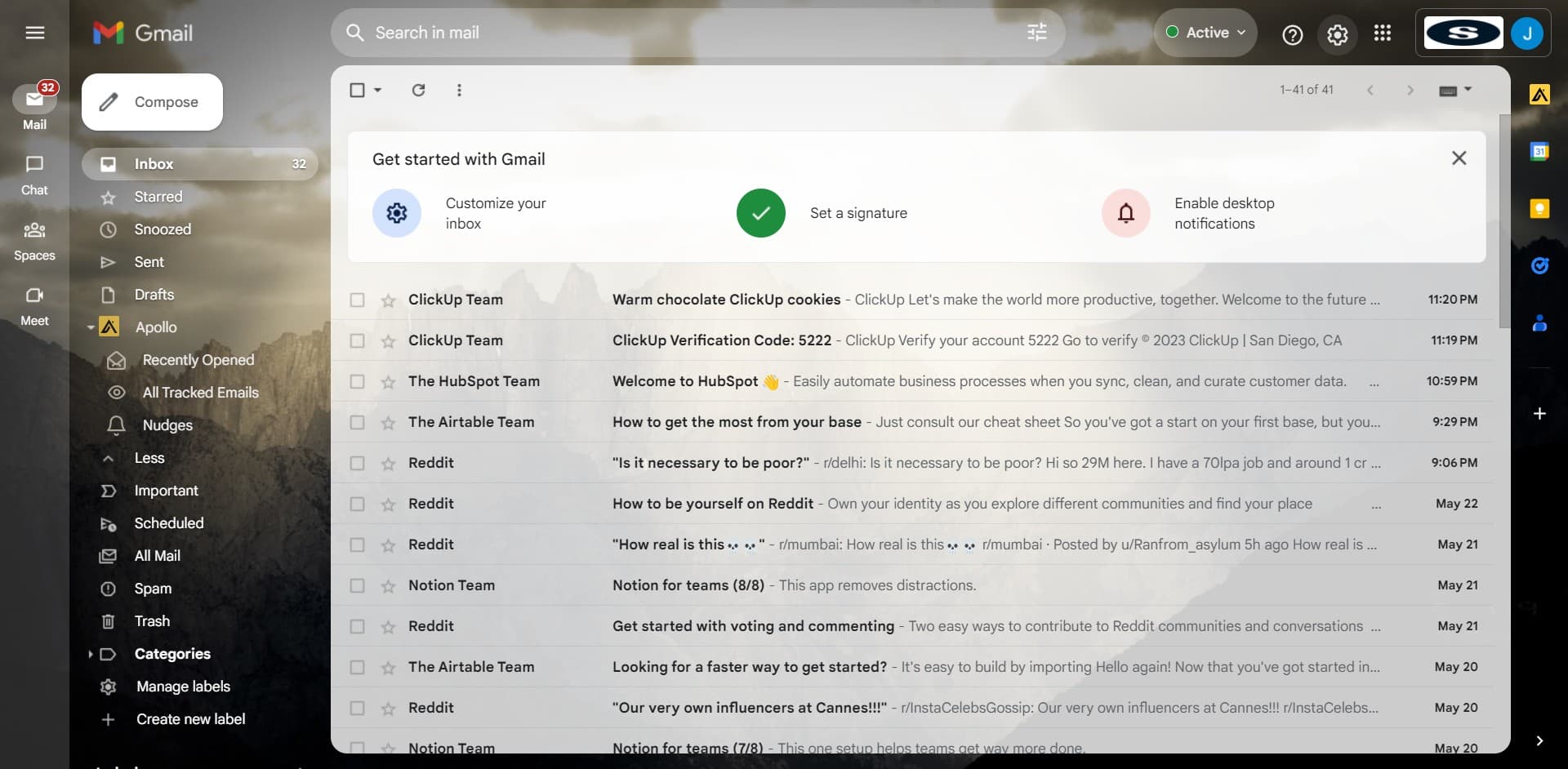
Click the settings icon or menu option to reveal Gmail's configuration options. This step provides access to all account management features.
- 3
Click on See all settings
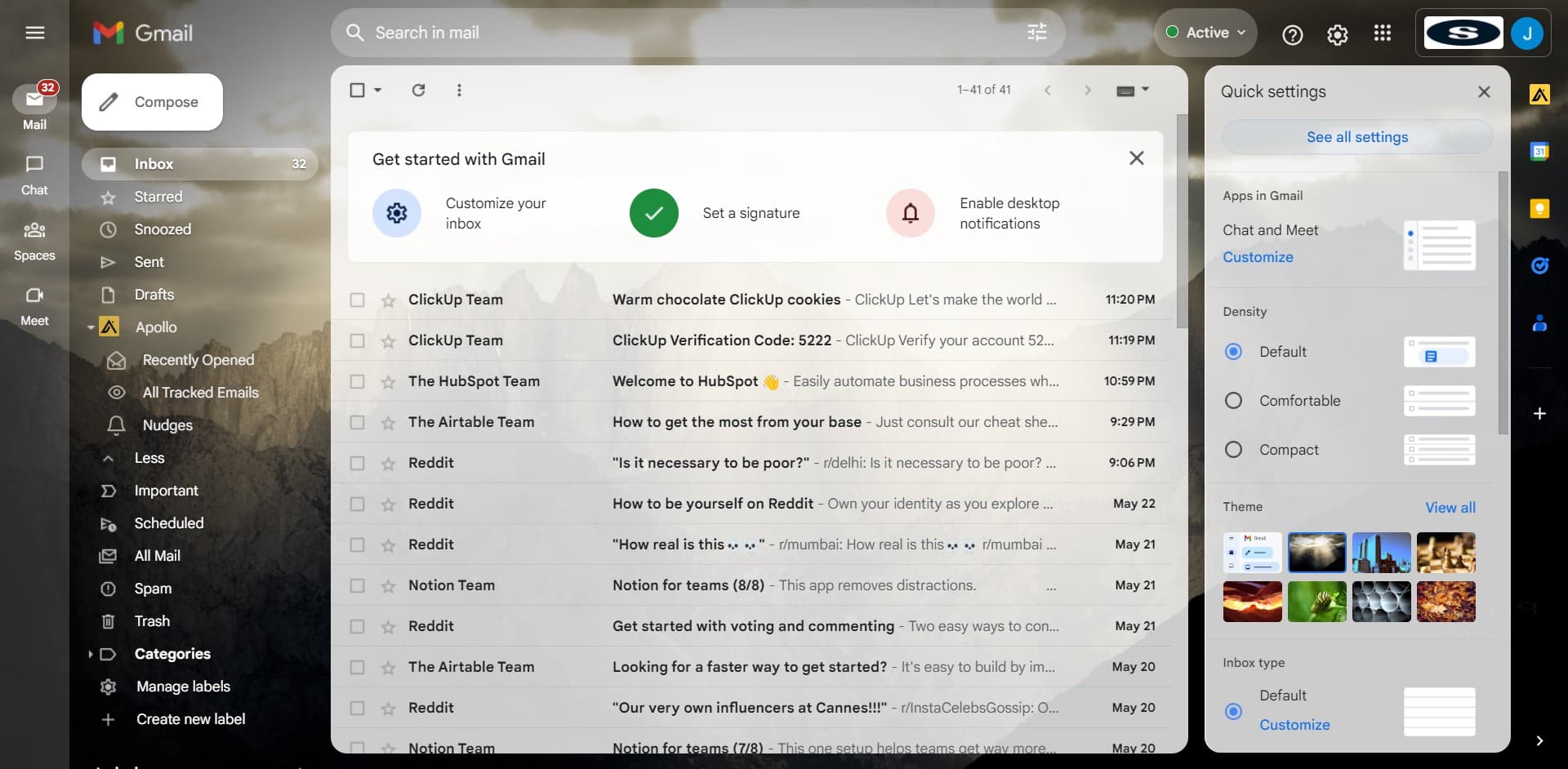
Select the 'See all settings' option to access the complete settings panel. This opens the full configuration interface where all forwarding options are available.
- 4
Navigate to Forwarding and POP/IMAP
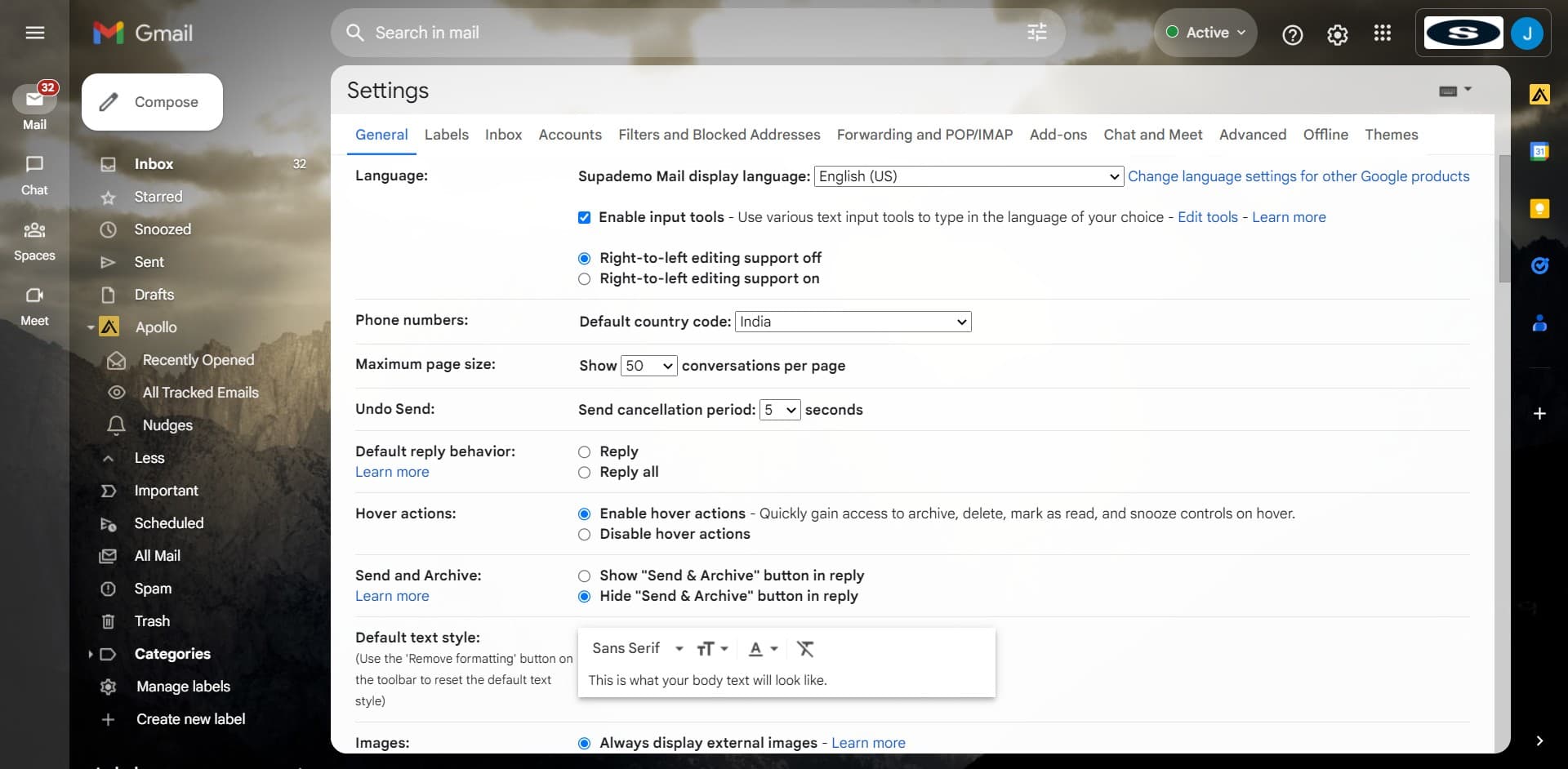
Click on the 'Forwarding and POP/IMAP' tab in the settings menu. This section contains all email forwarding and protocol configuration options.
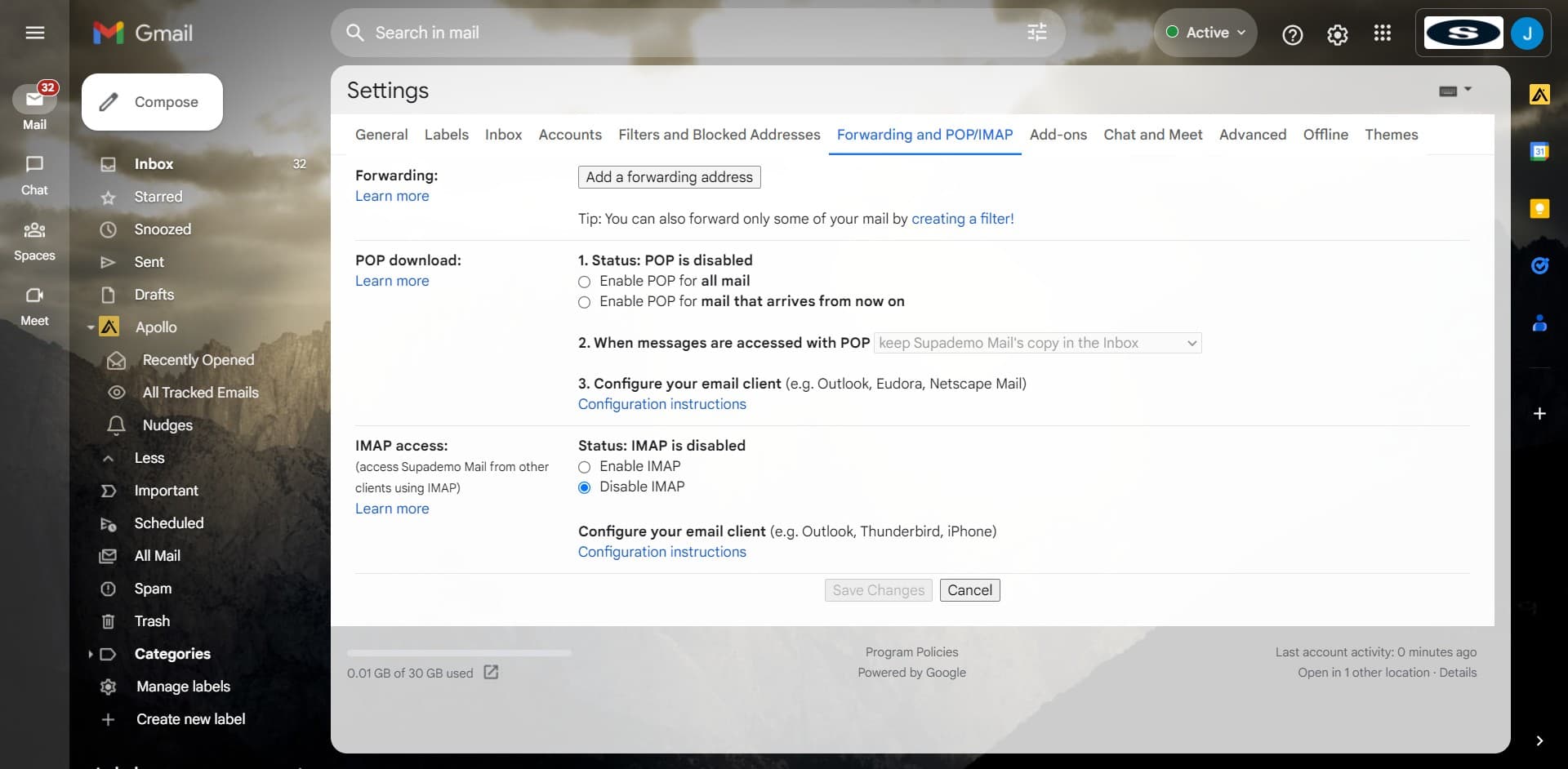
- 5
Begin forwarding configuration
Click the designated button or link to start setting up email forwarding. The interface will prompt you to enter your forwarding email address.
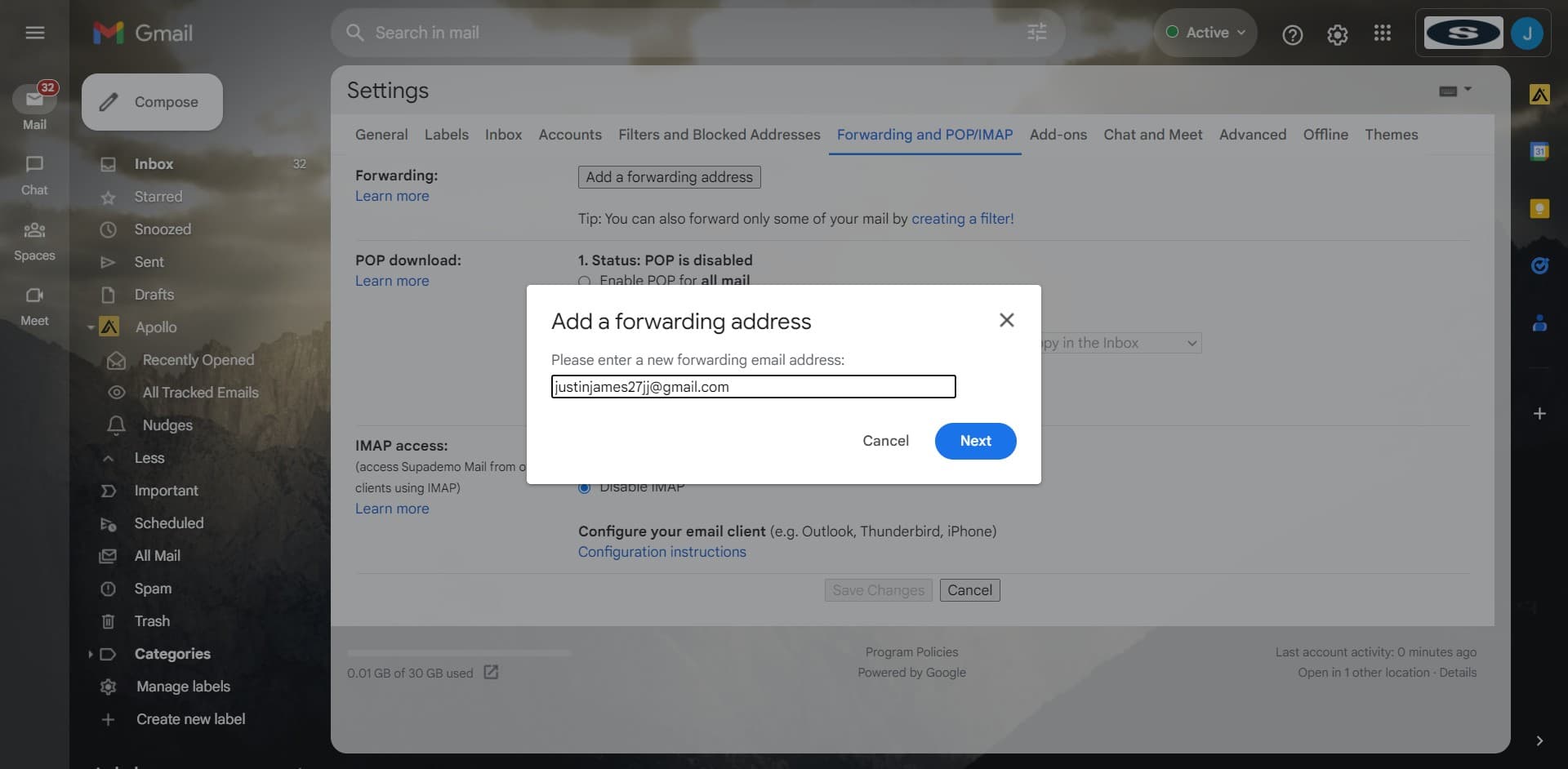
- 6
Enter your forwarding address
Input the email address where you want Gmail to forward your incoming messages. Make sure this address is correct before proceeding to the next step.
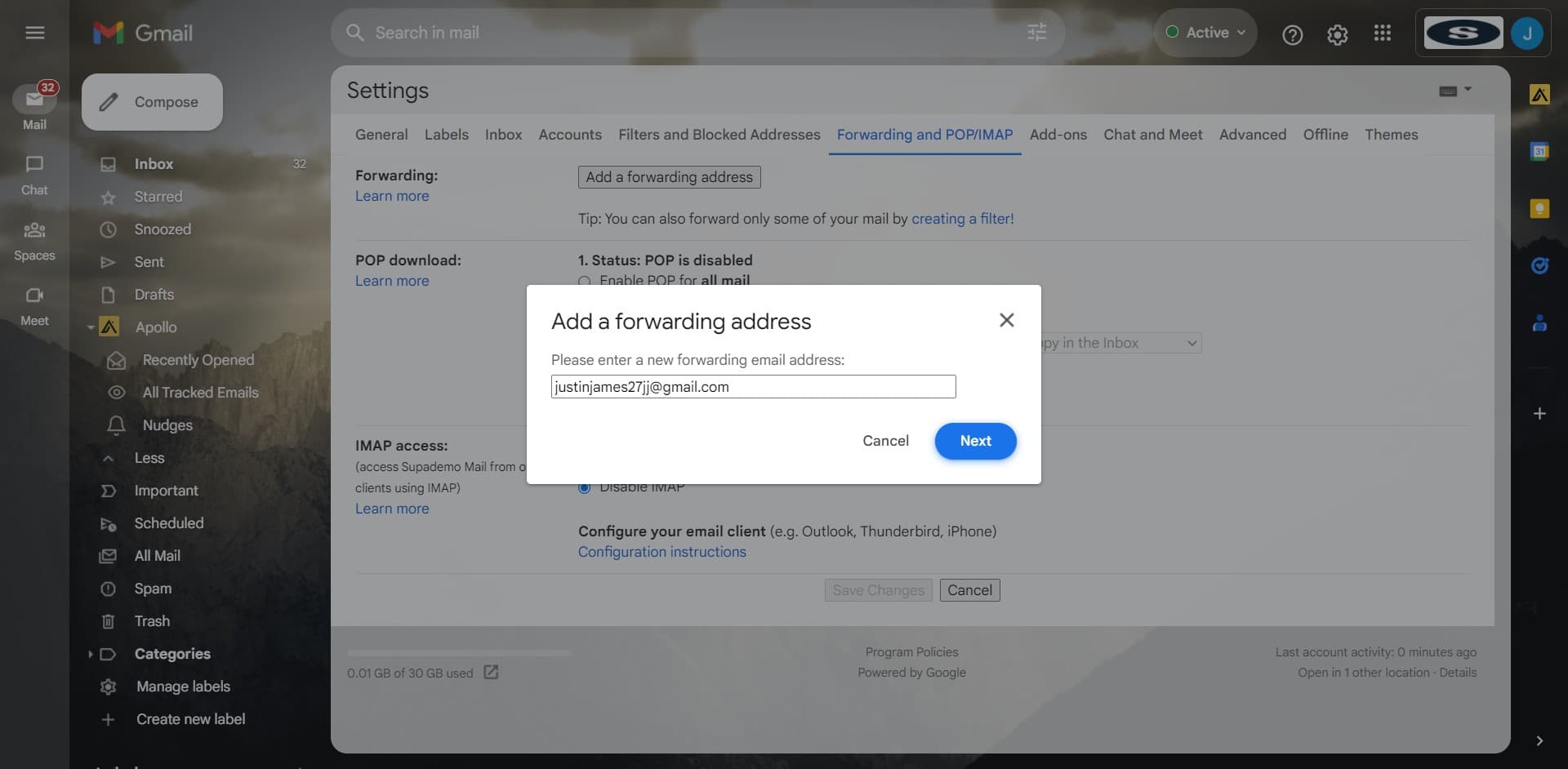
- 7
Click Next to confirm
Select the 'Next' button to move forward in the forwarding setup process. Gmail will validate the forwarding address you provided.
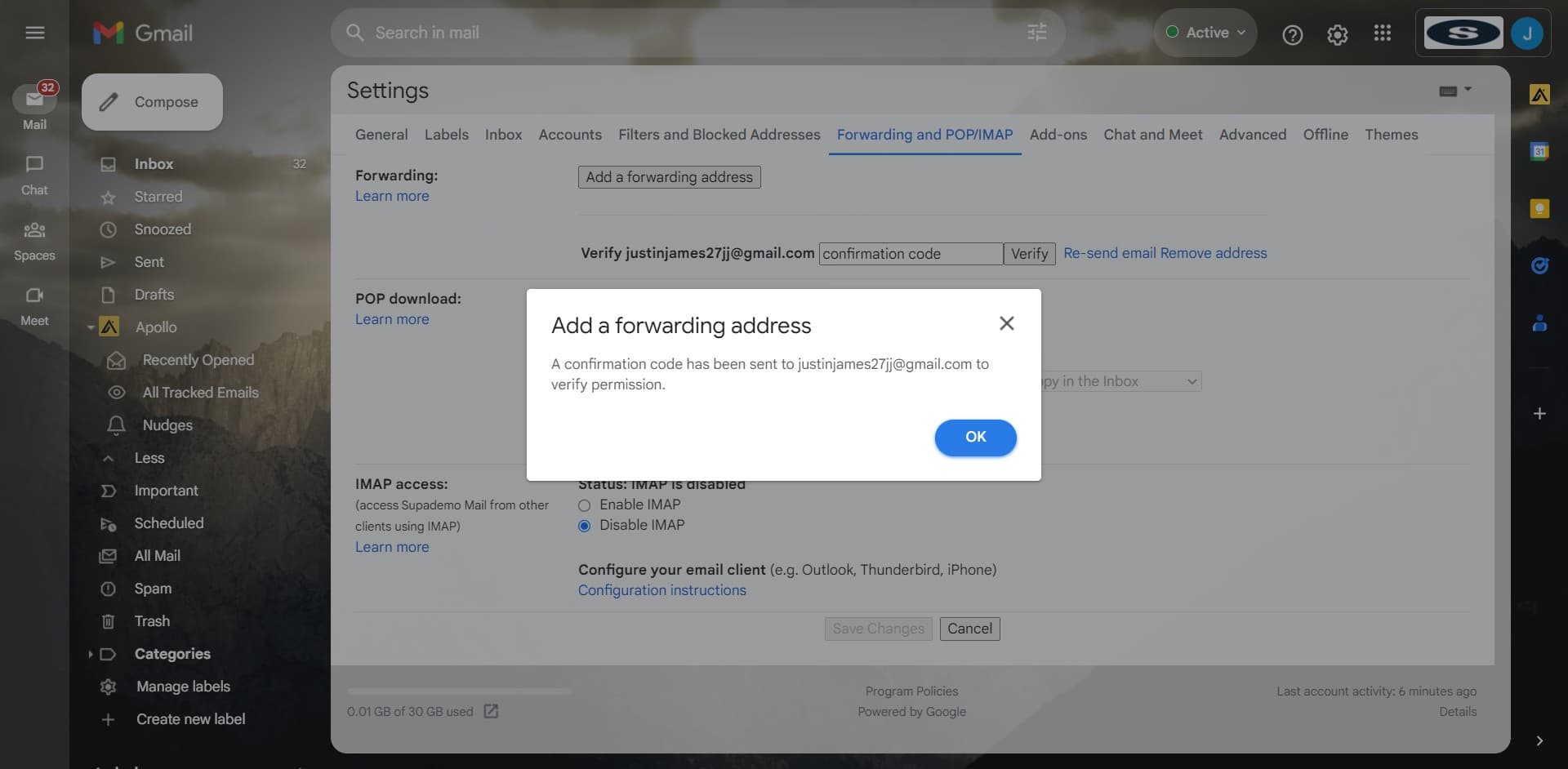
- 8
Confirm the forwarding setup
Click 'OK' to acknowledge and accept the forwarding configuration. Gmail may send a confirmation email to the forwarding address.
- 9
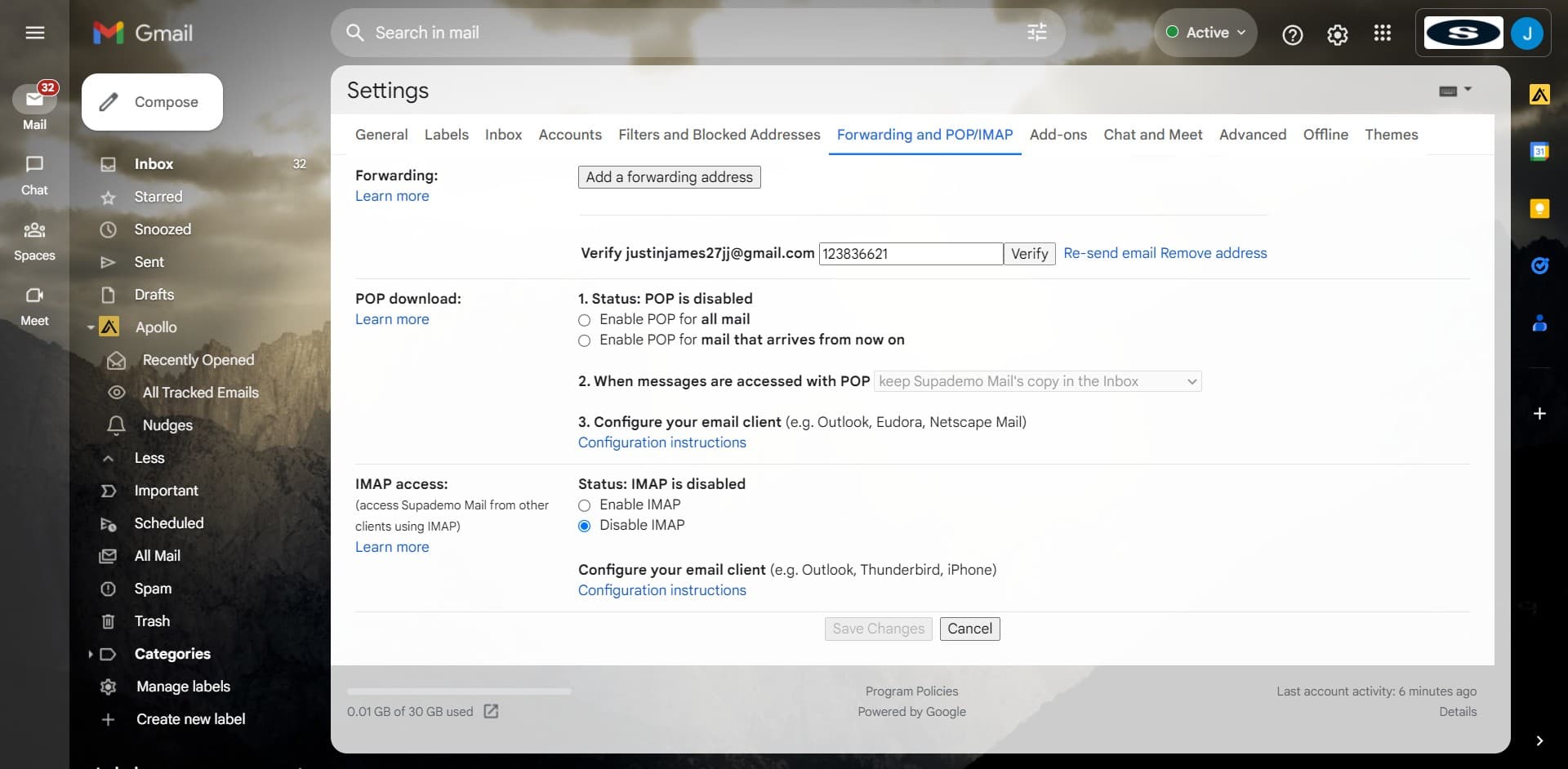
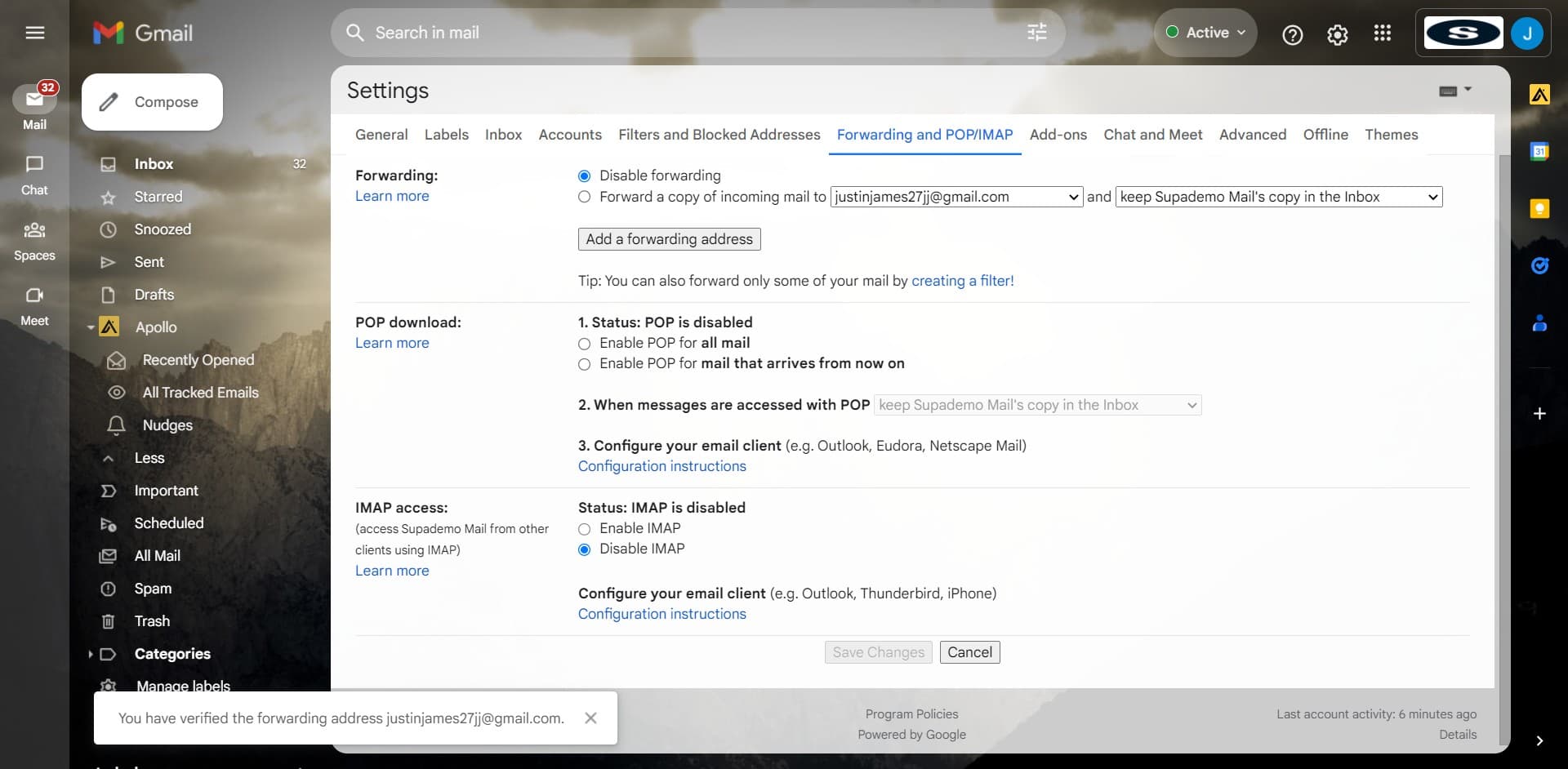
Complete forwarding verification
Click the final confirmation button or link to finalize your forwarding settings. Your email forwarding is now active.
- 10
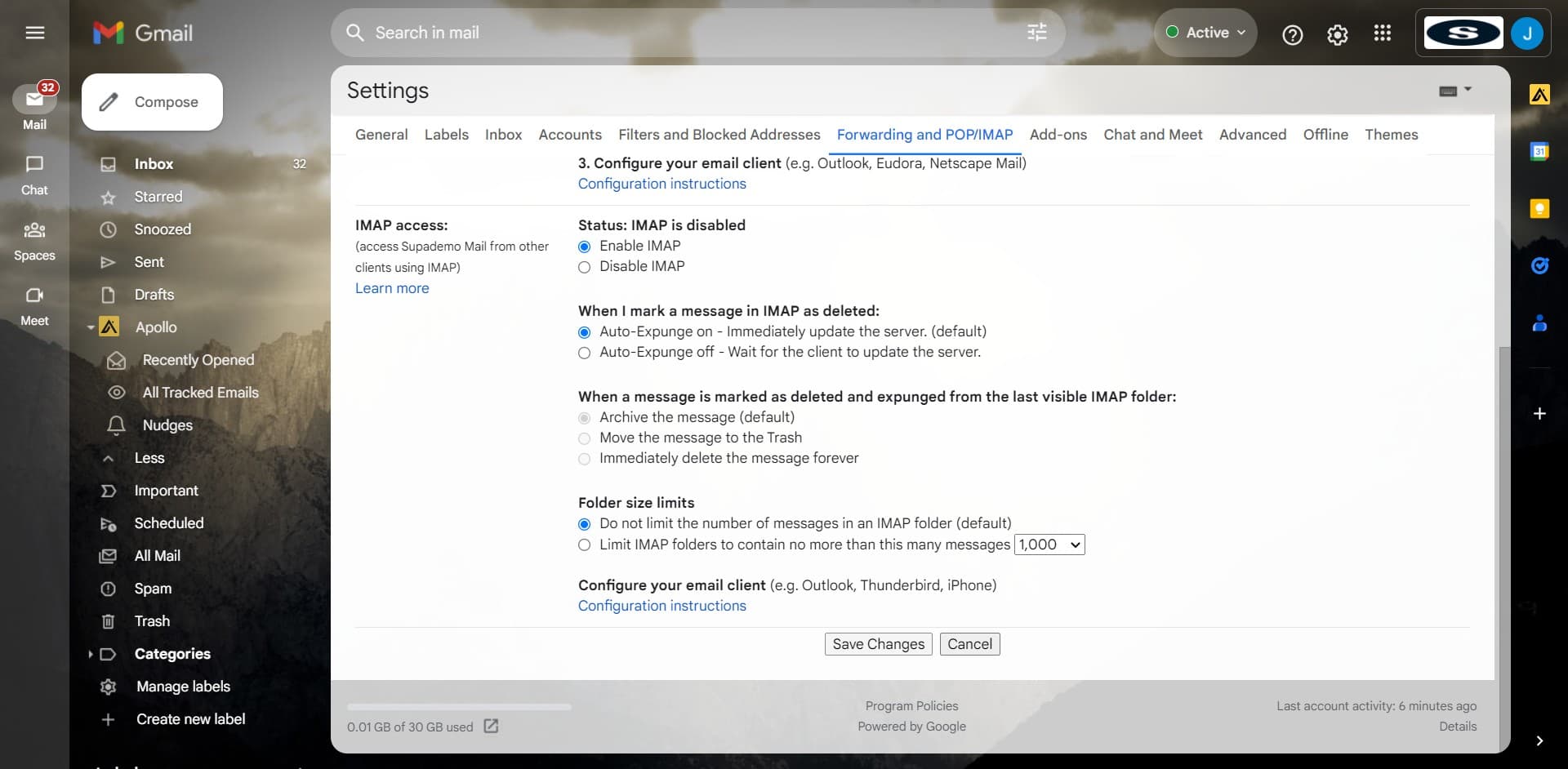
Enable IMAP protocol
Click on 'Enable IMAP' to allow email clients and devices to access your Gmail via the IMAP protocol. This ensures your emails sync across all your devices automatically.
- 11
Save your changes
Click 'Save Changes' to apply all settings modifications, including forwarding and IMAP activation. Your Gmail account is now fully configured for email forwarding.
Frequently asked questions
Common questions about how to forward all emails in gmail.
Yes, by default Gmail keeps copies of all forwarded emails in your inbox. You can optionally archive or delete the original emails if you prefer, but forwarding doesn't automatically remove them from your account. The forwarded copies will appear in the destination email address inbox.
Gmail's standard forwarding feature supports forwarding to one email address at a time. However, you can set up forwarding to a single address and then create filters or rules in that email client to redistribute messages further if needed.
Forwarded emails typically arrive within seconds of being received in your Gmail inbox. The exact timing depends on the destination email server's processing speed, but delays are usually minimal.
Forwarding automatically copies emails to another address, while IMAP allows email clients to access your Gmail remotely without downloading messages. Enabling both ensures your emails reach another account automatically and also allows you to access Gmail from other devices or applications seamlessly.
Yes, you can disable forwarding at any time by returning to Settings, selecting Forwarding and POP/IMAP, and choosing the option to turn off forwarding. Gmail will stop forwarding new emails immediately, though emails already forwarded cannot be retrieved.