How to Use Clearbit Connect in Gmail

Clearbit Connect is a powerful Gmail extension that enriches your email contacts with company and professional data. This guide walks you through using Clearbit Connect to find email addresses directly within Gmail, streamlining your outreach and research workflow.
Quick summary
In this tutorial, you'll learn how to leverage Clearbit Connect's email discovery features in Gmail. You'll upload a list of prospects, use the 'Find email addresses' function, and quickly copy verified email addresses for your outreach campaigns.
Why this matters
Finding accurate email addresses manually is time-consuming and prone to errors. By using Clearbit Connect's automated discovery within Gmail, you can build verified contact lists efficiently and improve your email deliverability rates. This workflow is essential for sales professionals, recruiters, and marketers who need reliable contact information at scale.
Step-by-step guide
- 1
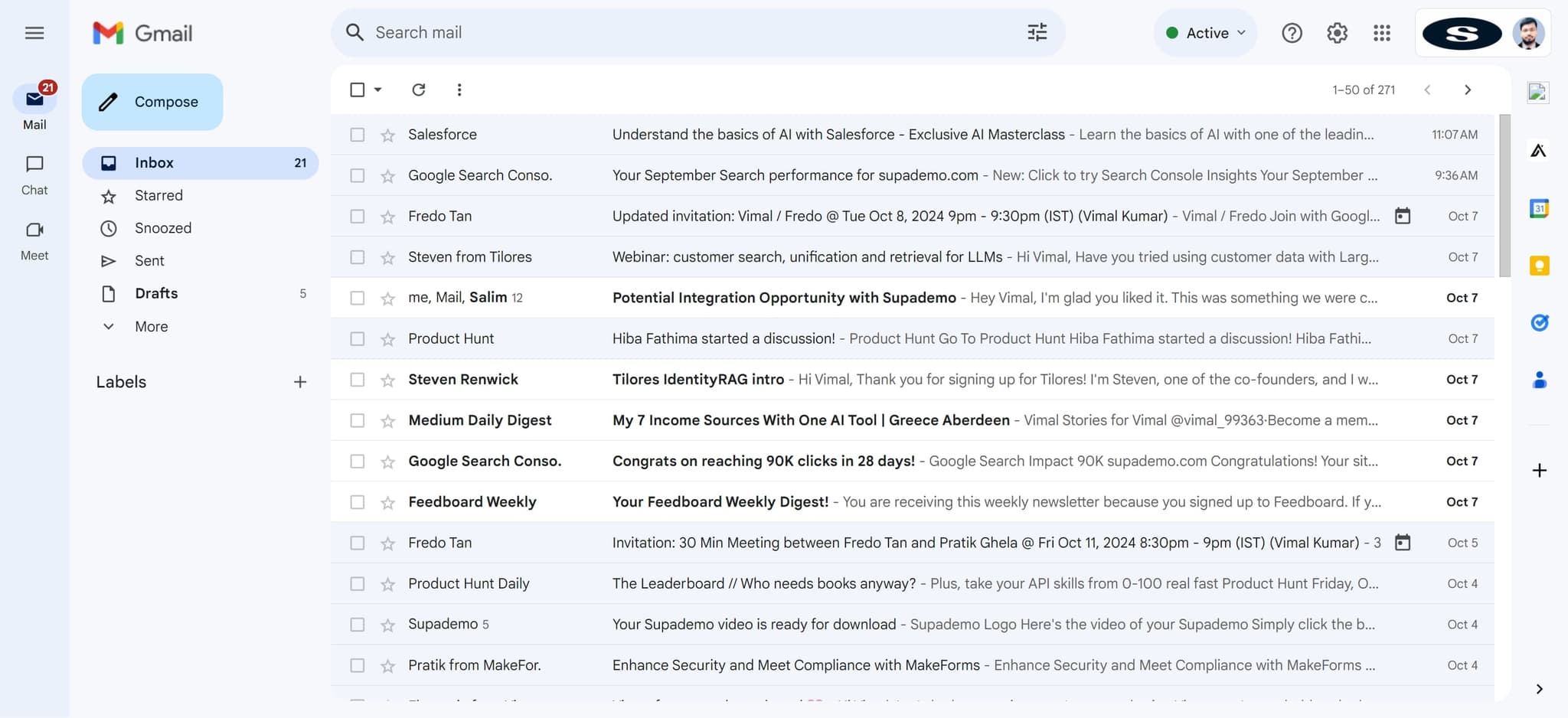
Open Clearbit Connect
Launch the Clearbit Connect extension in your Gmail inbox. You should see the Clearbit interface appear on the right side of your Gmail window, ready to begin your lookup process.
- 2
Upload your prospect list
Click the upload button and select your CSV file or list of prospects. Clearbit Connect will prepare to process your contacts and extract their information.
- 3
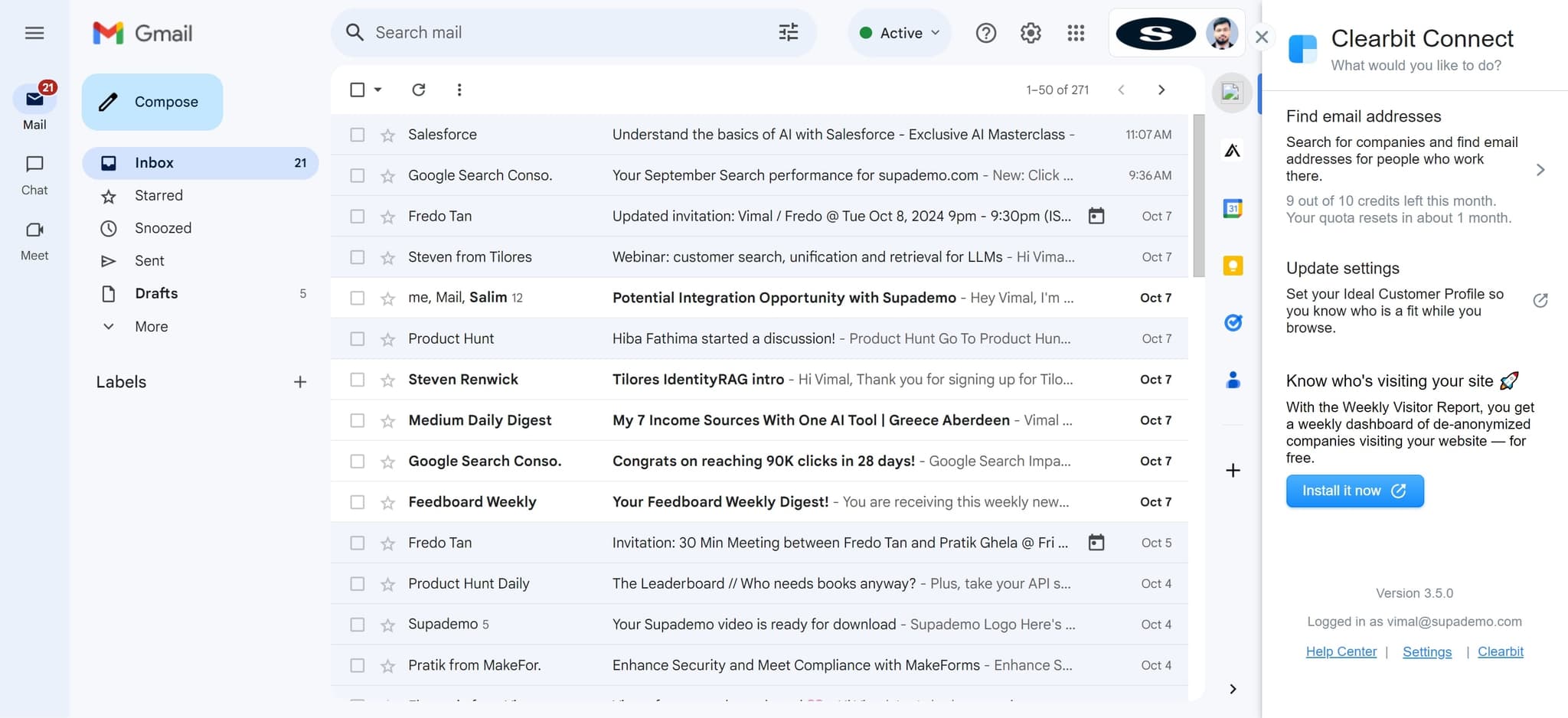
Click Find email addresses
After your list uploads, select the 'Find email addresses' option. Clearbit Connect will scan its database to match and discover email addresses for your prospects.
- 4
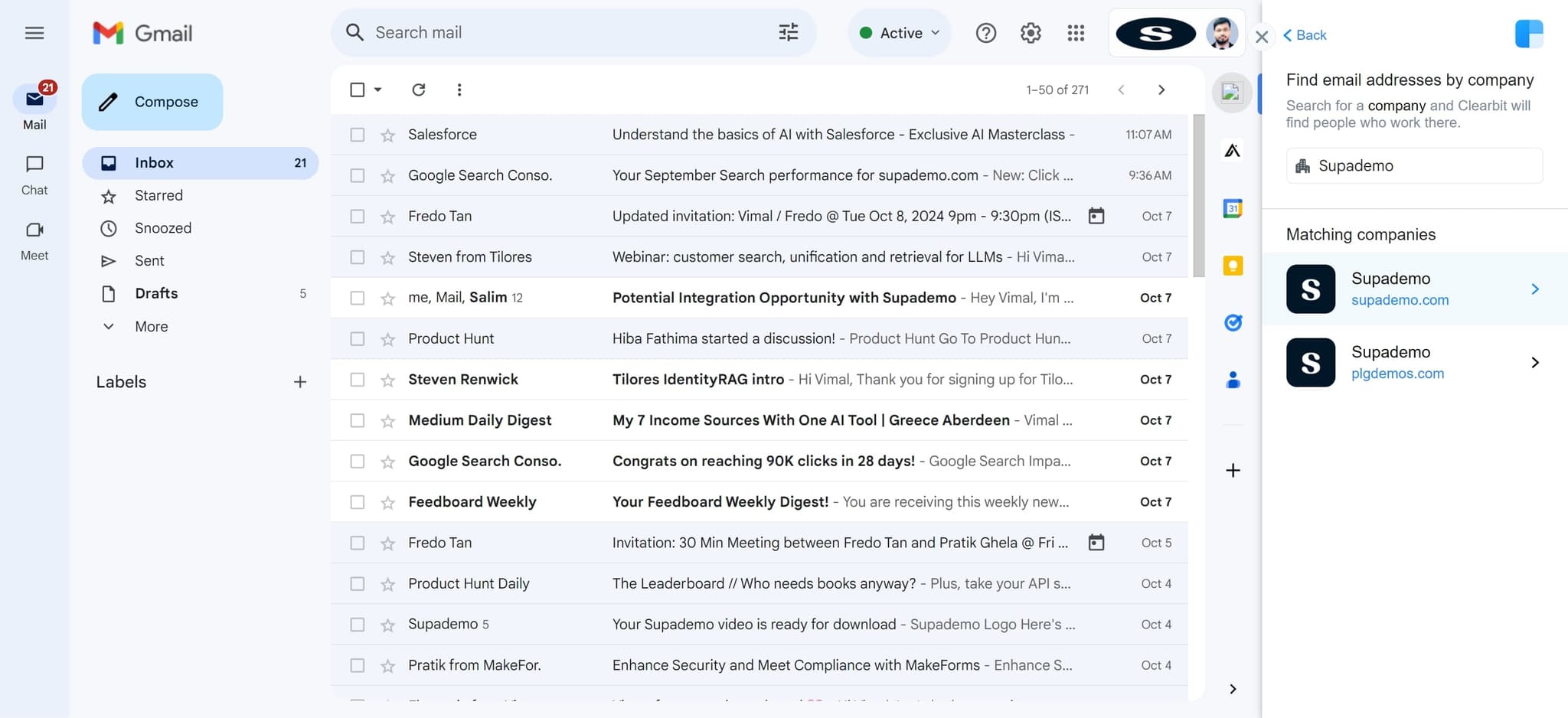
Review search results
Once the search completes, Clearbit Connect will display matched results with verified email addresses. Review the results to ensure the matches are accurate for your campaign.
- 5
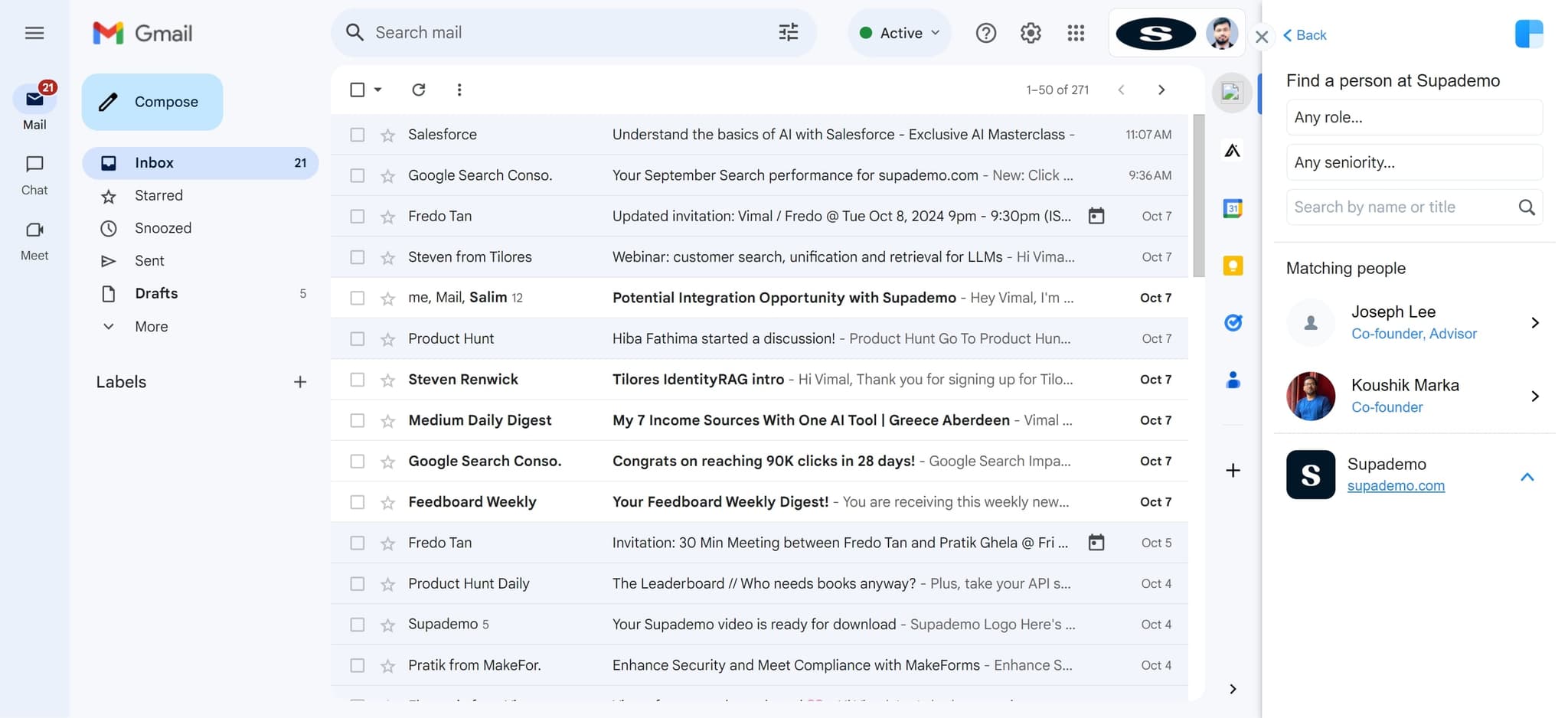
Select your target contact
Navigate to the contact you want to use in your outreach. Clearbit Connect will highlight the relevant prospect information and available contact details.
- 6
Access contact details
Click on the contact record to expand and view all enriched data, including job title, company, and other professional information gathered by Clearbit.
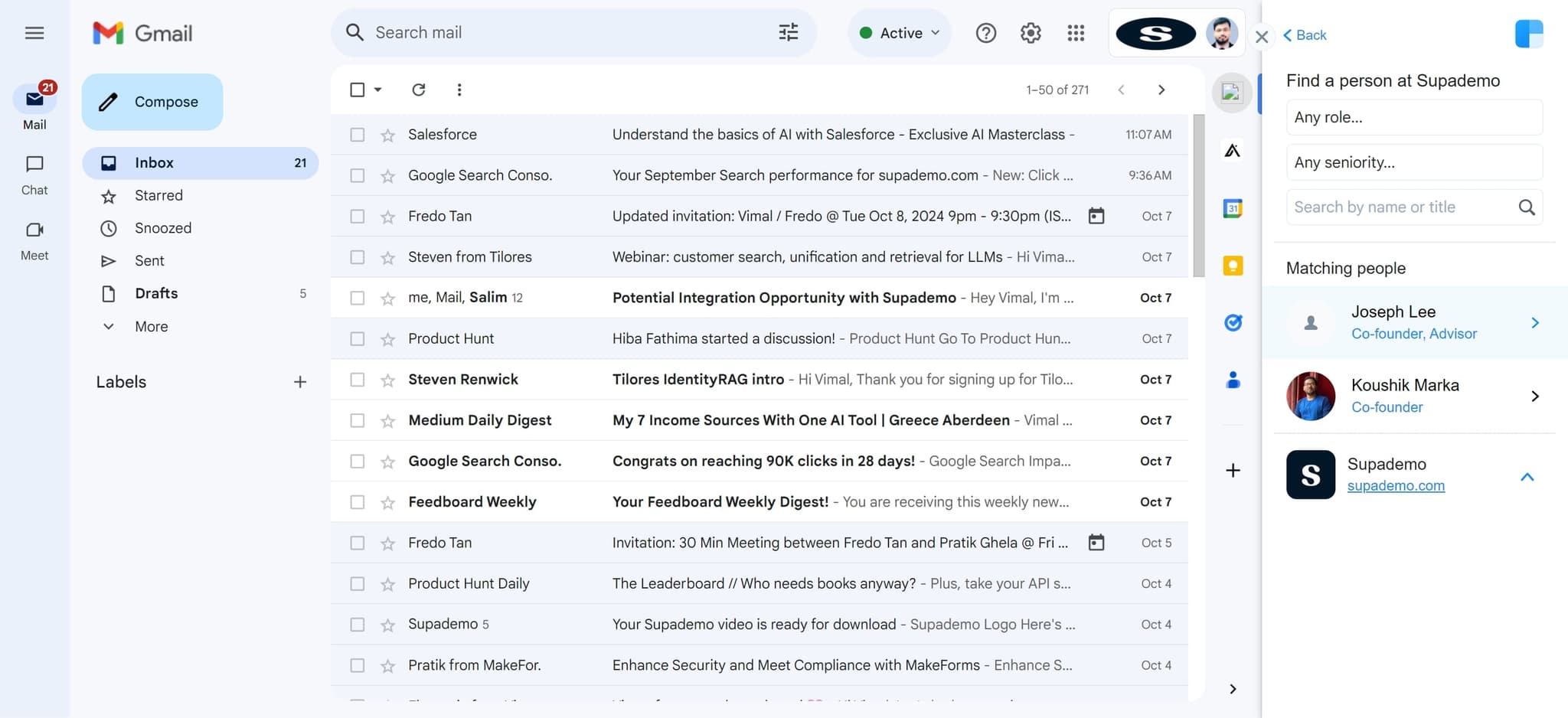
- 7
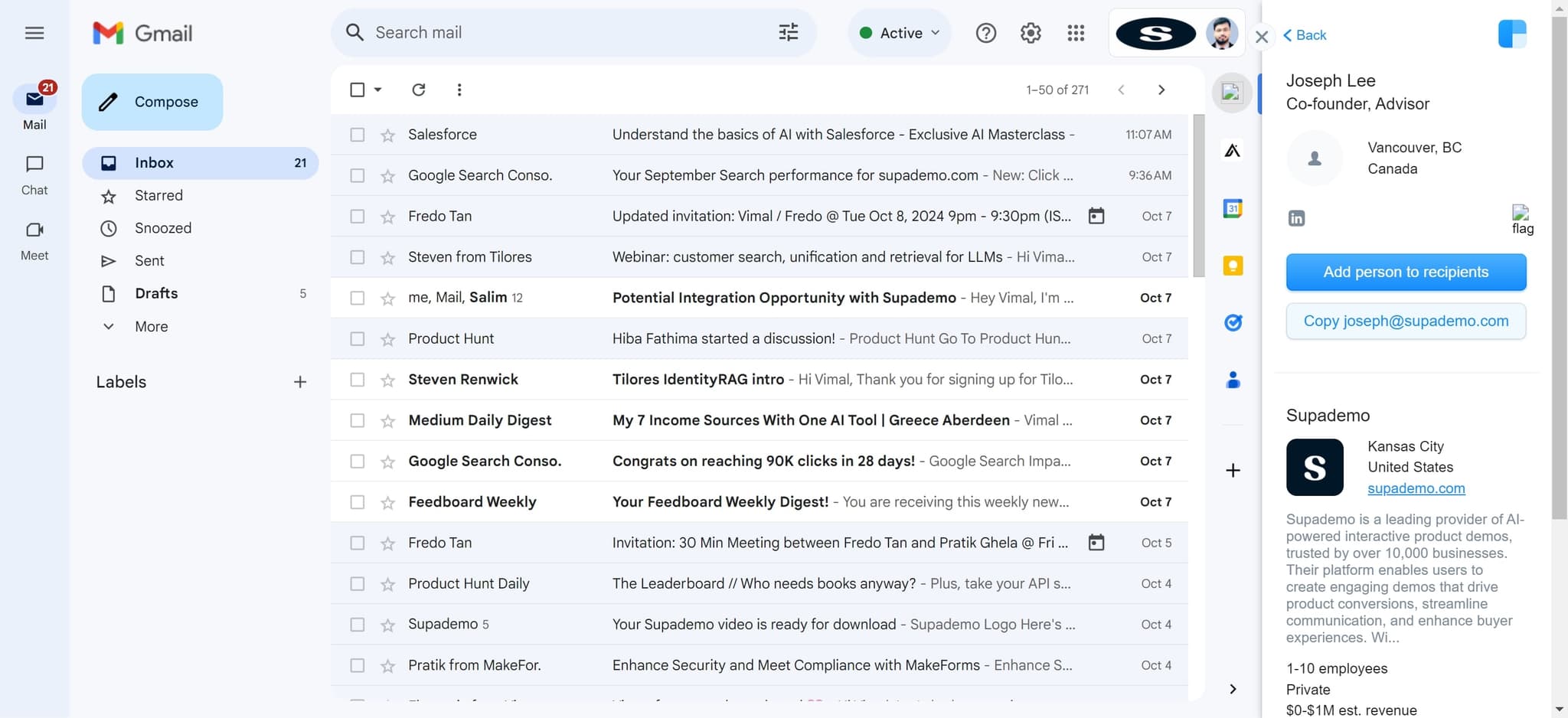
Copy the email address
Click the 'Copy' button next to the verified email address to add it to your clipboard. You can now paste this address directly into your Gmail compose window or CRM for immediate use.
Frequently asked questions
Common questions about how to use clearbit connect in gmail.
Clearbit Connect uses proprietary data verification and machine learning to ensure high accuracy rates. All discovered email addresses are verified against multiple sources, though Clearbit recommends validating critical contacts before large campaigns. The platform typically achieves 95%+ accuracy for verified results.
Yes, Clearbit Connect can discover generic company email addresses and role-based addresses. However, it performs best when you provide specific company names and individual names. Using more detailed prospect information increases the likelihood of finding accurate, personalized email addresses.
Clearbit Connect typically accepts CSV and Excel files for bulk uploads. Ensure your file includes relevant fields like company name and prospect name for optimal matching. The platform will guide you through mapping columns during the upload process.
Clearbit Connect limits depend on your subscription plan. Free users have daily search limits, while paid plans offer higher volume allowances. Check your account settings or contact Clearbit support to understand your specific plan's discovery limits.
Yes, Clearbit Connect integrates with popular CRM platforms including Salesforce and HubSpot. You can configure automated data syncing in your settings, which allows discovered email addresses and enriched contact information to flow directly into your CRM without manual copying.