How to embed Supademo on Mirror.xyz

Embedding interactive product demos on Mirror.xyz allows you to showcase your product directly within your publication, providing readers with an engaging way to explore features. This guide walks you through the process of integrating a Supademo embed into your Mirror article.
Quick summary
In this tutorial, you'll learn how to copy your demo's embed code and integrate it into a Mirror.xyz article. You'll discover where to find the embed functionality and how to upload and configure your demo for publication.
Why this matters
Embedding interactive demos on Mirror.xyz enhances reader engagement by allowing audiences to explore your product without leaving your article. This approach builds credibility, reduces friction in the discovery process, and creates a more memorable experience for potential customers.
Step-by-step guide
- 1
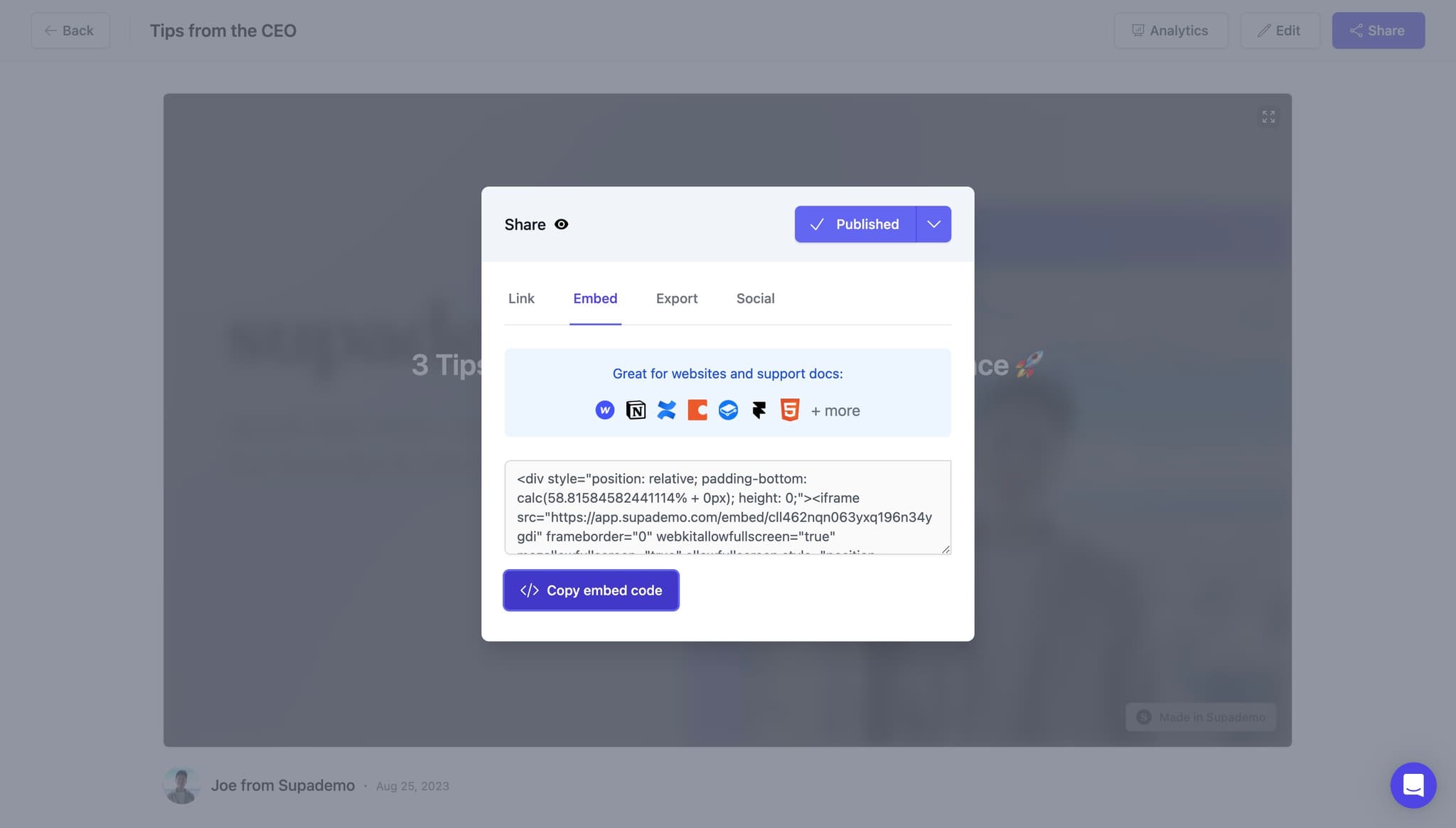
Copy the embed code
Navigate to your Supademo dashboard and locate the demo you want to embed. Click on the 'Copy embed code' button to copy the embed code to your clipboard, which you'll use to place the demo in your Mirror article.
- 2
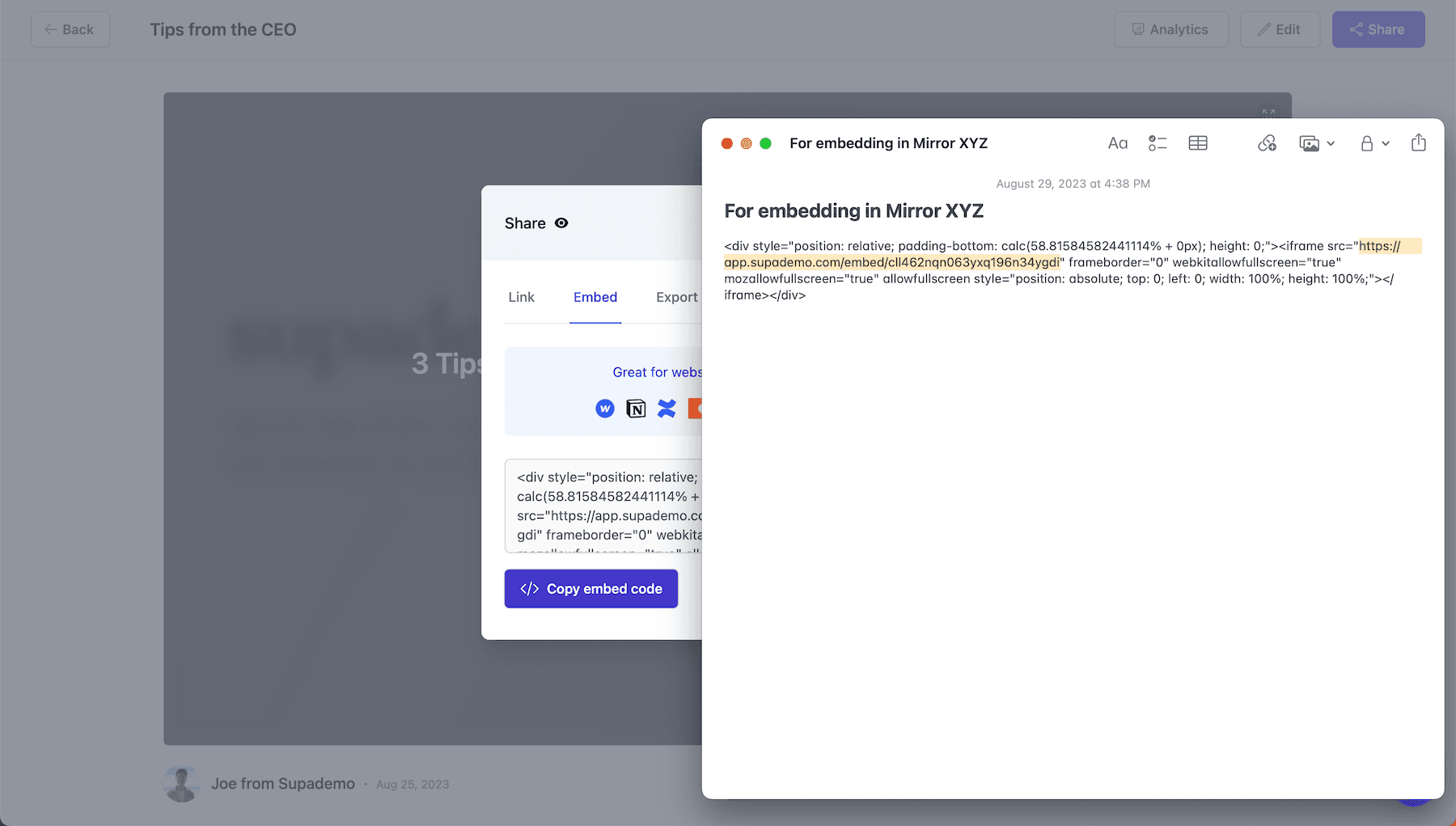
Upload to Mirror.xyz
Navigate to your Mirror.xyz publication and create a new article or edit an existing one. Use the upload or embed functionality within the Mirror editor to begin the integration process.
- 3
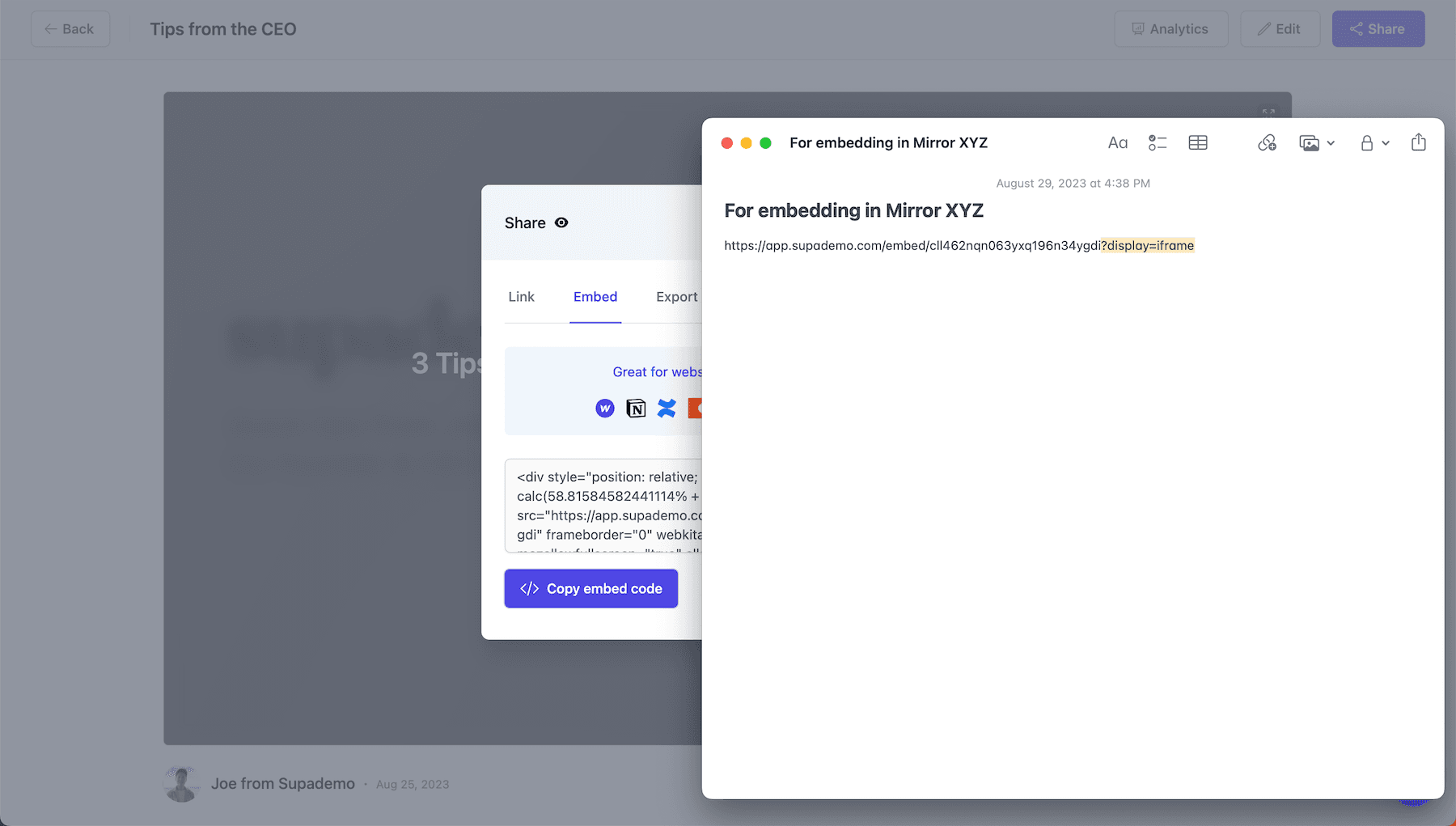
Complete the upload process
Follow the upload prompts in Mirror.xyz to finalize adding your embed to the article. Ensure all settings are configured correctly before proceeding to the next step.
- 4
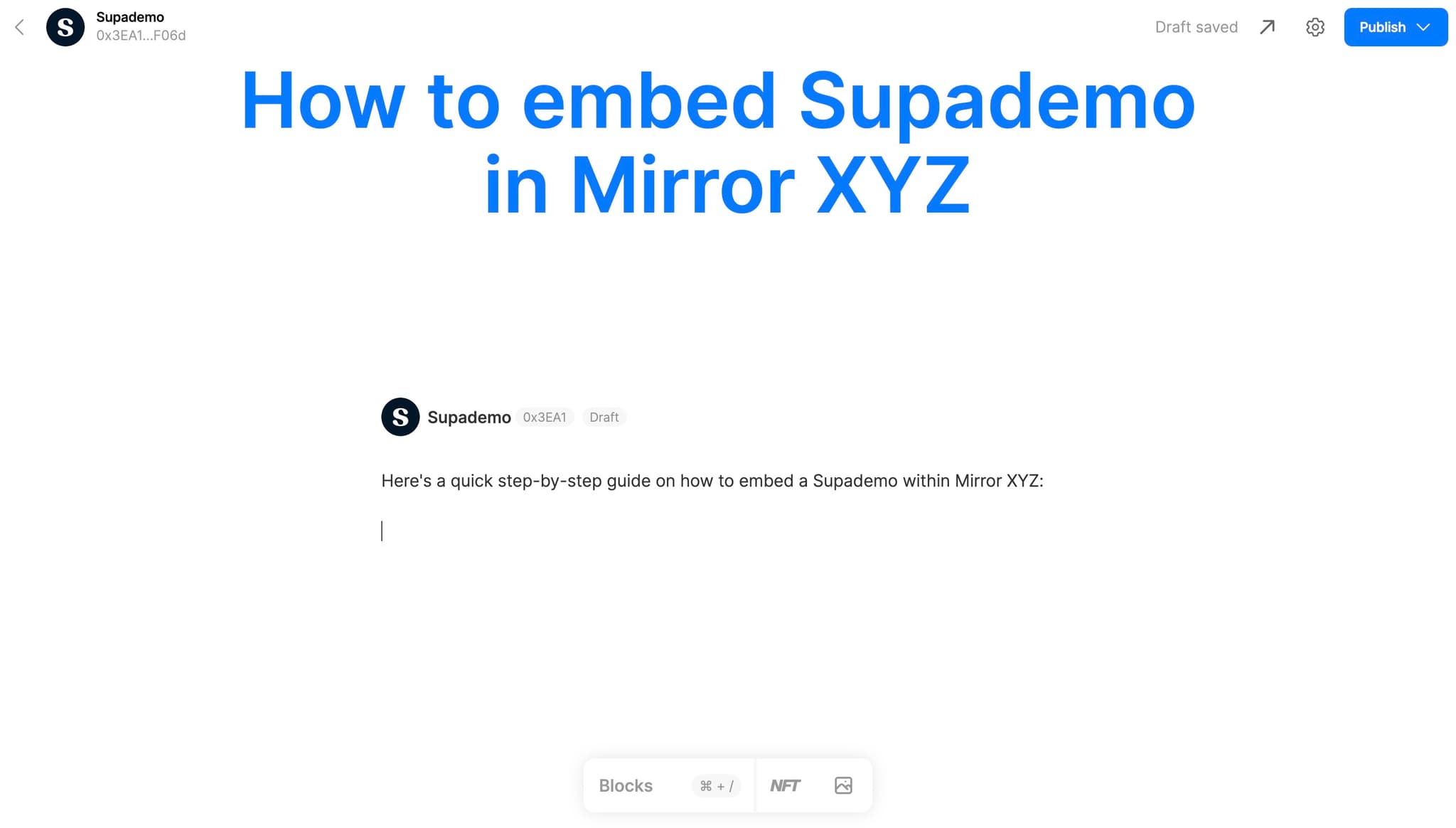
Access integration instructions
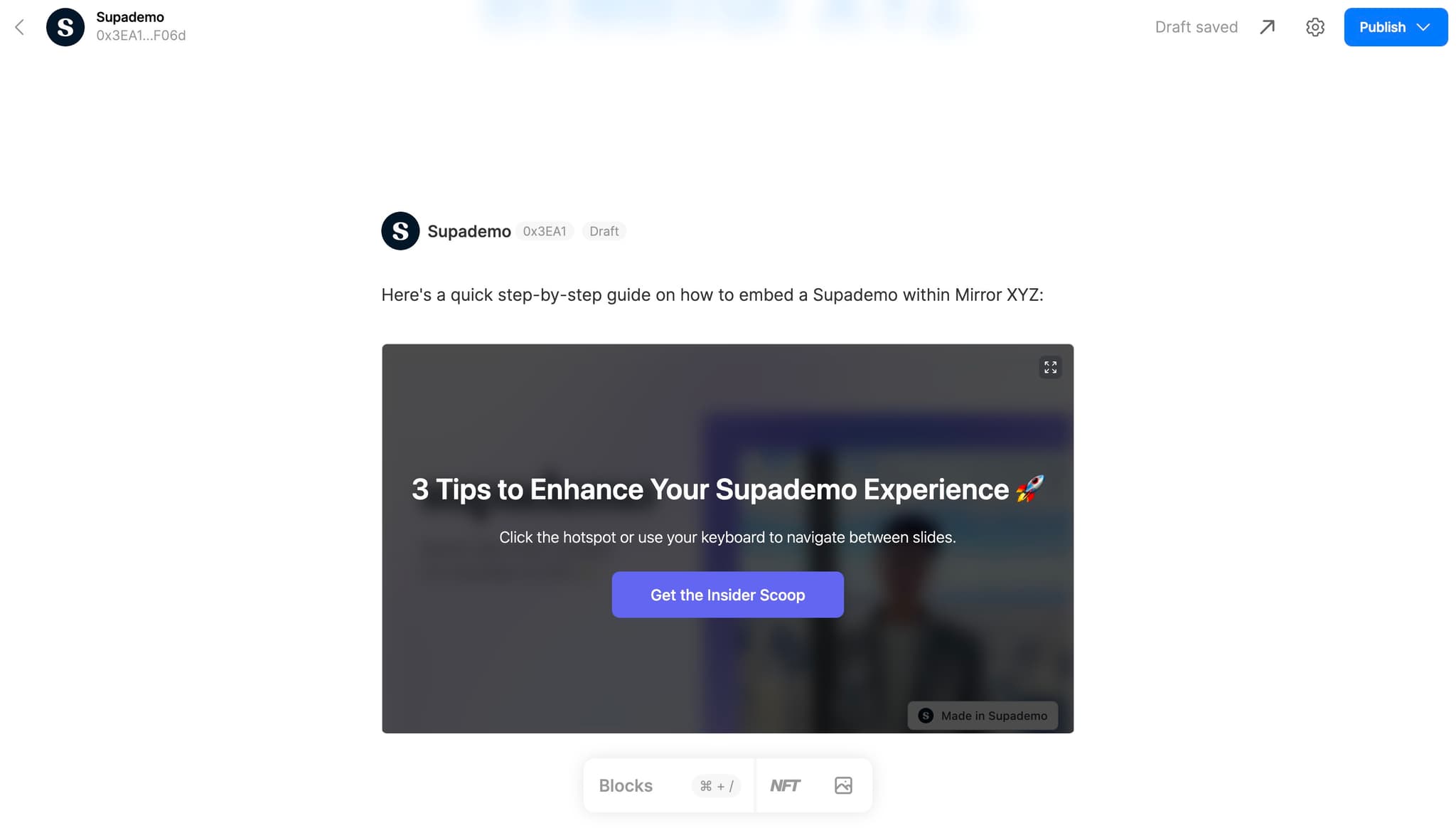
Click on the 'Here's a quick...' link or information section that appears in Mirror.xyz to view detailed integration instructions. This resource will provide additional context on formatting and troubleshooting.
- 5
Finalize the embed setup
Click the final confirmation or completion link to finish embedding your demo in your Mirror article. Your interactive demo should now be live and ready for readers to interact with.
Frequently asked questions
Common questions about how to embed supademo on mirror.xyz.
Yes, you can embed multiple Supademo demos in one Mirror article. Simply repeat the embed code copy and upload process for each demo you want to include. This allows you to showcase different features or product flows within a single publication.
If your embed isn't displaying properly, verify that you've copied the complete embed code without truncation. Check Mirror's documentation to ensure your article format supports embedded content, and consider trying a different embed method if available through Mirror's editor.
Yes, readers can fully interact with your Supademo demo once it's embedded in your Mirror article. They can click through the demo steps, explore product features, and engage with the interactive elements just as they would on the original demo page.
When you update your demo in Supademo, the embedded version on Mirror automatically reflects those changes. There's no need to re-embed or recopy the code—Mirror will pull the latest version of your demo.
Supademo supports demos of varying lengths and complexity. While there's no strict limit, keep in mind that very long demos may affect page load times on Mirror. Test your embed to ensure optimal performance for readers on different devices and connections.