How to Connect Boards in Monday.com

Connecting boards in Monday.com allows you to link related projects and streamline cross-board workflows. This capability enables teams to maintain data consistency and visibility across multiple boards, reducing manual updates and improving collaboration.
Quick summary
In this tutorial, you'll learn how to connect multiple boards in Monday.com by adding a connect boards column and selecting the boards you want to link. This workflow helps teams manage dependencies and keep related projects synchronized.
Why this matters
Connecting boards is essential for teams managing interdependent projects or tracking relationships between different initiatives. When boards are connected, changes in one board can automatically reflect across others, saving time and preventing data silos.
Step-by-step guide
- 1
Select your board
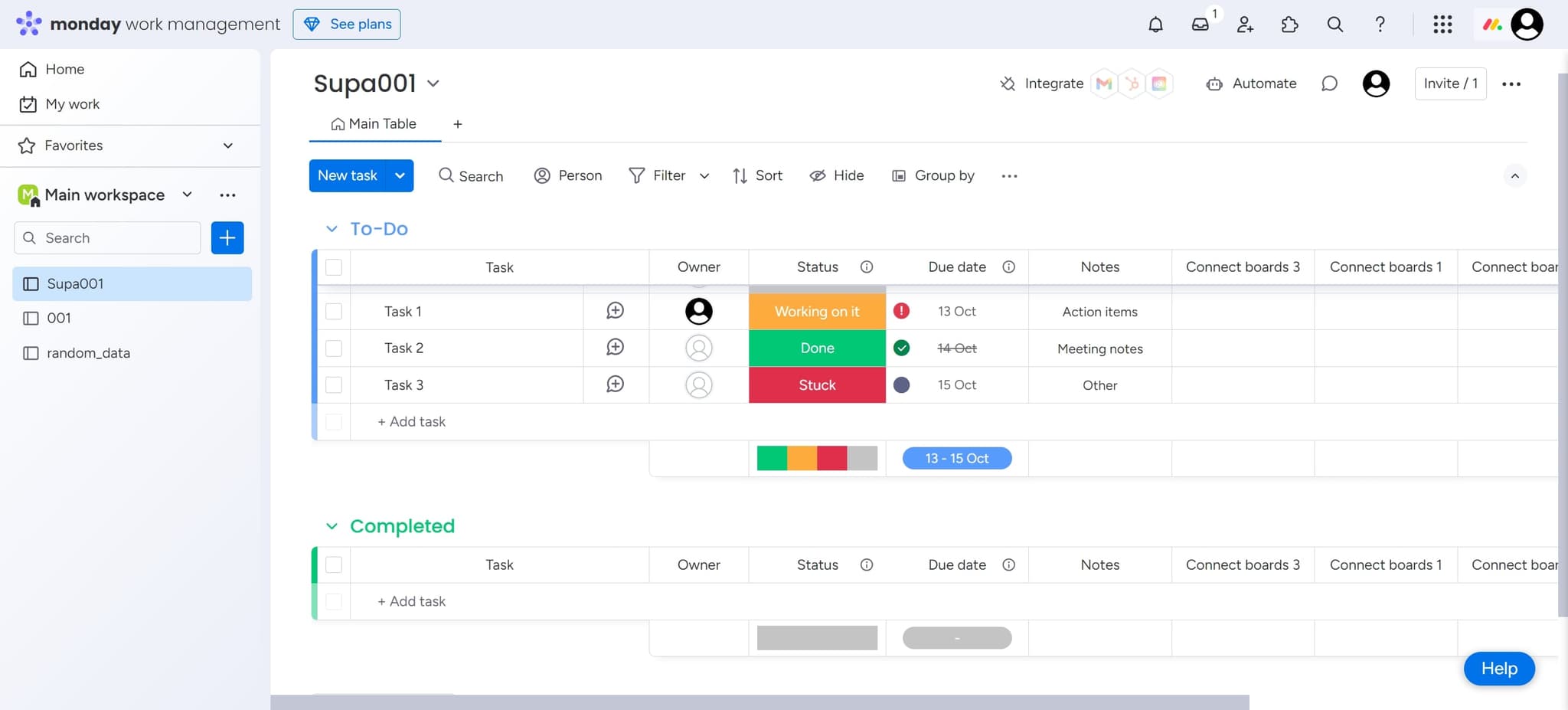
Click on 'Supa001' to open the board where you want to add the connected boards column. This is the starting point for establishing connections to other boards.
- 2
Access the column menu
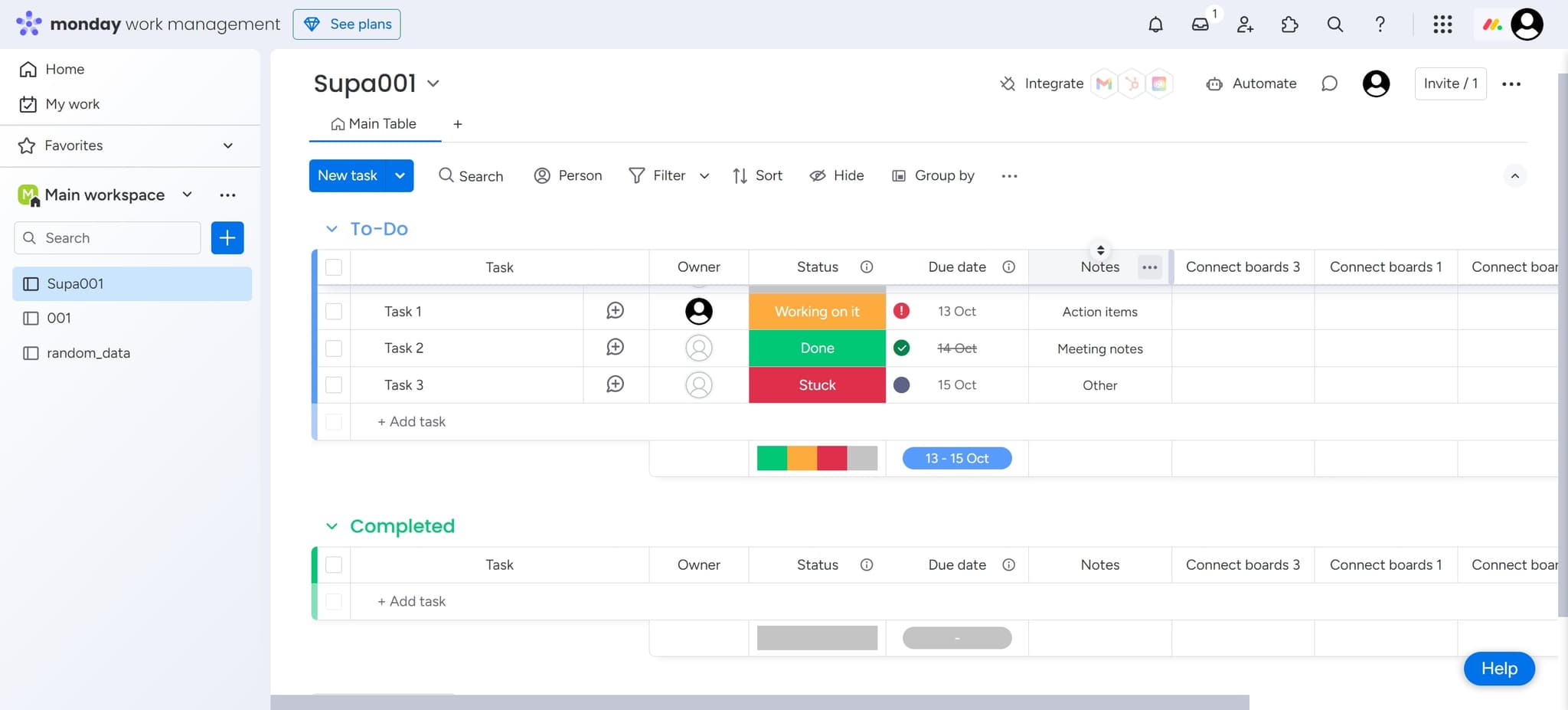
Click on the element to open the board's column options. This gives you access to tools for customizing your board structure.
- 3
Add a new column
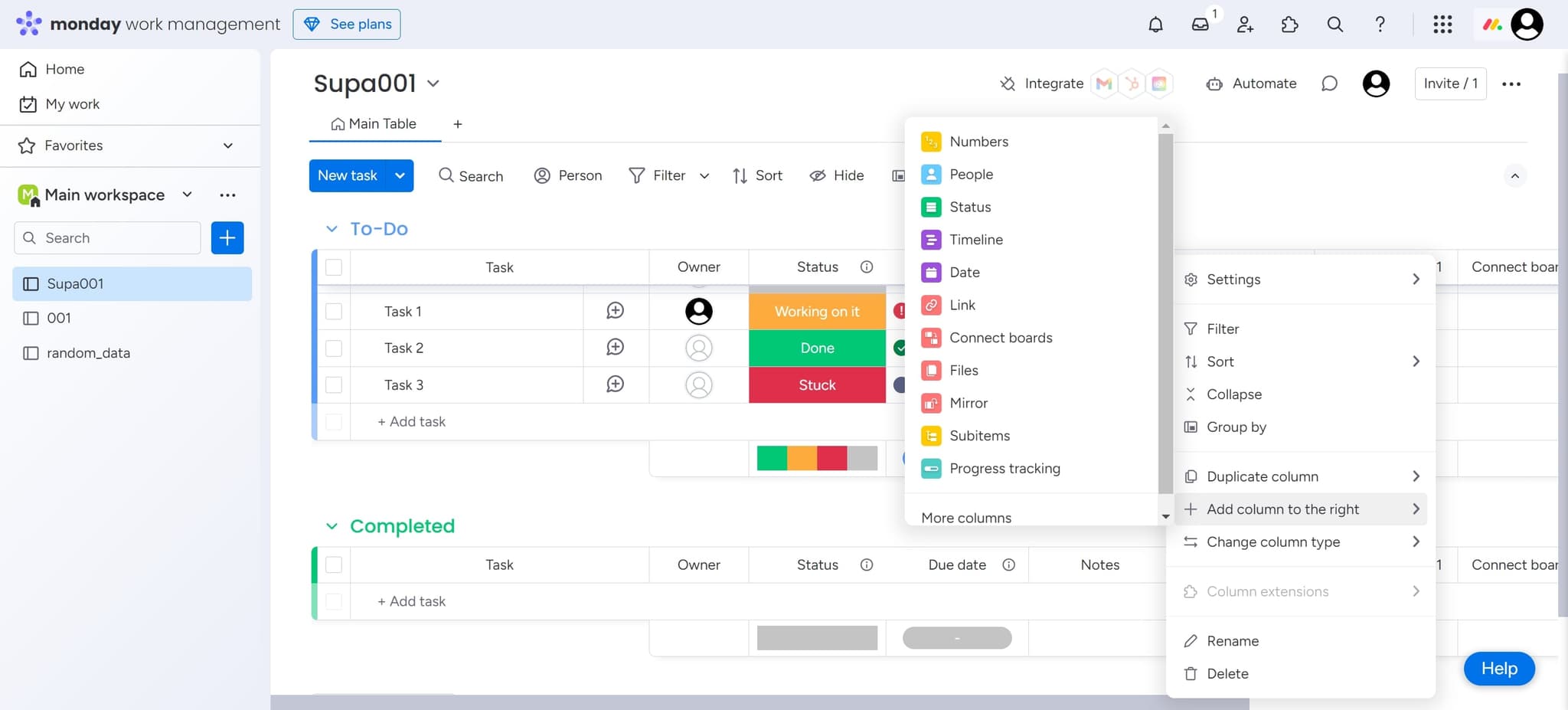
Click on 'Add column to the right' to create a new column in your board. This new column will serve as the connection point for linking to other boards.
- 4
Choose the connect boards option
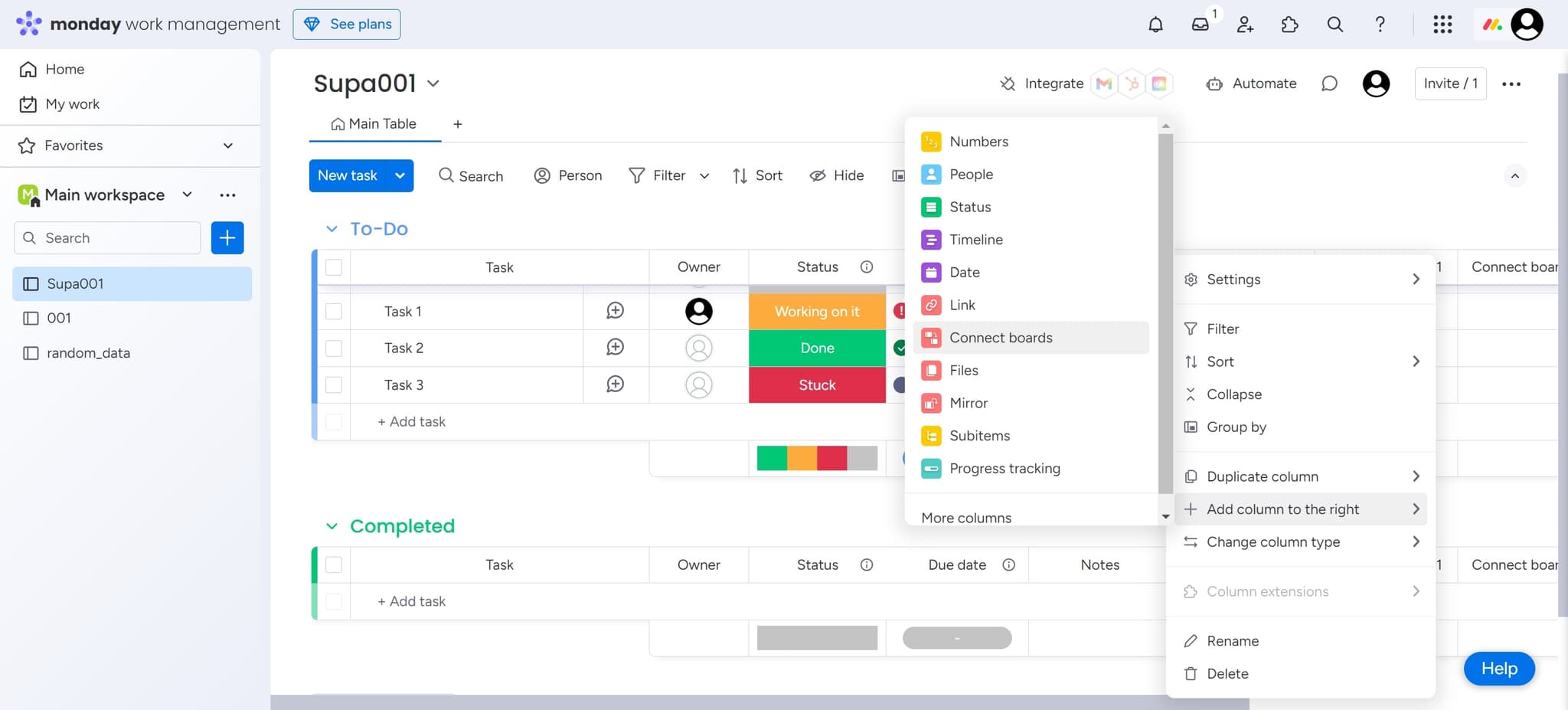
Click on 'Connect boards' from the available column types. This column type is specifically designed to link and reference items from other Monday.com boards.
- 5
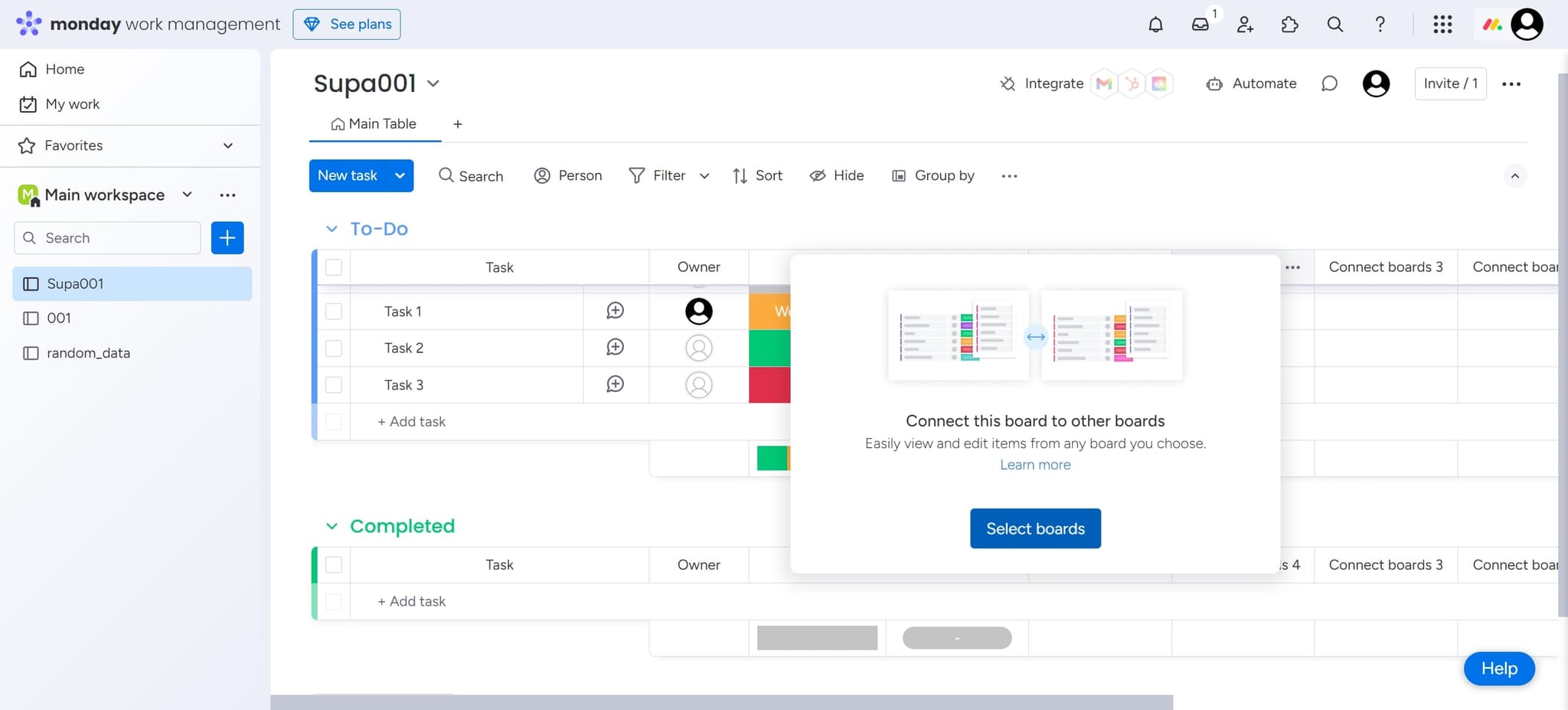
Select boards to connect
Click on 'Select boards' to view and choose which boards you want to connect to. You can select multiple boards depending on your workflow requirements.
- 6
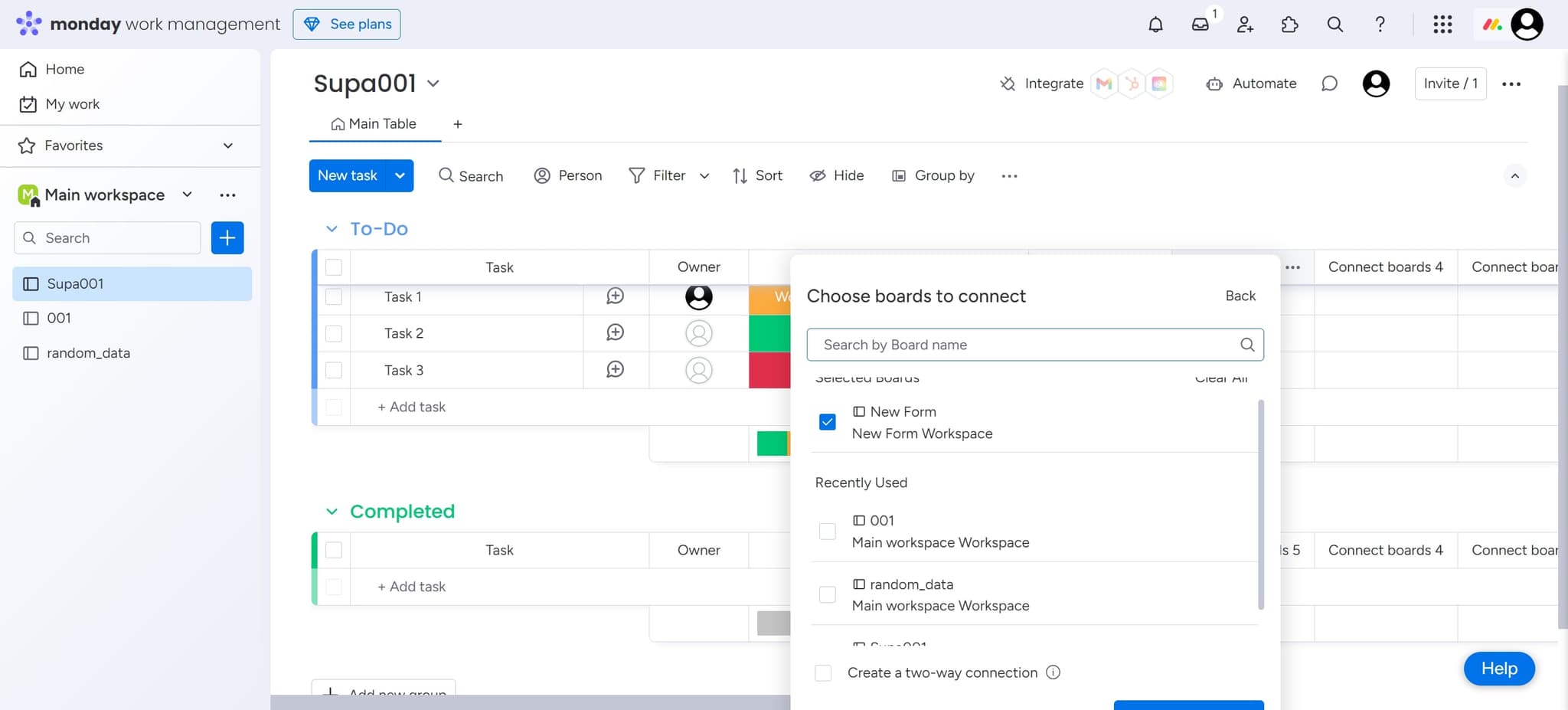
Confirm your selection
Click on the board(s) you've chosen to confirm the connection. This finalizes which boards will be linked through this column.
- 7
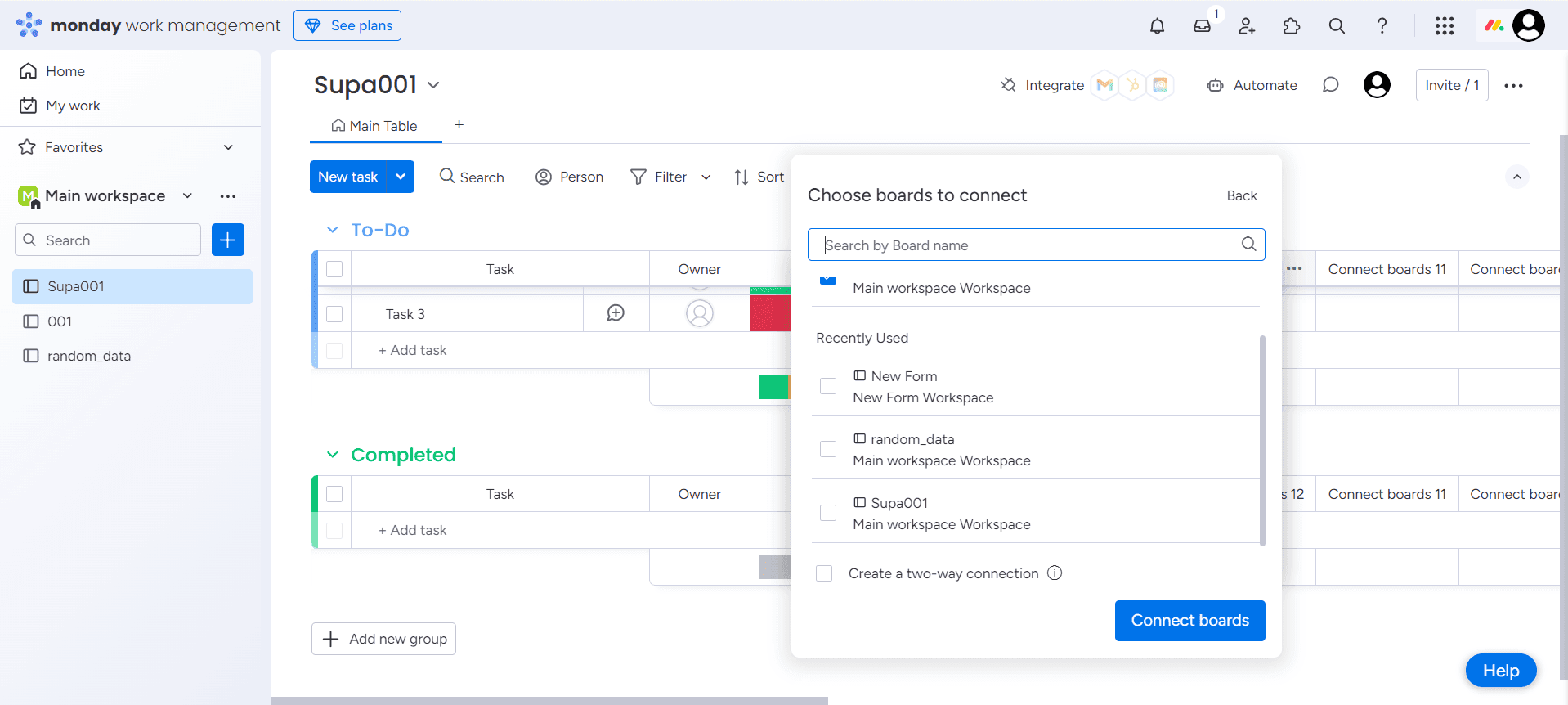
Complete the setup
Click 'Upload' to finalize the connection and apply the changes to your board. Your boards are now connected and ready to use.
Frequently asked questions
Common questions about how to connect boards in monday.com.
Yes, Monday.com allows you to connect multiple boards simultaneously through a single connect boards column. When configuring the column, you can select as many boards as needed for your workflow. This is useful for managing complex projects with multiple dependencies.
When you update information in a connected item, the changes are reflected in the original board automatically. This ensures data consistency across all connected boards and eliminates the need for manual synchronization.
Yes, you can disconnect boards at any time by editing the connect boards column and removing the boards from your selection. Simply follow the same steps and deselect the boards you no longer want to connect.
While Monday.com supports extensive board connections, performance may be affected if you connect too many complex boards. It's best to connect only the boards that directly relate to each other to maintain optimal performance.
Yes, all team members with access to your board will see the connected boards column and any linked items. Visibility depends on each user's permissions for the connected boards themselves.