How to Create a Board on Monday.com

Creating a board in Monday.com is the first step to organizing your team's projects and workflows. Boards serve as the central hub where you can track tasks, timelines, and team collaboration. This guide walks you through the process in just a few clicks.
Quick summary
In this tutorial, you'll learn how to create a new board in Monday.com from start to finish. You'll navigate to the board creation interface and set up your first board ready for team use.
Why this matters
Boards are essential in Monday.com because they allow teams to centralize their work, improve visibility, and streamline communication. Creating organized boards at the outset sets the foundation for effective project management and ensures your team can collaborate efficiently from day one.
Step-by-step guide
- 1
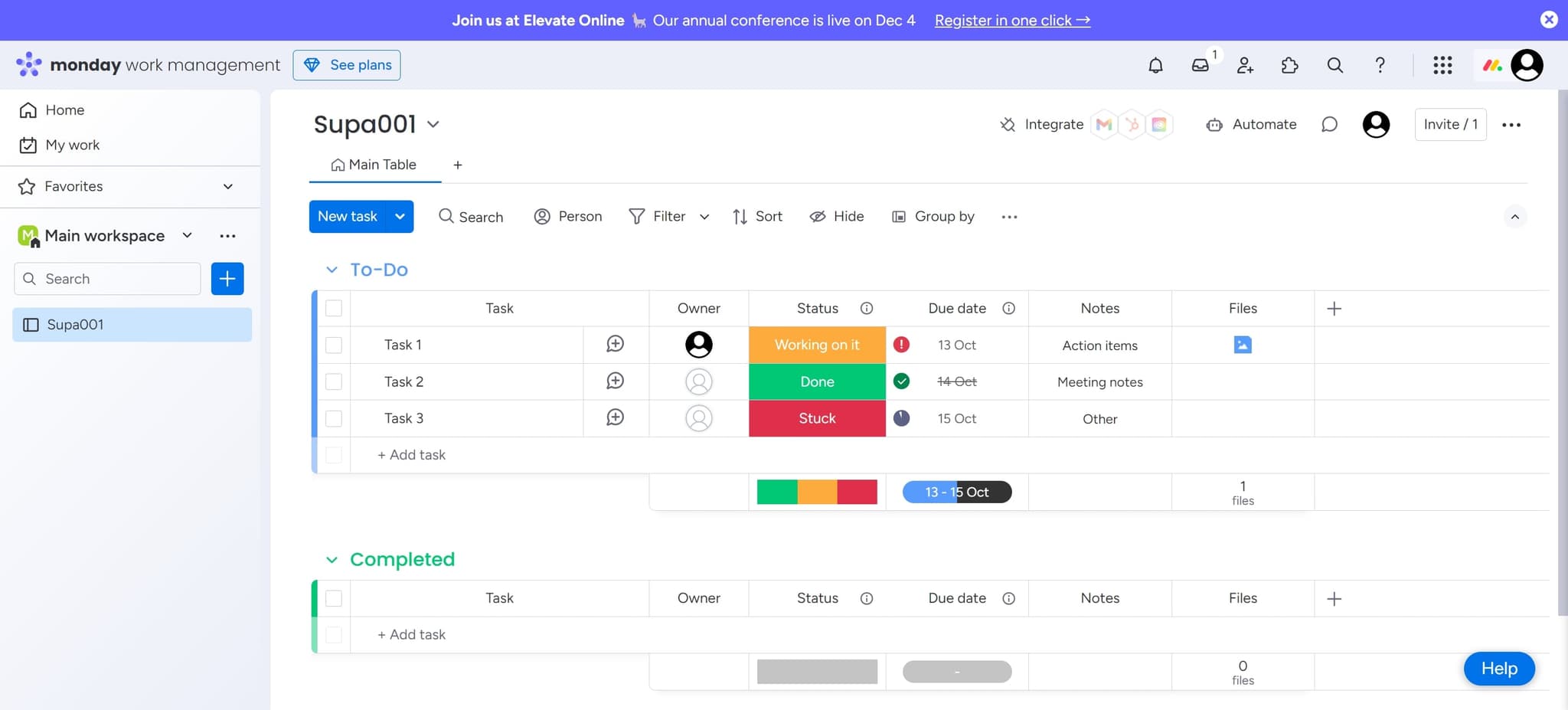
Access your Monday.com workspace
Click on 'Supa001' to enter your Monday.com workspace. This takes you to your main dashboard where you can manage all your boards and projects.
- 2
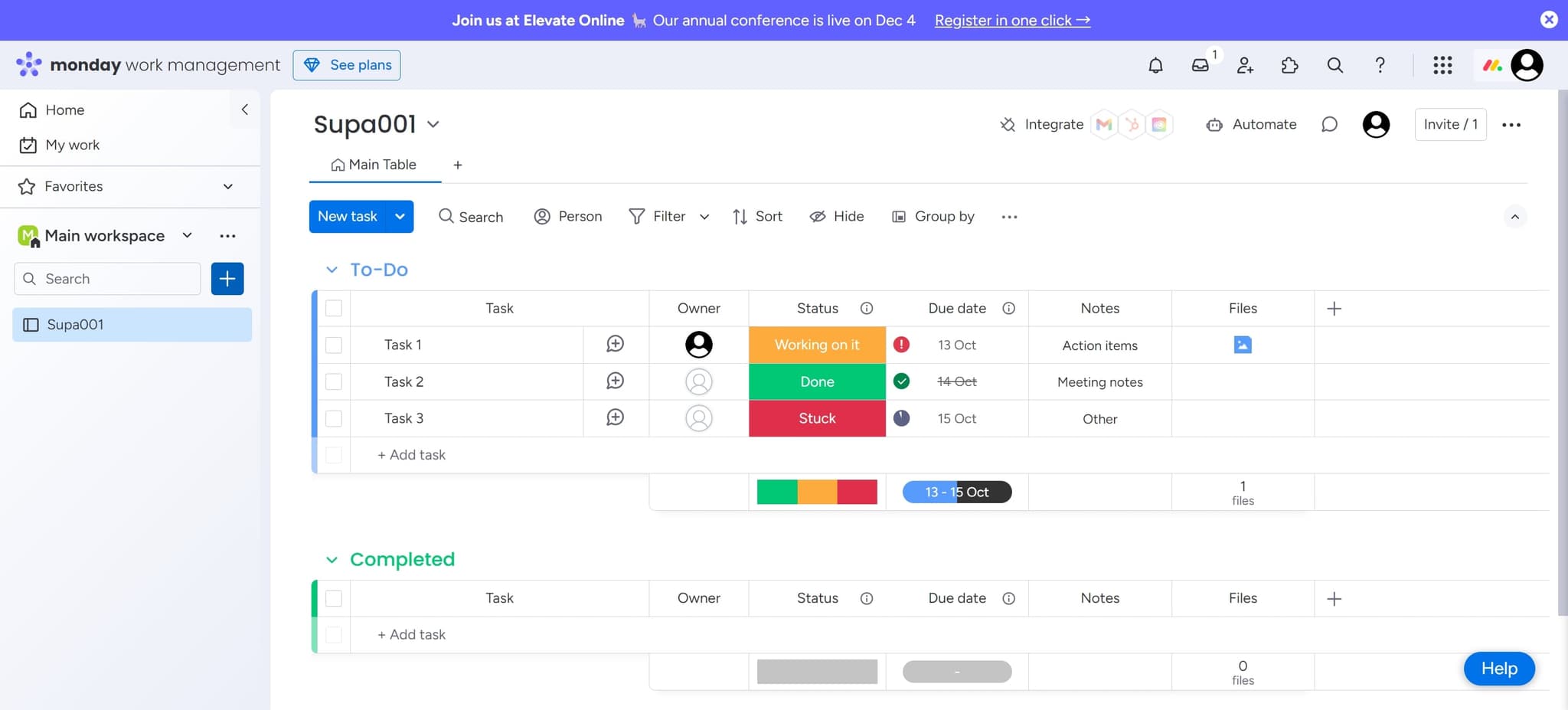
Navigate to the board creation menu
Click on the element that appears on your screen. This will open the menu or interface where you can access board-related options.
- 3
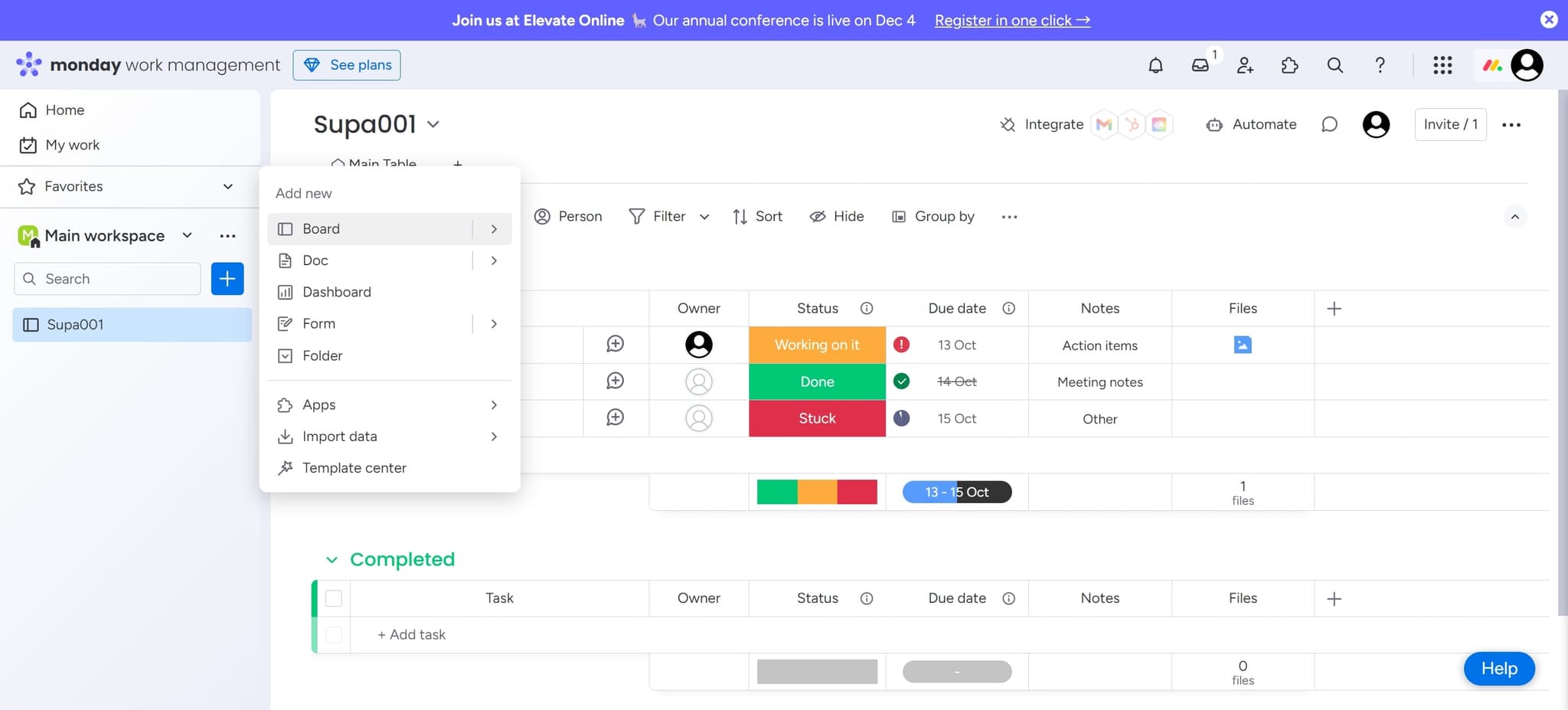
Select the Board option
Click on 'Board' from the available options. This confirms that you want to create a new board rather than another type of workspace item.
- 4
Access the creation interface
Click on the next element to proceed. This action will bring up additional options or settings related to board creation.
- 5
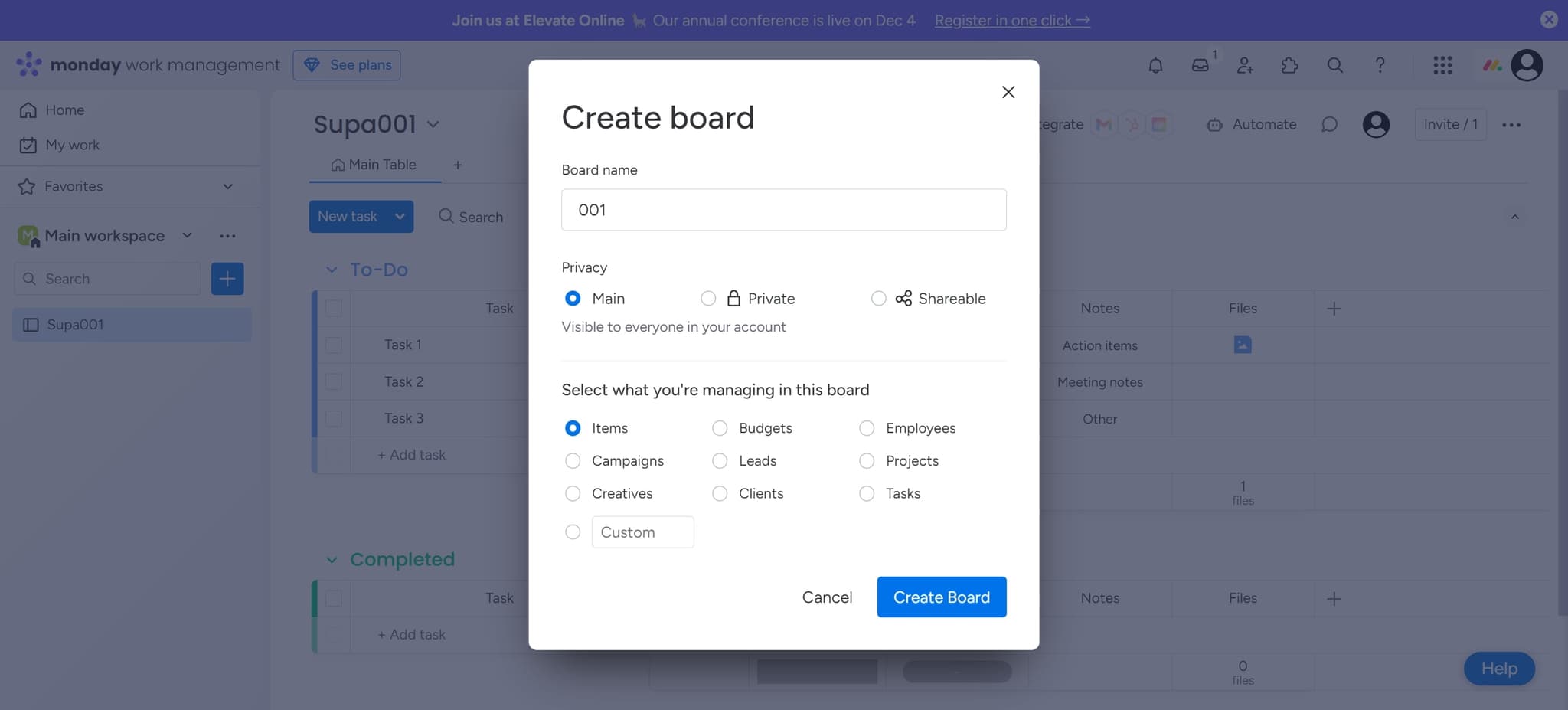
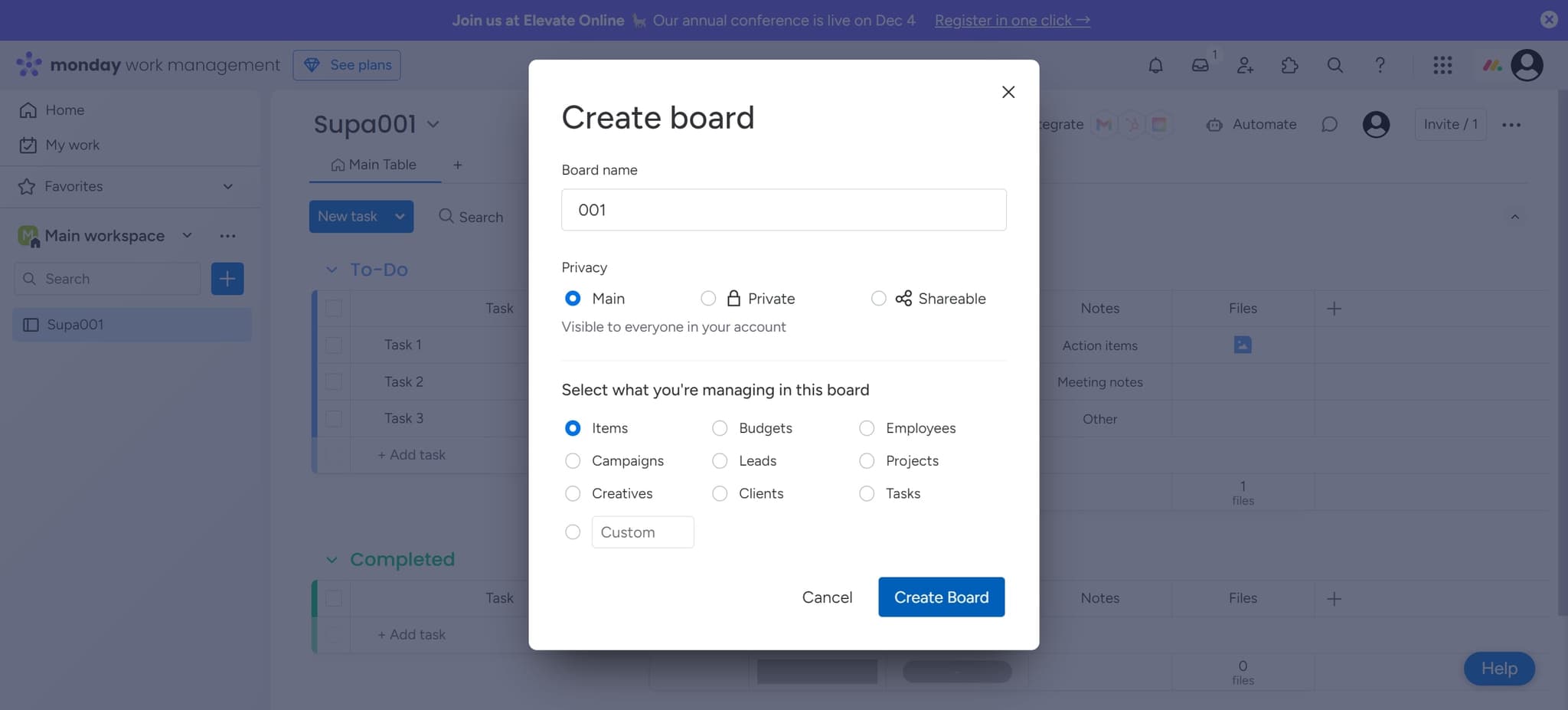
Click Create Board
Click on 'Create Board' to finalize the board creation process. Your new board will be generated and you'll be able to start customizing it with columns, items, and team members.
Frequently asked questions
Common questions about how to create a board on monday.com.
Yes, absolutely. After creating your board, you can customize columns, add team members, set up automations, and configure views to match your workflow. Monday.com provides extensive customization options to tailor your board to your team's specific needs.
The number of boards you can create depends on your Monday.com plan. Most plans allow multiple boards, enabling you to organize different projects or departments. Check your specific plan details for exact board limits.
Yes, you can invite team members to your board after it's created. You can do this by accessing the board settings and adding team members with specific permission levels. This allows your team to collaborate on the board immediately.
A workspace is a container that holds multiple boards, while a board is where individual projects or tasks are managed. You can think of a workspace as an organizational umbrella and boards as the specific projects beneath it.
Yes, Monday.com offers pre-built templates that you can use as a starting point for your board. Templates can save time by providing pre-configured columns and workflows for common project types like marketing campaigns or product development.