How to create a task in Monday.com

Creating tasks in Monday.com is a fundamental workflow for project management and team collaboration. This guide walks you through the process of setting up a new task with important details like reminders and priority levels to keep your team aligned and on schedule.
Quick summary
In this tutorial, you'll learn how to create a task in Monday.com from start to finish, including setting reminders and assigning priority levels. By the end, you'll be able to quickly set up tasks with all the key metadata needed for effective project tracking.
Why this matters
Properly structured tasks with reminders and priority indicators ensure your team knows what to work on and when deadlines approach. This workflow helps prevent tasks from being overlooked and keeps projects moving forward efficiently.
Step-by-step guide
- 1
Access the task creation area
Begin by navigating to the location where you can create a new task in your Monday.com board. This is typically found in the main interface of your workspace.
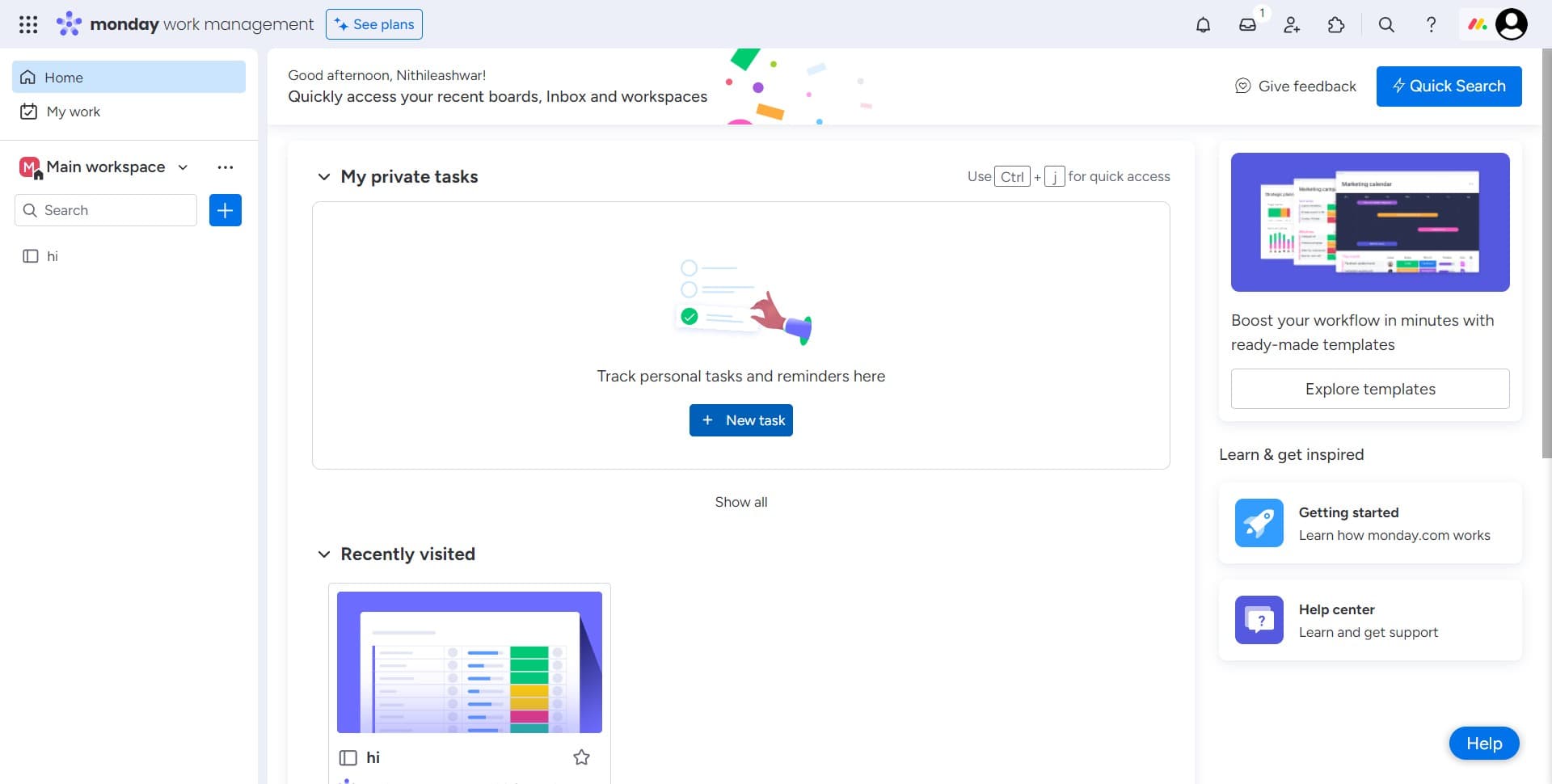
- 2
Navigate to task options
Continue by selecting the appropriate menu or section that will allow you to proceed with task setup. You're preparing the interface for task creation.
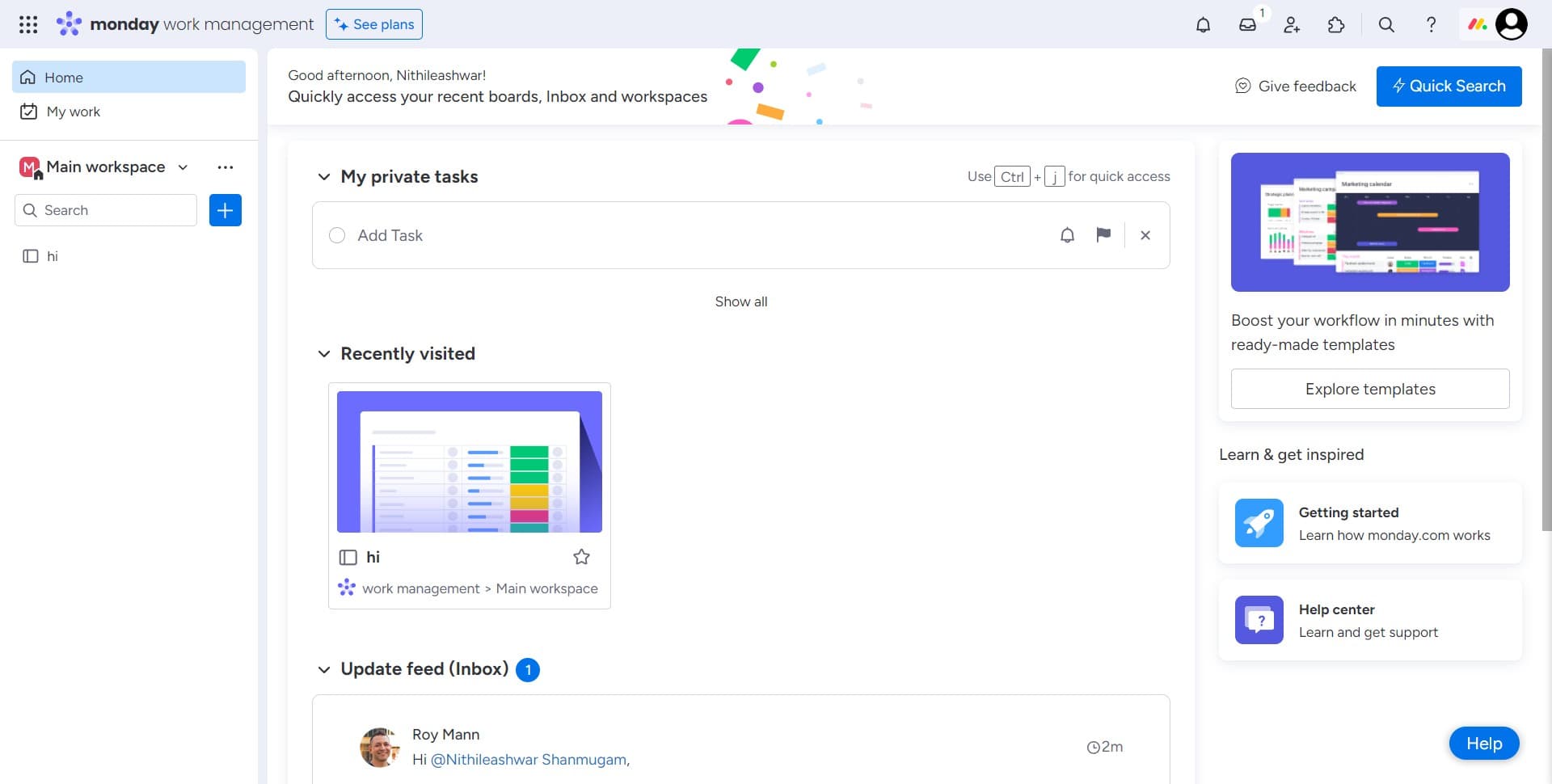
- 3
Click on New task
Select the 'New task' button to initiate the task creation process. This opens the form where you'll enter task details and configuration options.
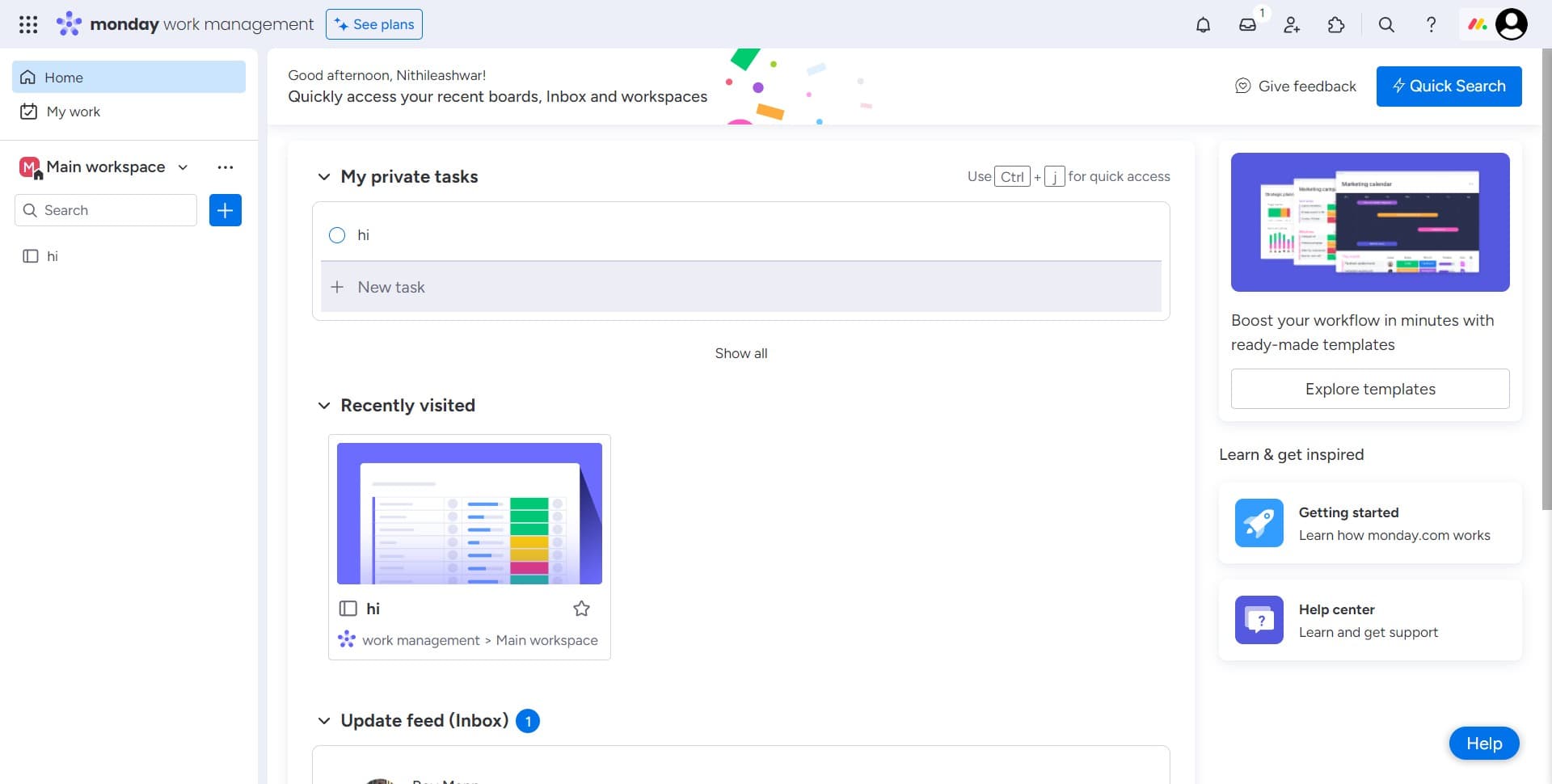
- 4
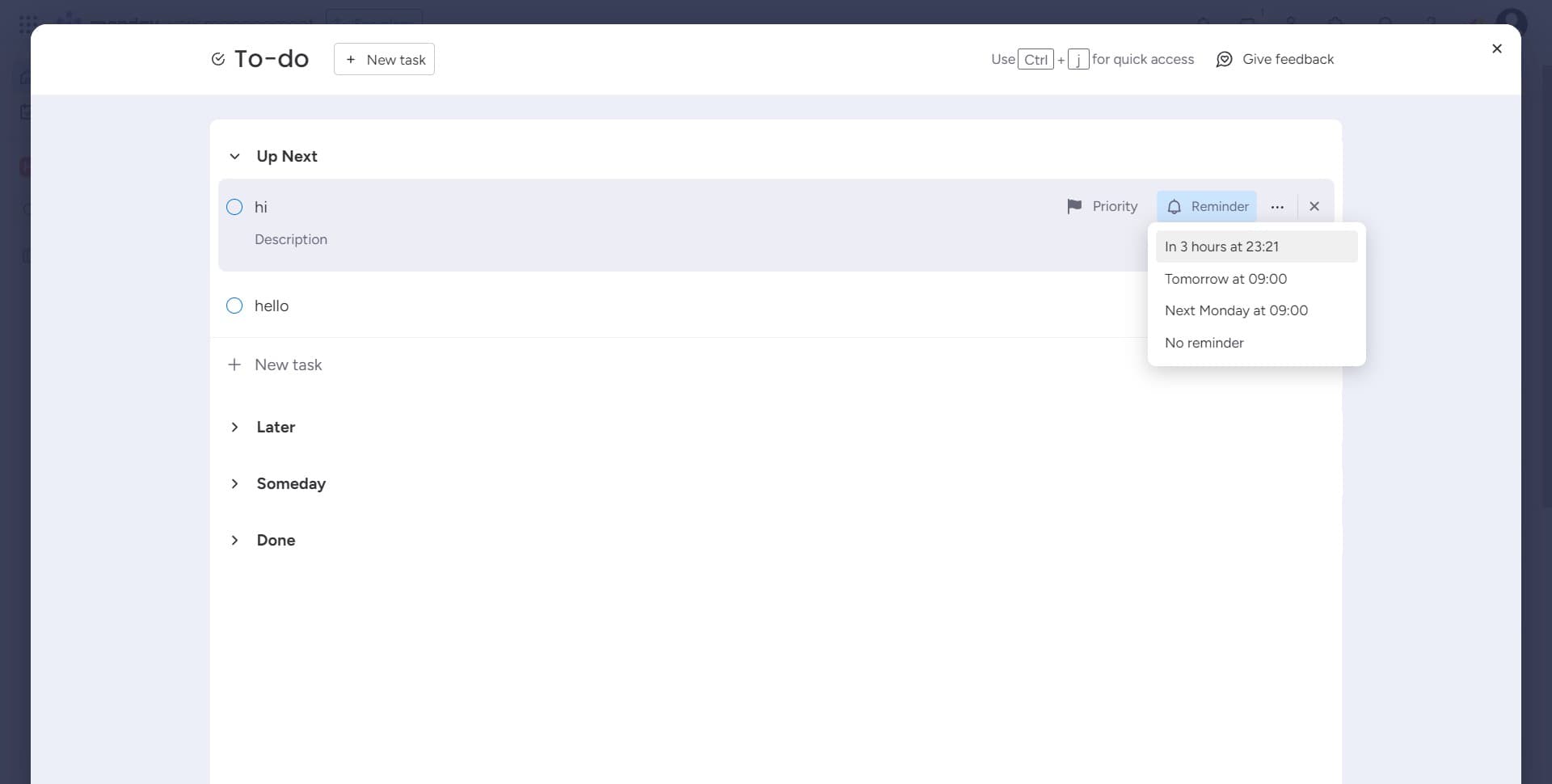
Set up task reminder
Click on the 'Reminder' field to configure when you want to be notified about this task. This ensures you don't miss important deadlines or milestones.
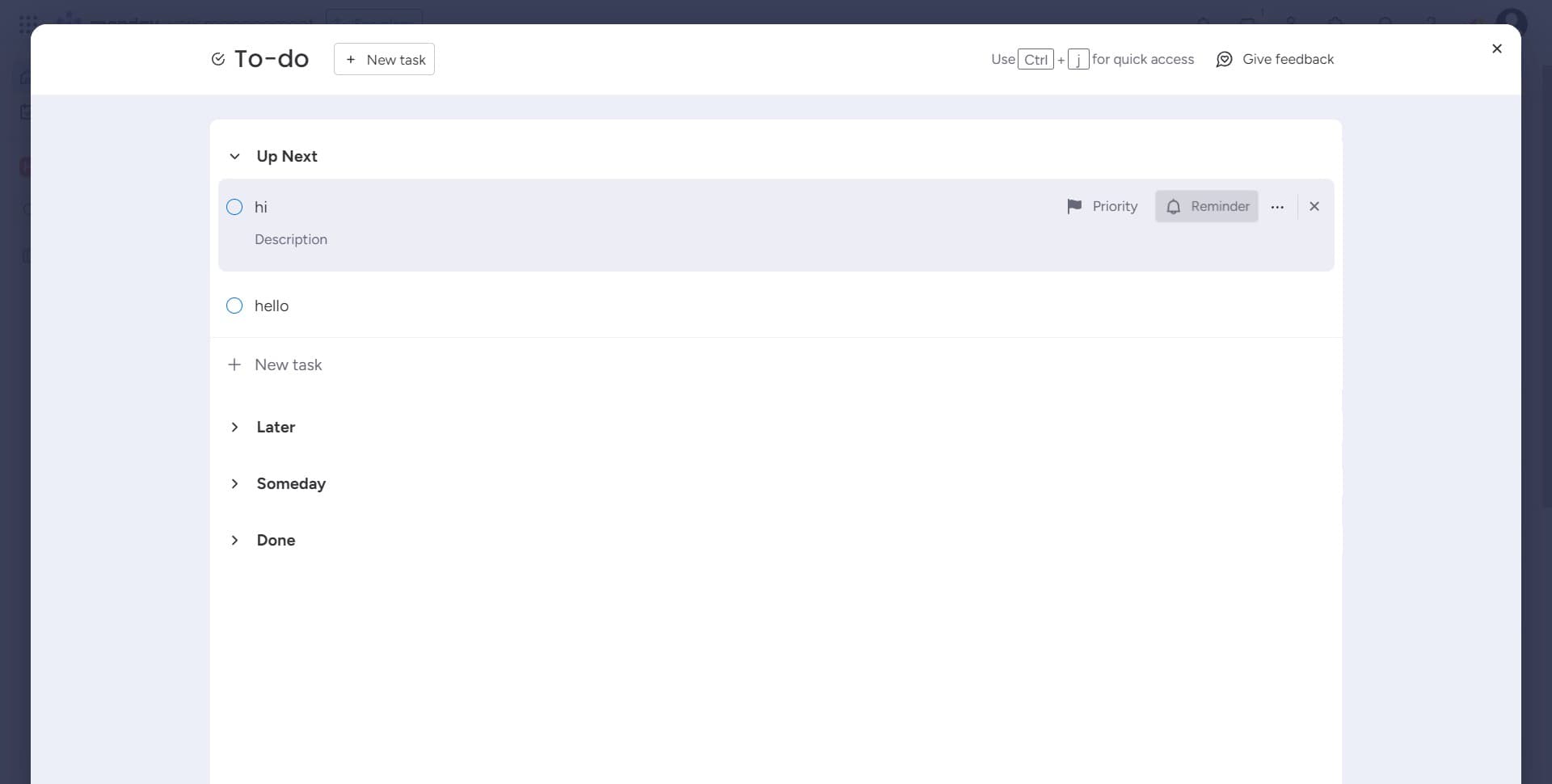
- 5
Schedule reminder for 3 hours
Select 'In 3 hours at 23:21' to set a specific reminder time for this task. The system will notify you at this designated time.
- 6
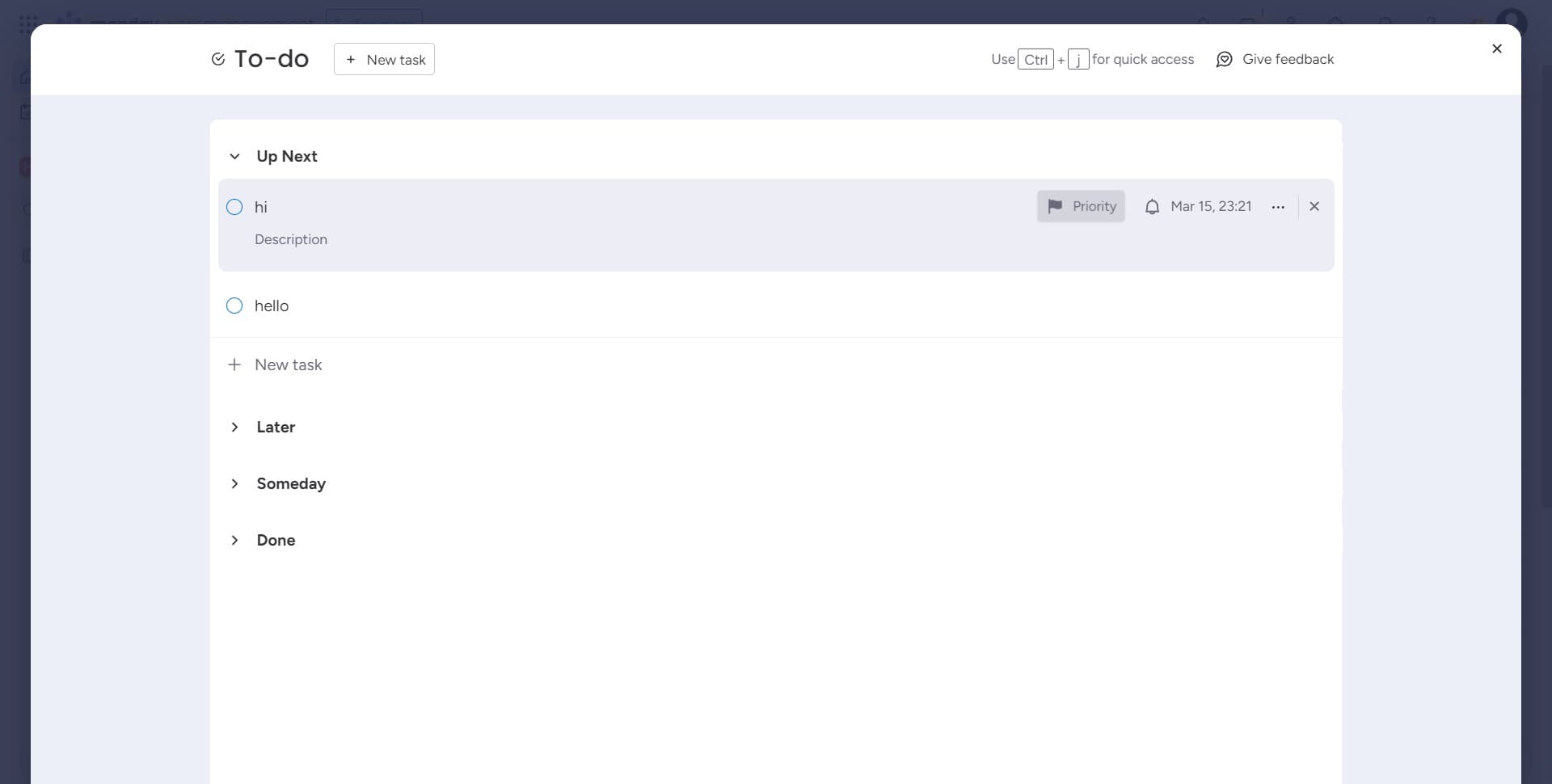
Define task priority level
Click on the 'Priority' field to assign an urgency level to your task. Priority levels help your team understand which tasks need immediate attention.
- 7
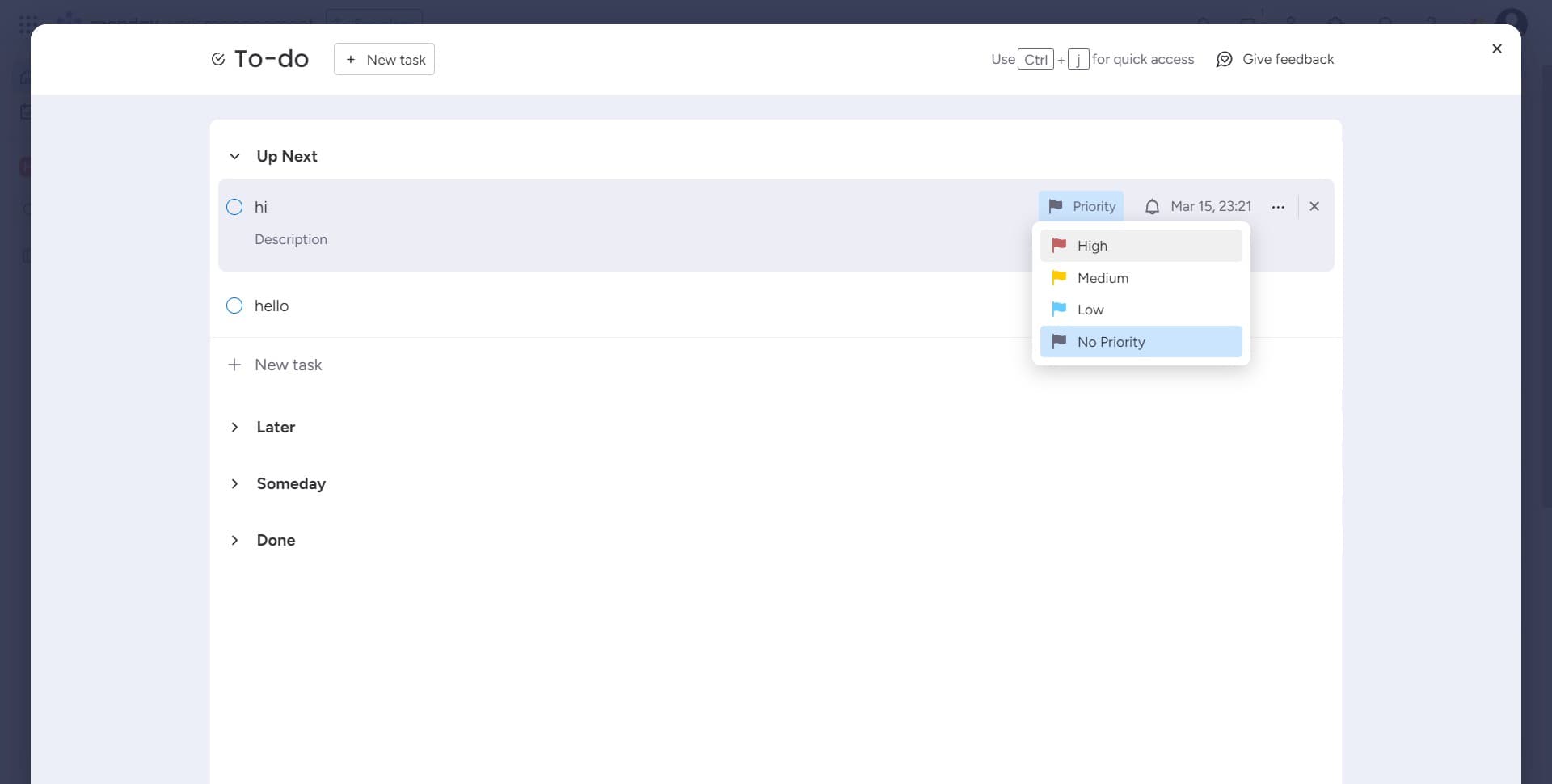
Set priority to High
Select 'High' from the priority options to mark this task as urgent. High-priority tasks will be more visible to team members.
- 8
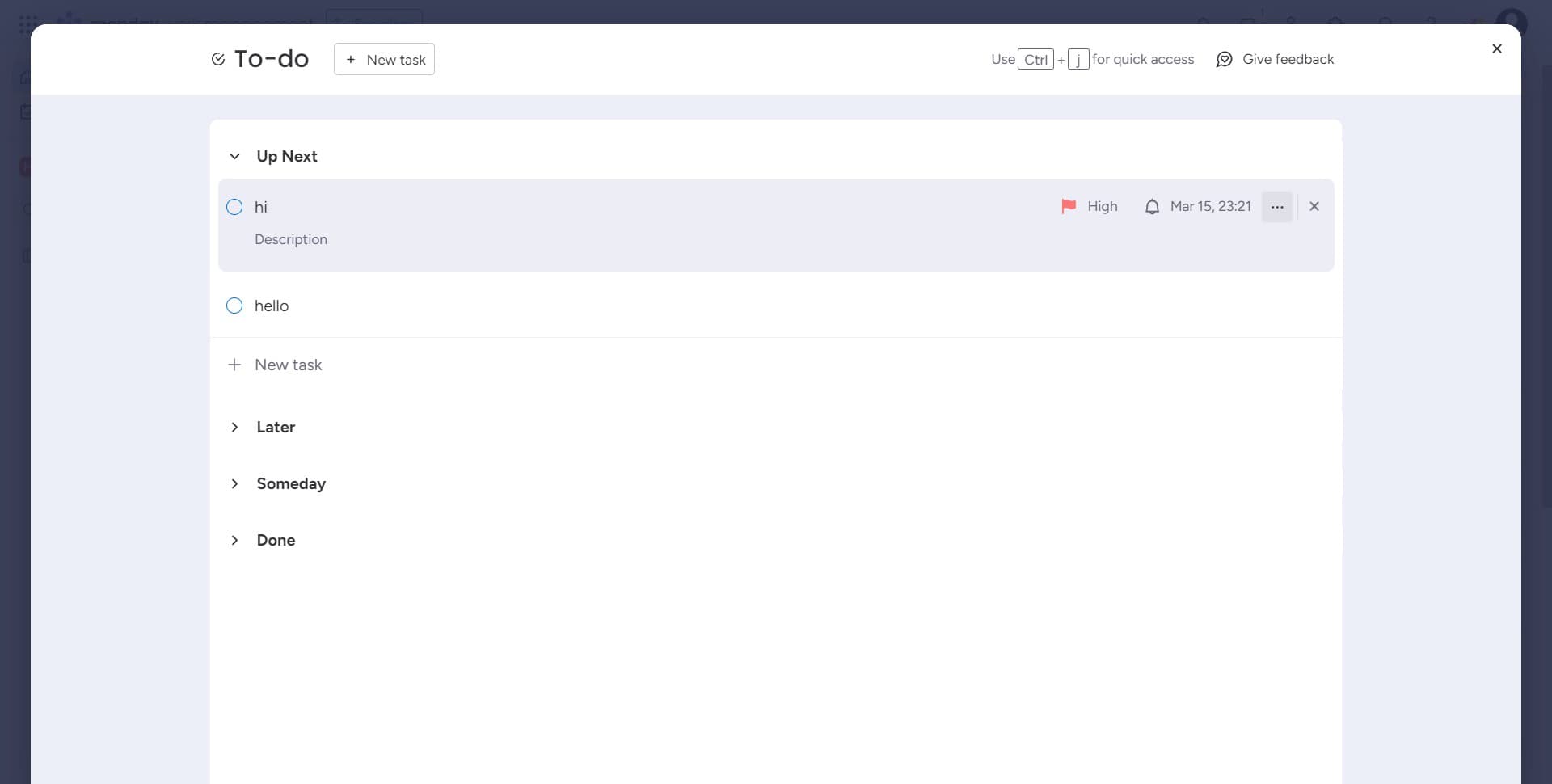
Confirm task details
Review the task information you've entered and confirm all settings are correct. This step ensures everything is properly configured before saving.
- 9
Finalize the task creation
Complete the task creation process by clicking the final confirmation button. Your new task is now added to the Monday.com board with all specified settings.
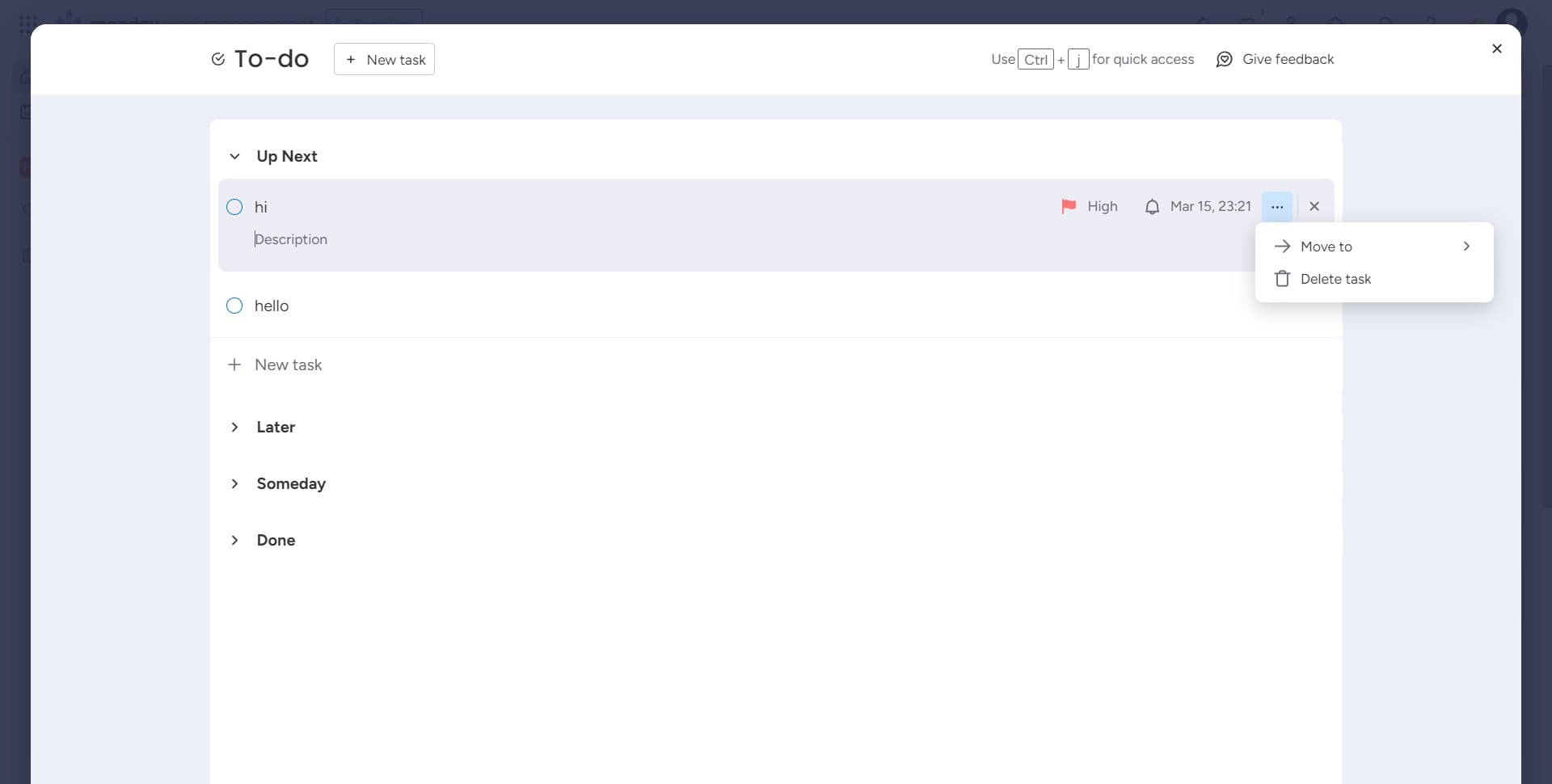
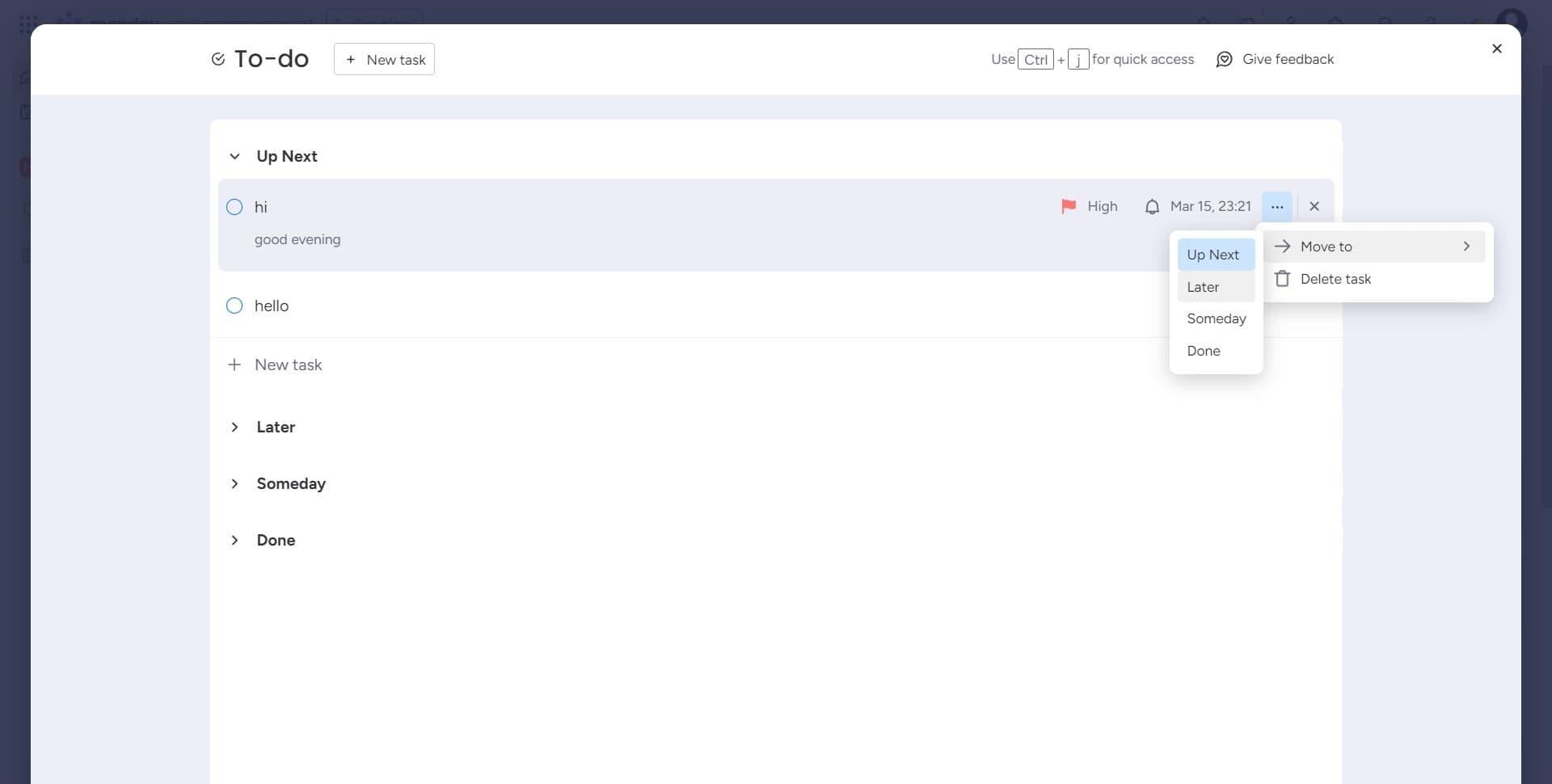
- 10
Select task timing option
Choose 'Later' to set when this task should be scheduled or displayed. This helps manage task visibility and workflow timing.
Frequently asked questions
Common questions about how to create a task in monday.com.
Yes, you can edit the reminder at any time by clicking on the task and modifying the reminder field. Monday.com allows you to adjust reminders even after the task has been created, so you can update it based on changing priorities.
Setting a priority level (like High) helps your team quickly identify urgent tasks when viewing the board. High-priority tasks often appear with visual indicators and can be filtered or sorted to appear at the top of task lists.
Reminders in Monday.com are typically set for the task owner or assignee, though notification settings can vary based on your board configuration. You can assign tasks to specific team members so they receive the reminder notifications.
Monday.com does not impose a strict limit on the number of tasks you can create, though performance may vary depending on your plan. Most teams can create hundreds or thousands of tasks without issue on standard plans.
Monday.com offers automation features that can help create recurring tasks, though this may require additional setup beyond the basic task creation process. You can configure automations to generate tasks on a schedule based on your project needs.