How to import data in Monday.com

Importing data into Monday.com streamlines your workflow by allowing you to populate boards with existing information from spreadsheets, CSVs, or other sources. This capability eliminates manual data entry and helps you get your project management setup running faster.
Quick summary
In this tutorial, you'll learn how to import data into Monday.com using the built-in import tool. We'll walk you through accessing the import feature, uploading your file, and customizing your new board to match your workflow.
Why this matters
Importing data is essential for teams migrating from legacy systems or those managing large datasets. Rather than manually recreating tasks and information, the import feature saves time and reduces the risk of data entry errors, allowing your team to focus on execution instead of setup.
Step-by-step guide
- 1
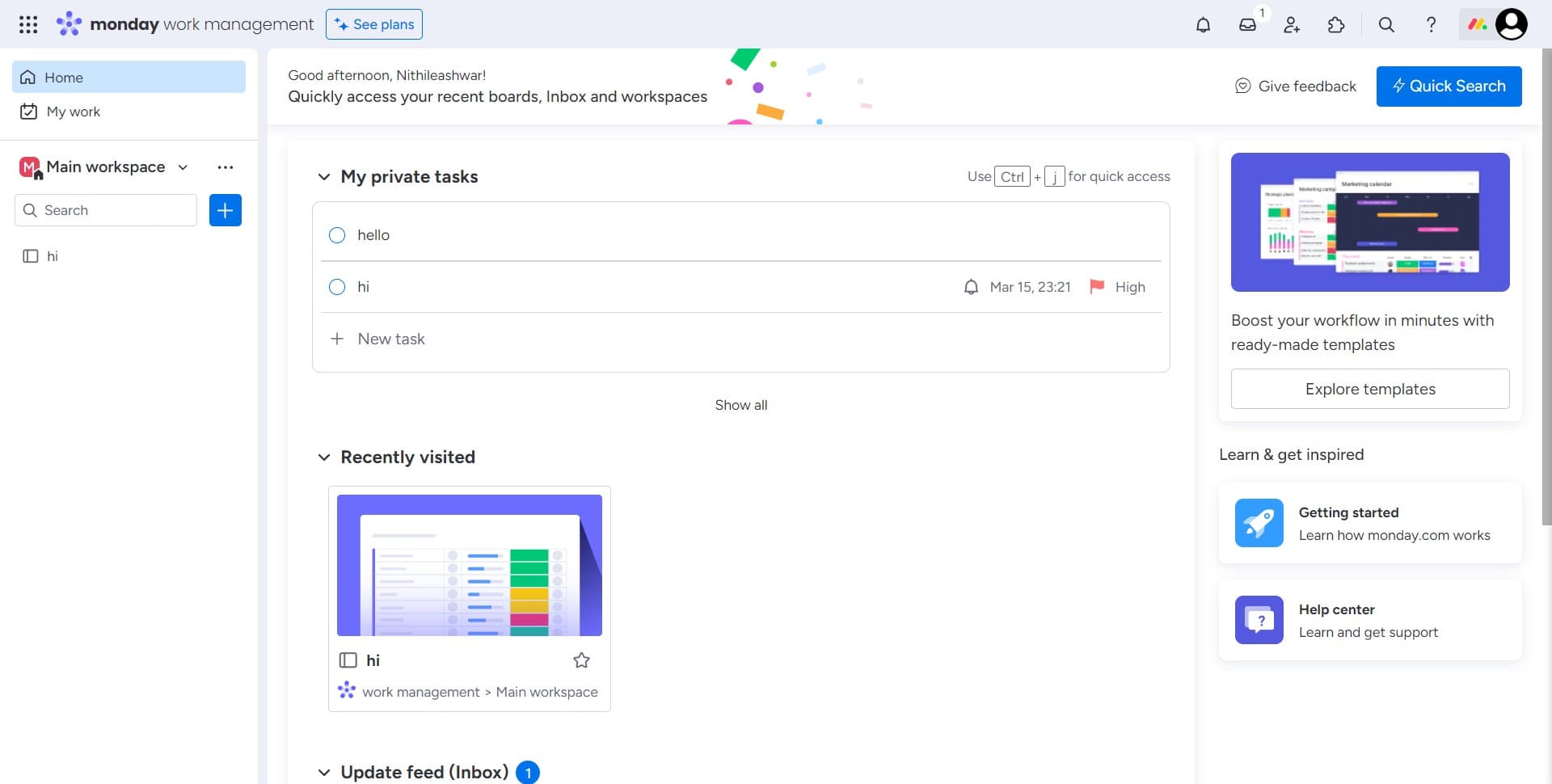
Locate the import option
Start by clicking on the "Image" element within your Monday.com workspace. This will reveal the menu containing data import options and other board management tools.
- 2
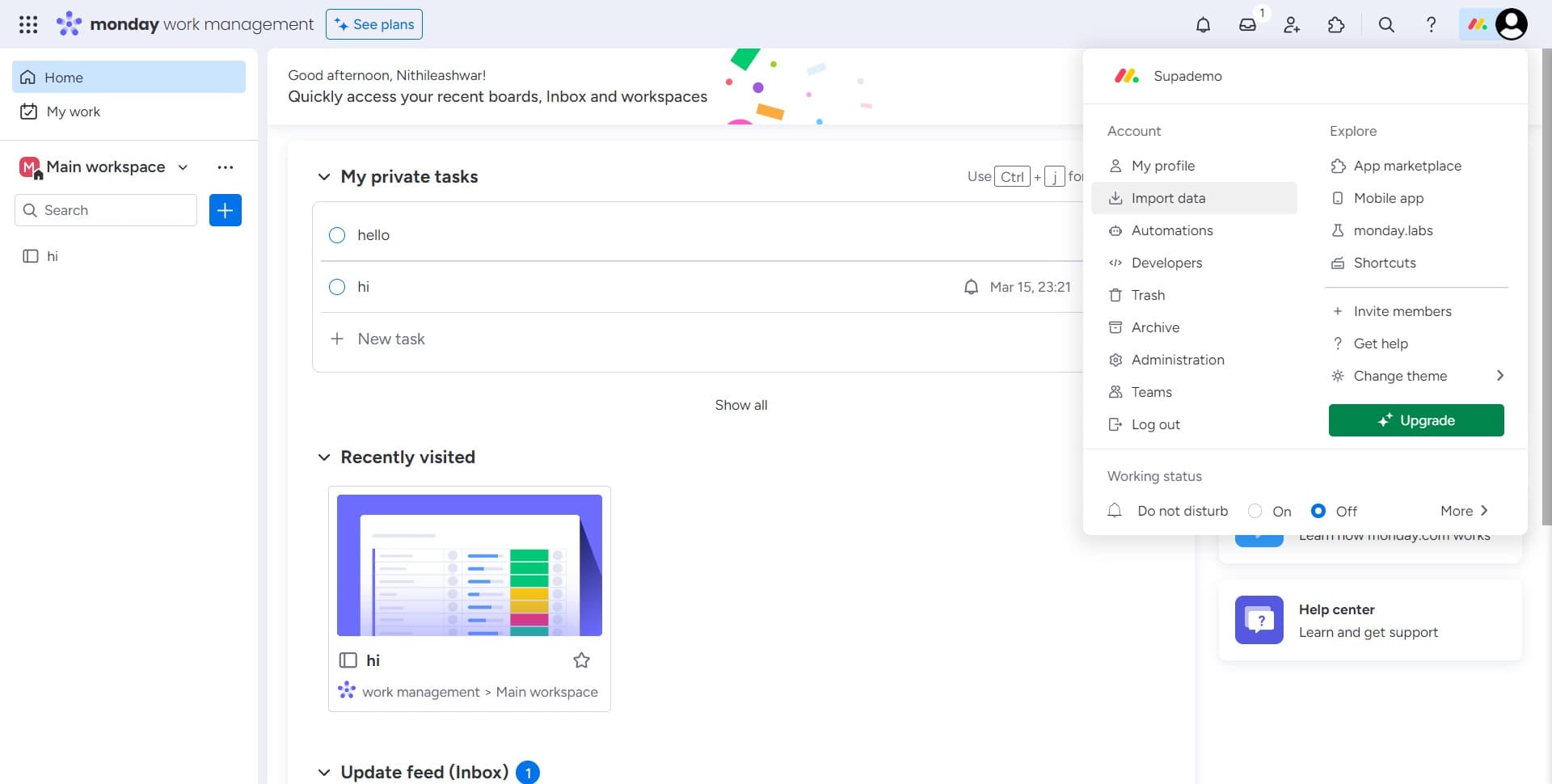
Click on Import data
Select "Import data" from the menu that appears. This action opens the import interface where you can begin uploading your data file.
- 3
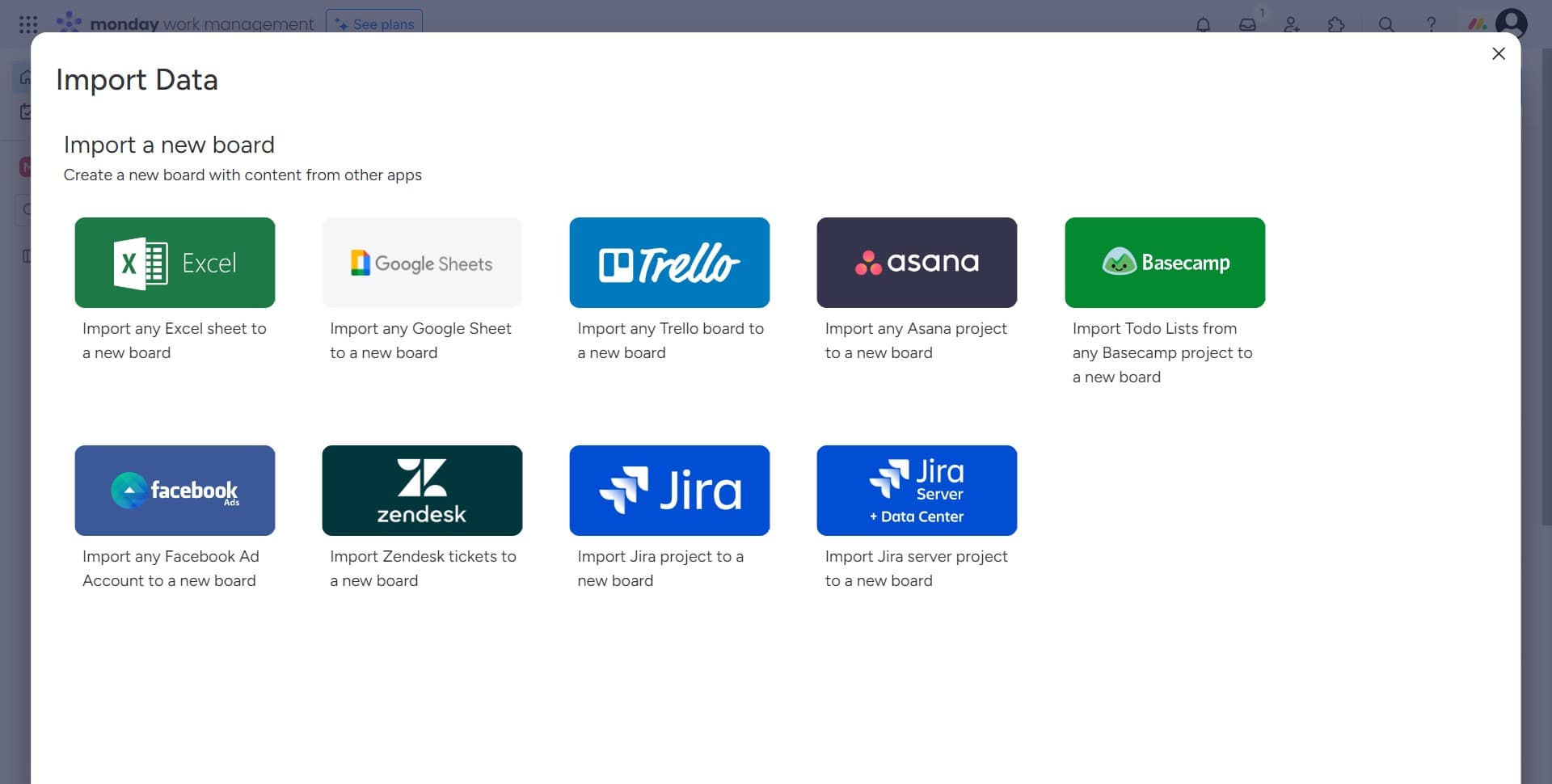
Proceed to file upload
Click the designated button to move forward in the import process. This step transitions you to the file selection interface.
- 4
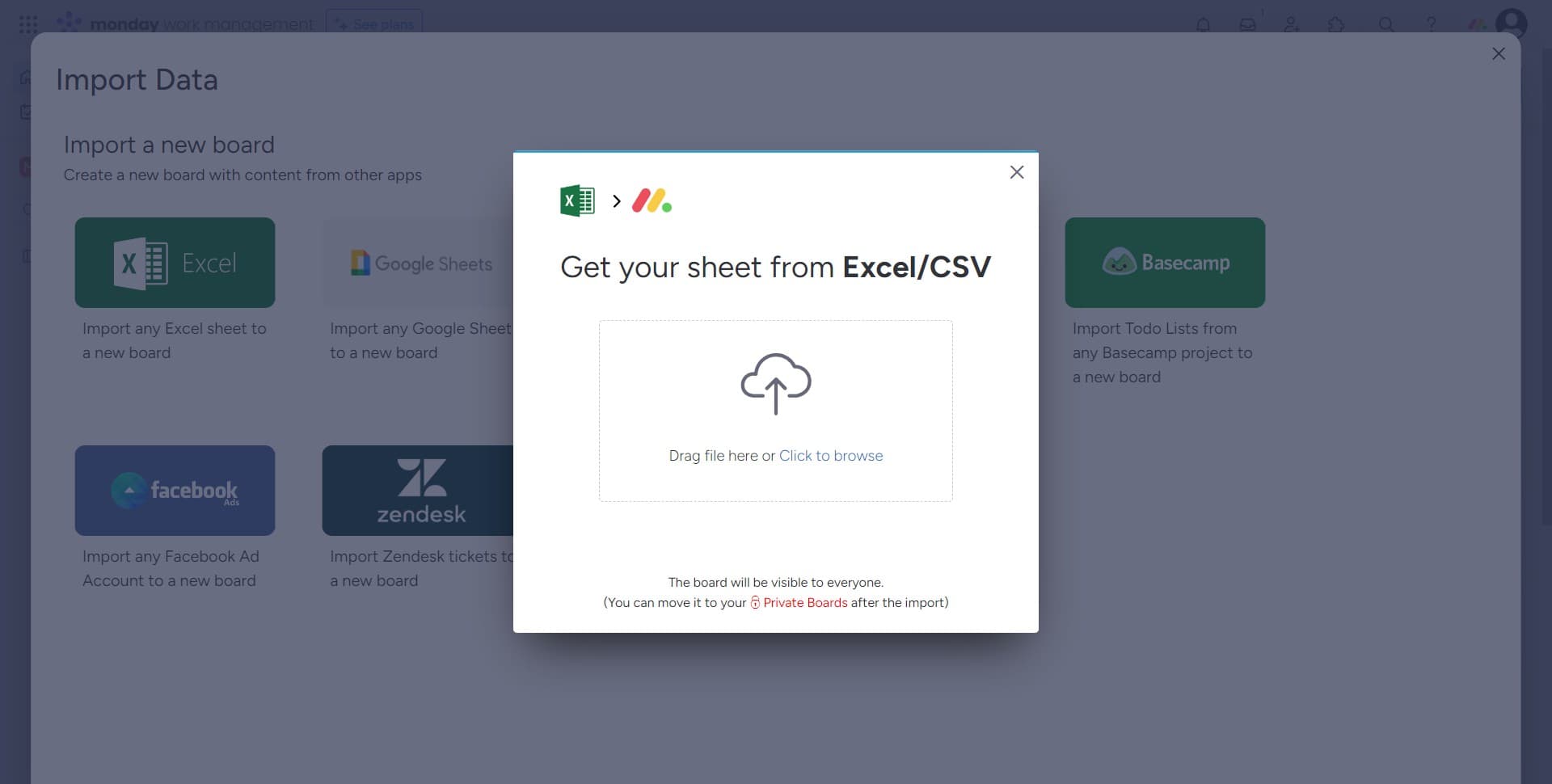
Upload your data file
Click on "Drag file here or Click to browse" to select your data file from your computer. You can either drag and drop your file directly or click to open a file browser and locate your spreadsheet or CSV.
- 5
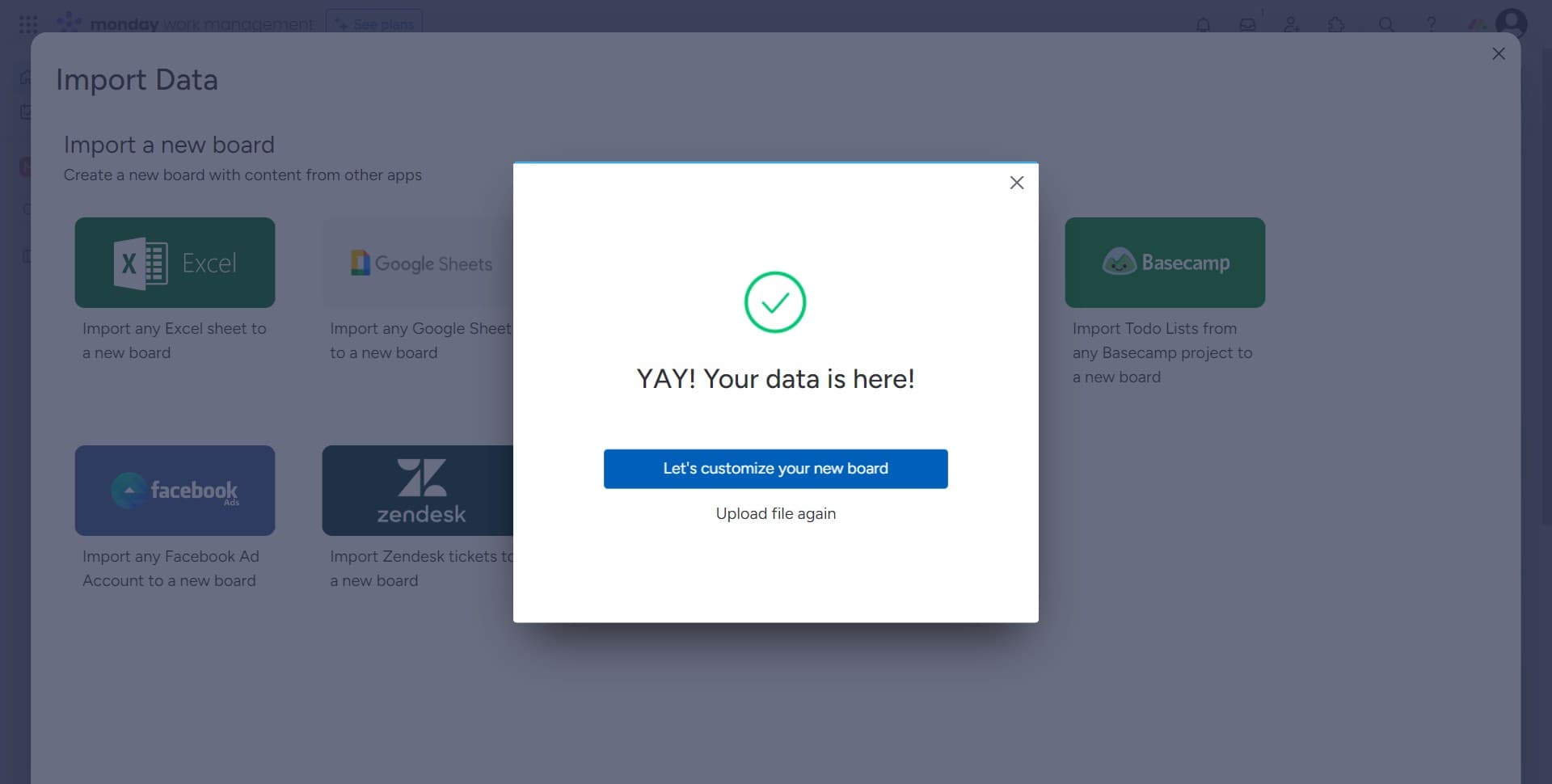
Customize your new board
Once your file is uploaded, click on "Let's customize your new board" to configure how your imported data maps to Monday.com columns and fields. This step allows you to align the imported data with your board structure and preferences.
Frequently asked questions
Common questions about how to import data in monday.com.
Monday.com accepts CSV and Excel files (.xls, .xlsx) for data imports. Ensure your file is properly formatted with clear column headers before uploading. This helps the import tool correctly map your data to board fields.
Yes, the customization step allows you to review and adjust how your data maps to your Monday.com board. You can verify the column assignments and make adjustments before finalizing the import.
The import process typically creates a new board with your imported data, rather than overwriting existing boards. However, always verify which board you're importing into during the customization step to avoid unintended changes.
Check that your file format is supported and that column headers are clearly labeled. If errors persist, review Monday.com's documentation or contact support with details about your file structure. Simplifying your file or breaking data into smaller chunks can sometimes resolve issues.
The import feature typically creates a new board from your imported data. If you need to add data to an existing board, you may need to use Monday.com's API or manual entry methods, depending on your specific use case.