How to Use Monday.com for Project Management

Monday.com is a powerful work operating system that streamlines project management, team collaboration, and task tracking. This guide walks you through the essential steps to set up and start using Monday.com to organize your projects effectively.
Quick summary
In this tutorial, you'll learn how to navigate Monday.com's core interface and create your first project board from scratch. By following these steps, you'll be ready to start managing tasks, assigning work, and tracking project progress in minutes.
Why this matters
Setting up a structured project board in Monday.com ensures your team stays aligned on priorities, deadlines, and responsibilities. A well-organized workspace reduces miscommunication, improves accountability, and gives stakeholders clear visibility into project status.
Step-by-step guide
- 1
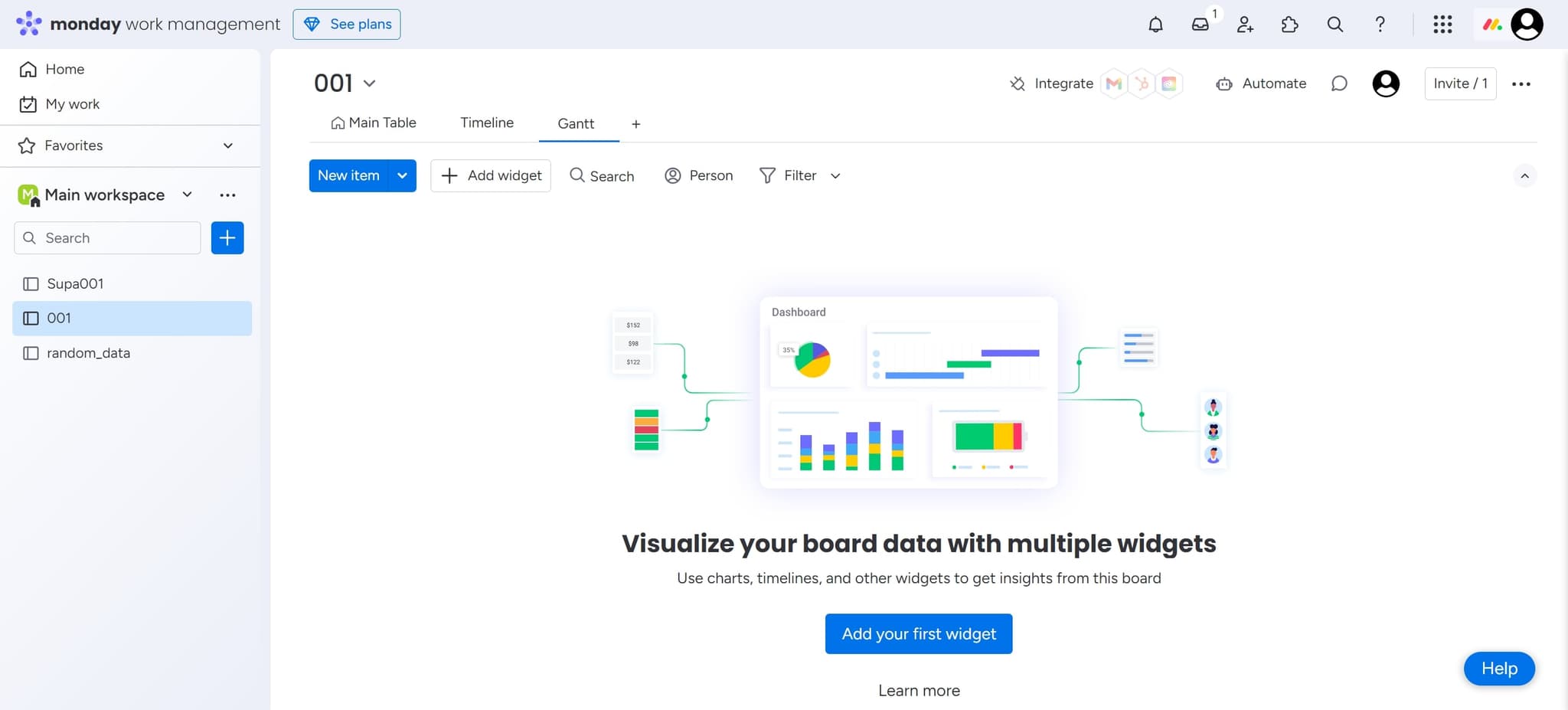
Access the main dashboard
Begin by clicking the designated area to open Monday.com's main interface. This is your starting point for all project management activities within the platform.
- 2
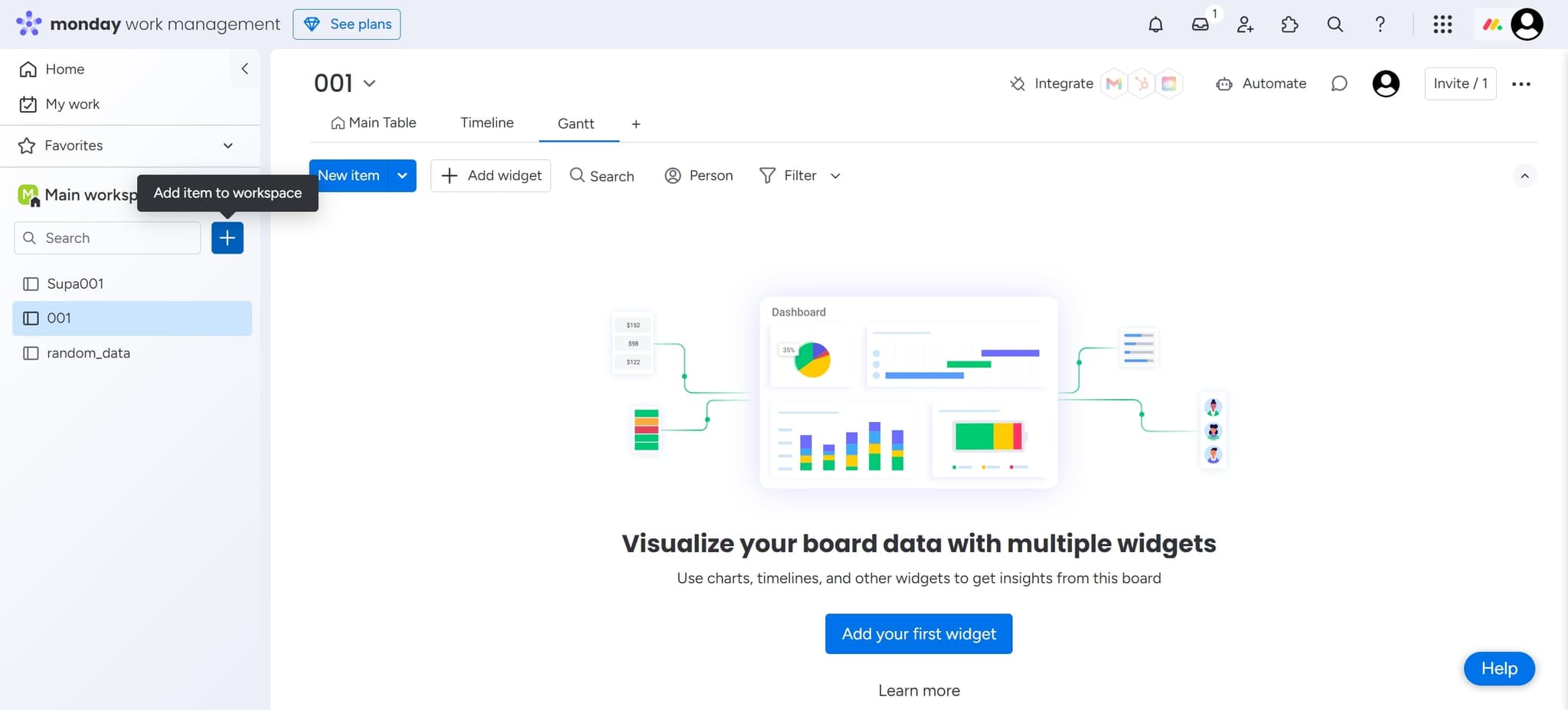
Locate the board creation option
Click on the element that contains board management features. This will bring up options for organizing and creating new workspaces.
- 3
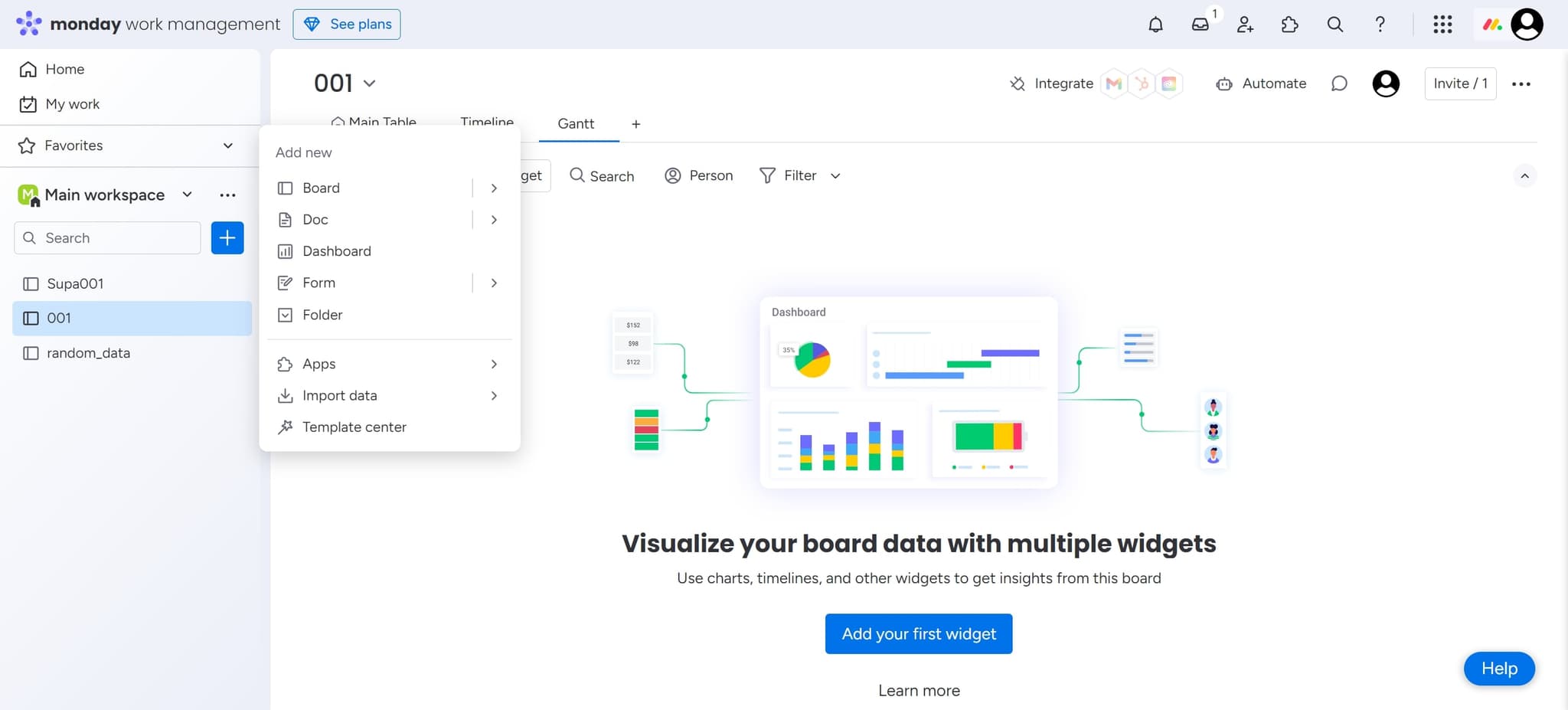
Select Add New
Click on the 'Add new' button to initiate the board creation process. This opens a dialog where you can configure your first project board.
- 4
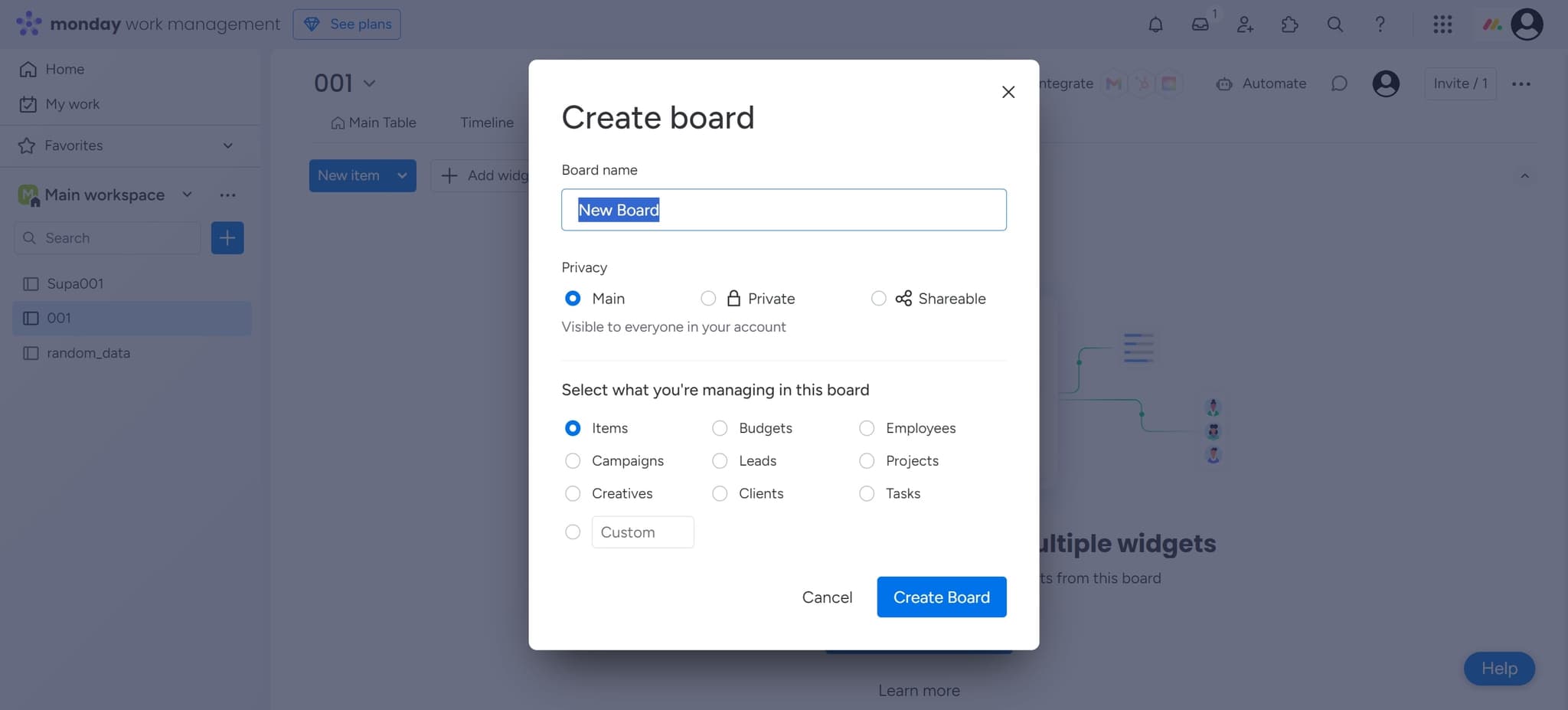
Configure board settings
Click on the element to access board configuration options. Here you can specify details like board name, team members, and initial column structure.
- 5
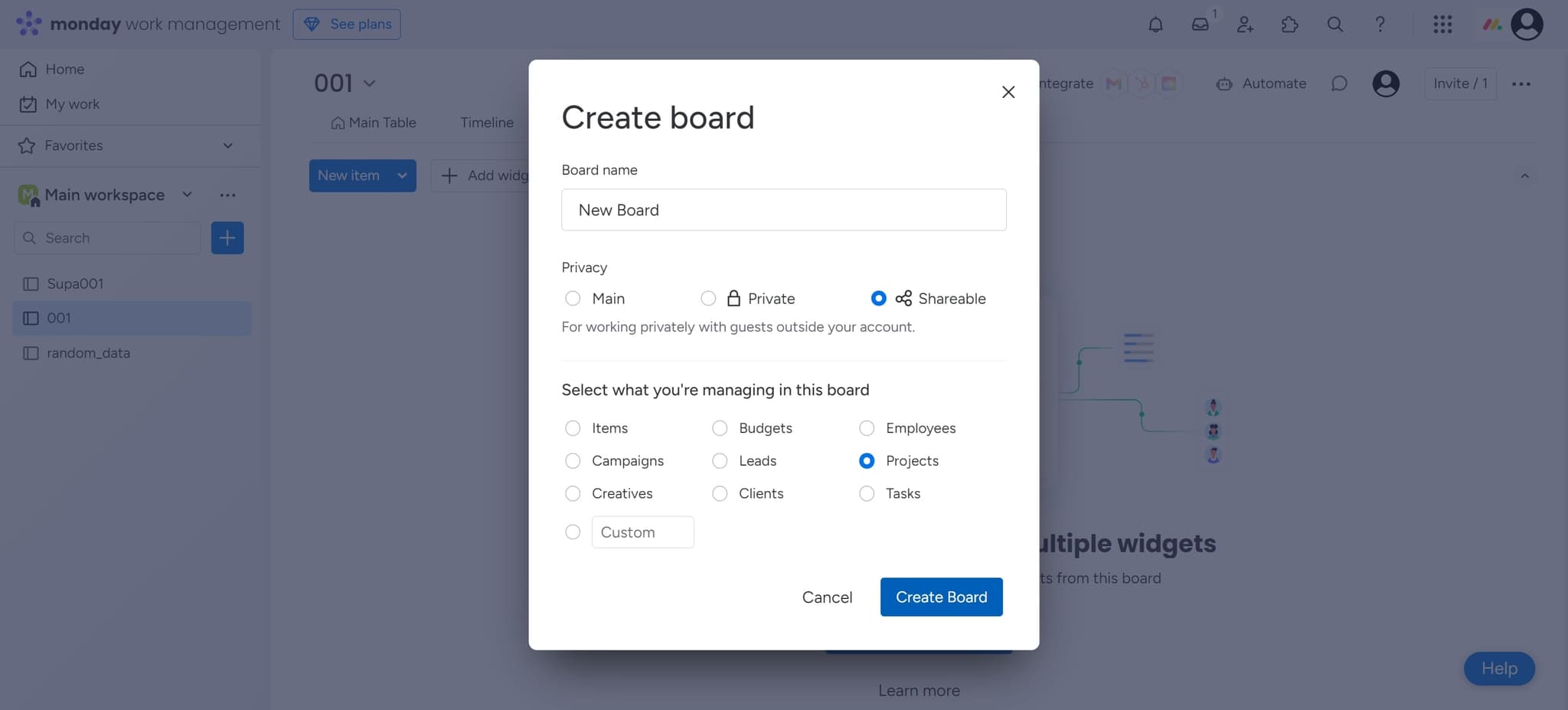
Create Board
Click the 'Create Board' button to finalize your board setup. Monday.com will generate your new workspace with the settings you've configured.
- 6
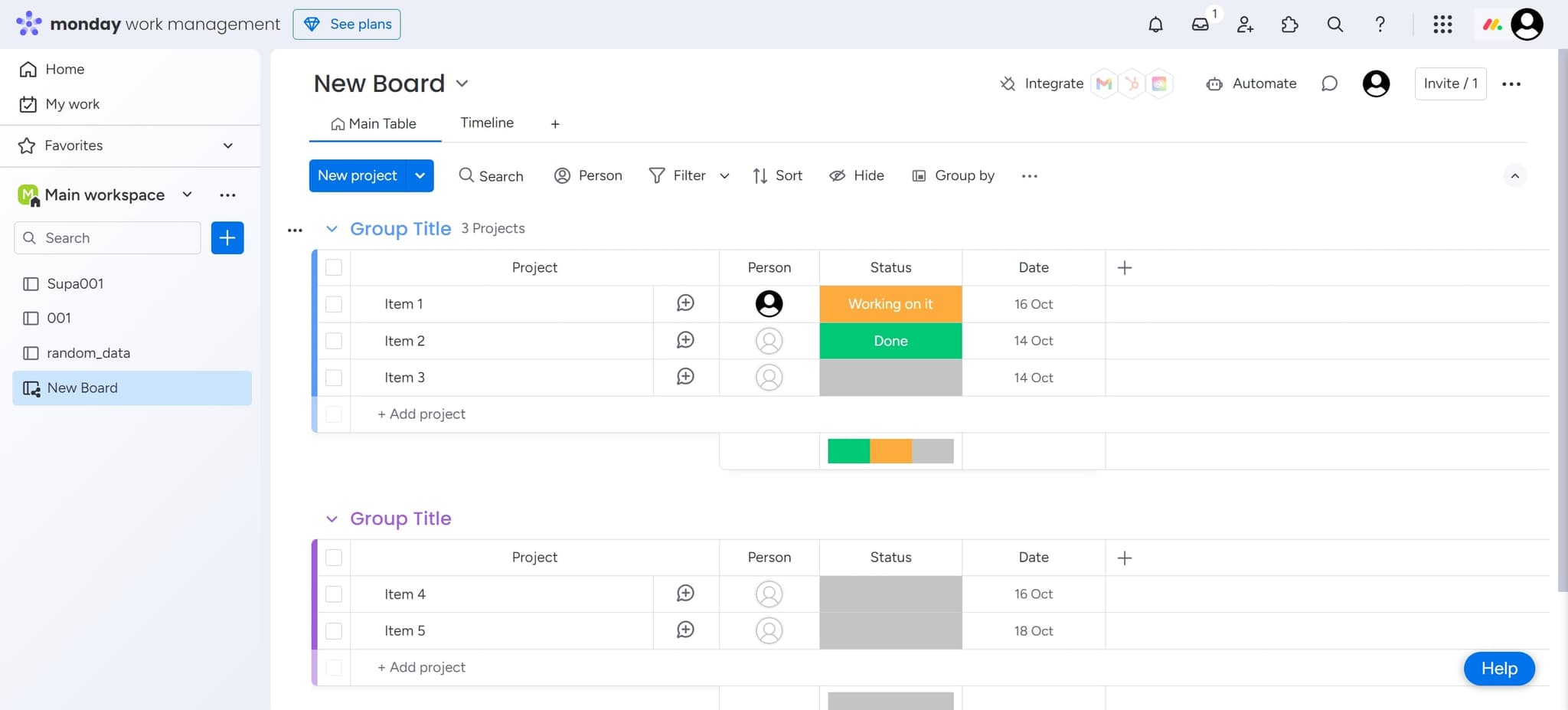
Access your new board
Click on the designated area to view and enter your newly created project board. You're now ready to add tasks, team members, and start collaborating.
- 7
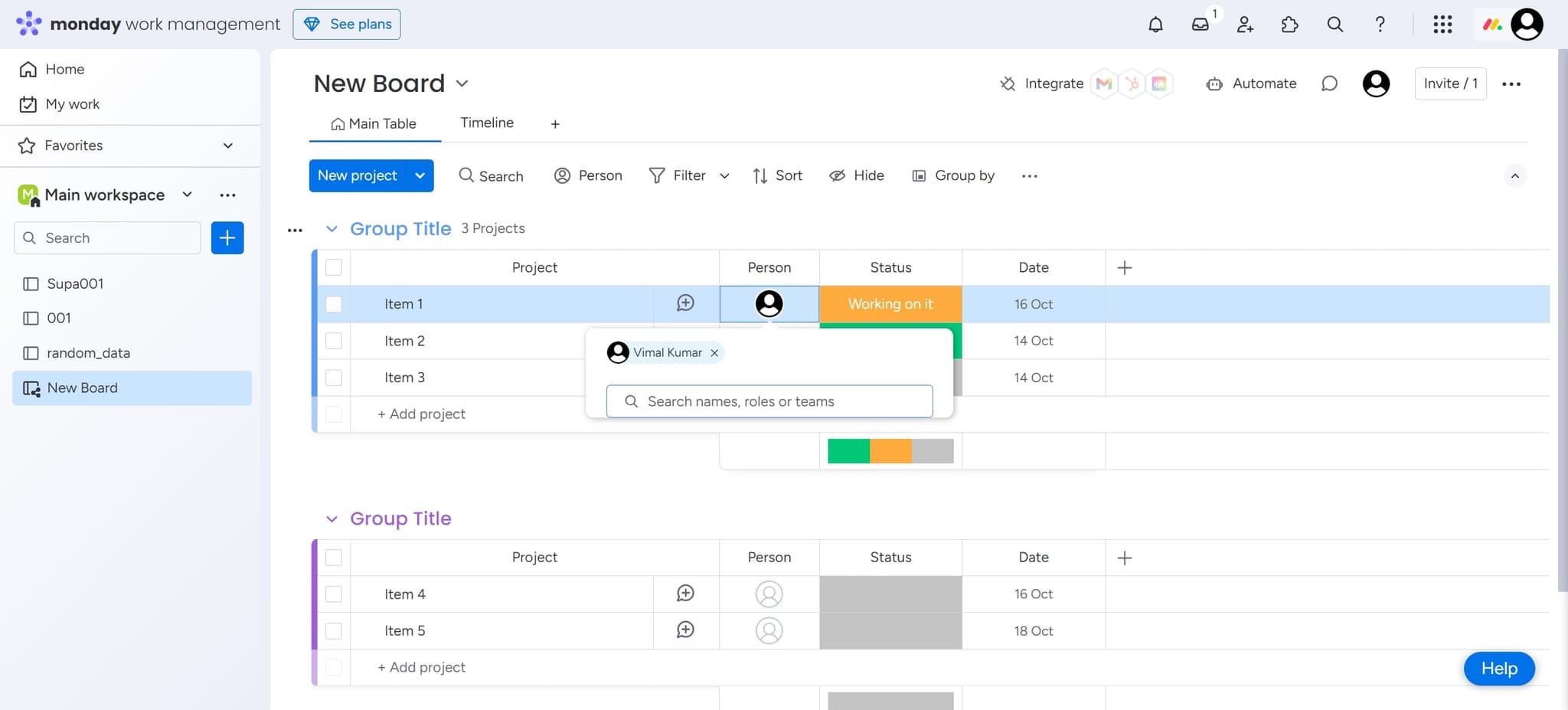
Explore board features
Click on the element to discover additional tools and customization options available within your board. This helps you maximize Monday.com's functionality for your specific workflow.
- 8
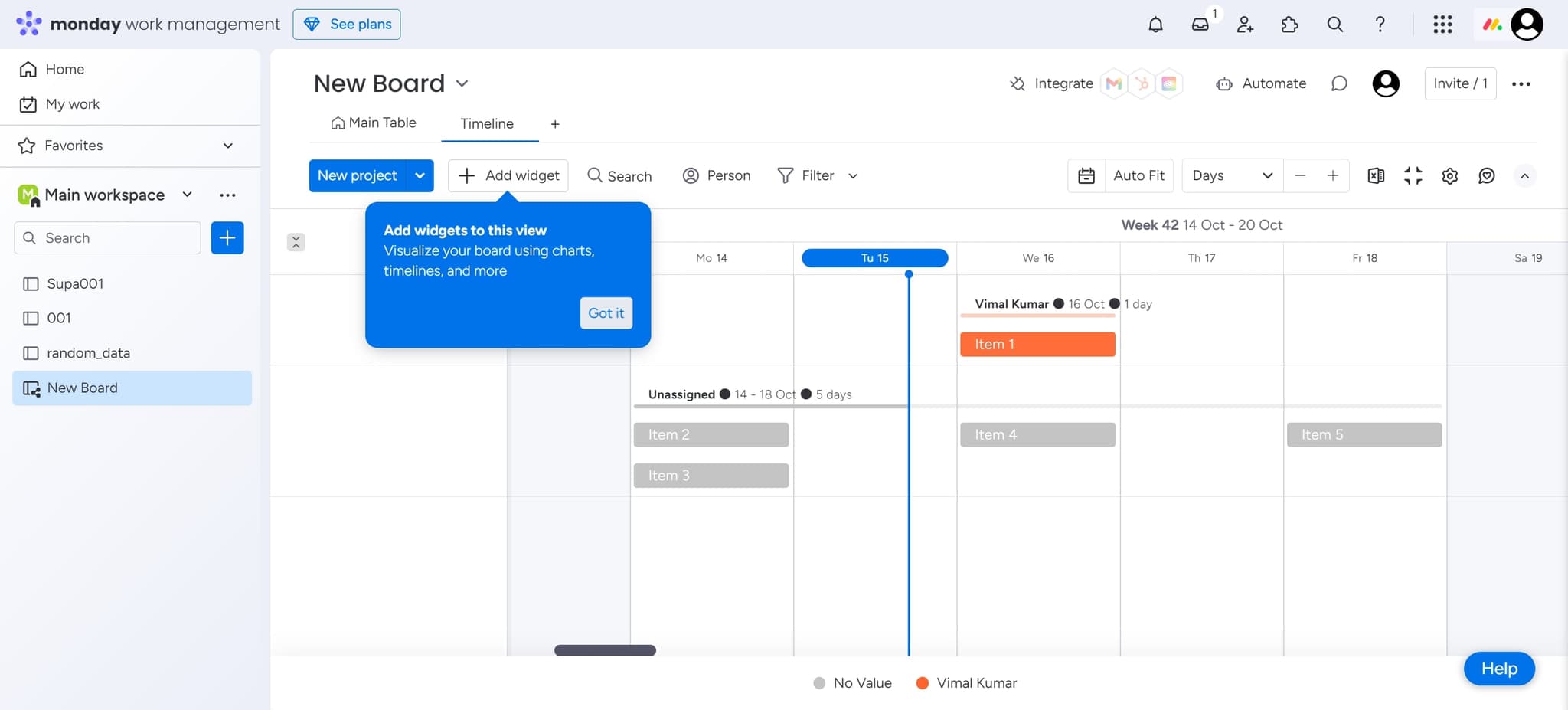
Complete the setup
Click 'Got it' to confirm you've reviewed the initial setup guidance. Your board is now fully operational and ready for task management.
Frequently asked questions
Common questions about how to use monday.com for project management.
Yes, Monday.com allows full customization of columns after board creation. You can add, remove, or rename columns at any time to match your team's workflow. Simply access the board settings to modify the structure.
After creating your board, you can invite team members through the board settings or team management section. You can assign different permission levels to control who can view, edit, or manage tasks.
Monday.com works well for product launches, marketing campaigns, software development, HR workflows, and any project requiring task tracking and team collaboration. Its flexibility allows you to adapt it to virtually any project type.
Absolutely. Monday.com allows you to create unlimited boards, each dedicated to different projects or departments. This helps you organize work at scale while keeping teams focused on their specific responsibilities.
Yes, Monday.com includes timeline views, progress tracking, and deadline management features. You can set due dates, create dependencies between tasks, and visualize project timelines to ensure on-time delivery.