How to use the SEMRush seo writing assistant tool

The Semrush SEO Writing Assistant is a powerful tool that helps you optimize content for search engines before publishing. This guide walks you through the complete workflow to analyze, improve, and export your content directly to Google Docs.
Quick summary
In this tutorial, you'll learn how to access the SEO Writing Assistant, analyze new text, import relevant keywords, leverage AI suggestions, and move your optimized document to Google Docs. By the end, you'll understand how to streamline your content optimization process within Semrush.
Why this matters
SEO-optimized content ranks better in search results and drives more organic traffic to your site. Using the SEO Writing Assistant ensures your content meets search engine requirements and readability standards before publication, saving time on revisions and improving your content's performance.
Step-by-step guide
- 1
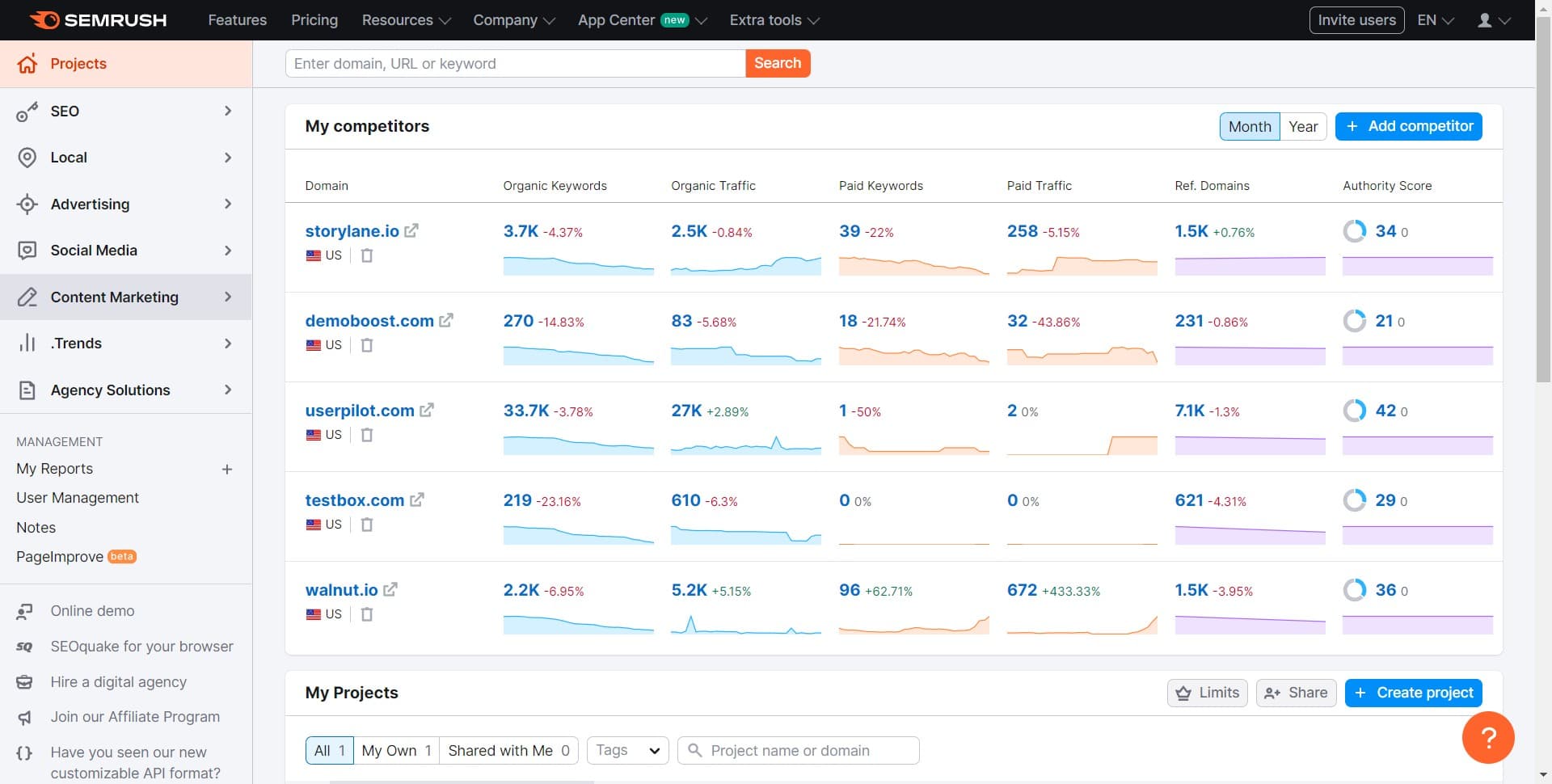
Navigate to Content Marketing
From your Semrush dashboard, locate and click on the Content Marketing module. This will open the suite of content creation and optimization tools available in your account.
- 2
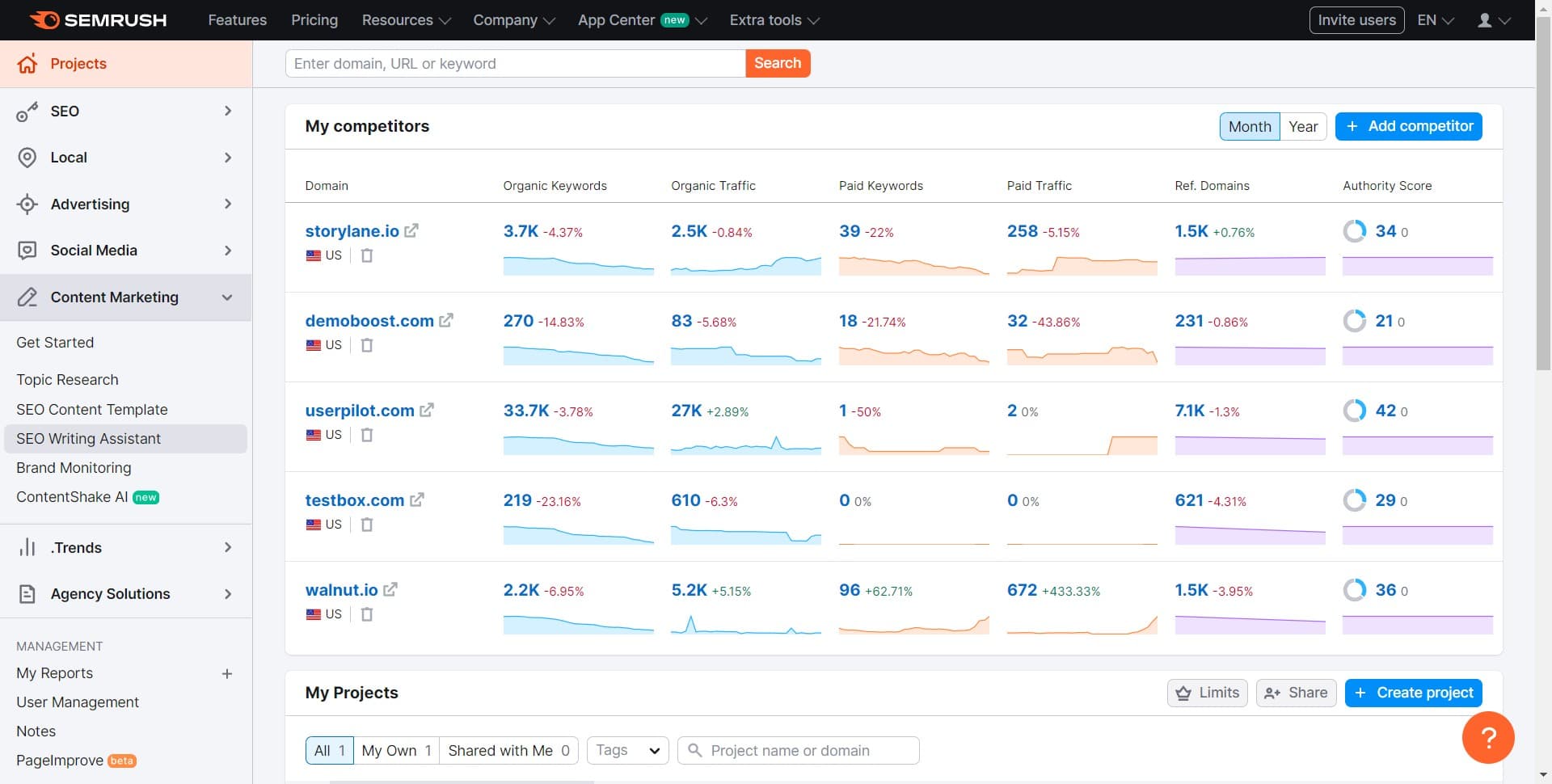
Open SEO Writing Assistant
Click on the SEO Writing Assistant option to launch the main interface. This tool allows you to analyze and optimize content for both SEO performance and readability.
- 3
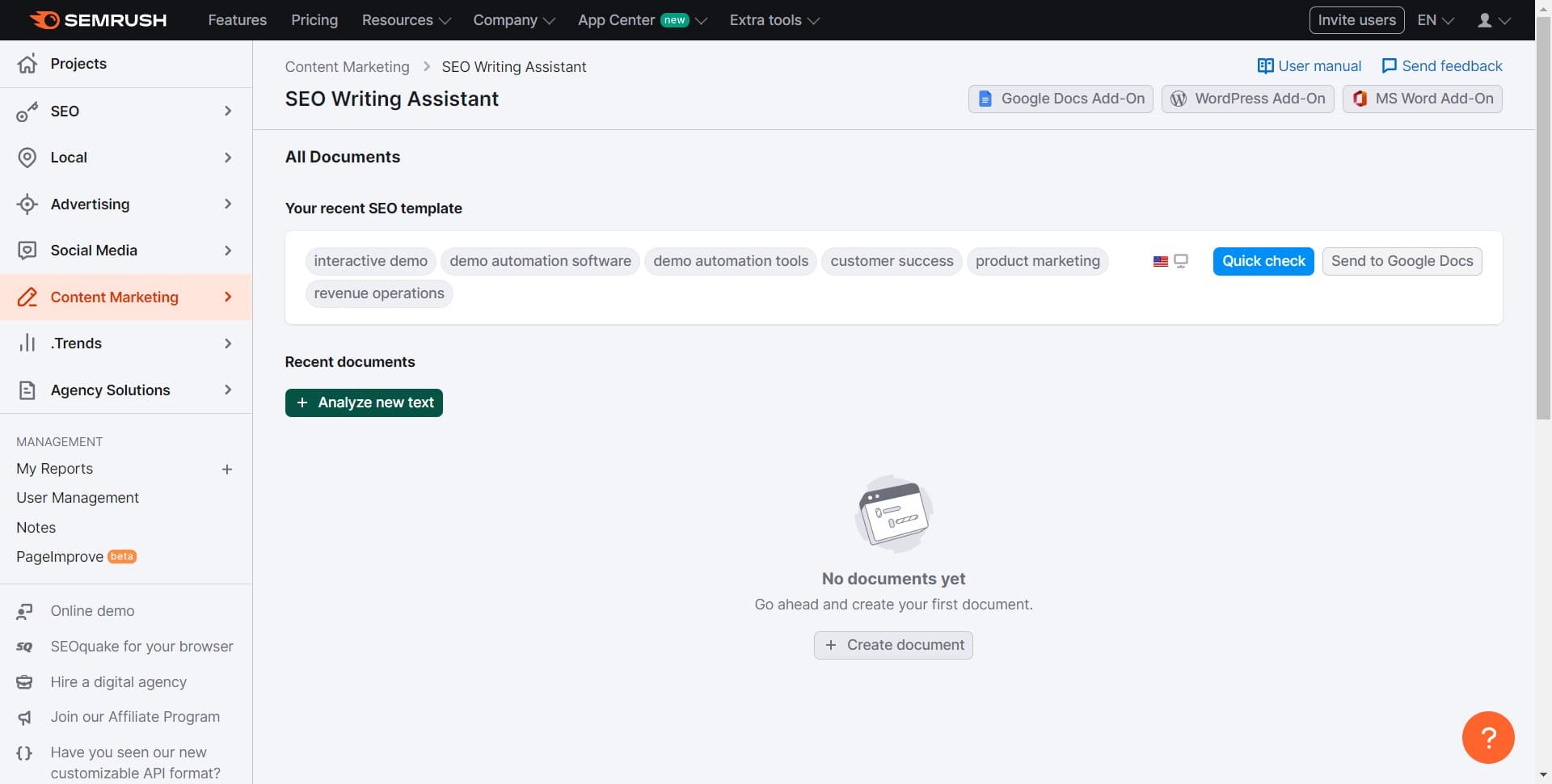
Start analyzing new text
Click on the Analyze new text button to begin the content analysis process. This action opens a text editor where you can paste or input your content for optimization.
- 4
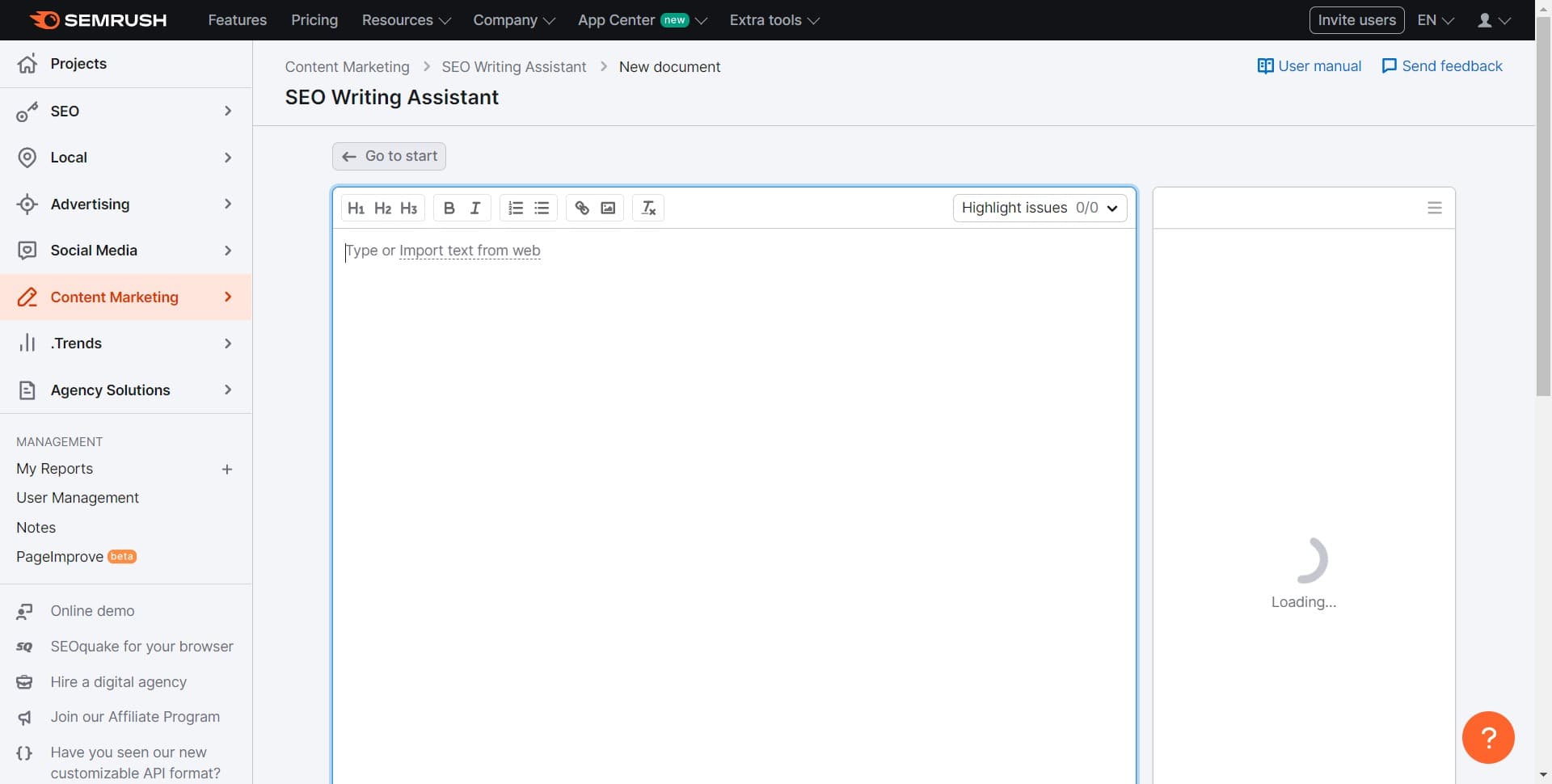
Paste or input your content
Enter your article, blog post, or web copy into the text field that appears. Make sure to include the complete text you want to optimize for SEO.
- 5
Import keyword data
Click on the Import button to bring in external keyword information or data sources. This helps the tool understand your target keywords and content focus.
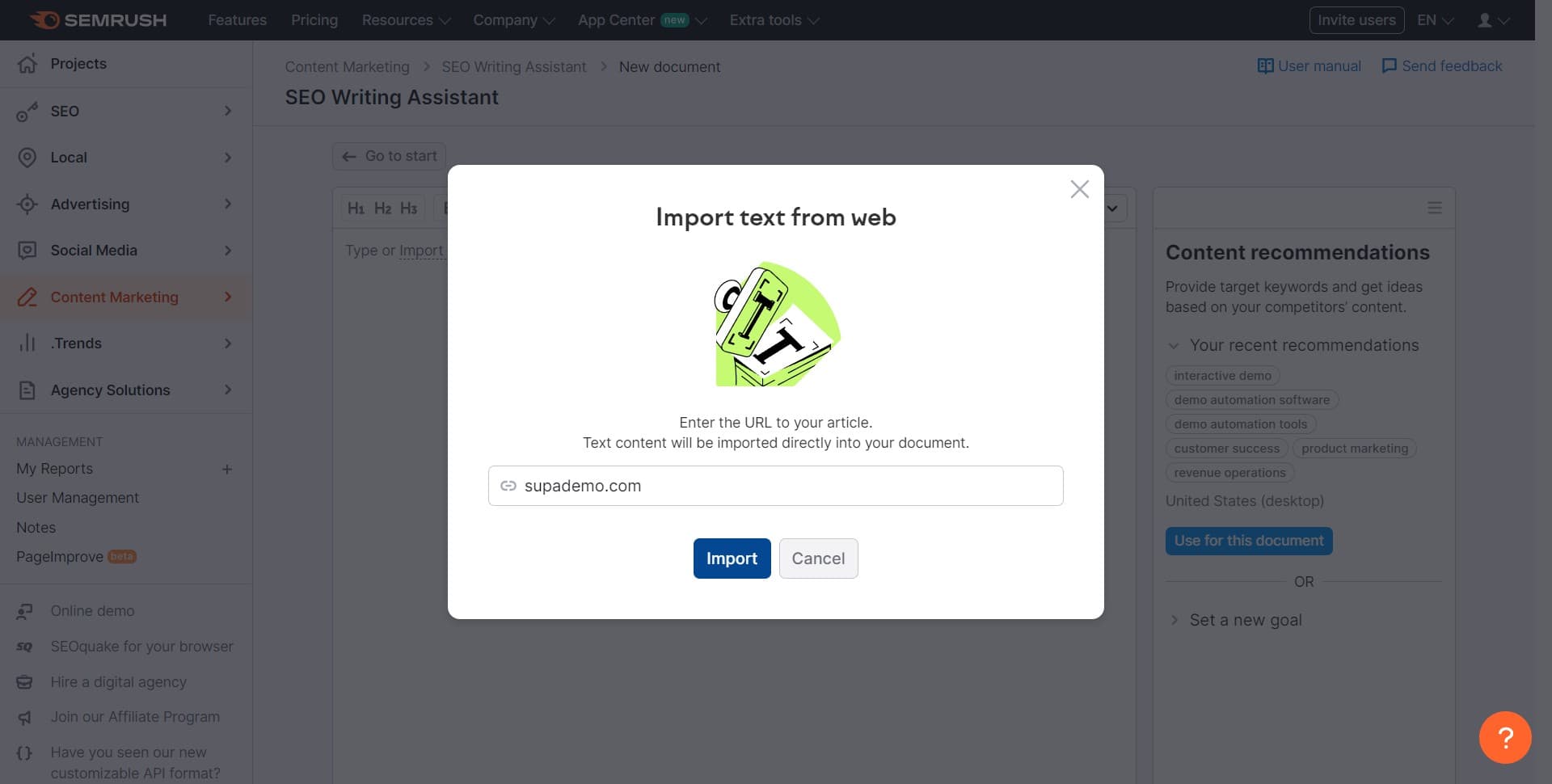
- 6
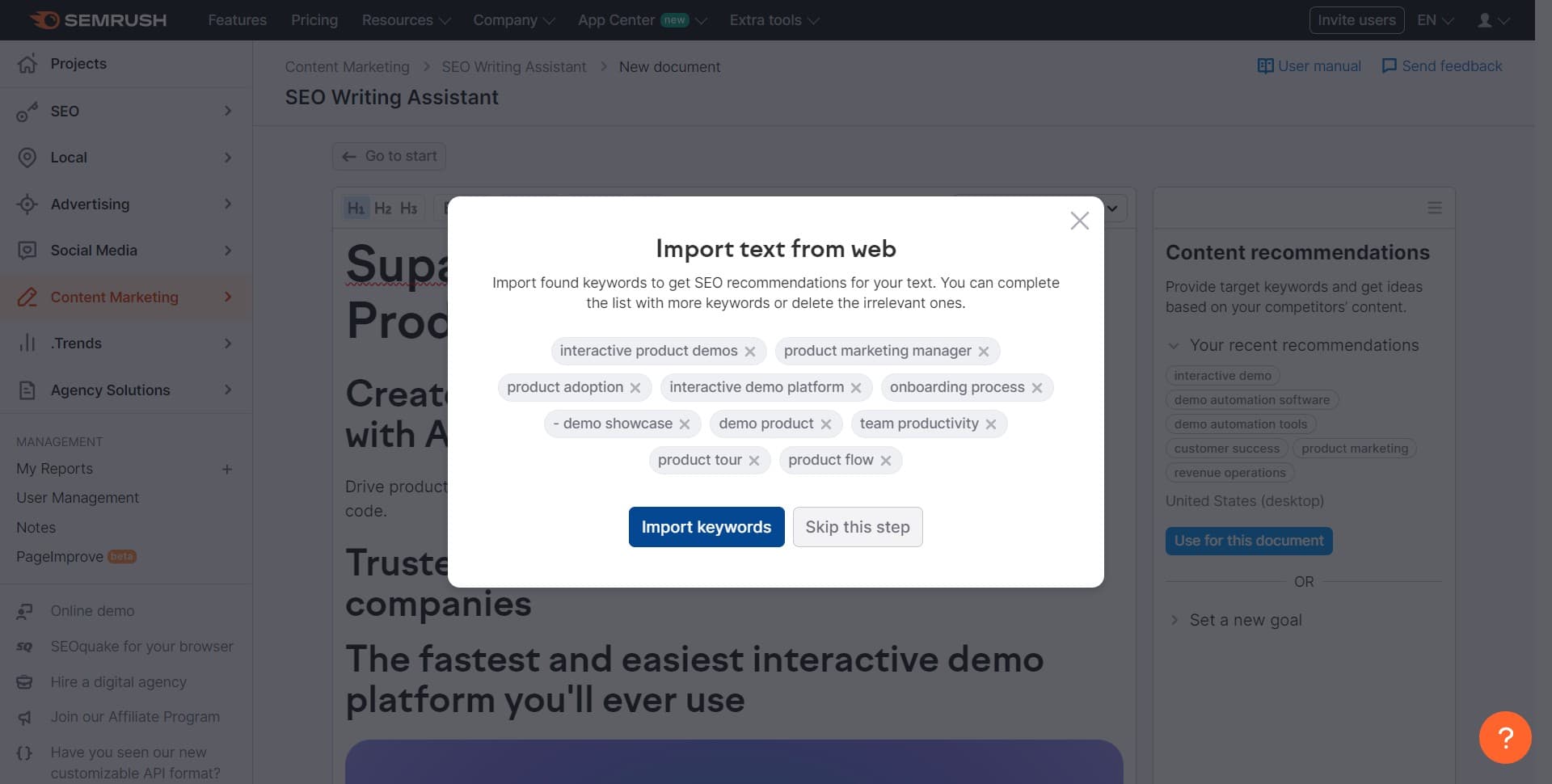
Select keywords to import
Click on Import keywords to choose which keywords you want the SEO Writing Assistant to use for optimization recommendations. This ensures the tool provides relevant suggestions aligned with your SEO strategy.
- 7
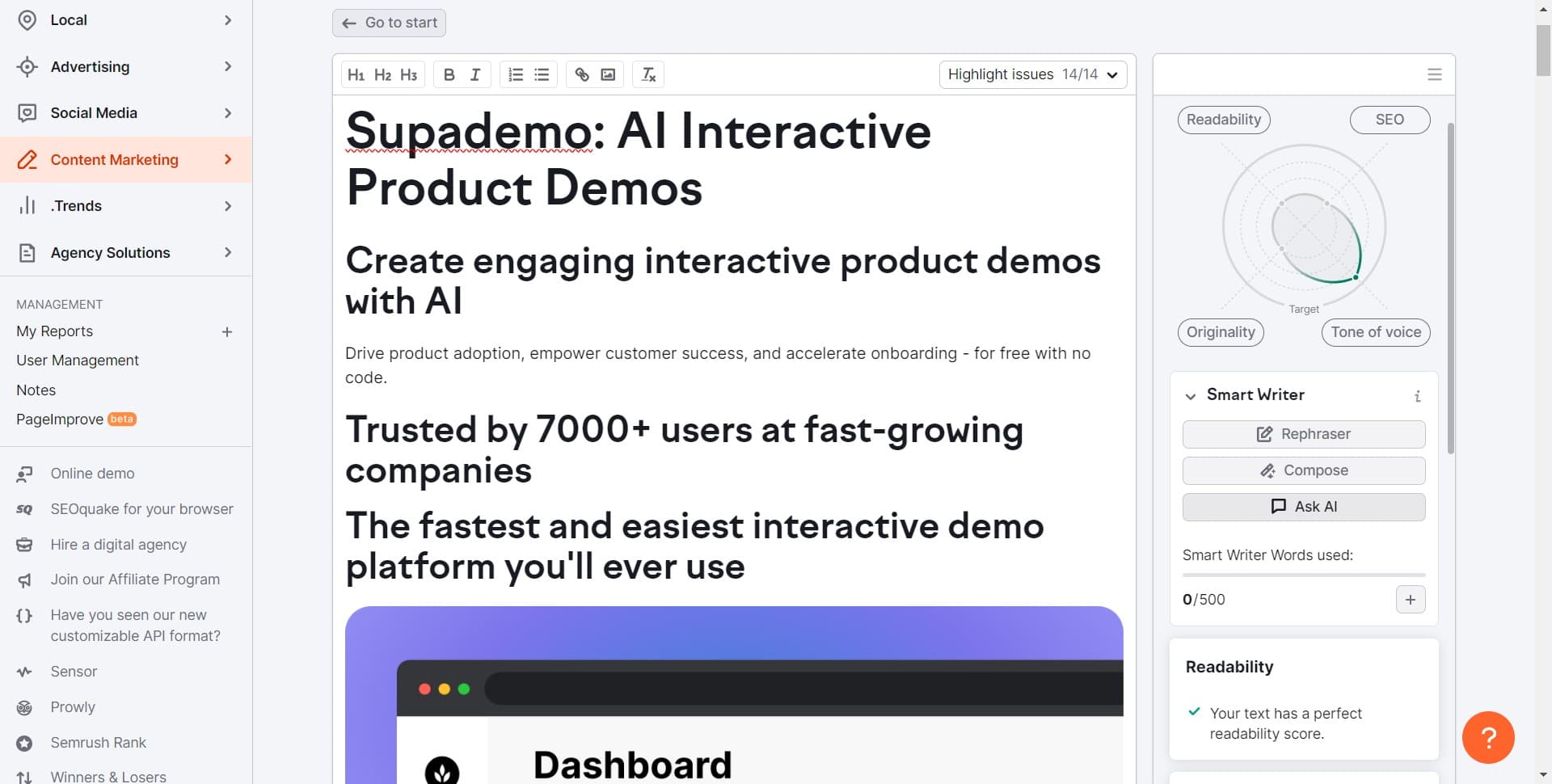
Request AI-powered suggestions
Click on Ask AI to generate intelligent content improvement recommendations. The tool will analyze your content against SEO best practices and keyword performance.
- 8
Review AI suggestions
Review the AI-generated recommendations that appear in the analysis panel. These suggestions will cover readability, keyword usage, structure, and SEO improvements.
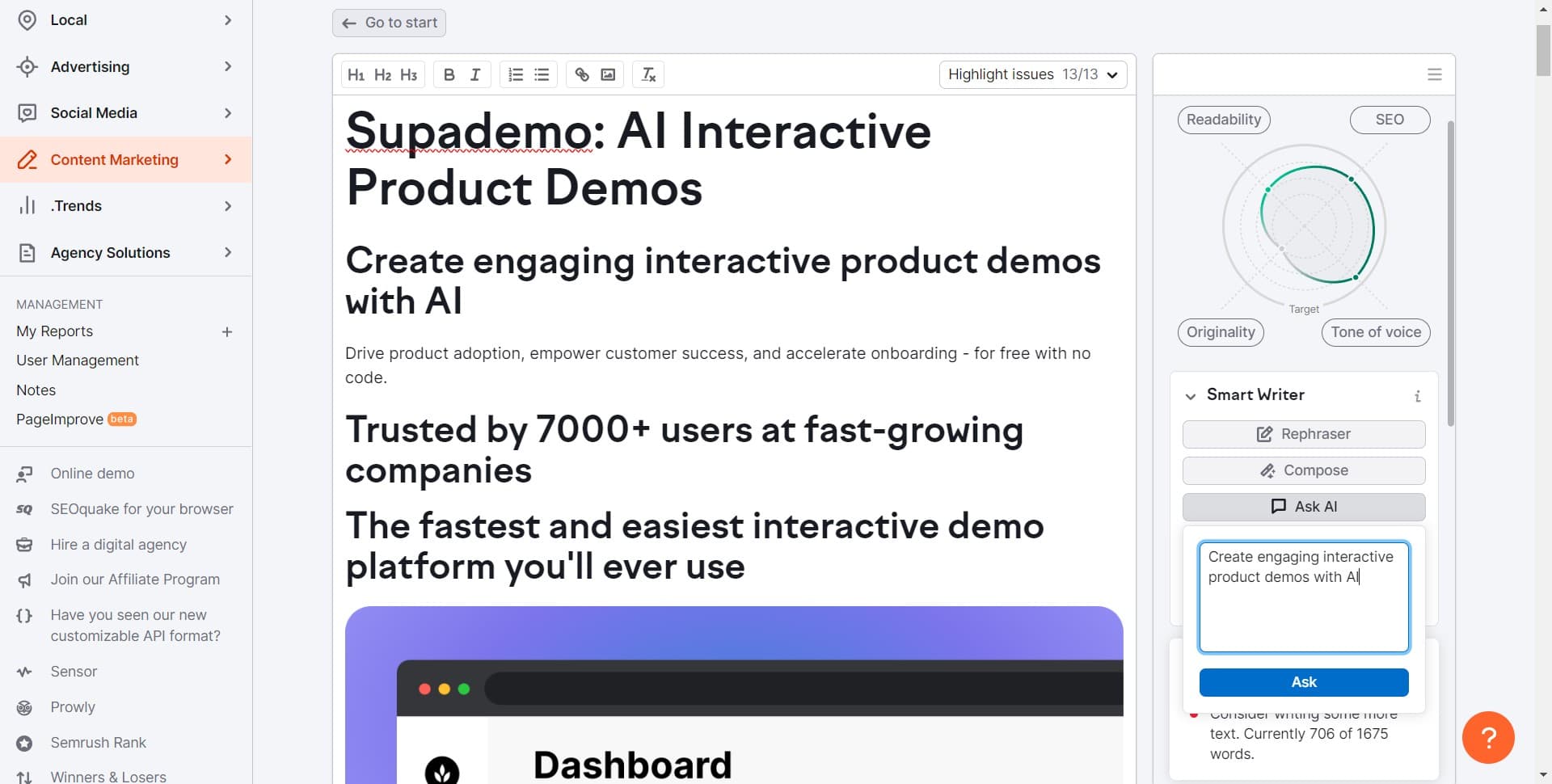
- 9
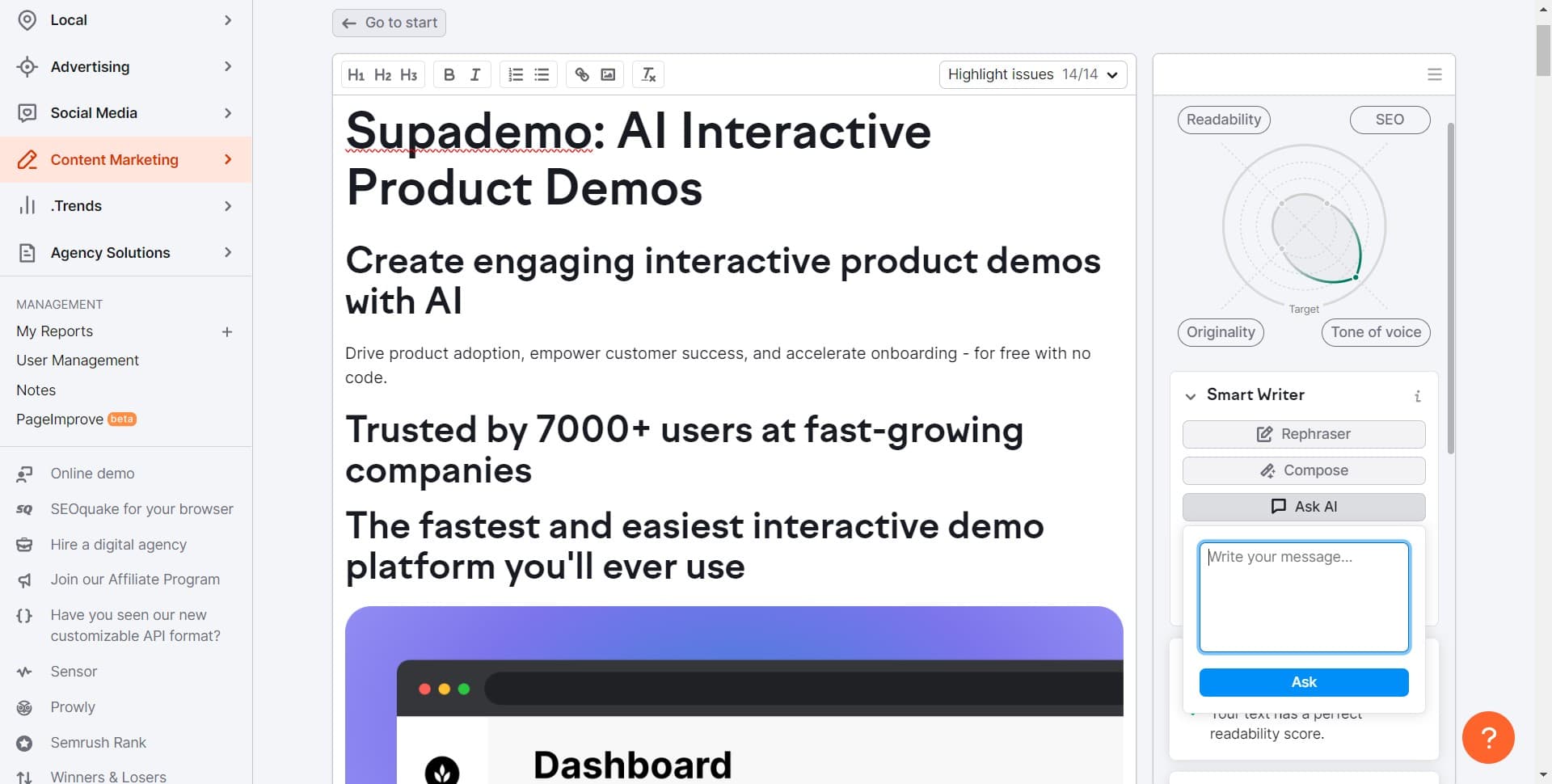
Submit your question or prompt
Click on the Ask button to finalize your query or request additional AI assistance. This may generate more specific recommendations based on your question.
- 10
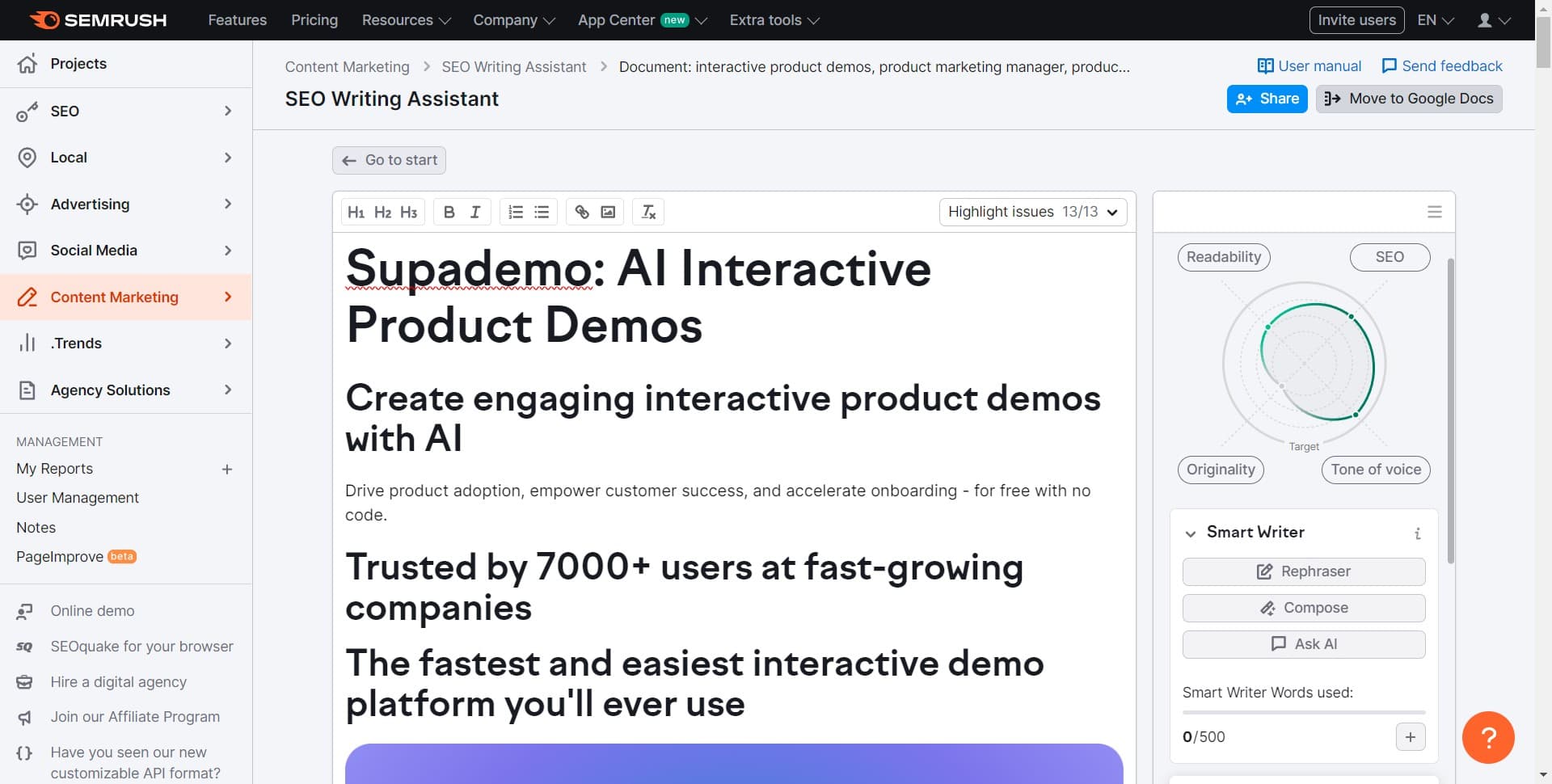
Export to Google Docs
Click on Move to Google Docs to transfer your optimized content directly to a Google Docs document. This enables seamless collaboration and further editing if needed.
- 11
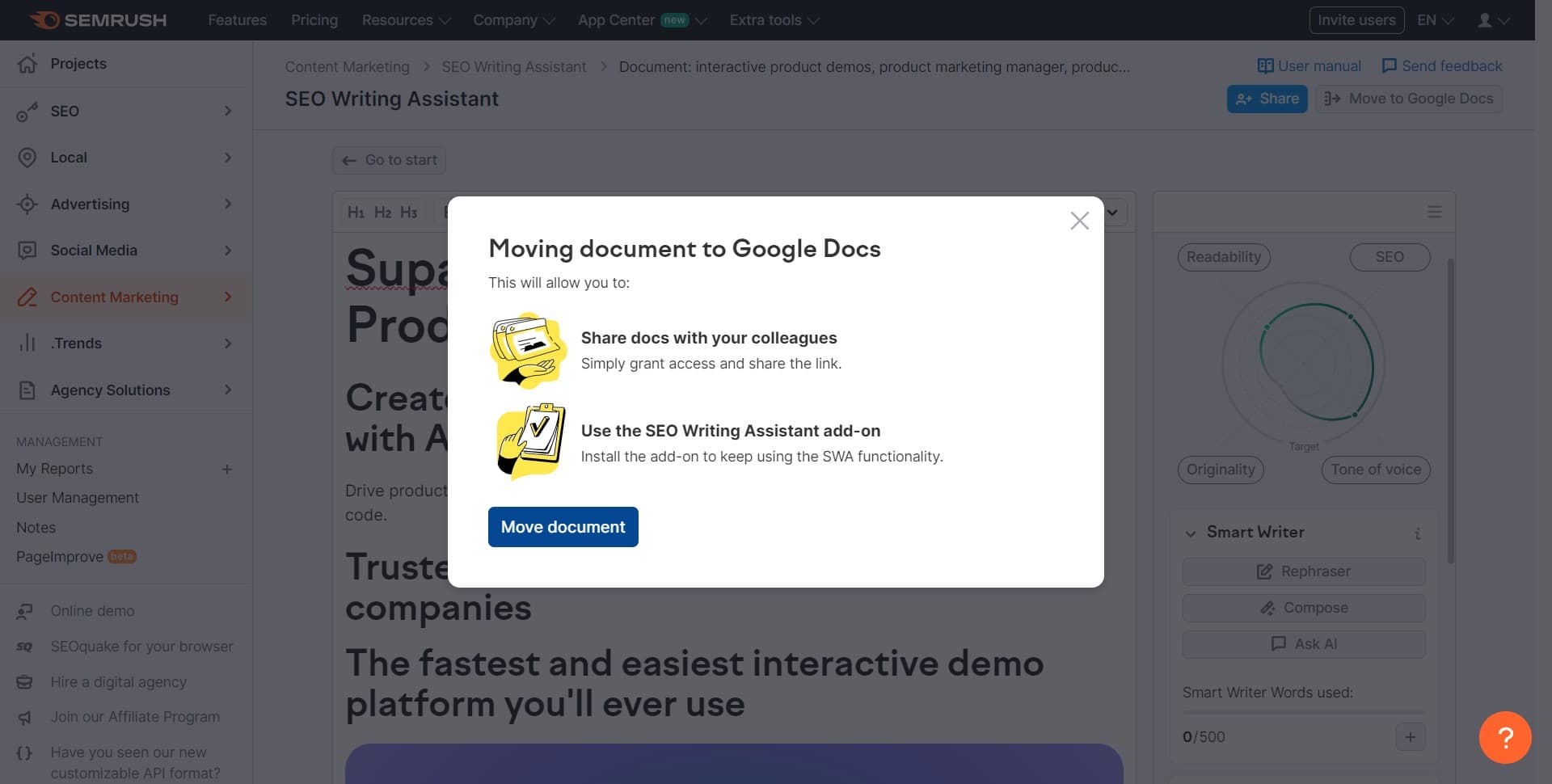
Complete the document transfer
Click on Move document to finalize the export and confirm that your content has been successfully transferred to Google Docs. Your optimized content is now ready for sharing and publication.
Frequently asked questions
Common questions about how to use the semrush seo writing assistant tool.
Yes, you can paste any existing content into the SEO Writing Assistant, whether it's published or in draft form. The tool will provide optimization suggestions that you can use to improve your content's SEO performance even after publication.
You can import primary keywords, related keywords, and long-tail variations that you've identified through keyword research. The tool uses these imported keywords to provide relevant optimization recommendations and ensure your content targets the right search terms.
The AI suggestions cover a range of SEO factors including keyword density, readability score, heading structure, and content length. Suggestions are specific and actionable, often highlighting exact areas where improvements can be made with specific recommendations for each issue.
Yes, exporting to Google Docs preserves the basic formatting and structure of your optimized content. You can then make additional formatting adjustments directly in Google Docs before final publication or sharing with your team.
No, all AI suggestions are recommendations only. You have full control over which suggestions to implement. Review each suggestion carefully and only apply changes that align with your content strategy and brand voice.