How to Add Products to Shopify

Adding products to your Shopify store is a fundamental task that every store owner needs to master. This guide walks you through the process of creating and saving new products in Shopify, from accessing the Products section to publishing your items live.
Quick summary
In this tutorial, you'll learn how to navigate to your Shopify Products section, create a new product listing, fill in the necessary details, and save your product to your store. By the end, you'll be able to add any product to your Shopify catalog quickly and efficiently.
Why this matters
Adding products to your store is essential for building inventory and making items available to customers. A well-organized product catalog with complete information drives sales, improves customer experience, and helps your store appear in search results. Mastering this workflow allows you to scale your product offerings and manage your store more effectively.
Step-by-step guide
- 1
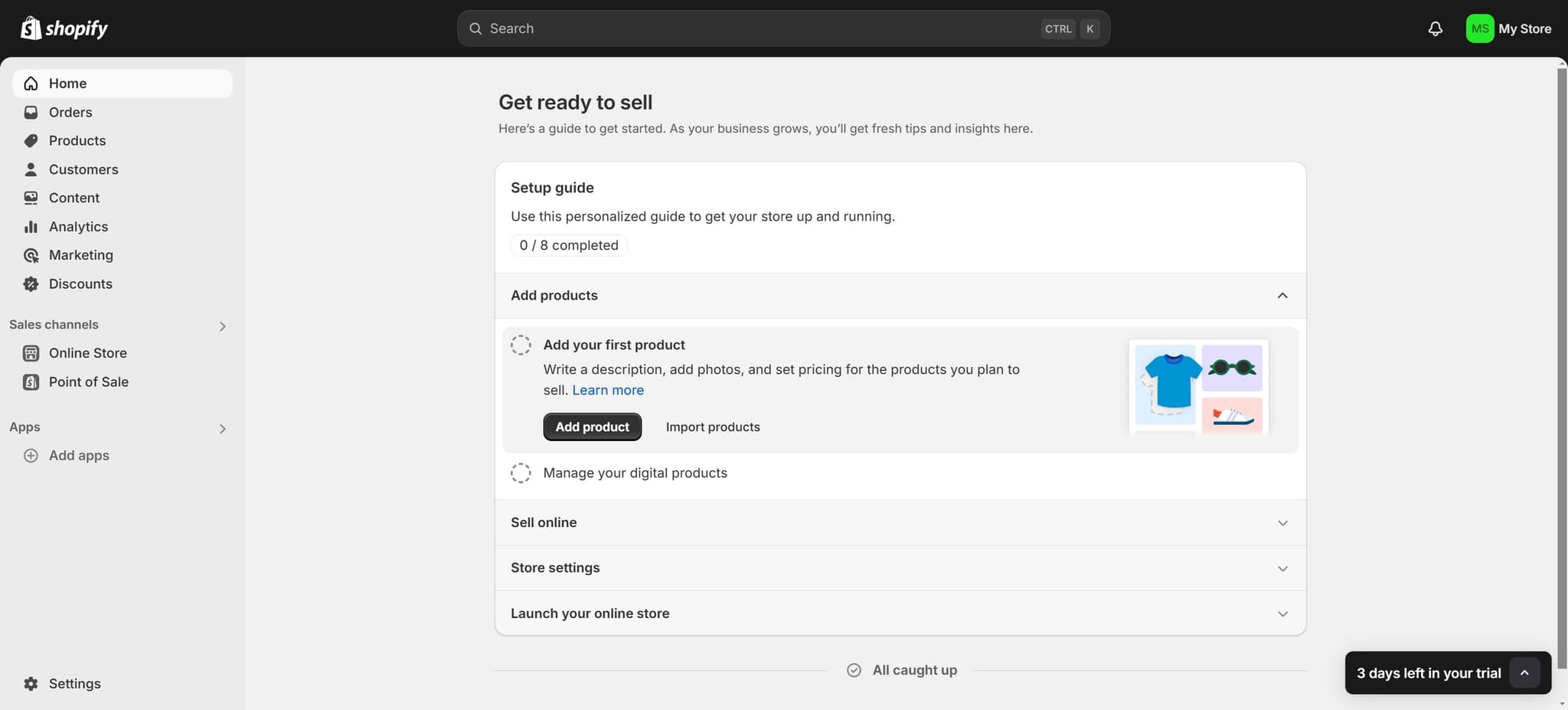
Navigate to the Home dashboard
Start by clicking on "Home" in your Shopify admin panel. This takes you to your store's main dashboard where you can access all core features and settings.
- 2
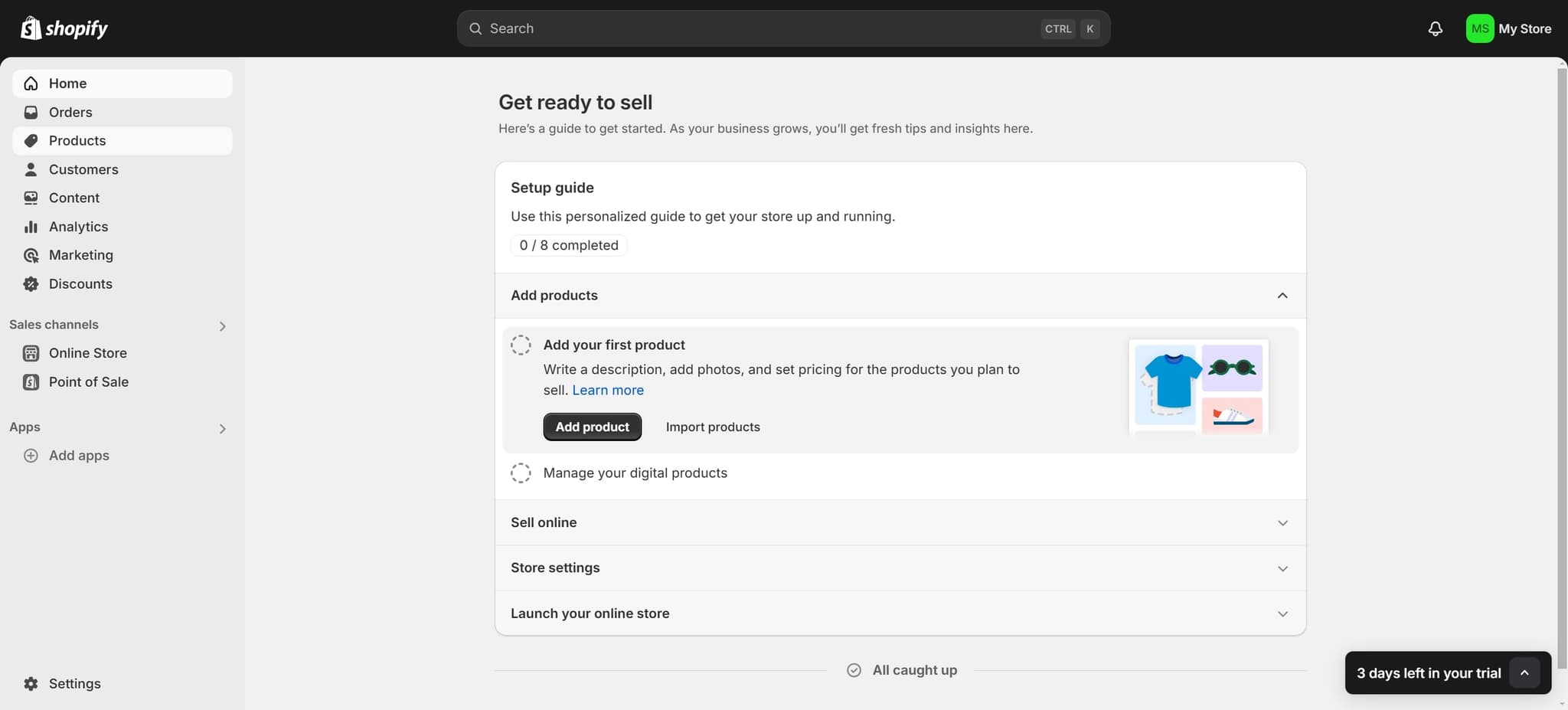
Open the Products section
Click on "Products" from the navigation menu. This displays your product inventory and provides access to all product management tools.
- 3
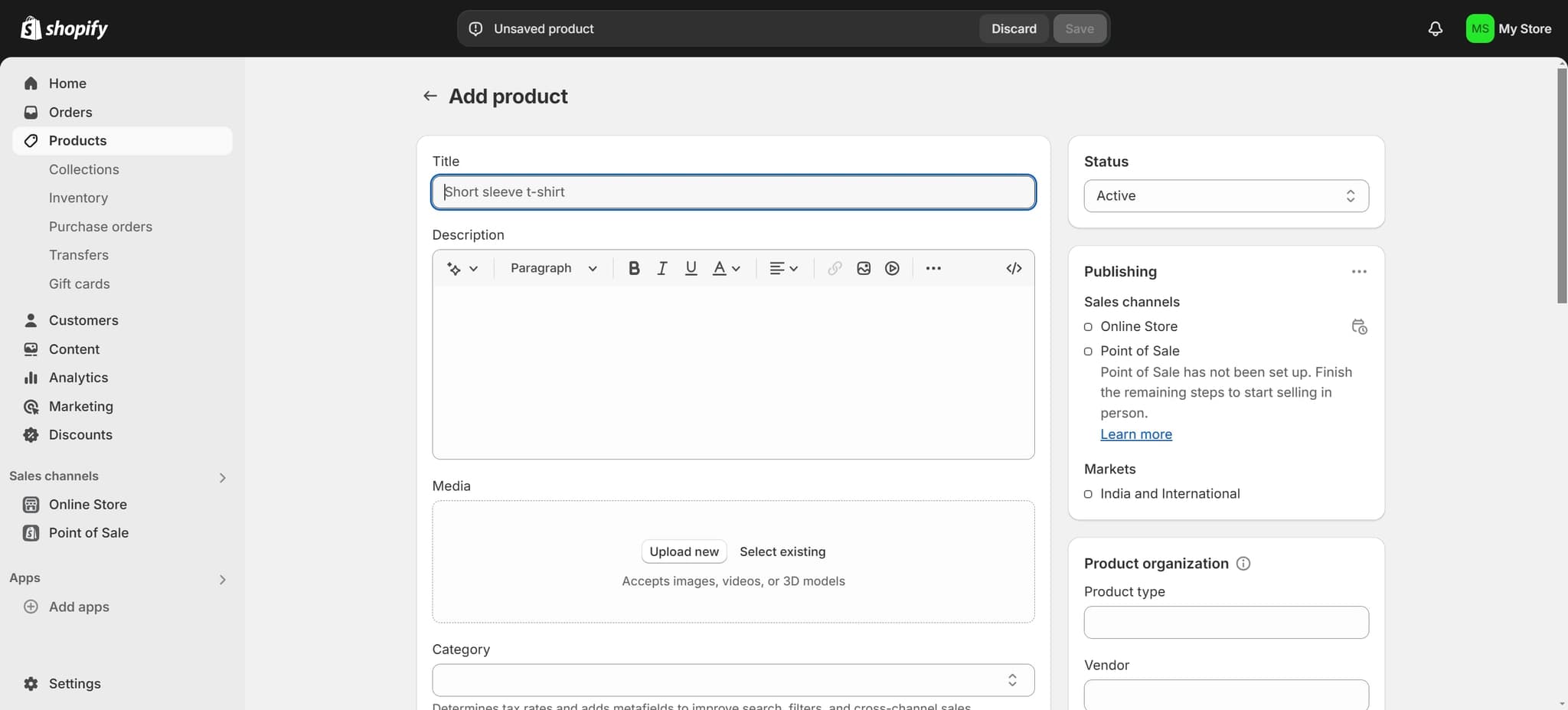
Create a new product
Click the button to add a new product. A product creation form will open where you can enter details such as title, description, pricing, and images.
- 4
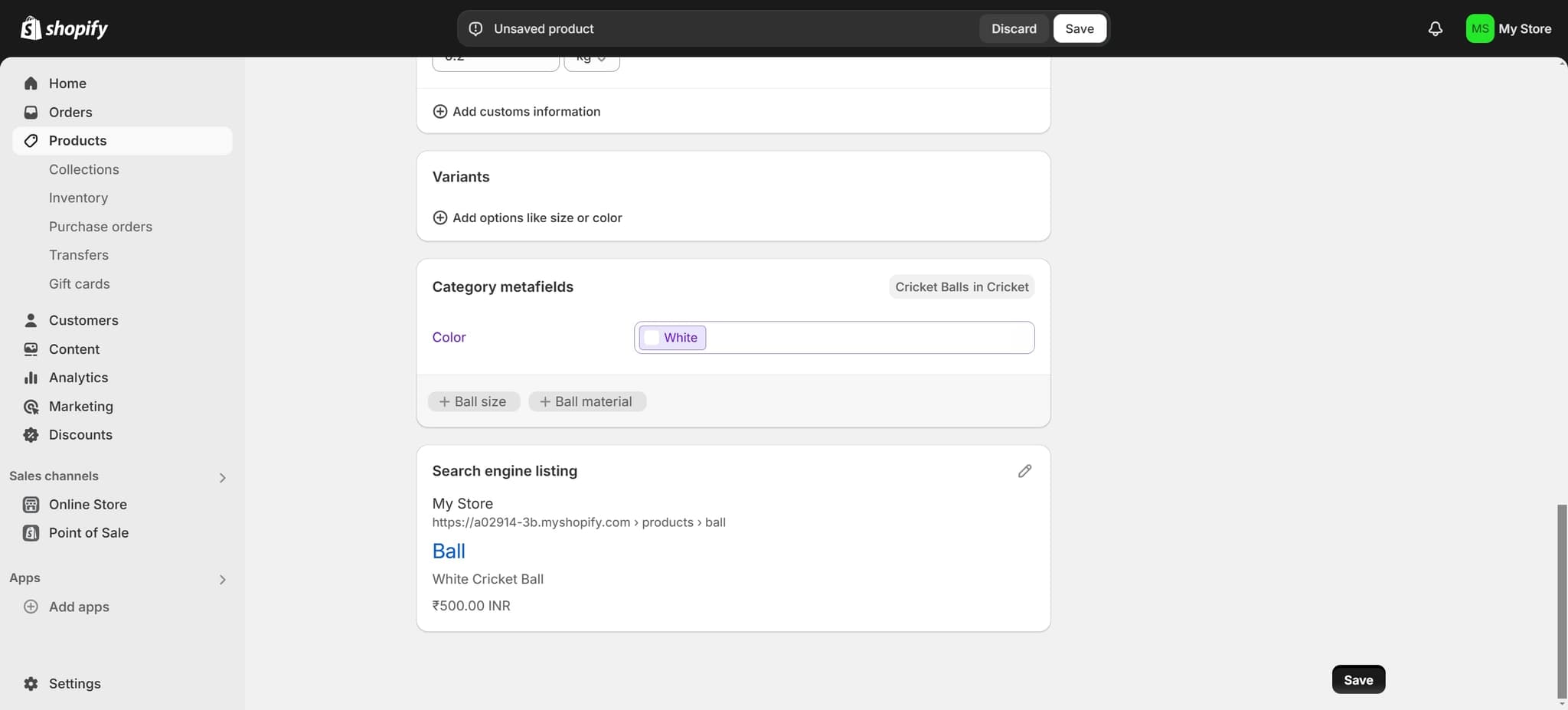
Save your product
Click on "Save" to store your product information in Shopify. Your product will be created and added to your inventory, ready to be published to your store.
- 5
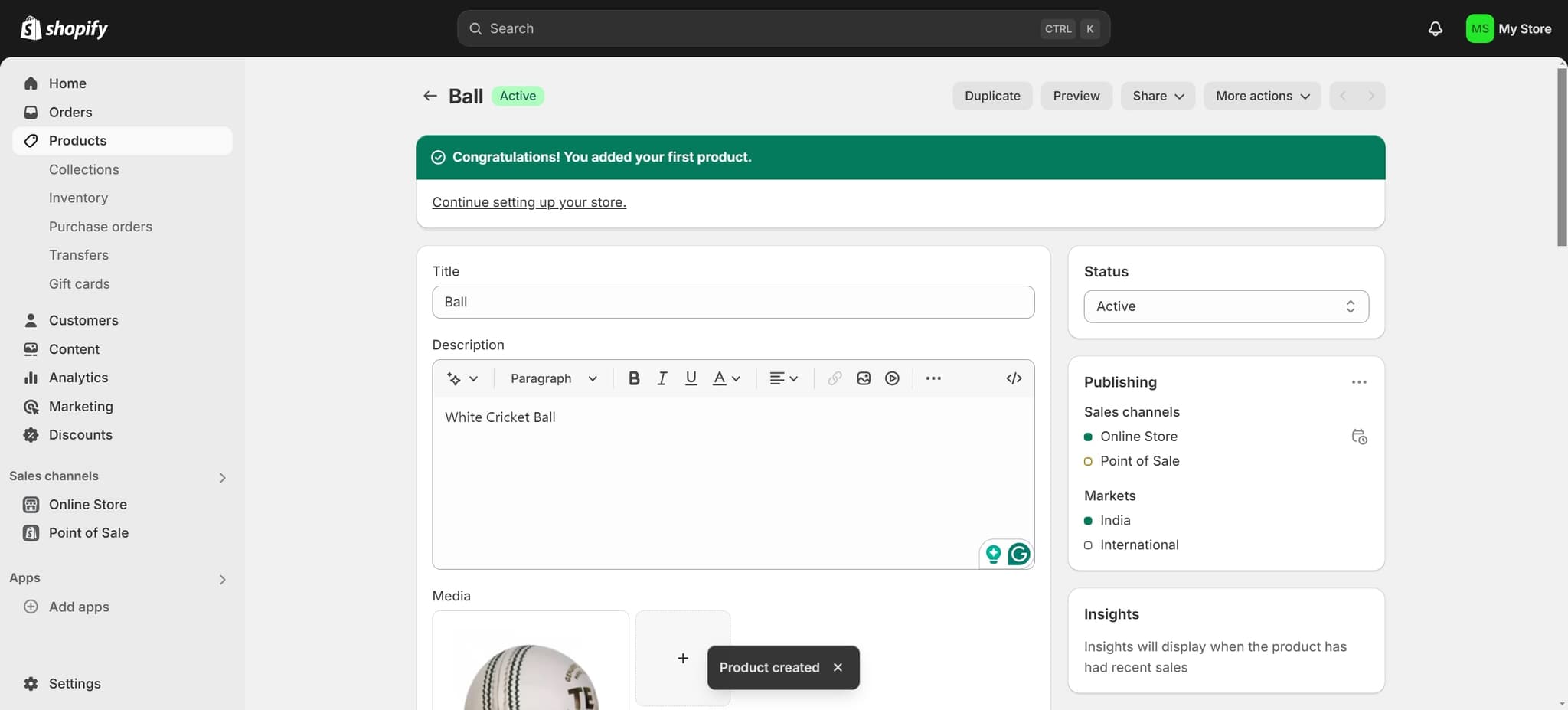
Verify the product was created
You'll see confirmation that your product, such as "Ball," has been successfully created. The product now appears in your Products list and is ready for further editing or publishing.
Frequently asked questions
Common questions about how to add products to shopify.
Yes, the product creation form allows you to upload images, set variants like size or color, and configure other details before saving. You can add as much information as needed during the initial product creation process.
Shopify allows you to save products with minimal information, such as just a title. However, you should fill in key details like description, price, and images before publishing to ensure customers have complete product information.
After saving, your product is created but may not be published yet. You'll need to set it as active or published in your product settings to make it visible on your storefront and available for purchase.
Absolutely. Once saved, you can return to any product from your Products list to edit details, update prices, modify images, or change any other information at any time.
Shopify allows you to add unlimited products regardless of your plan. However, some features like automated discounts or advanced SEO tools may vary depending on your subscription level.