How to Remove Someone from Slack

Removing someone from a Slack workspace or channel is a common administrative task that helps maintain team organization and access control. Whether you're managing team transitions or cleaning up inactive members, this guide walks you through the process step by step.
Quick summary
In this tutorial, you'll learn how to remove a member from Slack by navigating to the members list, selecting the person you want to remove, and confirming the removal action. By the end, you'll be able to manage your workspace membership efficiently.
Why this matters
Managing workspace access is critical for maintaining security, reducing unnecessary seats, and ensuring that only active team members have channel visibility. Removing inactive or departed team members prevents confusion and keeps your workspace organized and compliant with your team's structure.
Step-by-step guide
- 1
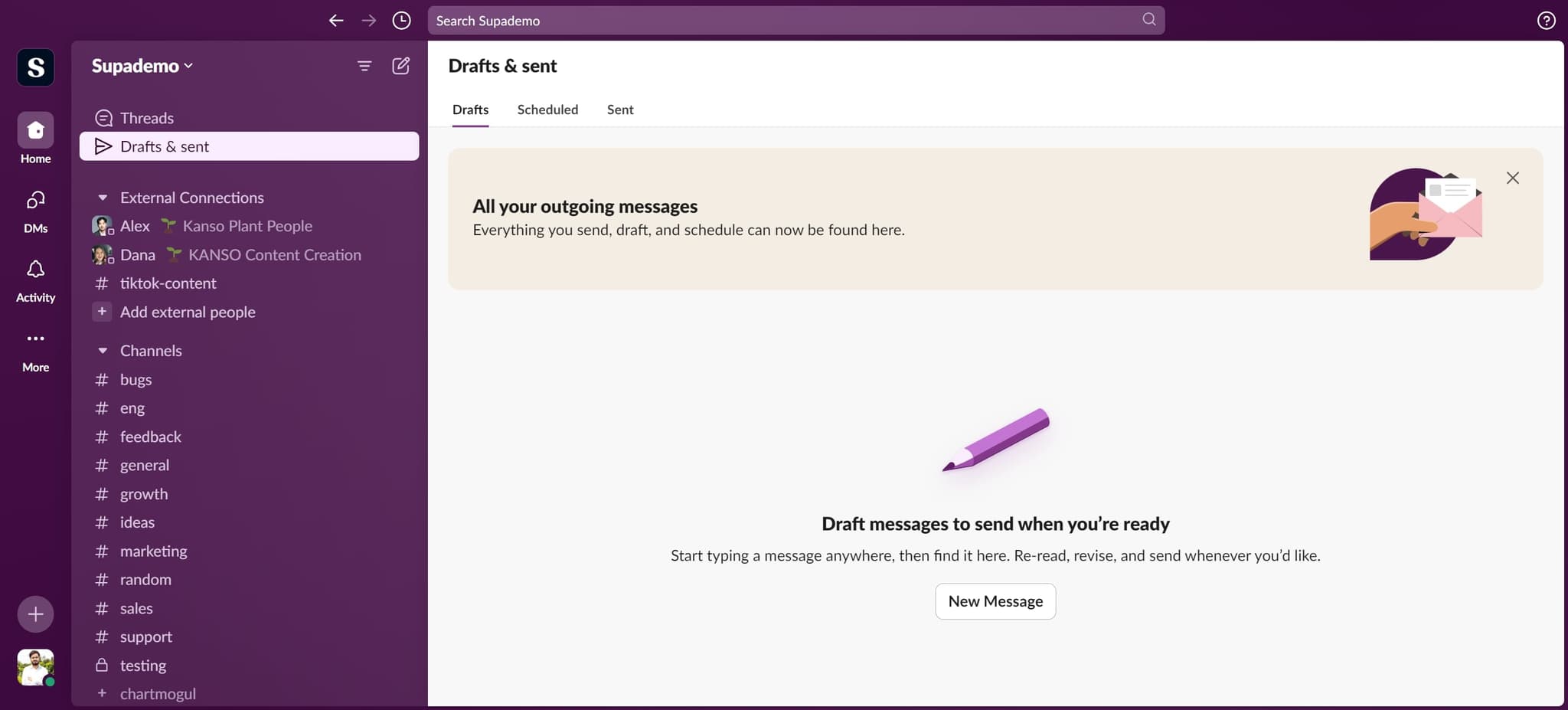
Navigate to the settings area
Begin by clicking on the designated area to access your workspace settings. This opens the menu where you can manage workspace-level options.
- 2
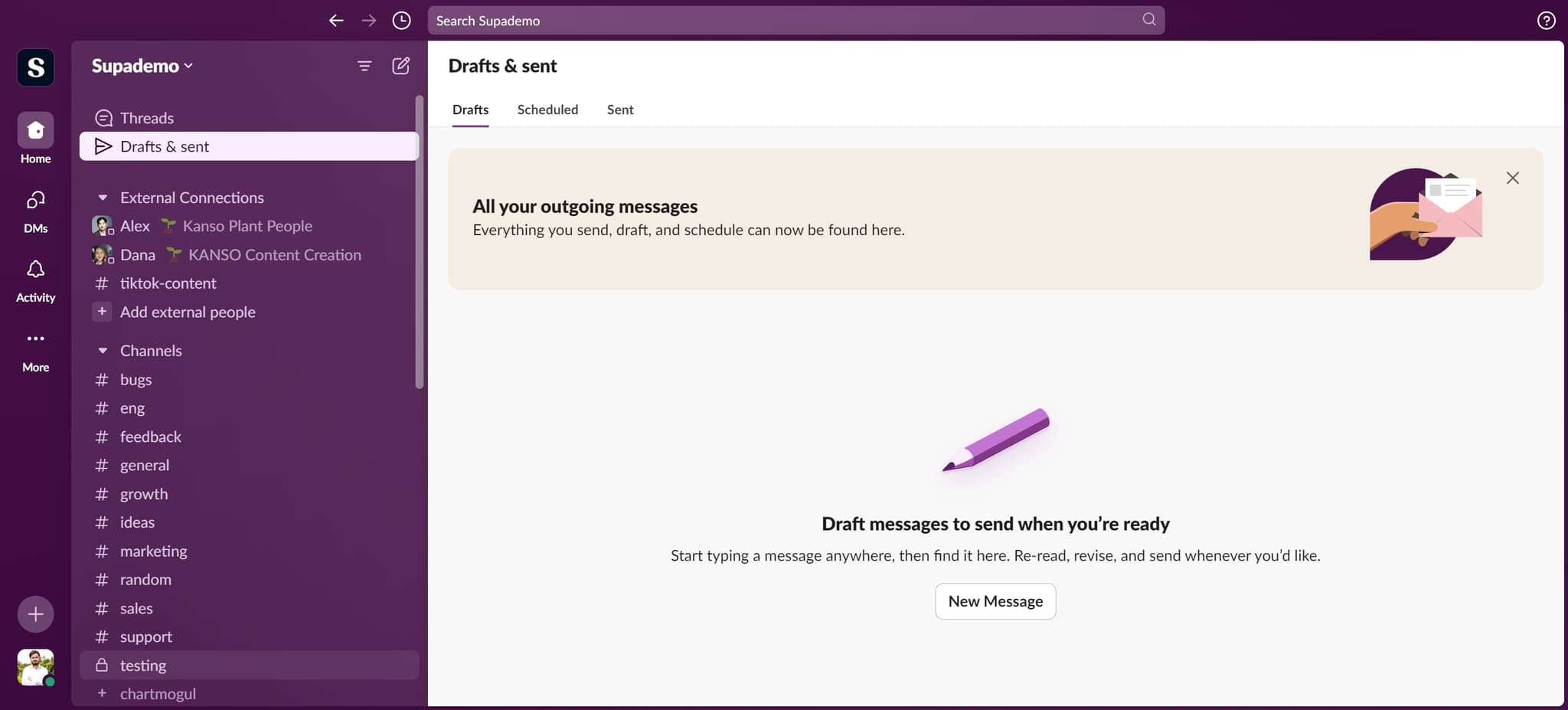
Access the management panel
Click the next element to continue navigating through the workspace administration menu. You'll move deeper into the settings interface.
- 3
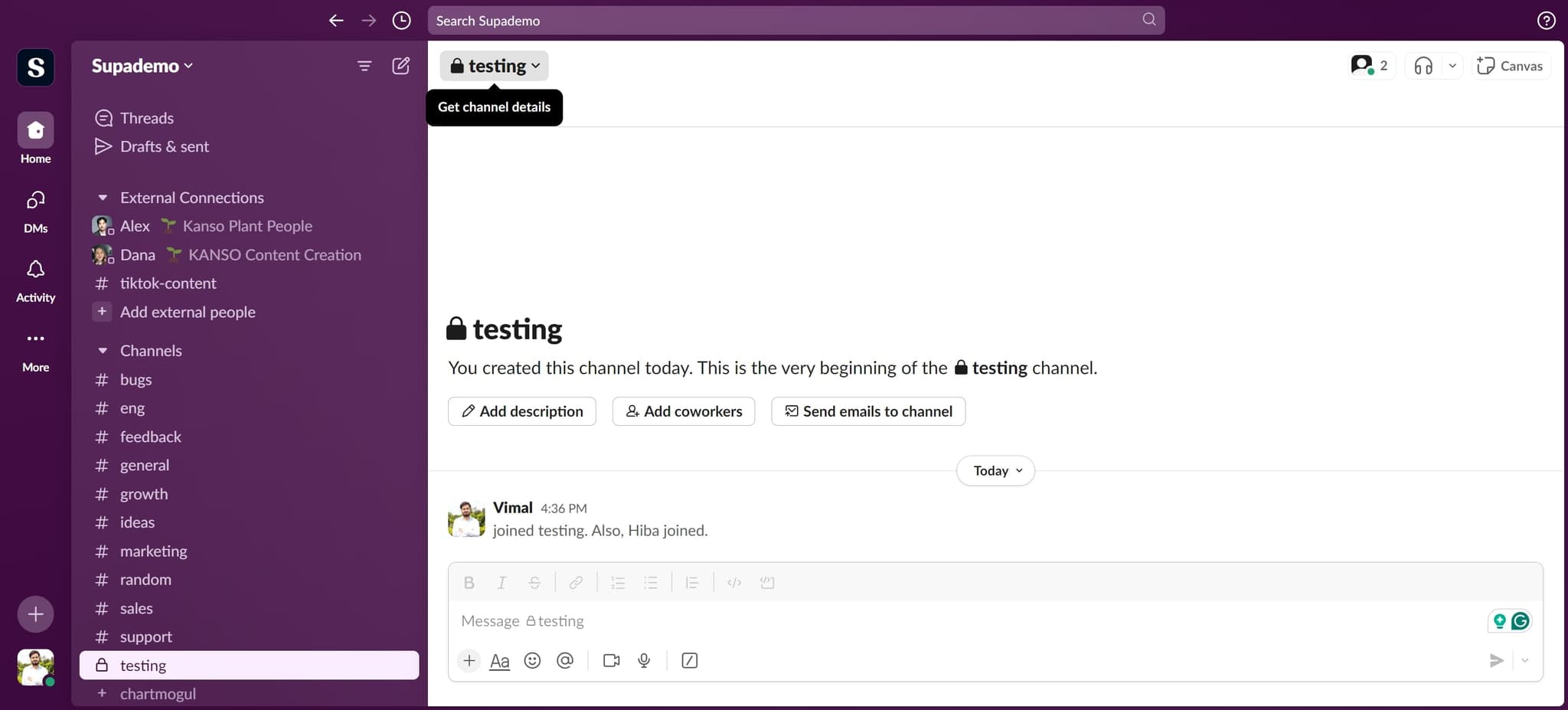
Locate the appropriate section
Click on the next element in the navigation path. This brings you closer to the member management area.
- 4
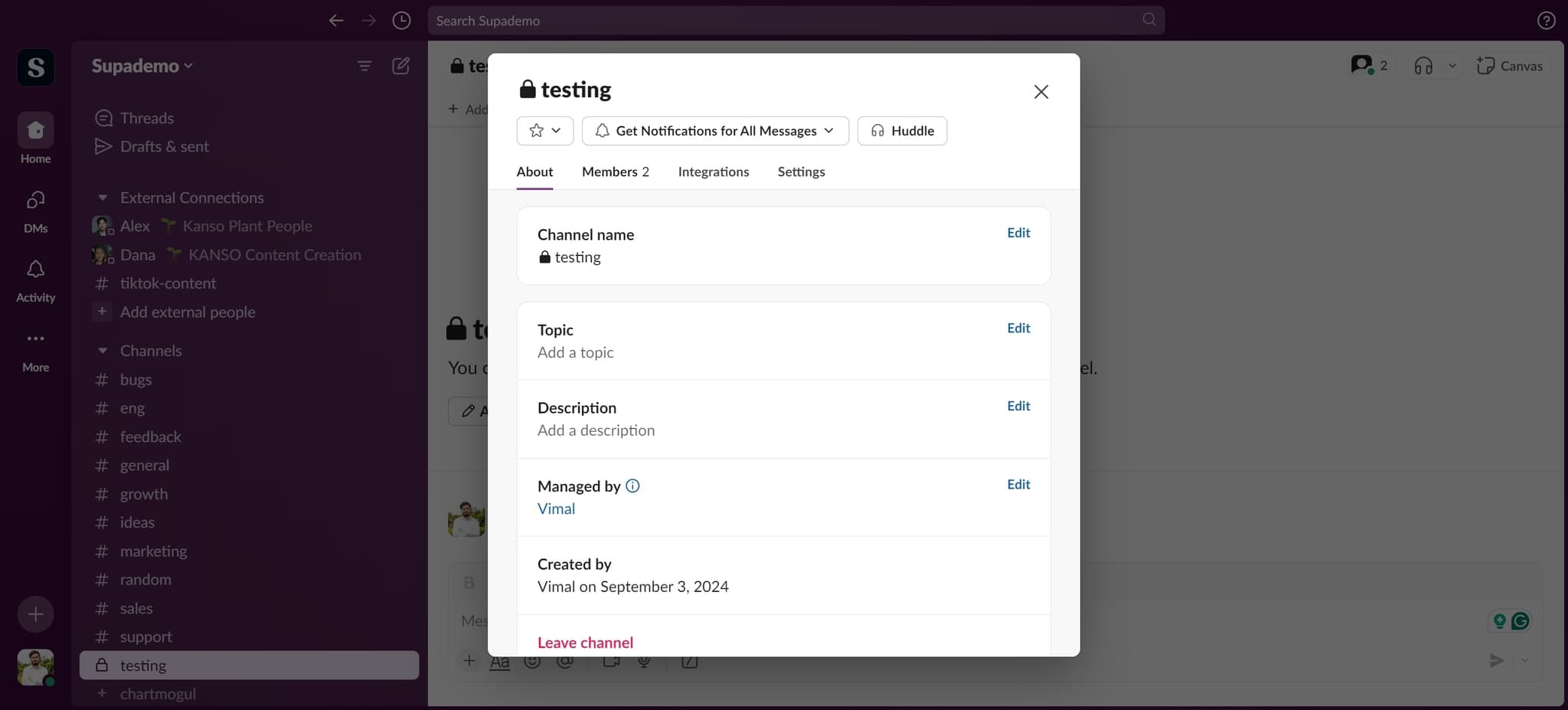
Click on Members
Select the Members option from the menu. This displays a complete list of all workspace members so you can identify who to remove.
- 5
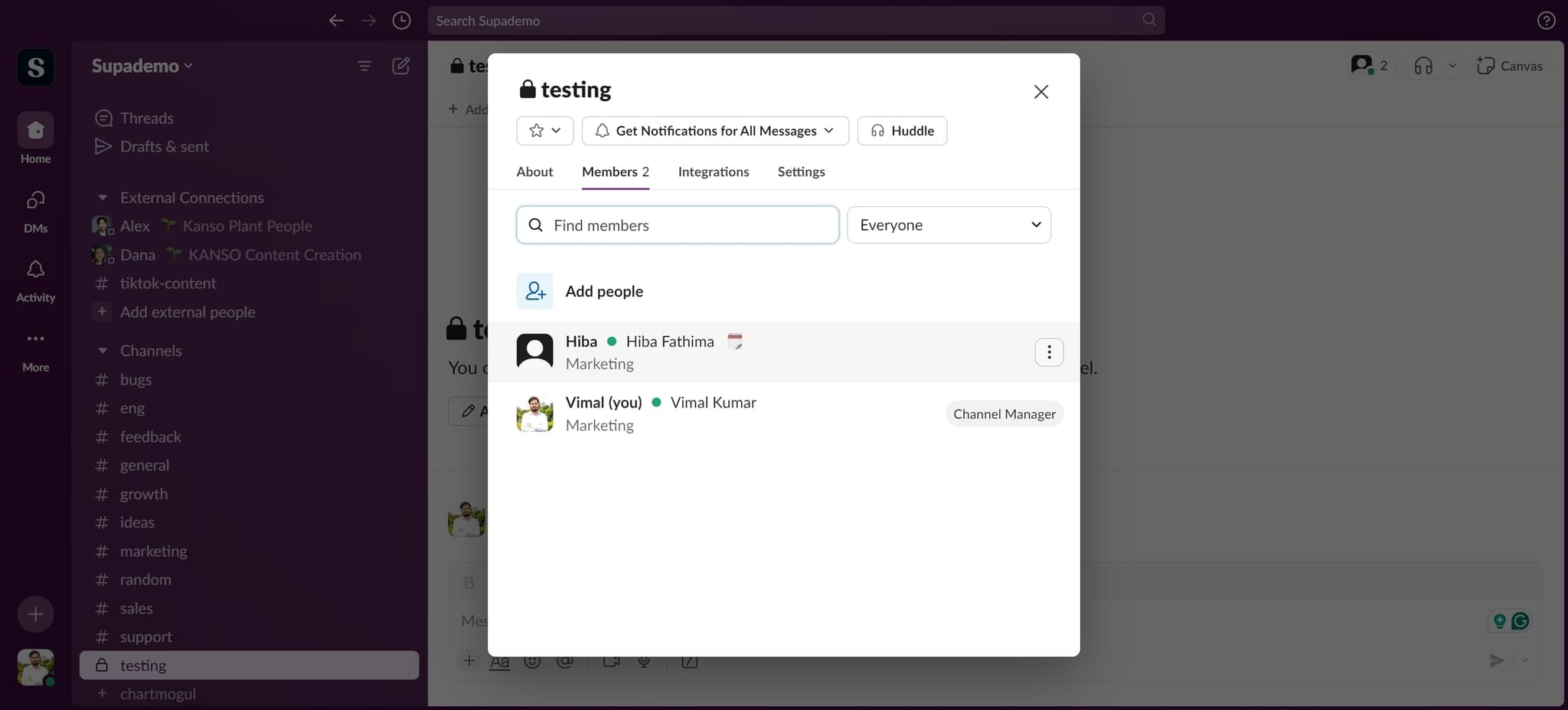
Find the member to remove
Click on the element corresponding to the member you want to remove from the workspace. This selects that person and reveals their options.
- 6
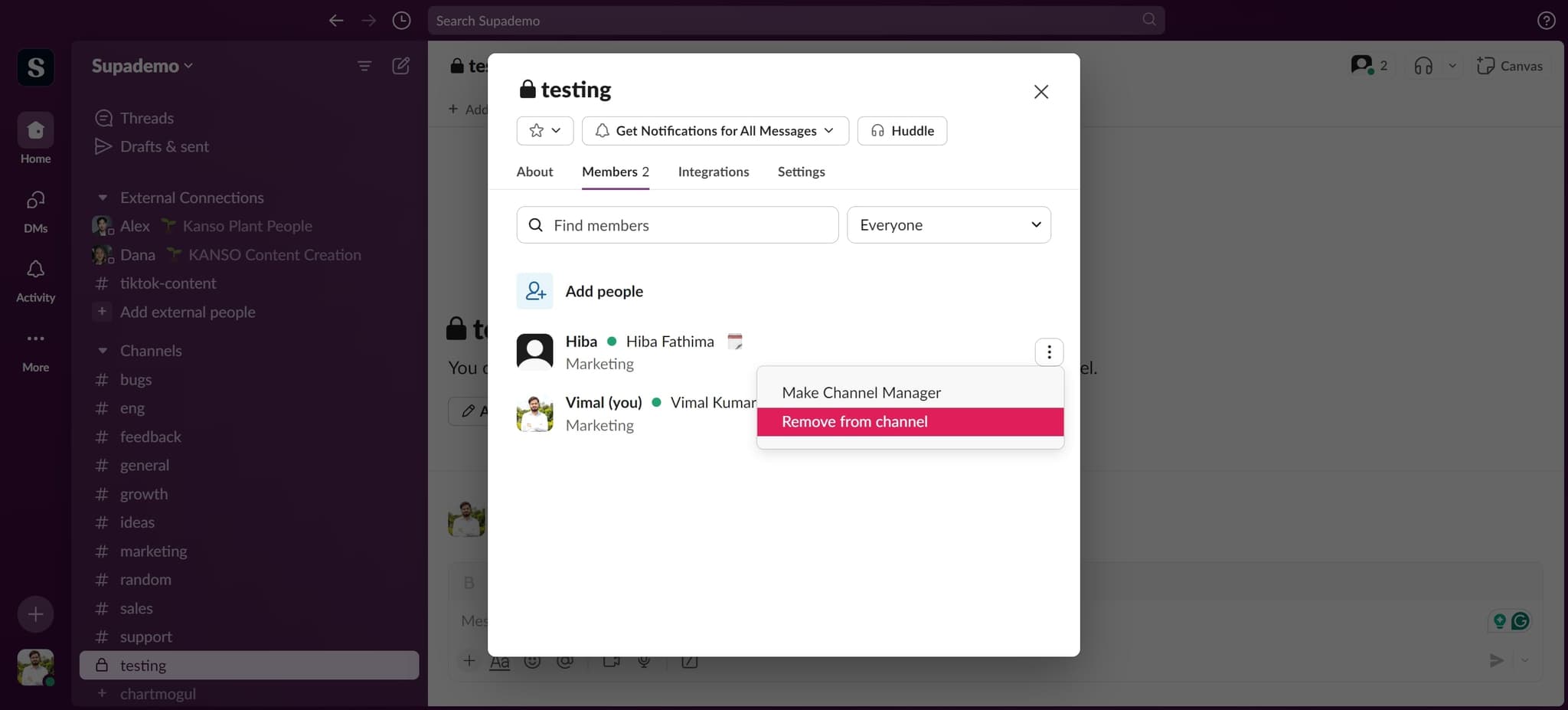
Click on Remove from channel
Select the 'Remove from channel' option to initiate the removal process. A confirmation dialog or additional options will appear.
- 7
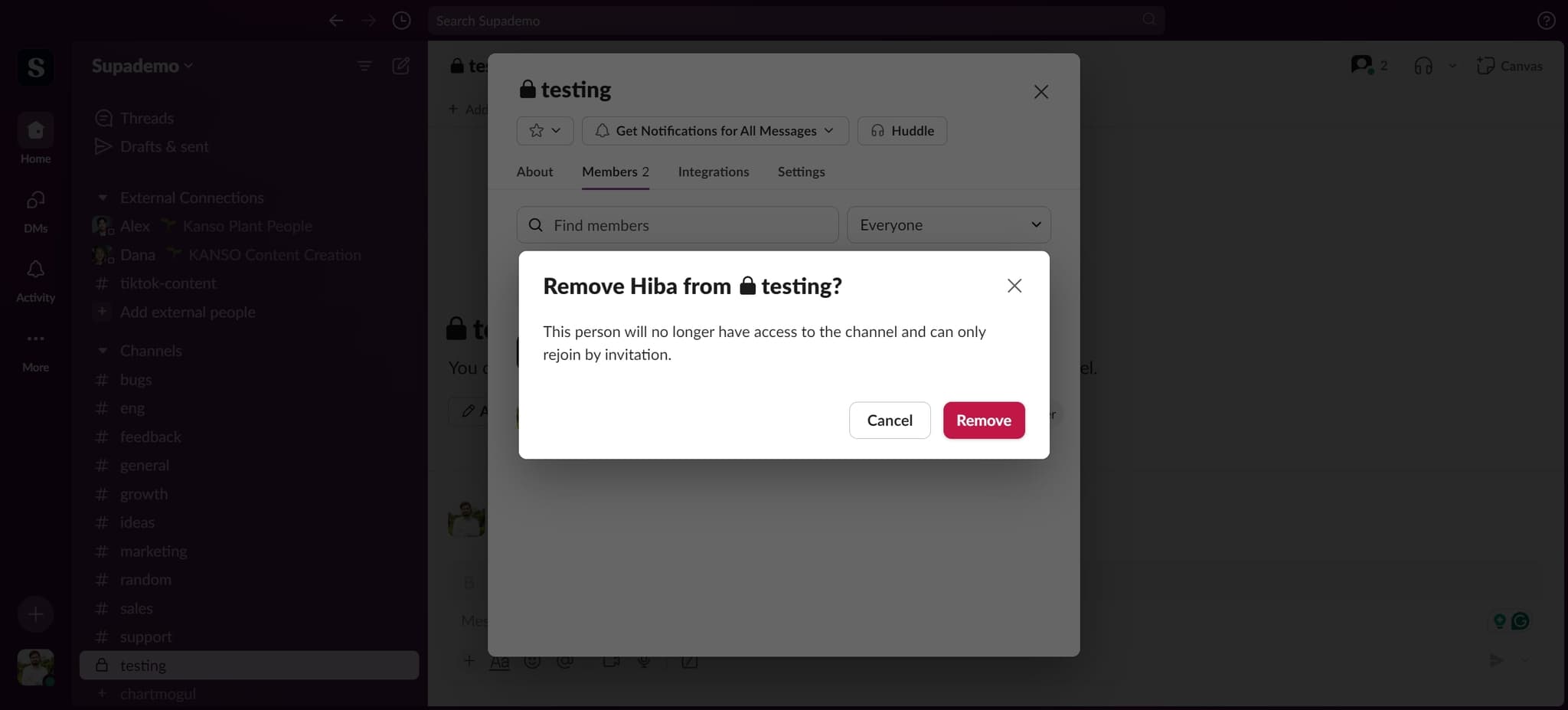
Confirm the removal
Click on 'Remove' to confirm the action. The member will be immediately removed from the workspace or channel.
- 8
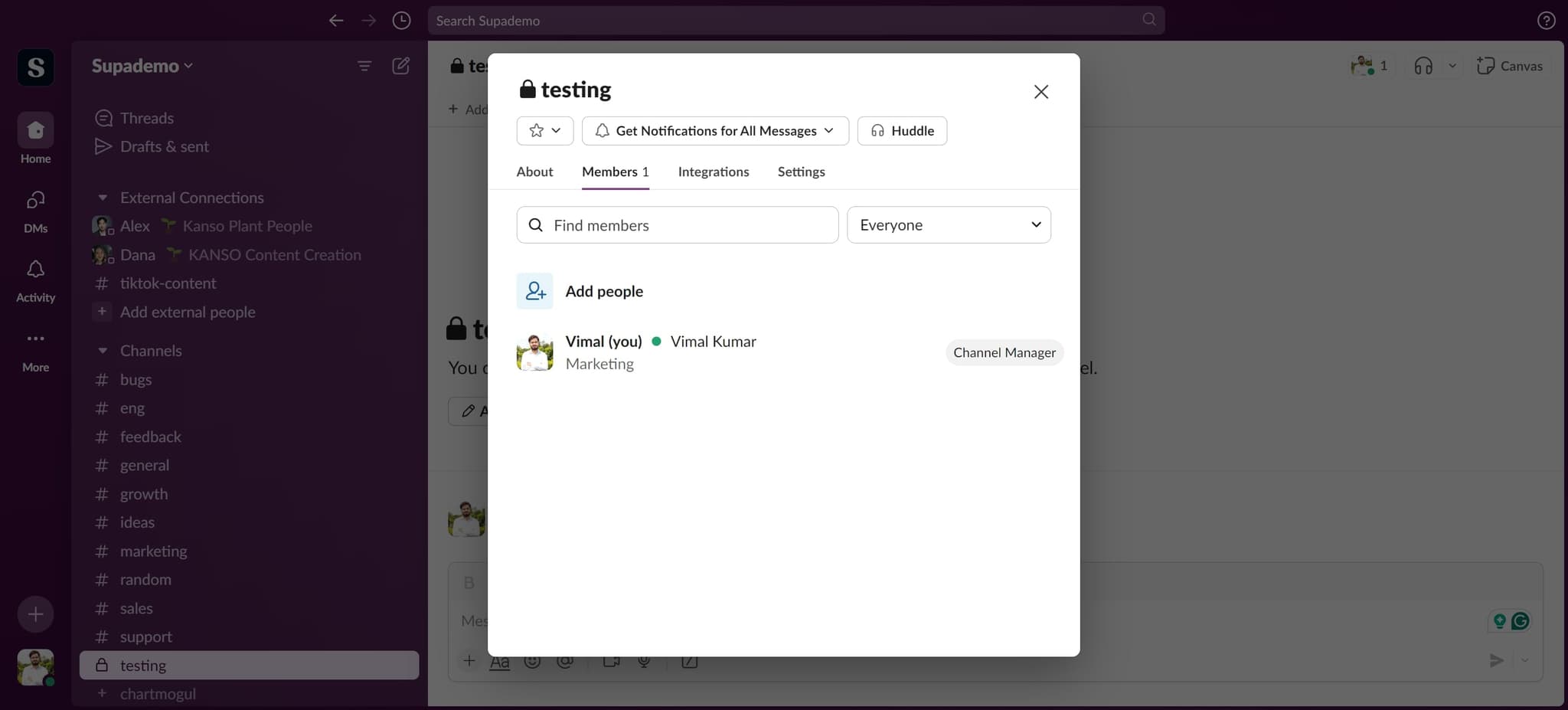
Complete the action
Click on the final element to finalize the removal process. The member will no longer have access to the workspace or channel.
Frequently asked questions
Common questions about how to remove someone from slack.
Yes, you can remove a member from a specific channel without removing them from the entire workspace. The process shown in this tutorial allows you to manage channel membership separately from workspace membership.
When you remove someone from a workspace or channel, their messages and files remain intact and visible to others in that space. The member simply loses access to view and participate in future conversations.
Yes, you can re-add a removed member at any time by inviting them back to the workspace or channel. There's no permanent consequence to removing someone, as they can rejoin if needed.
Yes, you typically need admin or owner permissions to remove members from a workspace. Channel-level removal may have different permission requirements depending on your workspace settings.
Slack may send a notification to the removed member depending on your workspace settings and whether they're removed from a channel or the entire workspace. They'll lose access immediately regardless of notification status.