How to Make Slack Active

Keeping your Slack status set to active ensures your team knows you're available and helps maintain clear communication. This guide walks you through the process of manually setting yourself as active in Slack, so your colleagues can see your availability at a glance.
Quick summary
In this tutorial, you'll learn how to set your Slack status to active in just a few clicks. By following these simple steps, you'll ensure your presence is visible to your team and minimize missed messages or delayed responses.
Why this matters
Setting yourself as active in Slack prevents miscommunication and ensures your team doesn't assume you're unavailable when you're actually working. This is especially important in remote or hybrid work environments where status indicators are the primary way colleagues gauge your availability. Keeping your status accurate helps maintain workflow efficiency and reduces unnecessary delays.
Step-by-step guide
- 1
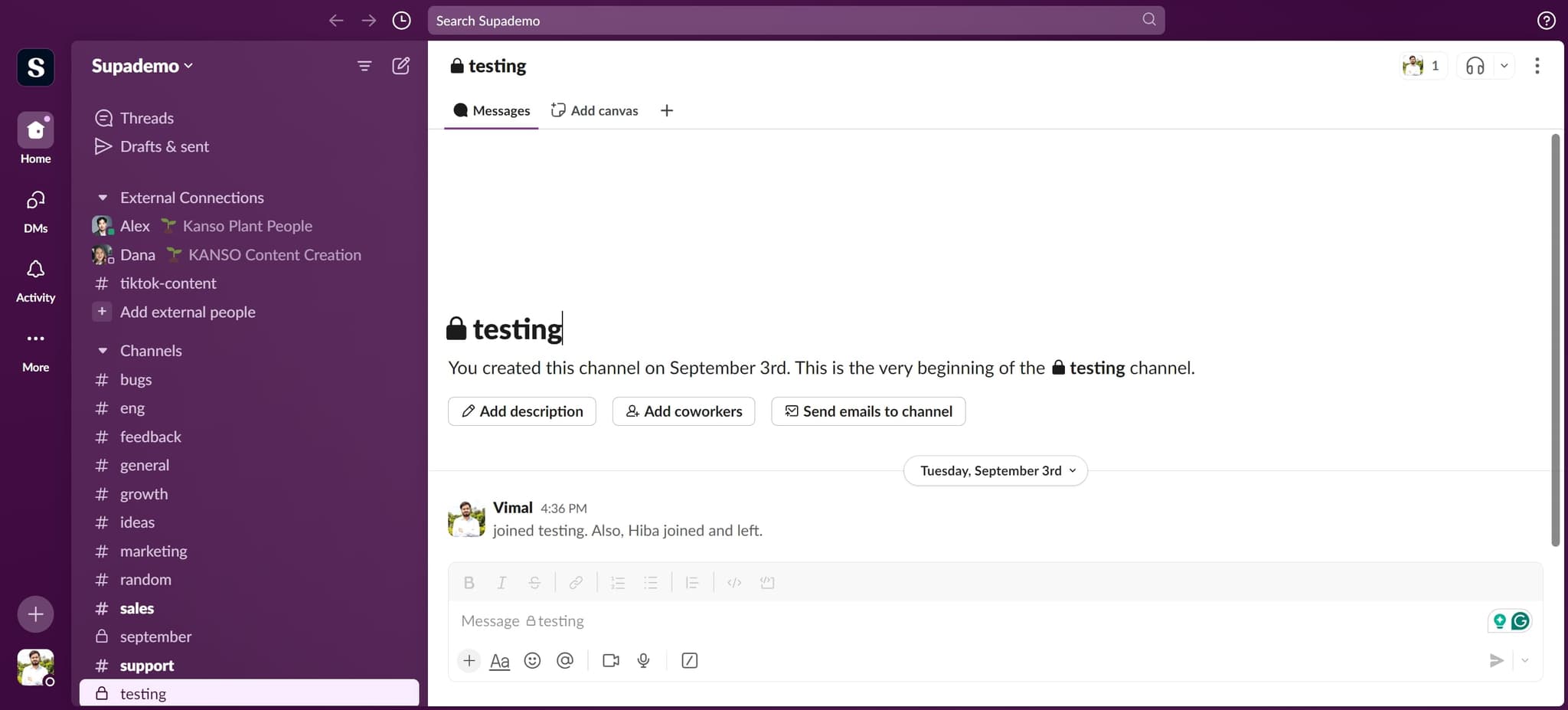
Click on your profile element
Start by locating and clicking on your profile area, typically found in the top left or right corner of your Slack workspace. This opens the menu where you can manage your status and availability settings.
- 2
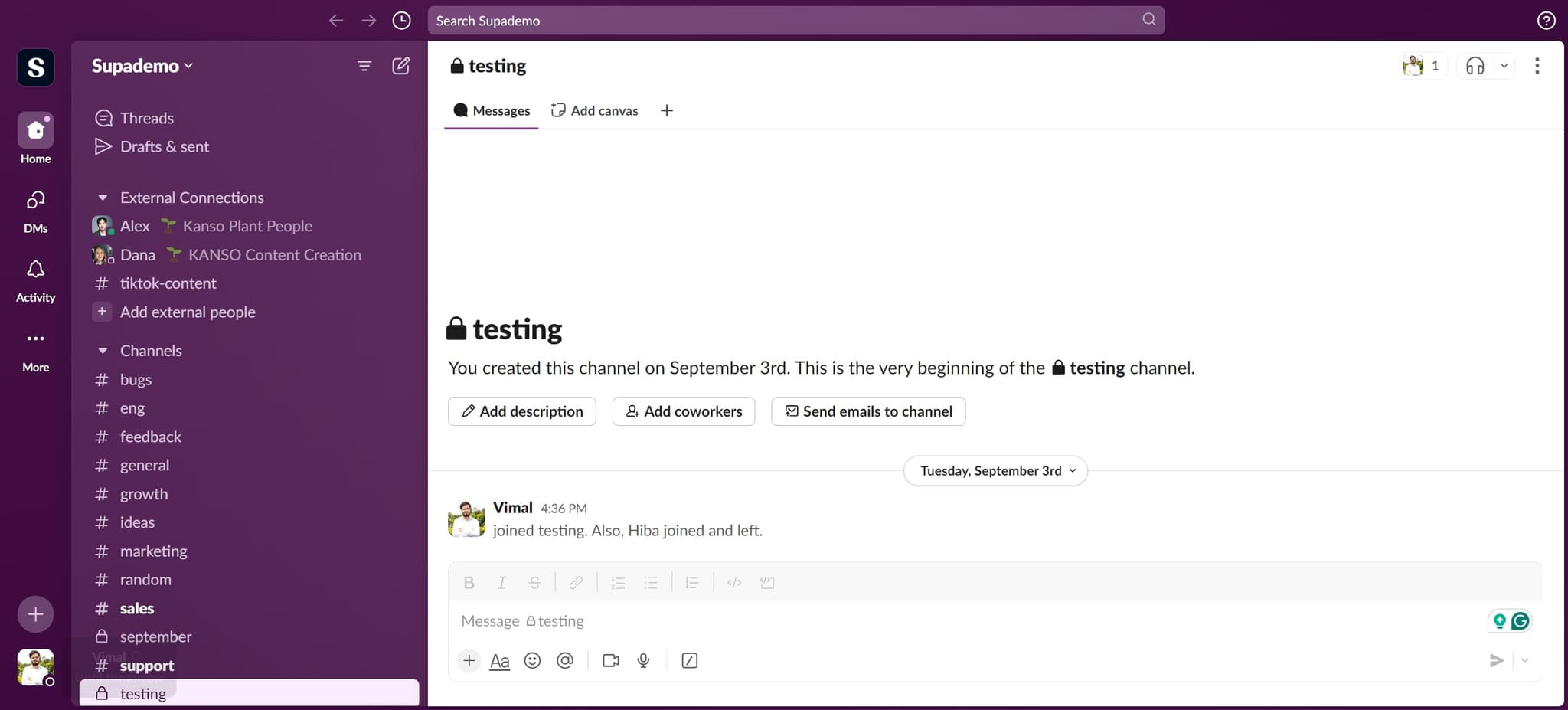
Access the status menu
In the next menu that appears, click on the relevant element to access your status options. This will show you the available status choices and allow you to modify your current availability.
- 3
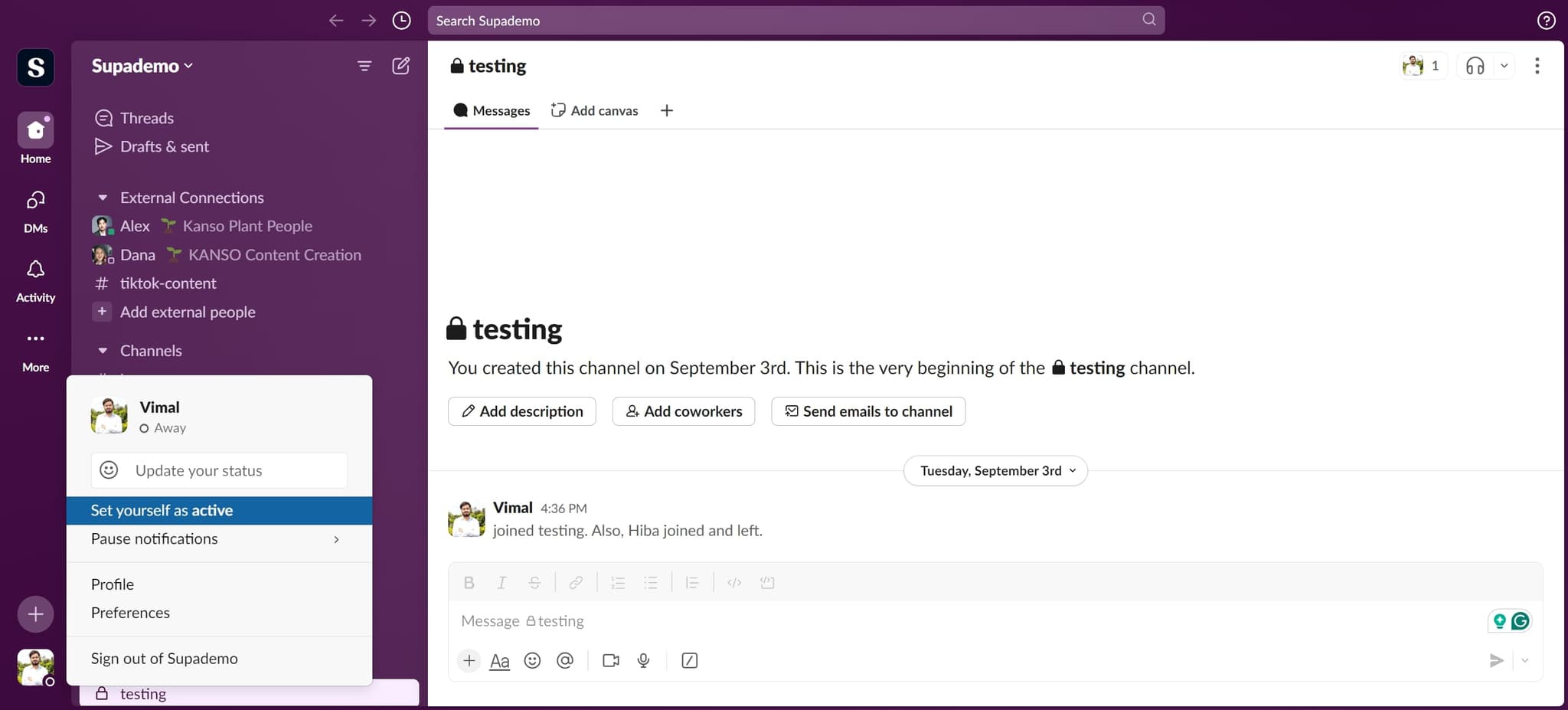
Select Set yourself as active
Click on the 'Set yourself as active' option to update your status immediately. Your team will now see that you're available and online, ensuring they know you're ready to communicate.
Frequently asked questions
Common questions about how to make slack active.
Active status indicates you're currently working and available to respond to messages, while away status signals that you're temporarily unavailable. Slack automatically sets you to away after a period of inactivity, but you can manually override this by setting yourself as active whenever you're ready to engage.
Slack will automatically change your status to away if you remain inactive for a certain period. However, you can manually set yourself as active again whenever you return or want to ensure your team knows you're available.
Yes, while setting yourself as active, Slack allows you to add a custom status message that provides additional context, such as 'In a meeting' or 'Available for calls.' This helps your team understand not just your availability, but also what you're currently doing.
Setting yourself as active doesn't send a direct notification to your team members. However, they can see your updated status if they check your profile, making it visible to anyone who might want to reach out.
Slack's basic features don't include automatic status scheduling, but you can manually update your status throughout the day. Some Slack workspace admins may have configured automations or integrations that handle status changes based on calendar events or other triggers.