How to join an existing Zoom

Joining an existing Zoom meeting is one of the most common tasks for remote collaboration. This guide walks you through the process of accessing a meeting from start to finish, whether you're joining for the first time or reconnecting to an ongoing call.
Quick summary
In this tutorial, you'll learn how to join an existing Zoom meeting by locating the join option, launching the meeting interface, and connecting your audio. By following these steps, you'll be able to seamlessly enter any Zoom meeting and participate fully.
Why this matters
Knowing how to join a Zoom meeting efficiently helps you avoid delays and ensures you can connect to important calls without technical friction. A smooth joining process means less time troubleshooting and more time engaging with colleagues, clients, or team members.
Step-by-step guide
- 1
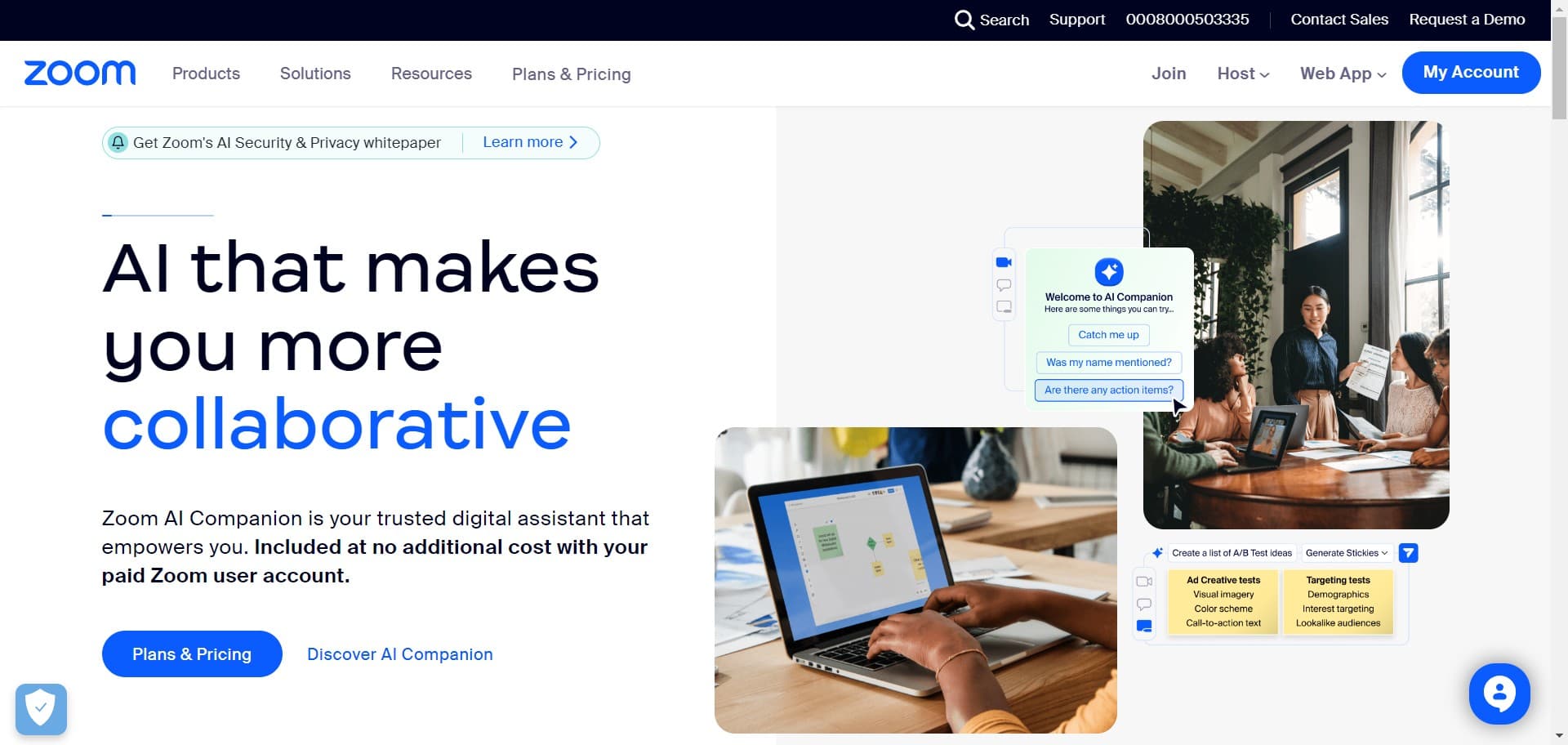
Locate and click the Join button
Start by finding the Join button in your Zoom interface. This is typically displayed prominently on the main screen and serves as your entry point to join an existing meeting.
- 2
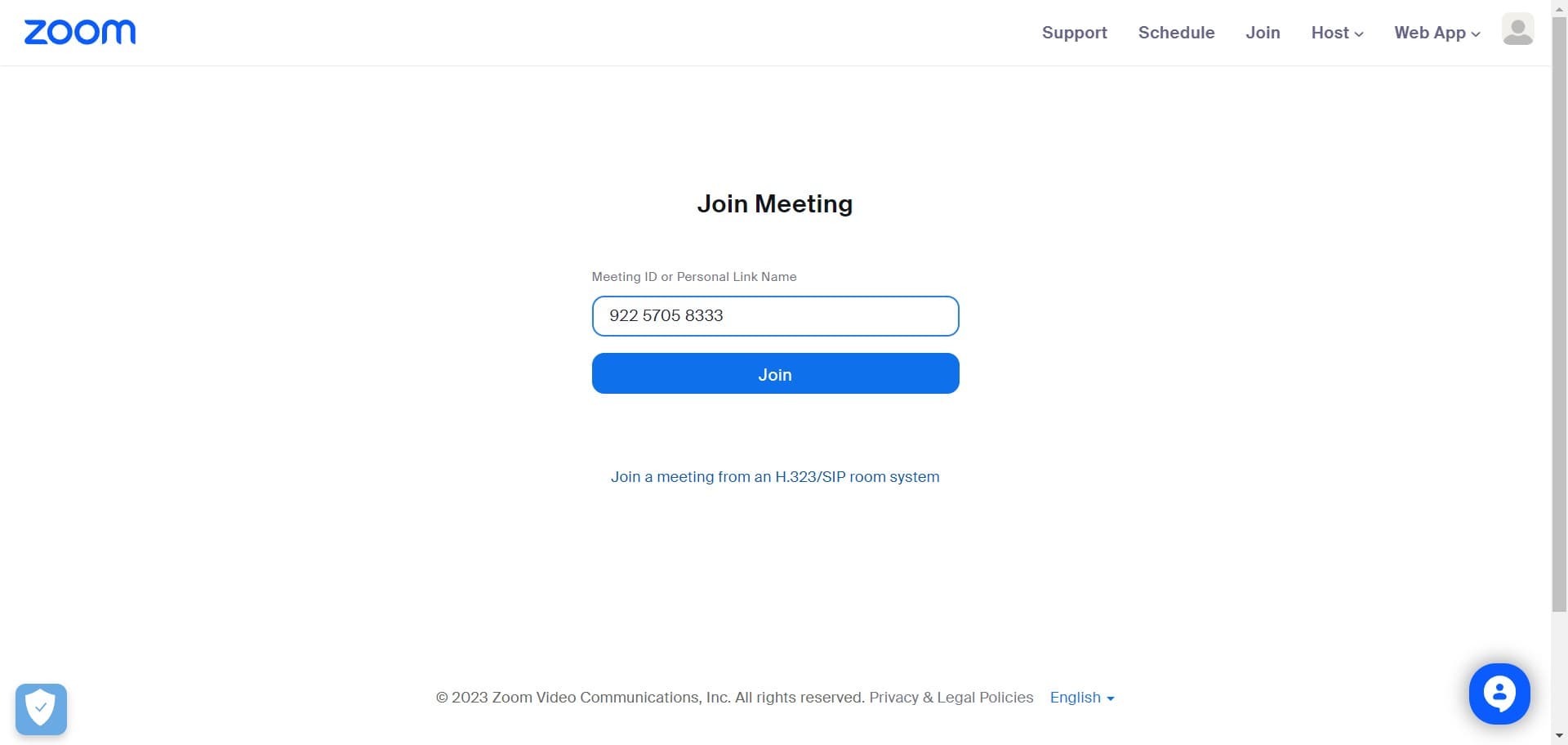
Click Join again to proceed
You may see a confirmation or secondary Join button. Click it to continue with the meeting join process.
- 3
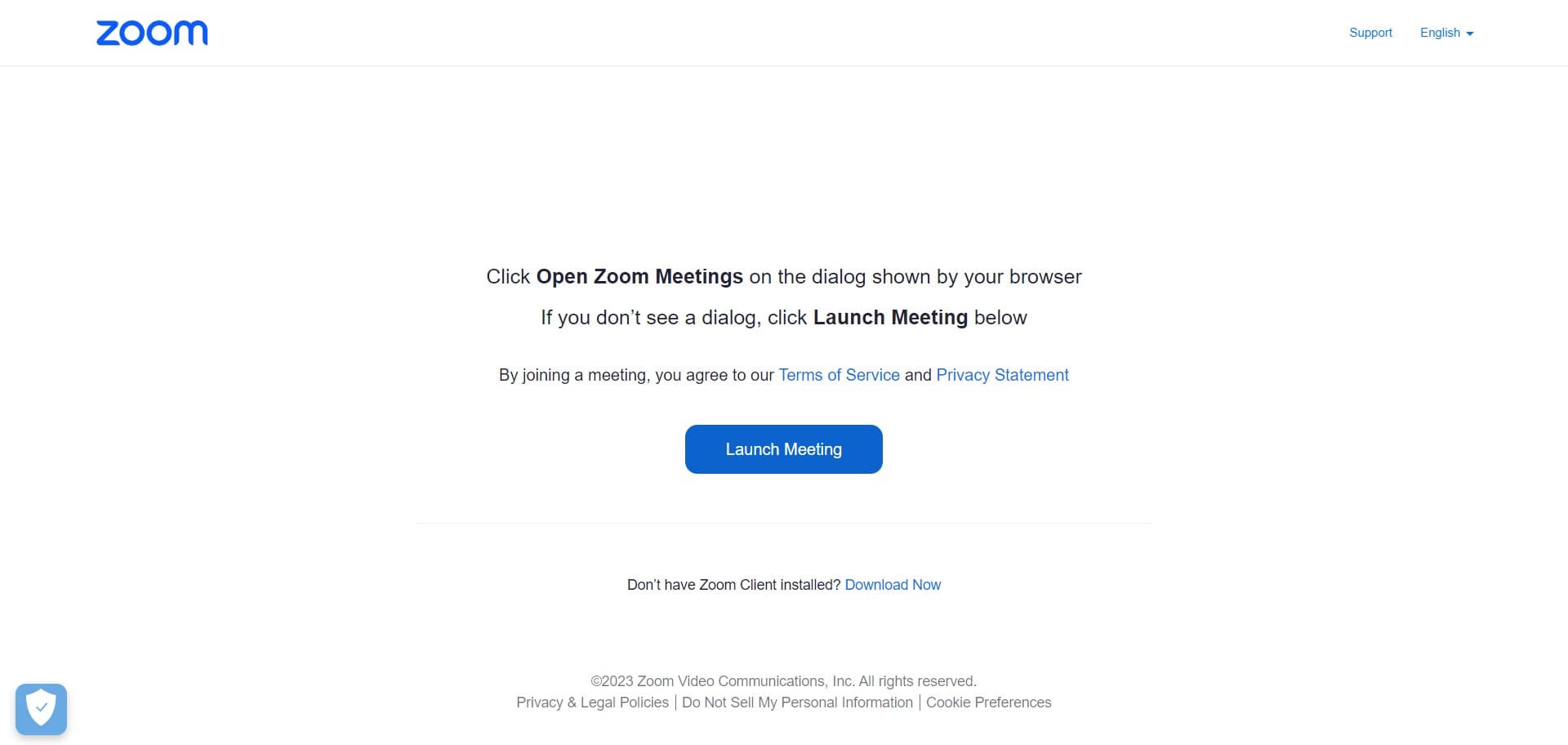
Launch the meeting interface
Click on Launch Meeting to open the Zoom meeting interface on your device. This will initialize the meeting environment and prepare you to connect.
- 4
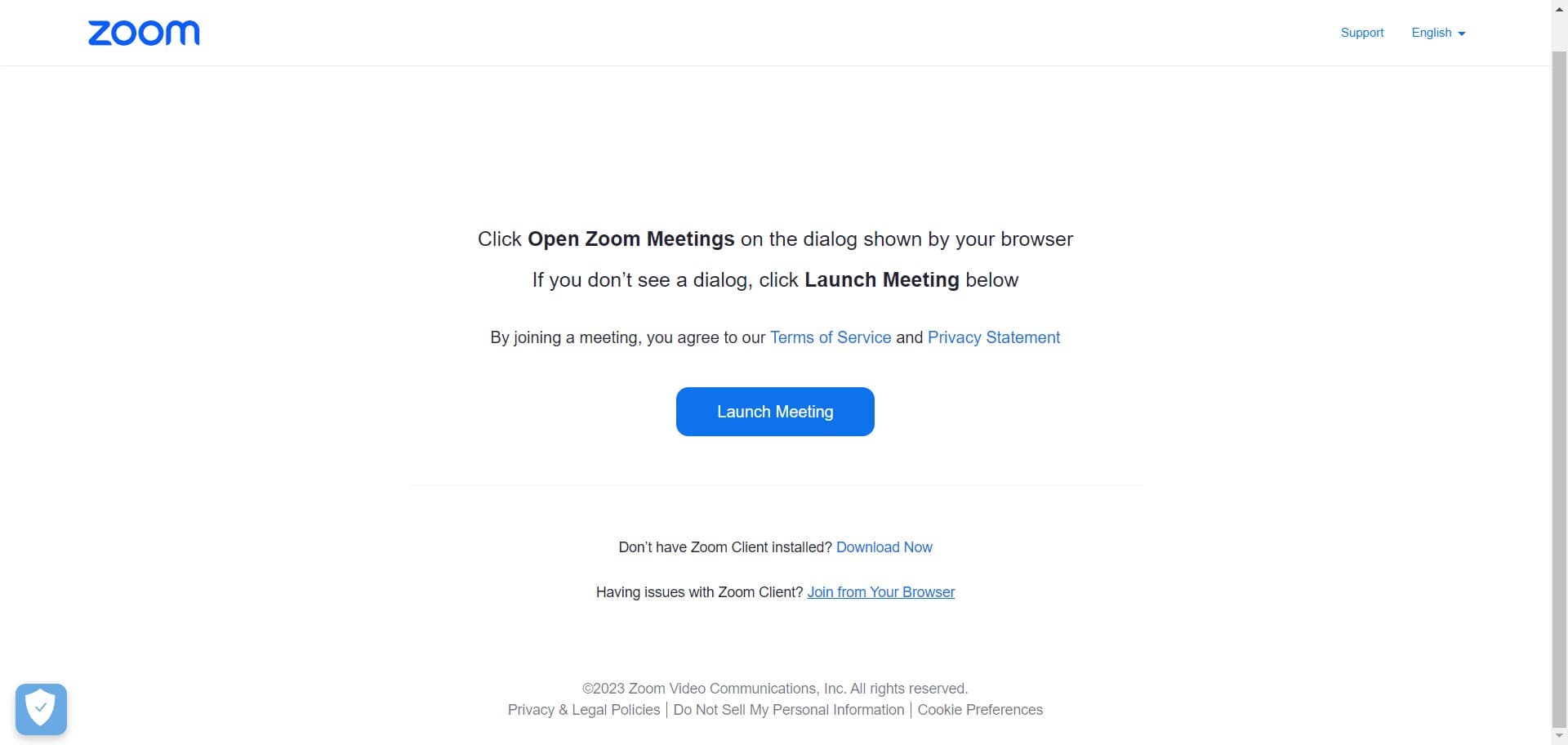
Select browser join option
Click on Join from Your Browser to proceed without downloading additional software. This allows you to join the meeting directly through your web browser.
- 5
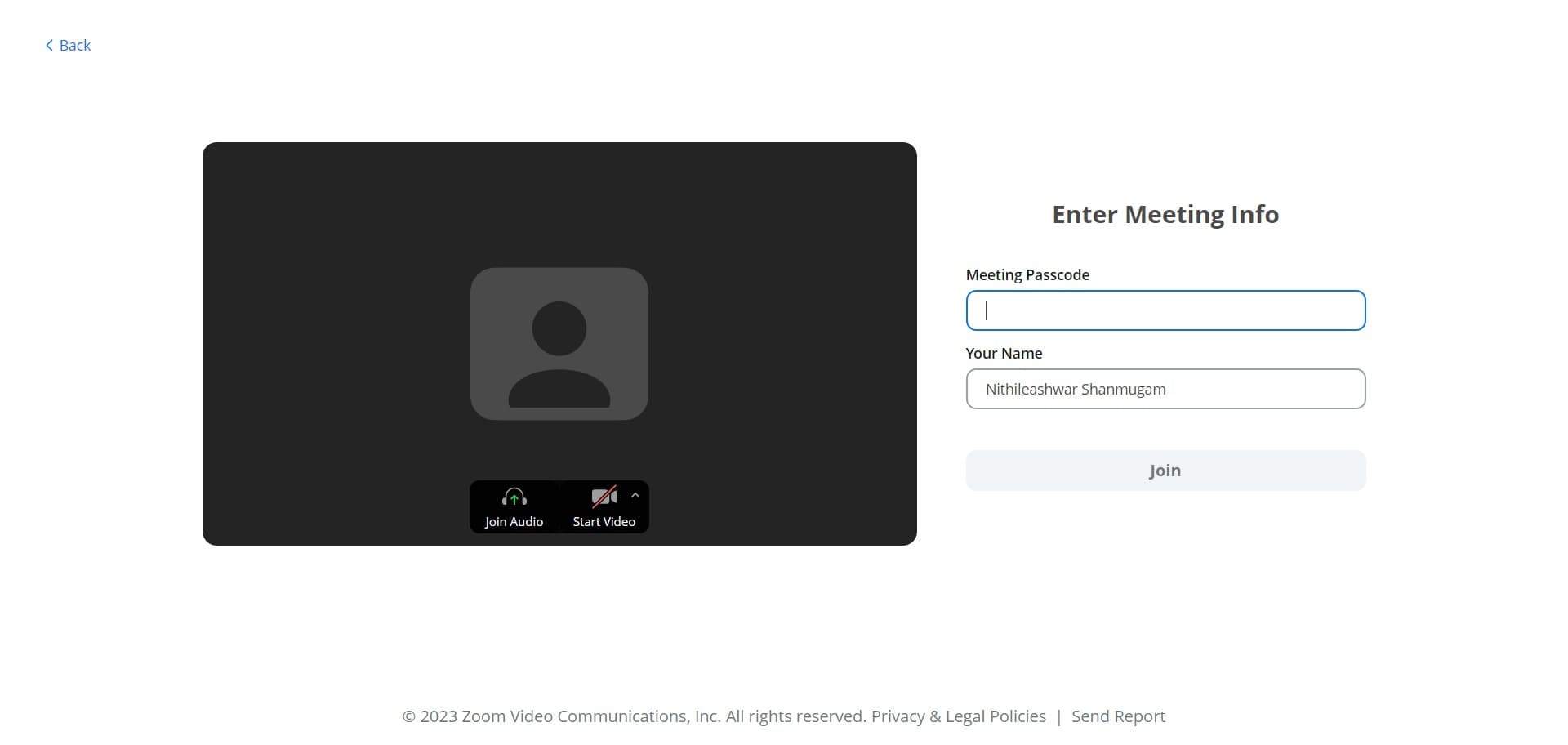
Complete the join action
Click the designated button to finalize your entry into the meeting. This step confirms your intention to join and begins connecting you to the call.
- 6
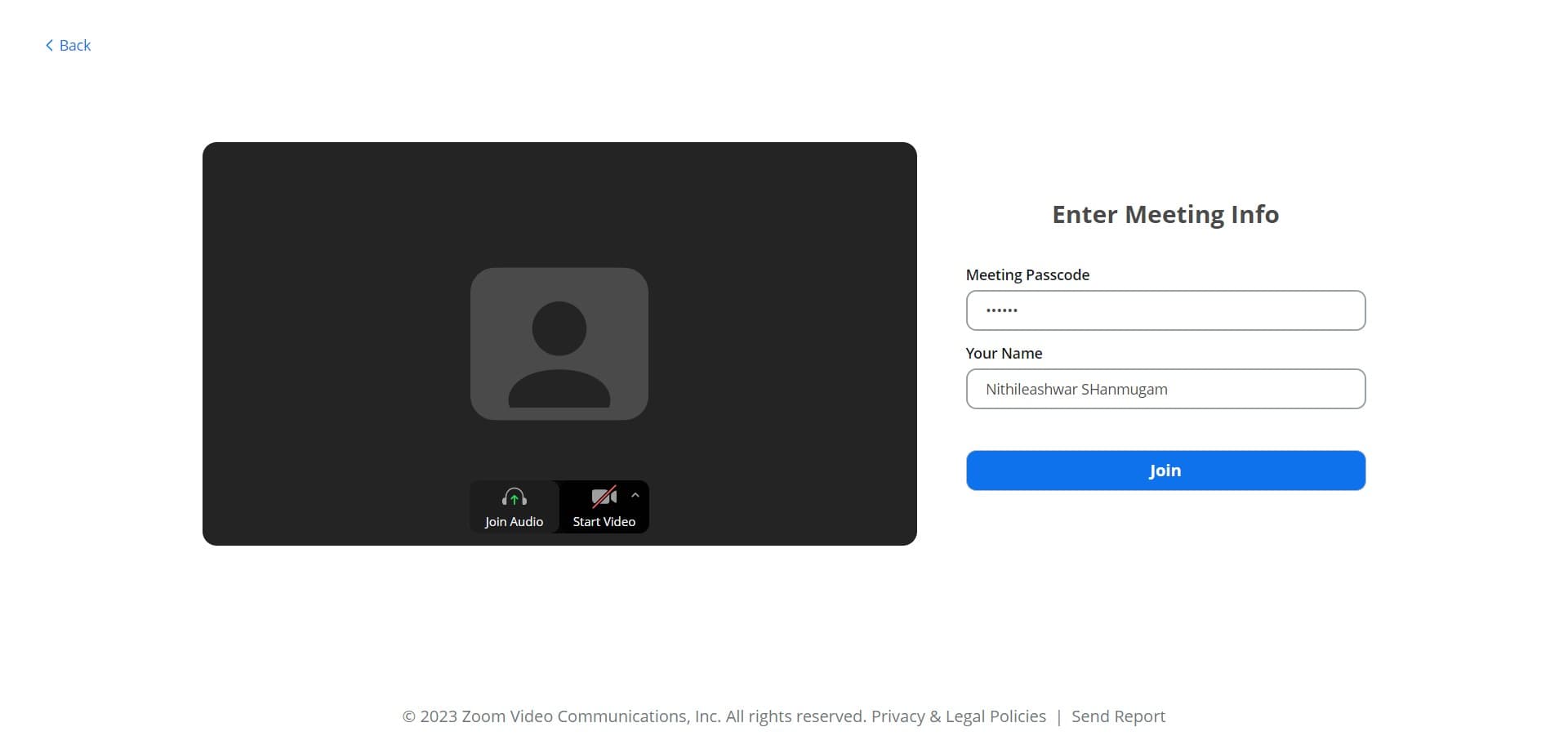
Select audio join option
Click on Join Audio to connect your audio to the meeting. You'll be presented with audio connection options.
- 7
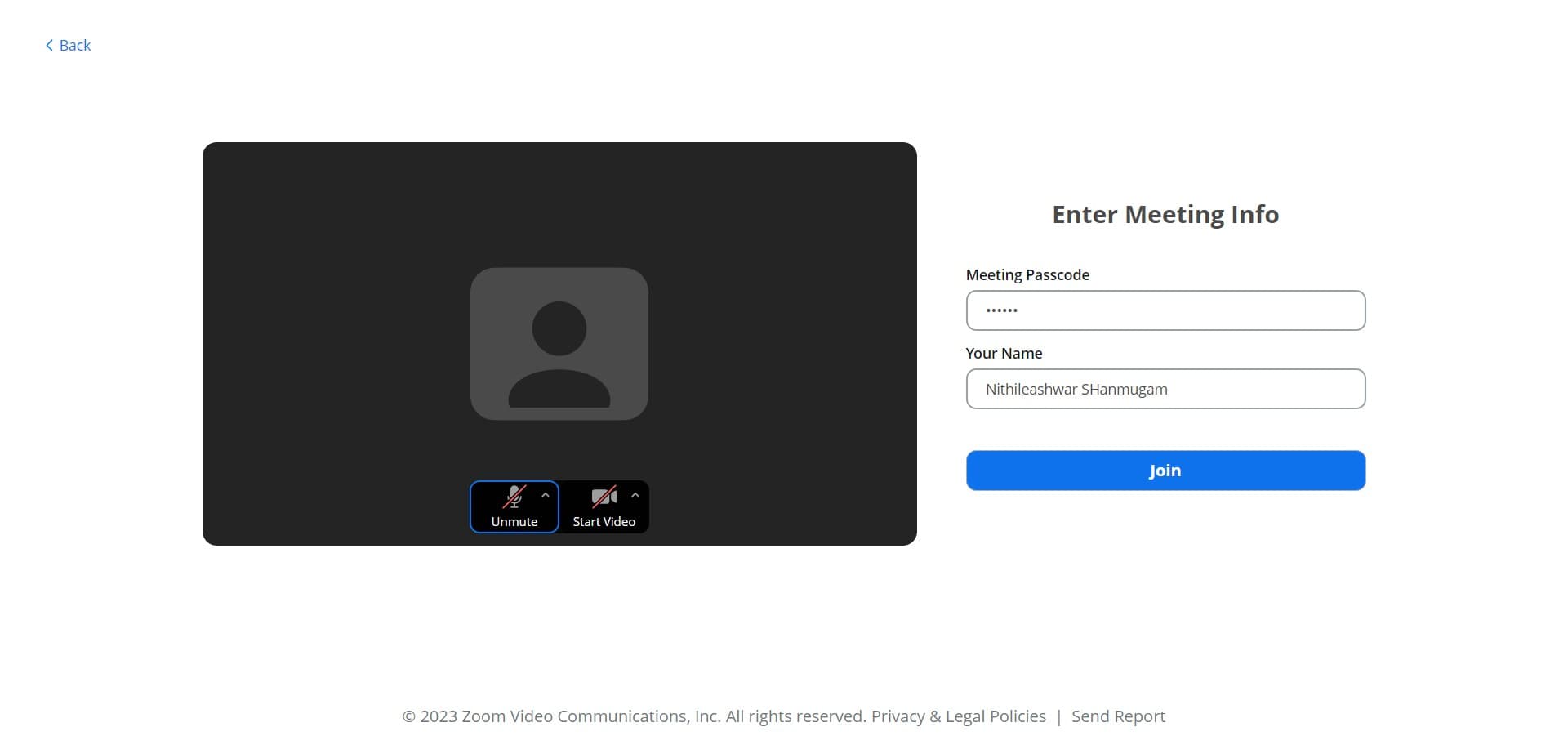
Confirm your join request
Click on Join to confirm your entry into the meeting. This finalizes your connection to the call.
- 8
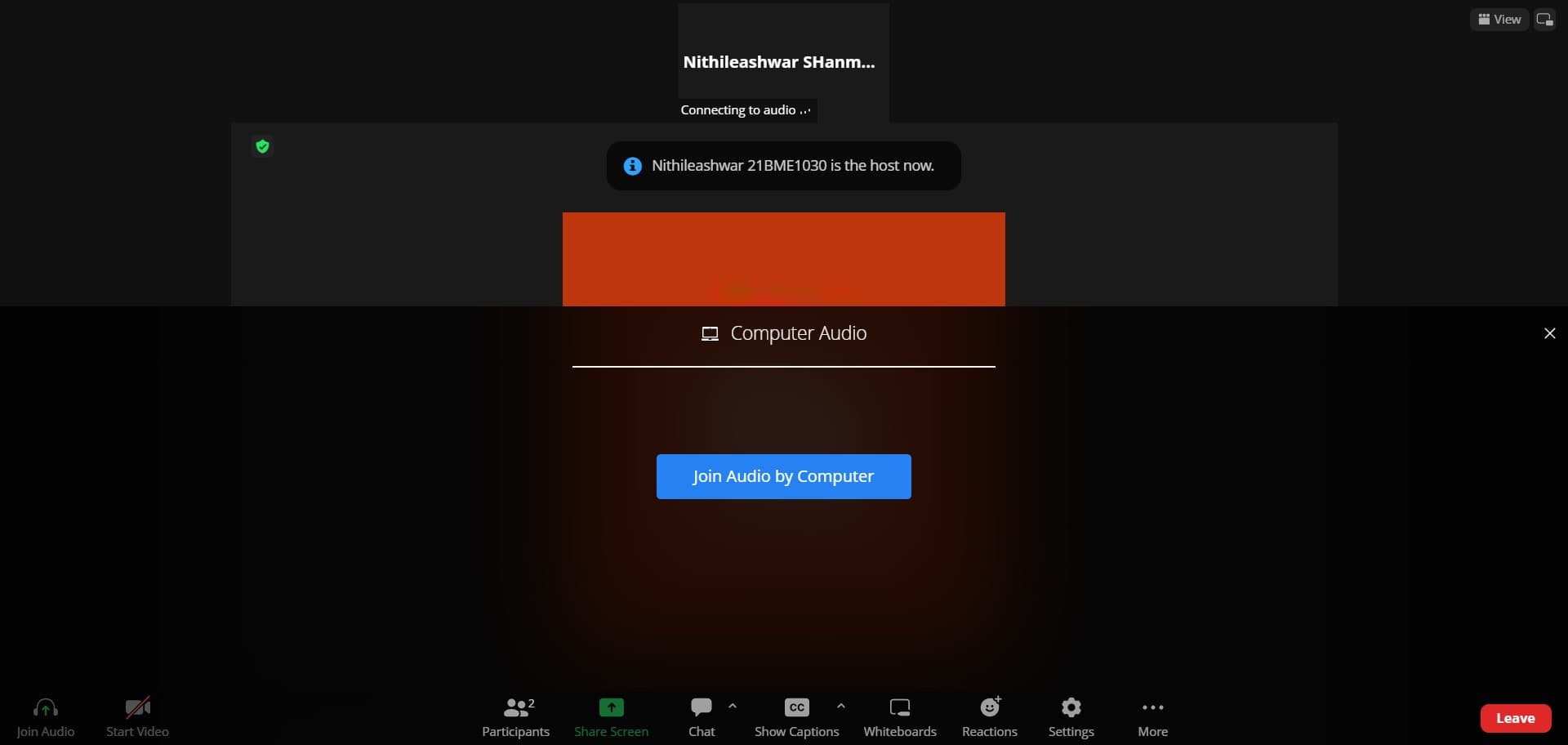
Connect audio through your computer
Click on Join Audio by Computer to use your computer's microphone and speakers for the call. This is the standard audio connection method for most Zoom participants.
Frequently asked questions
Common questions about how to join an existing zoom.
You can join from your browser without installing the app by selecting the Join from Your Browser option. This allows you to access the meeting directly through your web browser, making it convenient if you prefer not to download additional software.
Yes, you can join with video while skipping the audio connection step or choosing not to connect audio. However, connecting audio ensures you can communicate with other participants, so it's generally recommended unless you have a specific reason to mute yourself.
If the Join button is not visible, ensure you're in the correct Zoom application or window. Check that your Zoom account is active and you have the meeting details available, such as the meeting ID or link provided by the organizer.
After selecting Join Audio by Computer, Zoom will test your microphone and speaker. You'll typically hear a confirmation tone or see a visual indicator showing your audio is active. If you don't hear anything, check your device's volume and microphone settings.
Yes, you can join and leave a meeting multiple times. Simply follow the same join process each time you want to enter the meeting. Note that some meetings may have restrictions on rejoining, depending on the organizer's settings.