How to schedule a meeting in Zoom

Scheduling a meeting in Zoom is a straightforward process that allows you to set up video conferences at a specific time and share meeting details with participants. Whether you're planning a team standup, client presentation, or webinar, Zoom's scheduling feature makes it easy to organize and manage your meetings.
Quick summary
In this tutorial, you'll learn how to schedule a Zoom meeting from start to finish, including accessing your account settings, configuring meeting options like whiteboards, and copying your meeting invitation to share with attendees.
Why this matters
Scheduling meetings in advance ensures all participants have clear details about when and how to join, reducing confusion and no-shows. It also allows you to pre-configure meeting features and security settings before participants arrive, creating a more professional and organized meeting experience.
Step-by-step guide
- 1
Access your Zoom account
Click on "My Account" to log into your Zoom profile and access your account settings. This is where you'll manage all your meeting scheduling options.

- 2
Navigate to the Schedule section
Click on "Schedule" to access the meeting scheduling interface. You'll see options to create and configure your new meeting.
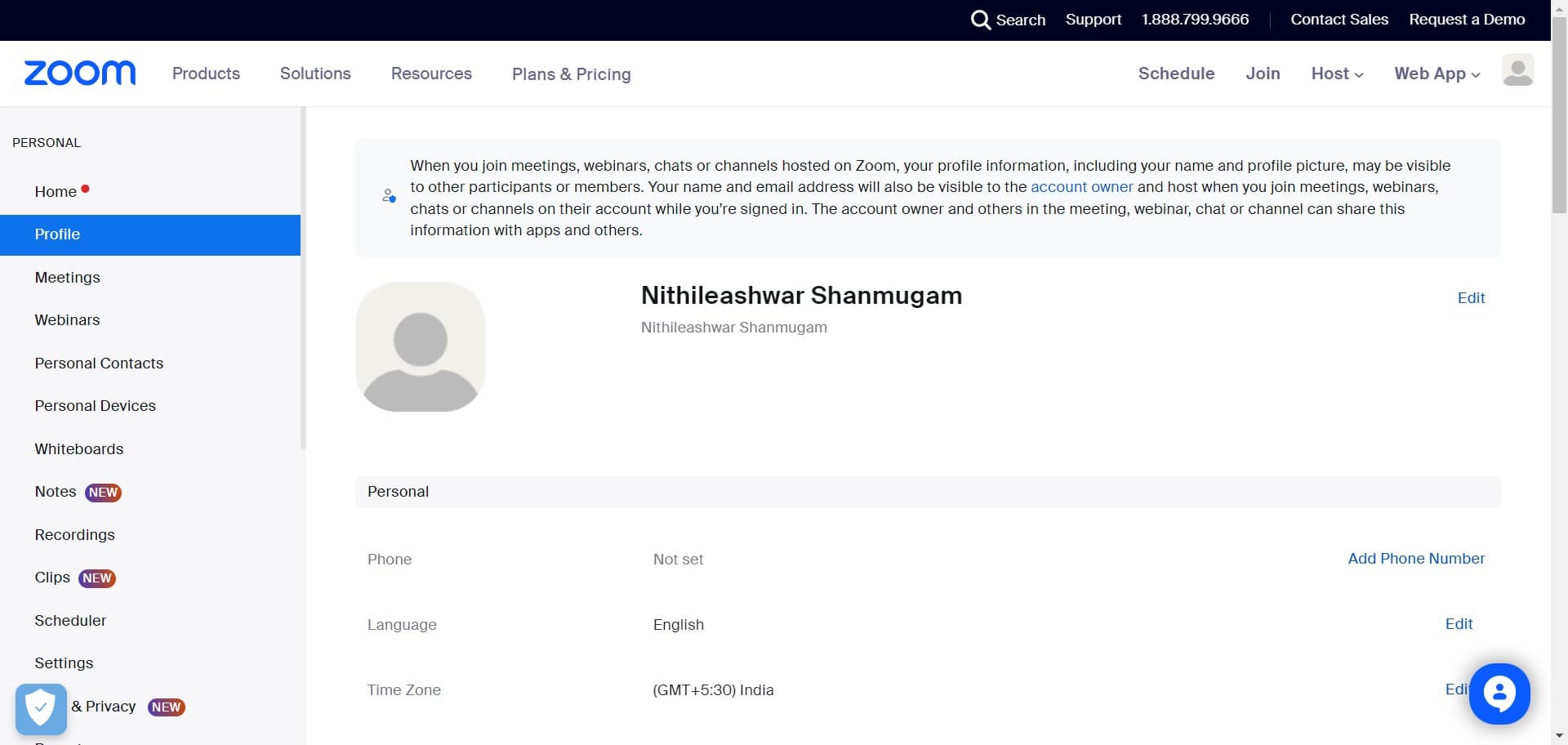
- 3
Configure initial meeting settings
Click to enter the primary meeting details such as meeting title, date, and time. These foundational settings establish when and what your meeting will be about.
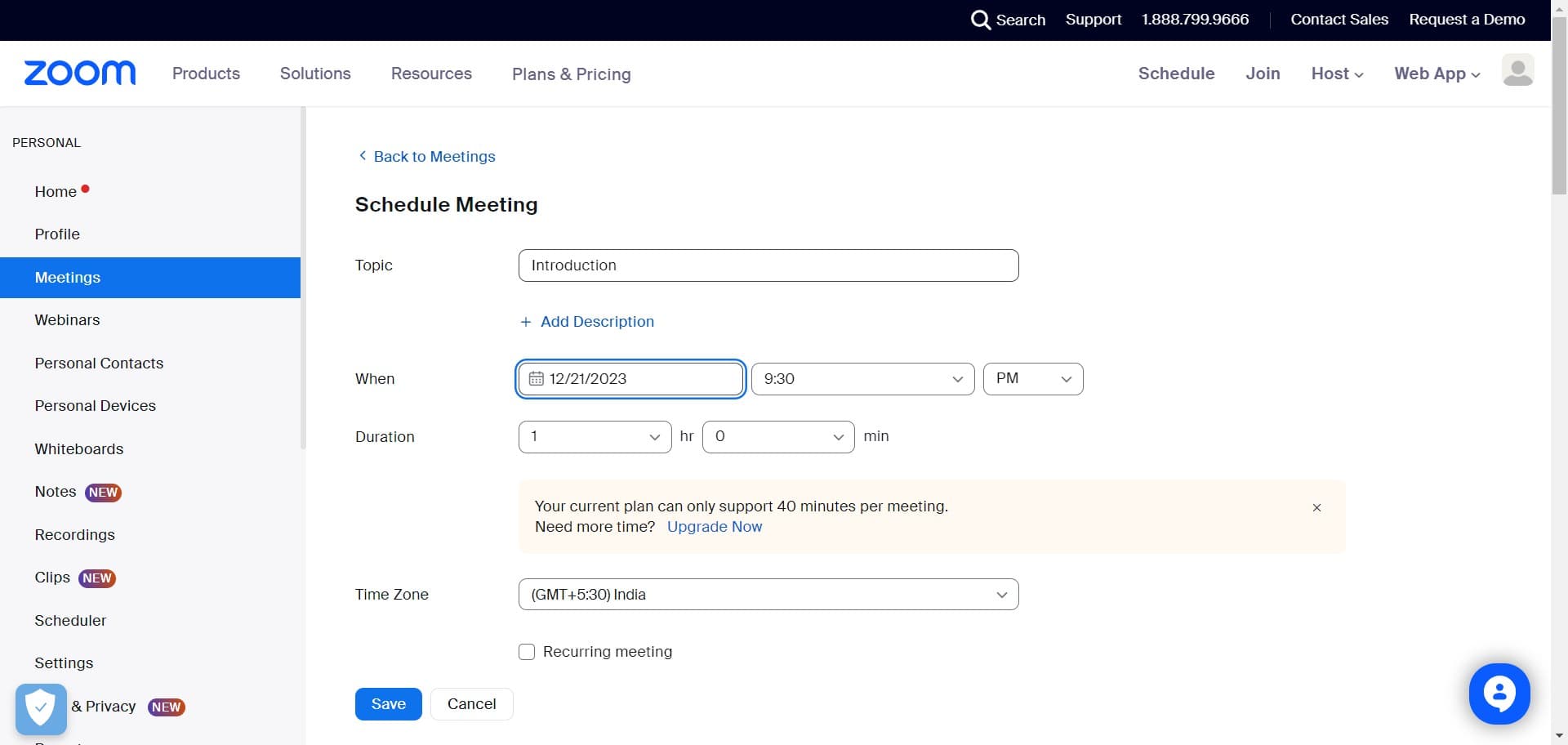
- 4
Set additional meeting parameters
Click to configure more advanced options like duration, timezone, and participant settings. This step ensures your meeting is tailored to your specific needs.
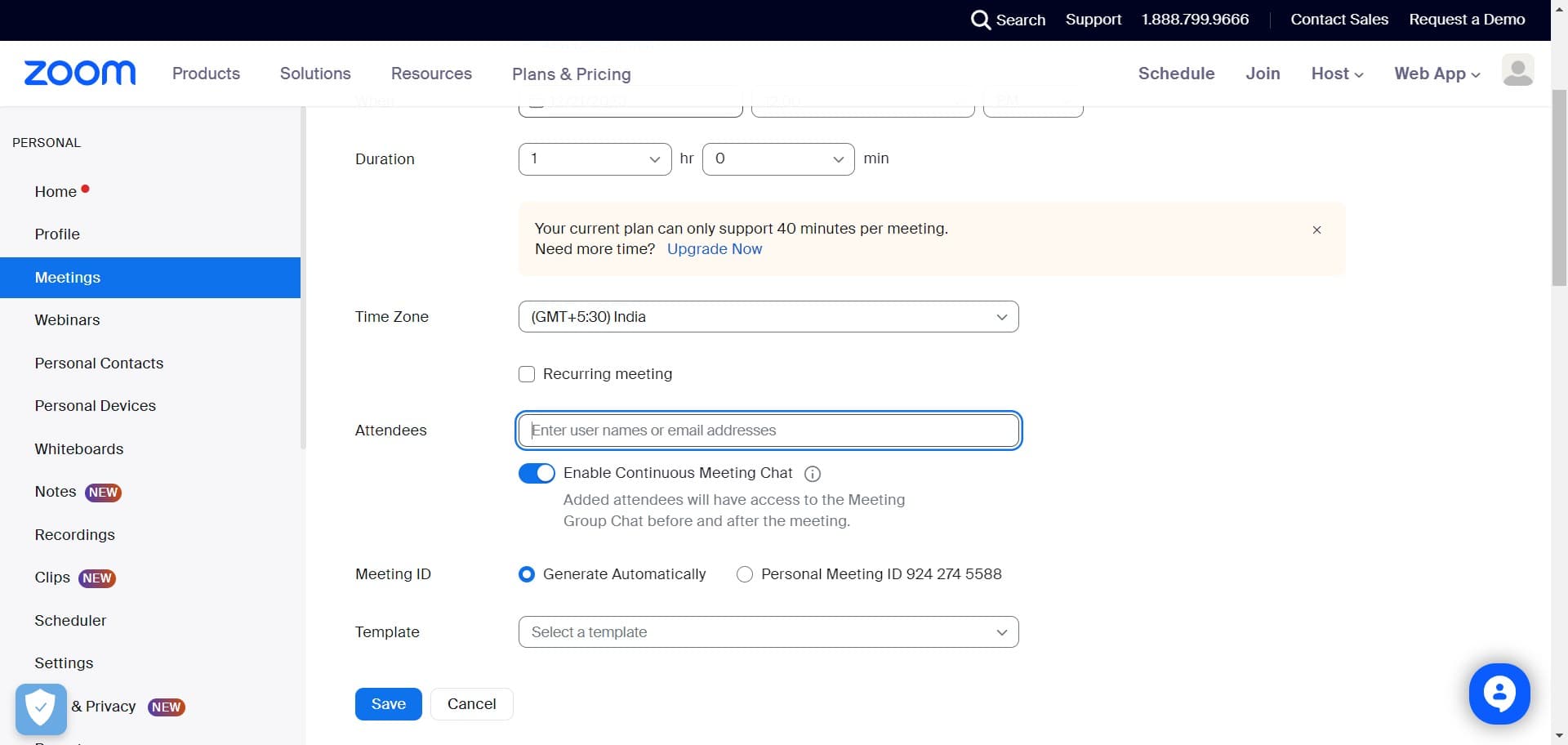
- 5
Adjust meeting preferences
Click to fine-tune remaining settings such as waiting room, recording options, and meeting type. These preferences help control how participants join and interact.
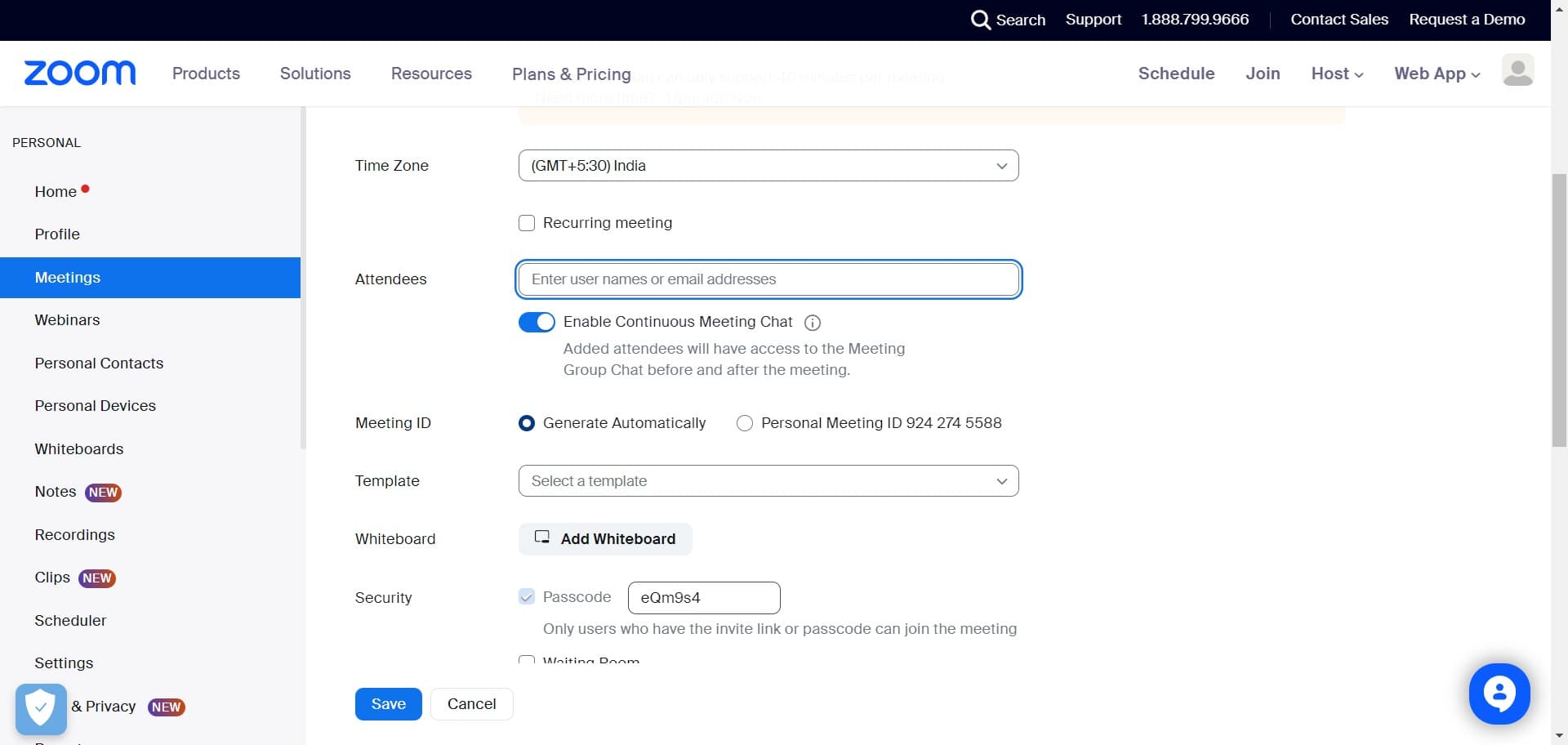
- 6
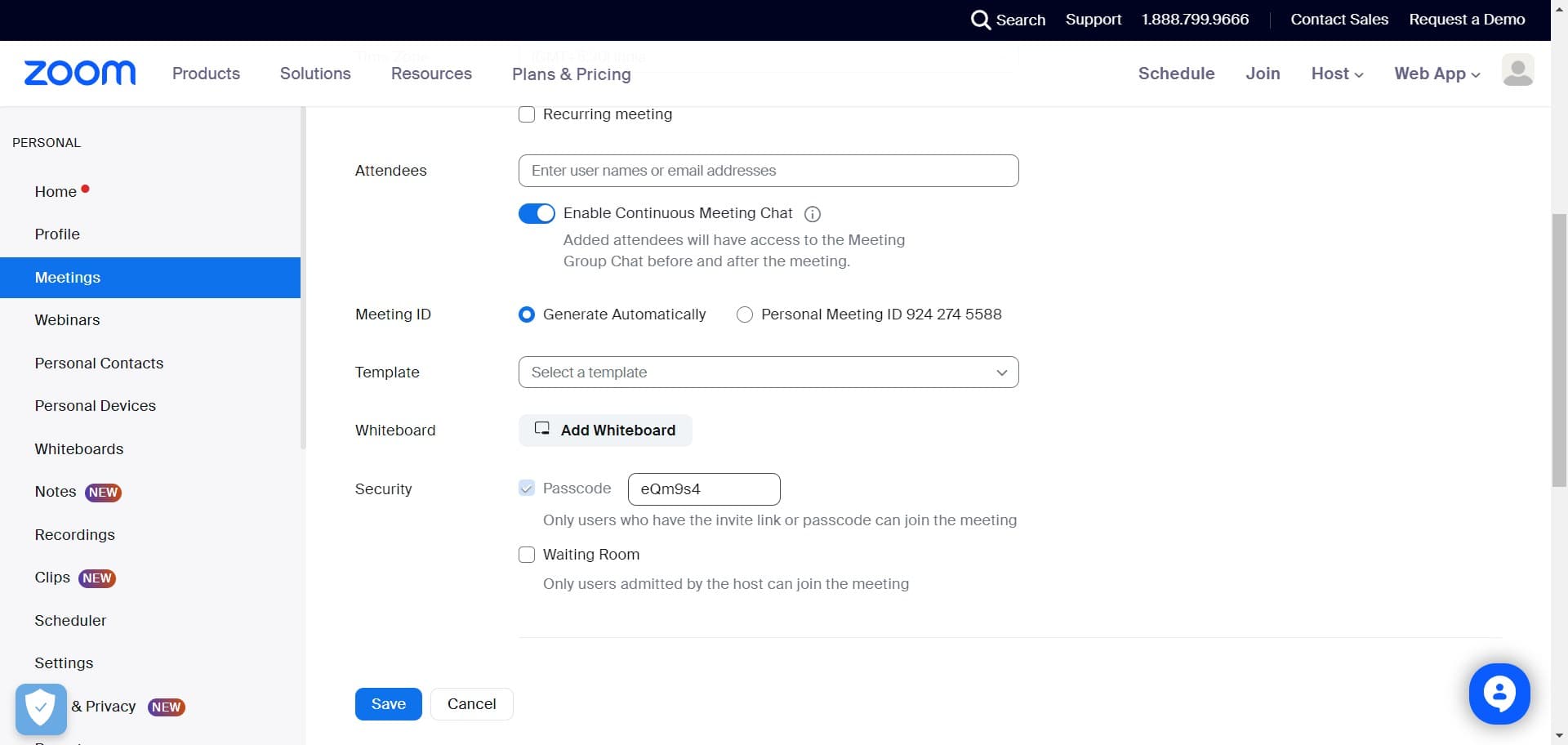
Add Whiteboard to meeting
Click on "Add Whiteboard" to enable collaborative whiteboarding during your meeting. This feature allows participants to brainstorm and annotate together in real time.
- 7
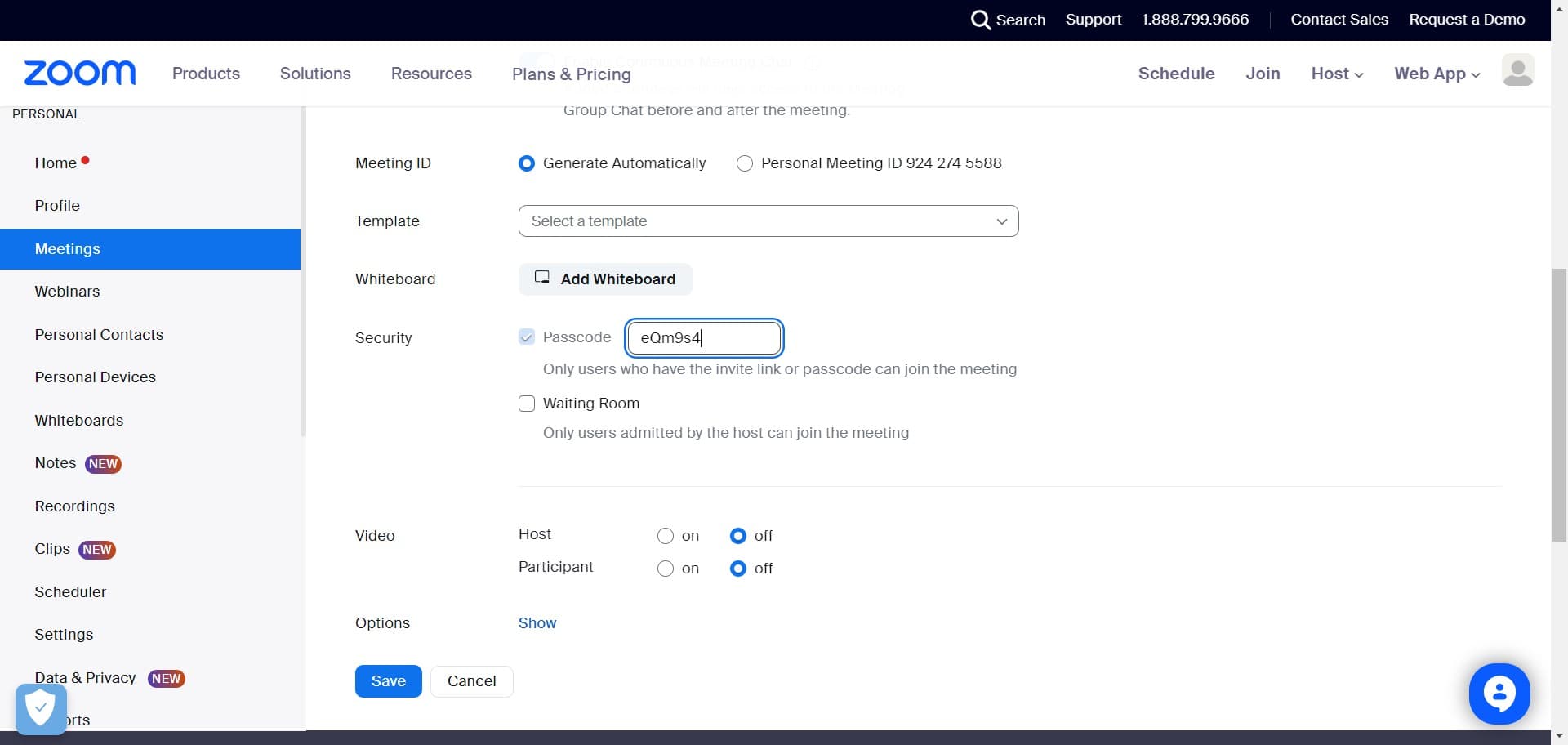
Finalize whiteboard settings
Click to confirm and apply the whiteboard feature to your scheduled meeting. This ensures the tool will be available when the meeting begins.
- 8
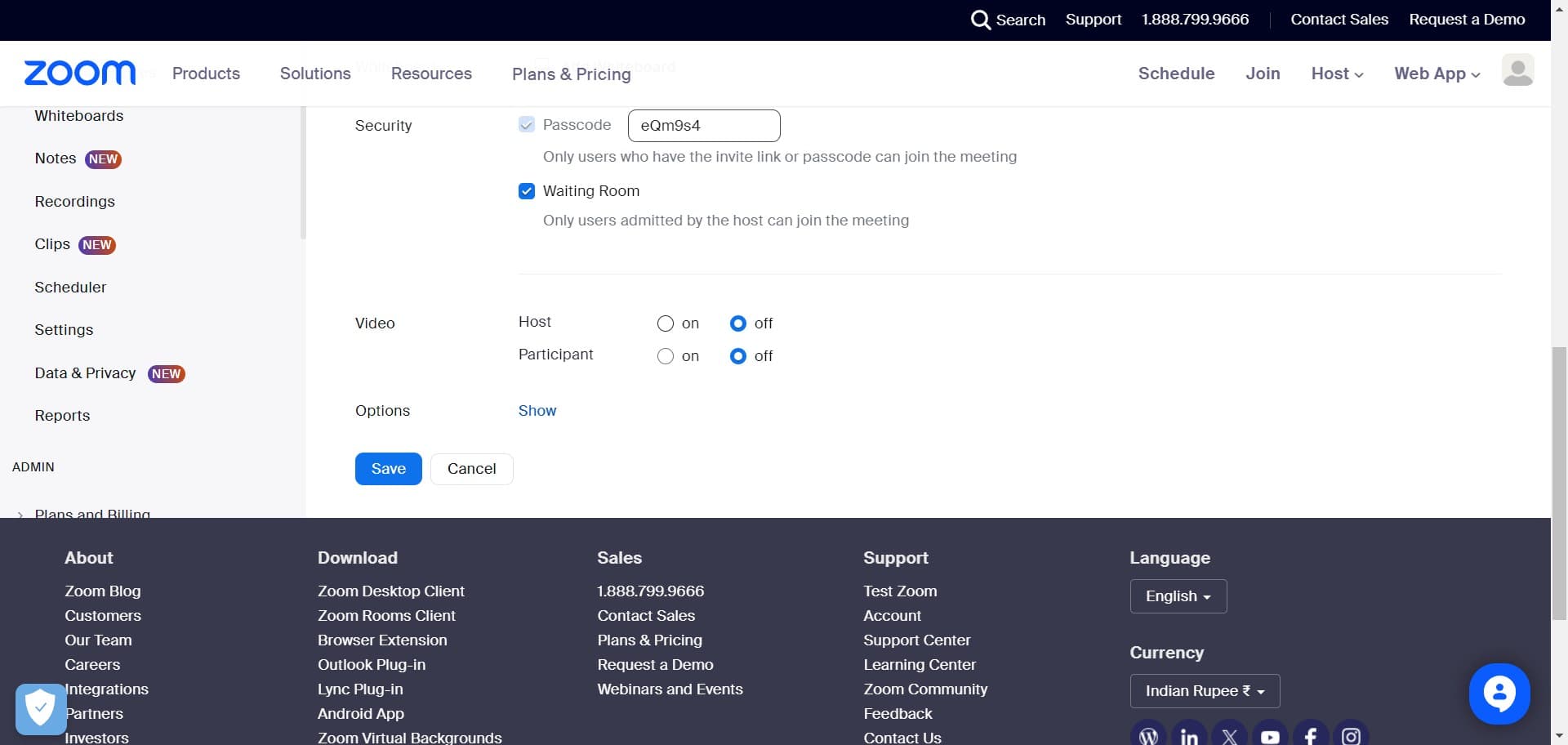
Review meeting configuration
Click to review all the settings you've configured for your meeting. This is your final opportunity to make any adjustments before saving.
- 9
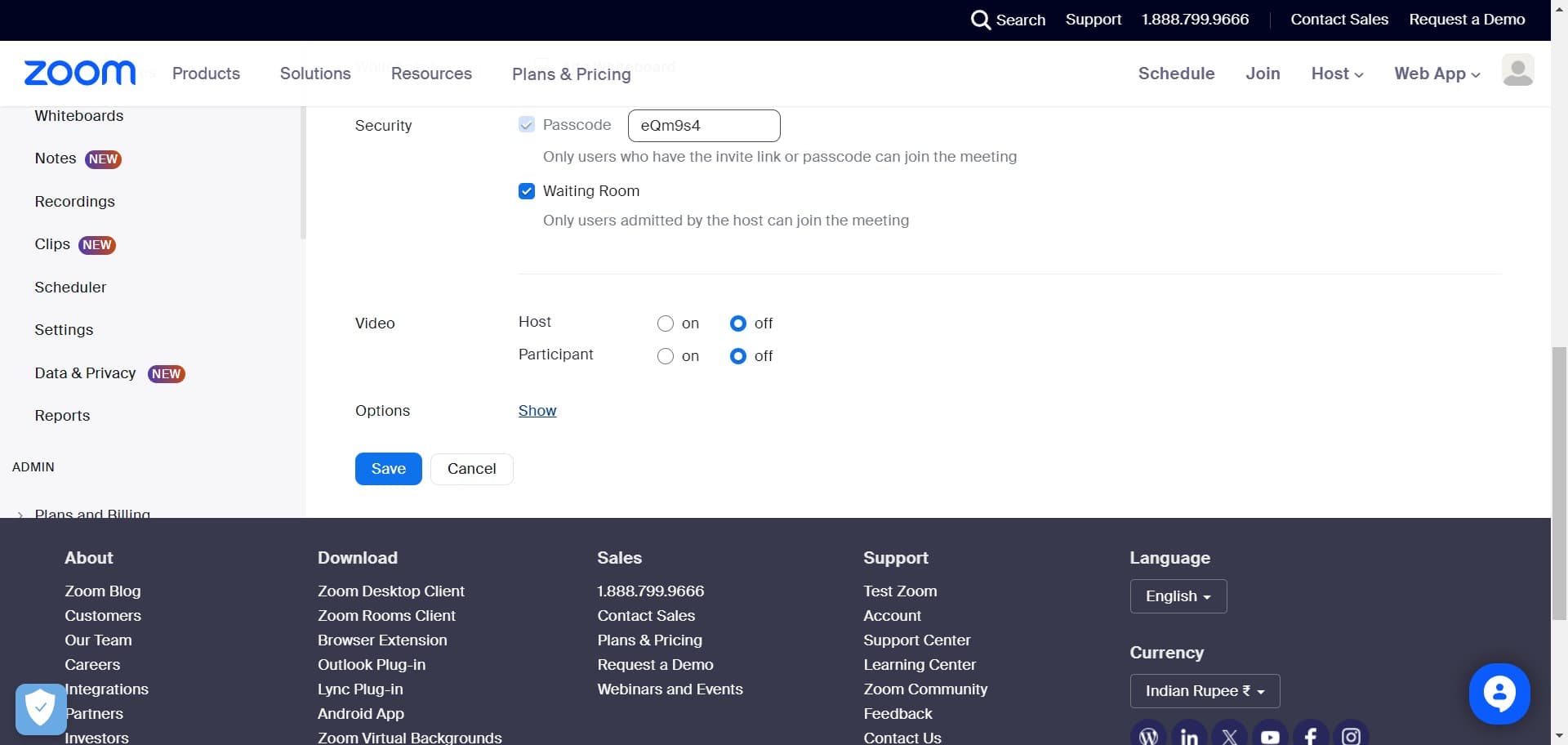
Enable meeting visibility
Click on "Show" to make your meeting visible and active in your calendar. This activates the meeting so it's ready for participants to join.
- 10
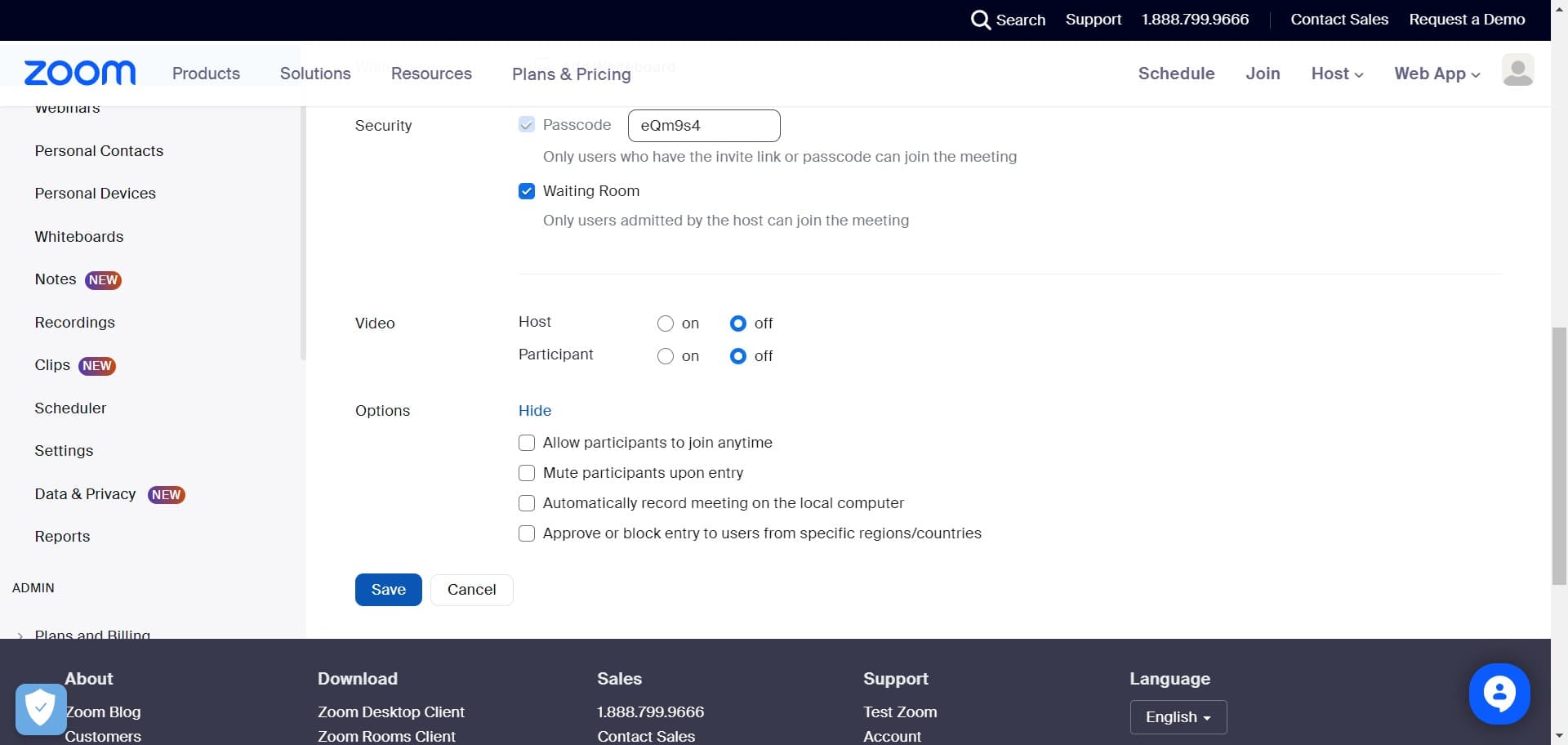
Save your meeting
Click on "Save" to finalize and store all your meeting configurations. Your meeting is now officially scheduled in Zoom.
- 11
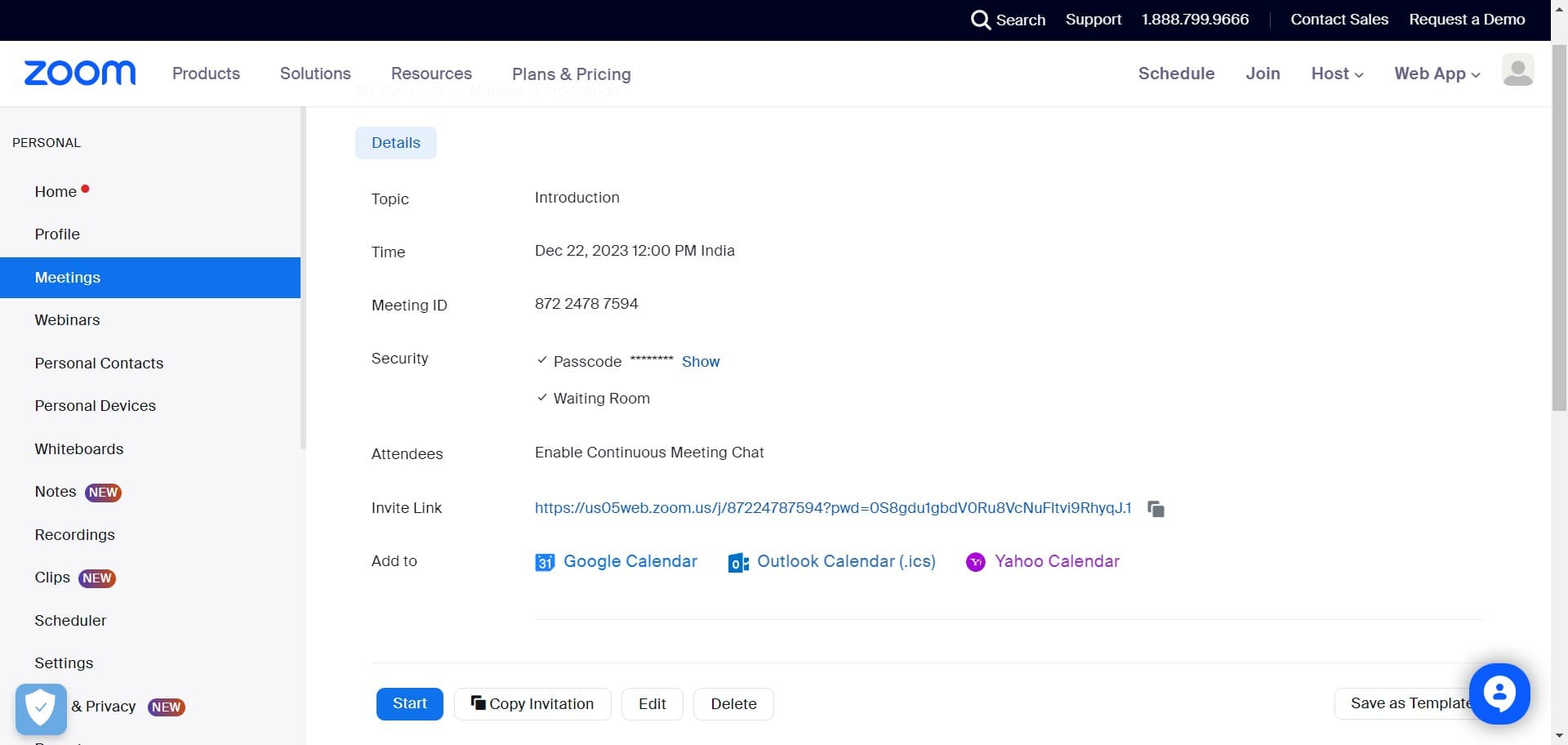
Identify your meeting ID
Click on "872 2478 7594" to view and confirm your unique meeting ID. This number is essential for participants who want to join your meeting.
- 12
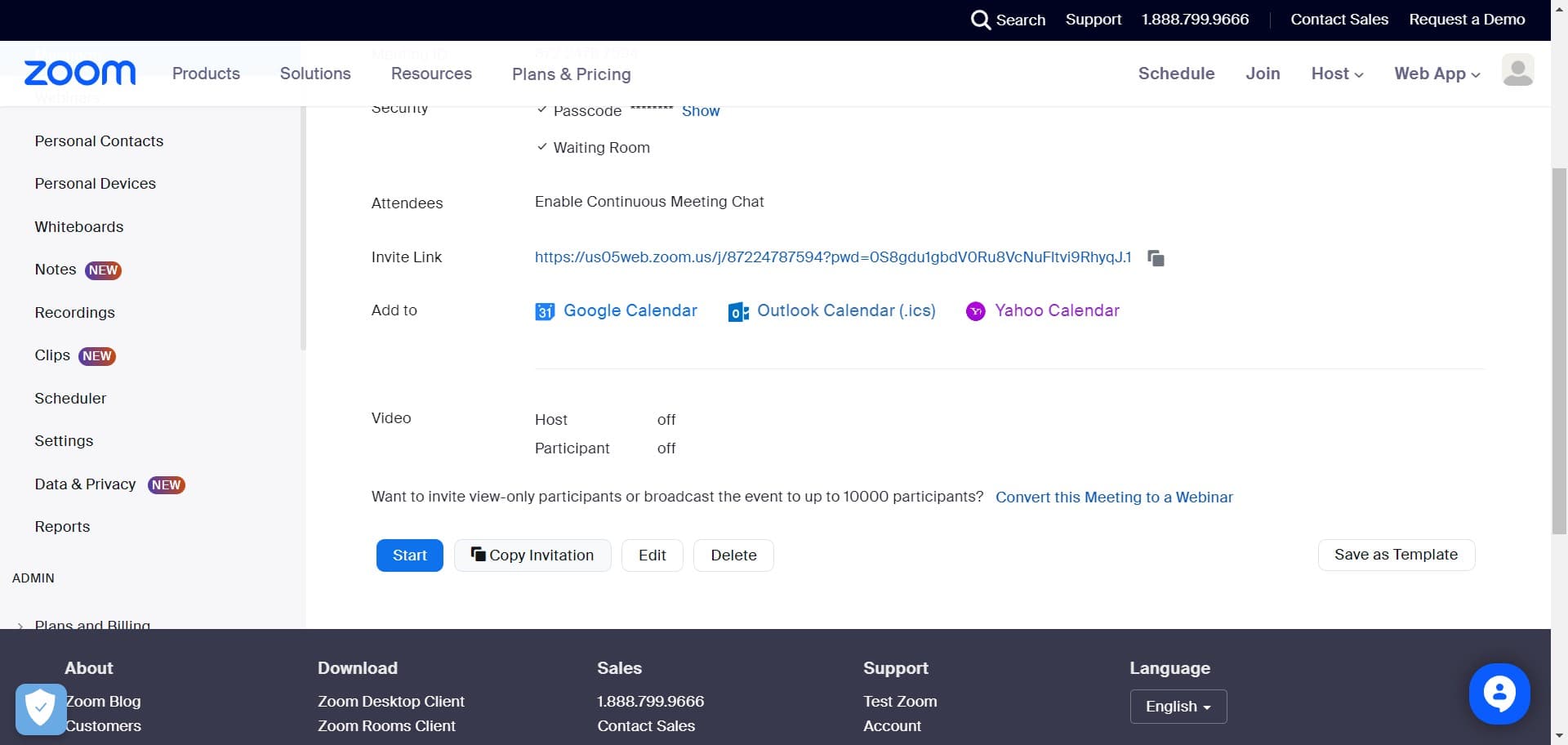
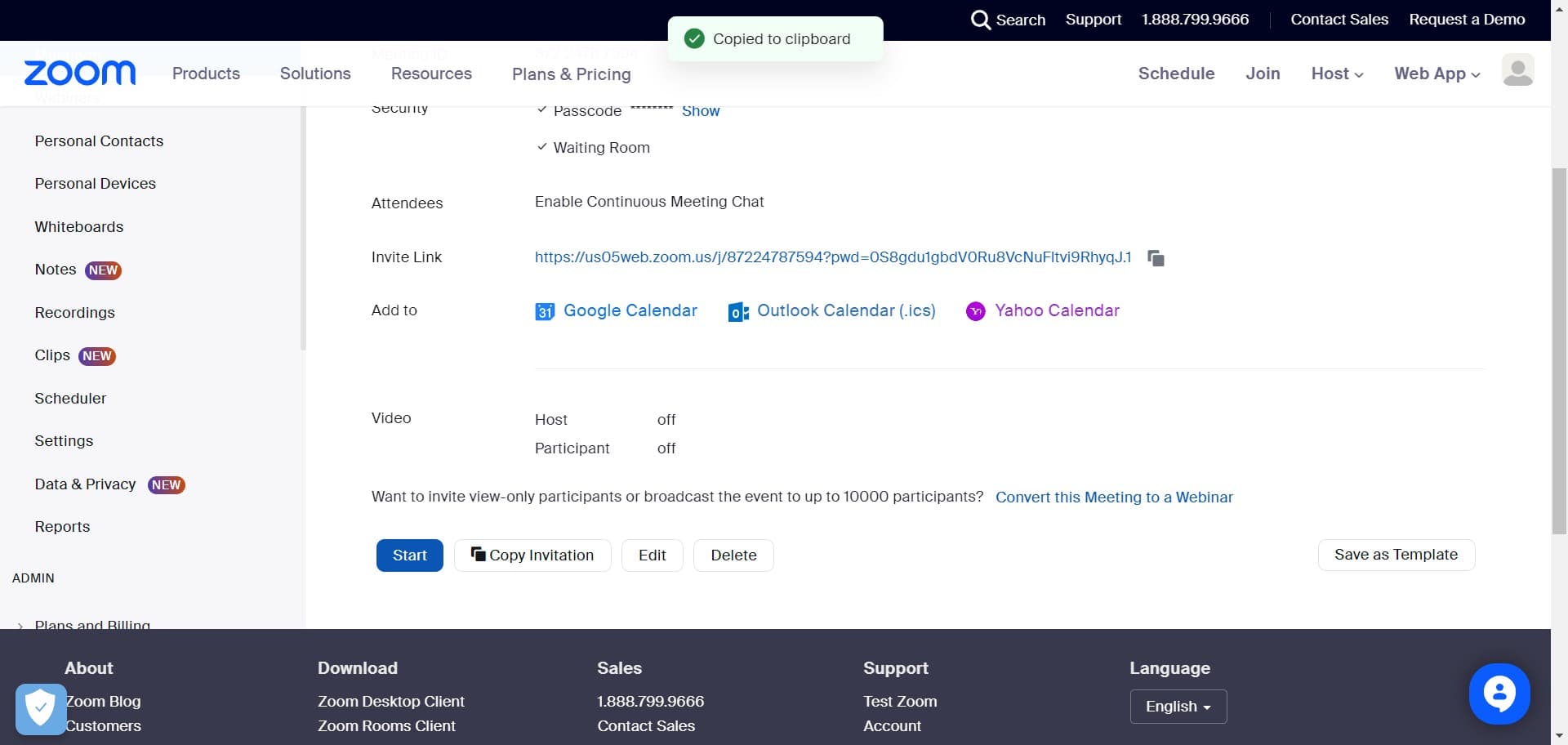
Copy your invitation
Click on "Copy Invitation" to prepare the meeting details for sharing. This action copies the basic invitation information to your clipboard.
- 13
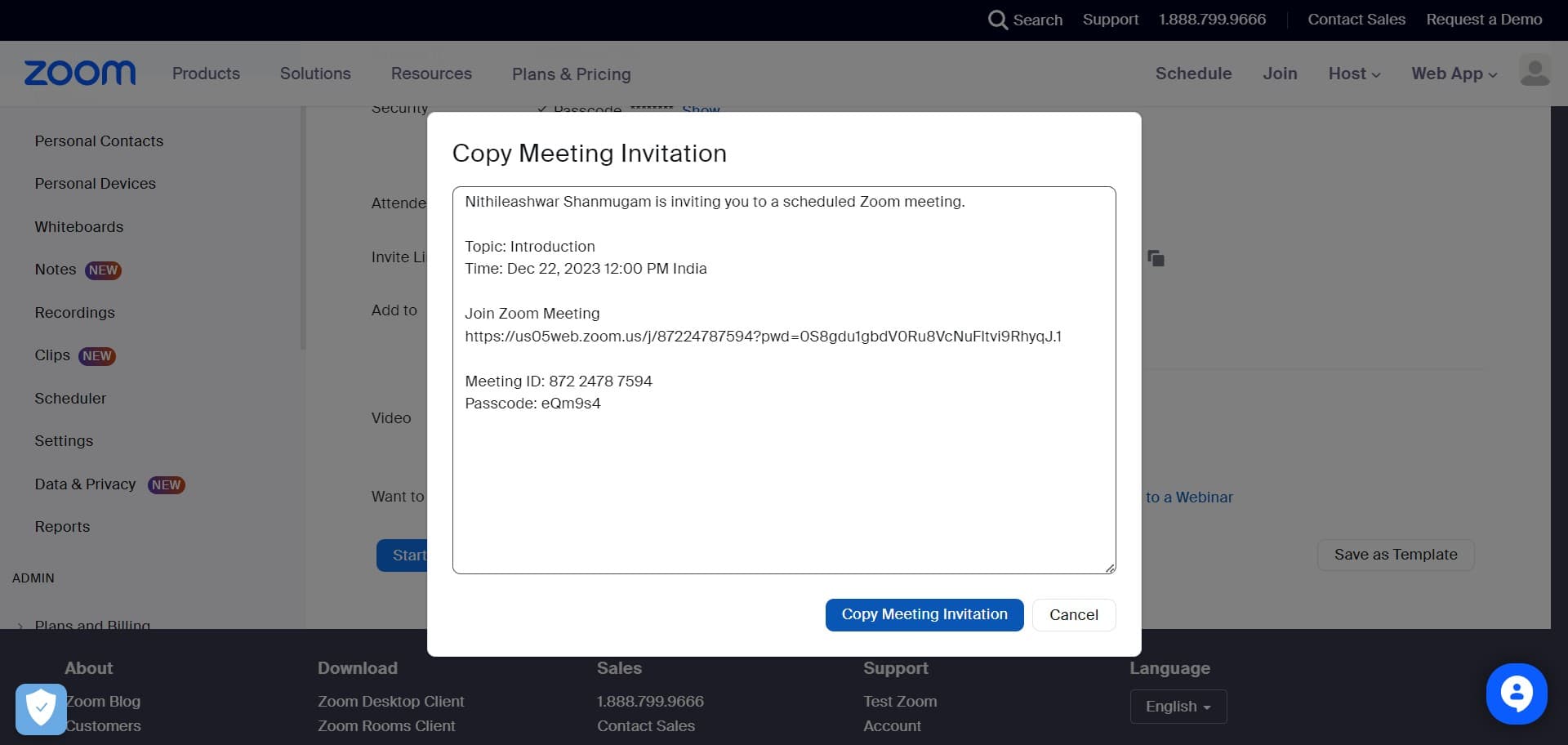
Copy full meeting invitation
Click on "Copy Meeting Invitation" to copy the complete invitation with all meeting details including the link, ID, and access information. This comprehensive invitation is ready to paste into emails or messages.
- 14
Initiate your scheduled meeting
Click on "Start" to begin your scheduled meeting when the designated time arrives. Your meeting room will open and you'll be connected as the host.
Frequently asked questions
Common questions about how to schedule a meeting in zoom.
Yes, you can schedule meetings directly from your Zoom account by navigating to the Schedule section in your My Account area. This allows you to create meetings with custom settings and configurations before inviting participants.
After scheduling, copy your meeting invitation and share it with participants via email or messaging platforms. Include the meeting ID, link, and any other relevant details so attendees know when and how to join.
Yes, you can add a whiteboard to your meeting during the scheduling process by clicking the Add Whiteboard option. This enables participants to collaborate visually during the meeting.
Yes, clicking Save finalizes and stores all your meeting configurations in Zoom. Your meeting is then scheduled and ready for participants to join at the designated time.
After scheduling, use the Copy Meeting Invitation feature to copy all meeting details including the ID, date, time, and join link. You can then paste this information into emails, calendar invites, or team messaging platforms to reach all attendees at once.