How to add virtual or blur background in Zoom

Virtual and blurred backgrounds in Zoom allow you to maintain privacy and professionalism during video meetings by hiding or replacing your physical surroundings. Whether you're working from home or in a busy environment, these features help you present a polished appearance without investing in a dedicated office space. This guide walks you through enabling and customizing background settings in Zoom.
Quick summary
In this tutorial, you'll learn how to start a Zoom meeting with video enabled and access the background customization options. You'll discover how to apply either a blur effect or upload a custom virtual background image to suit your meeting needs. By the end, you'll be able to quickly switch between background settings before or during your calls.
Why this matters
Professional appearance matters in virtual meetings, and background control is essential for maintaining focus on your message rather than your surroundings. Blurred backgrounds offer a quick privacy solution without the processing demands of full virtual backgrounds, while custom images let you reinforce your brand or create a distraction-free environment. Mastering this feature helps you present confidently in any setting.
Step-by-step guide
- 1
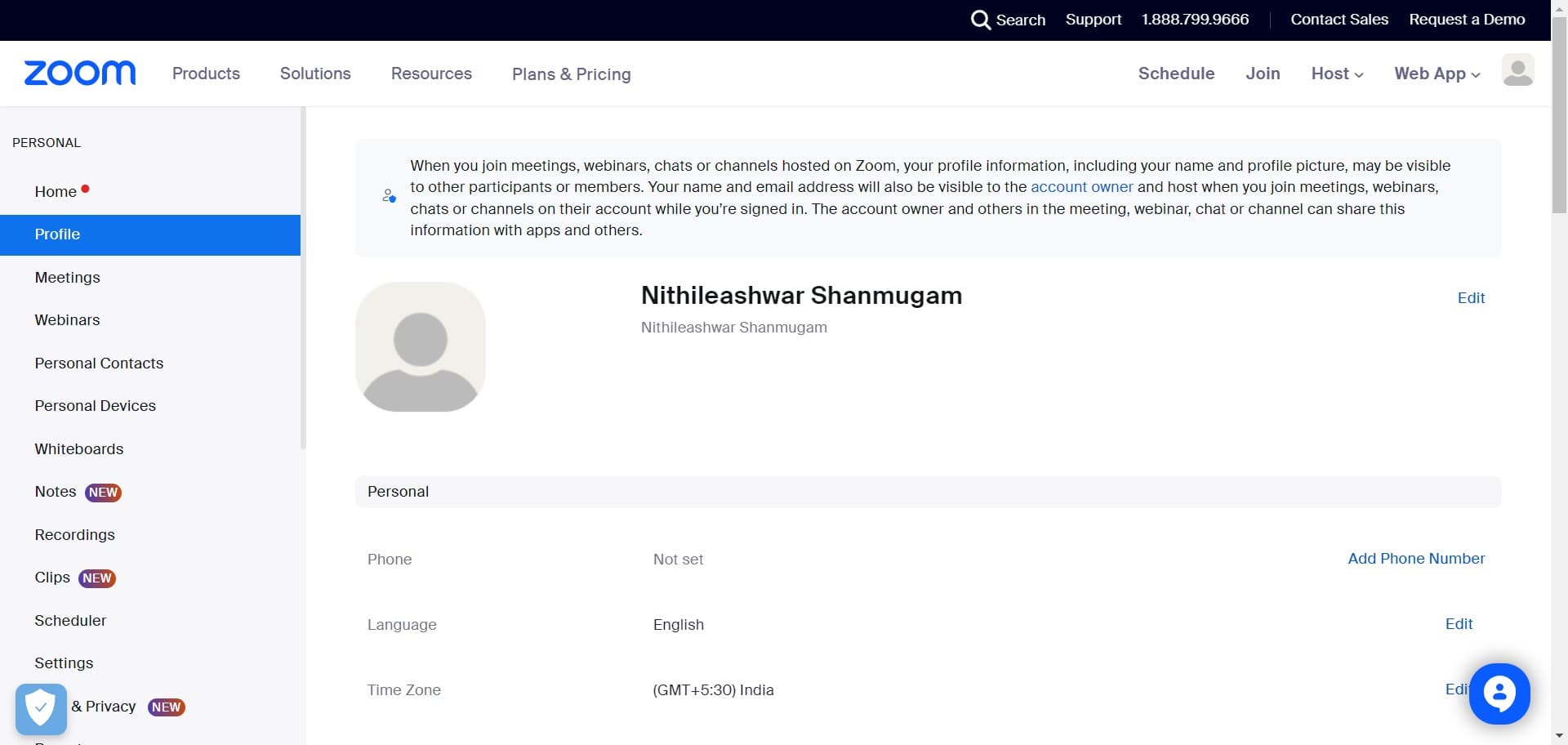
Click on Host
Open the Zoom application and locate the Host button in the main interface. This option allows you to start a new meeting with full host privileges and access to all customization features.
- 2
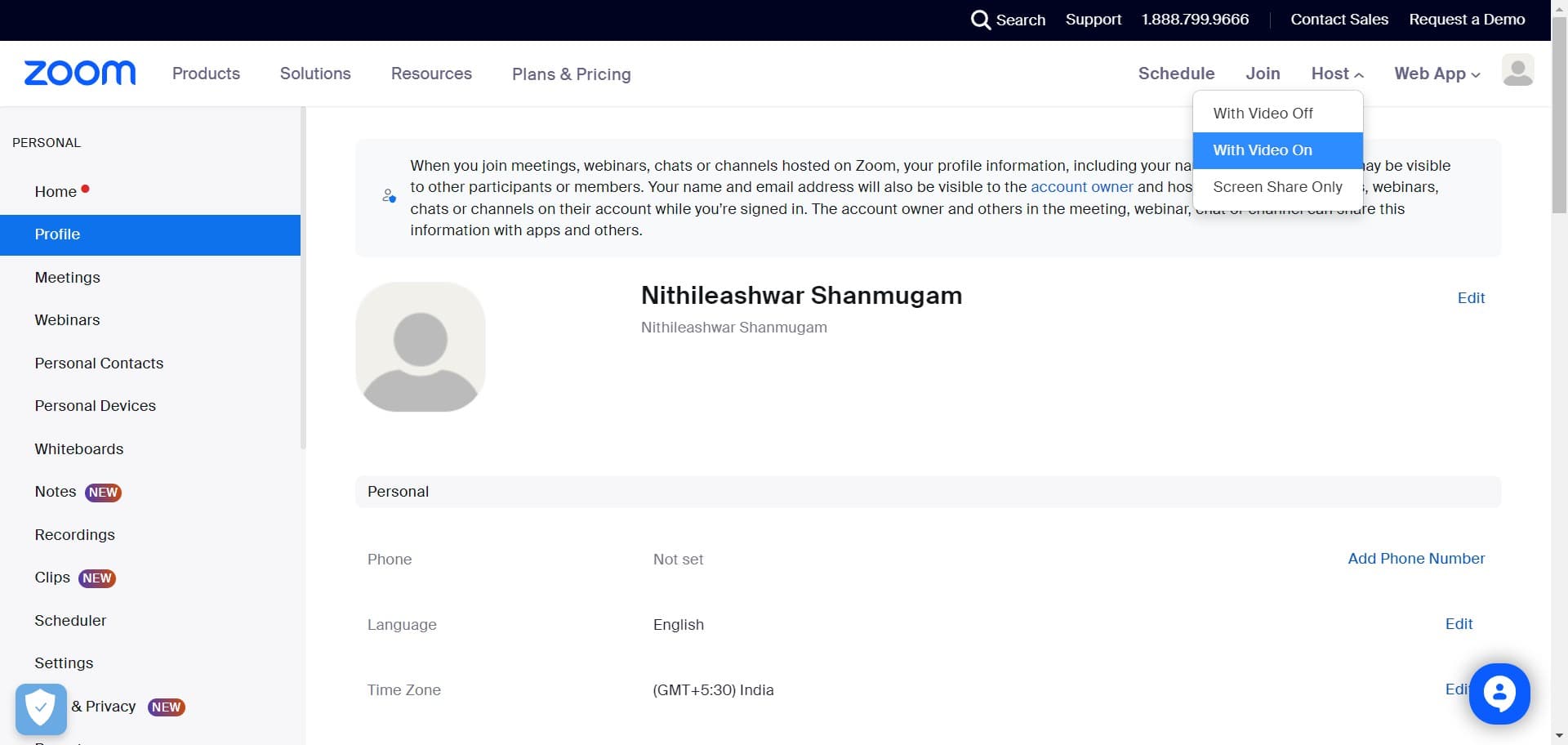
Click on With Video On
Select the option to start your meeting with video enabled from the beginning. This ensures your camera is active and ready so you can preview your background settings before joining.
- 3
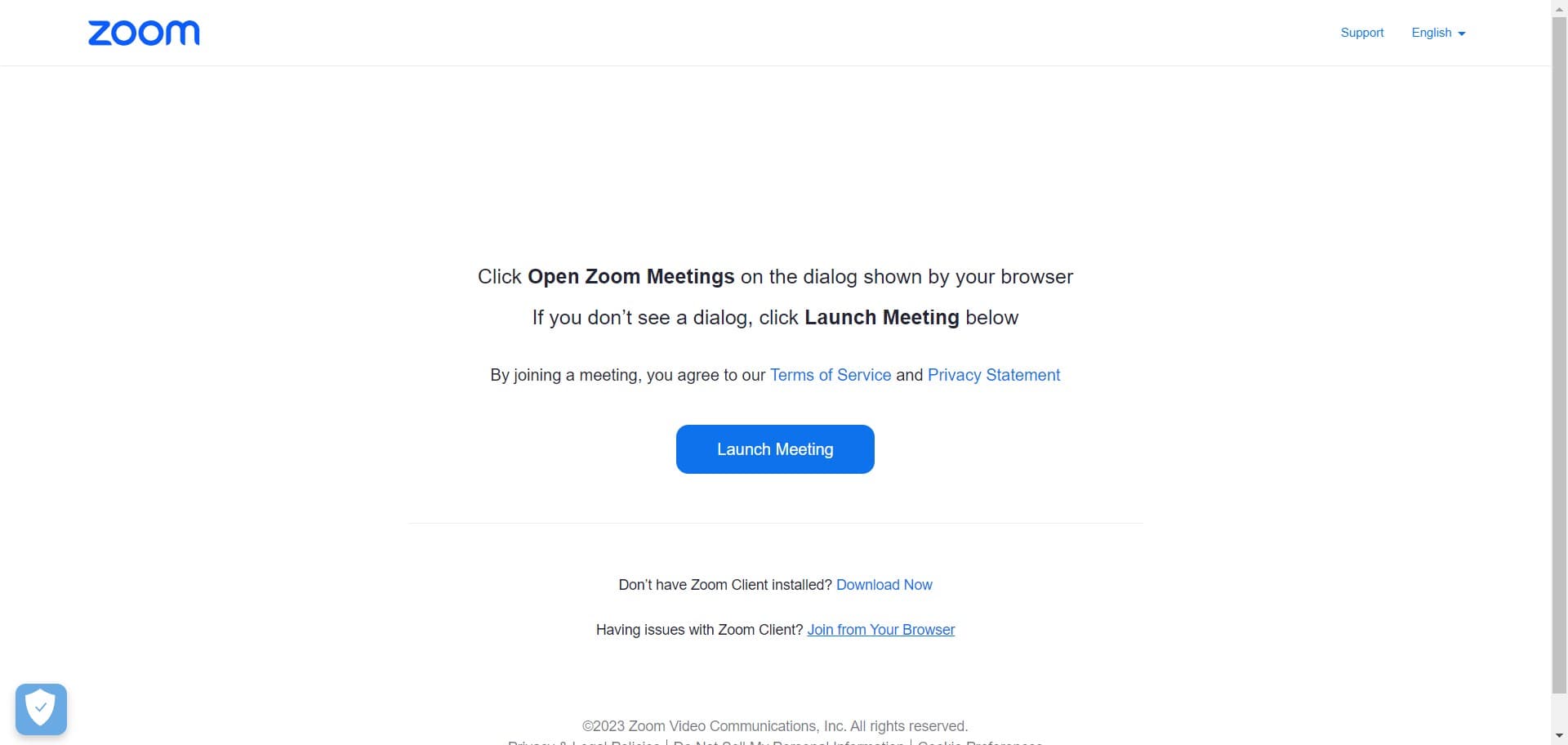
Click on Join from Your Browser
Choose to launch Zoom through your web browser instead of the desktop application. This provides a lightweight alternative while still giving you access to background customization options.
- 4
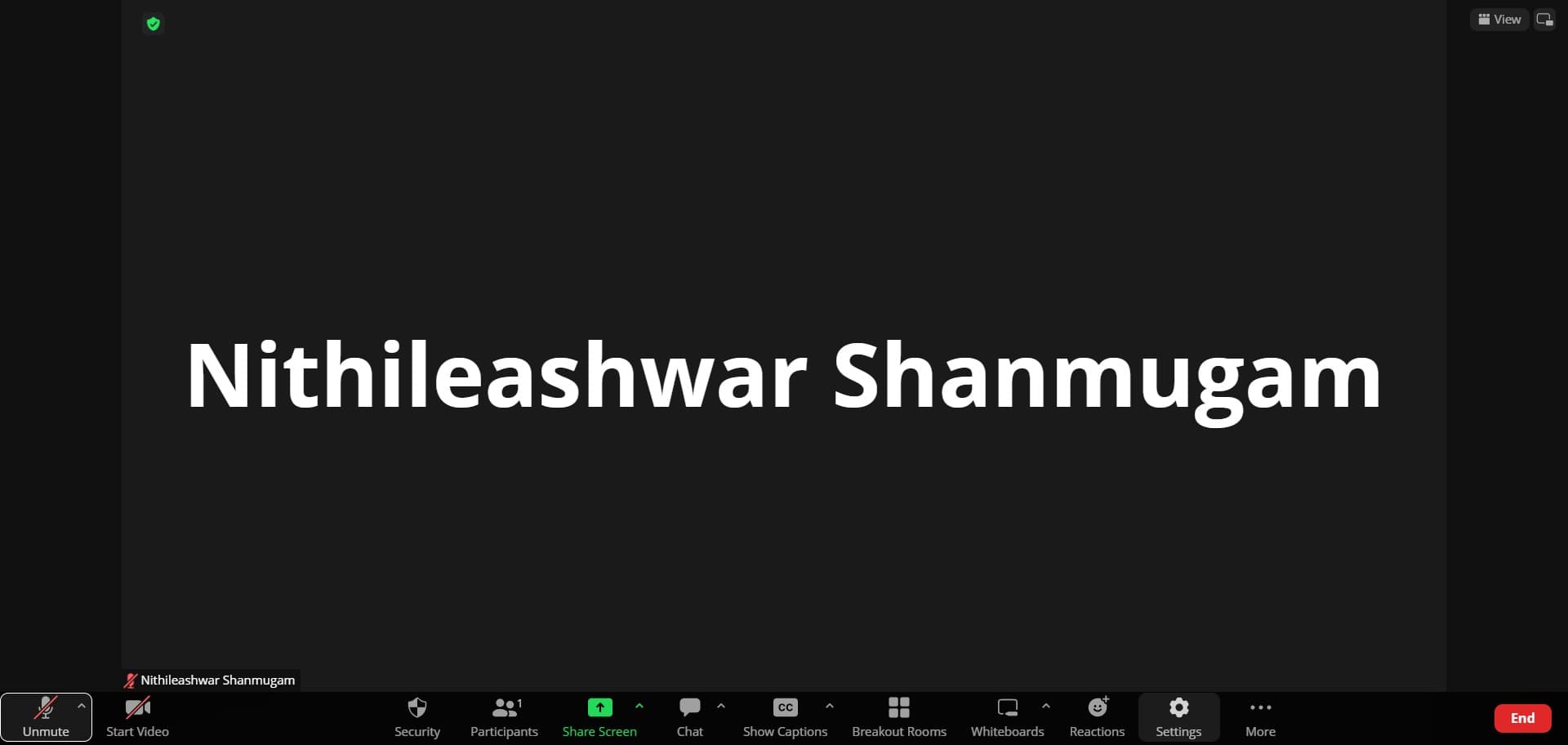
Click the settings icon
Locate and click the settings or options icon in the meeting controls, typically displayed as a gear or three-dot menu. This opens the menu where you can access background and video settings.
- 5
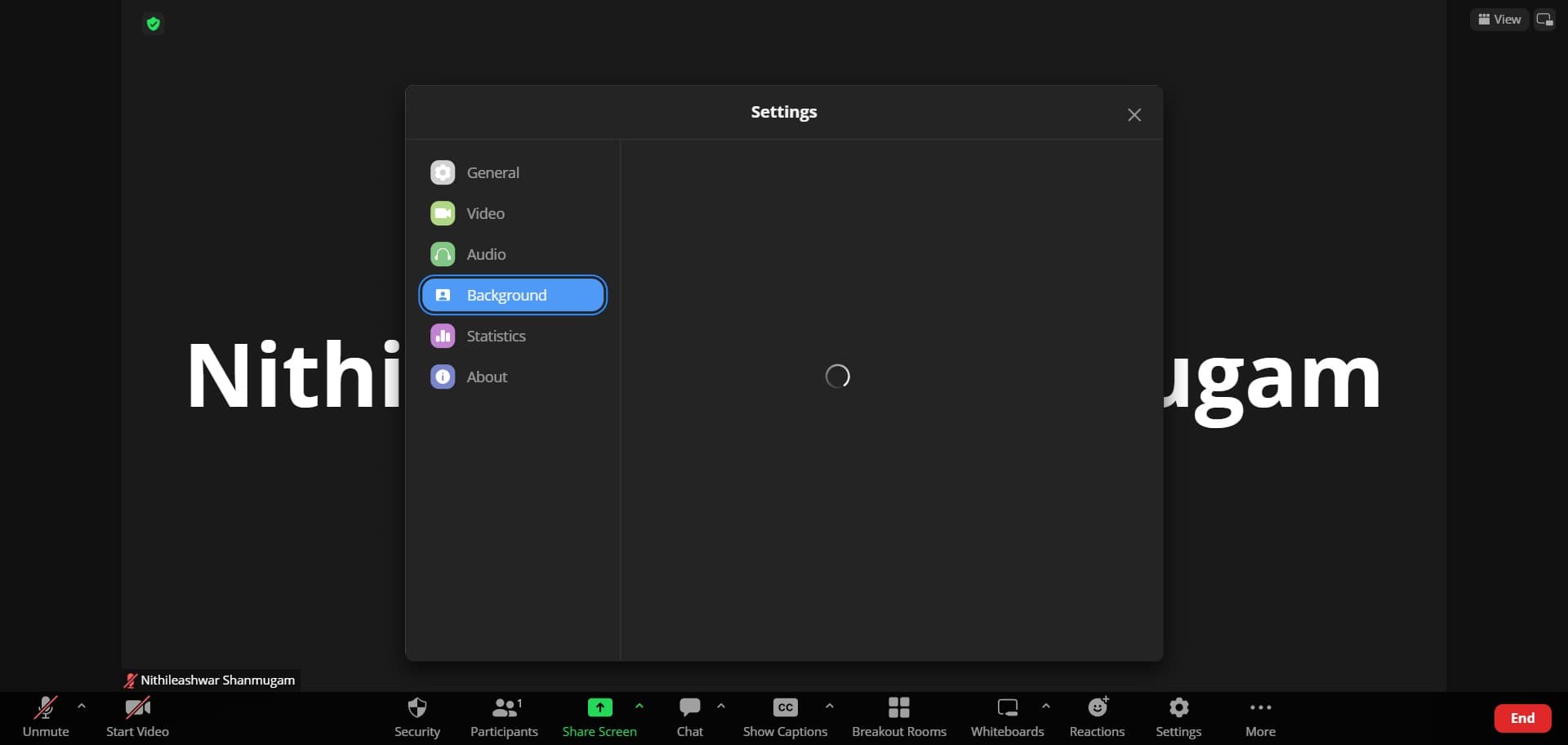
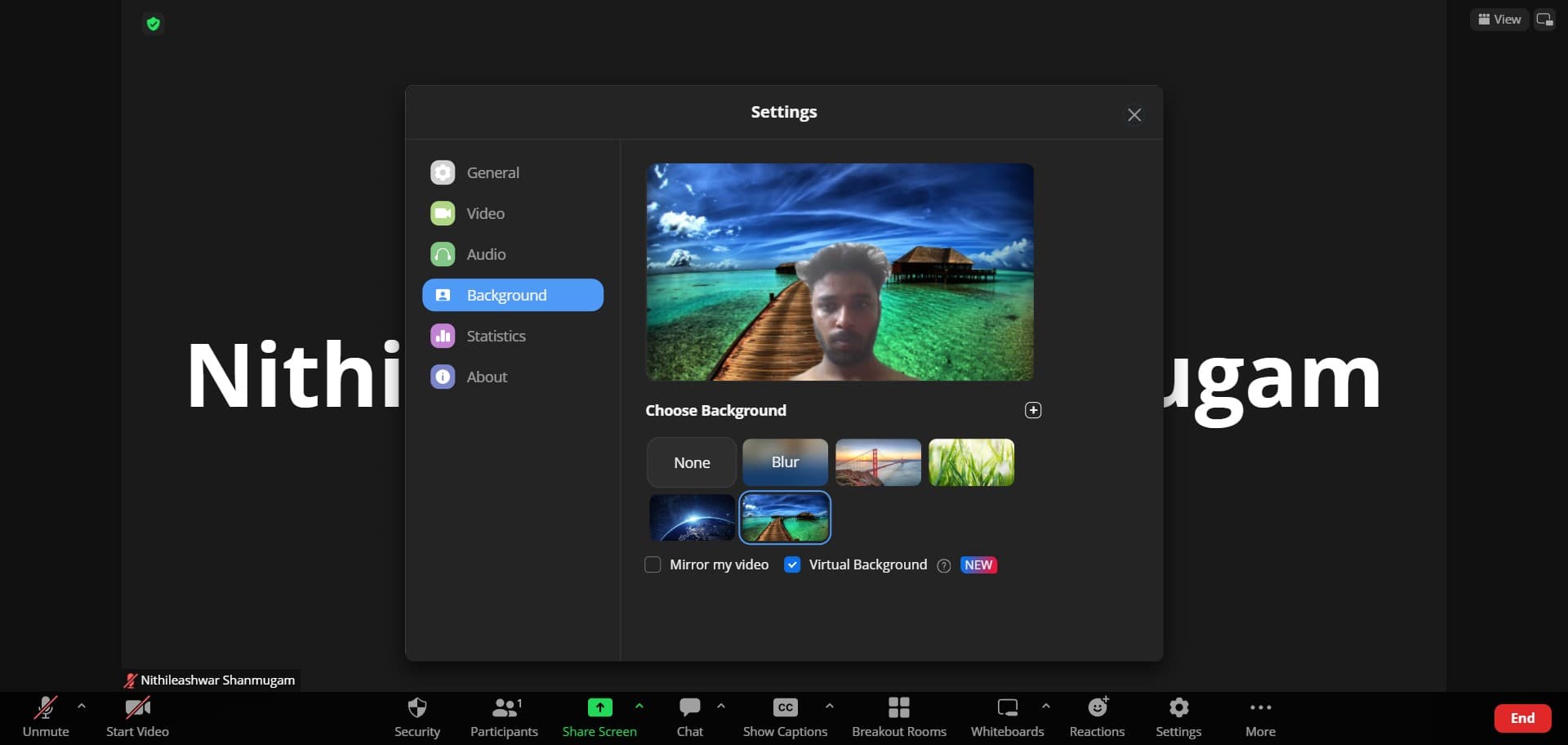
Click on Background
Navigate to the Background settings option from the menu. This section displays all available background customization choices for your current meeting.
- 6
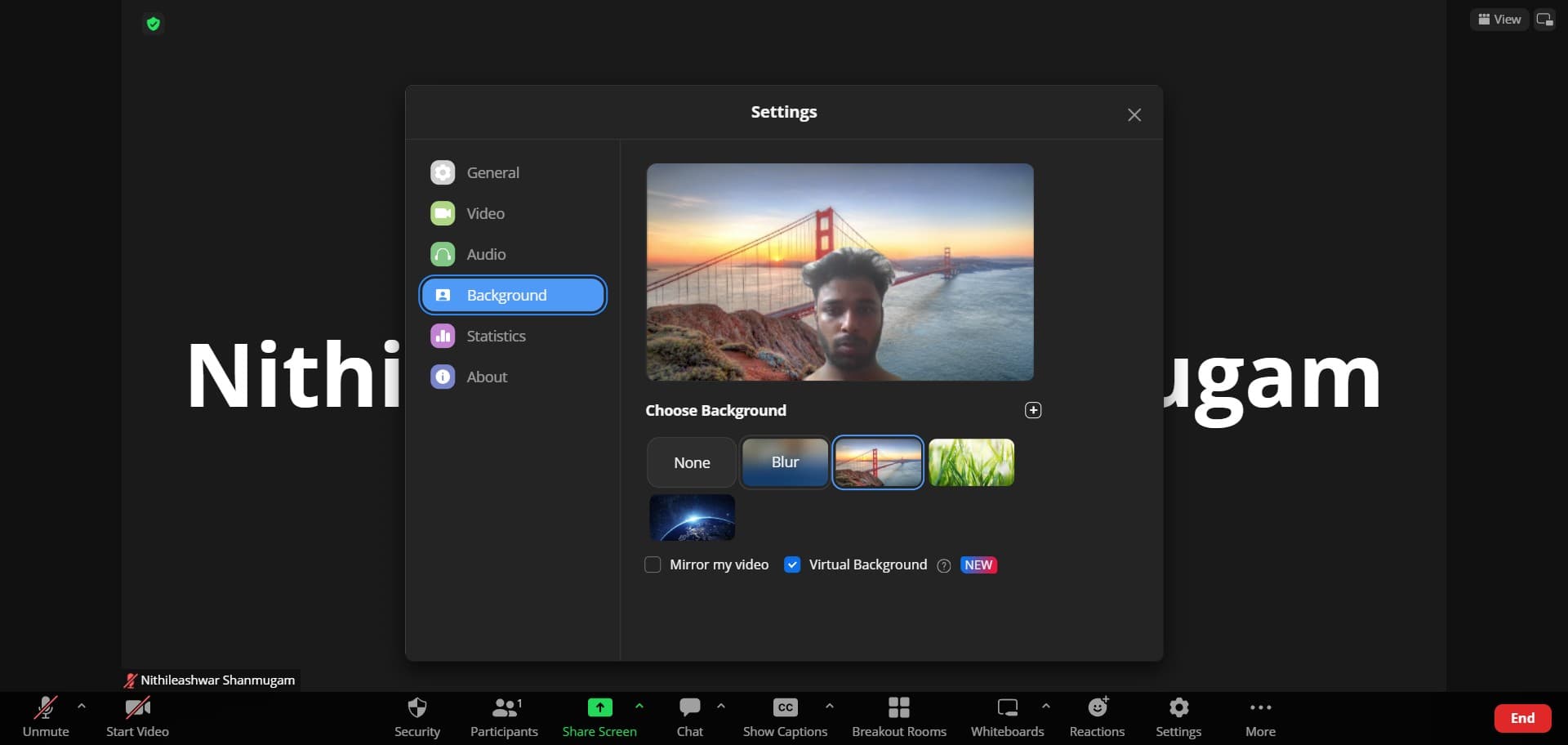
Click on Blur
Select the Blur option to apply a soft blur effect to your background. This lightweight feature obscures your surroundings while maintaining the natural appearance of your video feed.
- 7
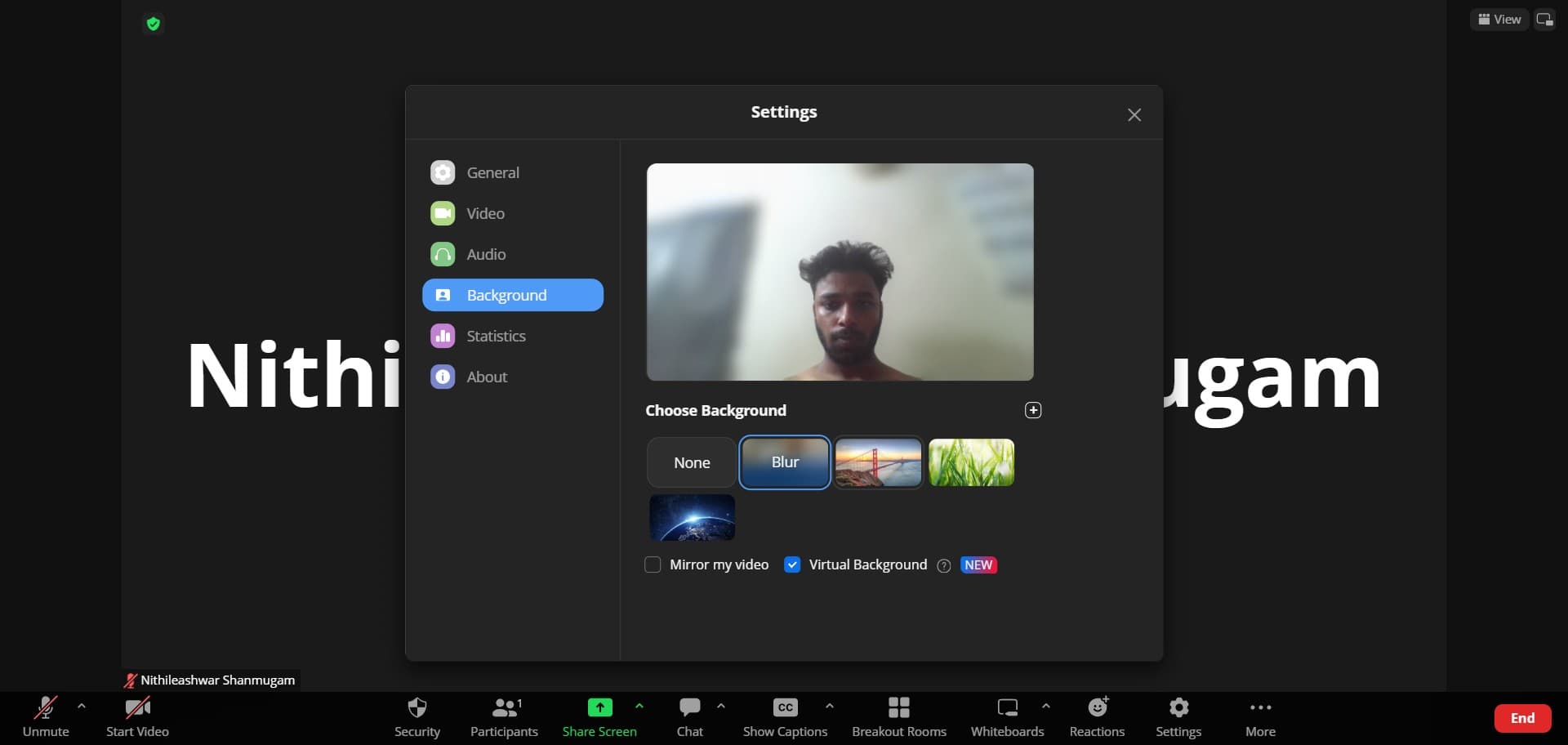
Click on Image
Choose the Image option to replace your background with a custom virtual background. This allows you to upload or select from preset images to display behind you during the meeting.
- 8
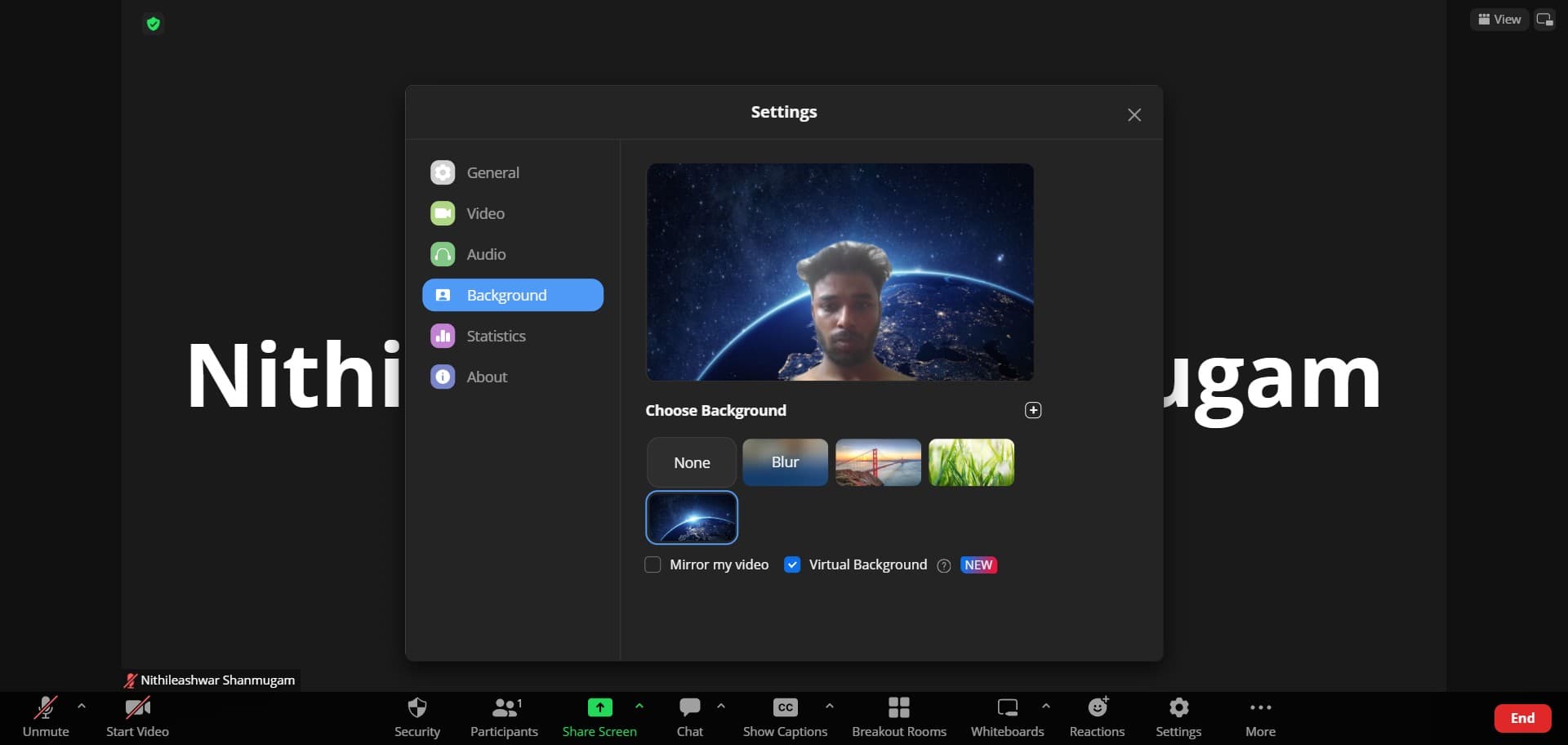
Click the plus icon
Click the plus button to add a new custom background image to your library. This opens a file browser where you can select an image from your computer.
- 9
Upload and apply your image
Select your chosen image file and confirm the upload to add it to your background options. Once uploaded, the image will be applied as your virtual background for the current meeting and saved for future use.
Frequently asked questions
Common questions about how to add virtual or blur background in zoom.
Virtual backgrounds typically require more CPU resources than blur, especially on older or less powerful devices. Blur is a lighter-weight option that works well on most computers. If you experience performance issues during meetings, try using blur instead of a custom image background.
Yes, you can switch between blur, virtual backgrounds, or no background at any time during a meeting using the same settings menu. Simply access the background options from the meeting controls and select your preferred option; the change takes effect immediately.
Zoom supports common image formats including JPG, PNG, and GIF files. For best results, use high-resolution images at least 1280x720 pixels to ensure clarity on screen. Avoid overly busy or distracting images so you remain the focus of the meeting.
Background preferences are generally saved for future meetings, though this depends on your specific Zoom settings and account configuration. You can always adjust your background before each meeting if needed, and the blur or image you select will be remembered for convenience.
Pixelation often occurs when image resolution is too low for your screen size. Try uploading a higher-resolution image, ideally at least 1280x720 pixels or larger. If blur appears distorted, ensure adequate lighting in your space and that your camera is in focus before applying the effect.