How to Create a Zoom Account

Creating a Zoom account is the first step toward accessing video conferencing, webinars, and online meetings. This guide walks you through the entire signup process, from initiating your account to verifying your email and completing setup.
Quick summary
In this tutorial, you'll learn how to create a Zoom account by signing up for free, verifying your email through Gmail, and completing the initial setup. By the end, your account will be ready to host or join meetings.
Why this matters
Having a verified Zoom account enables you to schedule meetings, access cloud recordings, and manage participant settings. Whether you're joining a work meeting or hosting a webinar, a properly set up account ensures you have full access to Zoom's features.
Step-by-step guide
- 1
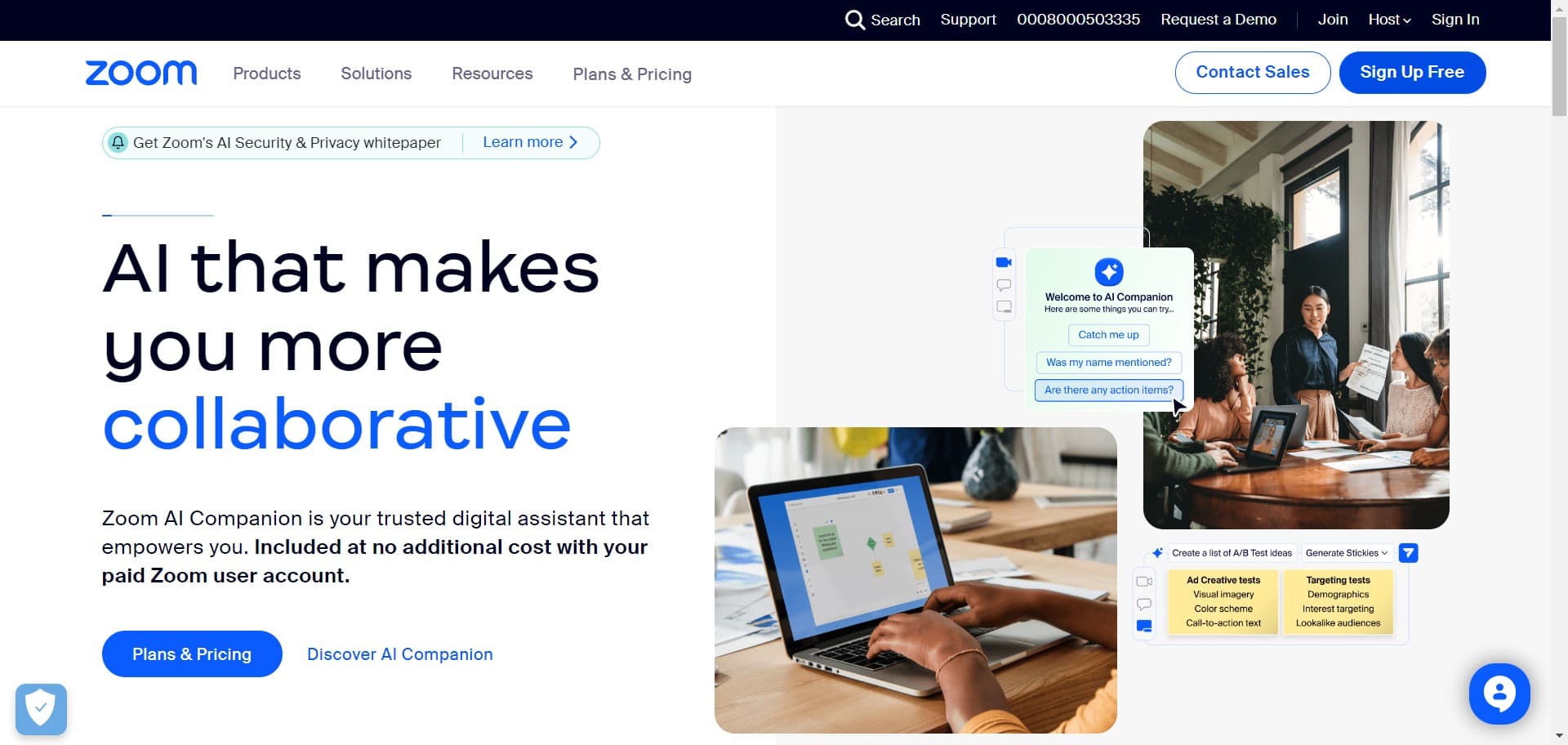
Click on Sign Up Free
Navigate to the Zoom website and locate the Sign Up Free button. Clicking this button initiates the account creation process.
- 2
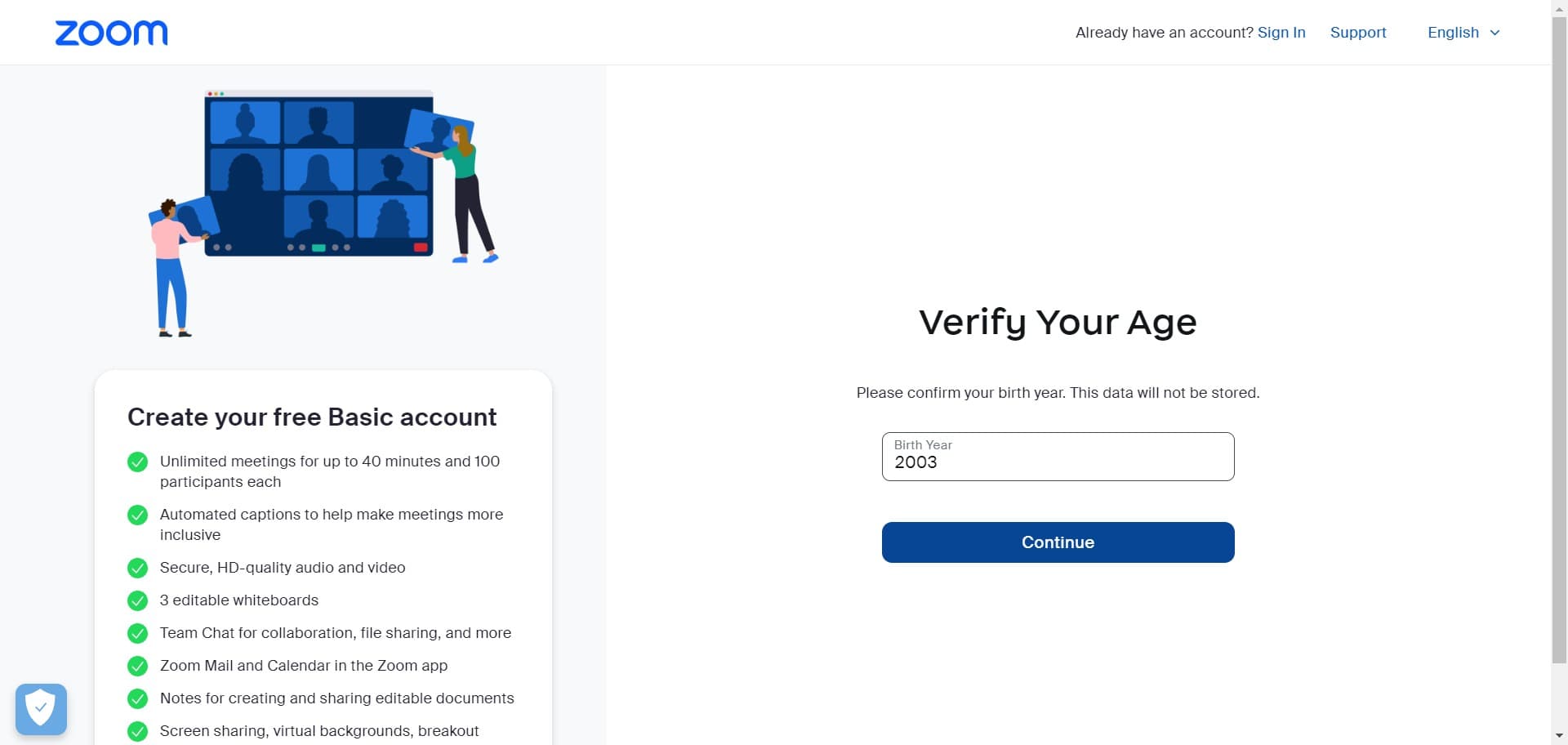
Click Continue on initial screen
You'll see a prompt requesting basic information. Click the Continue button to proceed to the next step of the signup flow.
- 3
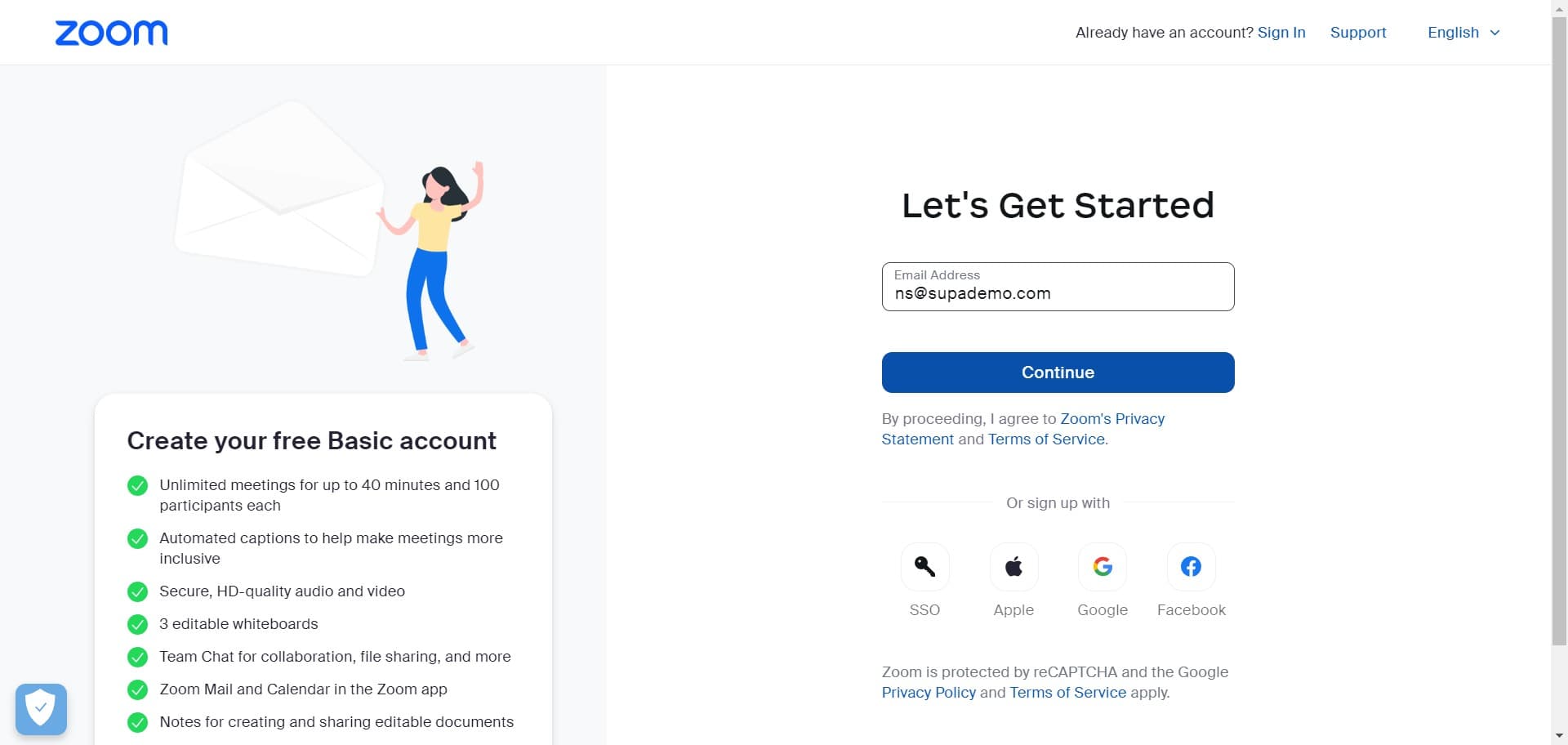
Click Continue to confirm details
Review the information you've entered and click Continue again to move forward in the registration process.
- 4
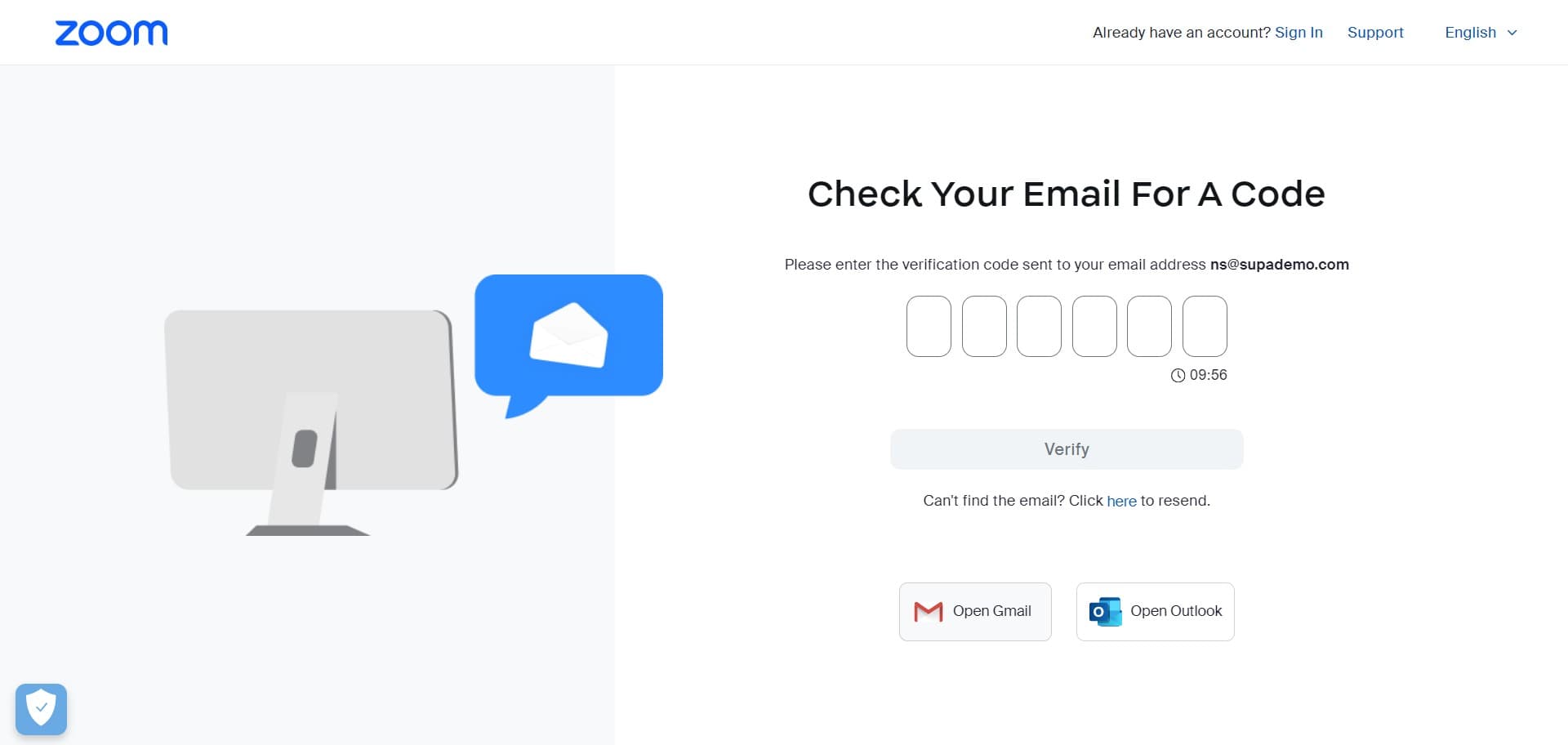
Click Open Gmail
You'll be prompted to verify your email address. Select Open Gmail to access your Gmail account where you'll receive the verification code.
- 5
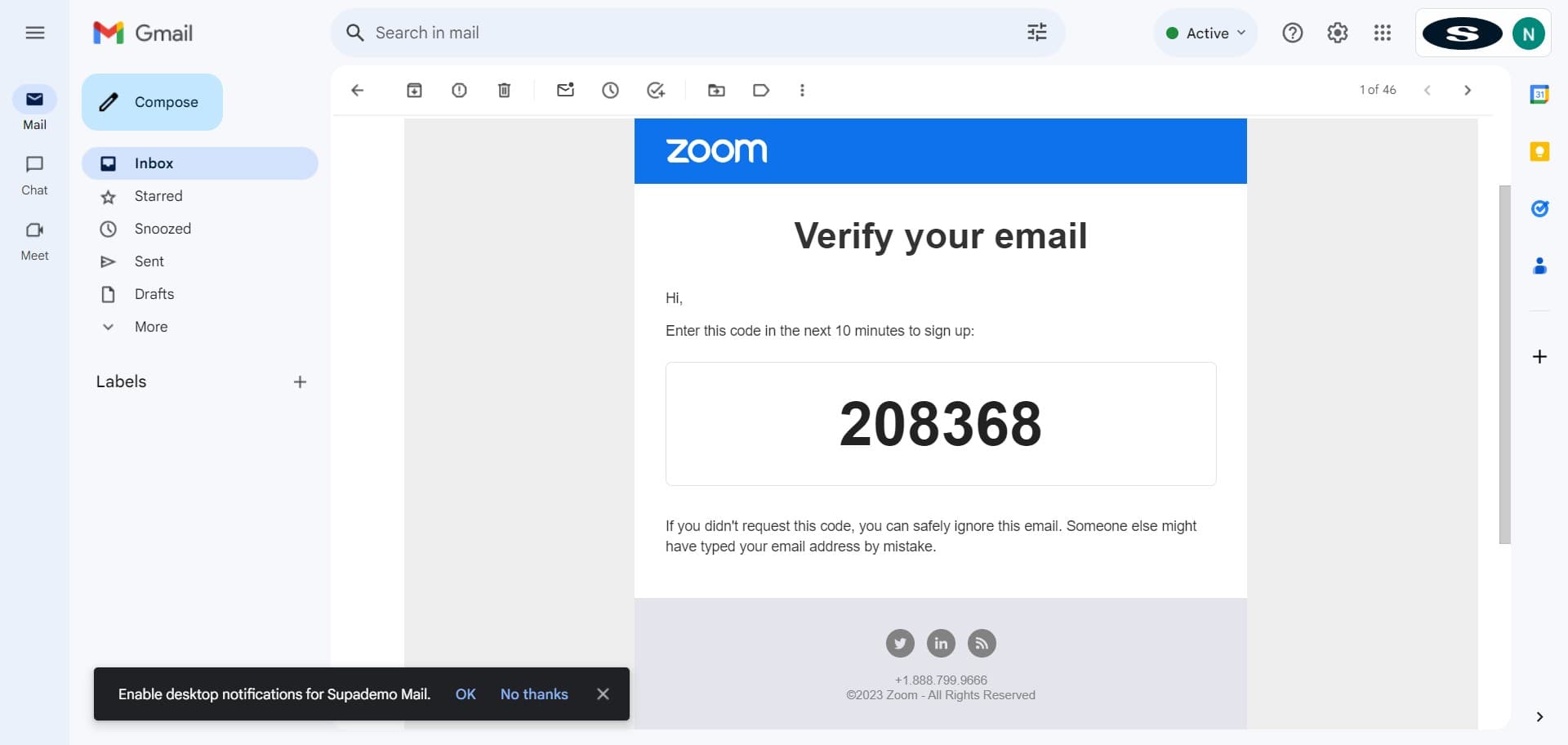
Click on verification code
In Gmail, locate the email from Zoom containing your verification code. Click on the code number 208368 to select or copy it.
- 6
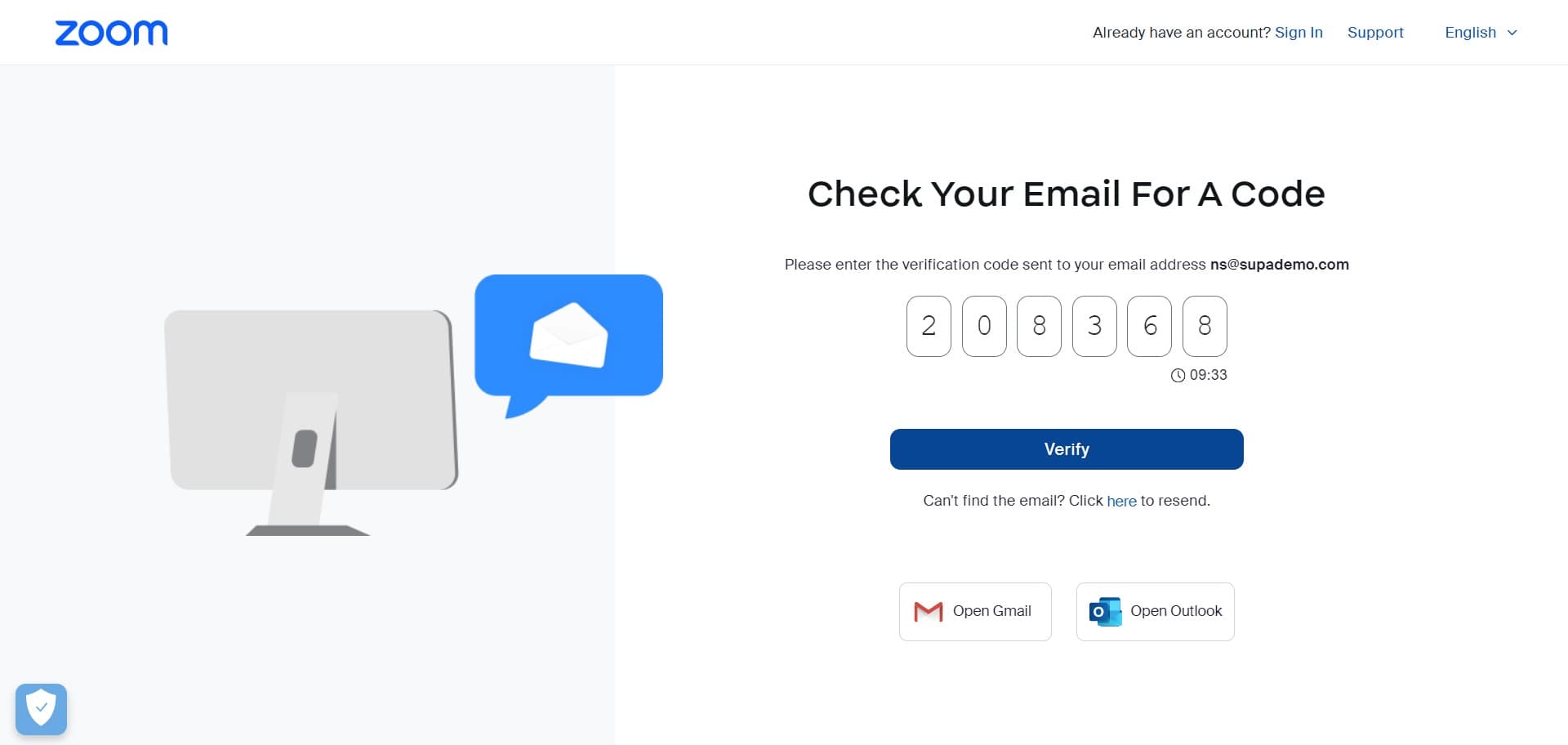
Click Verify to confirm email
Return to the Zoom signup page and paste or enter the verification code you received. Click the Verify button to confirm your email address.
- 7
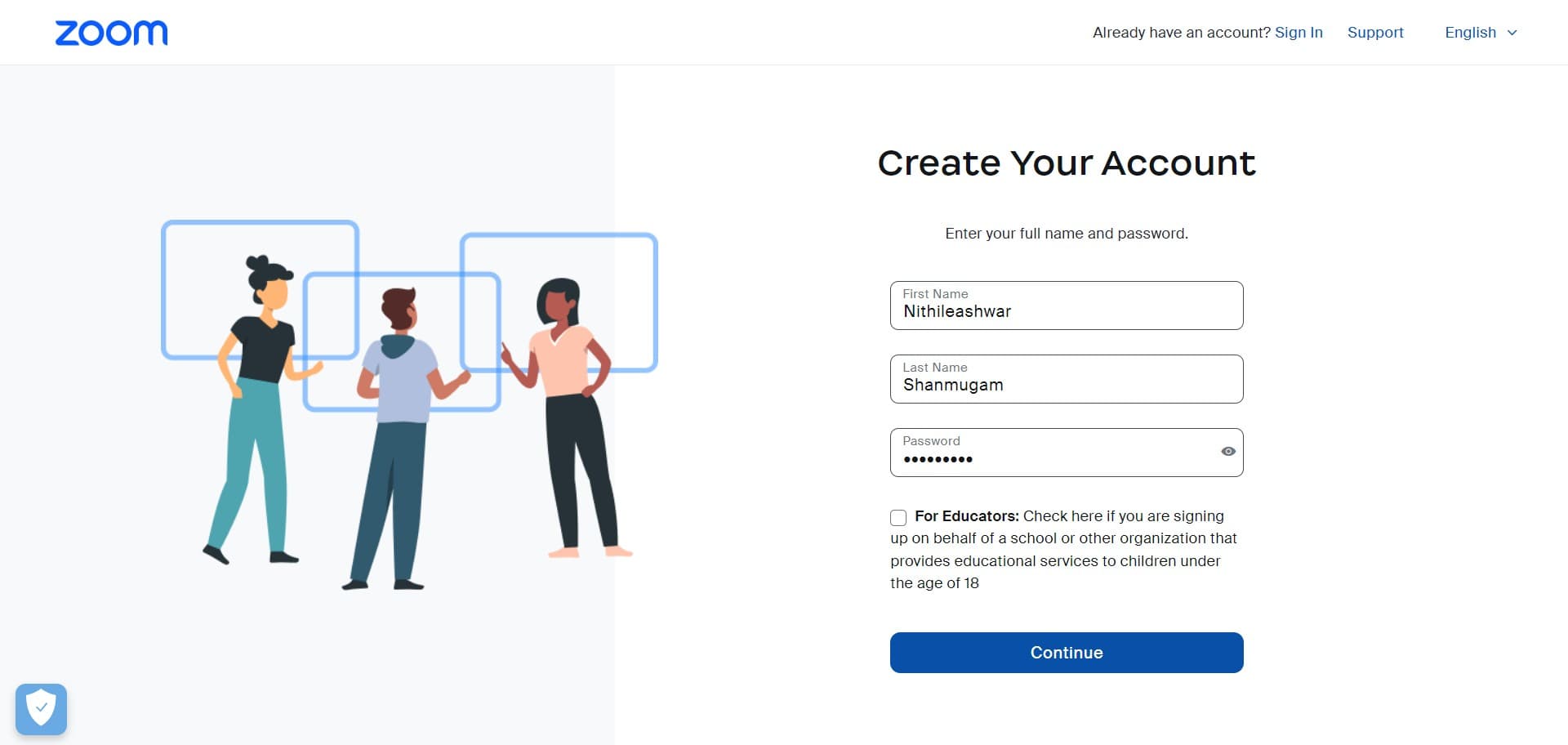
Click Continue to finalize setup
After successful verification, click Continue to proceed to the account completion step.
- 8
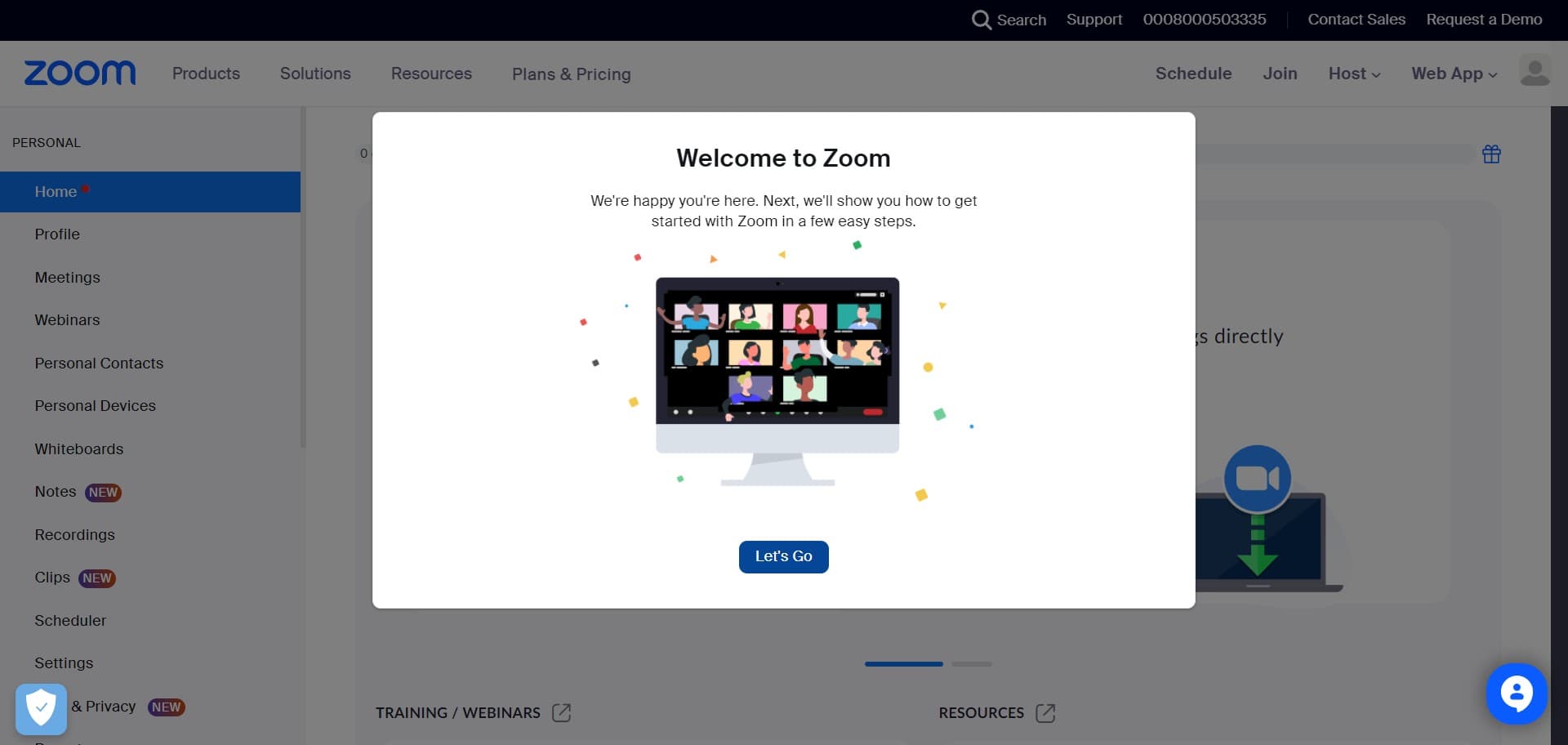
Click Let's Go to start using Zoom
On the final screen, click the Let's Go button to complete your account setup and access your new Zoom account dashboard.
Frequently asked questions
Common questions about how to create a zoom account.
While this guide demonstrates verification through Gmail, Zoom supports email verification from other providers as well. Gmail is one convenient option, but you can use any email address associated with your account.
Check your spam or junk folder first, as verification emails sometimes get filtered there. If you still don't see it, you can request a new verification code. Wait a few minutes before requesting another email, as delivery can take time.
Yes, you can update your email address in your Zoom account settings after verification. Log in to your account, navigate to your profile settings, and edit your email information.
Yes, creating a basic Zoom account is completely free. The free plan includes access to one-on-one meetings and group meetings with limited duration. You can upgrade to a paid plan if you need additional features or longer meeting times.
After completing setup, you can schedule meetings, start instant meetings, join existing meetings, access cloud storage for recordings, and manage your account preferences and security settings.