How to host a meeting in Zoom on browsers

Hosting a meeting in Zoom directly from your web browser is a convenient way to connect with others without downloading software. This guide walks you through the process of starting a browser-based Zoom meeting, from initiating the host action to joining the audio conference.
Quick summary
In this tutorial, you'll learn how to host a Zoom meeting using your browser. You'll navigate through the host options, launch the meeting, and connect your audio, enabling you to start meeting with participants immediately.
Why this matters
Browser-based meetings eliminate installation friction and allow you to quickly start collaborations from any device. This approach is particularly useful when you're on a shared or public computer, or when you need to host an impromptu meeting without technical setup delays.
Step-by-step guide
- 1
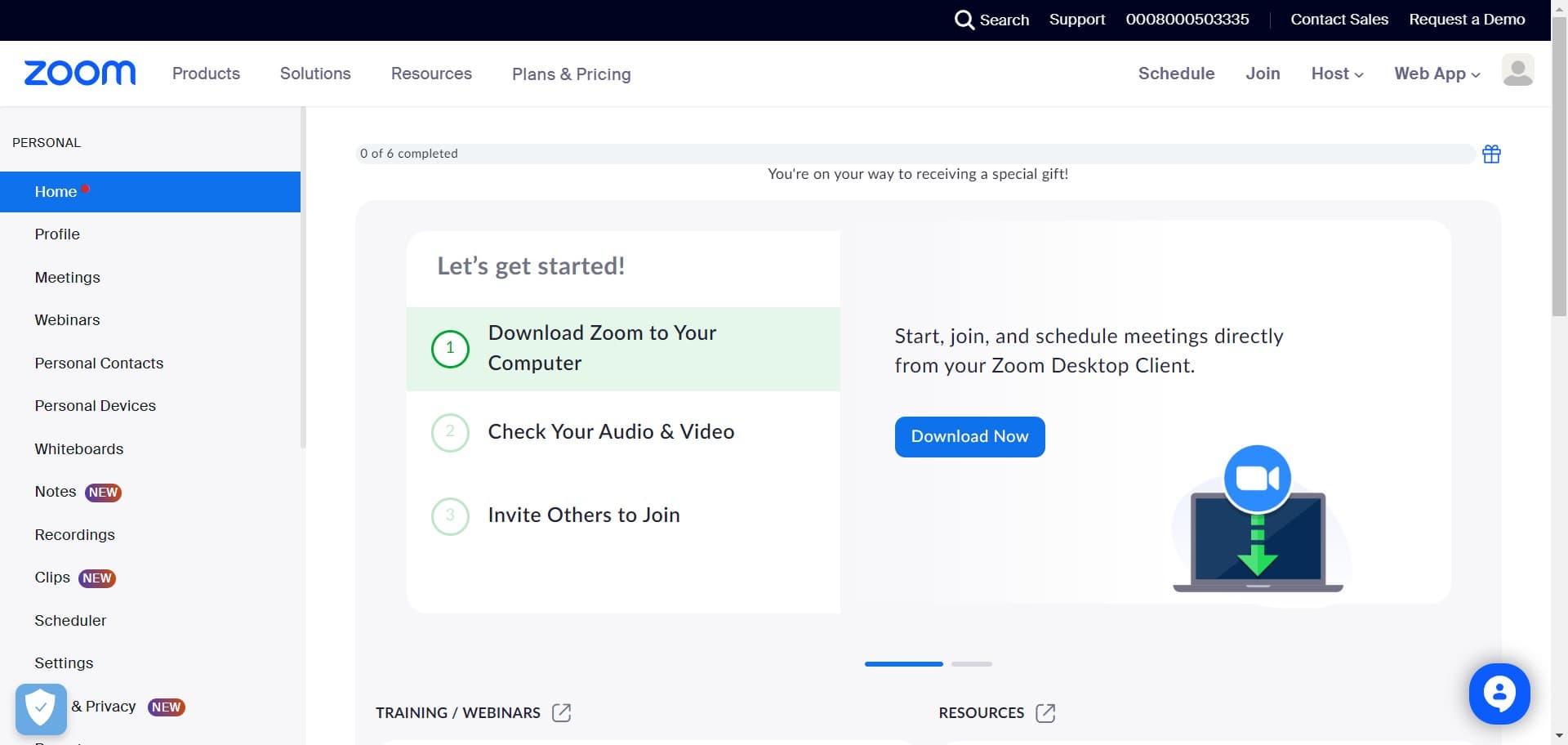
Click on Host
Navigate to Zoom and locate the Host button on the main interface. Clicking this initiates the process of starting a new meeting as the host.
- 2
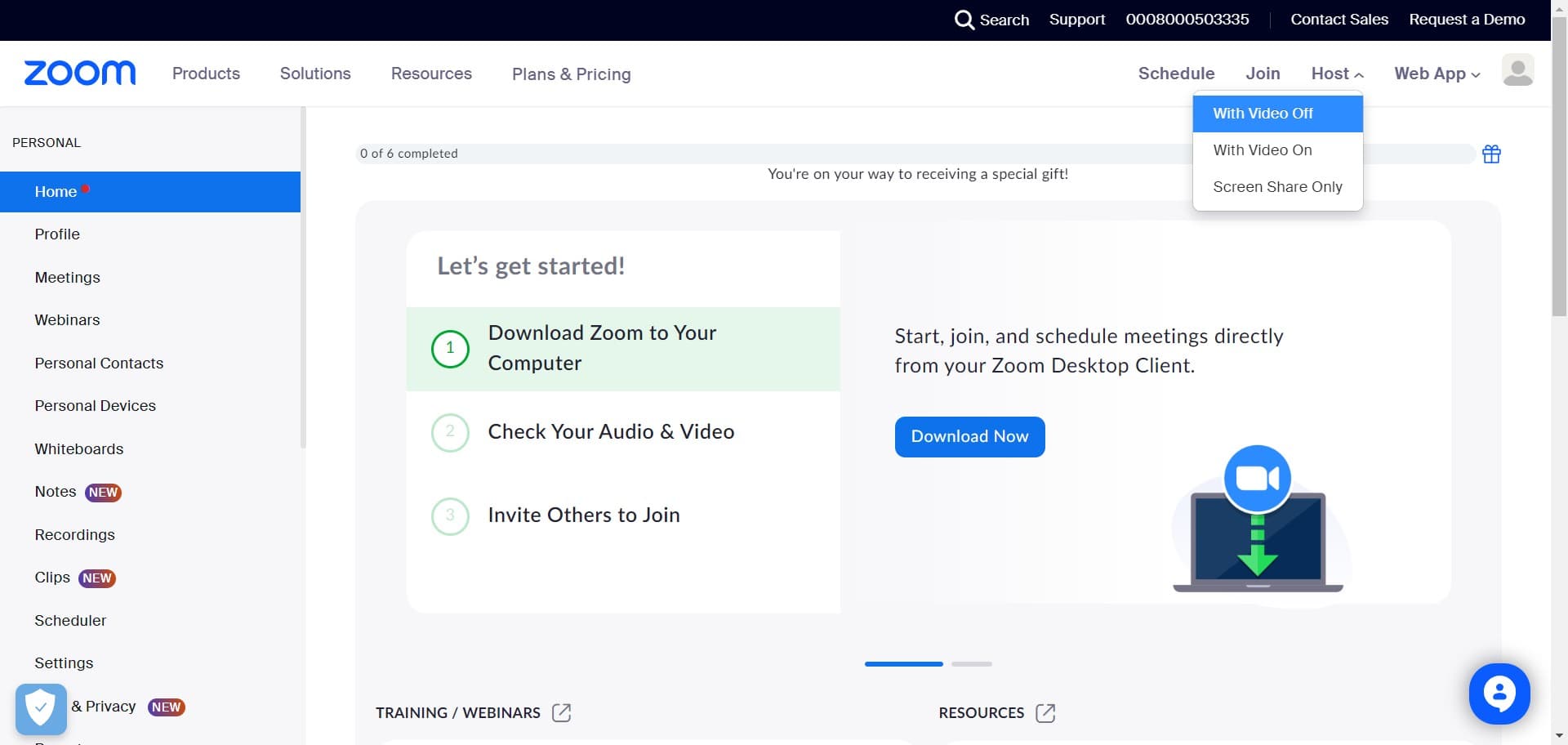
Click on With Video Off
Select the option to start your meeting with video disabled. This is useful if you want to begin without camera input and enable it later if needed.
- 3
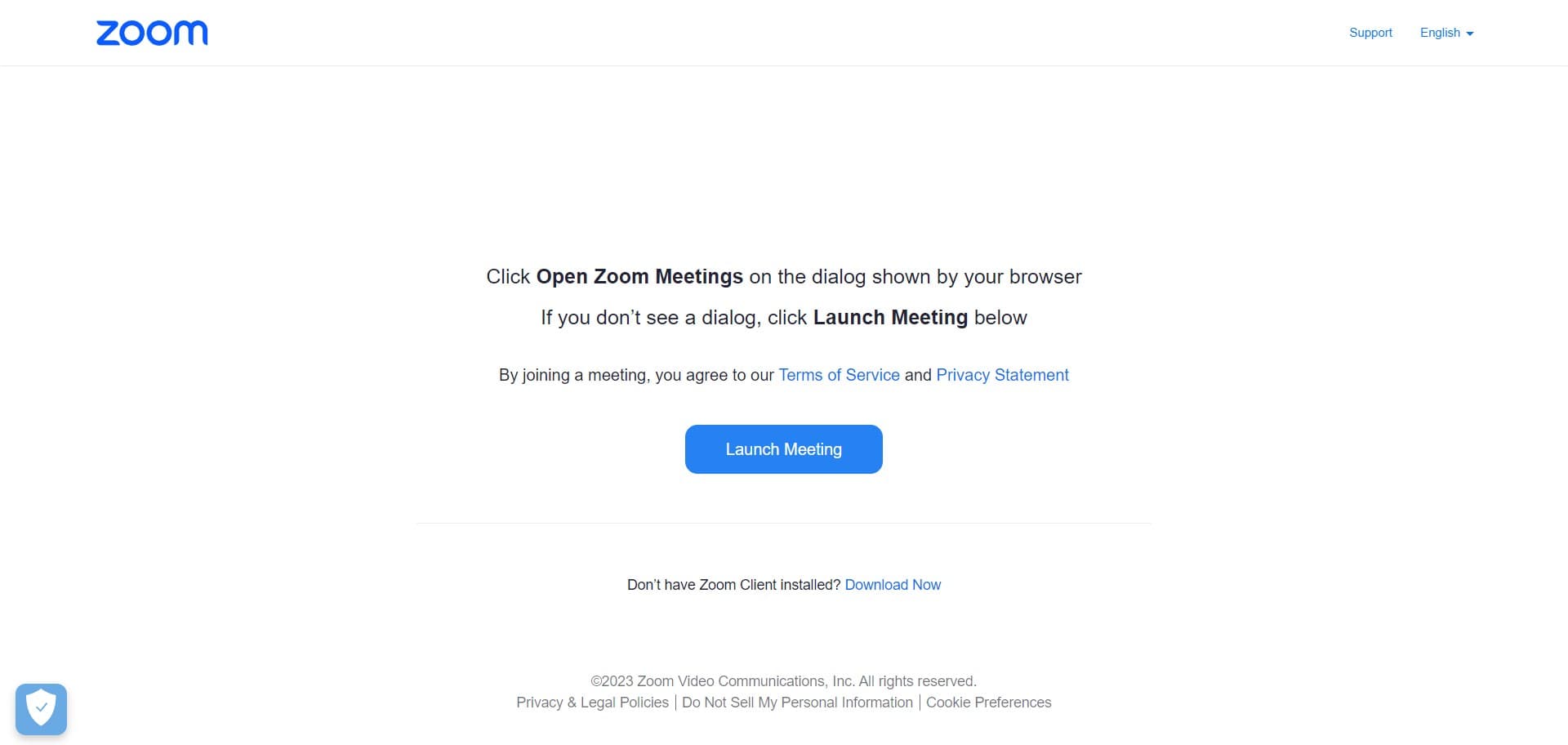
Click on Launch Meeting
Select the Launch Meeting button to proceed with starting your meeting. The system will prepare your meeting session and move you to the next setup step.
- 4
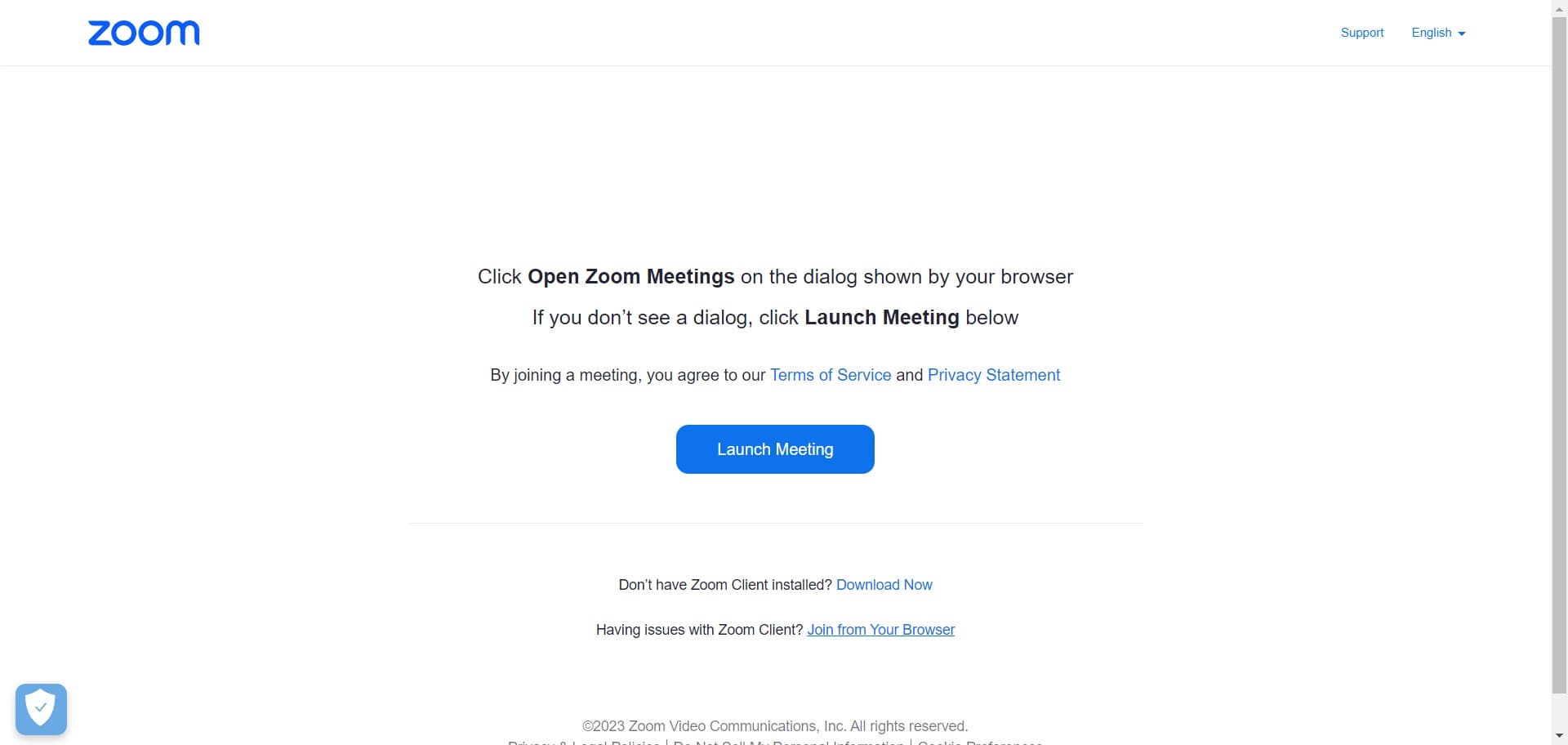
Click on Join from Your Browser
Choose the option to join the meeting using your web browser instead of the Zoom desktop application. This keeps everything contained within your browser window.
- 5
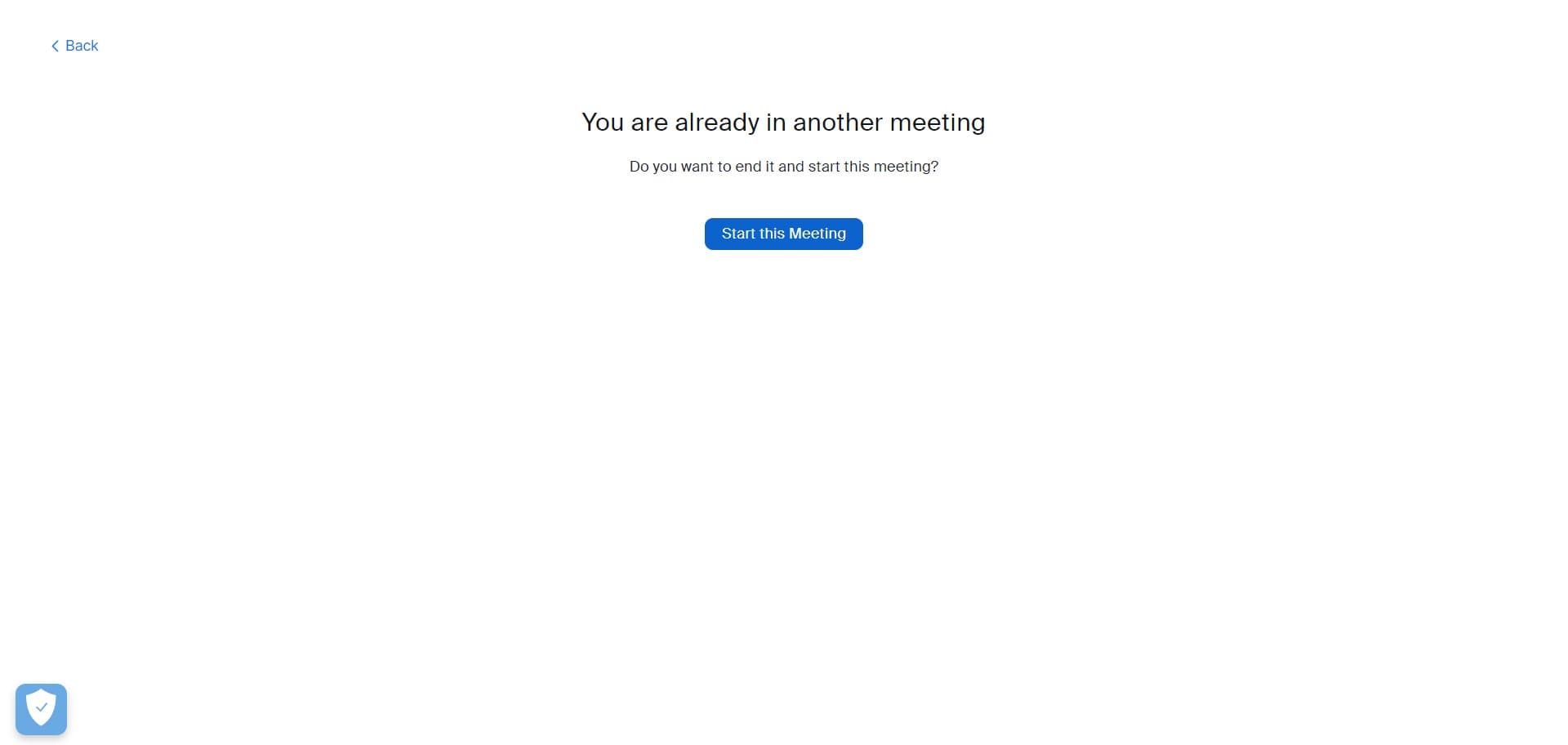
Click on Start this Meeting
Confirm that you want to start the meeting by clicking the Start this Meeting button. Your meeting will now be active and ready to accept participants.
- 6
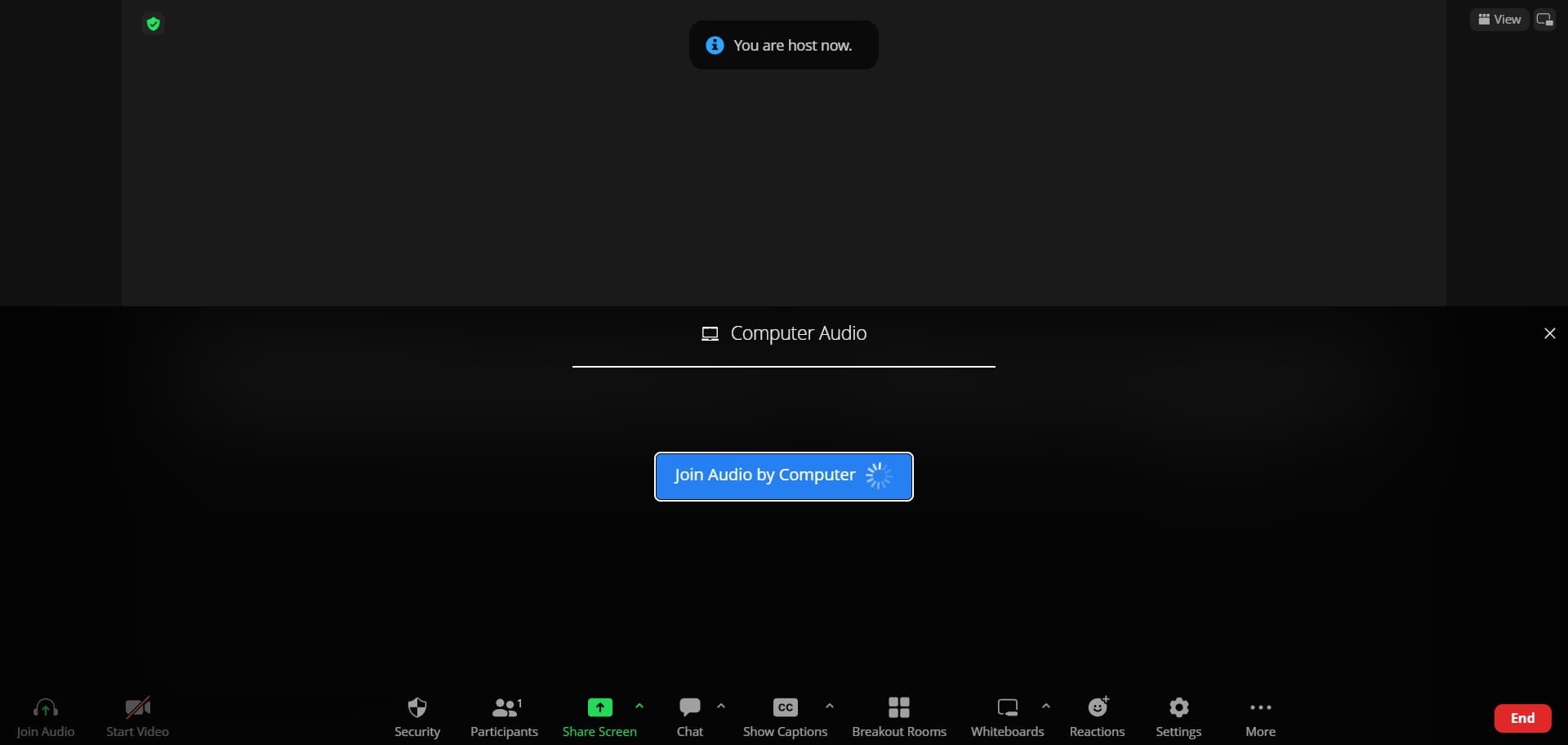
Click on Join Audio by Computer
Select this option to connect your audio through your computer's microphone and speakers. This establishes your audio connection so you can communicate with meeting participants.
Frequently asked questions
Common questions about how to host a meeting in zoom on browsers.
Yes, you can enable your video at any time during the meeting. Once you've joined the audio, look for the video toggle in the meeting controls and click it to turn your camera on whenever you're ready.
You'll need a modern web browser, a stable internet connection, a microphone for audio, and ideally a webcam if you plan to share video. Zoom works on Chrome, Firefox, Safari, and Edge browsers.
Yes, participants can join your browser-hosted meeting using any method available to them, including their own browsers, Zoom apps, or phone dial-in. The hosting method doesn't restrict how others connect.
Yes, screen sharing is fully supported in browser-based Zoom meetings. During the meeting, you'll find a Share Screen option in the meeting controls that allows you to display your screen or a specific application window.
First, check that your microphone and speaker are properly connected and not muted. Then verify in Zoom's audio settings that the correct devices are selected. You can also try disconnecting and rejoining the audio to reset the connection.