How to Join a Zoom video

Joining a Zoom video meeting is a straightforward process that can be completed in just a few clicks. Whether you're attending a scheduled meeting or joining on the fly, this guide walks you through each step to get you connected quickly.
Quick summary
In this tutorial, you'll learn how to join a Zoom video meeting from start to finish. We'll cover locating the join option, entering meeting details, launching the meeting, and connecting your audio so you're ready to participate.
Why this matters
Being able to quickly and confidently join Zoom meetings is essential for remote work, education, and virtual collaboration. Understanding the join process ensures you won't miss important meetings and can troubleshoot common connection issues.
Step-by-step guide
- 1
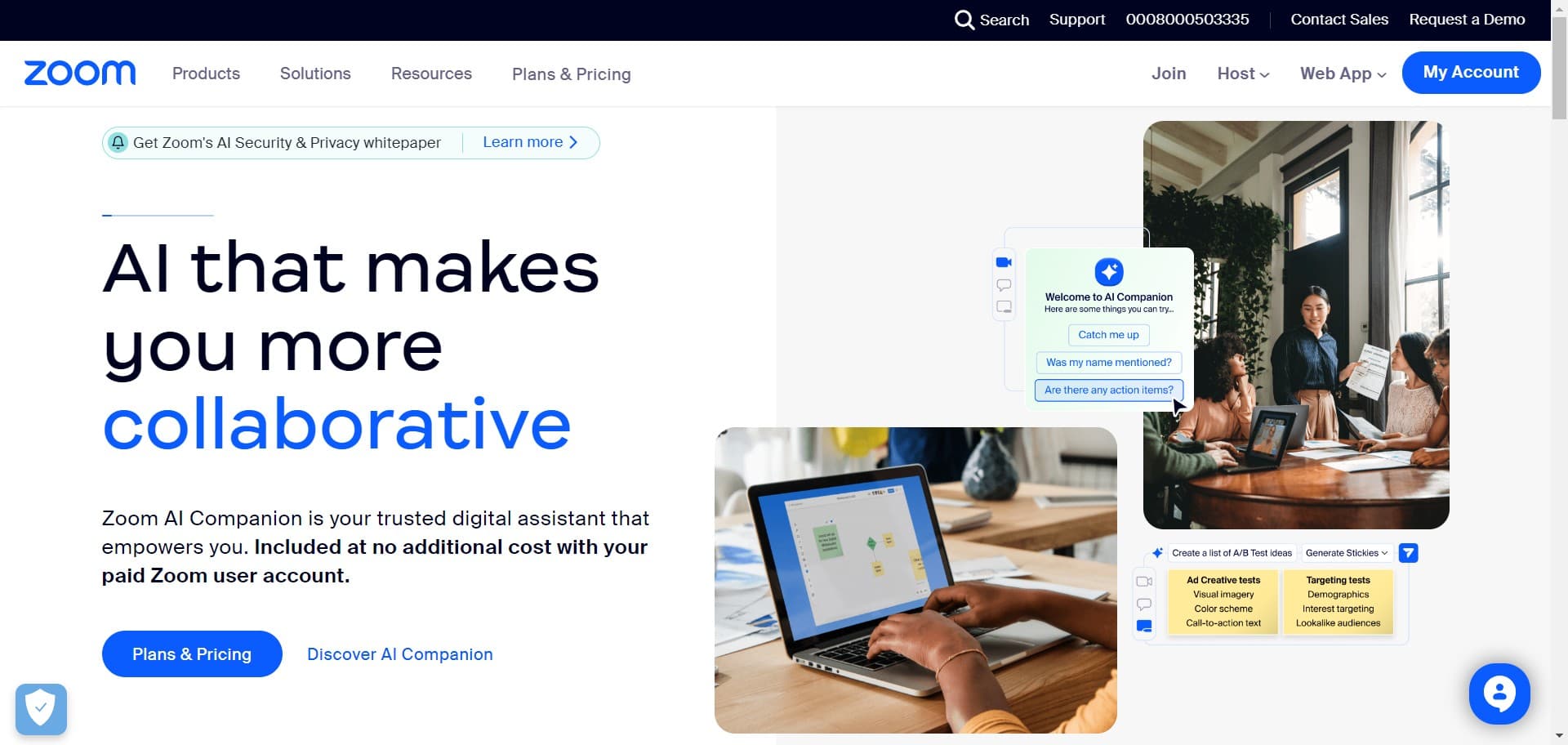
Click the Join button
Look for the 'Join' button on the Zoom home screen or dashboard. This is your entry point to join an existing meeting.
- 2
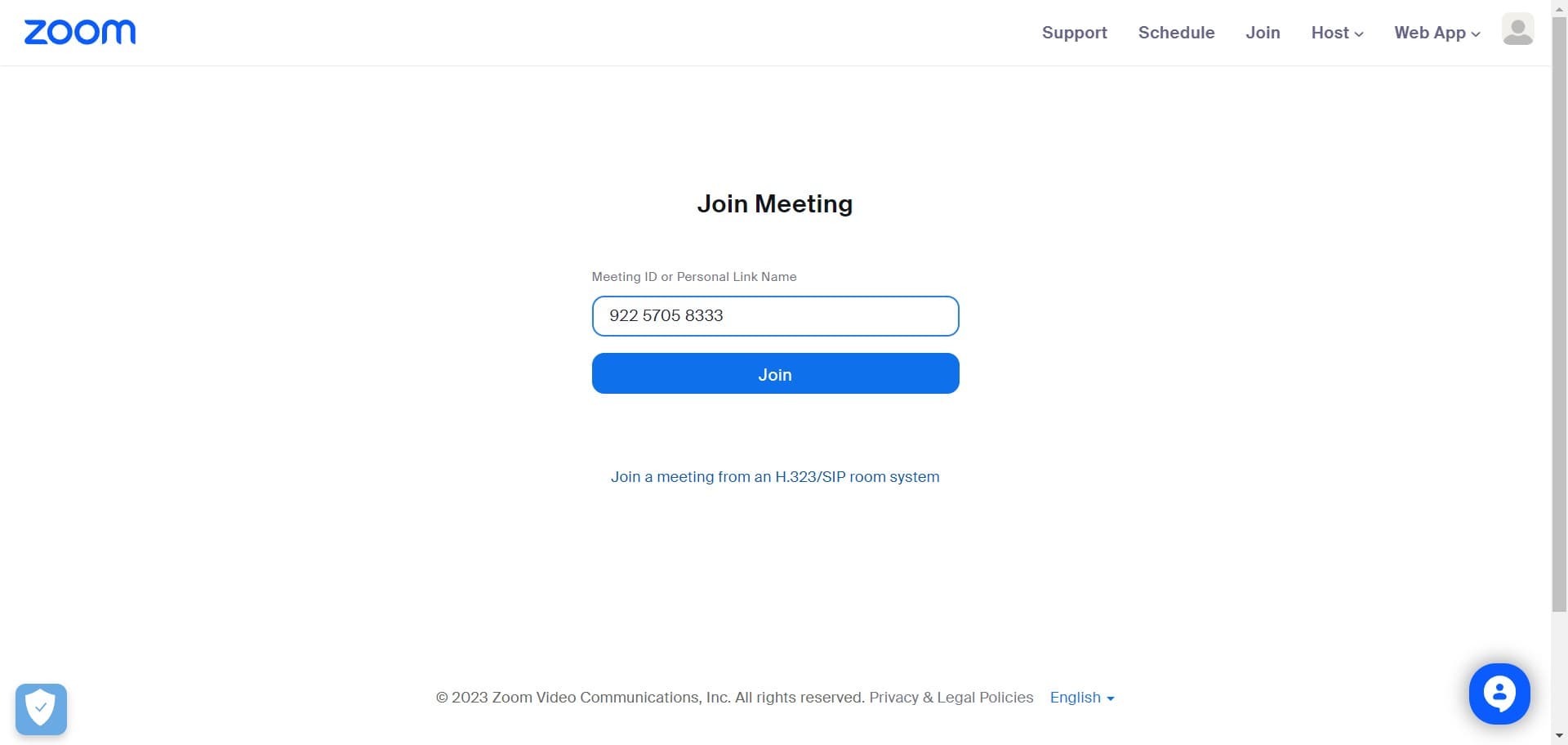
Select Join again
A menu or dialog will appear with join options. Click 'Join' to proceed with entering your meeting details.
- 3
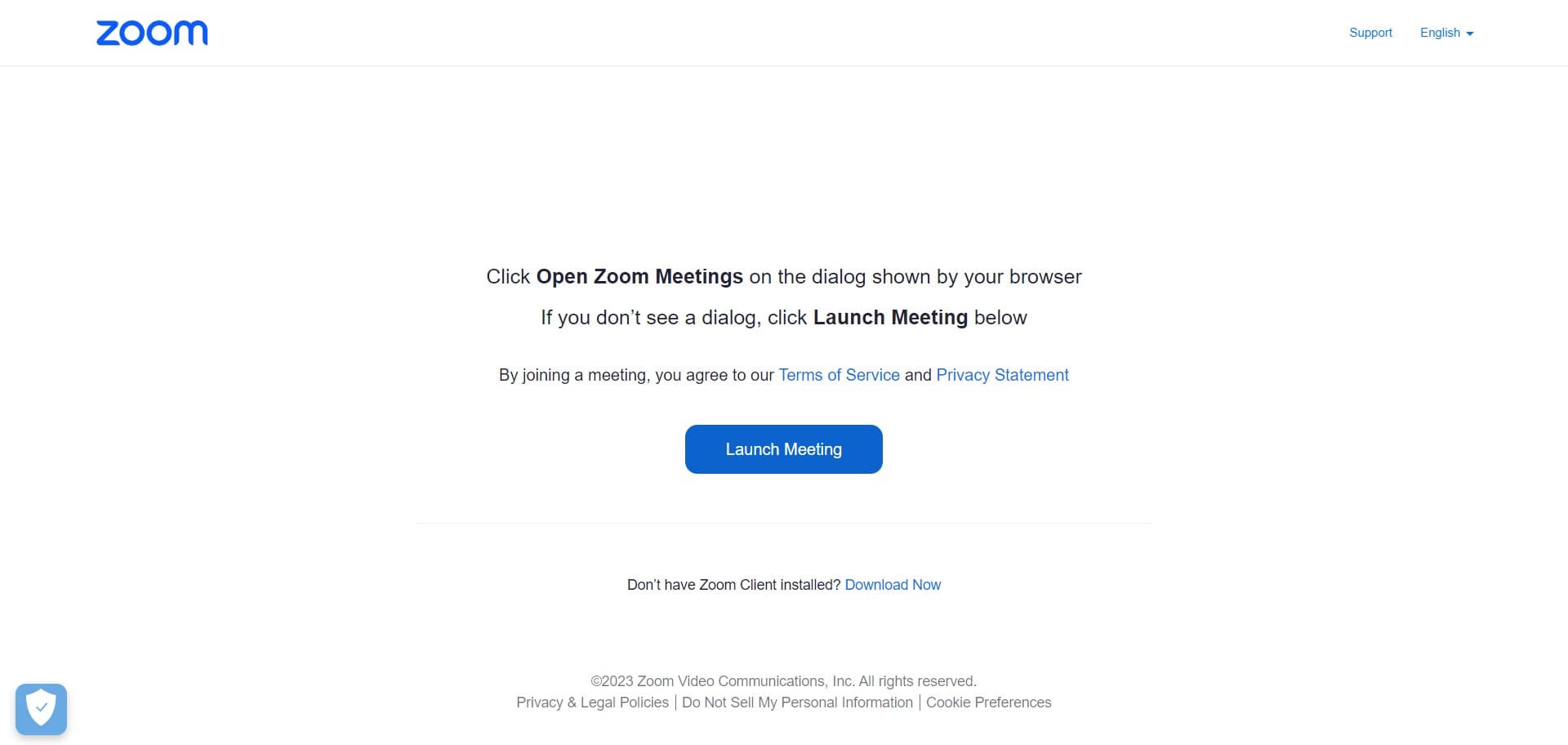
Click Launch Meeting
Select 'Launch Meeting' to initiate the meeting launch process. This prepares Zoom to connect you to the video session.
- 4
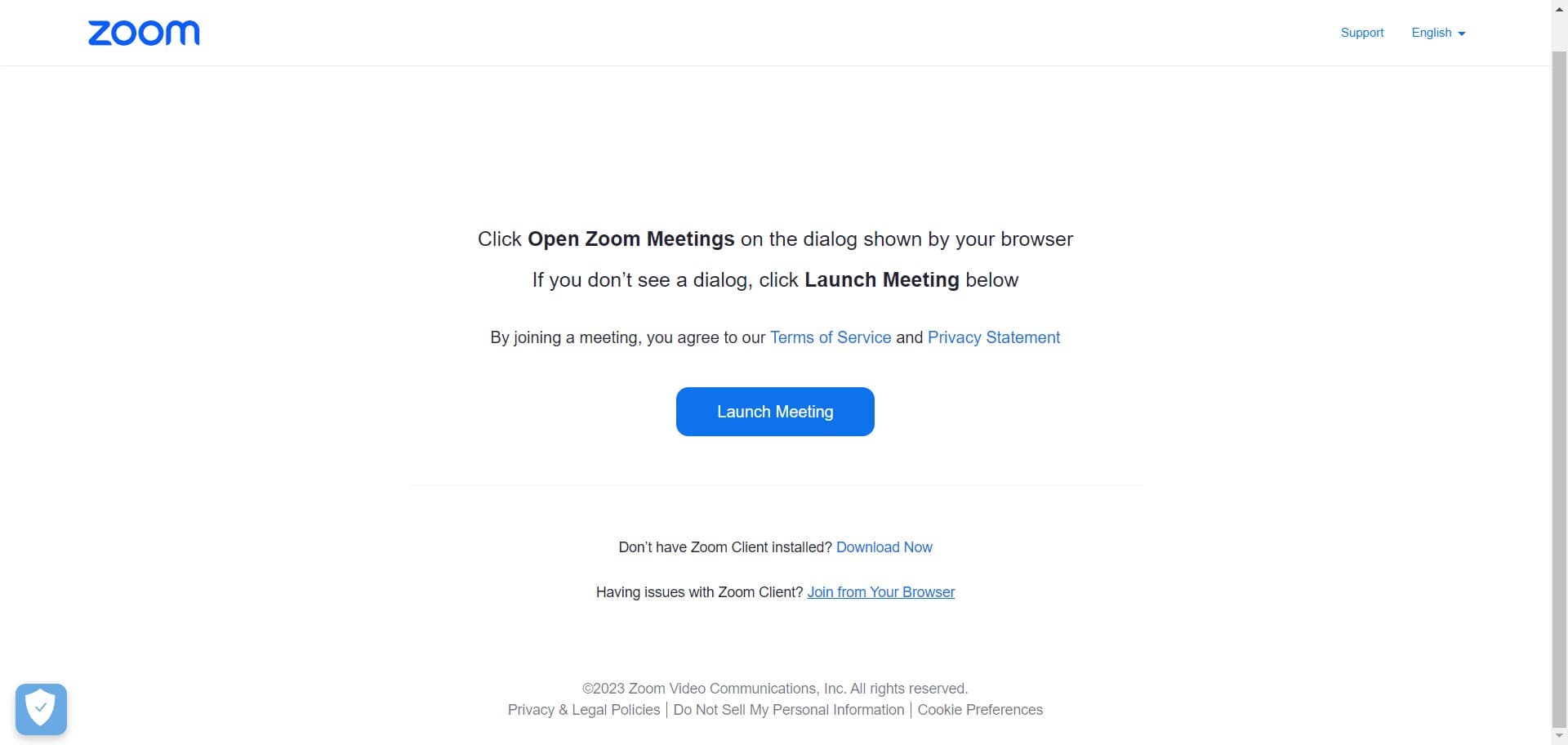
Choose Join from Your Browser
Select 'Join from Your Browser' if you prefer not to use the Zoom desktop application. This allows you to join directly through your web browser without downloading additional software.
- 5
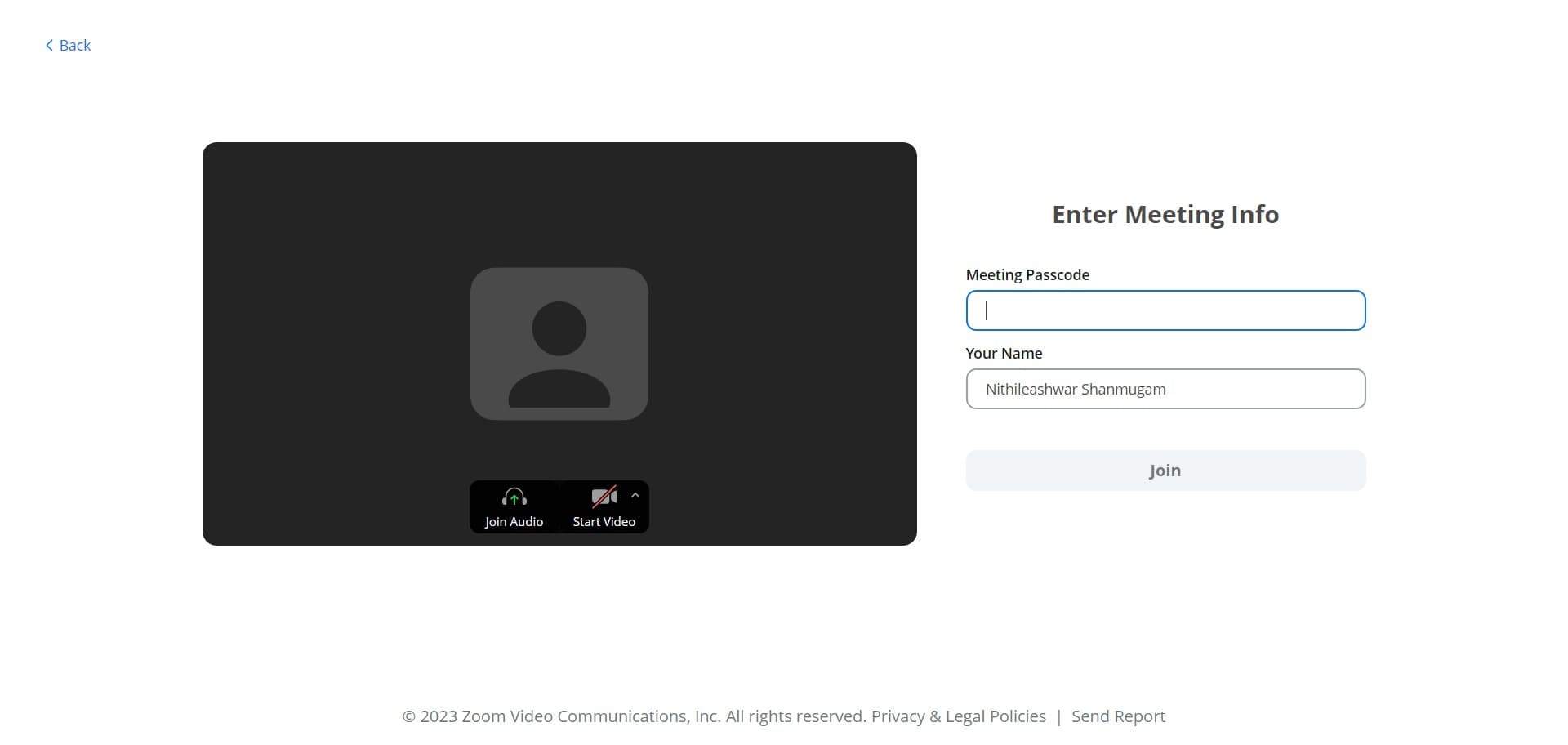
Complete the join action
Click the confirmation button or link that appears on screen. This finalizes your request to enter the meeting.
- 6
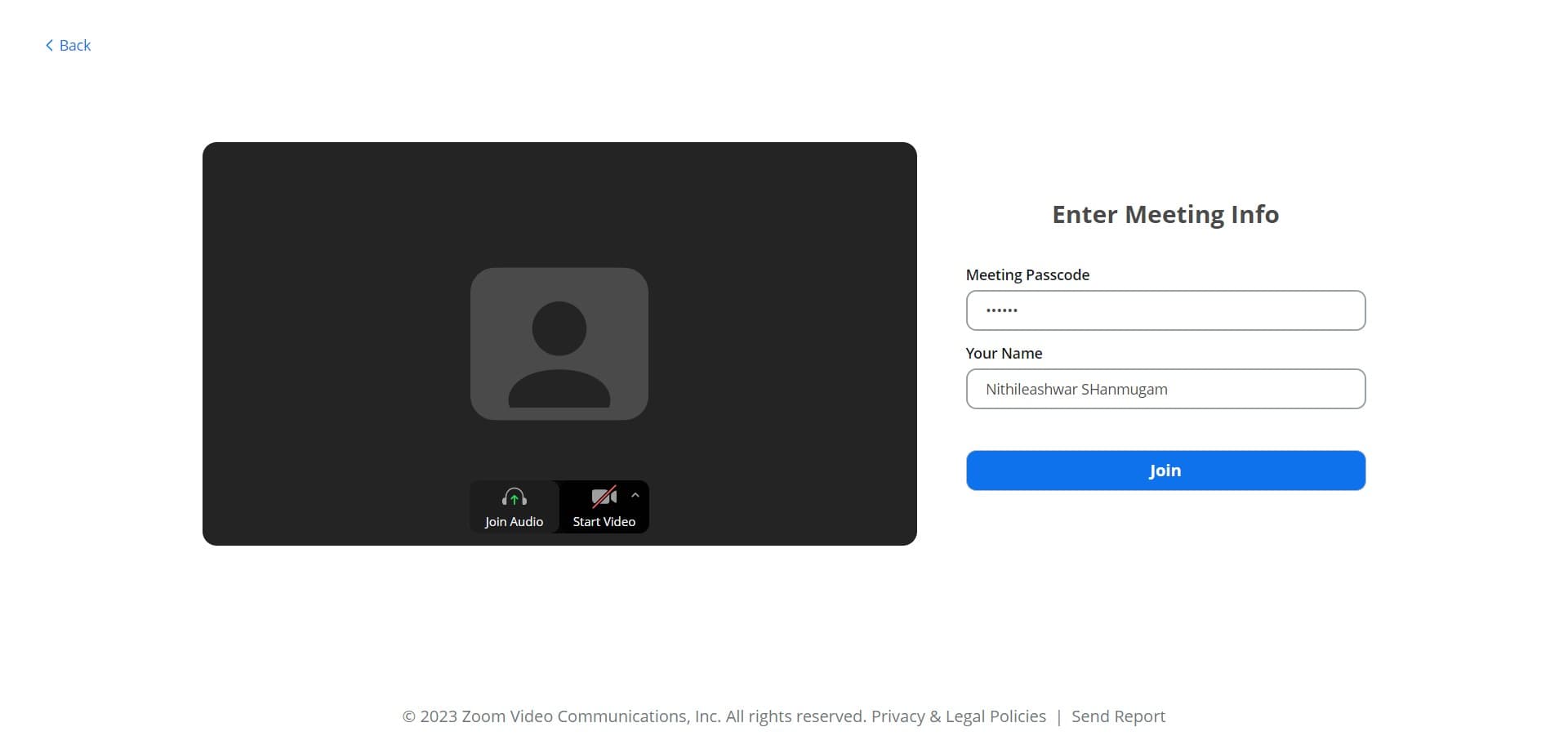
Click Join Audio
Select 'Join Audio' to connect your microphone and speakers to the meeting. This enables you to hear and be heard by other participants.
- 7
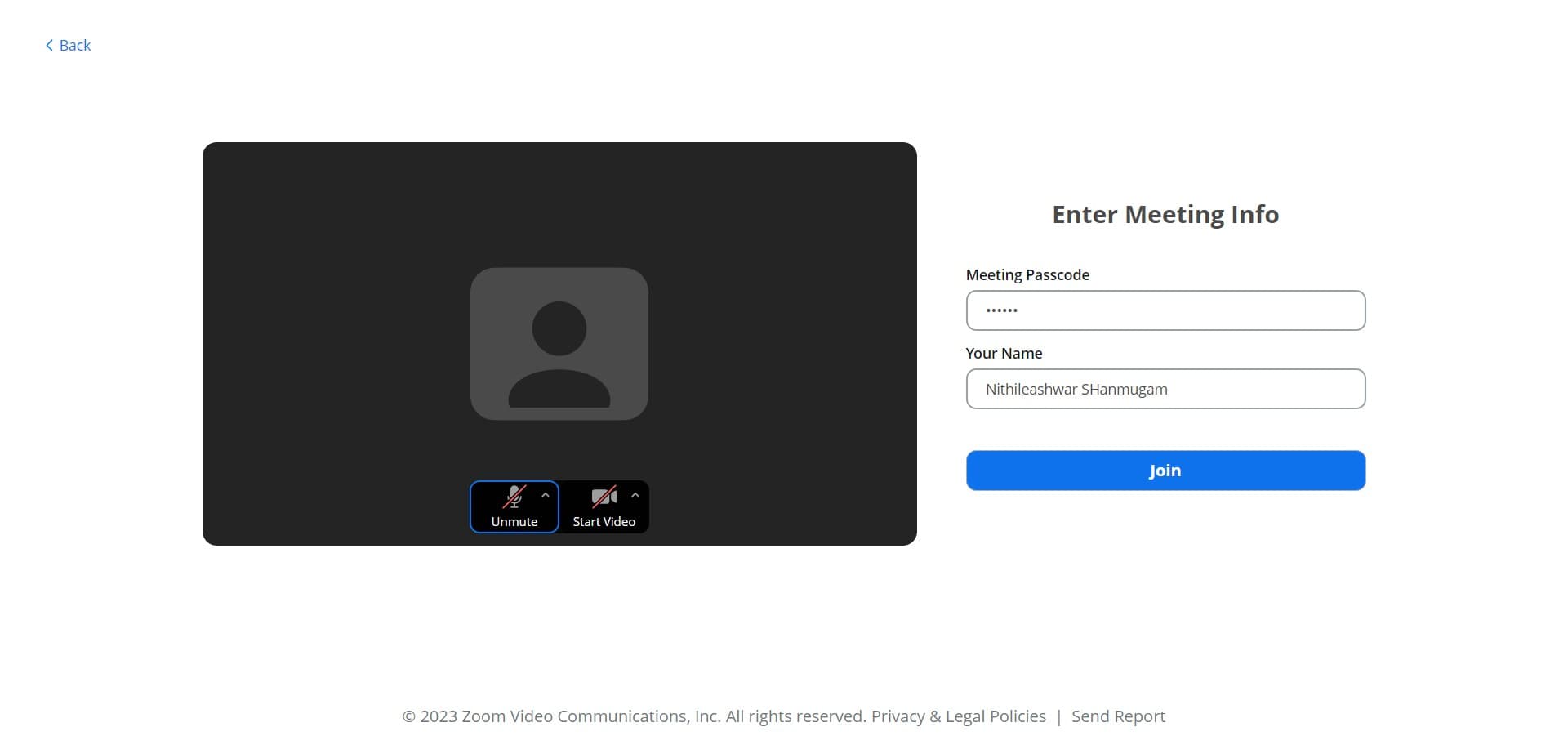
Confirm your join request
Click 'Join' one final time to confirm all your settings and enter the meeting fully. You're now connected to the video session.
- 8
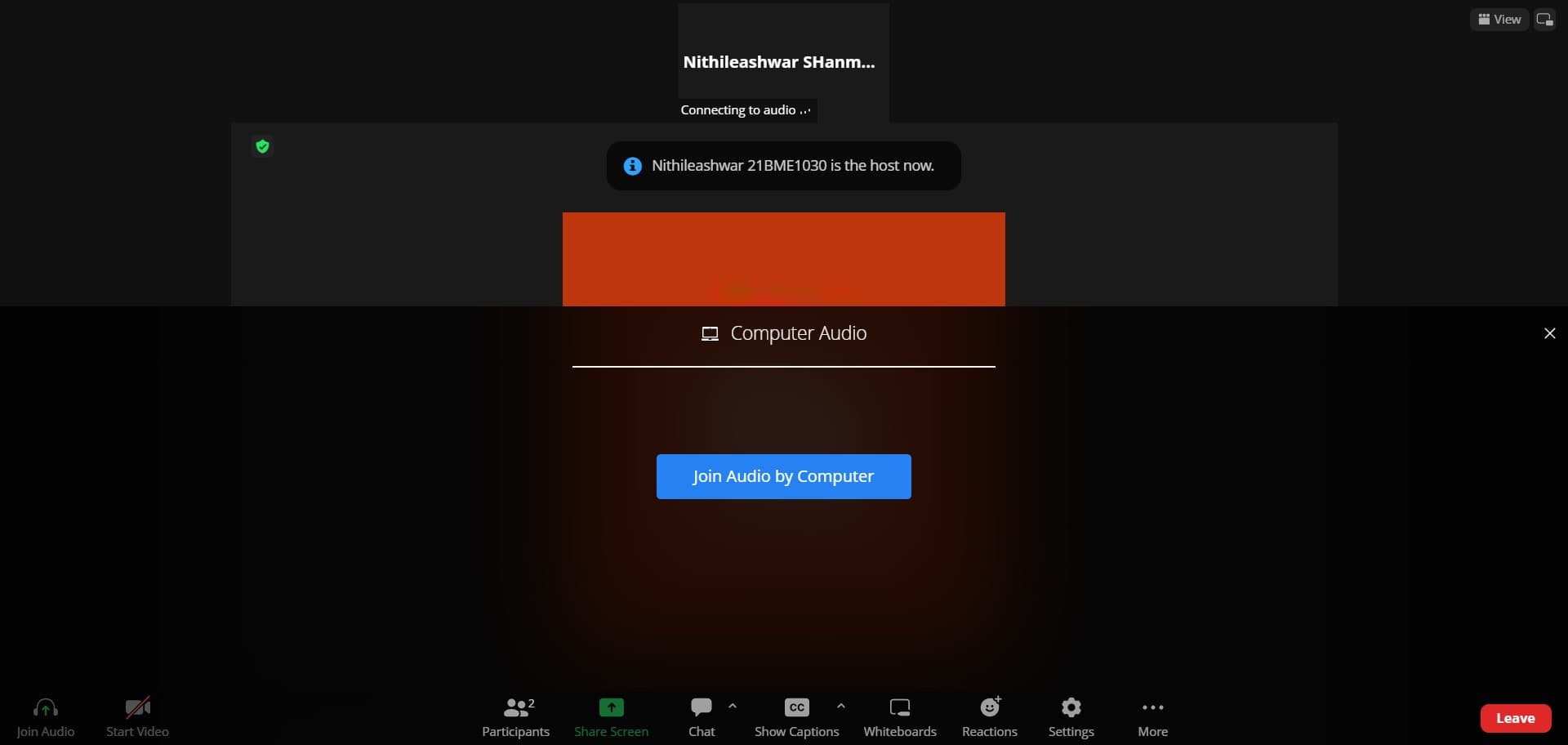
Select Join Audio by Computer
Choose 'Join Audio by Computer' to use your device's built-in or connected audio hardware. This is the standard option for most participants joining from a computer or laptop.
Frequently asked questions
Common questions about how to join a zoom video.
No, you do not need a Zoom account to join a meeting as a participant. However, having an account can make the process easier and allow you to save meeting history. The meeting host will typically provide a meeting link or ID that you can use to join directly.
You can join from your browser without installing the Zoom application. Simply select 'Join from Your Browser' during the join process, and Zoom will launch in your web browser. This option is convenient for one-time meetings or when you prefer not to install software.
Yes, you can join a meeting without connecting audio by skipping the 'Join Audio' step. However, you'll only be able to see video and read the chat. To participate verbally, you'll need to connect your audio either by computer or phone at some point during the meeting.
Check that your microphone and camera permissions are enabled in your browser or Zoom settings. Verify that you selected the correct audio device when joining. You can also try adjusting audio settings within the meeting controls or restarting your browser and rejoining the meeting.
You can join a meeting at any time before it ends, as long as the host hasn't closed the meeting or locked it. There's no penalty for joining late. Simply follow the same join process using the meeting link or ID provided by the host.