How to schedule a meet in Zoom

Scheduling a meeting in Zoom is a straightforward process that allows you to set up recurring or one-time video calls with specific participants. This guide walks you through each step to configure your meeting settings, add optional features like whiteboards, and share your meeting invitation with attendees.
Quick summary
In this tutorial, you'll learn how to schedule a Zoom meeting from start to finish. You'll access your account settings, configure meeting details, customize features, and copy your meeting invitation to share with participants.
Why this matters
Scheduling meetings in advance ensures all participants have clear details about when and how to join, reducing confusion and no-shows. By mastering this workflow, you can efficiently organize video calls, set up recurring meetings, and manage your calendar effectively.
Step-by-step guide
- 1
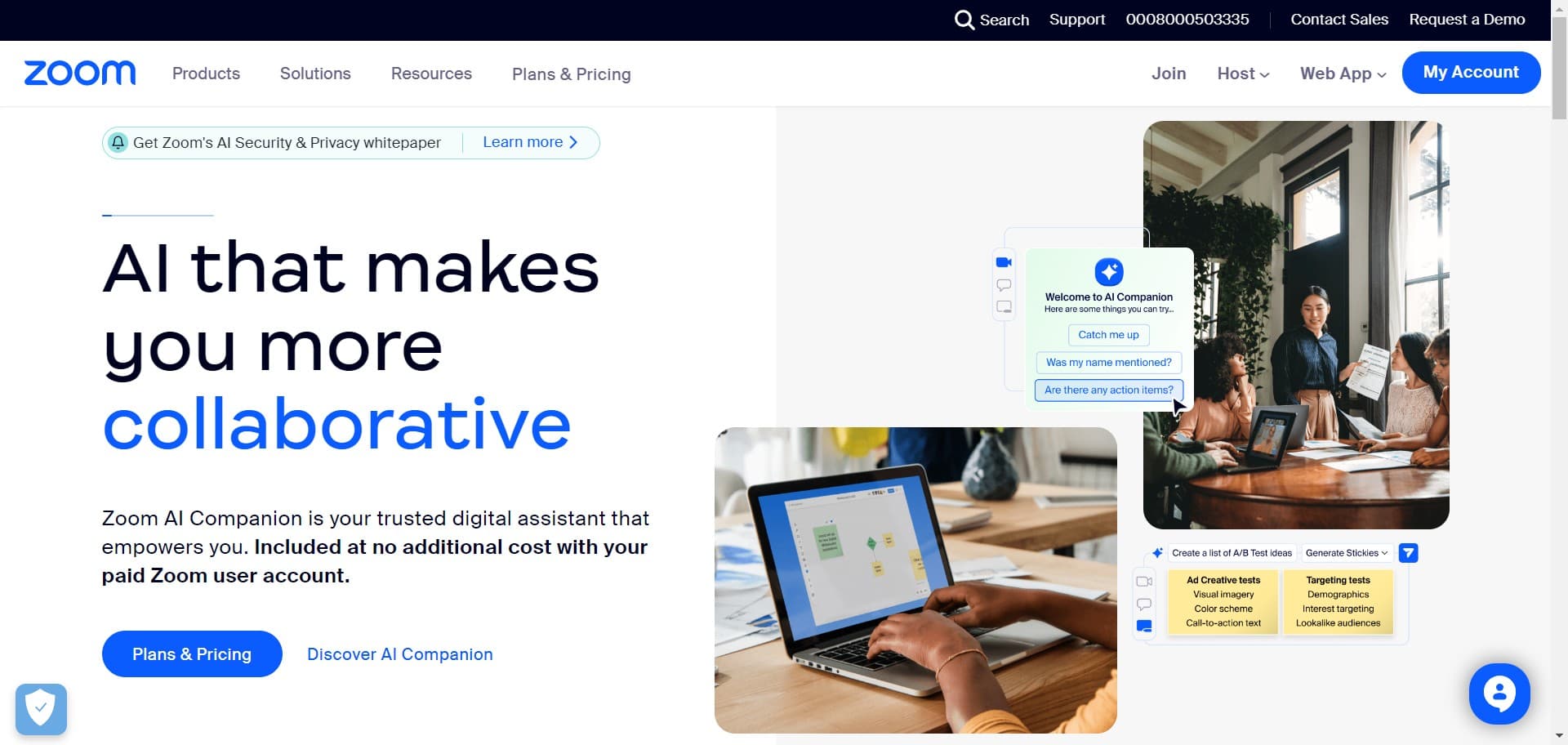
Click on My Account
Log into your Zoom account and navigate to the account menu. Click on 'My Account' to access your profile and scheduling options.
- 2
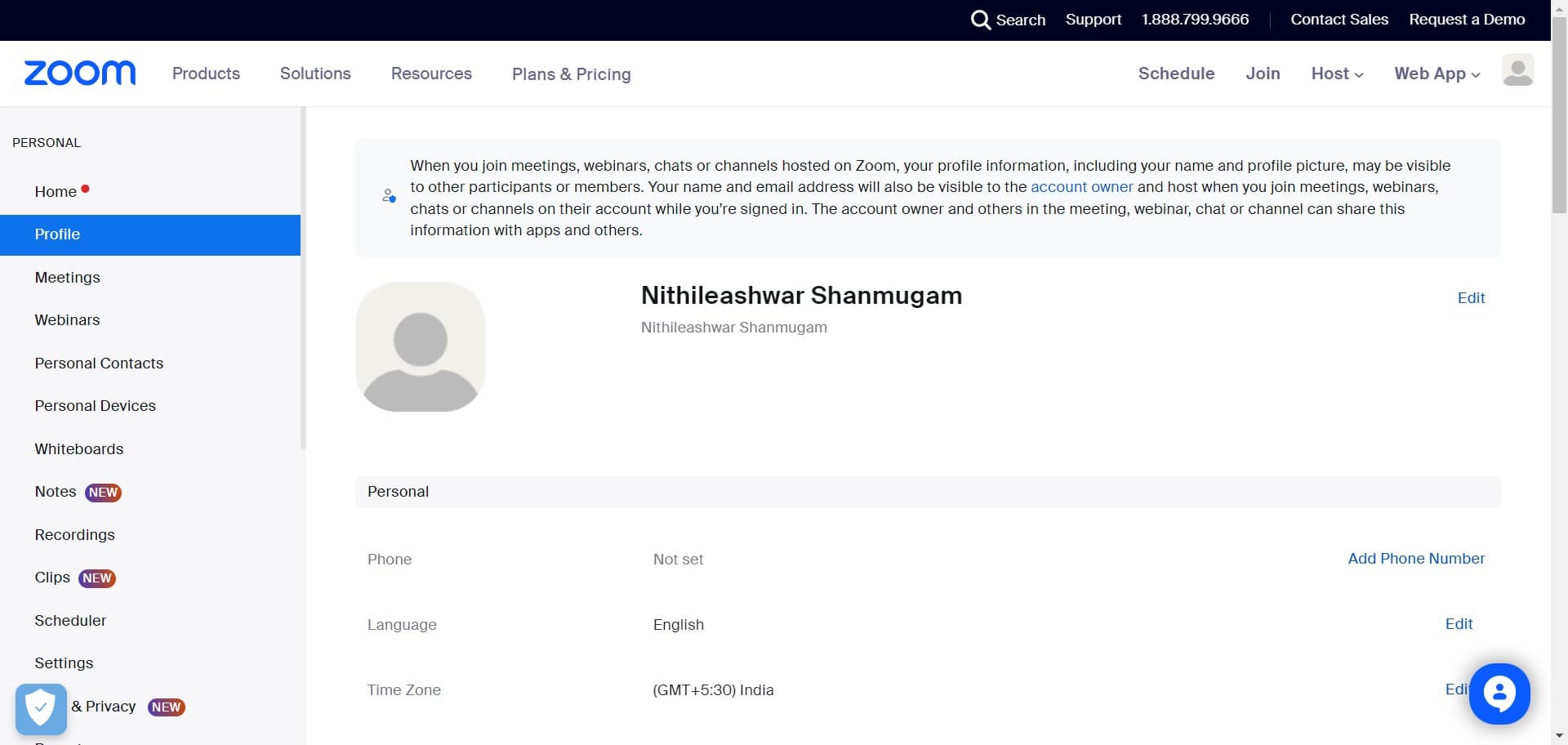
Click on Schedule
From the account menu, select the 'Schedule' option. This will open the meeting scheduling interface where you can create a new meeting.
- 3
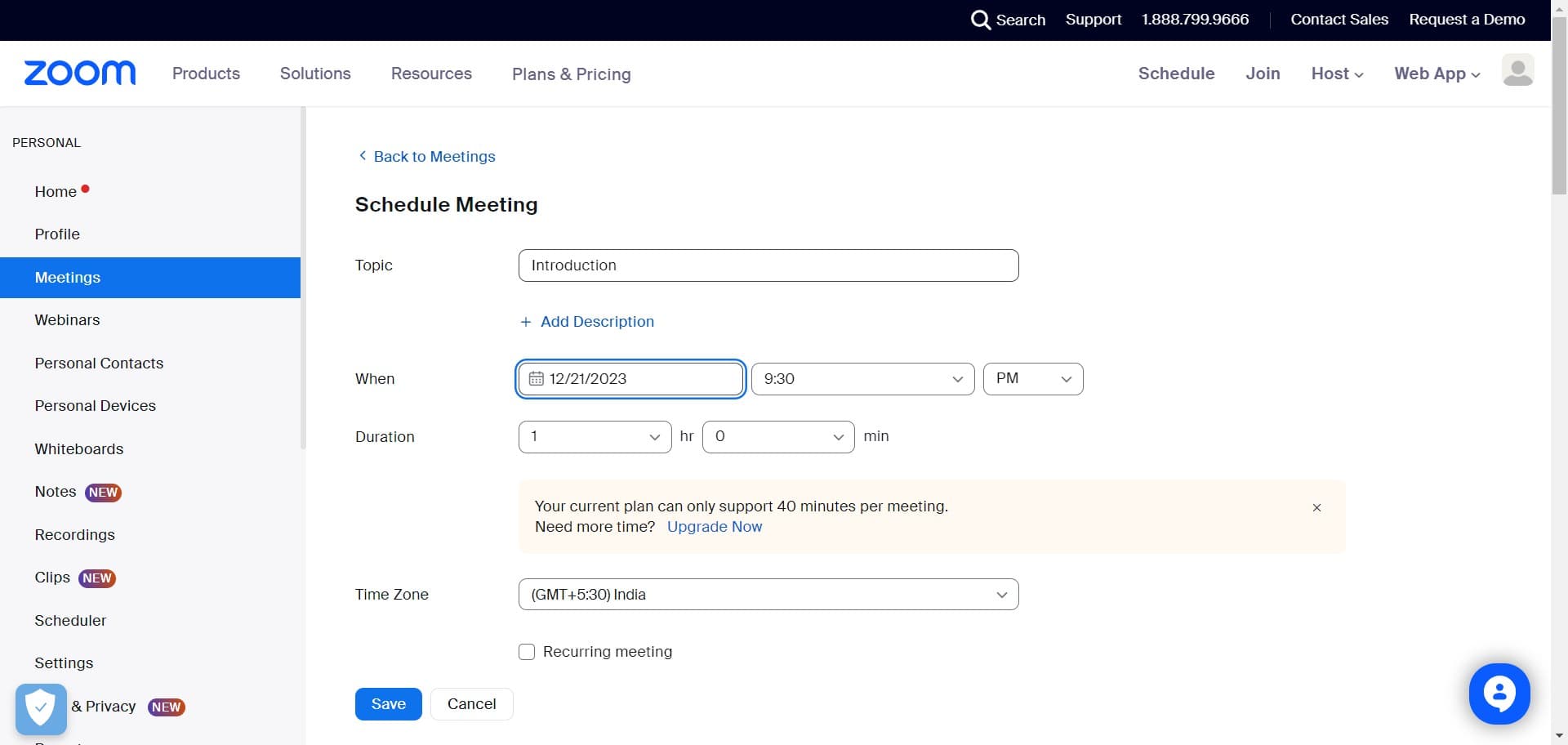
Configure meeting details
Fill in the basic meeting information such as the topic, date, and time. Ensure all required fields are completed before proceeding to additional settings.
- 4
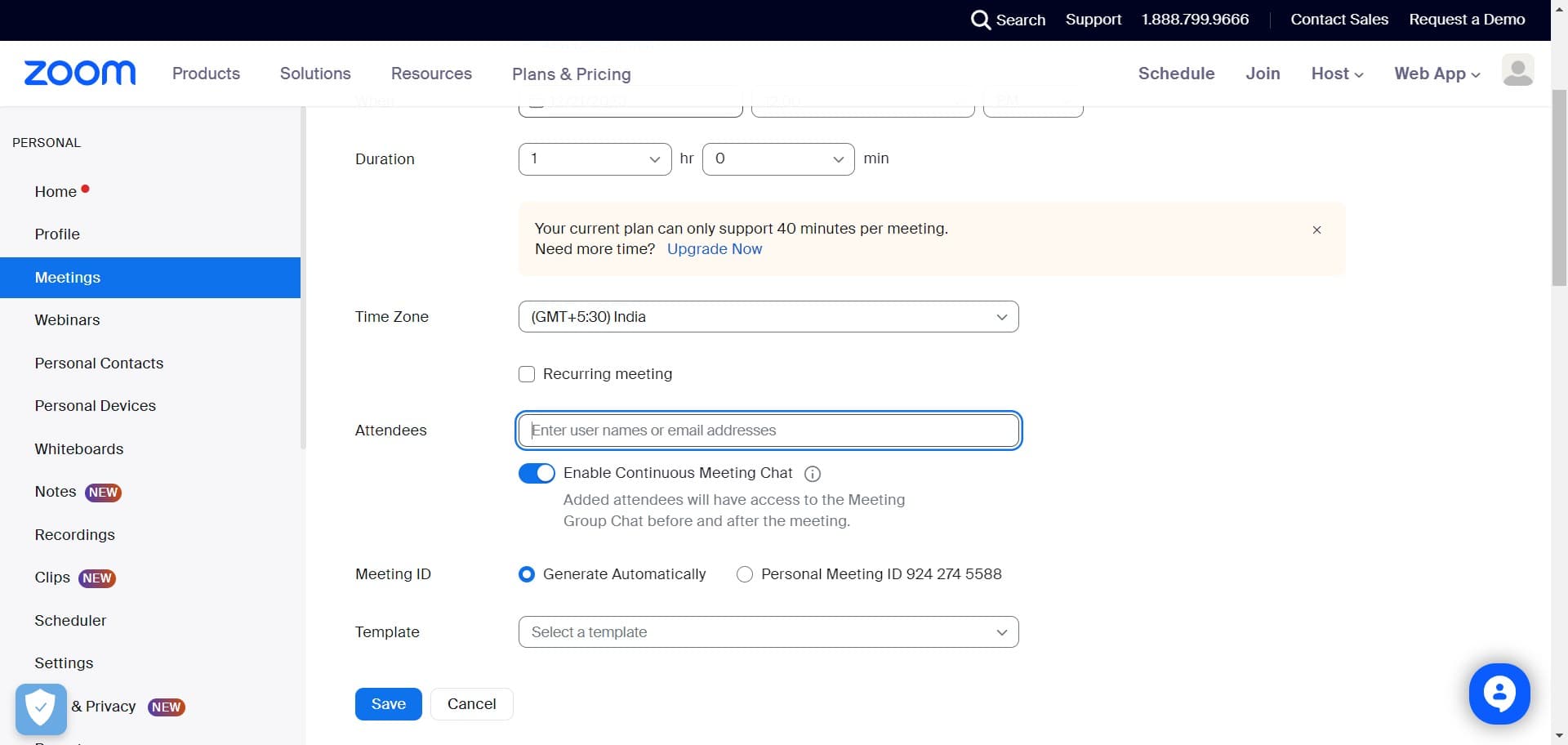
Set meeting duration
Specify how long your meeting should last. Enter the duration or set an end time that works for all participants.
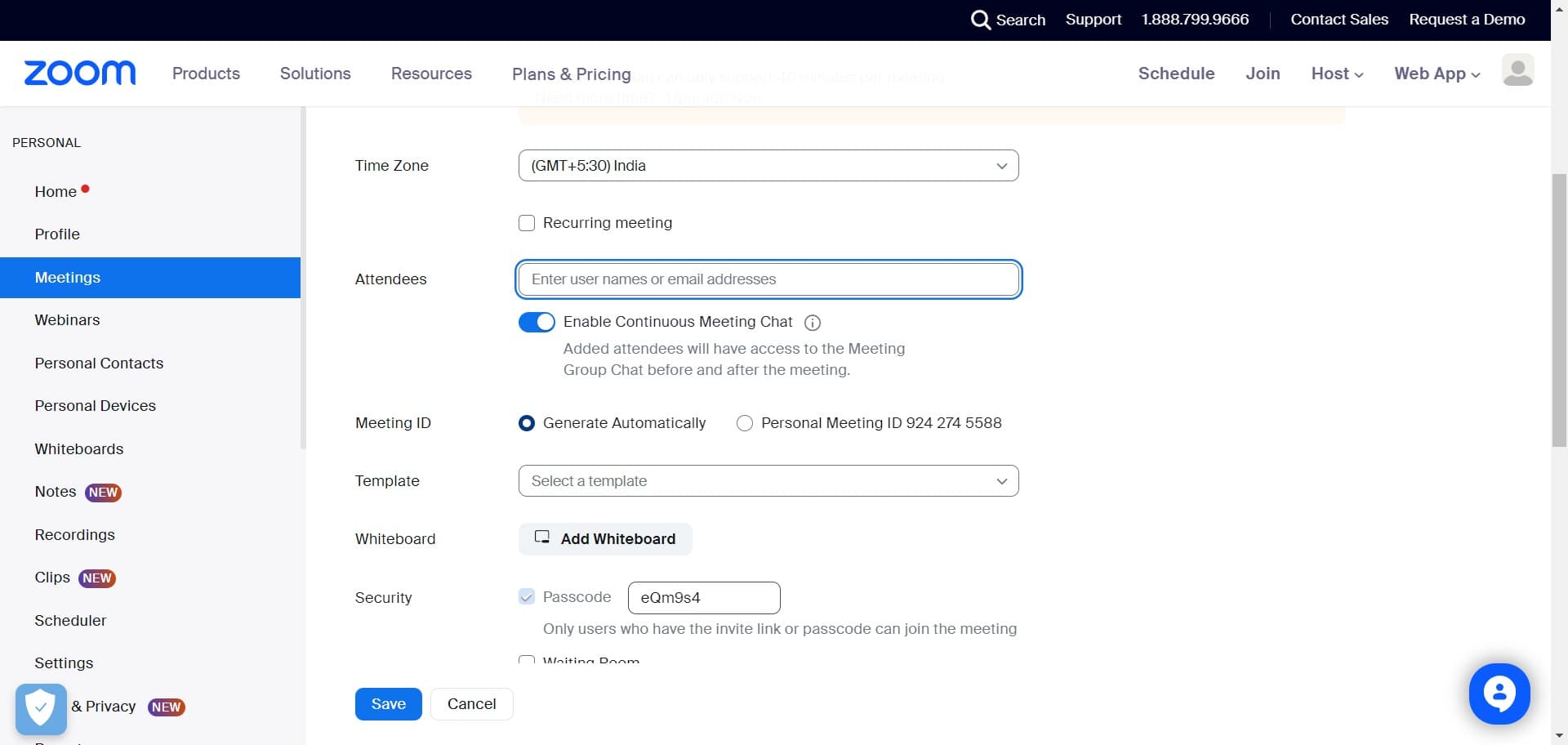
- 5
Configure security settings
Adjust privacy and security options such as requiring a password, enabling waiting rooms, or restricting participant permissions. These settings help protect your meeting.
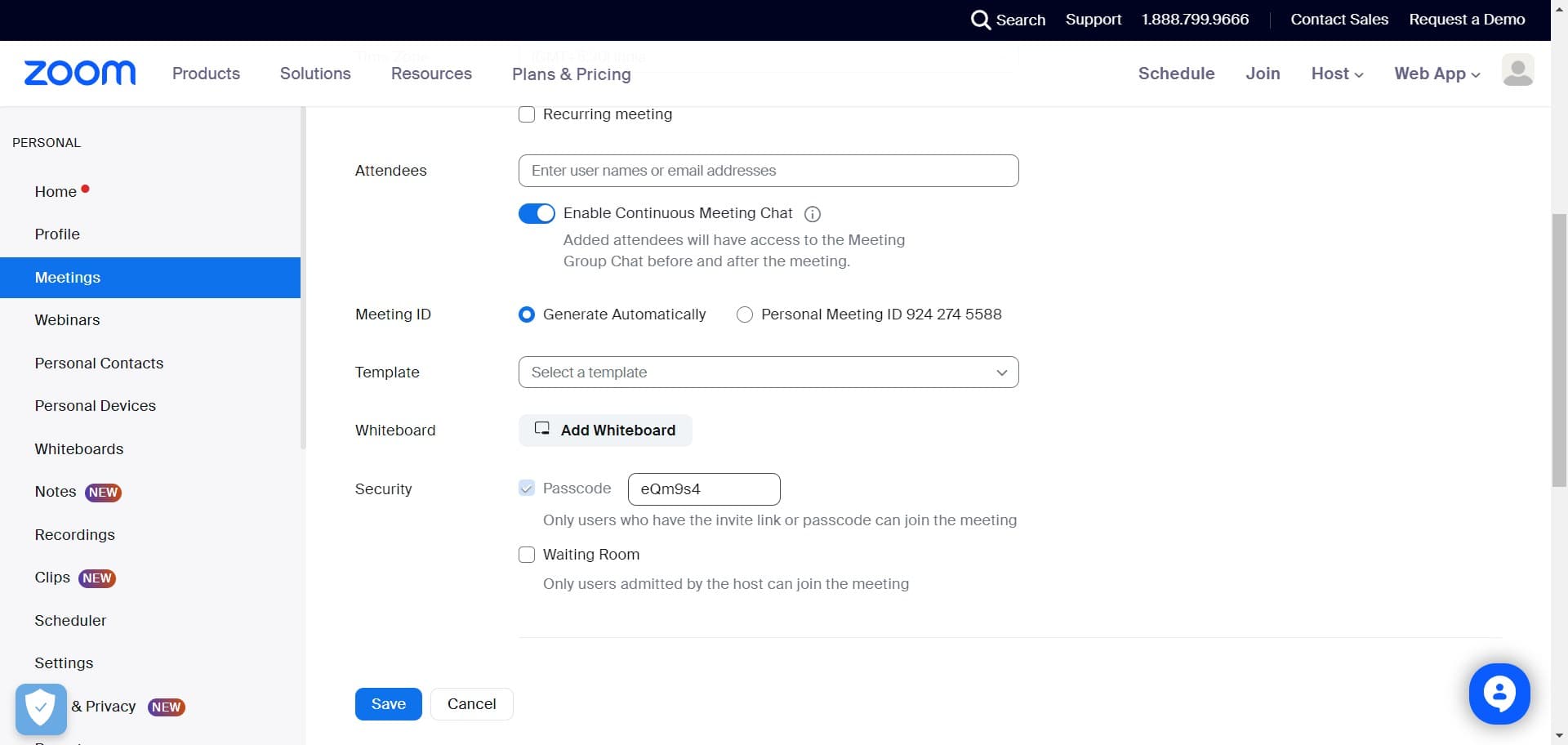
- 6
Add Whiteboard feature
Enable the whiteboard feature to allow real-time collaboration during your meeting. This is useful for brainstorming, teaching, or presenting ideas visually.
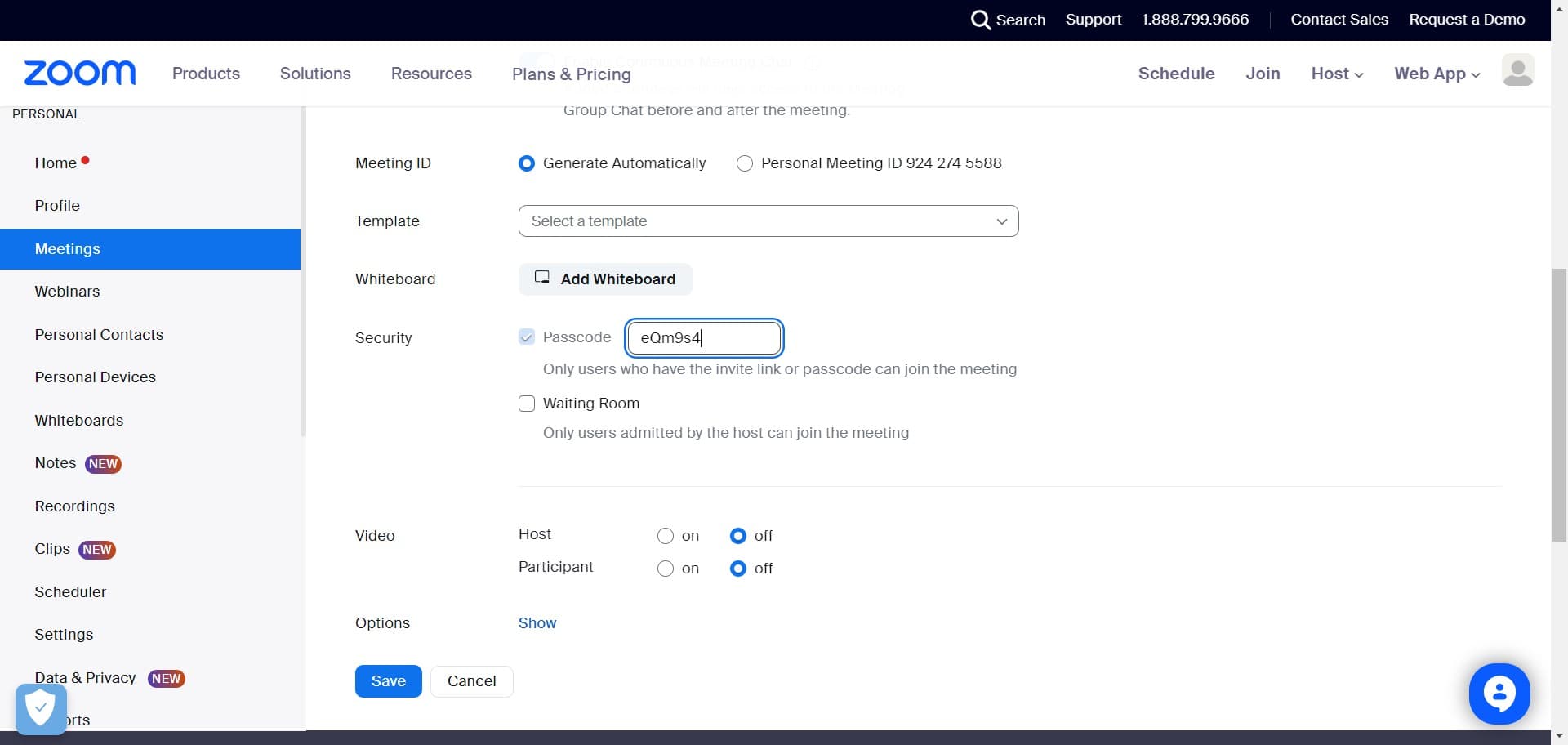
- 7
Enable video settings
Configure whether video will be on or off by default for hosts and participants. Choose your preferred video settings.
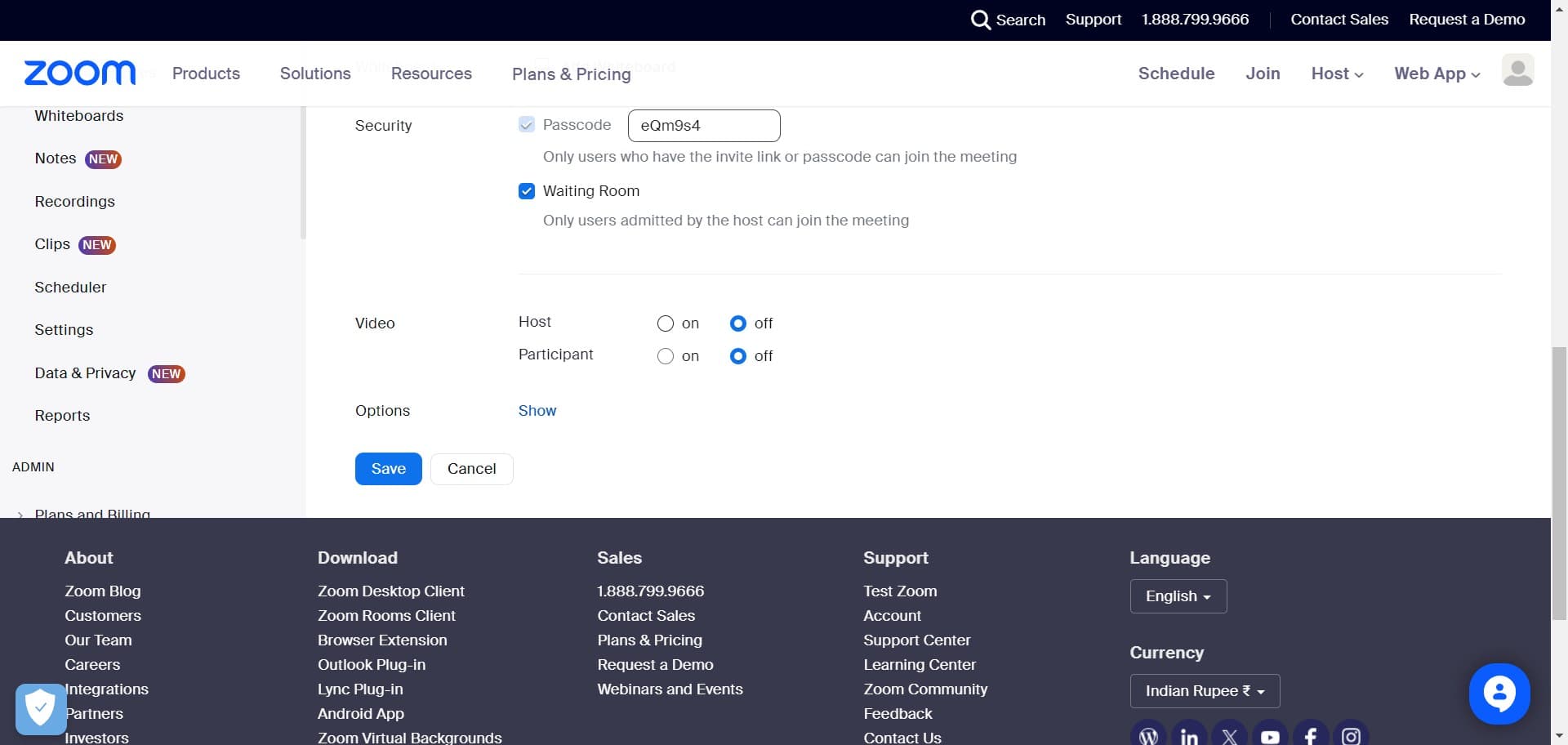
- 8
Configure audio options
Set audio preferences such as allowing participants to join by phone or requiring computer audio. Select the audio options that work best for your meeting.
- 9
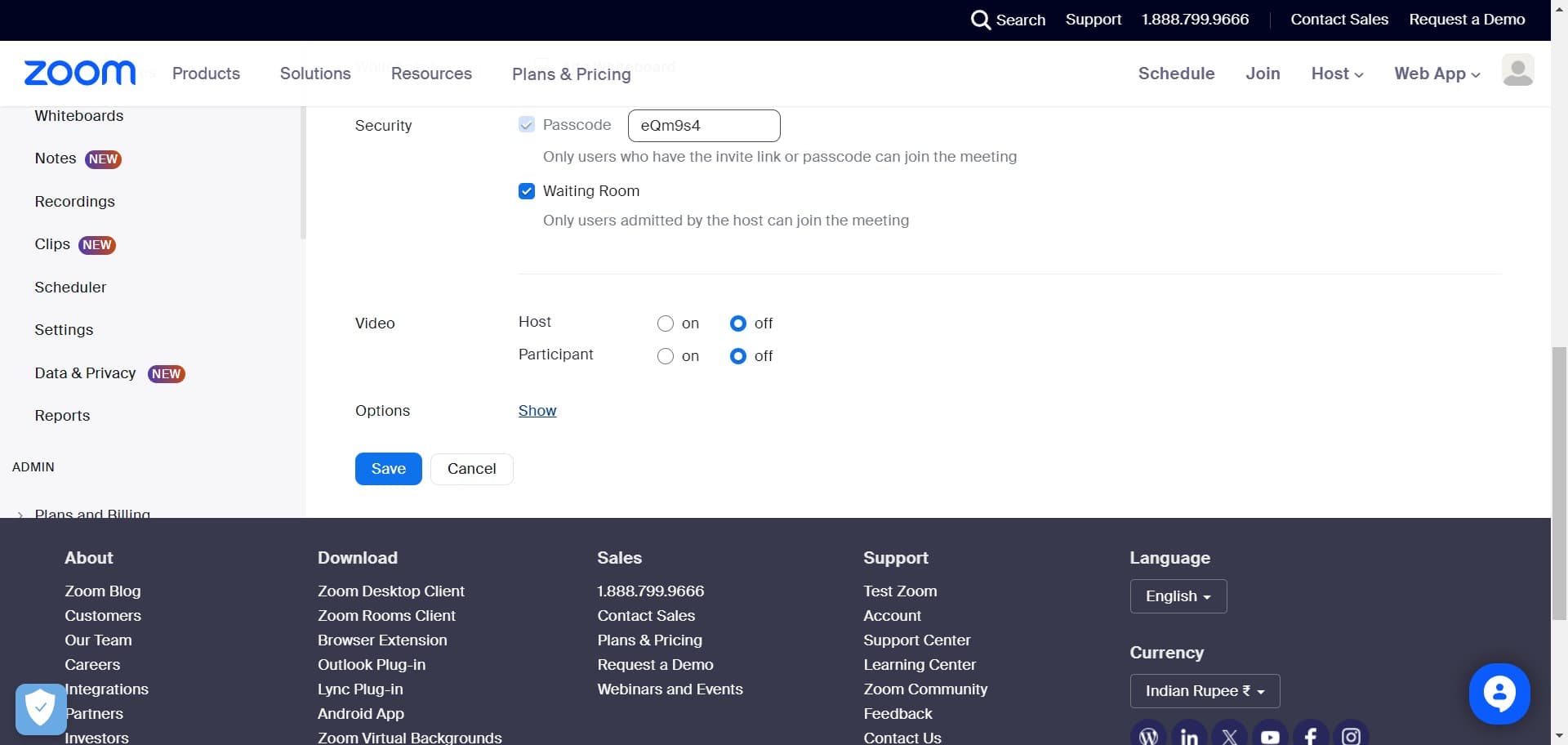
Click on Show
Expand or reveal additional advanced options and settings for your scheduled meeting. This displays more customization features.
- 10
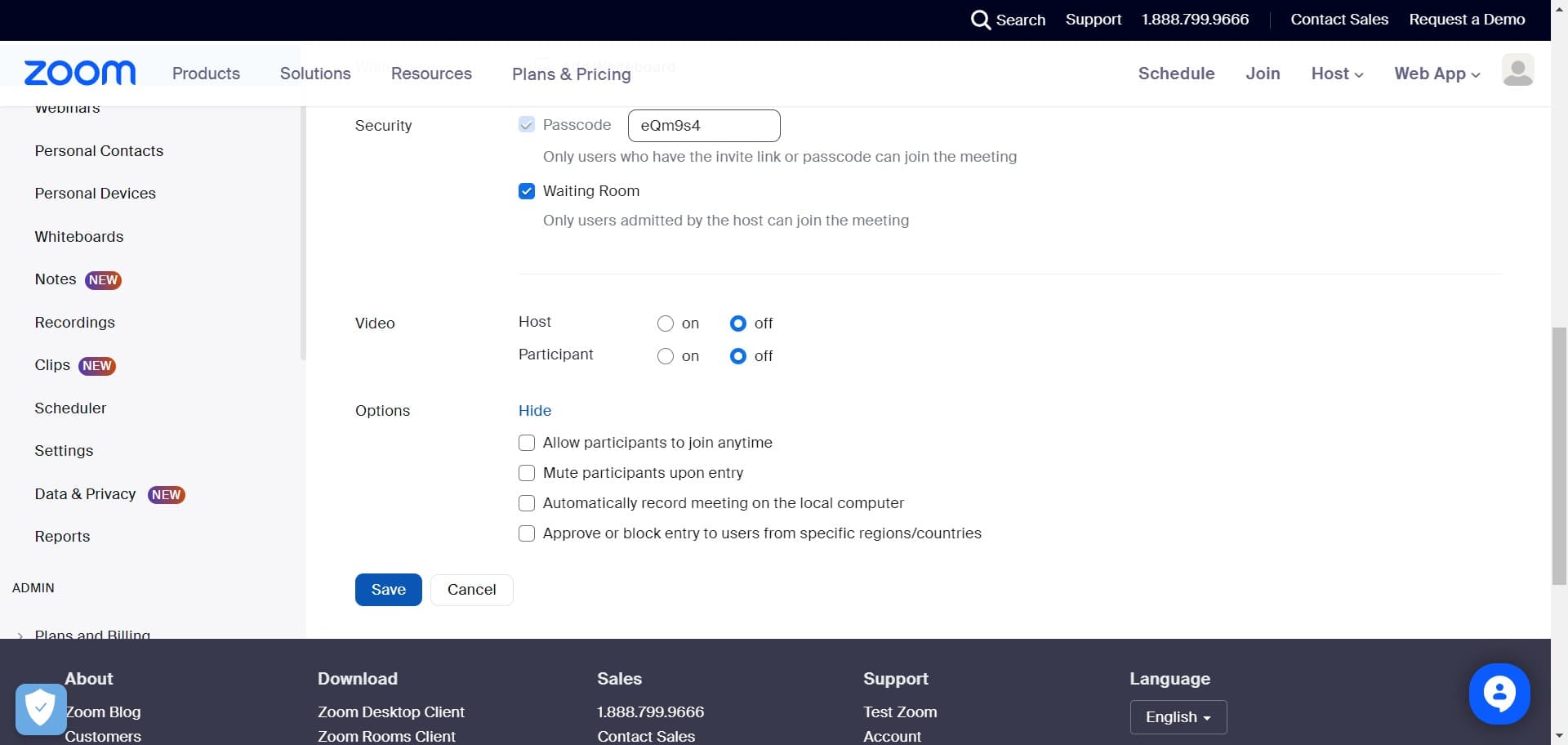
Click on Save
Save all your meeting settings and configurations. Your meeting is now scheduled and will appear on your calendar.
- 11
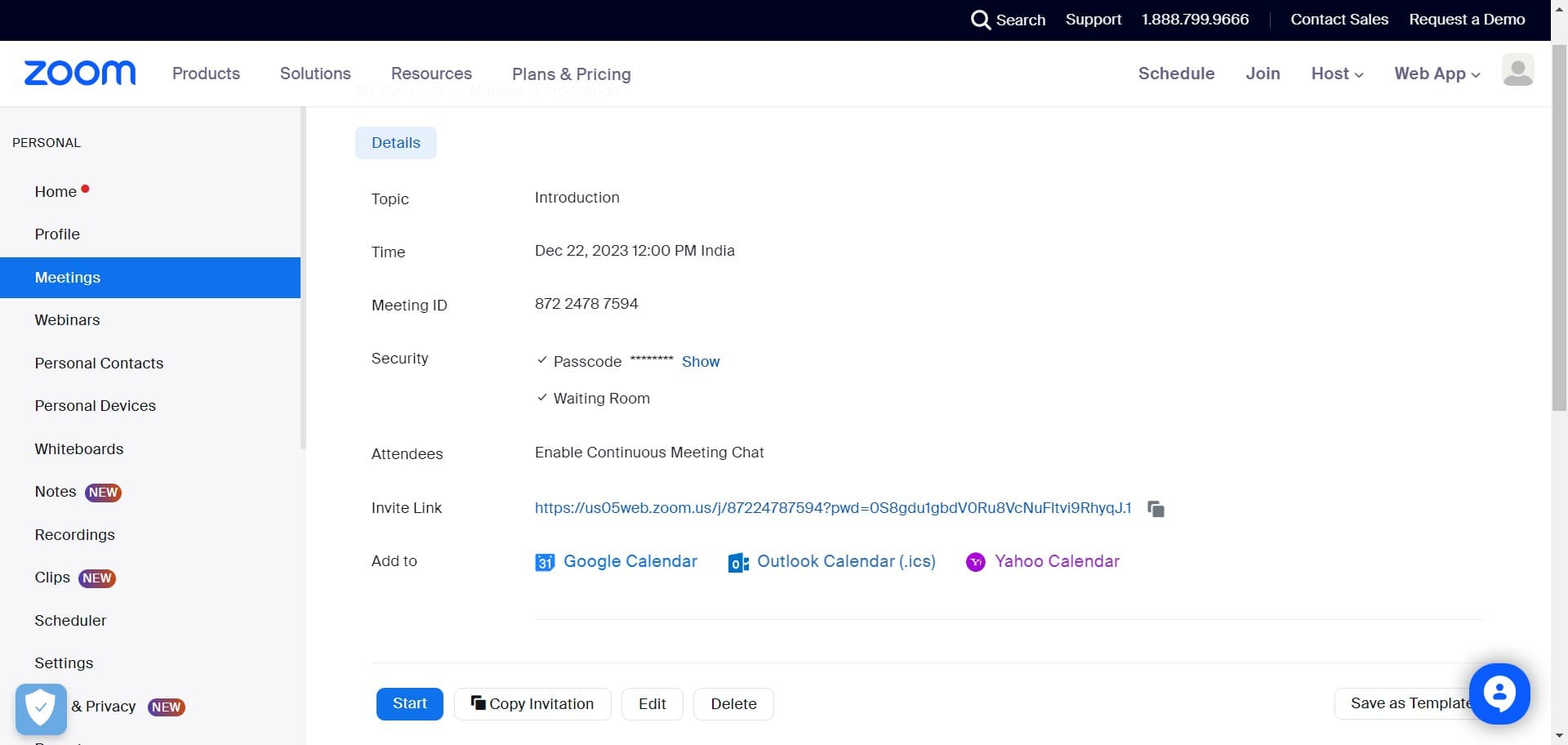
Note your meeting ID
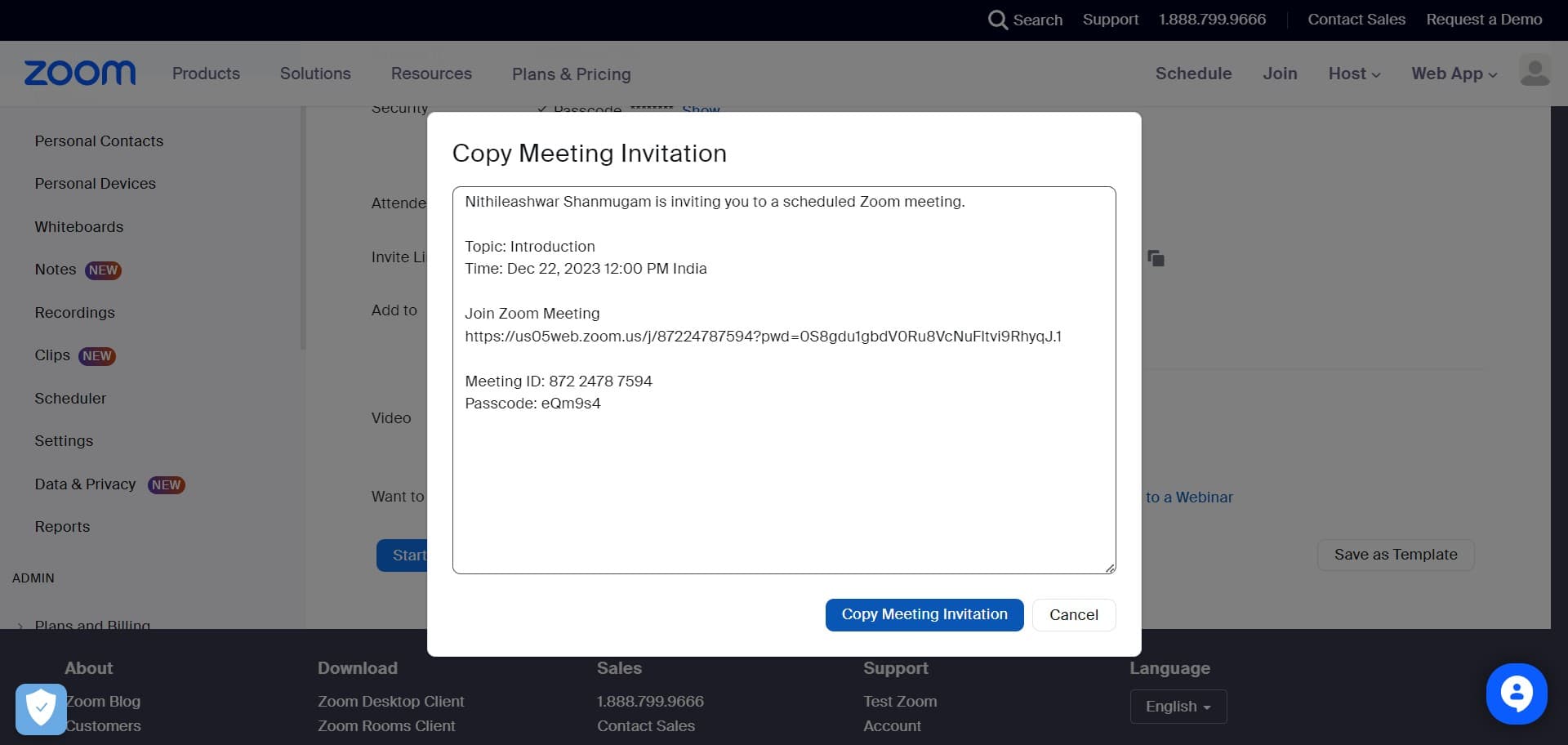
Copy and store your unique meeting ID, which is displayed as '872 2478 7594'. This ID is essential for participants to join your meeting.
- 12
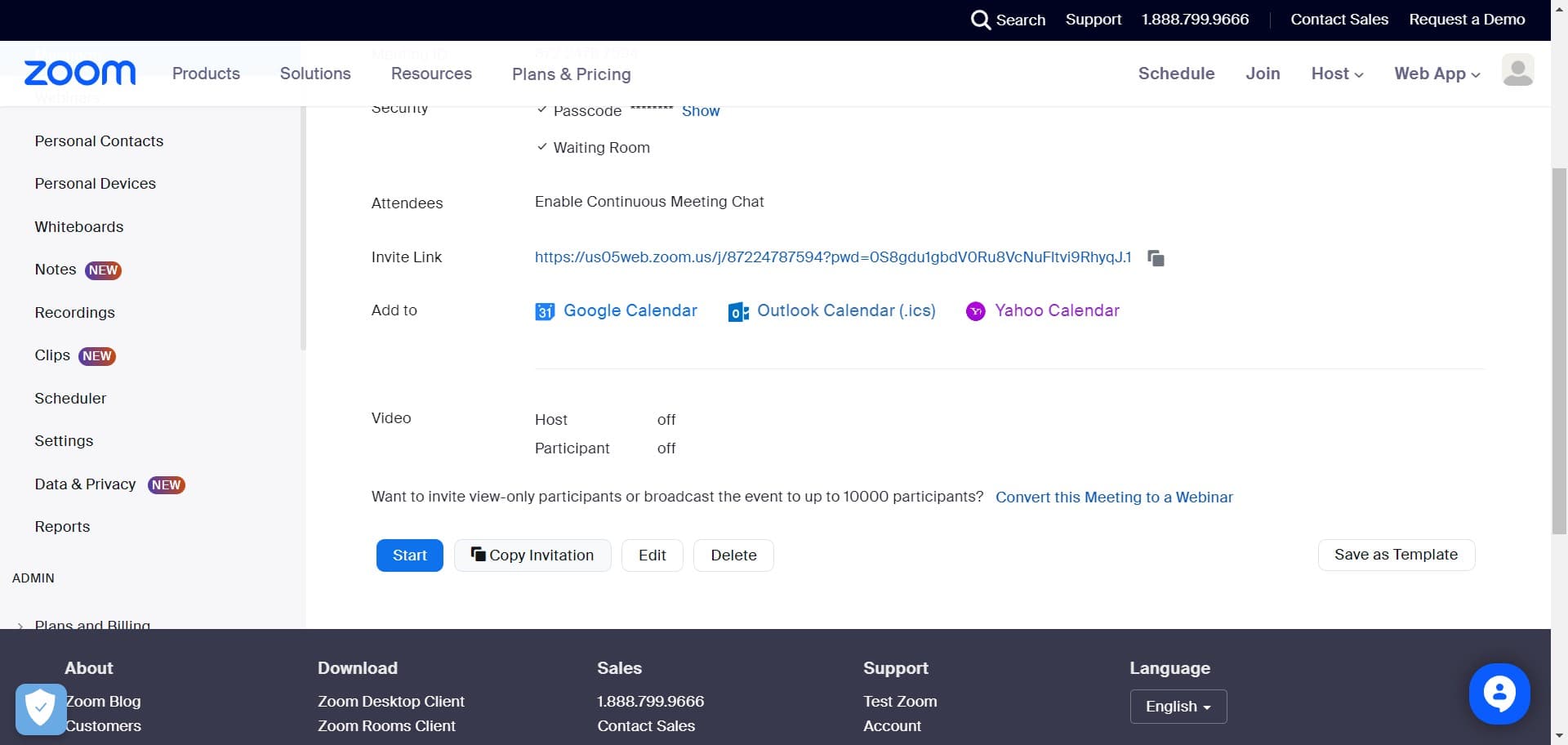
Click on Copy Invitation
Select the option to copy your meeting invitation. This prepares the invitation details for sharing with attendees.
- 13
Click on Copy Meeting Invitation
Confirm the action to copy the complete meeting invitation to your clipboard. The invitation includes the meeting link, ID, and join details.
- 14
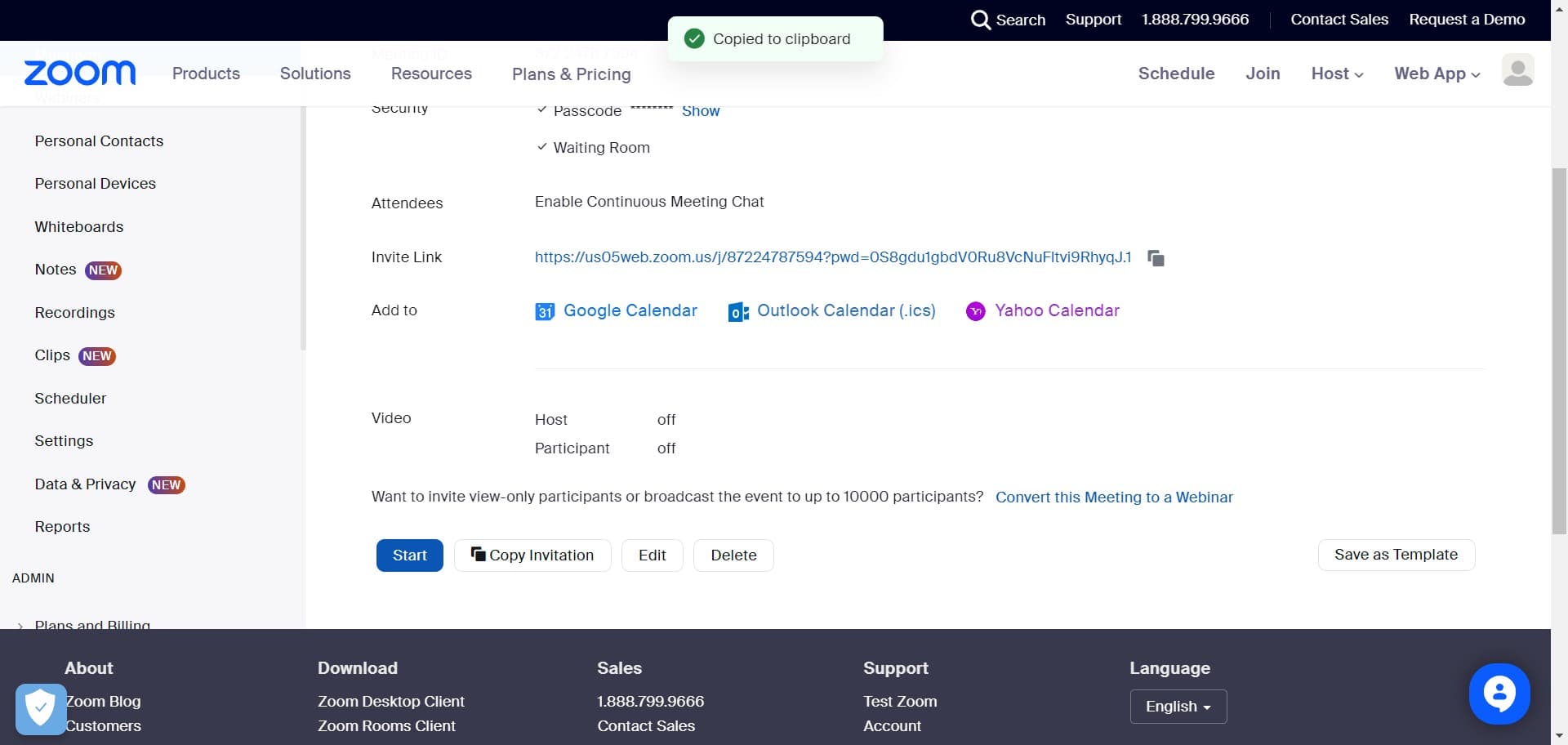
Click on Start
When it's time to begin your meeting, click 'Start' to launch the video conference. You can now share the meeting ID with participants to join.
Frequently asked questions
Common questions about how to schedule a meet in zoom.
Yes, Zoom allows you to schedule recurring meetings by selecting the recurrence option during the scheduling process. You can set meetings to repeat daily, weekly, monthly, or on a custom schedule. All participants will receive the same meeting link for each session.
Participants need the meeting ID, the scheduled date and time, and optionally a password if you've enabled one. You can share the meeting invitation link, which includes all this information, via email or other communication channels.
Yes, you can edit scheduled meetings at any time before they begin. Log into your Zoom account, find the meeting in your calendar, and click 'Edit' to make changes to settings, time, or other details.
The whiteboard feature must be enabled during meeting setup for participants to use it. Once enabled, the host can grant or revoke whiteboard access to participants during the meeting to control who can draw or write on the whiteboard.
After copying your meeting invitation using the 'Copy Meeting Invitation' button, you can paste it into an email or messaging platform. The invitation contains all necessary details including the meeting link, ID, and passcode if required.