How to add a custom URL to my Calendly event

Nithil Shanmugam
Nithil Shanmugam·
How to add a custom URL to my Calendly event

Overview:

Enhance your Calendly experience by learning how to seamlessly incorporate custom URLs into your events. This guide empowers you to optimize your scheduling workflow, providing step-by-step instructions to add personalized links to your Calendly events. Elevate user engagement and simplify navigation, ensuring a user-friendly experience for both you and your invitees. Streamline your scheduling process with this comprehensive guide on customizing URLs in Calendly, optimizing efficiency and clarity in event management.

Who is Calendly best suited for?

Calendly is best suited for a wide range of professionals, including Sales Representatives, Recruiters, and Consultants. For example, Sales Representatives can use Calendly for scheduling client meetings and demos, Recruiters can leverage it for arranging interviews with candidates, and Consultants can use it for setting up client appointments and consultations, all benefiting from Calendly’s automated scheduling and calendar integration features.

How to add a custom URL to my Calendly event

Interactive demo powered by Supademo

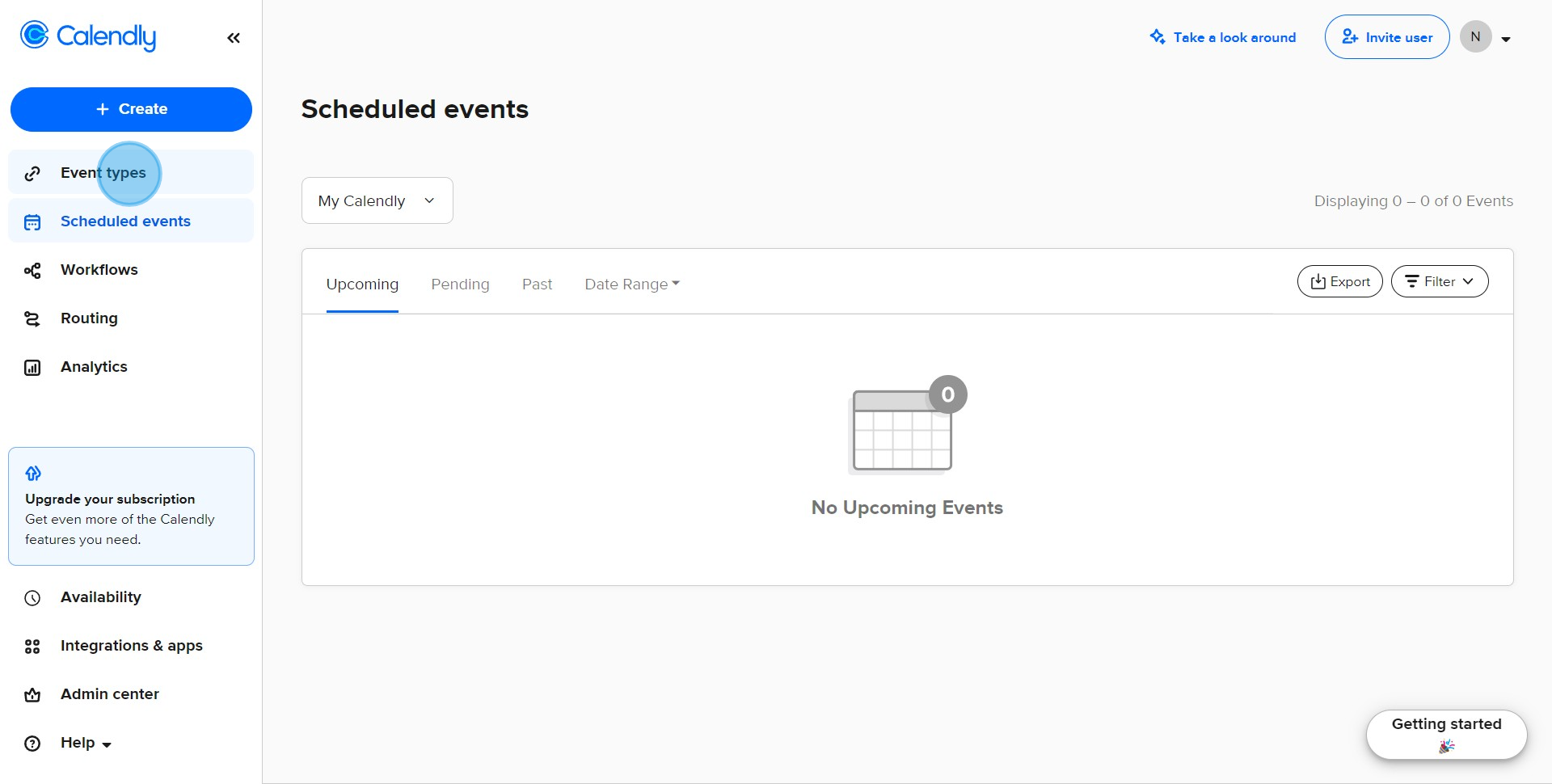
1. Navigate to your Event types.

1 Click on "Event types"

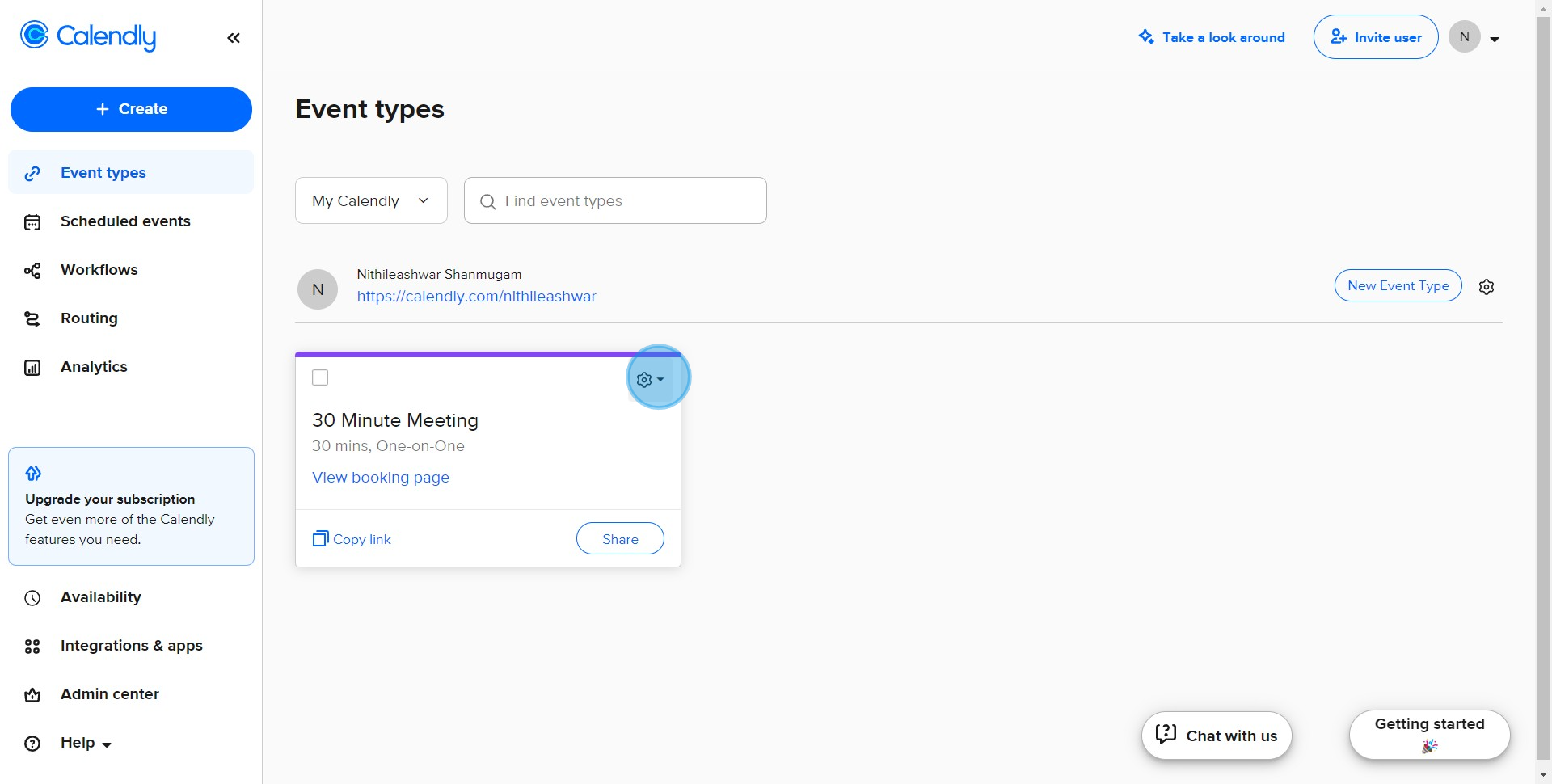
2. Access the event's settings.

2 Click here

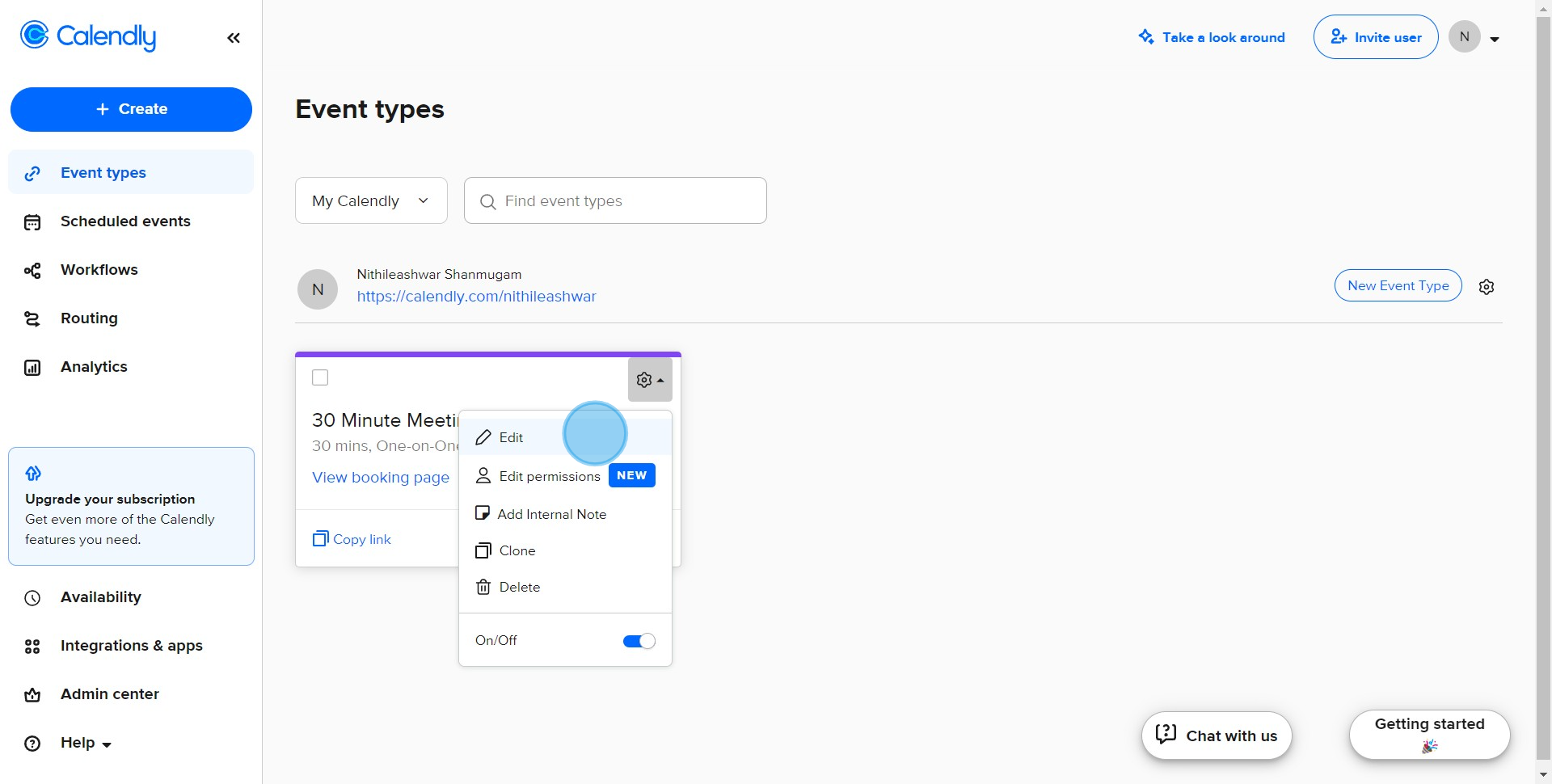
3. Select Edit for more options.

3 Click on "Edit"

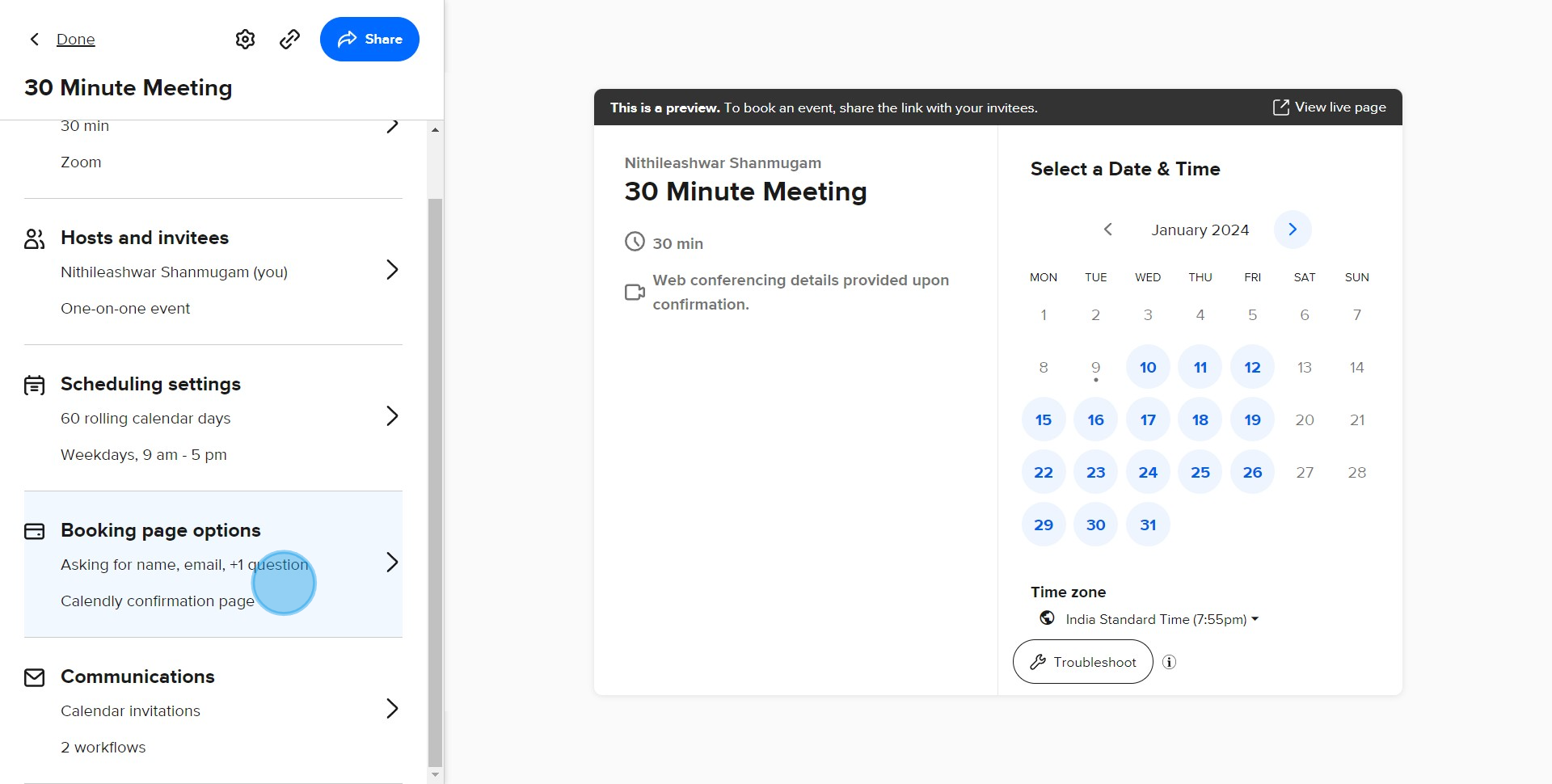
4. Proceed to Booking page options.

4 Click on "Asking for name, email, +1 question"
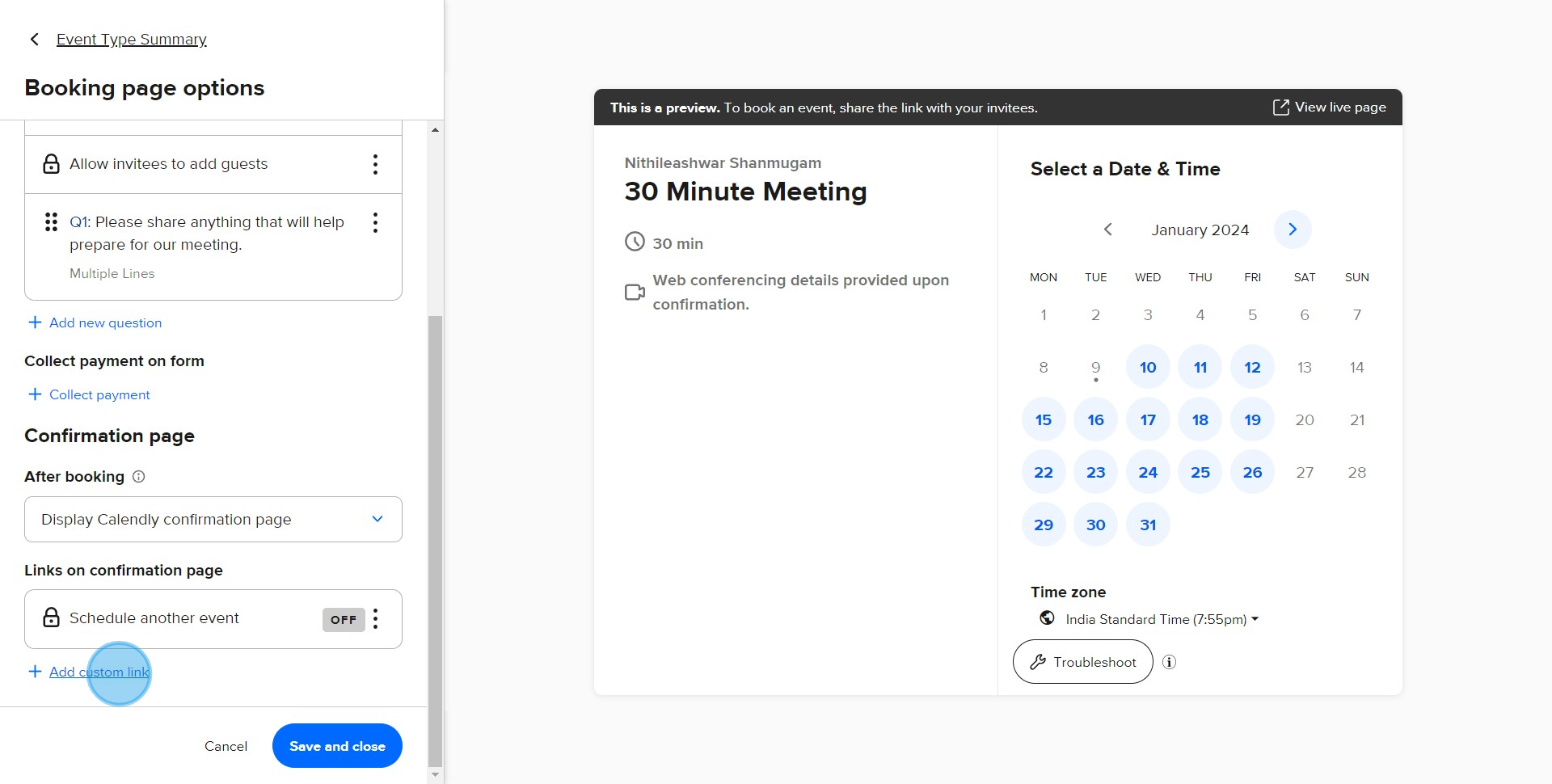
5 Click on "Add custom link"
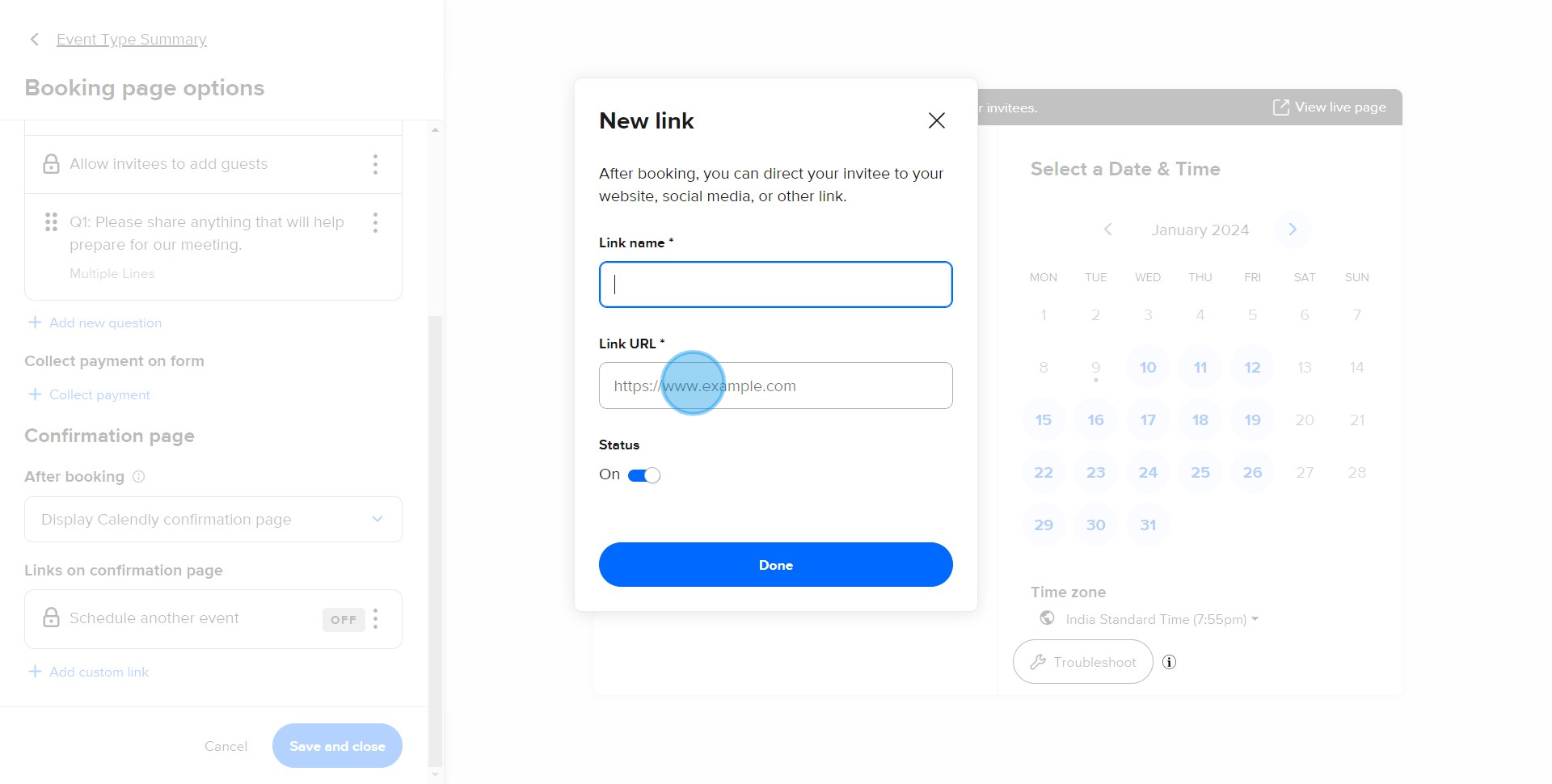
6 Click here

7. Validate your action by clicking on Done.
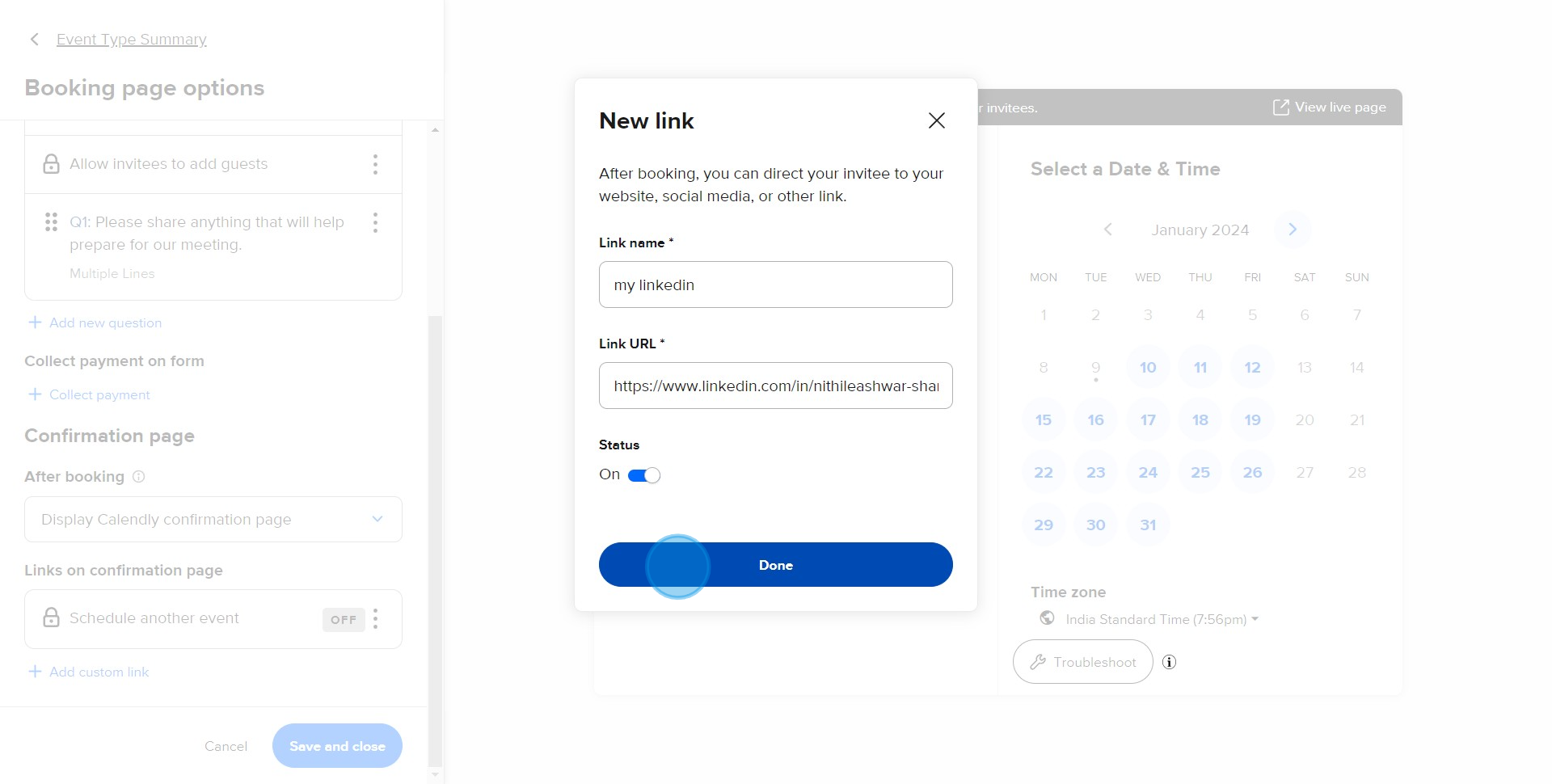
7 Click on "Done"

8. Finish the process by hitting Save and close.
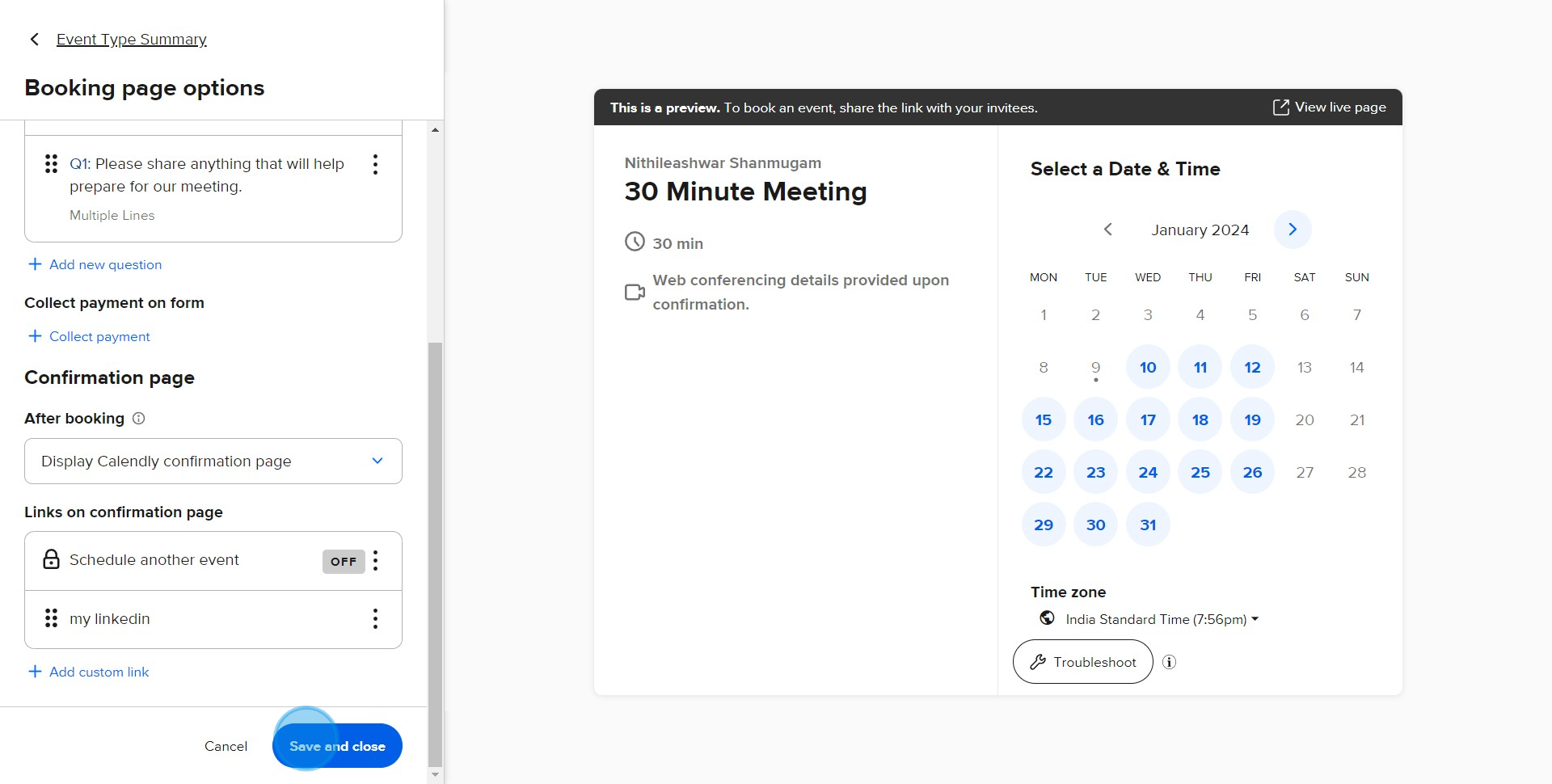
8 Click on "Save and close"

Common FAQs on Calendly

Commonly asked questions about this topic.

How do I customize notifications and reminders in Calendly?

To customize notifications and reminders, go to the “Event Types” section and select the event type you want to modify. Click on “Notifications and Cancellation Policies” to access the settings. You can configure email and SMS reminders for both you and your invitees, including the timing of these reminders (e.g., 15 minutes before, 1 day before). You can also customize the content of notification emails, such as including specific instructions or information relevant to the meeting. Save your changes to ensure that notifications and reminders are sent according to your preferences.

How can I integrate Calendly with other tools and services?

Calendly offers integrations with various tools and services to streamline your scheduling process. To set up integrations, go to the “Integrations” tab in your Calendly account. Choose from available integrations, such as Google Calendar, Microsoft Outlook, Zoom, and Slack. Follow the prompts to connect your Calendly account with these services. For example, integrating with Google Calendar allows Calendly to automatically check your availability and prevent double bookings, while connecting with Zoom can automatically generate and include meeting links in your event confirmations.

How do I set up an event type in Calendly?

To set up an event type, log in to your Calendly account and click on “Event Types” in the left sidebar. Choose “+ New Event Type” and select the event type you want to create (e.g., One-on-One, Group, Collective). Customize the event details, such as the name, duration, and location (e.g., Zoom, phone call). Set your availability by defining the days and times when you’re available for meetings. You can also adjust additional settings, such as meeting buffers, minimum notice periods, and custom questions. Save your event type to generate a unique scheduling link that you can share with others.

Create your own step-by-step demo

Scale up your training and product adoption with beautiful AI-powered interactive demos and guides. Create your first Supademo in seconds for free.

Nithil Shanmugam

Nithil Shanmugam

Nithil is a startup-obsessed operator focused on growth, sales and marketing. He's passionate about wearing different hats across startups to deliver real value.


More from the blog

How to Add Products to Shopify

How to Add Products to Shopify

Learn step-by-step how to add products to your Shopify store effortlessly, including tips on product details, images, pricing, and inventory management to boost your online sales.

Vimal Kumar
Vimal KumarDec 17, 2025
How to Deactivate Your Shopify Store

How to Deactivate Your Shopify Store

Learn step-by-step how to deactivate your Shopify store easily, including important considerations and tips to pause or close your shop without losing data.

Vimal Kumar
Vimal KumarDec 17, 2025
How to Remove 'Powered by Shopify'

How to Remove 'Powered by Shopify'

Learn how to easily remove the 'Powered by Shopify' text from your online store with step-by-step instructions and tips to customize your Shopify storefront.

Vimal Kumar
Vimal KumarDec 17, 2025
How to Create a Shopify Account

How to Create a Shopify Account

Learn step-by-step how to create a Shopify account quickly and easily, set up your online store, and start selling your products in no time.

Vimal Kumar
Vimal KumarDec 17, 2025
How to Create a Stripe Account

How to Create a Stripe Account

Learn how to create a Stripe account quickly and easily with our step-by-step guide, perfect for beginners looking to start accepting online payments.

Vimal Kumar
Vimal KumarDec 17, 2025
How to Contact Stripe Support

How to Contact Stripe Support

Learn the easiest ways to contact Stripe support for quick assistance with your payment processing, account issues, and technical questions.

Vimal Kumar
Vimal KumarDec 16, 2025