How to create workflows in Calendly

Calendly workflows automate your scheduling process by triggering actions before, during, or after meetings. Learn how to create and configure workflows that send emails, Slack messages, and other notifications to streamline your booking experience.
Quick summary
In this tutorial, you'll learn how to build custom workflows in Calendly by accessing the Workflows section, creating new workflows, and adding automated actions like email notifications. You'll discover how to configure these workflows to trigger at key moments in your scheduling journey.
Why this matters
Workflows save time and improve communication by automating repetitive tasks around your calendar. Instead of manually sending confirmation emails or reminders, workflows handle these actions automatically, ensuring consistency and reducing manual effort.
Step-by-step guide
- 1
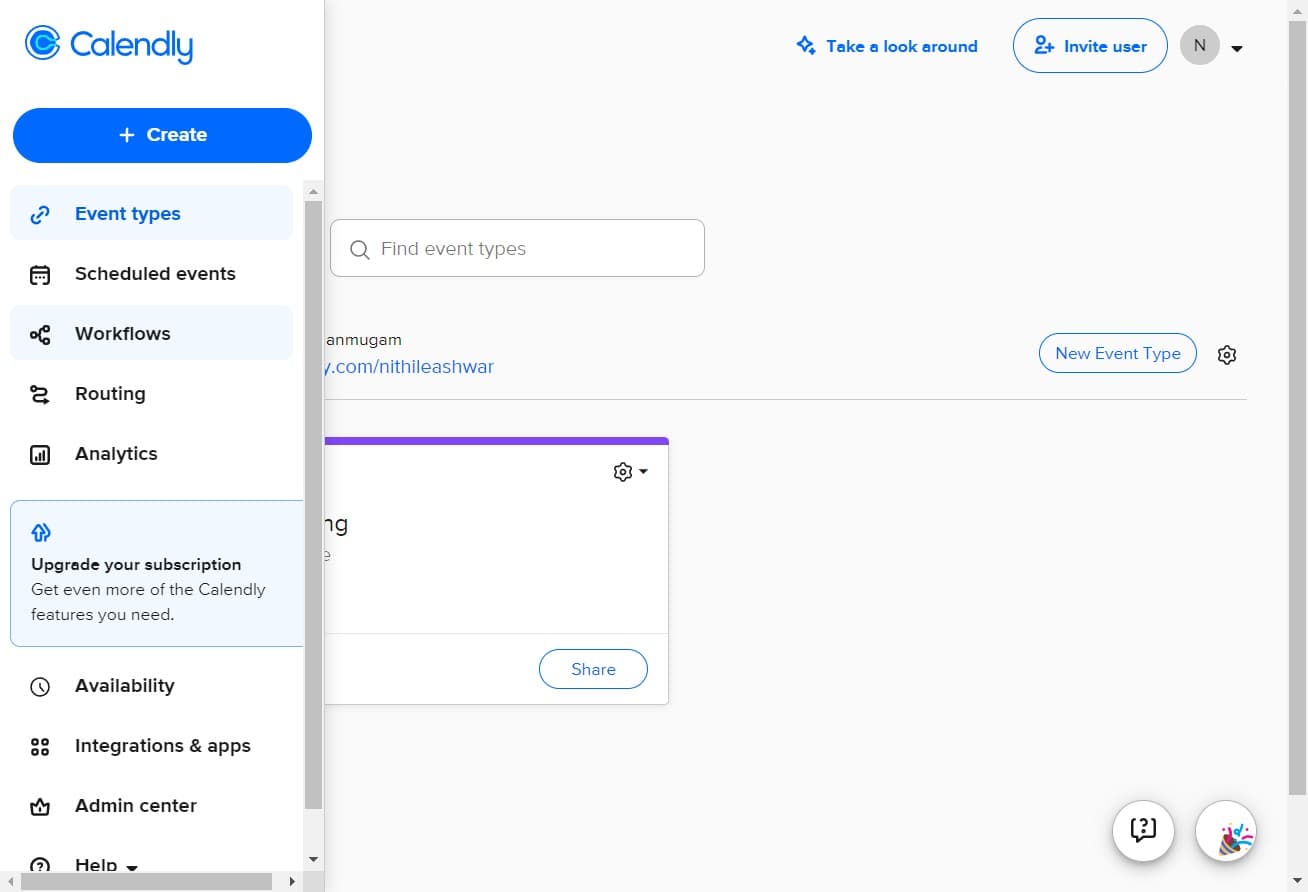
Click on Workflows
Navigate to your Calendly dashboard and locate the Workflows option in the main menu. This section contains all your existing workflows and options to create new ones.
- 2
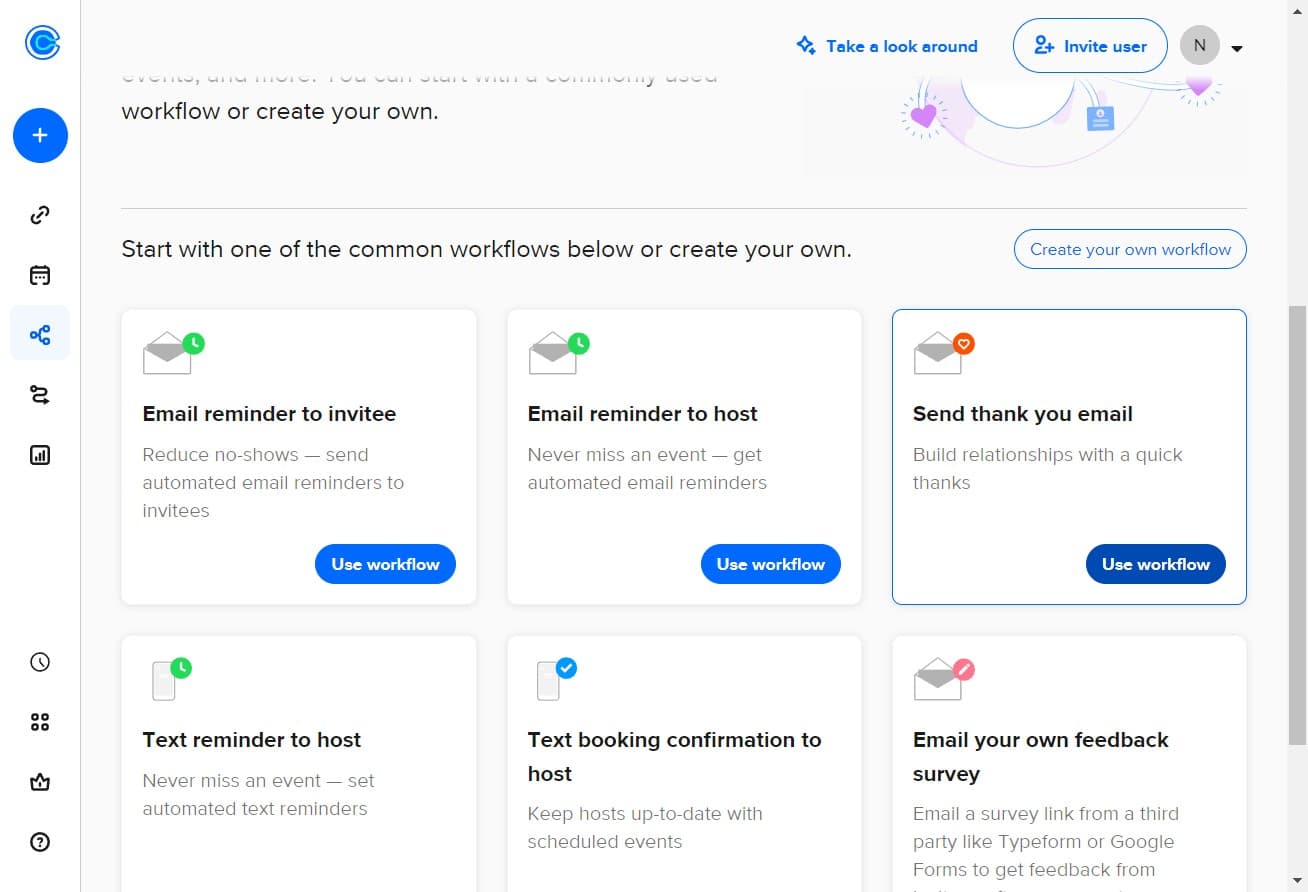
Click on Use workflow
Select an existing workflow to review its configuration. This allows you to see how workflows are structured before creating your own.
- 3
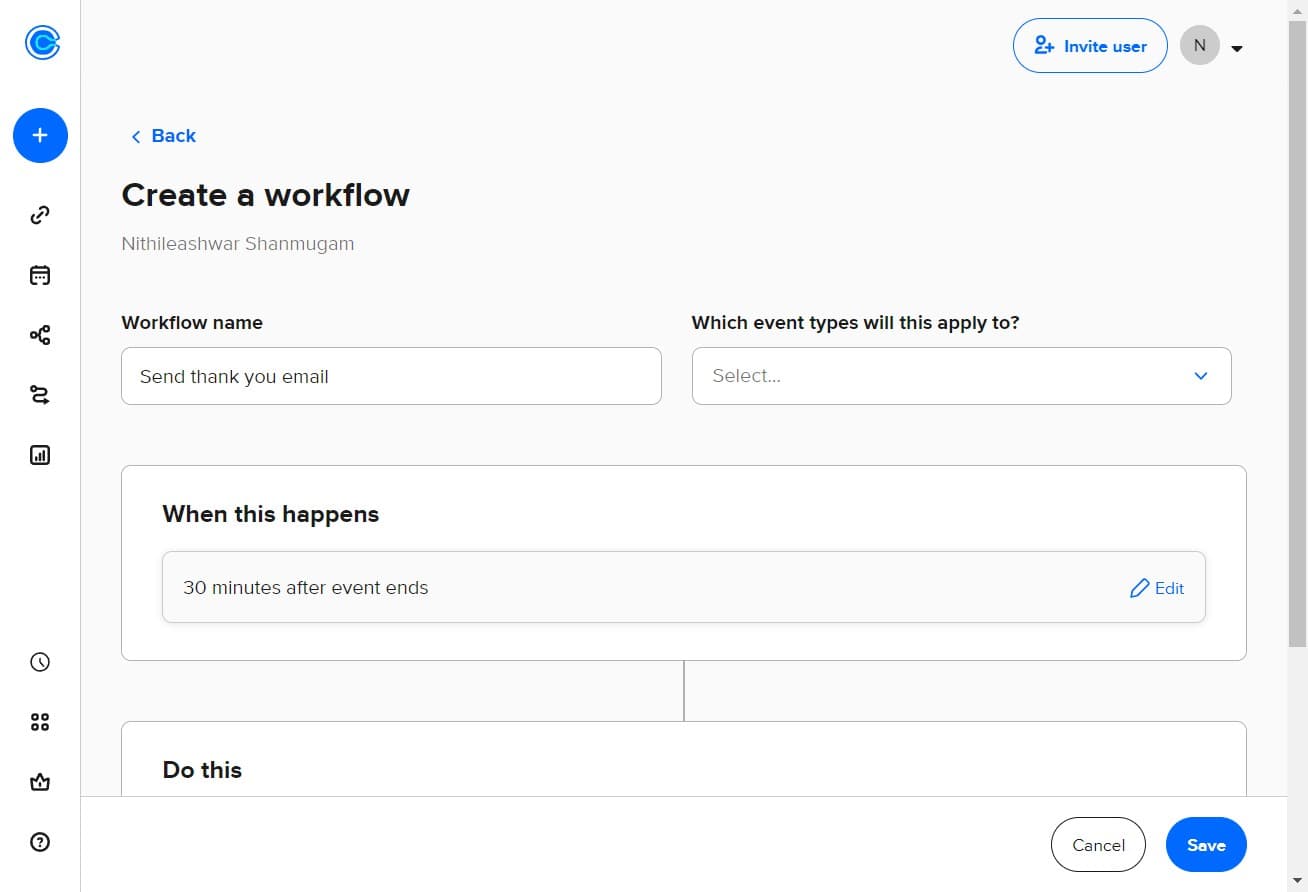
Click on Select
Choose a specific element or trigger from the available options. This step defines what action will activate your workflow.
- 4
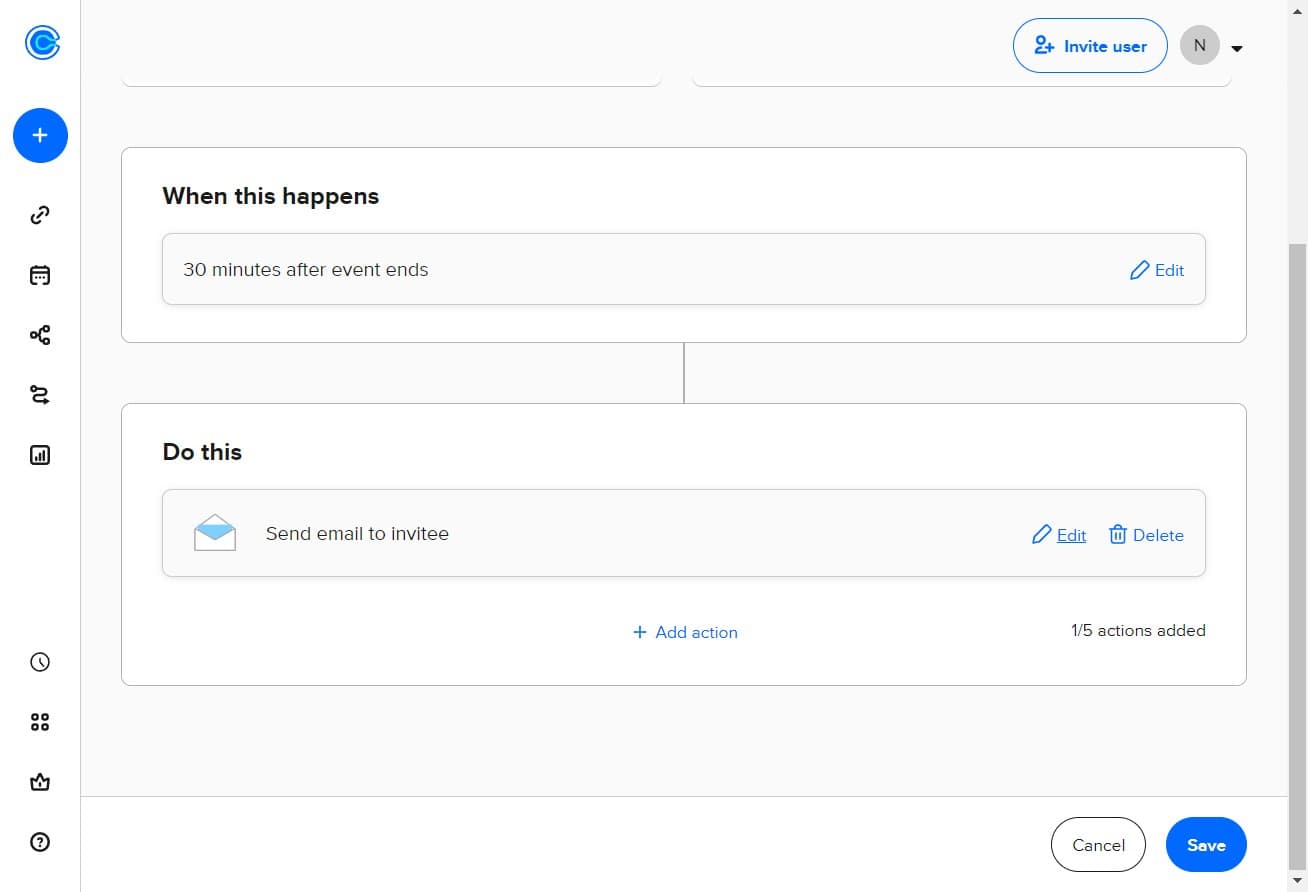
Click on Edit
Open the workflow editor to modify settings and configure the automation details. You can adjust timing, recipients, and message content in this view.
- 5
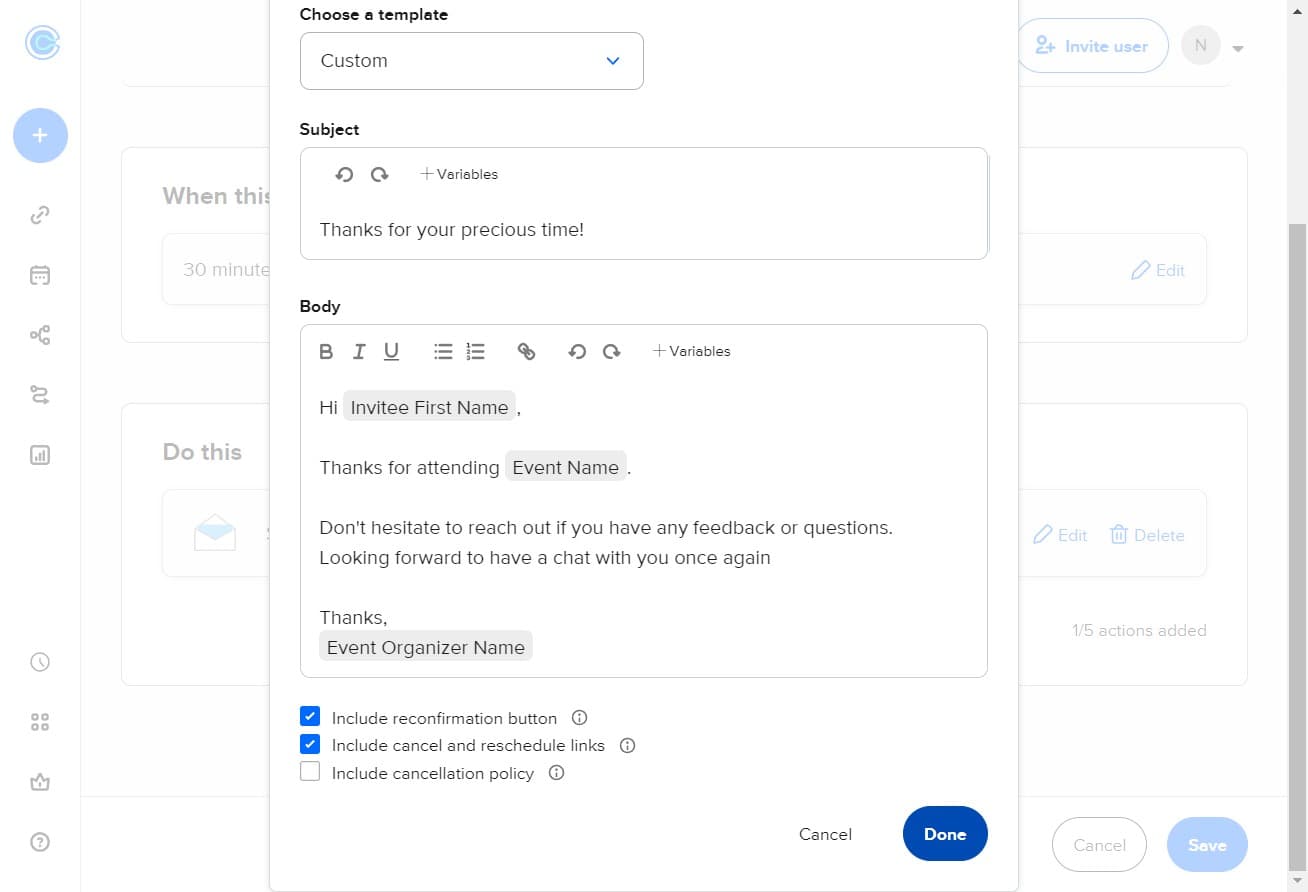
Click on Done
Confirm your edits and exit the editing mode. Your changes are prepared but not yet saved to your account.
- 6
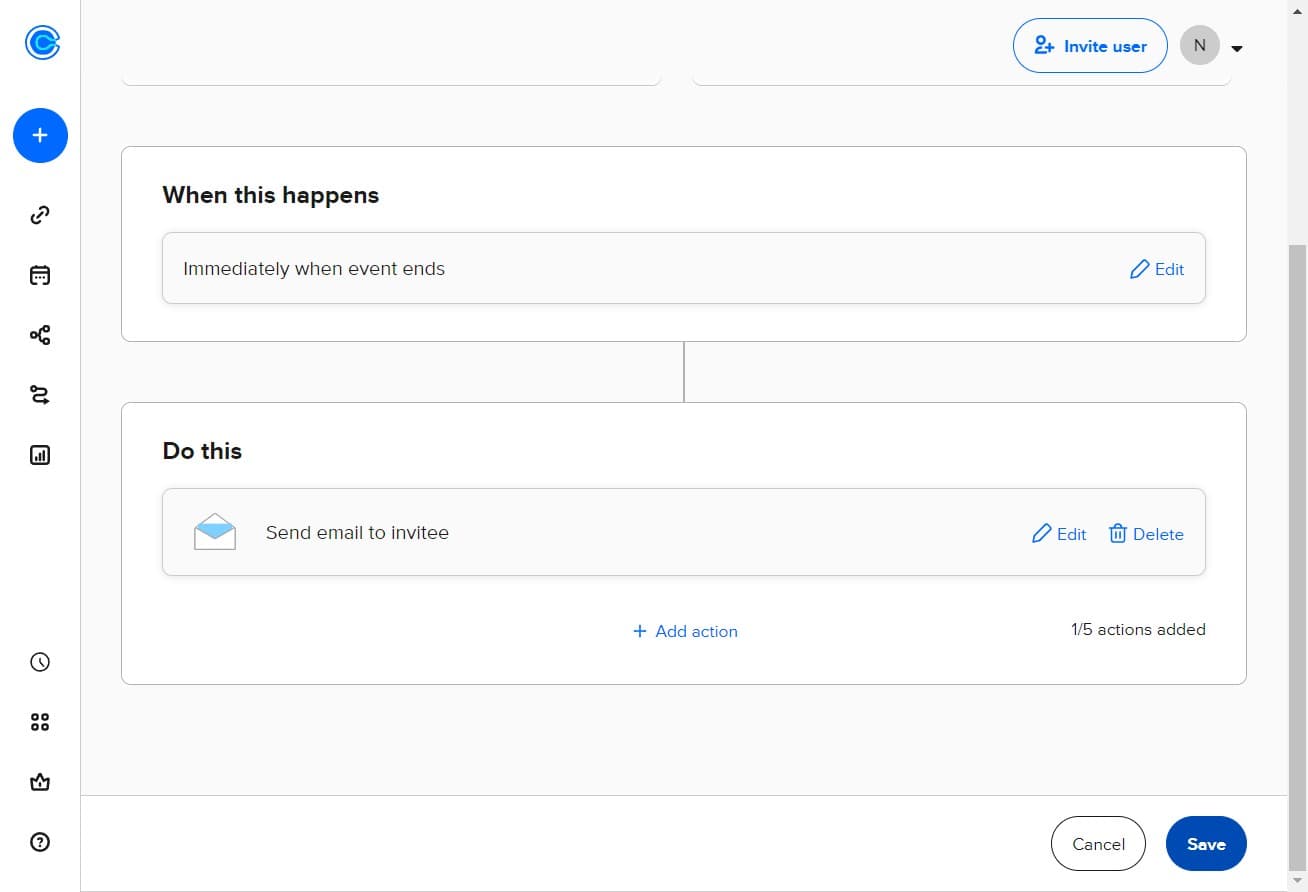
Click on Save
Finalize and store your workflow configuration. The workflow is now active and will trigger according to your specified conditions.
- 7
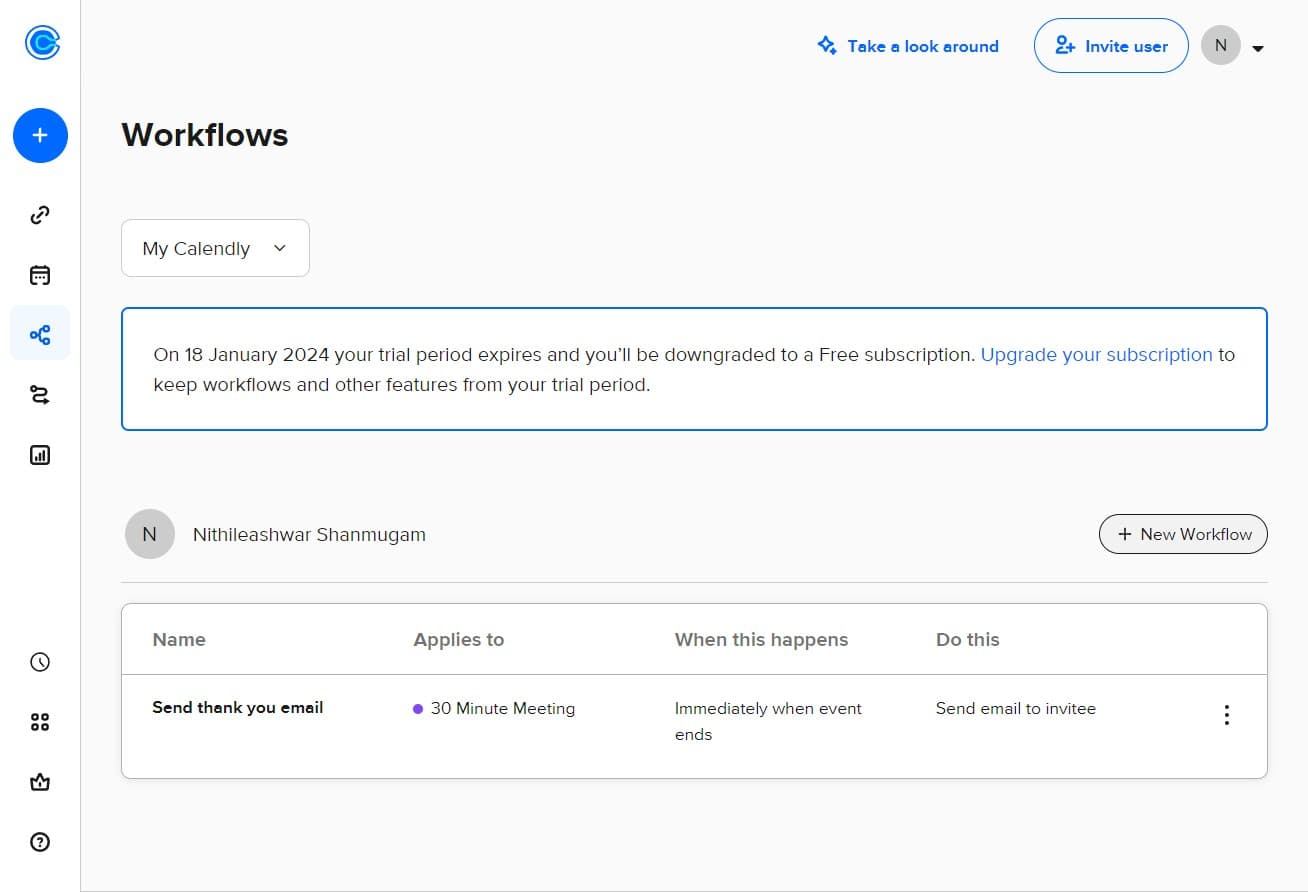
Click on New Workflow
Create a brand new workflow from scratch. This option opens a blank workflow template ready for configuration.
- 8
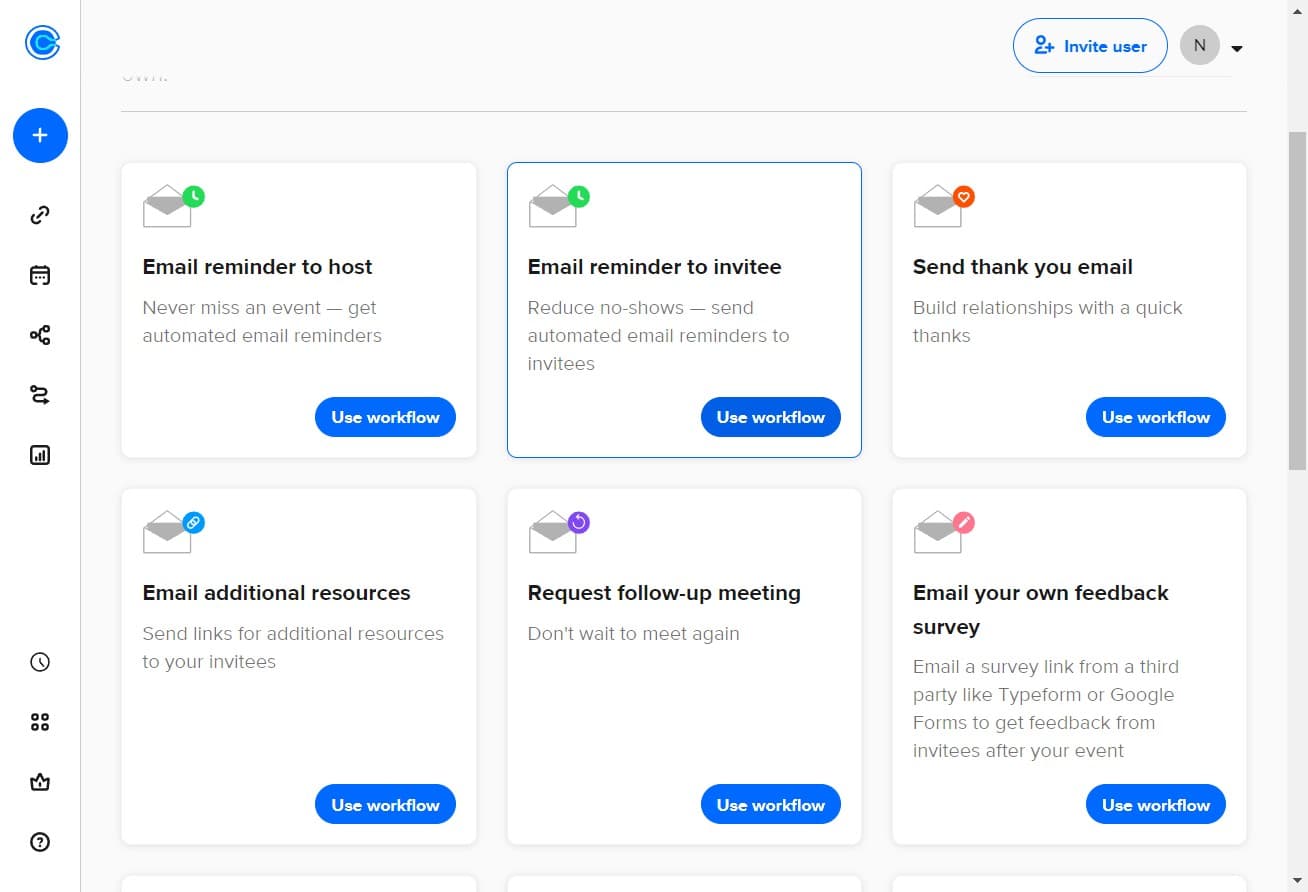
Click on Use workflow
Apply the new workflow to your calendar event types. This makes the workflow active for your bookings.
- 9
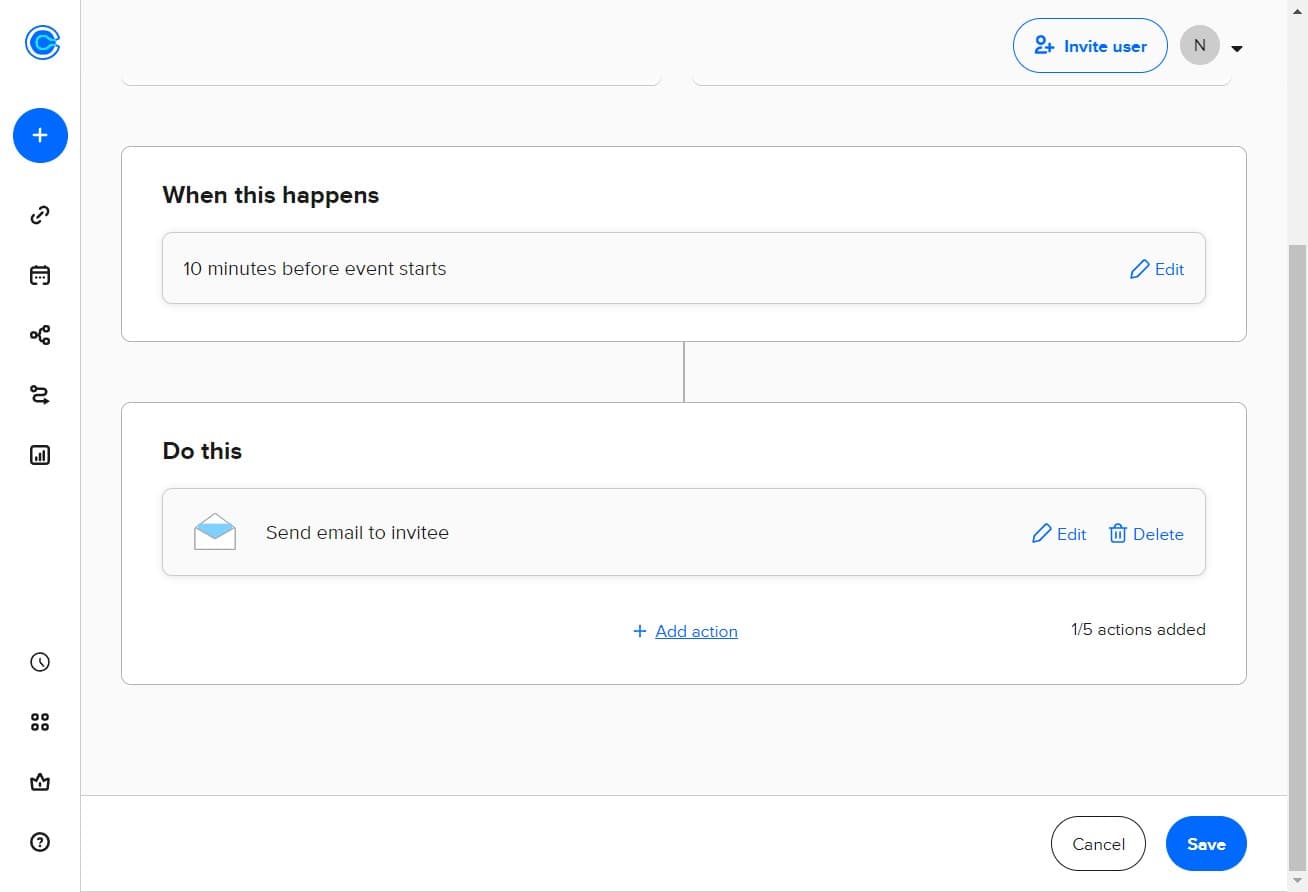
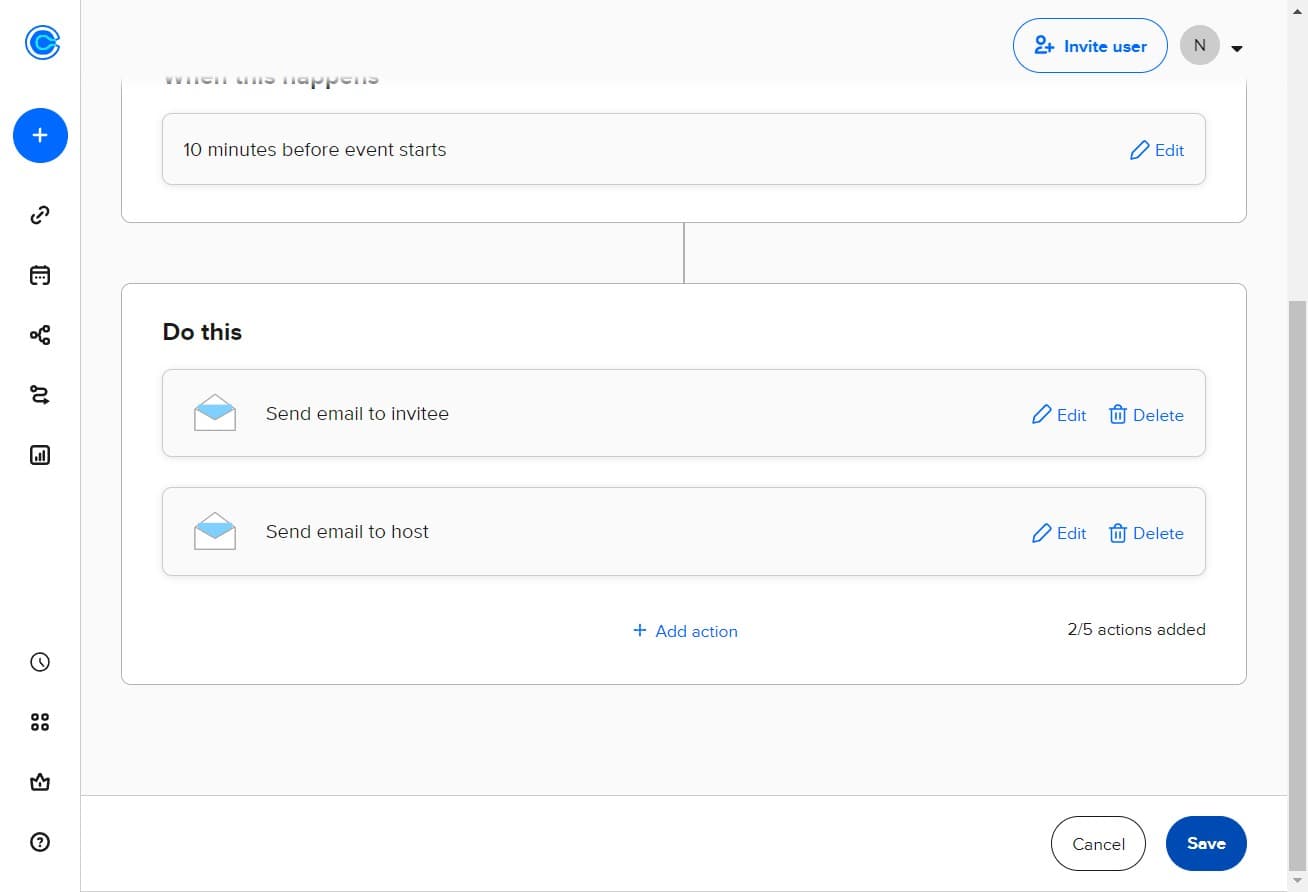
Click on Add action
Insert an automated action into your workflow. Calendly supports multiple action types including emails, SMS, and third-party integrations.
- 10
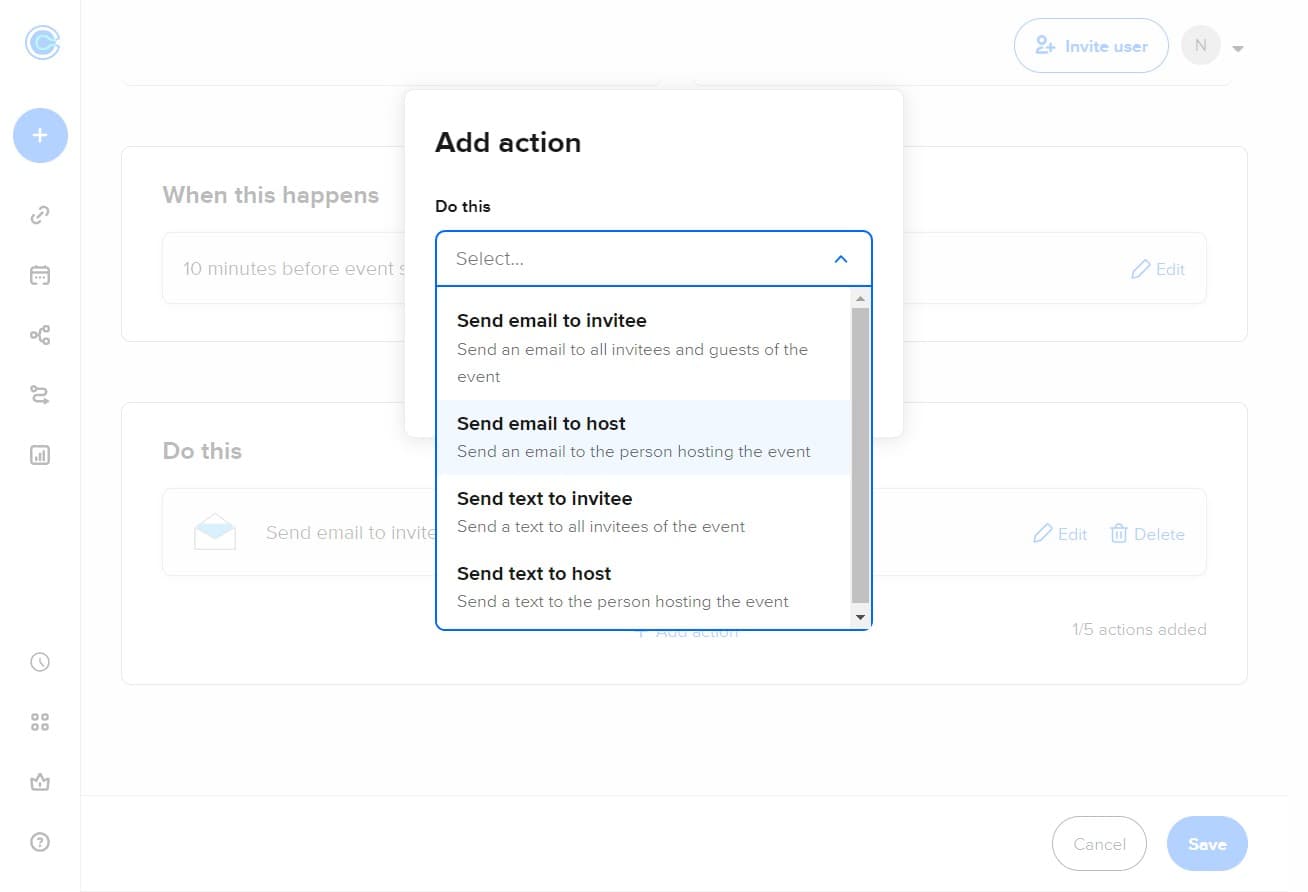
Click on Send an email
Select email as your workflow action. This allows you to automatically send messages to invitees at specified times relative to their event.
- 11
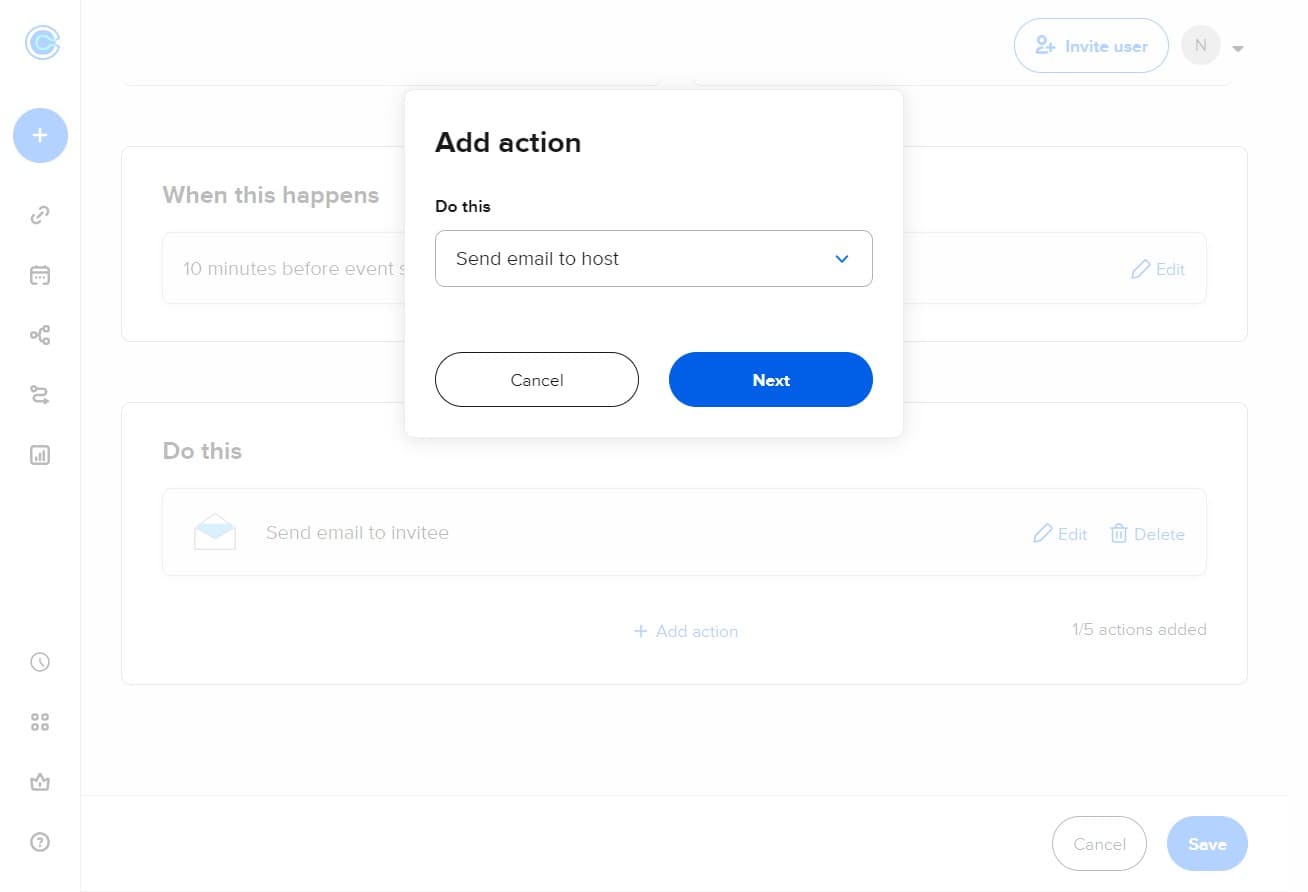
Click on Next
Proceed to configure the email details. You'll set the recipient, subject line, and message content in the following screens.
- 12
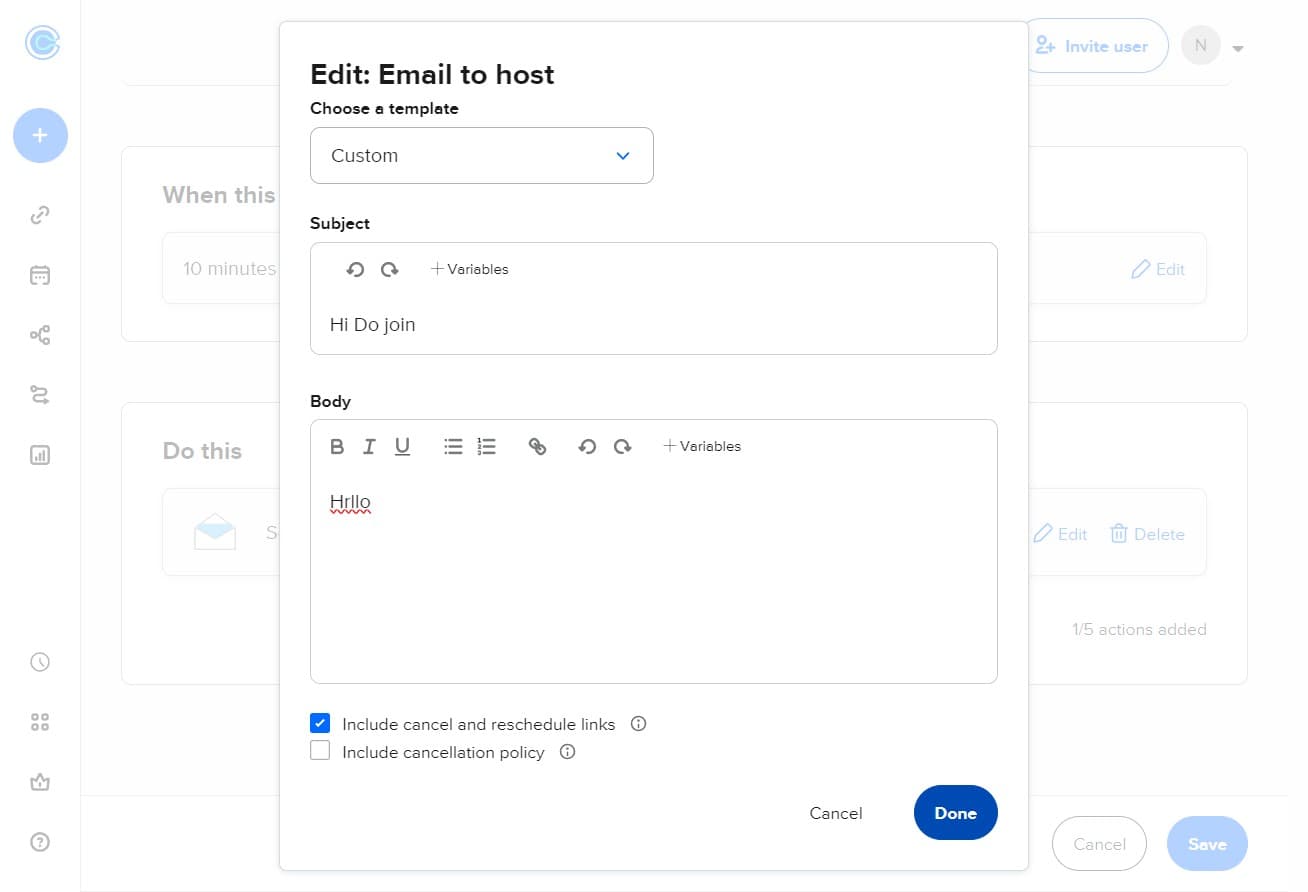
Click on Done
Complete the email action setup. Your email parameters are now configured within the workflow.
- 13
Click on Save
Save your entire workflow to make it active. The new workflow will now execute automatically based on your defined triggers.
Frequently asked questions
Common questions about how to create workflows in calendly.
Workflows can trigger at multiple points: before a meeting is booked, when someone schedules with you, before the meeting starts, or after it ends. You can customize the exact timing based on your needs, such as sending a reminder 24 hours before the event.
Yes, Calendly allows you to customize who receives workflow actions through conditional logic. You can set rules to send different emails based on event type, guest information, or other criteria.
Calendly workflows support email, SMS, Slack messages, webhooks, and integrations with third-party tools like Zapier. The available options depend on your Calendly plan level.
Absolutely. Access any saved workflow from your Workflows section, click Edit, make your changes, and save again. Your updates will apply to all future bookings immediately.
Yes, you can stack multiple workflows on one event type. For example, you could have one workflow send a confirmation email and another send a Slack notification, all triggering from the same booking.