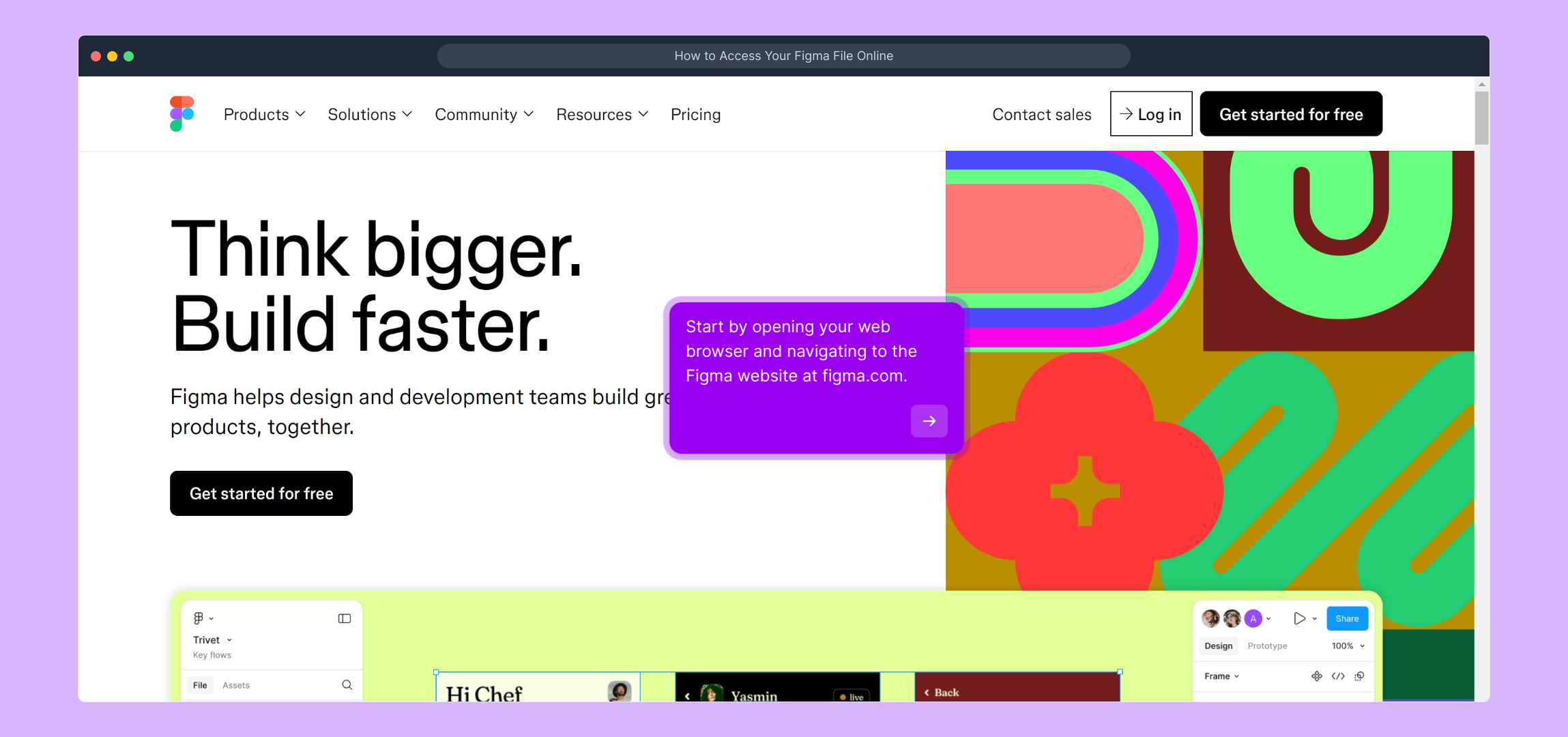
1. Start by opening your web browser and navigating to the Figma website at figma.com.
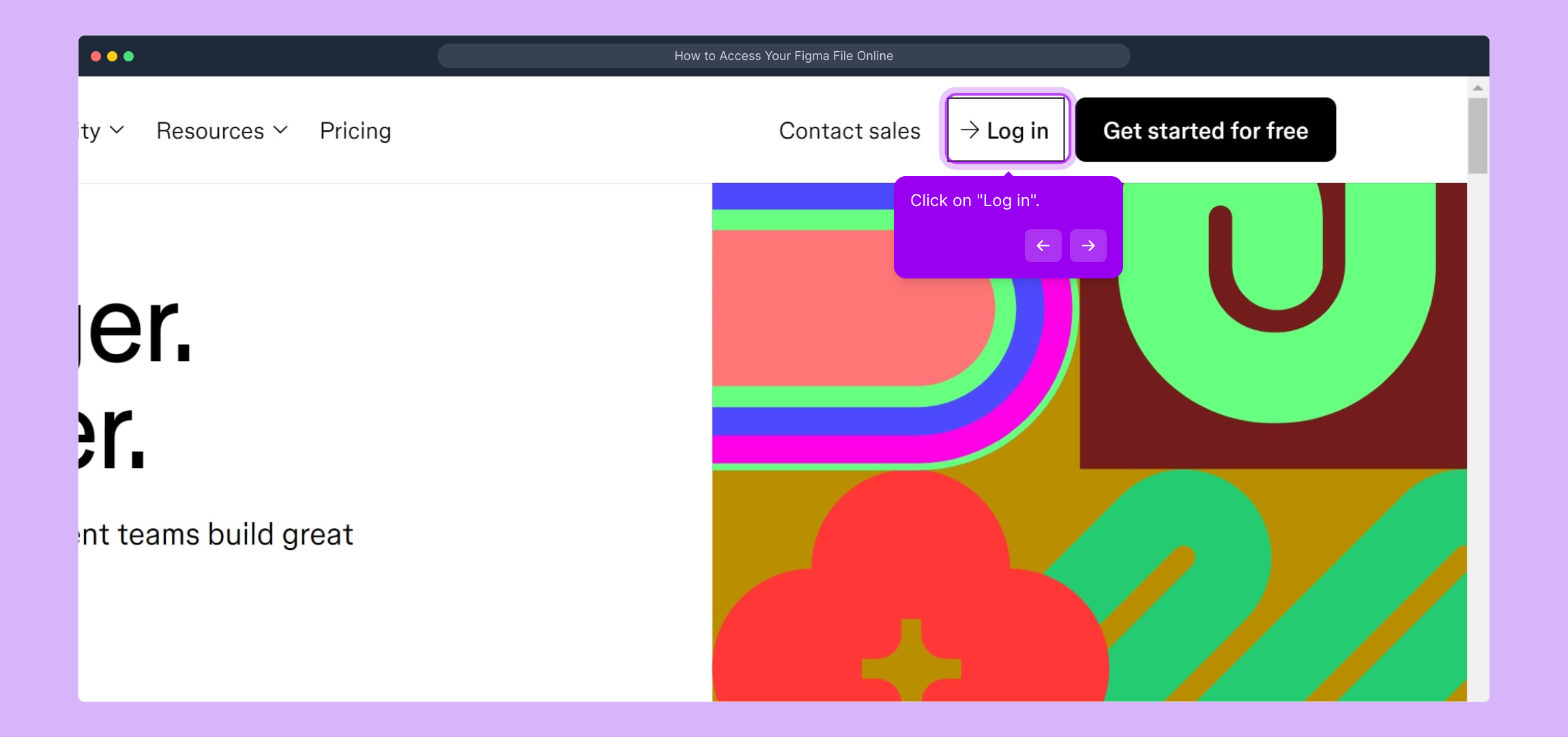
2. Click on "Log in".
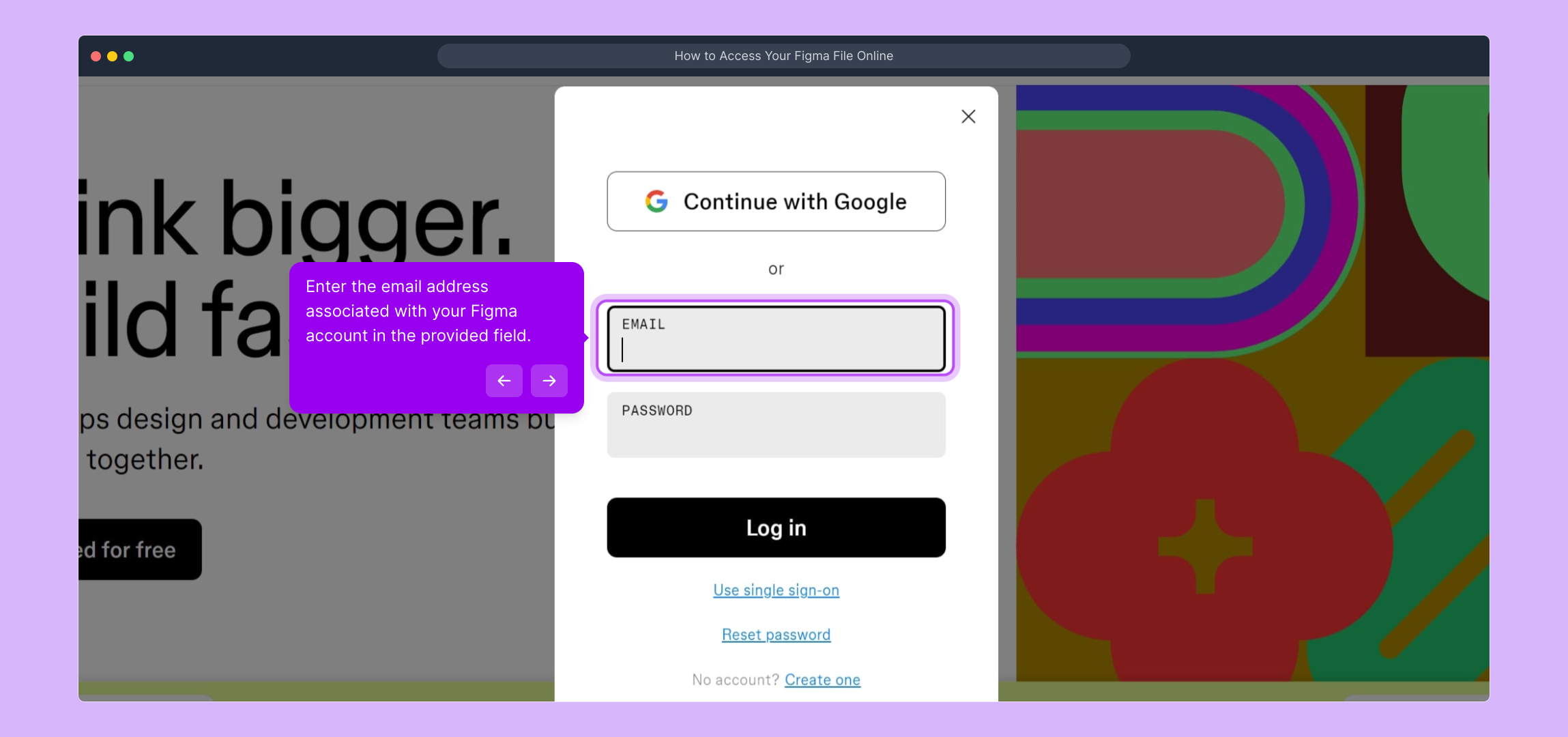
3. Enter the email address associated with your Figma account in the provided field.
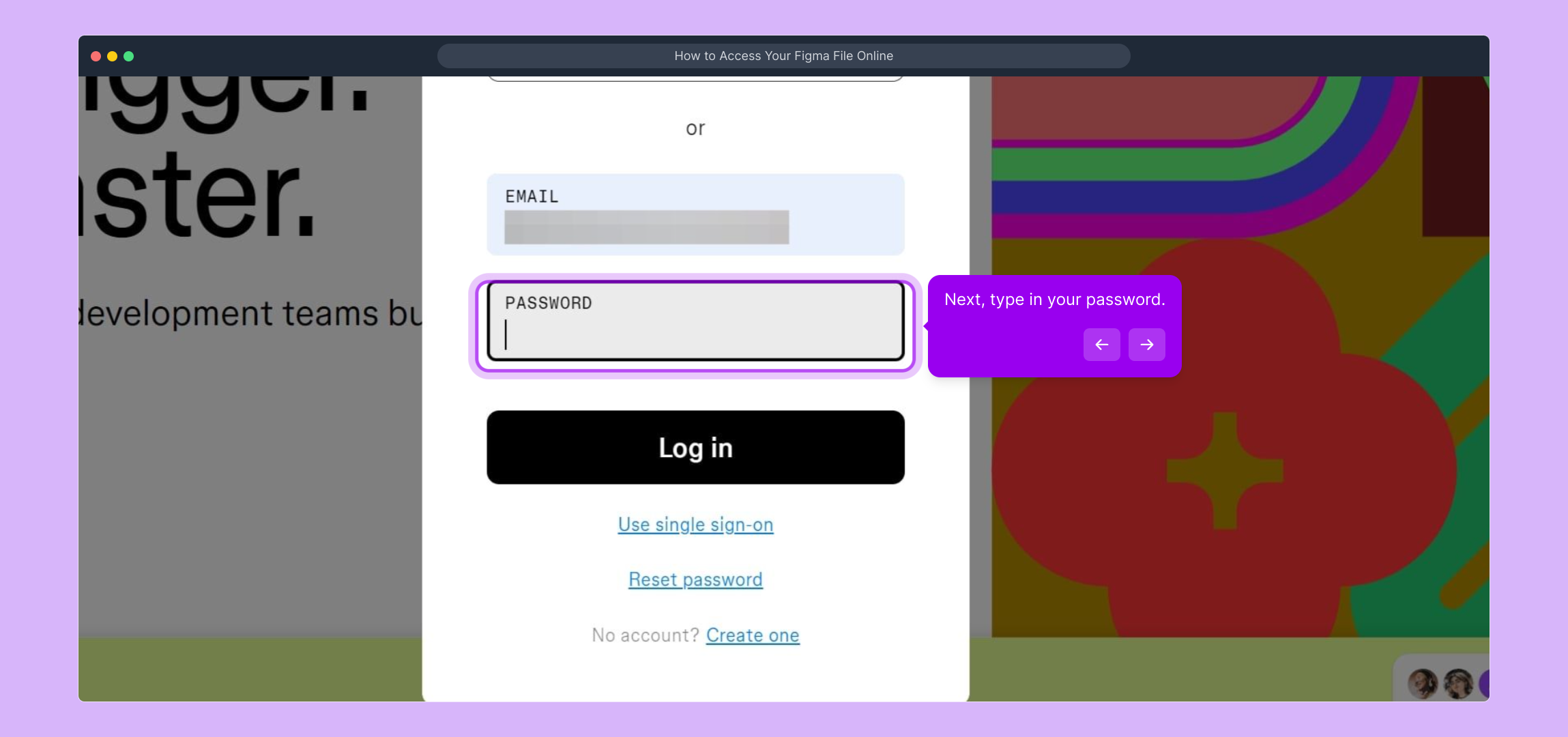
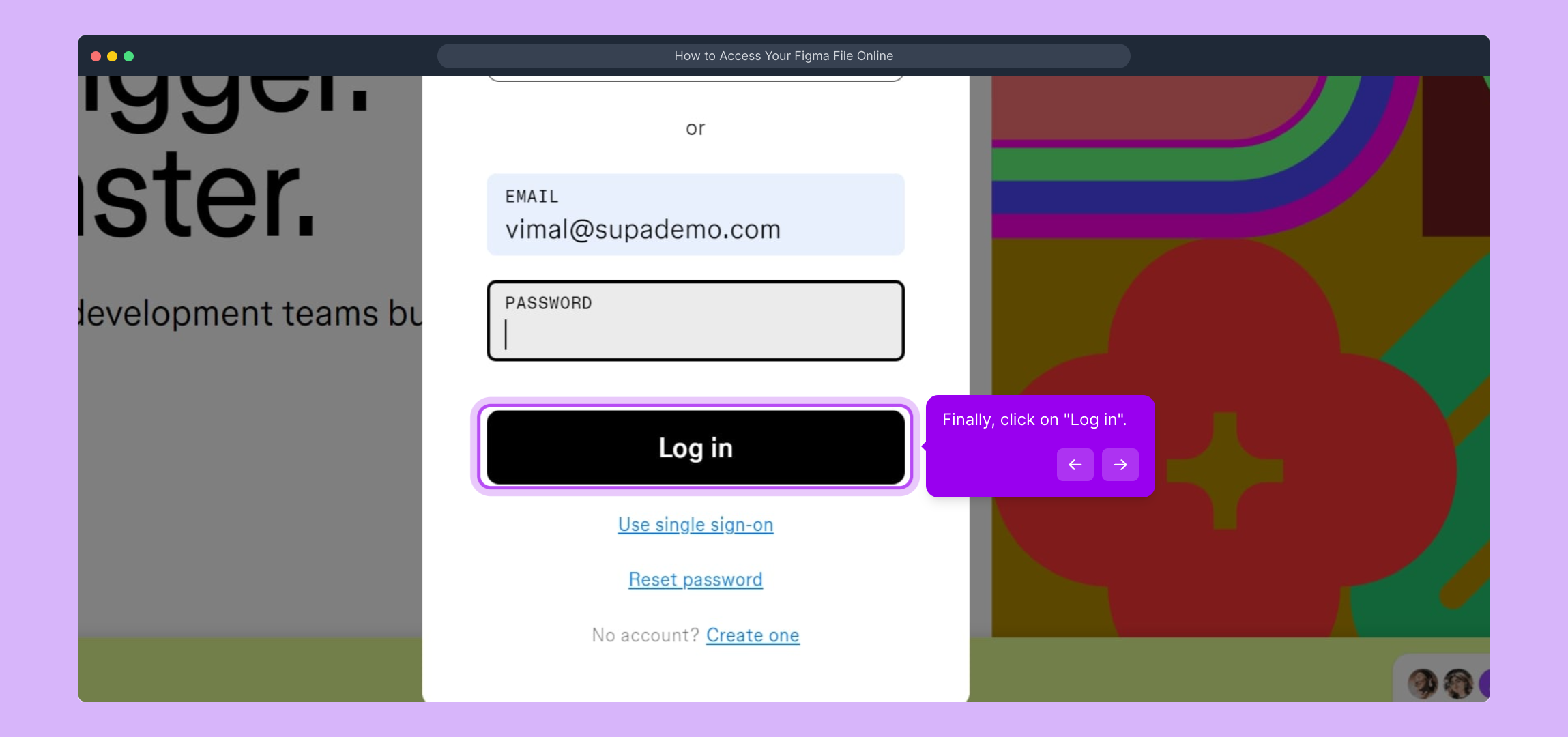
4. Next, type in your password.
5. Finally, click on "Log in".
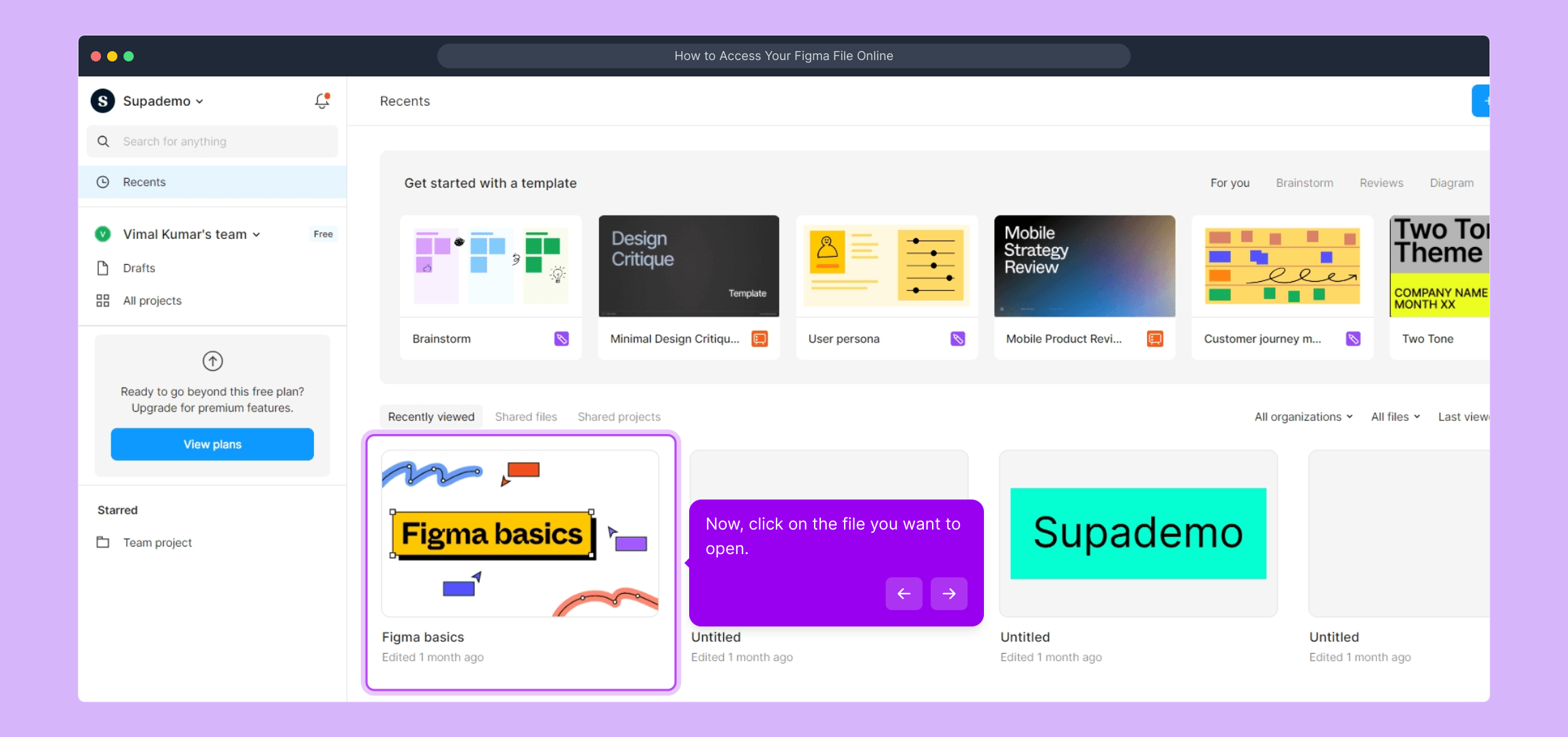
6. Now, click on the file you want to open.
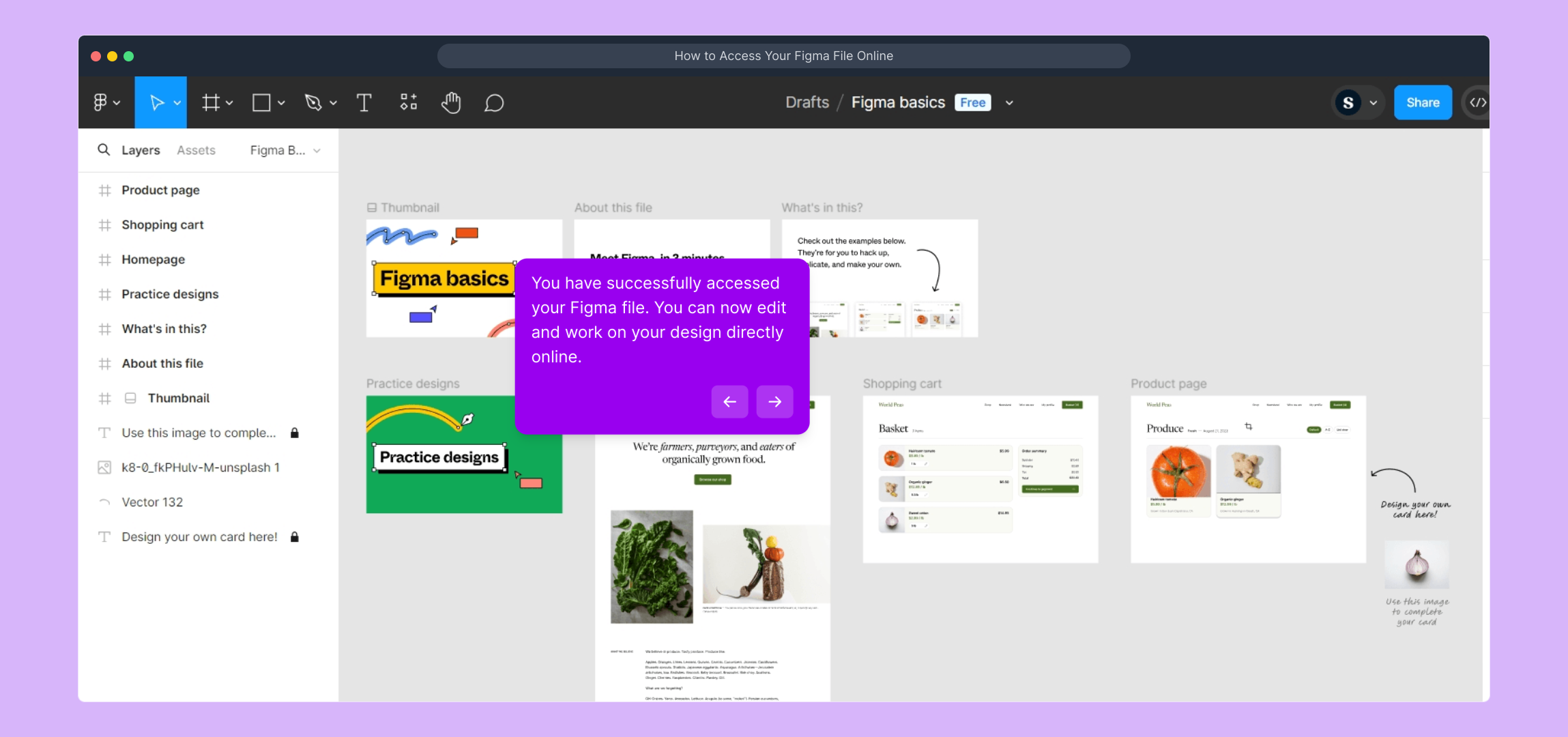
7. You have successfully accessed your Figma file. You can now edit and work on your design directly online.
8. Create a Supademo in seconds
This interactive demo/guided walkthrough on How to Access Your Figma File Online was created using Supademo.
How to Access Your Figma File Online : Step-by-Step Guide
Begin by launching your preferred web browser, then head over to figma.com. This is the homepage where you can access all the powerful design tools Figma offers.
Once you arrive on the Figma homepage, look towards the top right corner for the "Log in" button. Click here to start the process of accessing your personal design workspace.
On the login screen, you’ll see a field asking for your email address. Enter the email linked to your Figma account here to help Figma recognize your user profile.
Next, enter your password associated with your Figma account in the designated field. This keeps your projects secure and private.
After filling in your login credentials, click on the "Log in" button to access your Figma dashboard and start managing your projects.
Now that you’re logged in, browse through your list of projects and select the specific file you want to open. This will bring up your design canvas where you can begin working.
Your chosen file is now open and ready for editing. You can start making changes, adding elements, or collaborating with others right from this online workspace.
In just a few moments, you can create a Supademo that showcases your Figma work effortlessly, helping you present your designs clearly and professionally.
Create your own interactive demos in < 5 mins with Supademo
You can create your own interactive product demo in minutes using Supademo. Drive growth, scale enablement, and supercharge product-led onboarding with Supademo. Sign up for free here with no credit card required.
FAQs
Commonly asked questions about this topic.
How do I log in to my Figma account?
Can I access my Figma files from any device?
What should I do if I forget my Figma password?
Is it possible to share Figma files after accessing them online?
Do I need to install software to use Figma online?
How do I find a specific file once logged in to Figma?
Can I edit Figma files directly online?
What internet speed is recommended to access Figma files smoothly?
Are my Figma files stored securely when accessed online?
Can I create interactive demos of my Figma designs?

Product Operations Associate
Vimal Kumar helps build and grow Supademo’s team and GTM efforts, with a focus on figuring out growth levers and improving product traction.