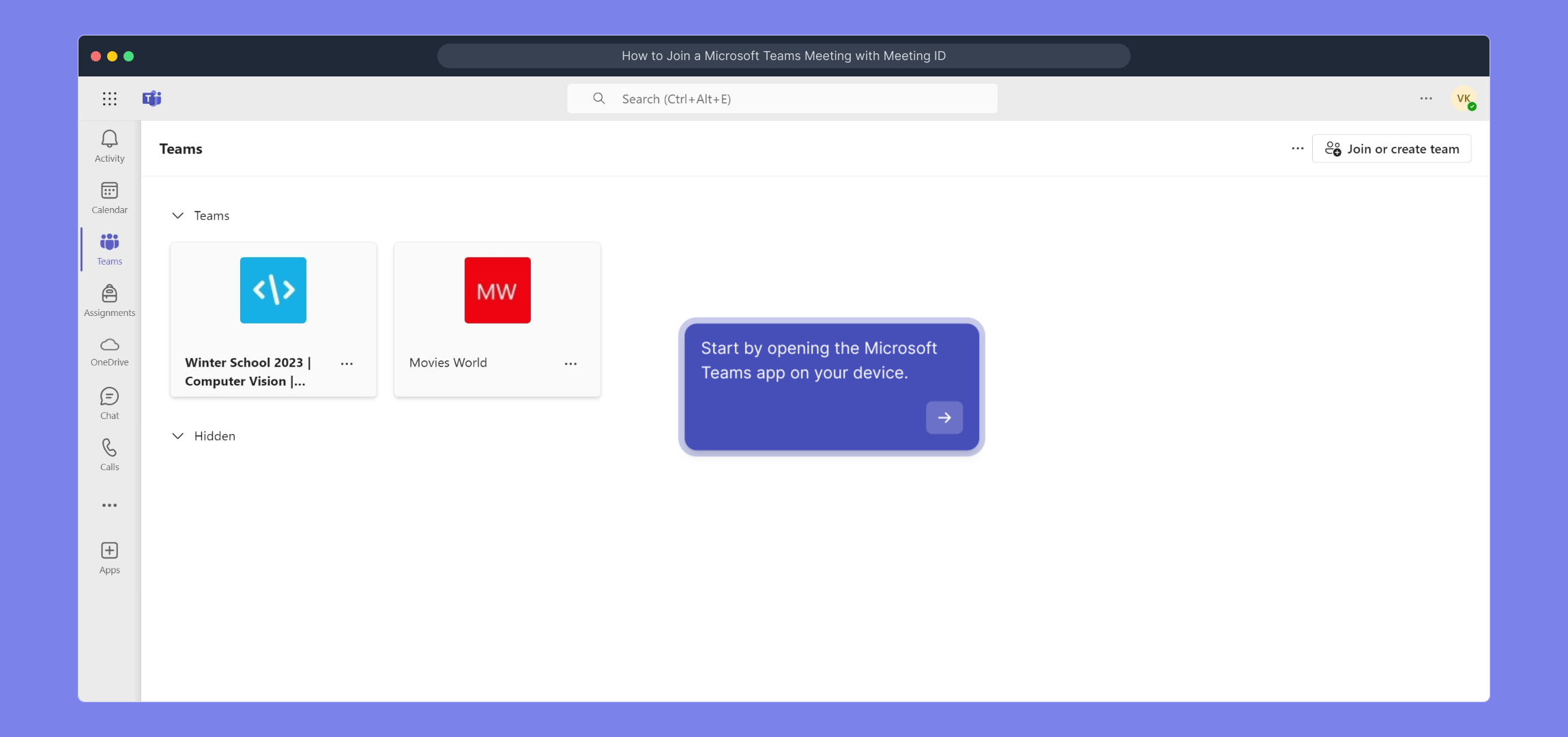
1. Start by opening the Microsoft Teams app on your device.
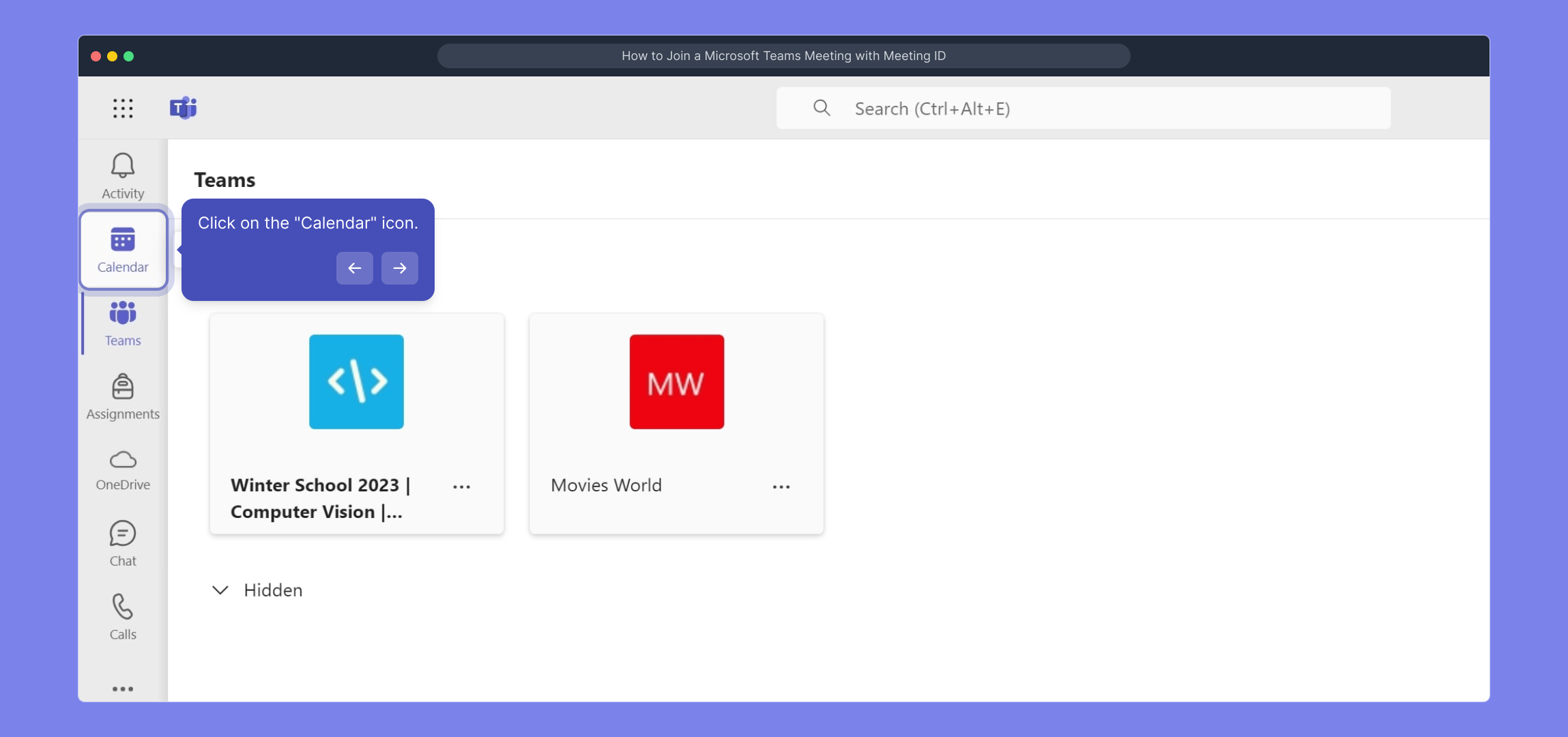
2. Click on the "Calendar" icon.
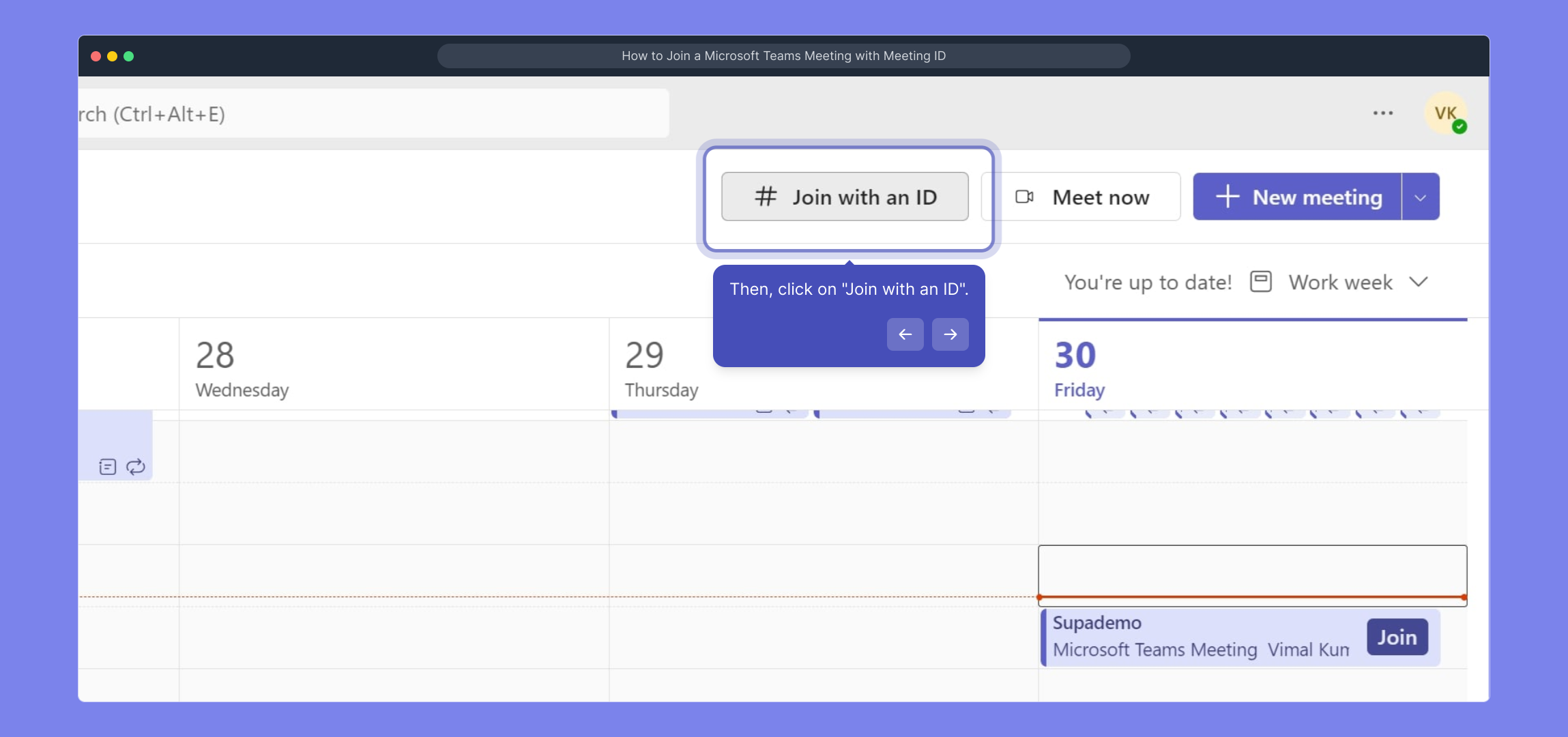
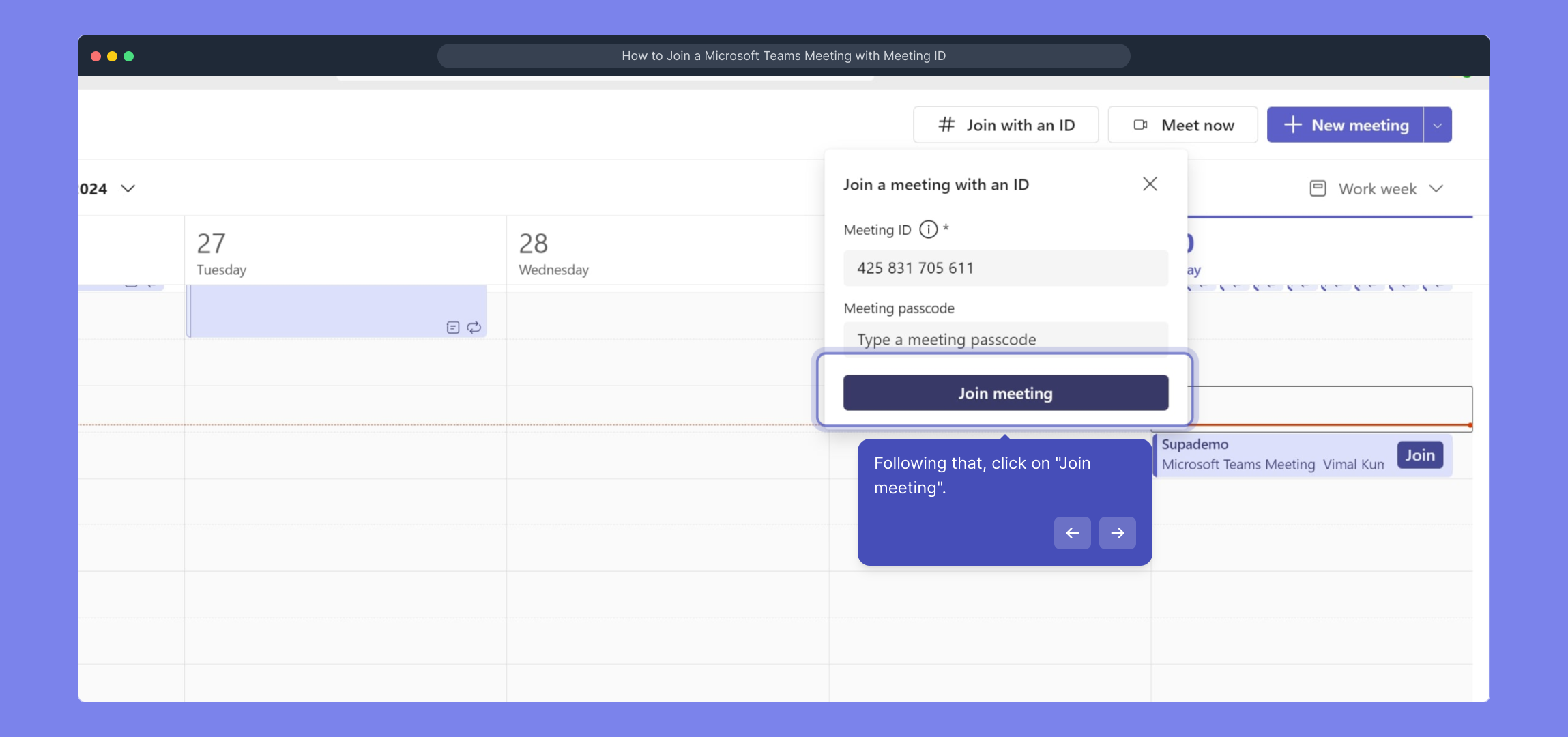
3. Then, click on "Join with an ID".
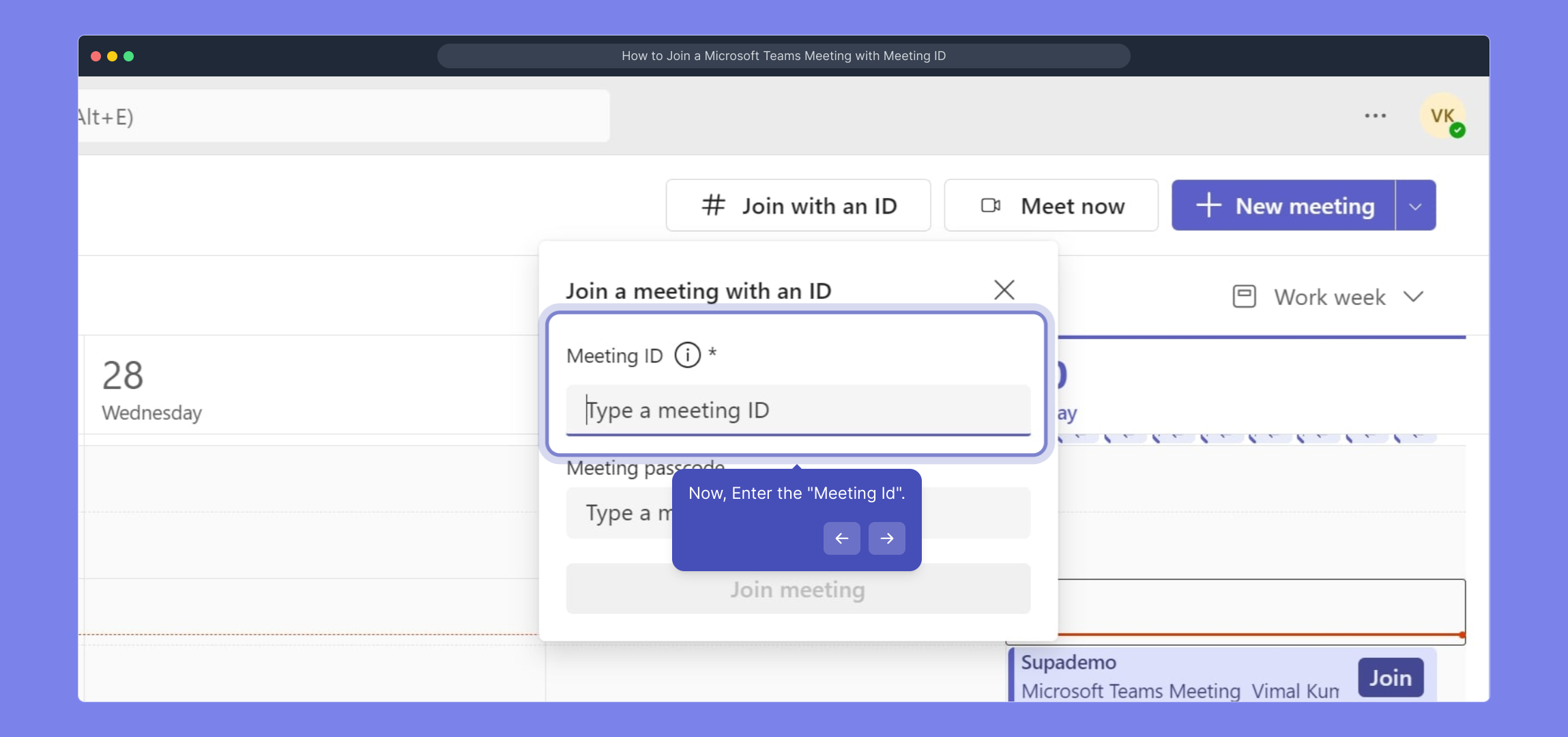
4. Now, Enter the "Meeting Id".
5. Following that, click on "Join meeting".
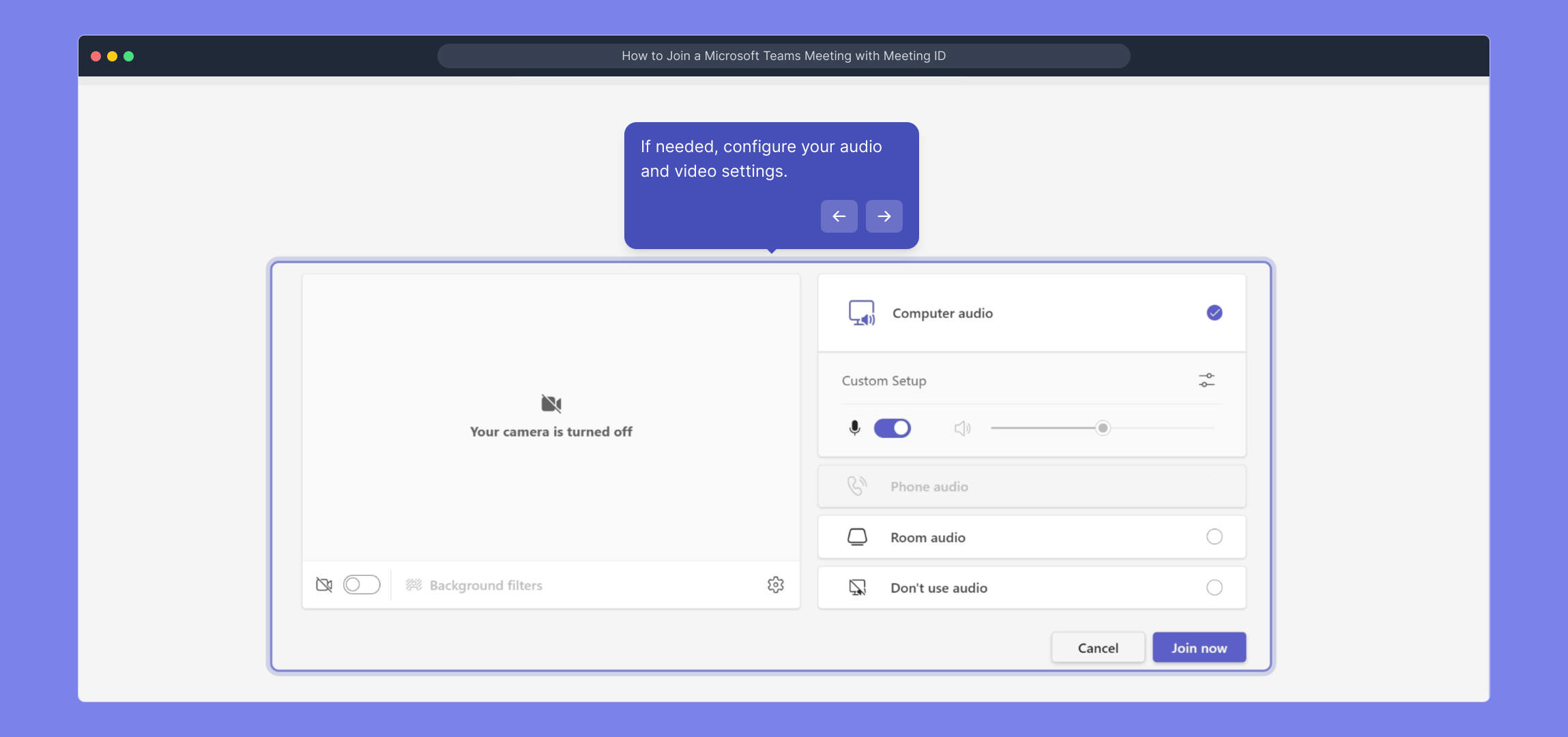
6. If needed, configure your audio and video settings.
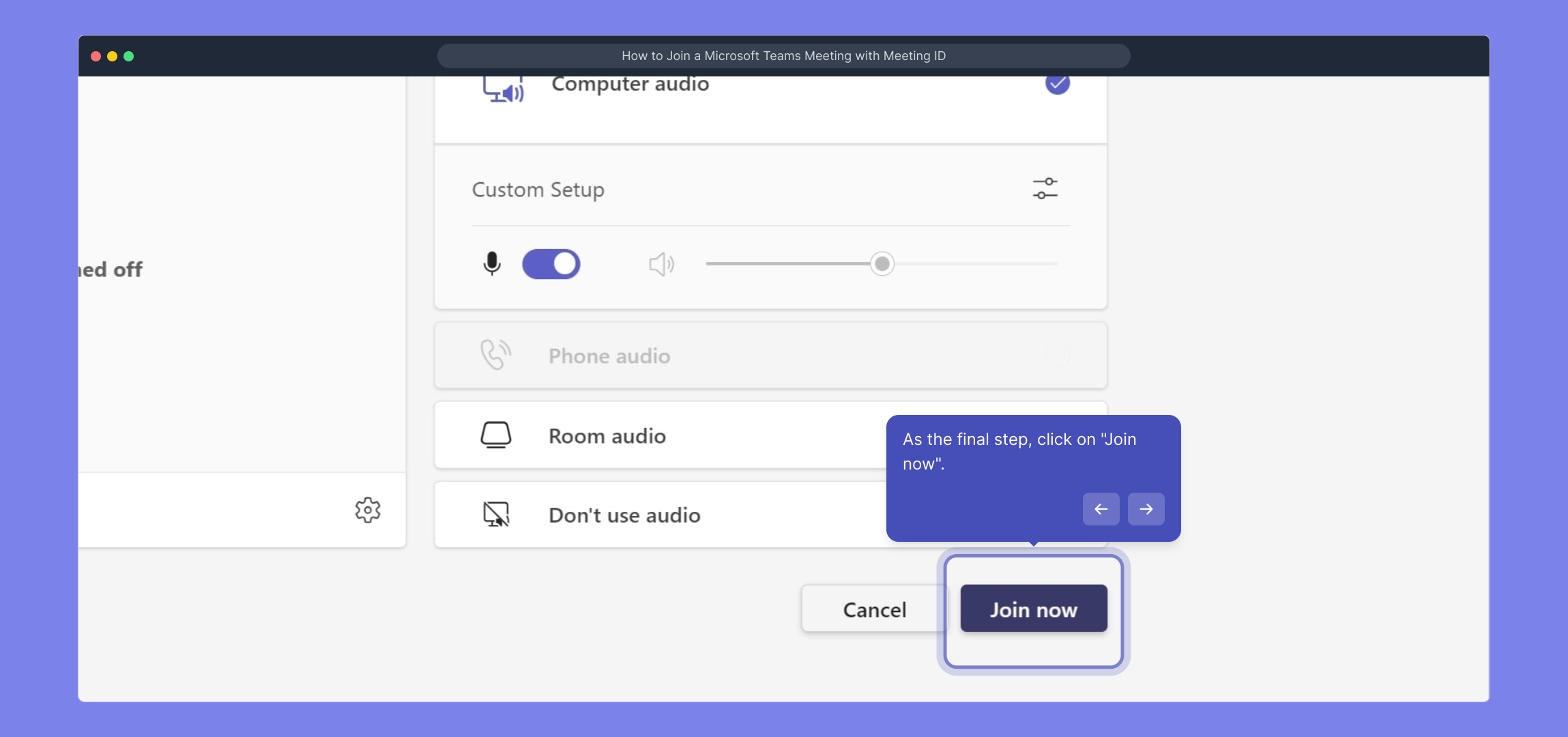
7. As the final step, click on "Join now".
8. Create a Supademo in seconds
This interactive demo/guided walkthrough on How to Join a Microsoft Teams Meeting with Meeting ID was created using Supademo.
How to Join a Microsoft Teams Meeting with Meeting ID : Step-by-Step Guide
Begin by launching the Microsoft Teams application on your device. This is your central hub for meetings and collaboration, so make sure you’re signed in to access all features.
Once inside Teams, locate and select the "Calendar" icon from the sidebar. This section displays all your scheduled meetings and is where you'll find options to join or organize meetings.
Next, look for the option labeled "Join with an ID." Clicking this will allow you to enter a meeting directly by inputting its unique identifier rather than searching through the calendar.
In the provided field, enter the specific "Meeting Id" you’ve been given. This number ensures you connect to the correct meeting instantly without needing an invitation link.
After entering the Meeting Id, click the "Join meeting" button. This action initiates your connection process to the virtual meeting space.
Before joining, take a moment to adjust your audio and video preferences. Confirm your microphone, speakers, and camera are correctly set so you can participate smoothly.
Finally, click the "Join now" button to enter the meeting. This will connect you live with other participants, ready to collaborate and communicate.
With these steps completed, you’re all set to create a Supademo seamlessly and start sharing your ideas in seconds.
Create your own interactive demos in < 5 mins with Supademo
You can create your own interactive product demo in minutes using Supademo. Drive growth, scale enablement, and supercharge product-led onboarding with Supademo. Sign up for free here with no credit card required.
FAQs
Commonly asked questions about this topic.
What is a Meeting ID in Microsoft Teams?
Can I join a Teams meeting without a Microsoft account using the Meeting ID?
Where do I find the "Join with an ID" option in Microsoft Teams?
What should I do if my Meeting ID is not accepted?
Can I join a Teams meeting with Meeting ID on mobile?
Do I need to install Microsoft Teams to join a meeting with Meeting ID?
Is the Meeting ID the same as the meeting link?
Can I join a meeting using only the Meeting ID without a passcode?
What audio and video settings should I check before joining?
Why can’t I see the "Join with an ID" option in my Teams app?

Product Operations Associate
Vimal Kumar helps build and grow Supademo’s team and GTM efforts, with a focus on figuring out growth levers and improving product traction.