How to Make a Table in Figma

Vimal Kumar
Vimal Kumar·
How to Make a Table in Figma
Interactive demo powered by Supademo

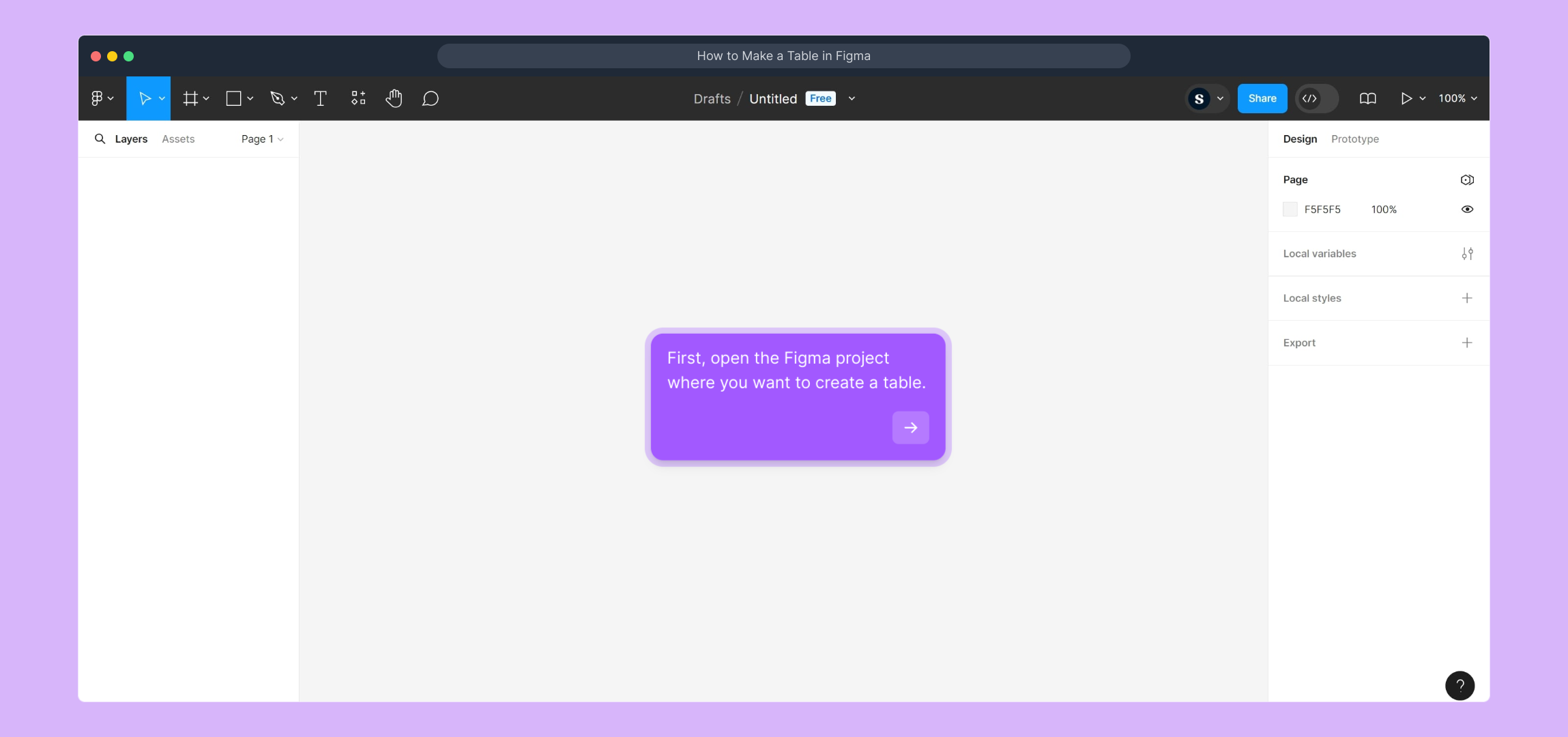
1. First, open the Figma project where you want to create a table.

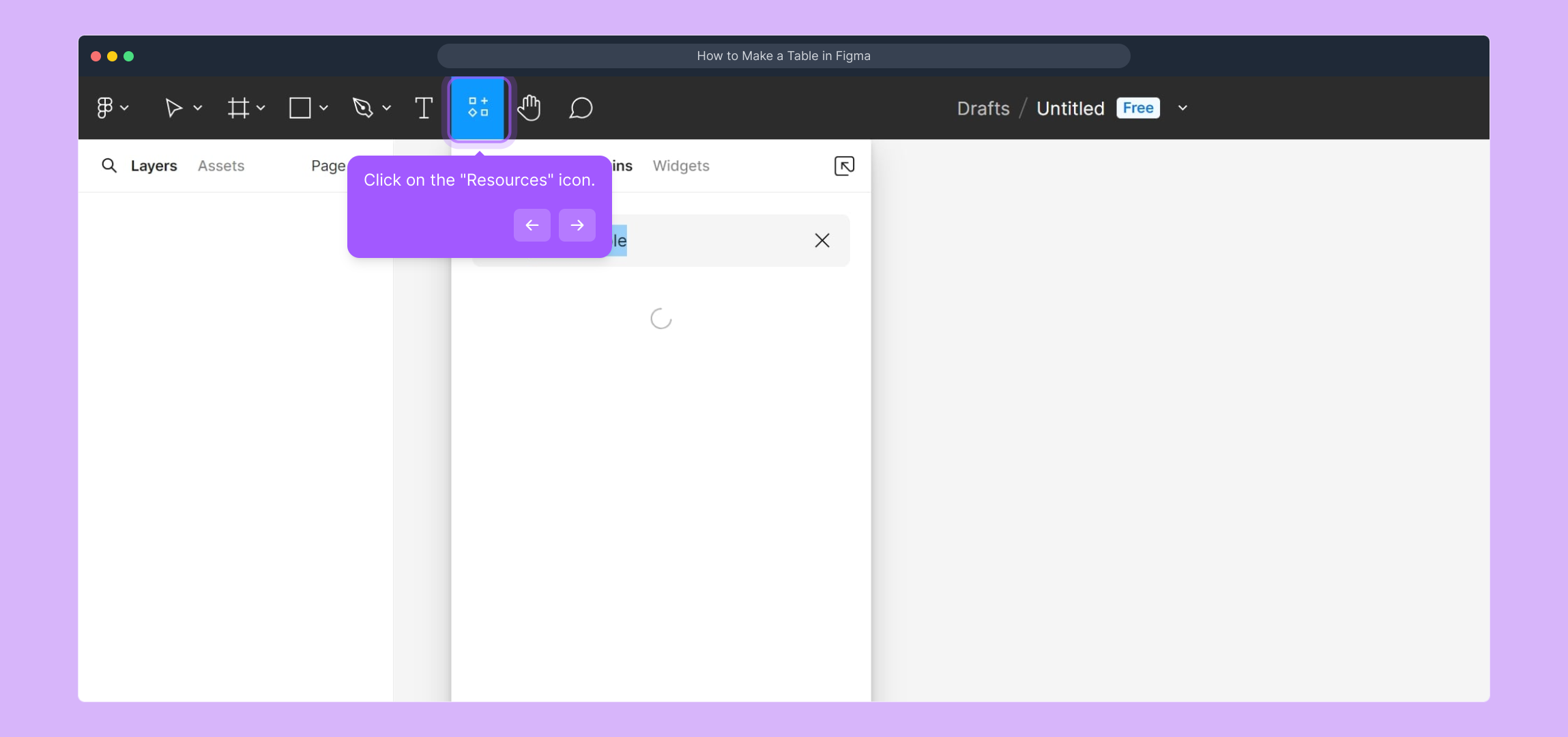
2. Click on the "Resources" icon.

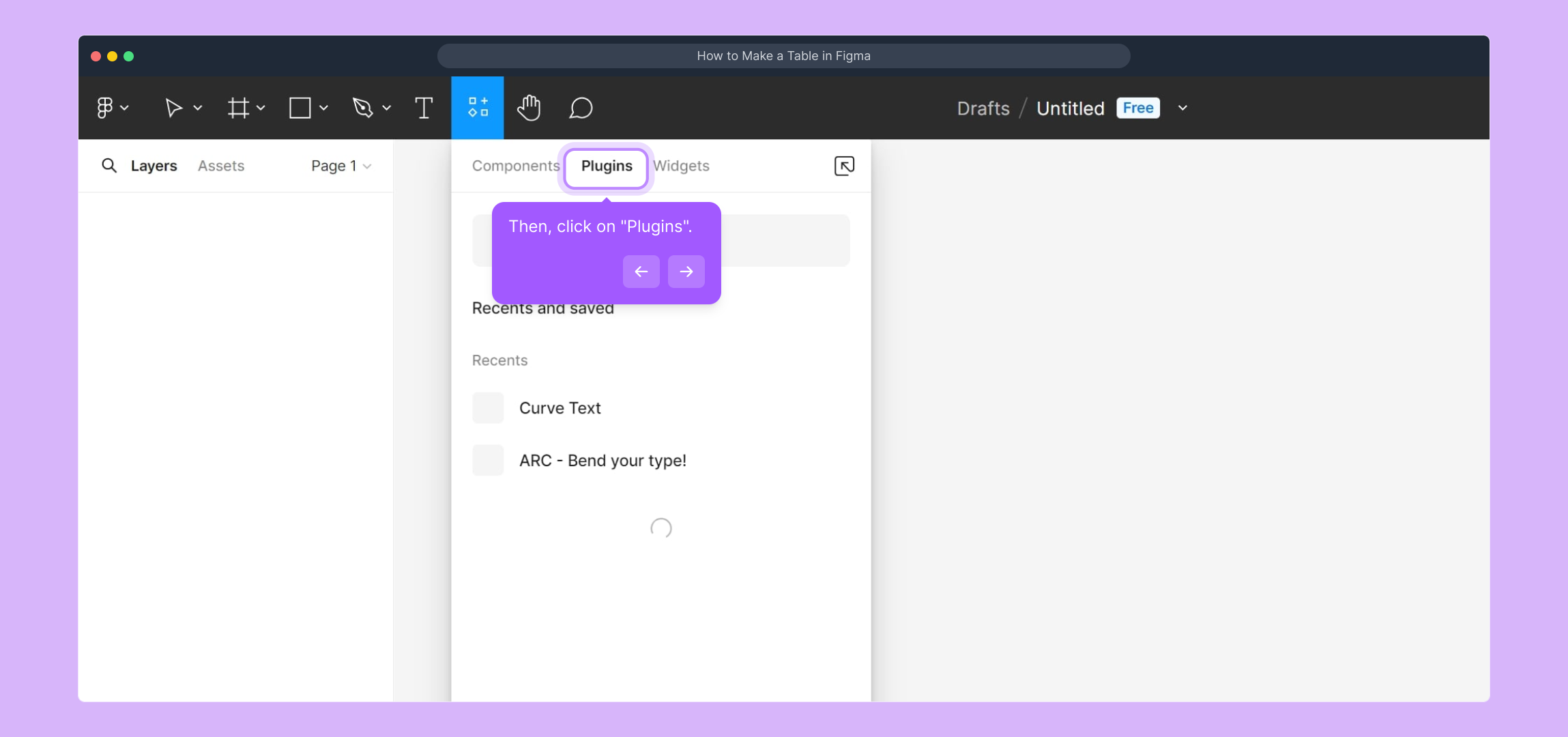
3. Then, click on "Plugins".

4. Video Step

(

Play Now

)

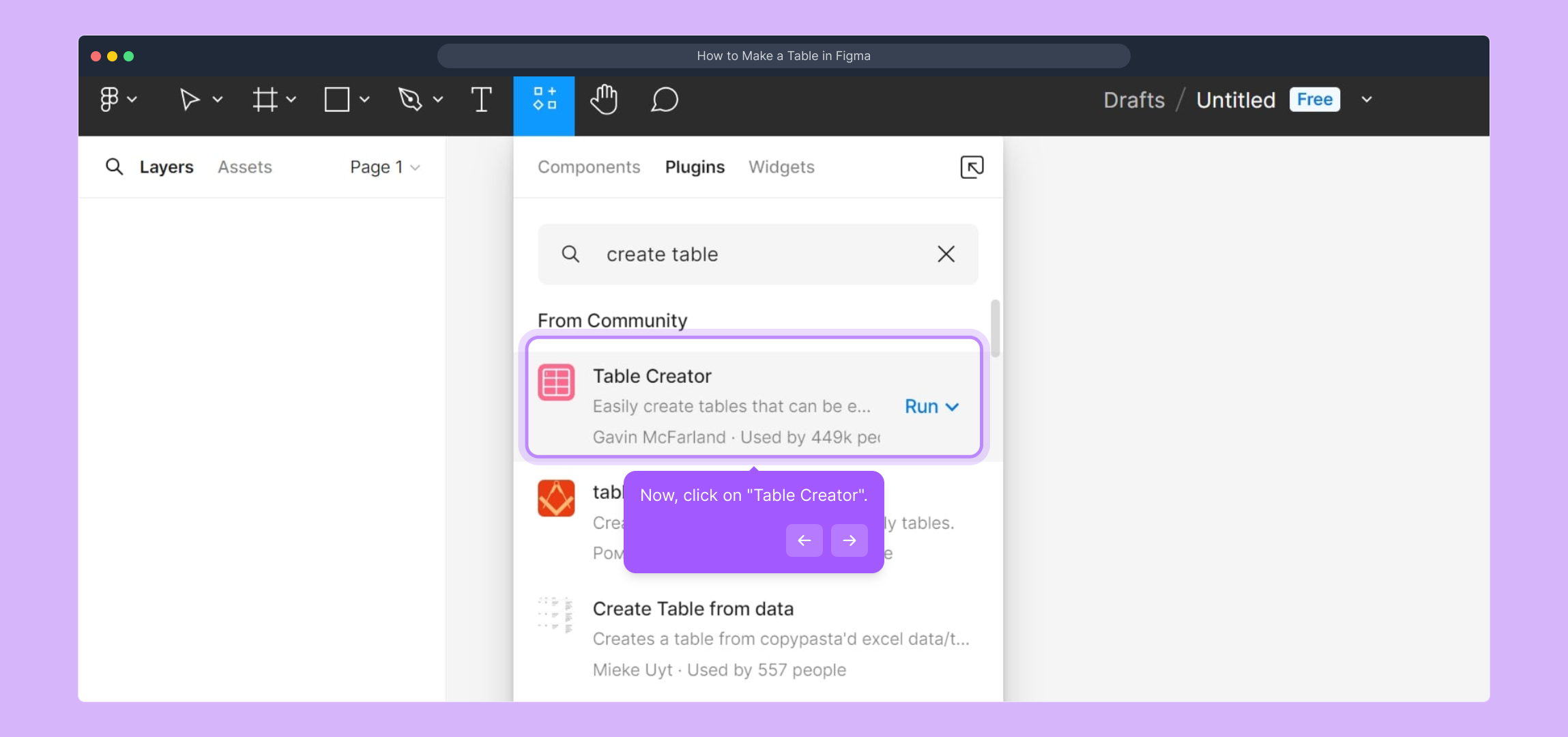
5. Now, click on "Table Creator".

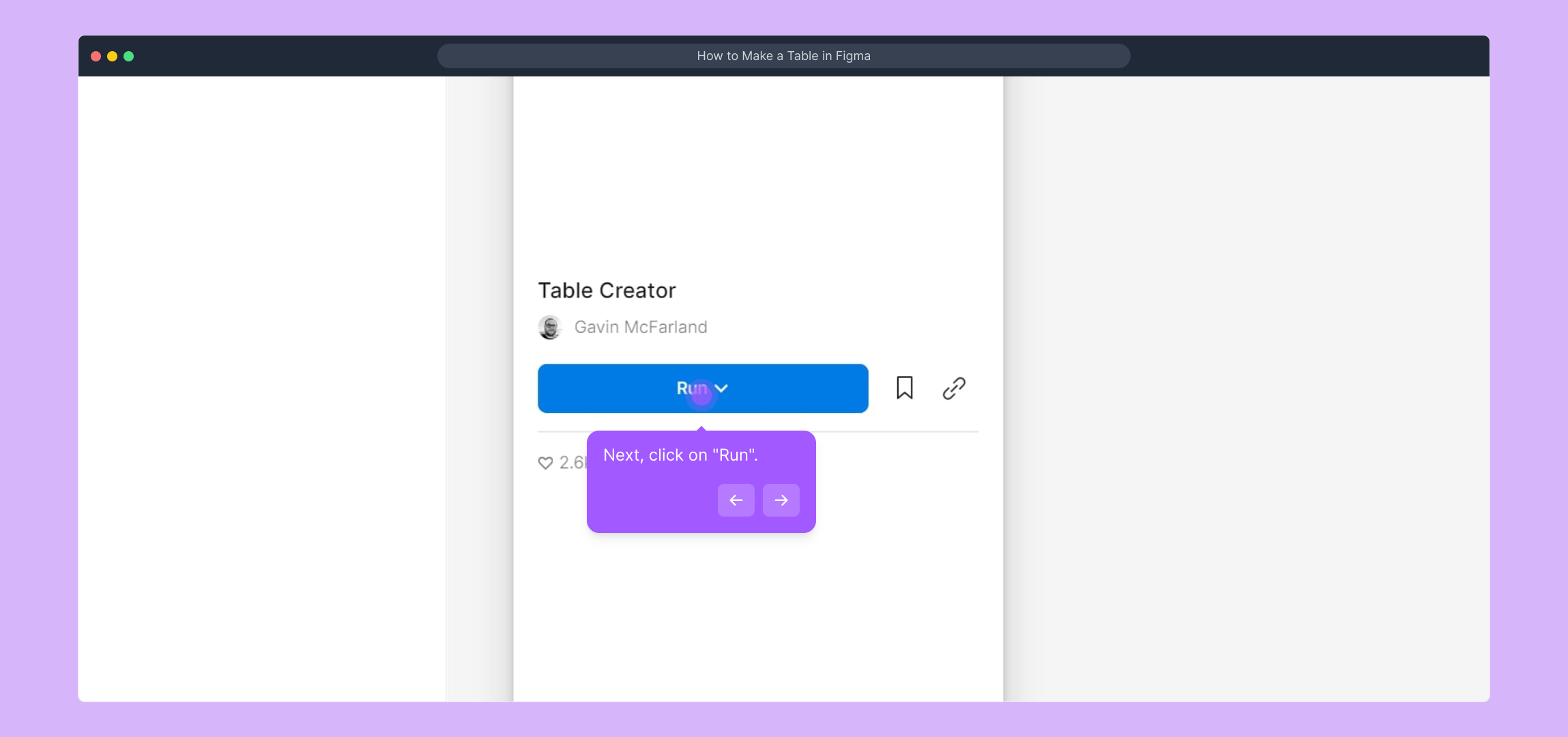
6. Next, click on "Run".

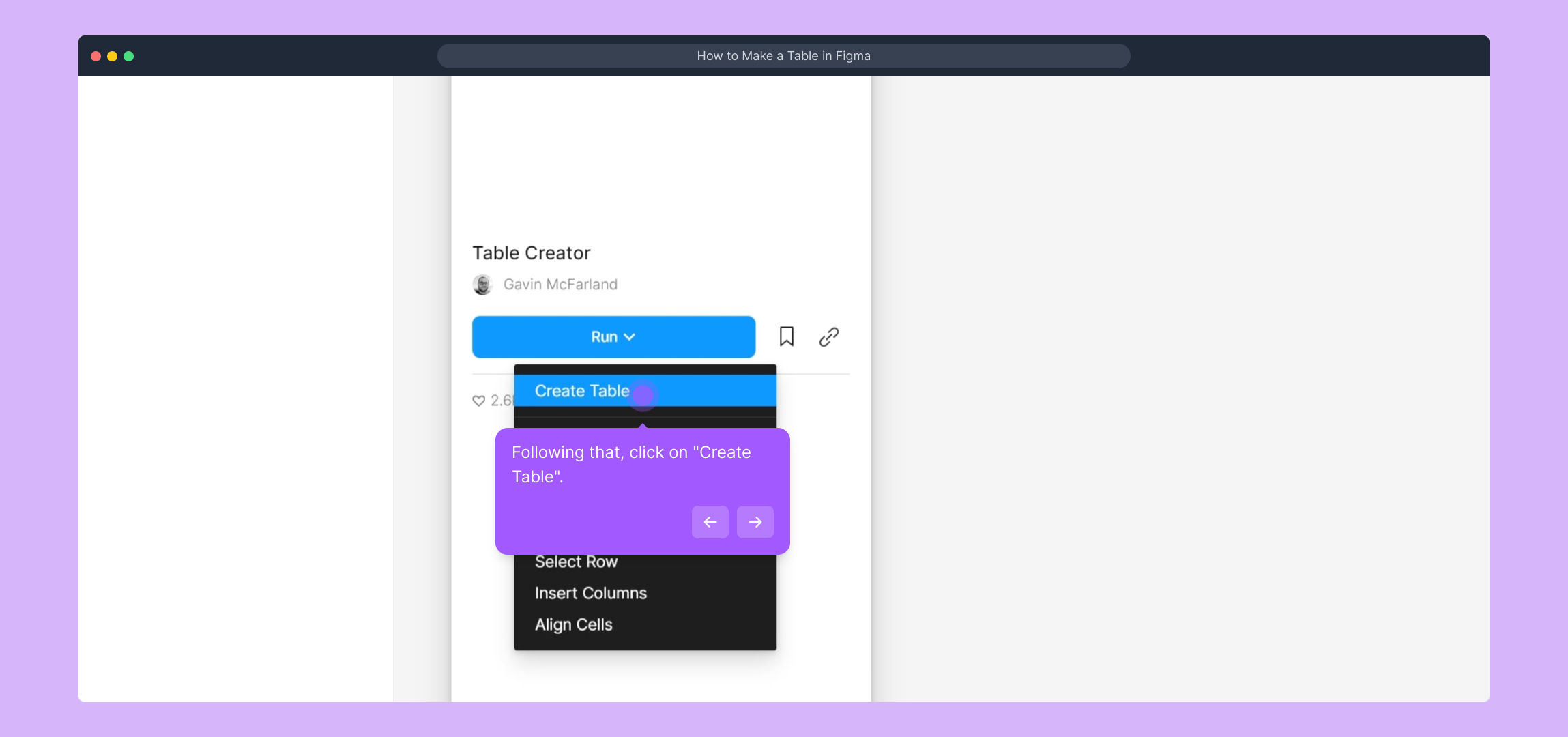
7. Following that, click on "Create Table".

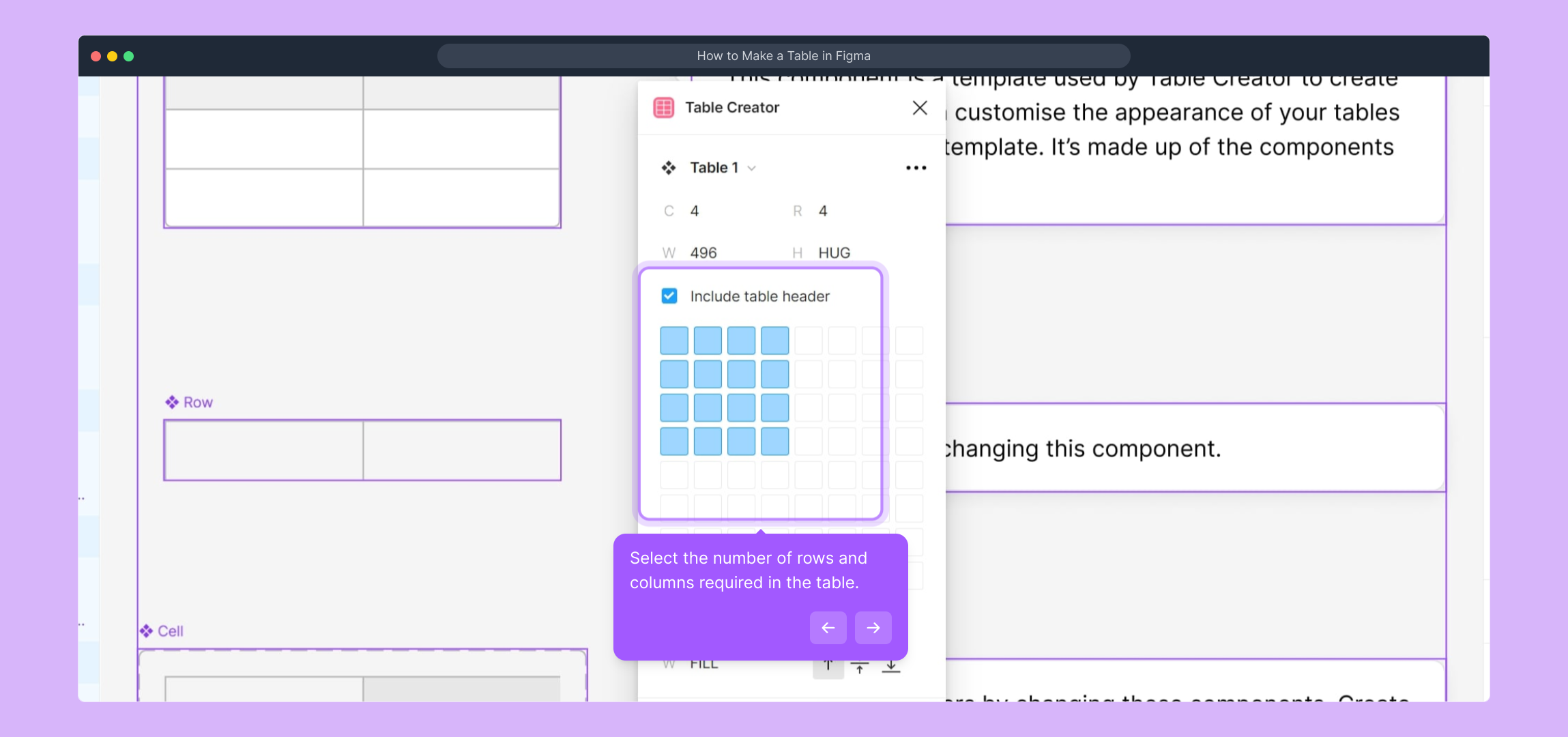
8. Select the number of rows and columns required in the table.

9. Finally, click on "Create Table".

10. Congratulations!
You have successfully created a table on Figma.

11. Create a Supademo in seconds

This interactive demo/guided walkthrough on How to Make a Table in Figma was created using Supademo.


How to Make a Table in Figma : Step-by-Step Guide

Begin by opening the Figma project where you want to add a table. This is where all your design work happens, so make sure you're in the correct file to keep everything organized.
1

Next, look for the "Resources" icon in the toolbar. This icon lets you access additional assets, plugins, and tools that enhance your Figma workspace.
2

Once you open Resources, switch to the "Plugins" tab. This section is where you can find and manage plugins that extend Figma’s functionality to fit your project needs.
3

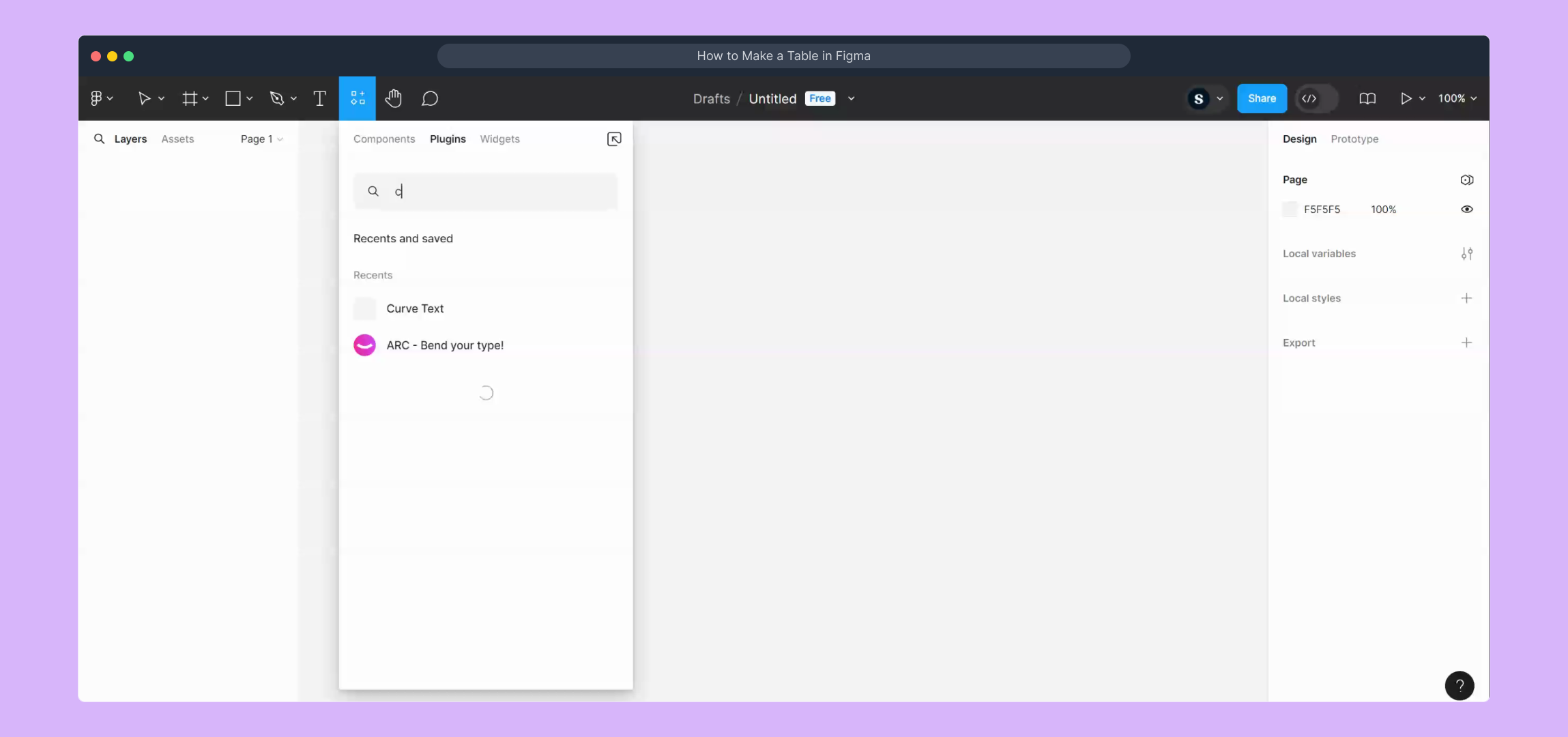
For a detailed walkthrough, check out this video that walks through the table creation process step-by-step.
Play Now

4

Now, locate the "Table Creator" plugin from the list. Selecting this plugin is the key step that will help you generate tables quickly within your design.
5

After opening Table Creator, click the "Run" button to launch the plugin. This initiates the table creation tool and prepares it for your inputs.
6

Next, choose the option to "Create Table." This command starts the process of building the table structure manually or based on your configuration.
7

Now, set the dimensions of your table by specifying how many rows and columns you need. This allows you to tailor the table exactly to your content requirements.
8

Once you have adjusted the size, finalize your table by clicking "Create Table." This generates the table directly onto your Figma canvas, ready for use.
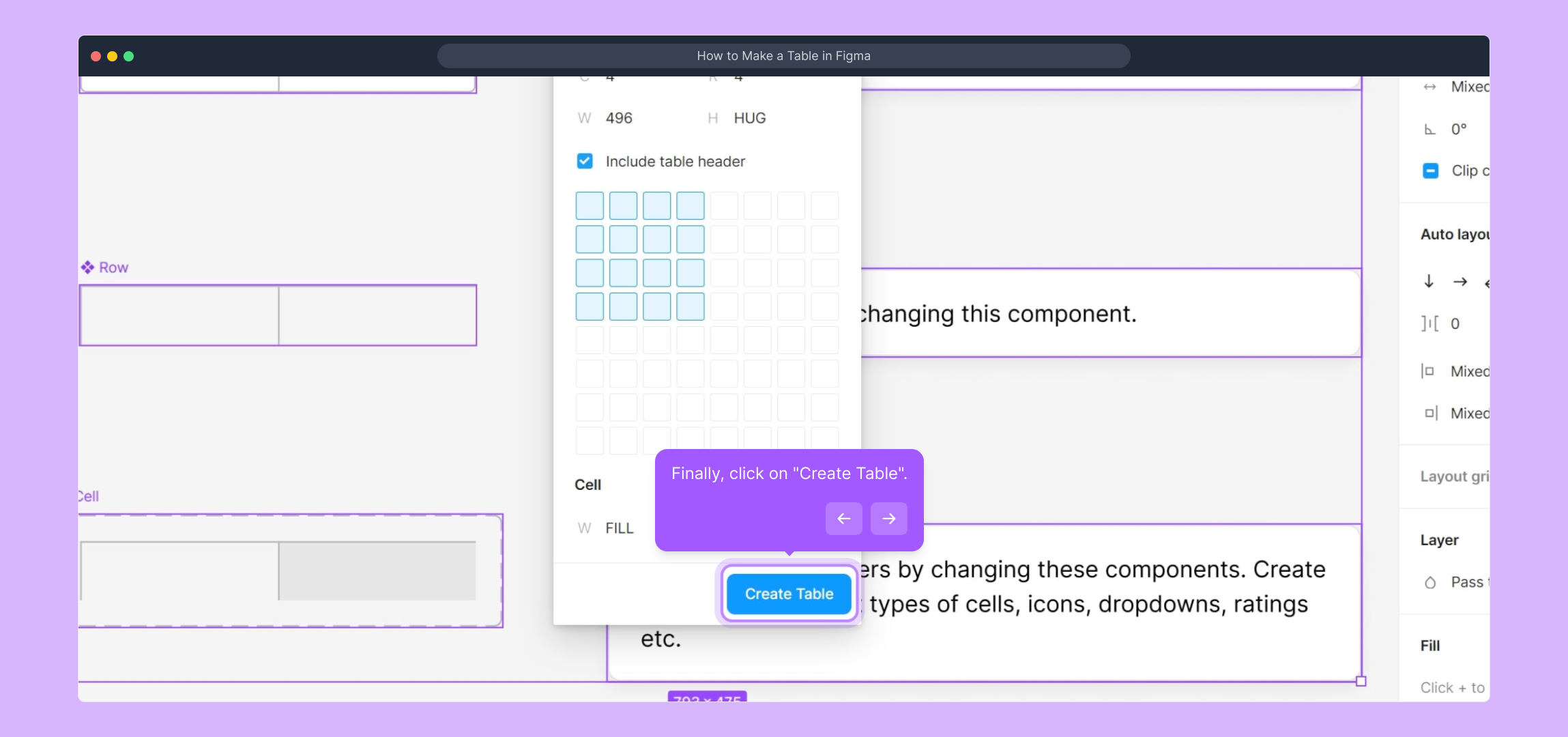
9

Great job! You’ve now added a fully functional table to your Figma project. You can edit and style it further as needed to fit your design.
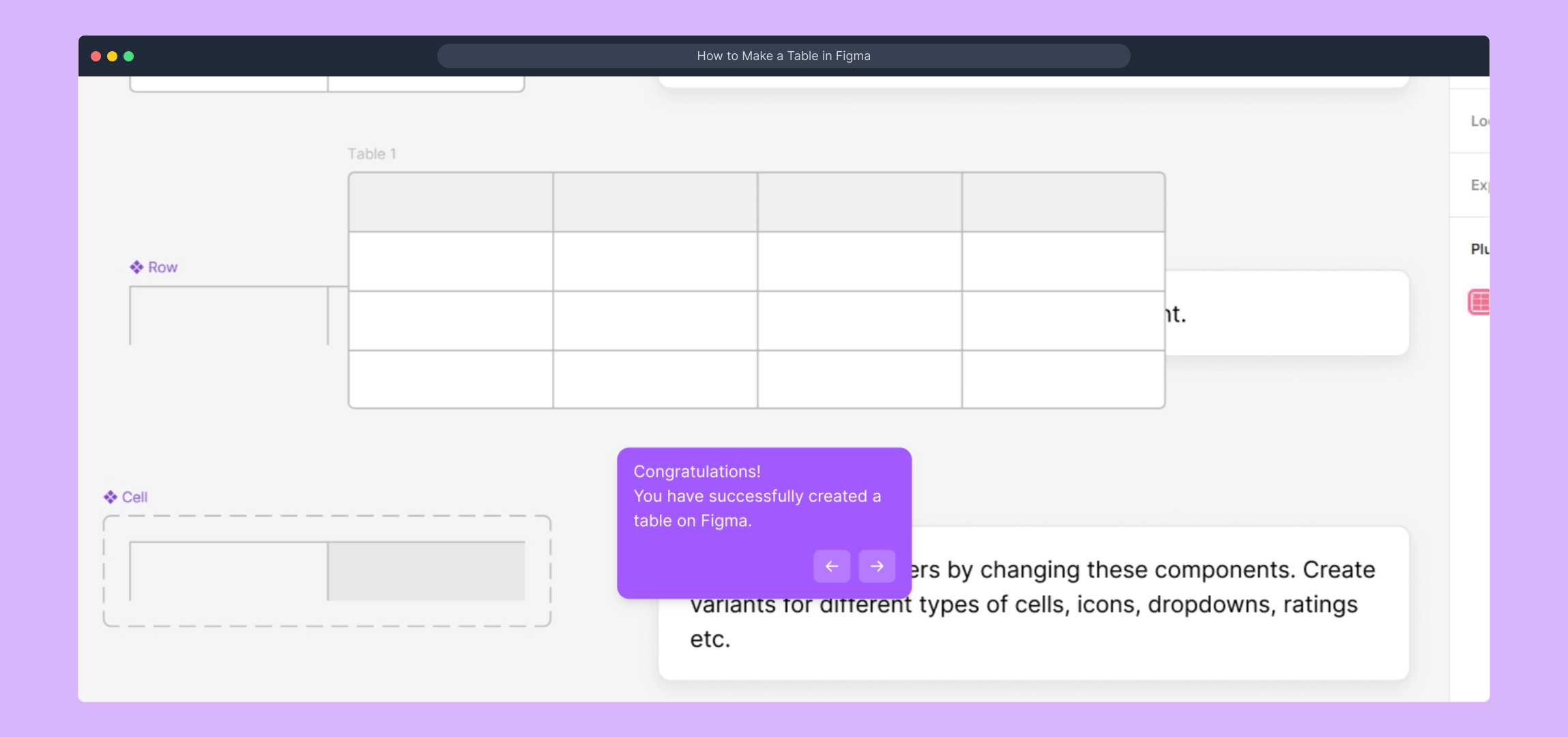
10

Try creating your own Supademo in just a few seconds—this tool makes showcasing your Figma designs even easier and more dynamic.

11

Create your own interactive demos in < 5 mins with Supademo

You can create your own interactive product demo in minutes using Supademo. Drive growth, scale enablement, and supercharge product-led onboarding with Supademo. Sign up for free here with no credit card required.


FAQs

Commonly asked questions about this topic.

What is the easiest way to create a table in Figma?

The easiest way is to use the "Table Creator" plugin available through Figma’s Resources. It allows you to specify rows and columns, then automatically generates a customizable table on your canvas quickly and efficiently.

Can I customize the table styles after creating it in Figma?

Yes, once the table is created, you can edit colors, fonts, borders, and cell sizes using Figma’s design tools to match your project’s style and branding.

Is the Table Creator plugin free to use?

Yes, the Table Creator plugin in Figma is free to install and use. It’s accessible directly through the Resources > Plugins search and simplifies table creation without extra cost.

How many rows and columns can I add in a Figma table?

You can customize the number of rows and columns based on your project’s needs. The Table Creator plugin supports flexible sizes, limited mostly by your canvas and design complexity.

Do I need any coding skills to create tables in Figma?

No coding skills are required. The Table Creator plugin handles the generation of table elements, letting you build organized tables easily via the plugin interface.

Can I import data into the table created in Figma?

Direct data import isn’t supported by default. However, you can manually enter your data or use additional plugins or scripts to assist with bulk data input.

Is it possible to resize rows and columns after creating the table?

Yes, after creating the table, rows and columns can be adjusted manually by selecting and resizing the table cells or using Figma’s layout tools.

How do I delete or remove a table in Figma?

Simply select the table group or frame on your canvas and press delete. The table is treated as a group of layers, so it can be removed like any other design element.

Can I use tables created in Figma for prototyping or sharing?

Yes, tables created in Figma are fully integrated with your design file and can be included in prototypes, shared with teams, or exported as needed.

What are some alternatives to create tables besides using plugins?

You can manually draw tables using Figma’s shape and text tools, but this is more tedious. Plugins like Table Creator streamline the process and save time on repetitive structuring tasks.

Vimal Kumar

Vimal Kumar

Product Operations Associate

Vimal Kumar helps build and grow Supademo’s team and GTM efforts, with a focus on figuring out growth levers and improving product traction.


More from the blog

How to Add Products to Shopify

How to Add Products to Shopify

Learn step-by-step how to add products to your Shopify store effortlessly, including tips on product details, images, pricing, and inventory management to boost your online sales.

Vimal Kumar
Vimal KumarDec 17, 2025
How to Deactivate Your Shopify Store

How to Deactivate Your Shopify Store

Learn step-by-step how to deactivate your Shopify store easily, including important considerations and tips to pause or close your shop without losing data.

Vimal Kumar
Vimal KumarDec 17, 2025
How to Remove 'Powered by Shopify'

How to Remove 'Powered by Shopify'

Learn how to easily remove the 'Powered by Shopify' text from your online store with step-by-step instructions and tips to customize your Shopify storefront.

Vimal Kumar
Vimal KumarDec 17, 2025
How to Create a Shopify Account

How to Create a Shopify Account

Learn step-by-step how to create a Shopify account quickly and easily, set up your online store, and start selling your products in no time.

Vimal Kumar
Vimal KumarDec 17, 2025
How to Create a Stripe Account

How to Create a Stripe Account

Learn how to create a Stripe account quickly and easily with our step-by-step guide, perfect for beginners looking to start accepting online payments.

Vimal Kumar
Vimal KumarDec 17, 2025
How to Contact Stripe Support

How to Contact Stripe Support

Learn the easiest ways to contact Stripe support for quick assistance with your payment processing, account issues, and technical questions.

Vimal Kumar
Vimal KumarDec 16, 2025