How to Print from Canva

Vimal Kumar
Vimal Kumar·
How to Print from Canva
Interactive demo powered by Supademo

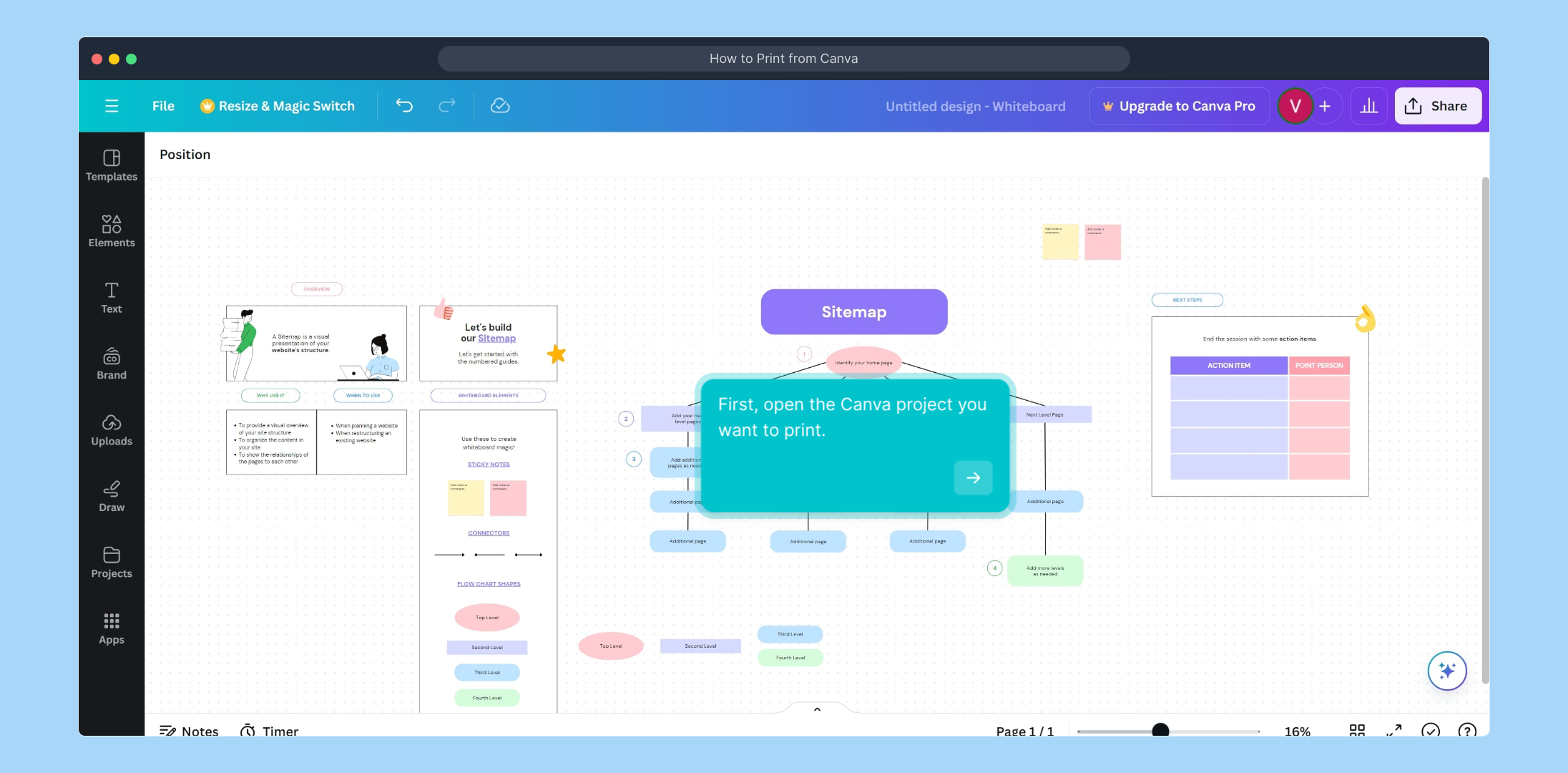
1. First, open the Canva project you want to print.

2. Click on "Share".

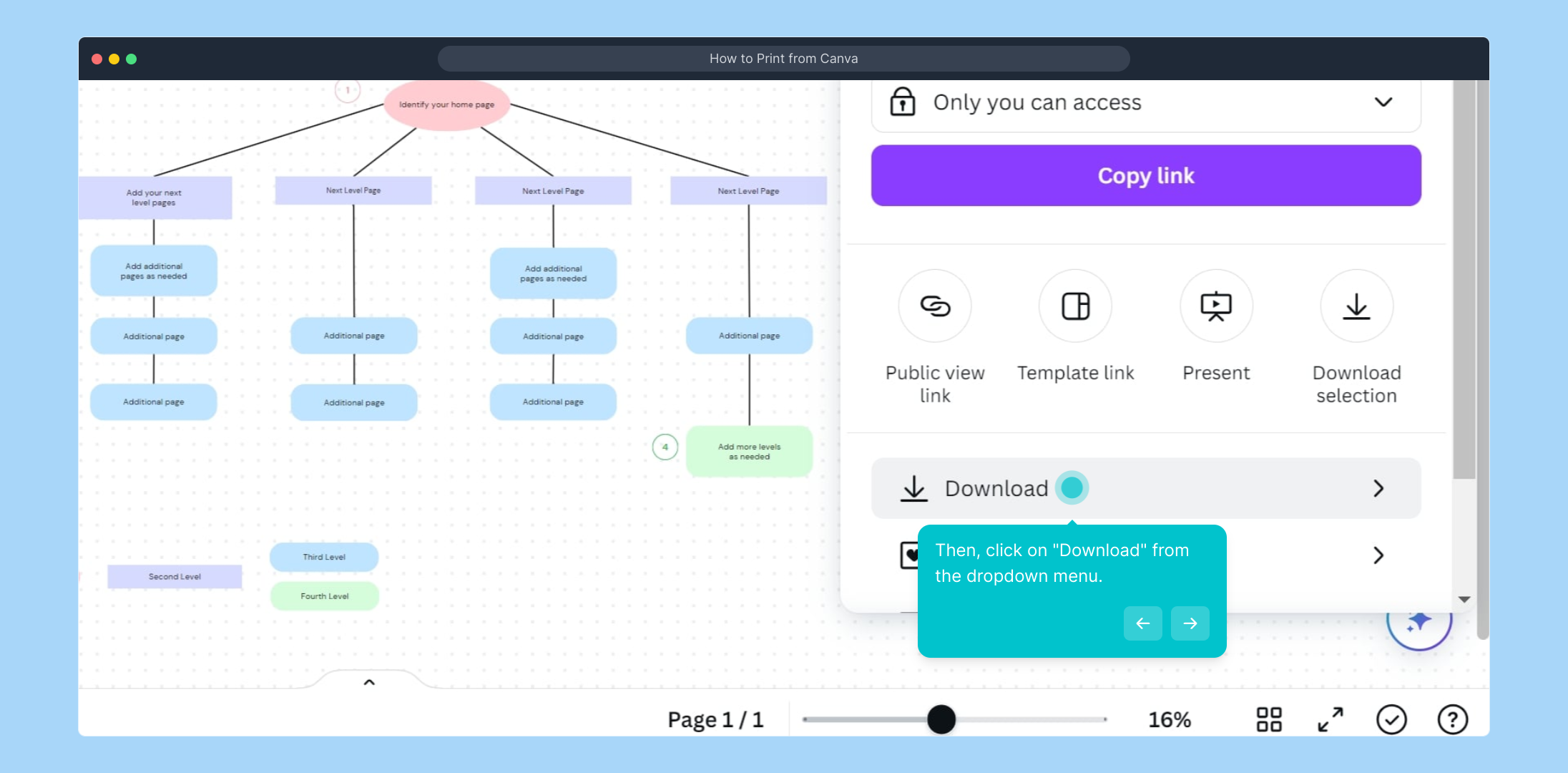
3. Then, click on "Download" from the dropdown menu.

4. After that, select "File Type".

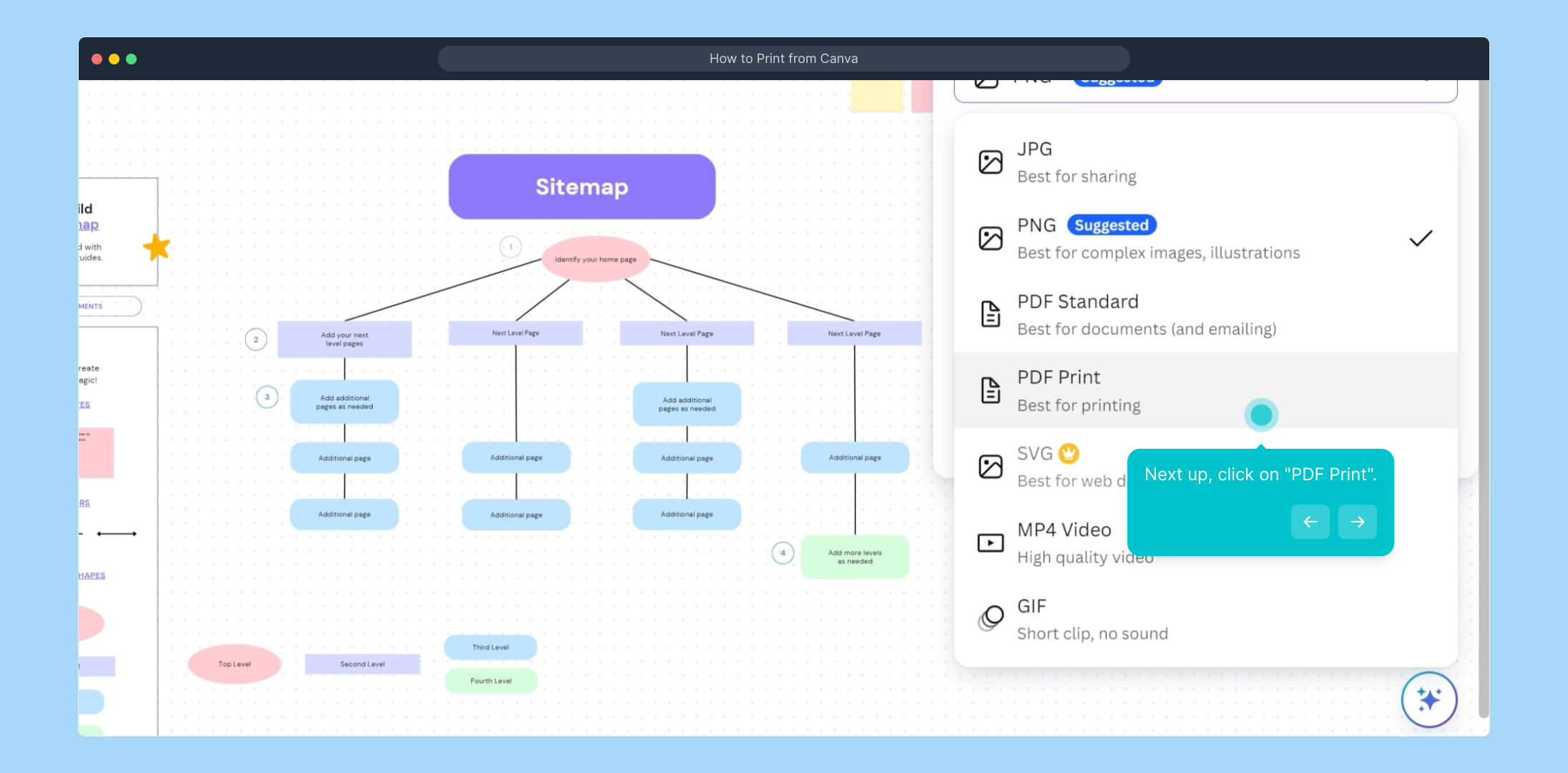
5. Next up, click on "PDF Print".

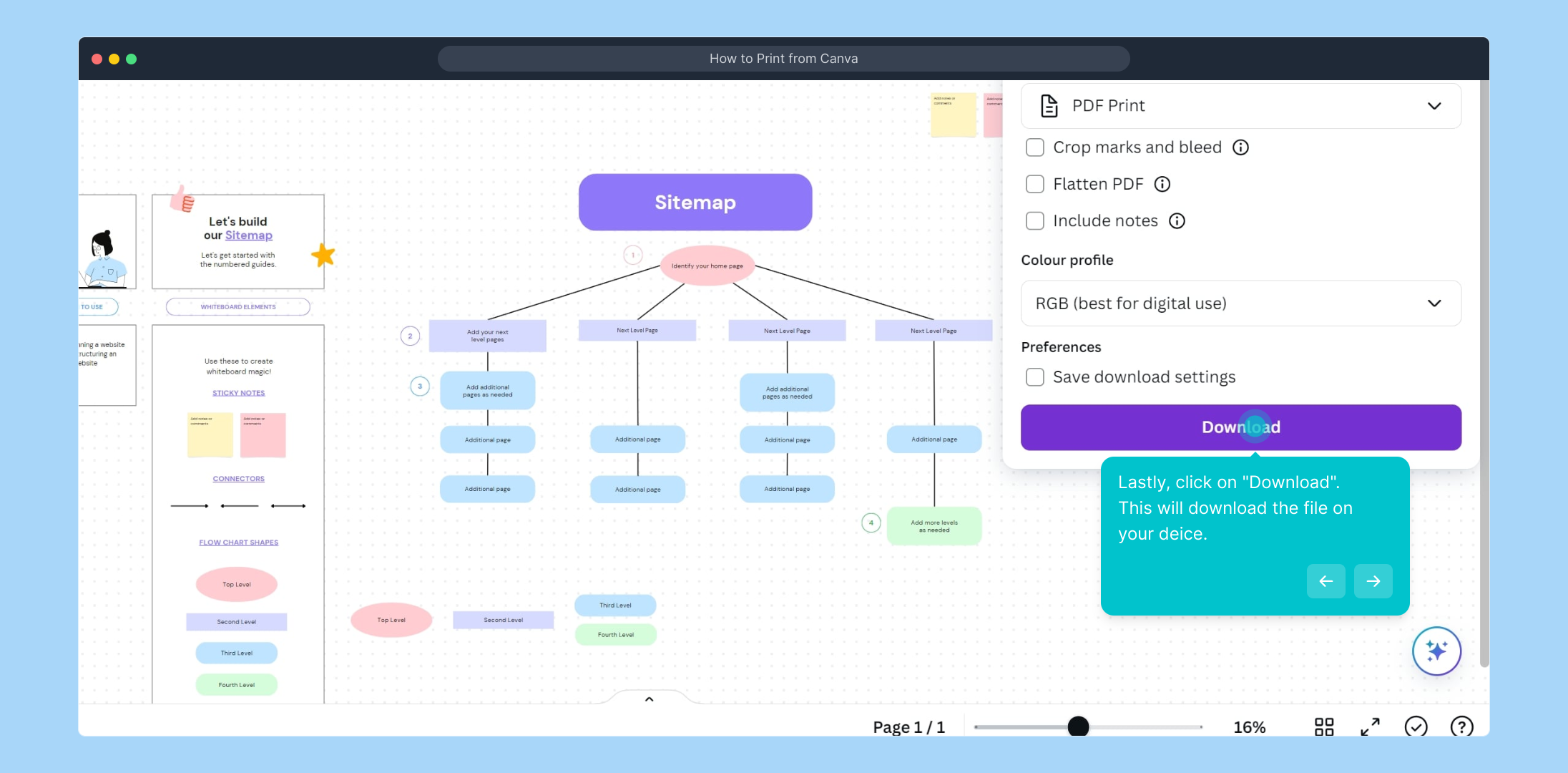
6. Lastly, click on "Download".
This will download the file on your deice.

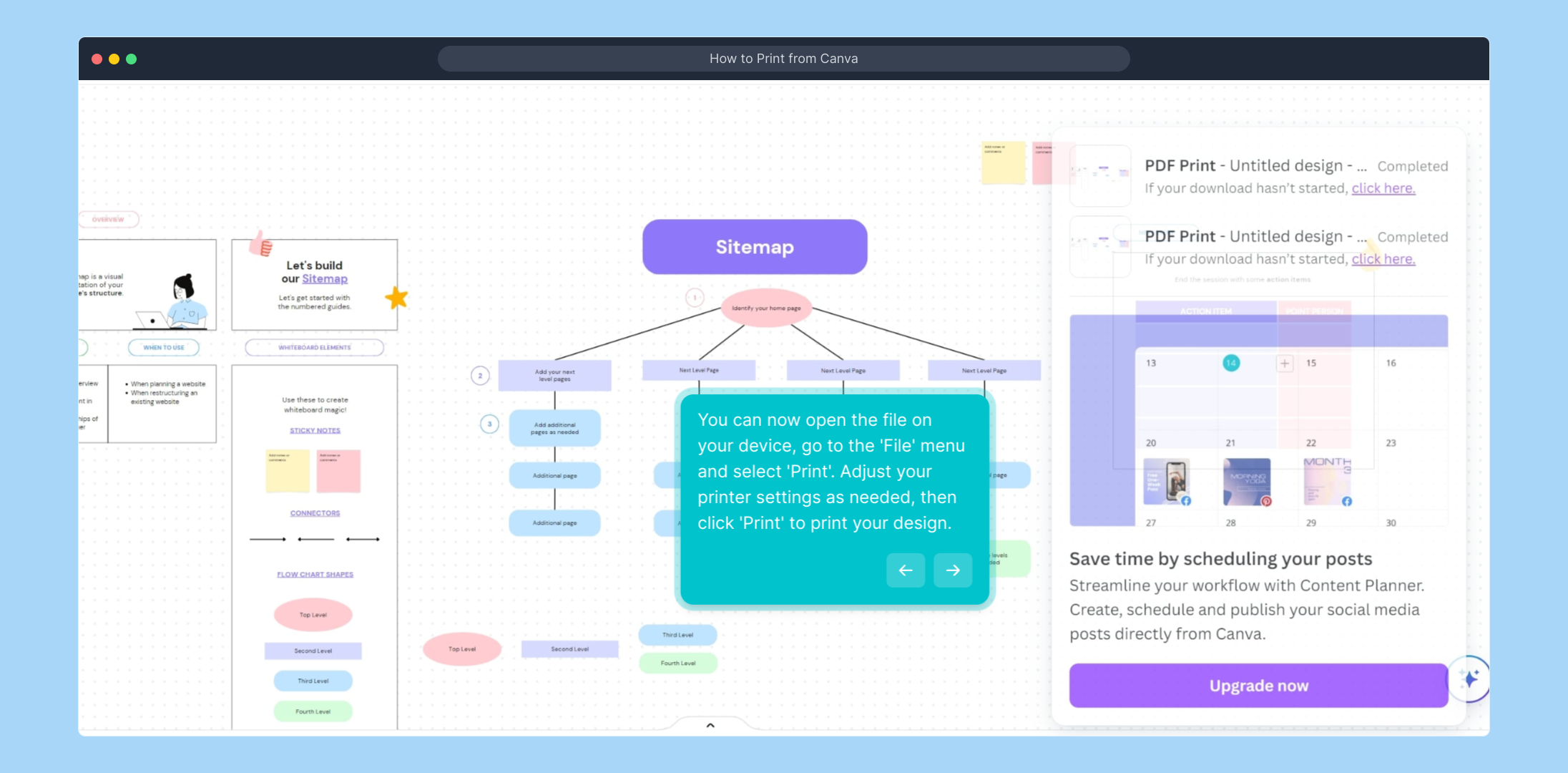
7. You can now open the file on your device, go to the 'File' menu and select 'Print'. Adjust your printer settings as needed, then click 'Print' to print your design.

8. Enjoyed the guided demo?

This interactive demo/guided walkthrough on How to Print from Canva was created using Supademo.


How to Print from Canva : Step-by-Step Guide

Start by opening the Canva project you'd like to print. This is where you’ll prepare the exact design you want to export, so ensure everything looks perfect before moving on.
1

Next, locate the “Share” button in the top right corner of the screen. Clicking here opens options that let you share or download your design in various formats.

2

From the dropdown menu that appears after clicking “Share,” select the “Download” option. This is your pathway to saving a file version of your design.
3

Once on the download screen, focus on the “File Type” dropdown. Here, you choose what kind of file you’ll save—important for ensuring the best quality for print.

4

Look through the dropdown and select “PDF Print.” This format is ideal for printing because it preserves layout and image quality.
5

After choosing your file type, click the “Download” button to save the PDF to your device. This step finalizes your export and prepares the file for printing.
6

Now that the file is on your device, open it and go to your application’s ‘File’ menu. Select ‘Print’, adjust your printer settings as needed, and then click ‘Print’ to produce your physical copy.
7

We hope this step-by-step guide helped you easily download and print your design. If you found this demo useful, feel free to explore more features or reach out with any questions!

8

Create your own interactive demos in < 5 mins with Supademo

You can create your own interactive product demo in minutes using Supademo. Drive growth, scale enablement, and supercharge product-led onboarding with Supademo. Sign up for free here with no credit card required.


FAQs

Commonly asked questions about this topic.

What file format should I select in Canva for the best print quality?

For the best print quality, select the "PDF Print" file format when downloading your design. This format preserves the layout and high-resolution details needed for clear, professional printing.

Can I print directly from Canva without downloading the file?

No, Canva does not offer a direct print option. You must download your design first, preferably as a PDF Print file, then open the file on your device and print it using your local printer software.

What if my downloaded Canva file looks different when printed?

If the print output differs from your design, check your printer settings, paper type, and color profile. Always use "PDF Print" format and verify margins and sizing before printing to minimize discrepancies.

Is downloading the design as PNG or JPG suitable for printing?

While PNG or JPG files can be used for printing, they usually have lower resolution and may not preserve layout perfectly. For professional prints, using "PDF Print" is highly recommended.

How do I adjust printer settings before printing my Canva design?

After opening the downloaded file, go to the ‘Print’ dialog box on your device. Here, you can select paper size, print quality, color settings, and orientation to match your design requirements before printing.

Can I print multiple pages of my Canva design at once?

Yes, if your Canva project has multiple pages, downloading as a PDF Print file will include all pages. You can then print them all at once using your device’s print settings to select page ranges or all pages.

What should I do if the download button in Canva is grayed out?

If the download button is grayed out, check your internet connection and ensure you’re logged in with the correct account. Sometimes, clearing your browser cache or restarting Canva helps resolve the issue.

Is it possible to print Canva designs larger than standard sizes?

Yes, you can resize your design within Canva before downloading. Use custom dimensions to create larger formats, but ensure your images are high resolution to avoid pixelation when printing large sizes.

Do I need special software to open the PDF Print file from Canva?

No special software is needed. Most devices come with built-in PDF viewers like Adobe Acrobat Reader or browser-based readers that allow you to view and print your downloaded Canva PDF files easily.

Can I share my Canva design directly with a print shop?

Yes, once you download your design as a PDF Print file, you can share it electronically with your print shop. Be sure to check their preferred file format and resolution requirements before sending.

Vimal Kumar

Vimal Kumar

Product Operations Associate

Vimal Kumar helps build and grow Supademo’s team and GTM efforts, with a focus on figuring out growth levers and improving product traction.

More from the blog

How to Add Products to Shopify

How to Add Products to Shopify

Learn step-by-step how to add products to your Shopify store effortlessly, including tips on product details, images, pricing, and inventory management to boost your online sales.

Vimal Kumar
Vimal KumarDec 17, 2025
How to Deactivate Your Shopify Store

How to Deactivate Your Shopify Store

Learn step-by-step how to deactivate your Shopify store easily, including important considerations and tips to pause or close your shop without losing data.

Vimal Kumar
Vimal KumarDec 17, 2025
How to Remove 'Powered by Shopify'

How to Remove 'Powered by Shopify'

Learn how to easily remove the 'Powered by Shopify' text from your online store with step-by-step instructions and tips to customize your Shopify storefront.

Vimal Kumar
Vimal KumarDec 17, 2025
How to Create a Shopify Account

How to Create a Shopify Account

Learn step-by-step how to create a Shopify account quickly and easily, set up your online store, and start selling your products in no time.

Vimal Kumar
Vimal KumarDec 17, 2025
How to Create a Stripe Account

How to Create a Stripe Account

Learn how to create a Stripe account quickly and easily with our step-by-step guide, perfect for beginners looking to start accepting online payments.

Vimal Kumar
Vimal KumarDec 17, 2025
How to Contact Stripe Support

How to Contact Stripe Support

Learn the easiest ways to contact Stripe support for quick assistance with your payment processing, account issues, and technical questions.

Vimal Kumar
Vimal KumarDec 16, 2025