How to reset a password for SEMRush

Forgetting your Semrush password can be frustrating, but resetting it is a straightforward process. This tutorial walks you through the exact steps to regain access to your account in just a few clicks.
Quick summary
In this tutorial, you'll learn how to reset your Semrush password by navigating to the login page and using the password reset feature. You'll follow a simple four-step process to request a reset link and regain access to your account.
Why this matters
Password resets are essential for maintaining account security and ensuring you can access your Semrush tools whenever needed. Whether you've forgotten your credentials or want to update your password for security reasons, knowing this process keeps your account management quick and hassle-free.
Step-by-step guide
- 1
Click on Log In
Navigate to the Semrush website and locate the Log In button on the homepage. Click it to access the login page where you can begin the password reset process.

- 2
Access the password reset option
Once on the login page, look for the password reset link or option. This is typically located near the login form, often labeled as 'Forgot password?' or a similar prompt.
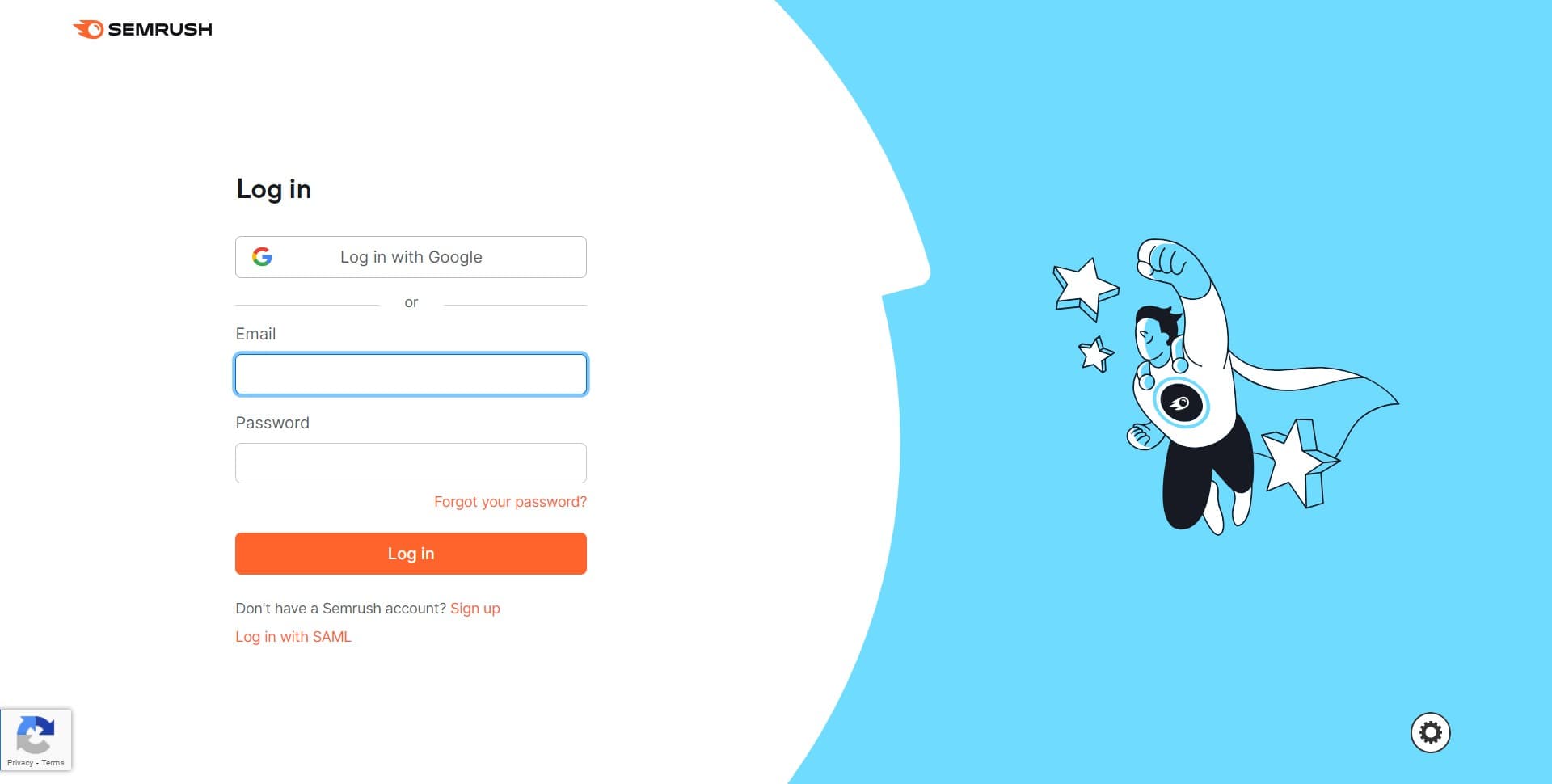
- 3
Click on login prompt
Click on the indicated login field or prompt to proceed to the password recovery section. This action will take you to where you can request your password reset link.
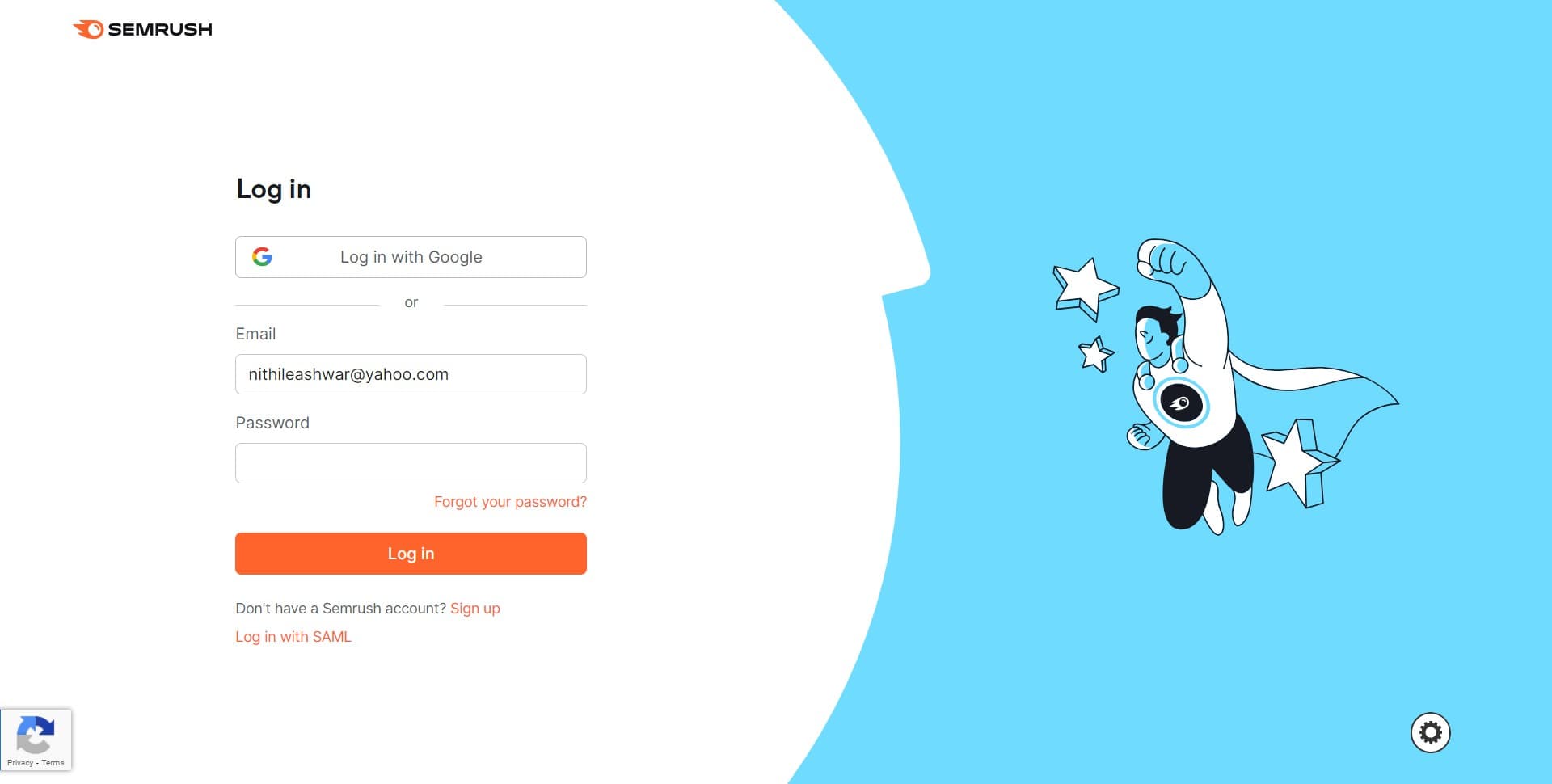
- 4
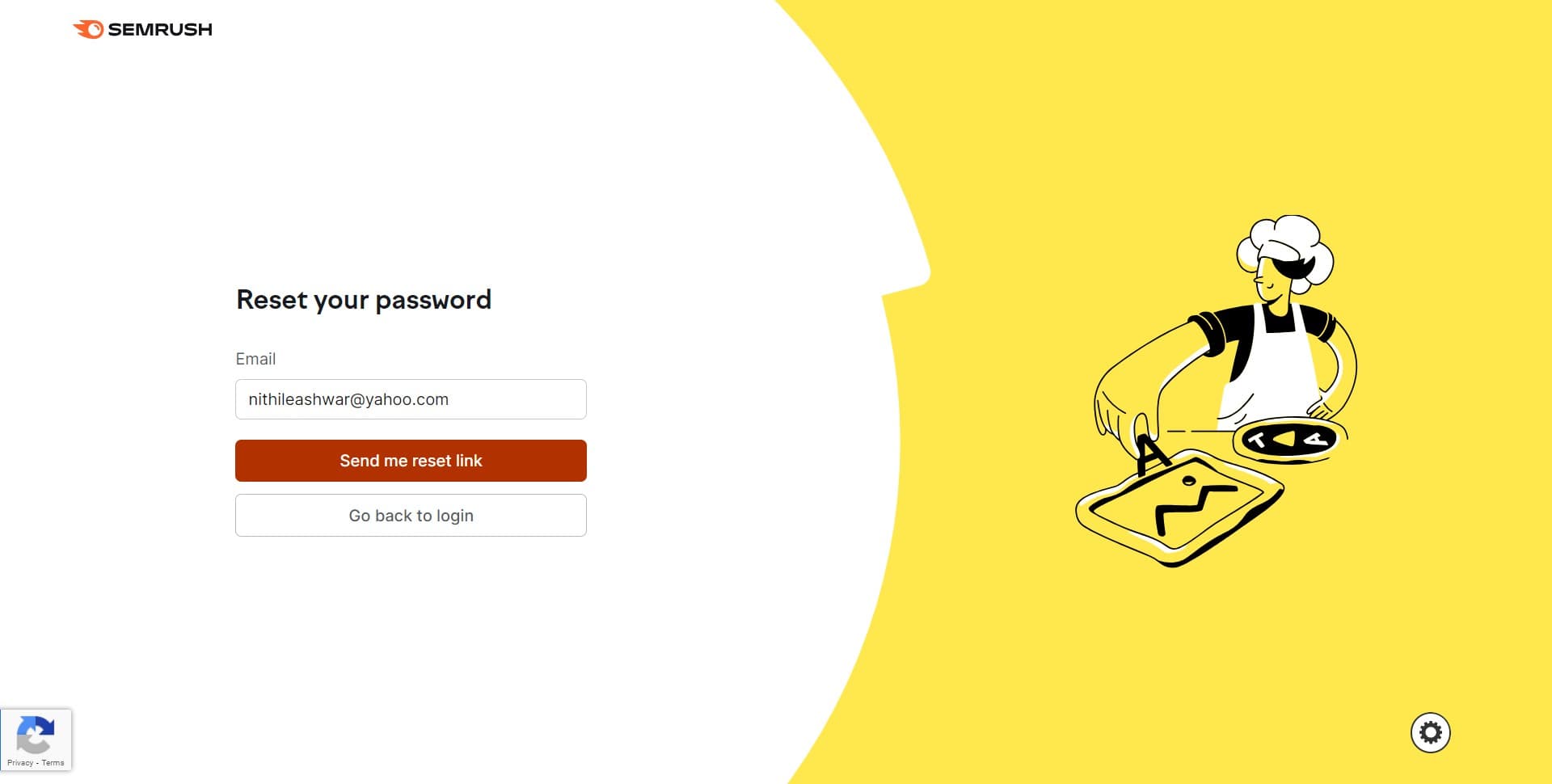
Click Send me reset link
Click the 'Send me reset link' button to request a password reset email. Semrush will send a secure link to the email address associated with your account, allowing you to create a new password.
Frequently asked questions
Common questions about how to reset a password for semrush.
The reset email is typically sent within a few minutes. Check your inbox and spam folder if you don't see it immediately. If you still haven't received it after 10 minutes, you may need to request another reset link.
Contact Semrush support directly through their help center. They can assist you in verifying your identity and updating the email address on your account or resetting your password through alternative verification methods.
Yes, the password reset process can typically be initiated from the mobile app by tapping the login screen and selecting the forgot password option. The same reset link will be sent to your registered email address.
Yes, Semrush's password reset links are secure and encrypted. These links typically expire after a set period (usually 24 hours), so you'll need to complete the reset promptly after receiving the email.
Semrush typically requires passwords to be at least 8 characters long and include a mix of uppercase letters, lowercase letters, numbers, and special characters. Check the password requirements displayed during the reset form for specific guidelines.