How to Set Up Response Validation in Google Forms

Vimal Kumar
Vimal Kumar·
How to Set Up Response Validation in Google Forms
Interactive demo powered by Supademo

1. First, open a Google form.

2. Now, navigate to a question to add response validation.

3. Next up, click on the More options icon.

4. Then, click on "Response validation".

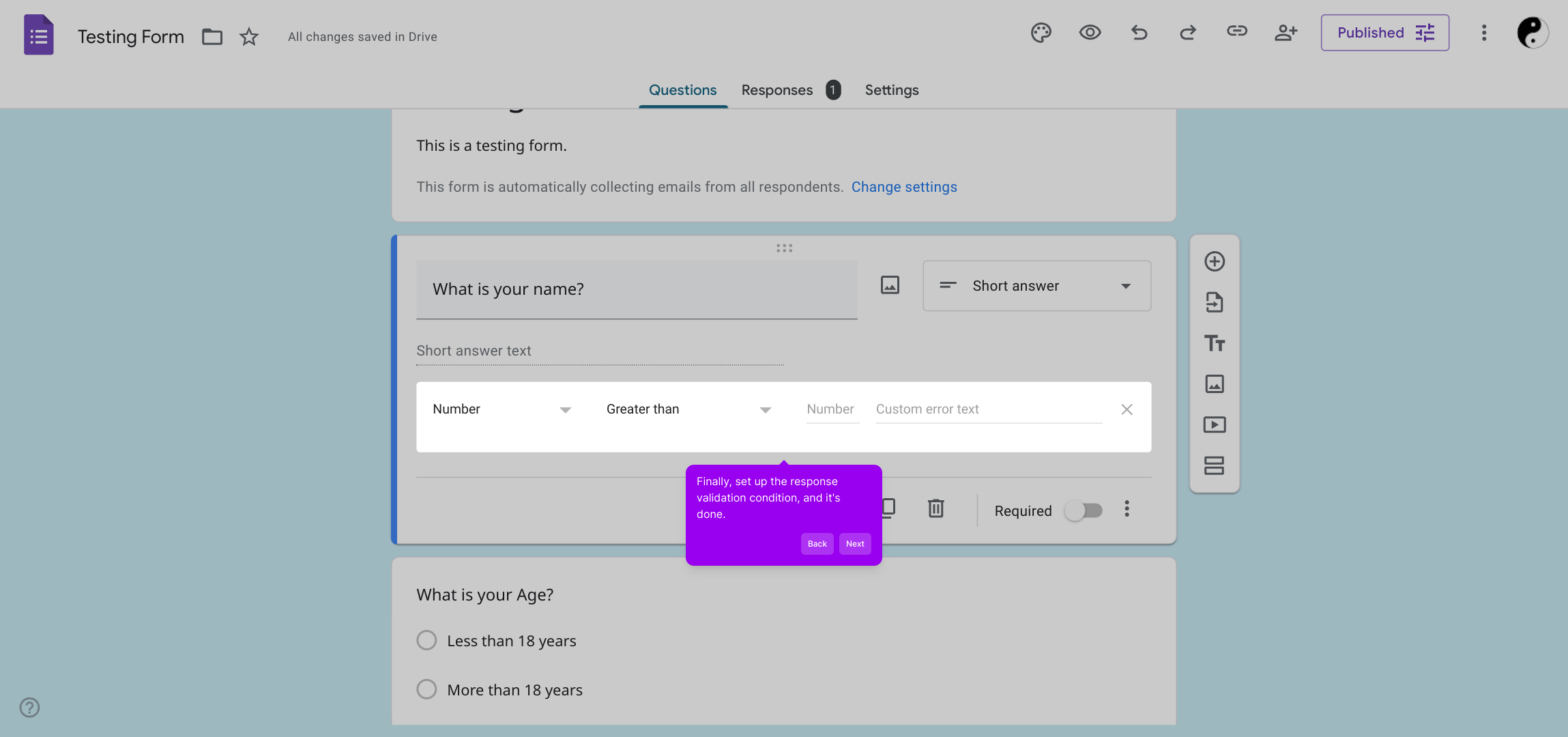
5. Finally, set up the response validation condition, and it's done.

6. Create a Supademo in seconds

This interactive demo/guided walkthrough on How to Set Up Response Validation in Google Forms was created using Supademo.


How to Set Up Response Validation in Google Forms : Step-by-Step Guide

Start by opening your Google Form where you want to add validation. This is the main interface for creating and customizing your form questions.
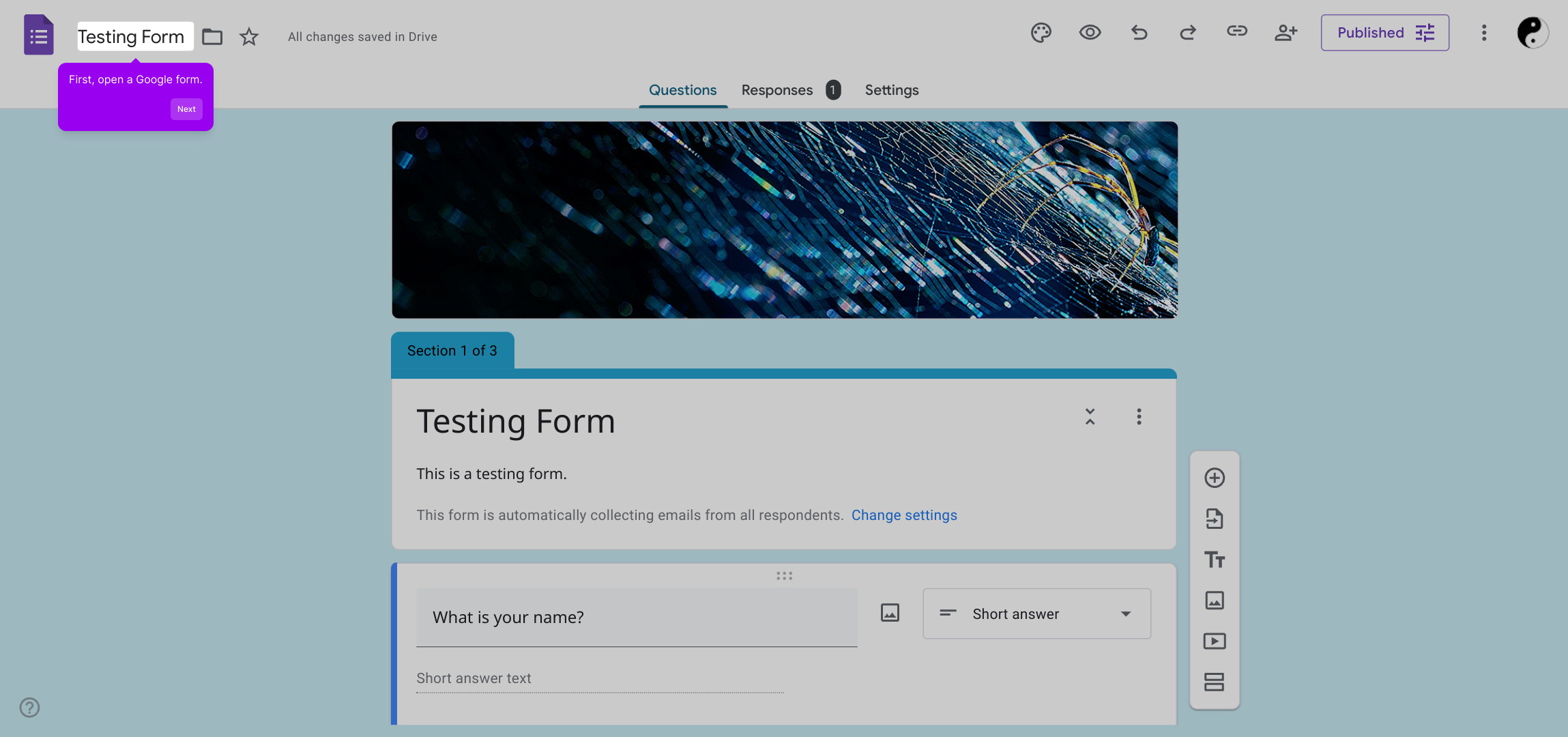
1

Next, locate the specific question in your form where you want to enforce response validation. This helps ensure the answers meet certain criteria.
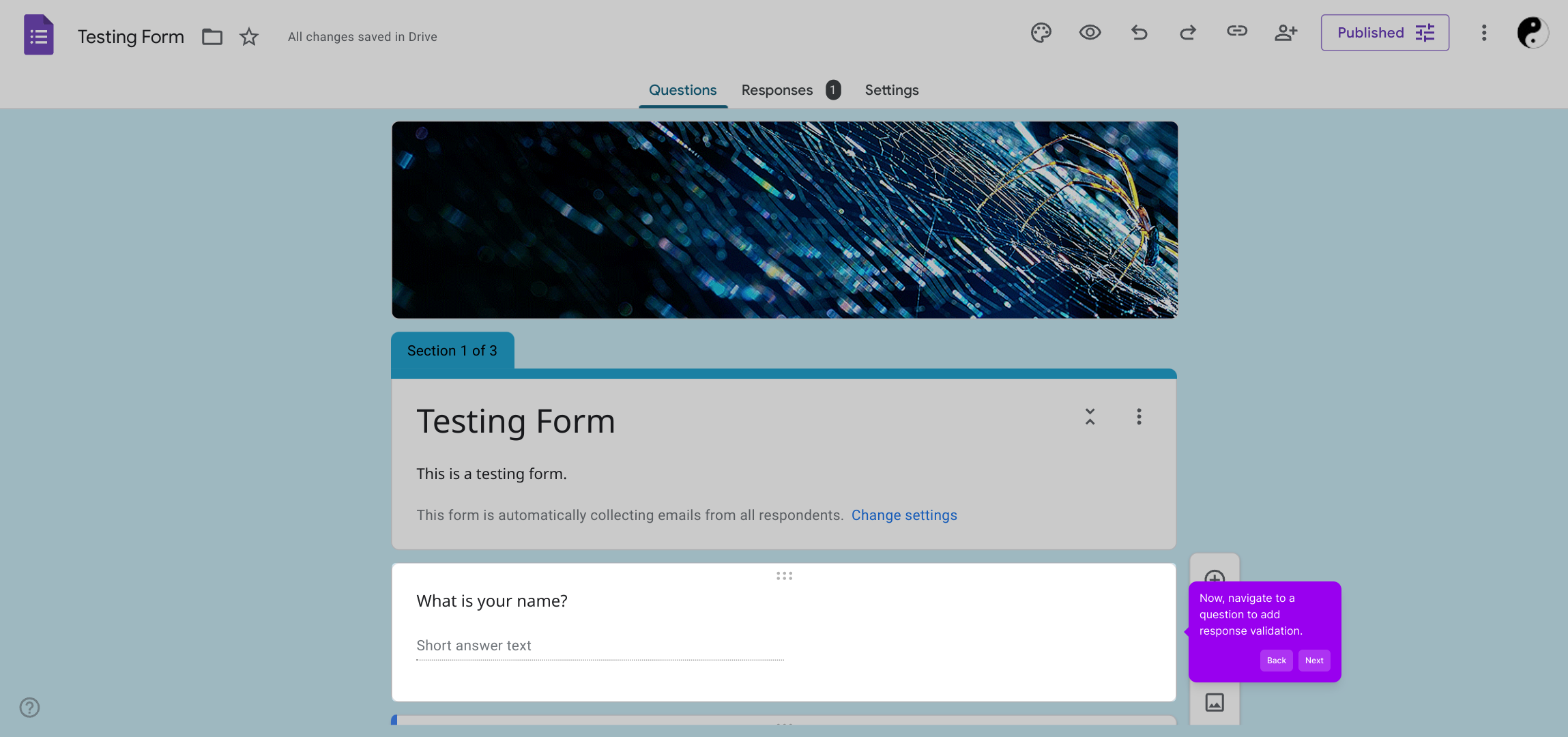
2

Look for the More options icon associated with the question—this will open additional settings that let you customize how responses are collected.
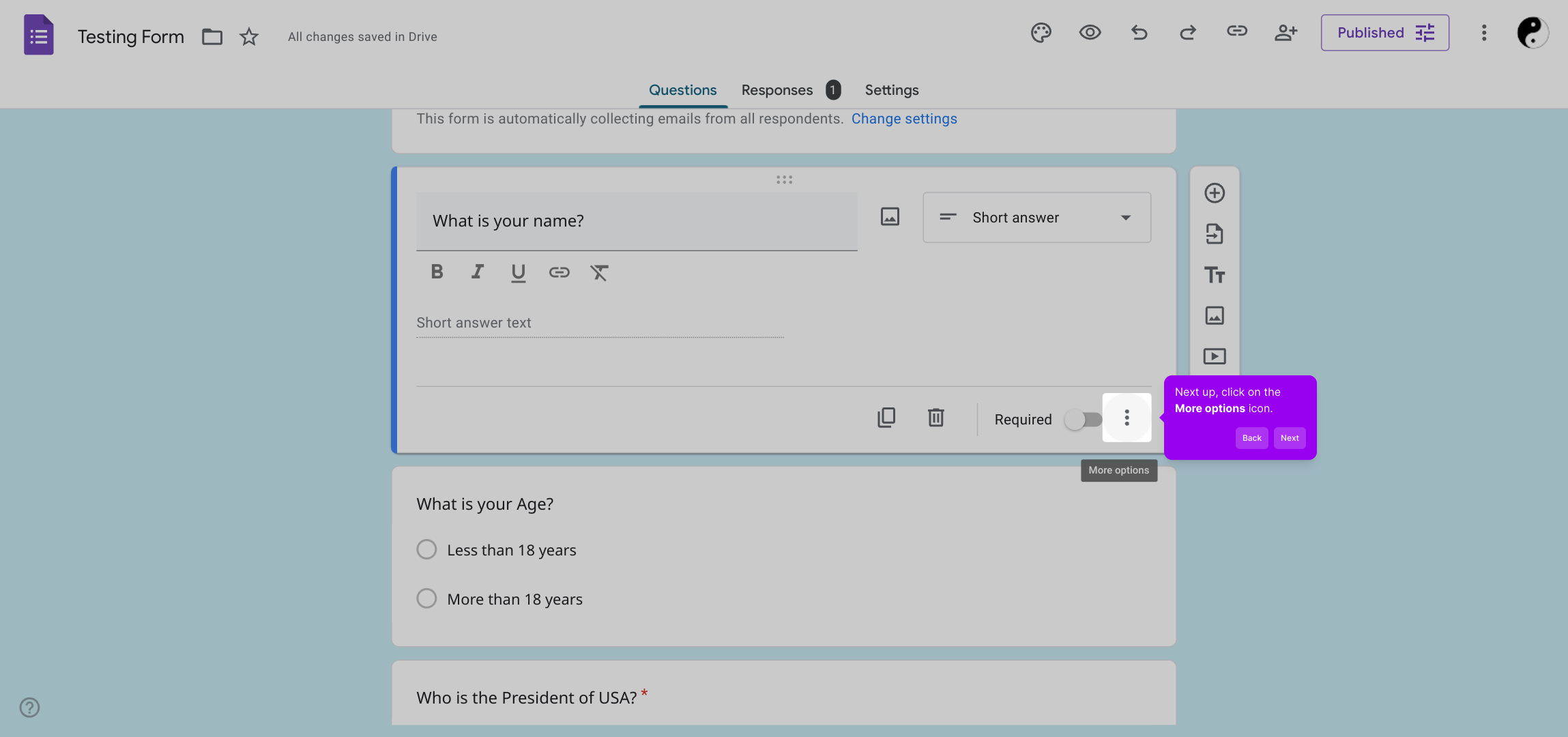
3

From the dropdown menu that appears, select “Response validation.” This option allows you to specify rules that answers must follow before submission.
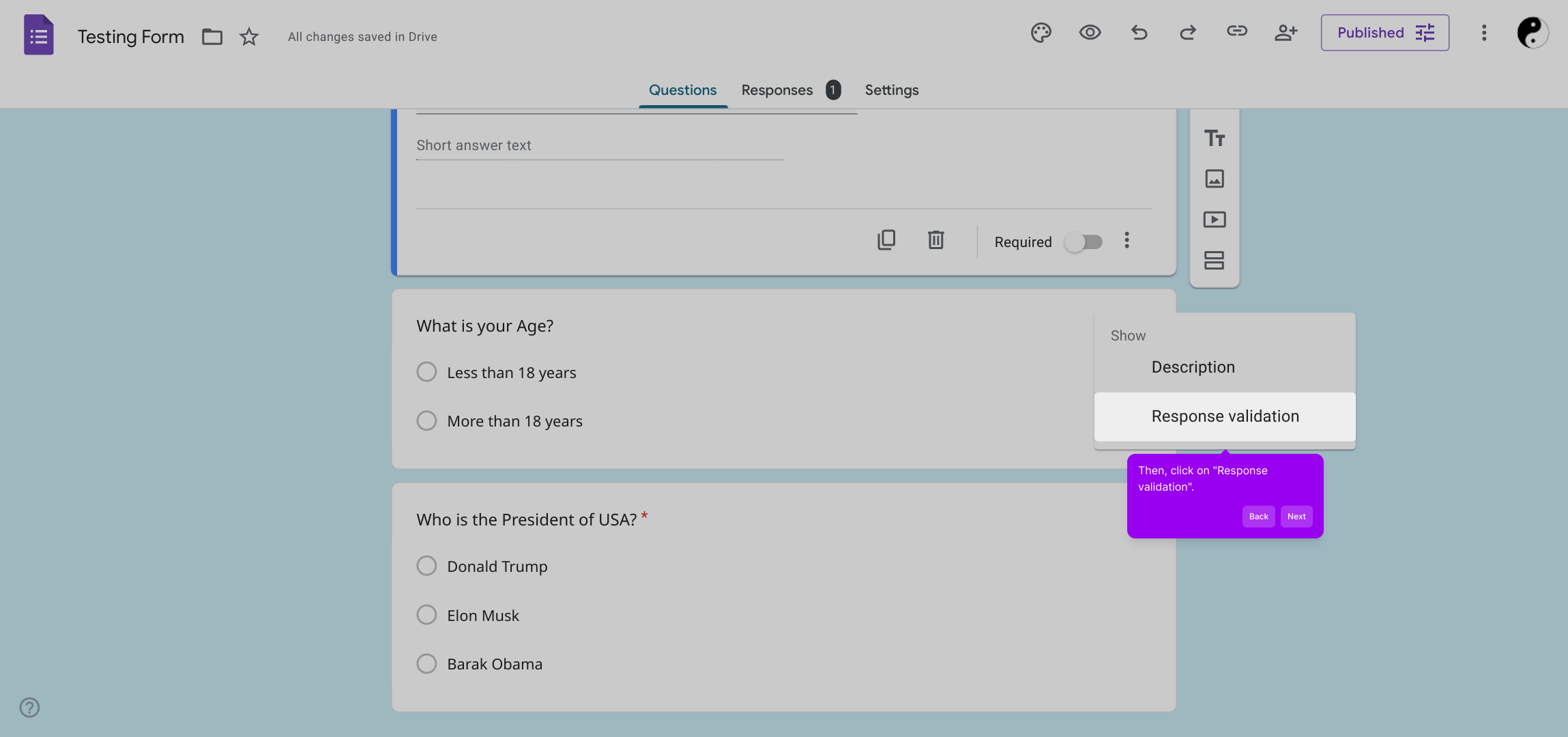
4

Finally, configure the validation criteria to fit your needs—such as setting text length or number ranges—then save your changes to activate the validation.
5

With everything set, you’re ready to quickly create and share your Supademo, streamlining your form experience effortlessly.

6

Create your own interactive demos in < 5 mins with Supademo

You can create your own interactive product demo in minutes using Supademo. Drive growth, scale enablement, and supercharge product-led onboarding with Supademo. Sign up for free here with no credit card required.


FAQs

Commonly asked questions about this topic.

What is response validation in Google Forms?

Response validation is a feature that allows you to set rules for answers to a question. It ensures that responses meet specified criteria like length, number range, or text patterns before the form can be submitted.

Which question types support response validation?

Response validation is available for short answer, paragraph, checkbox, and number question types in Google Forms. Other question types, like multiple choice, don’t support this feature directly.

How do I add response validation to a question?

To add response validation, open your form, select a question, click the More options icon (three dots), choose “Response validation,” then set your desired validation rules and custom error message.

Can I customize the error message in response validation?

Yes, Google Forms lets you write a custom error message that appears when someone’s response doesn’t meet the validation rule, helping clarify what’s required for a valid answer.

Does response validation affect form analytics or data export?

Response validation ensures valid responses but does not impact how data is analyzed or exported. It simply prevents submission of invalid answers, improving data quality.

Is it possible to validate multiple criteria in one question?

Google Forms allows only one response validation rule per question. To validate multiple criteria, consider splitting the question into several focused ones with individual validations.

Can response validation be used to check for email formats?

Yes, for short answer questions, you can select “Text” and then “Email address” from validation criteria to ensure the response follows a valid email format.

What happens if a user tries to submit an invalid response?

The form will show the custom error message you set and prevent submission until the response meets the validation criteria, ensuring quality and consistency in your data.

Can response validation be removed after adding it to a question?

Yes, simply open the question, click the More options icon, uncheck “Response validation,” and save the form to remove any validation rules from that question.

How can I test if my response validation is working correctly?

Preview your form and try submitting invalid answers on validated questions. The form should block submission and display your custom error message, confirming the validation works.
Vimal Kumar
Vimal Kumar

Product Operations Associate

Vimal Kumar helps build and grow Supademo’s team and GTM efforts, with a focus on figuring out growth levers and improving product traction.

More from the blog

How to Remove 'Powered by Shopify'

How to Remove 'Powered by Shopify'

Learn how to easily remove the 'Powered by Shopify' text from your online store with step-by-step instructions and tips to customize your Shopify storefront.

Vimal Kumar
Vimal KumarJan 3, 2026
How to Create a Stripe Account

How to Create a Stripe Account

Learn how to create a Stripe account quickly and easily with our step-by-step guide, perfect for beginners looking to start accepting online payments.

Vimal Kumar
Vimal KumarDec 17, 2025
How to Contact Stripe Support

How to Contact Stripe Support

Learn the easiest ways to contact Stripe support for quick assistance with your payment processing, account issues, and technical questions.

Vimal Kumar
Vimal KumarDec 16, 2025
How to Delete Your Stripe Account

How to Delete Your Stripe Account

Learn step-by-step how to delete your Stripe account securely and permanently. Follow our easy guide to close your account and manage your data effectively.

Vimal Kumar
Vimal KumarDec 16, 2025
How to Create a Poll in Microsoft Teams

How to Create a Poll in Microsoft Teams

Learn how to create a poll in Microsoft Teams quickly and easily with our step-by-step guide, perfect for boosting team engagement and gathering instant feedback.

Vimal Kumar
Vimal KumarDec 12, 2025
How to Clear MS Teams Cache

How to Clear MS Teams Cache

Learn how to quickly clear the MS Teams cache to resolve common issues and improve app performance with our simple step-by-step guide.

Vimal Kumar
Vimal KumarDec 12, 2025