
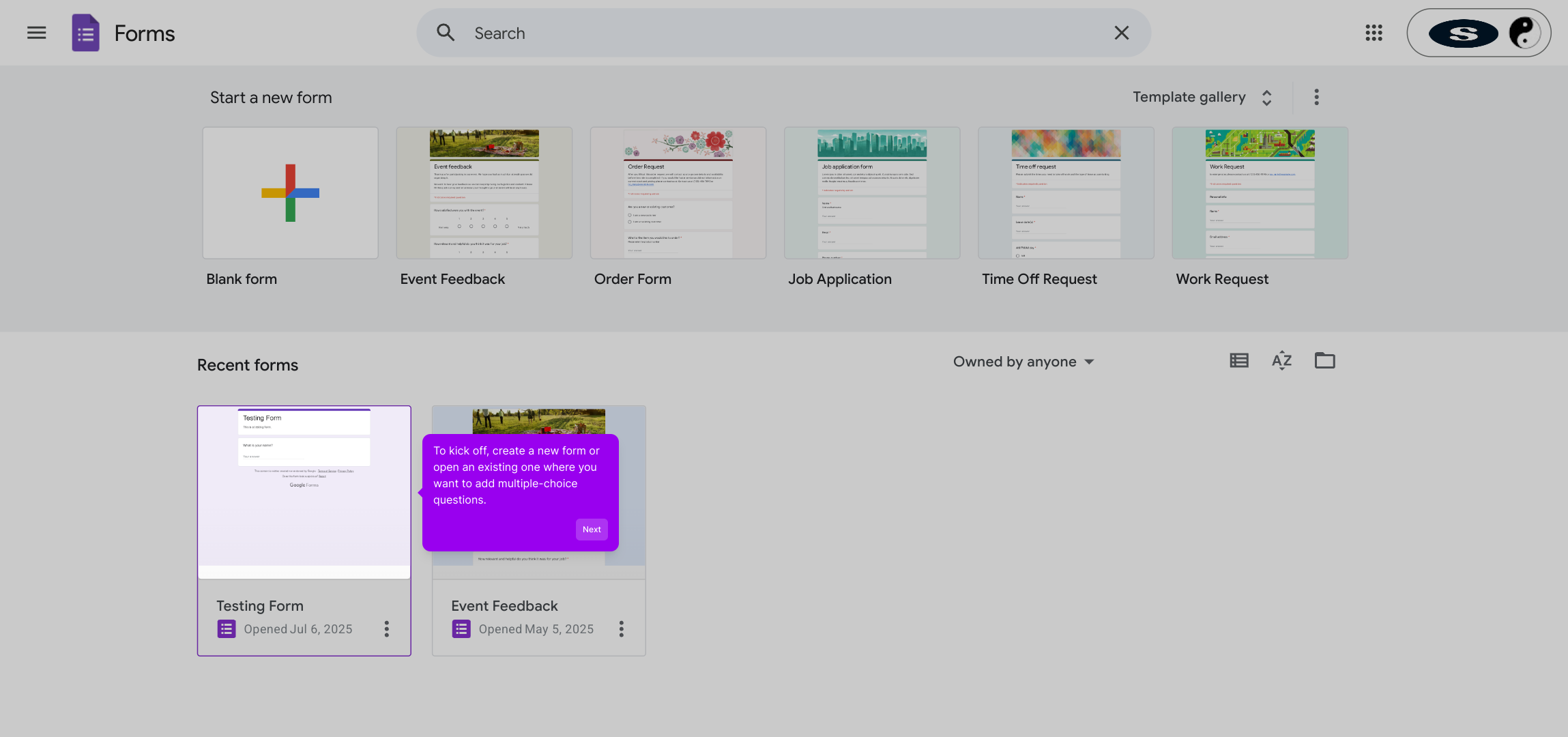
1. To kick off, create a new form or open an existing one where you want to add multiple-choice questions.
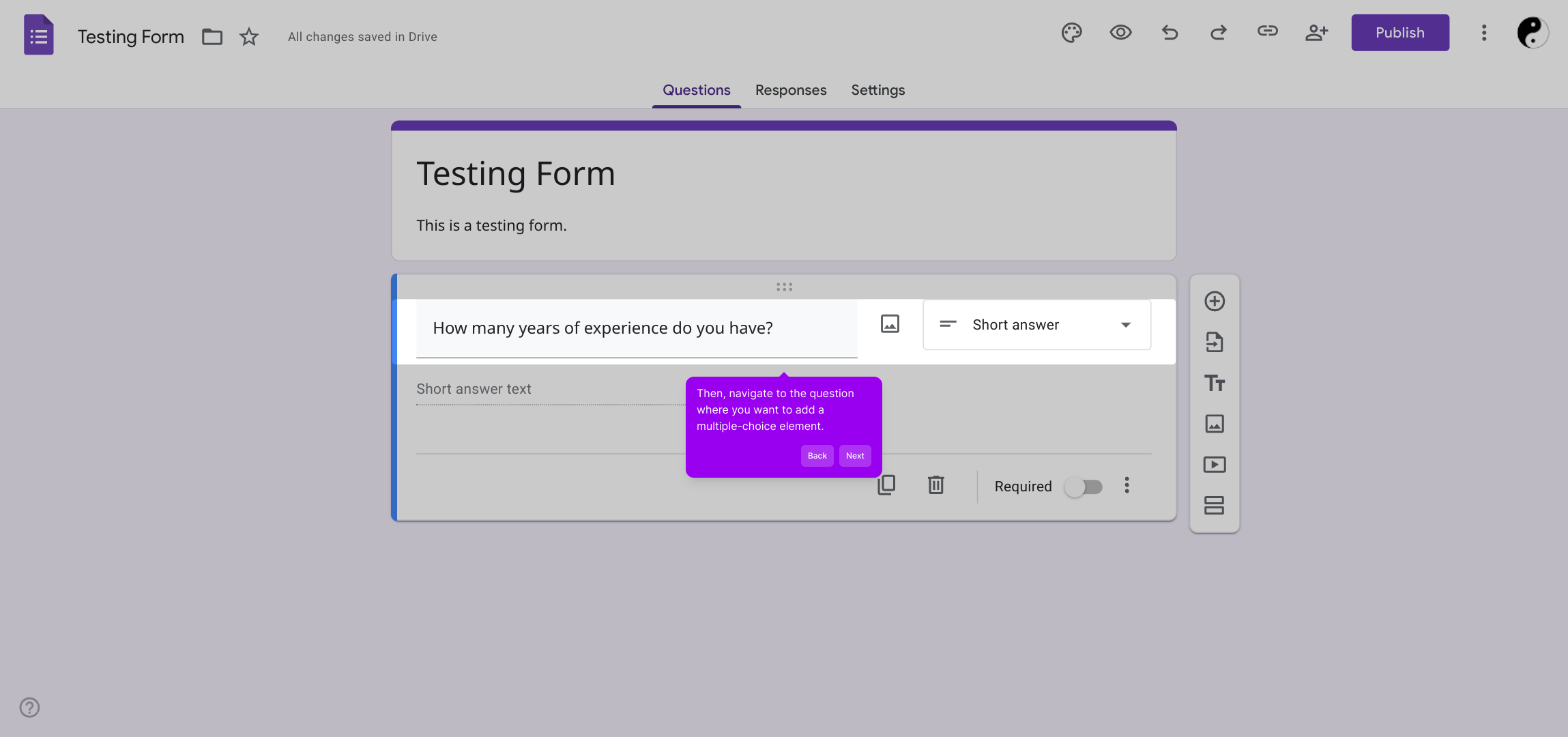
2. Then, navigate to the question where you want to add a multiple-choice element.
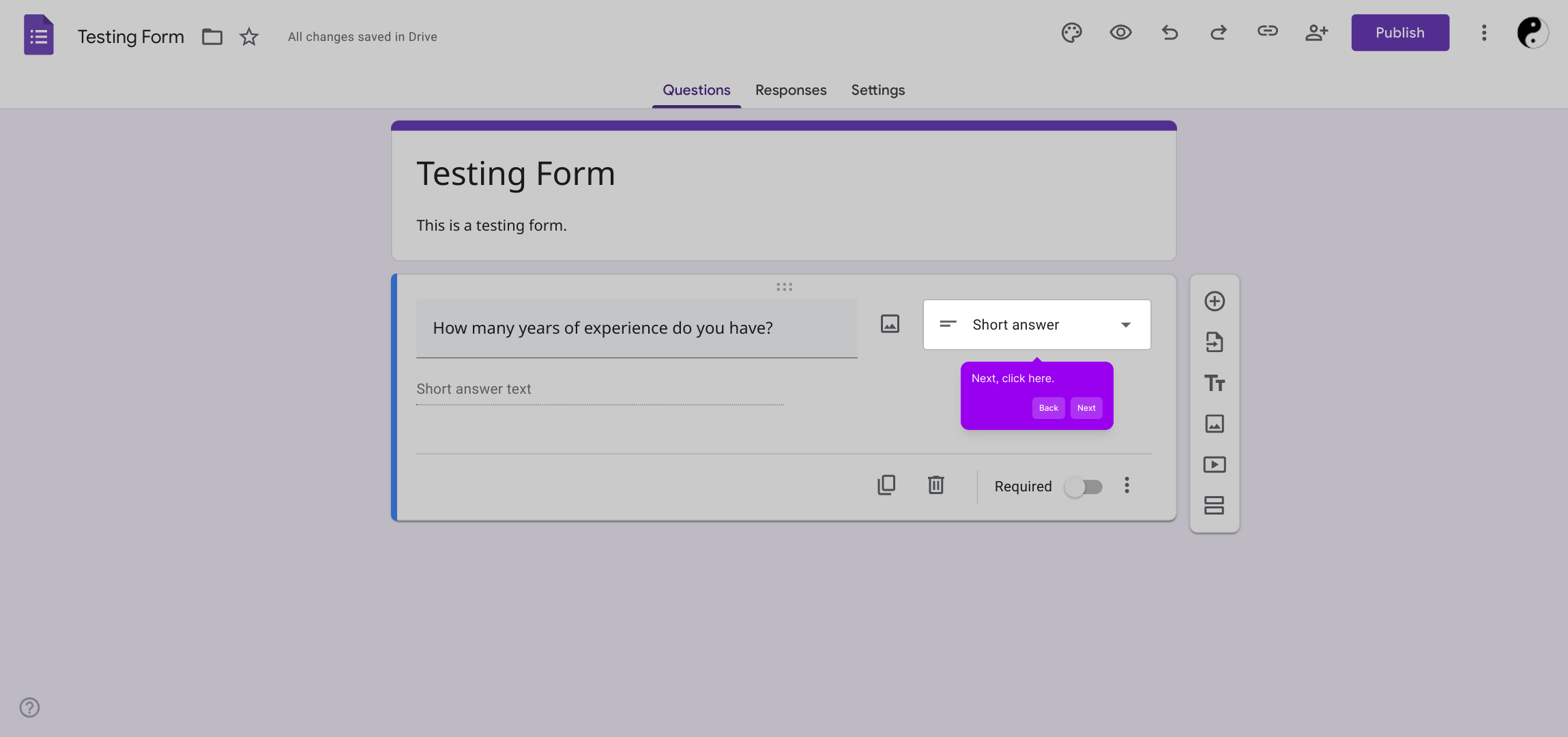
3. Next, click here.
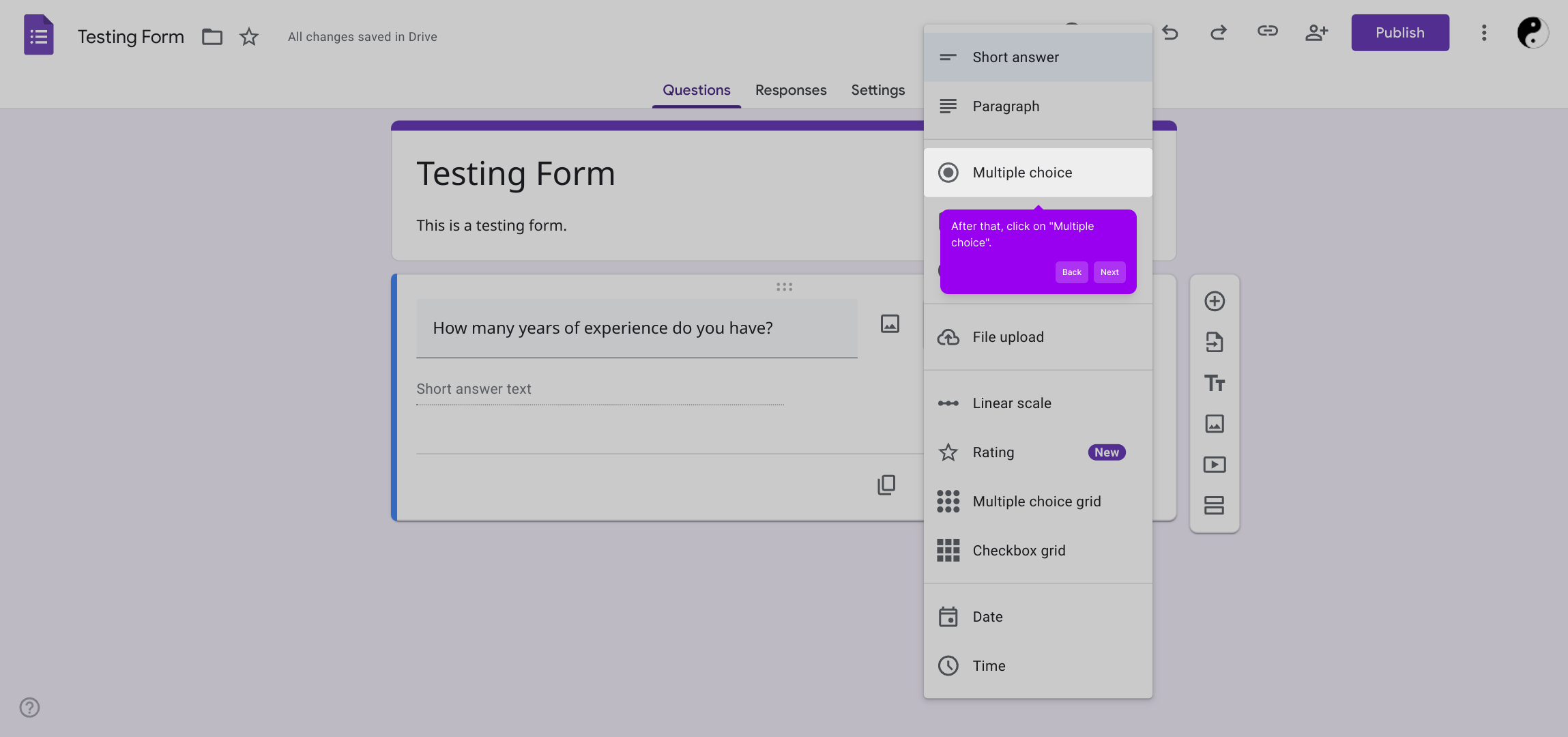
4. After that, click on "Multiple choice".
5. Now, add the first option.
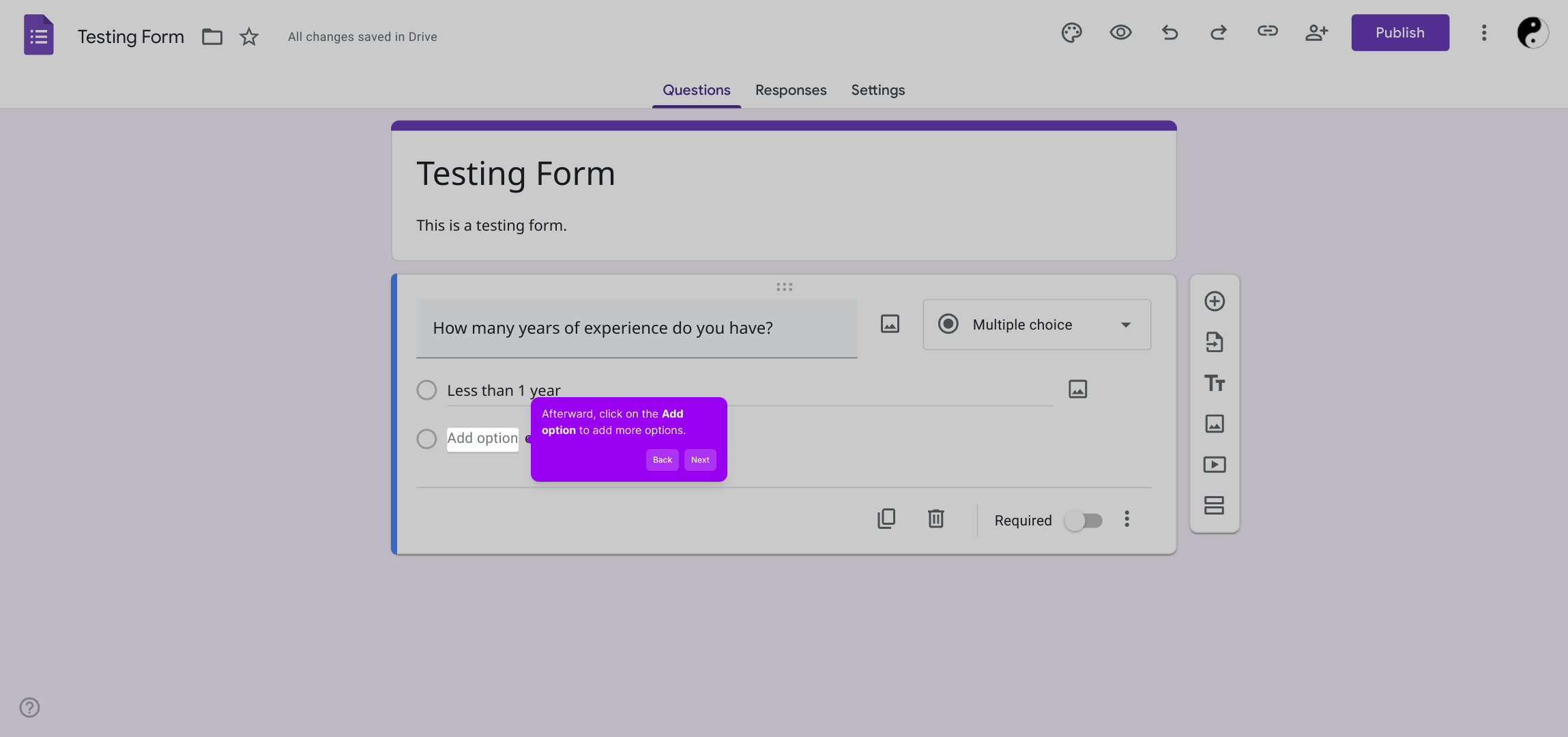
6. Afterward, click on the Add option to add more options.
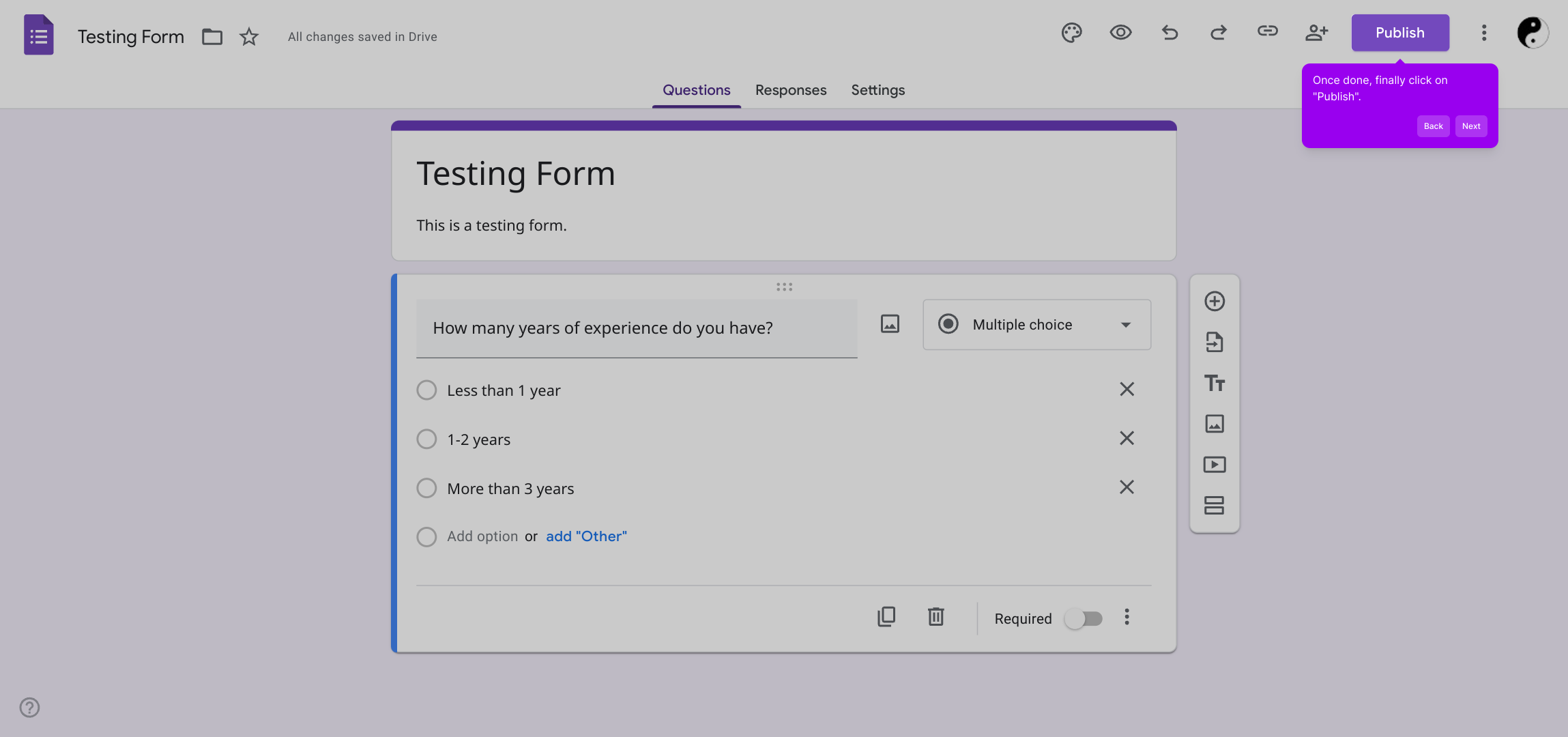
7. Once done, finally click on "Publish".
8. Create a Supademo in seconds
This interactive demo/guided walkthrough on How to Create a Google Form with Multiple Choice Questions was created using Supademo.
How to Create a Google Form with Multiple Choice Questions : Step-by-Step Guide
Begin by opening Supademo and either start a brand-new form or find the existing form you’d like to work on. This will be the canvas where you’ll add your multiple-choice questions to gather responses efficiently.
Next, move through your form until you reach the specific question where you want to include a multiple-choice answer. This ensures you add the right input type exactly where it’s needed.
Here, look for the button or menu indicated to add a new element to your question. Clicking this will open the options for different types of inputs you can add.
From the list of input types presented, select the one labeled “Multiple choice.” This choice will allow your respondents to select one option from several possibilities.
Now it’s time to enter the first available answer option that participants can select. This forms the basis of the multiple-choice question you'll be creating.
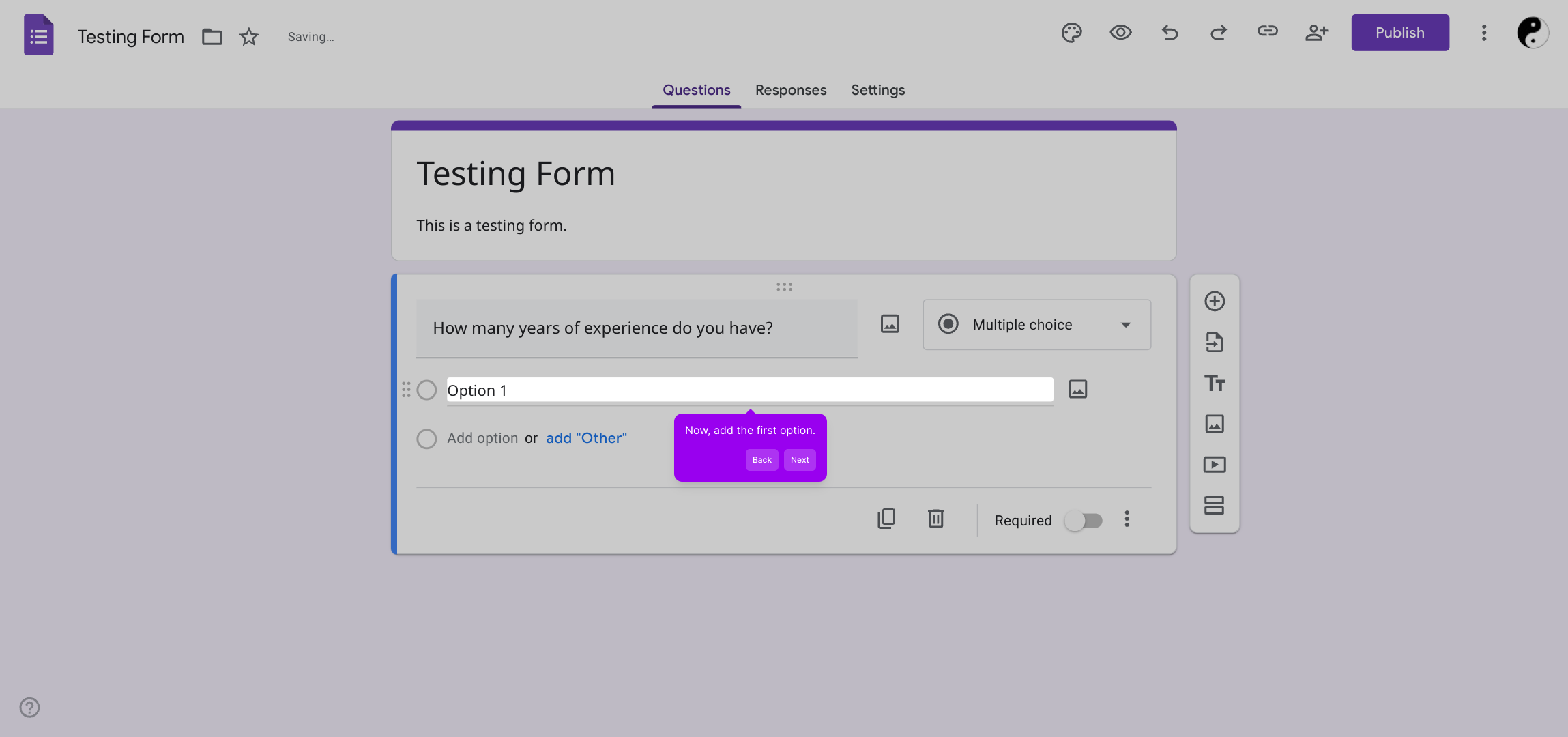
To provide more choices, simply click on the Add option button. This lets you expand your list to cover all the possible answers you want to offer.
After adding all your options and confirming everything looks good, finalize your changes by clicking the “Publish” button. This will save your question and make it live in your form.
With just a few clicks, you’ve created a Supademo form that’s ready to collect responses. Enjoy how fast and simple it is to set up your interactive form experience.
Create your own interactive demos in < 5 mins with Supademo
You can create your own interactive product demo in minutes using Supademo. Drive growth, scale enablement, and supercharge product-led onboarding with Supademo. Sign up for free here with no credit card required.
FAQs
Commonly asked questions about this topic.
What is a multiple choice question in Google Forms?
Can I add multiple-choice questions to an existing Google Form?
How do I add more options to a multiple choice question?
Can I publish the form immediately after adding questions?
Are multiple choice questions suitable for quizzes?
Is it possible to shuffle multiple choice options in Google Forms?
How do I make a multiple choice question required?
Can I edit multiple choice questions after publishing the form?
What are the advantages of using multiple choice questions in Google Forms?
How can I preview my multiple choice questions before publishing?

Product Operations Associate
Vimal Kumar helps build and grow Supademo’s team and GTM efforts, with a focus on figuring out growth levers and improving product traction.


