How to Link Google Form Responses to Google Sheets

Vimal Kumar
Vimal Kumar·
How to Link Google Form Responses to Google Sheets
Interactive demo powered by Supademo

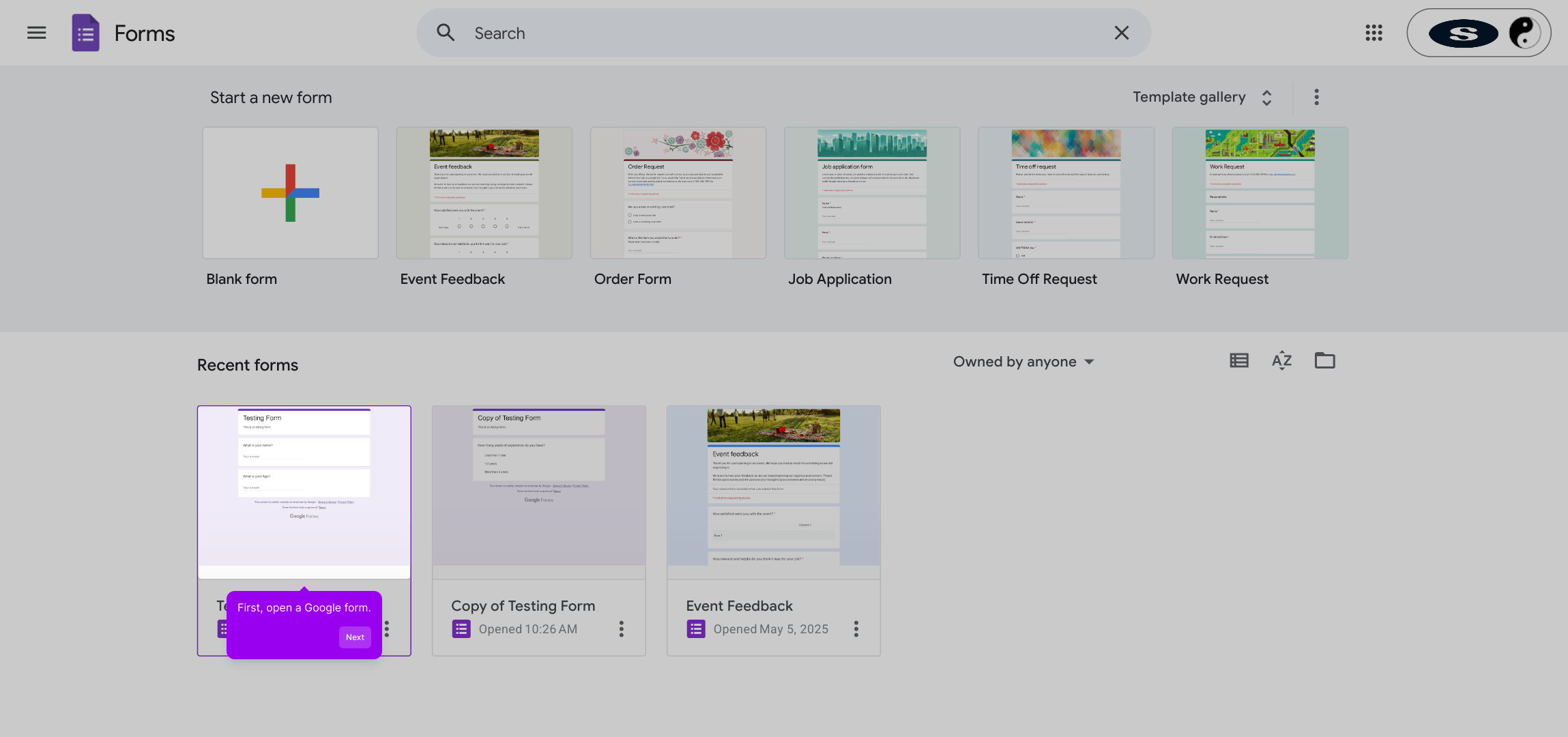
1. First, open a Google form.

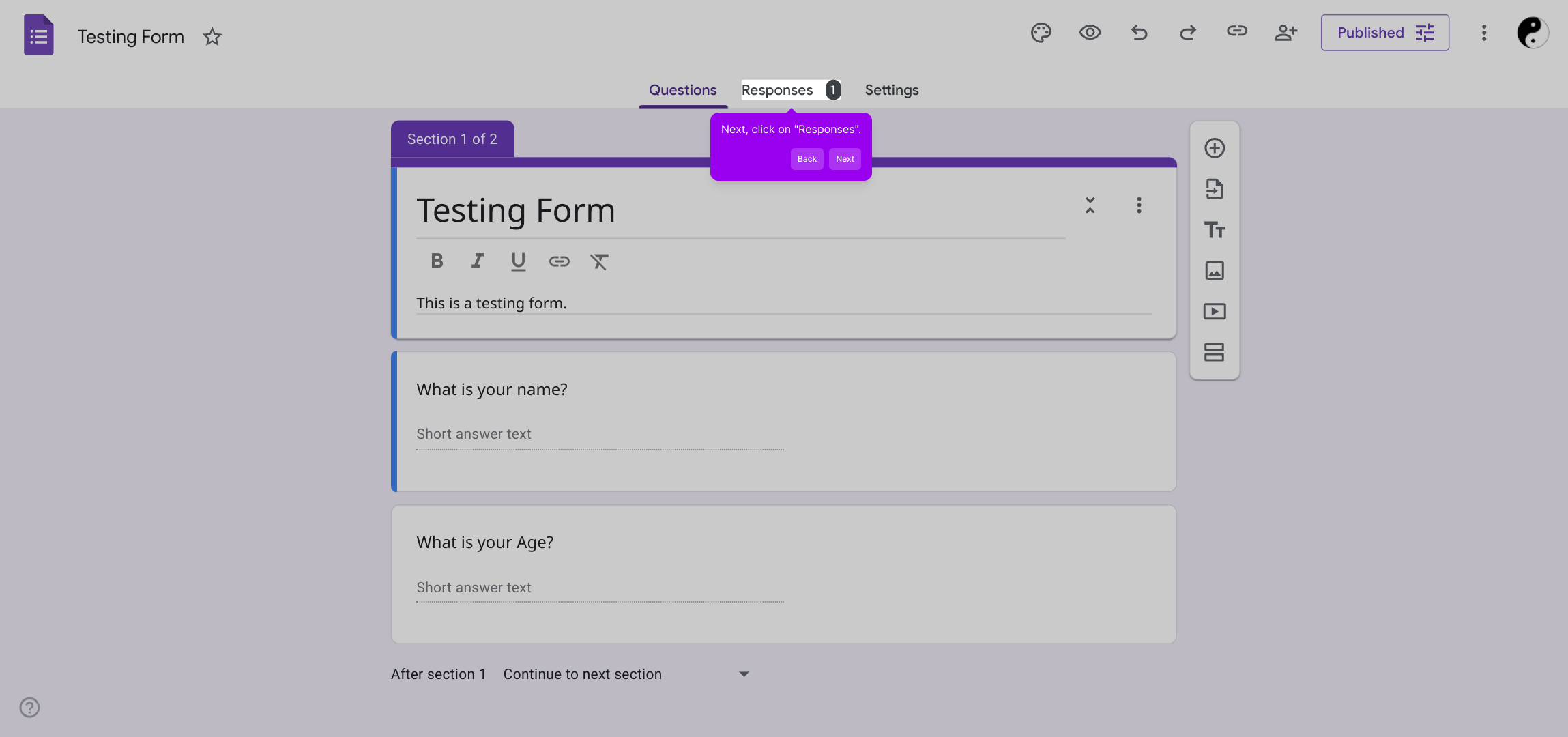
2. Next, click on "Responses".

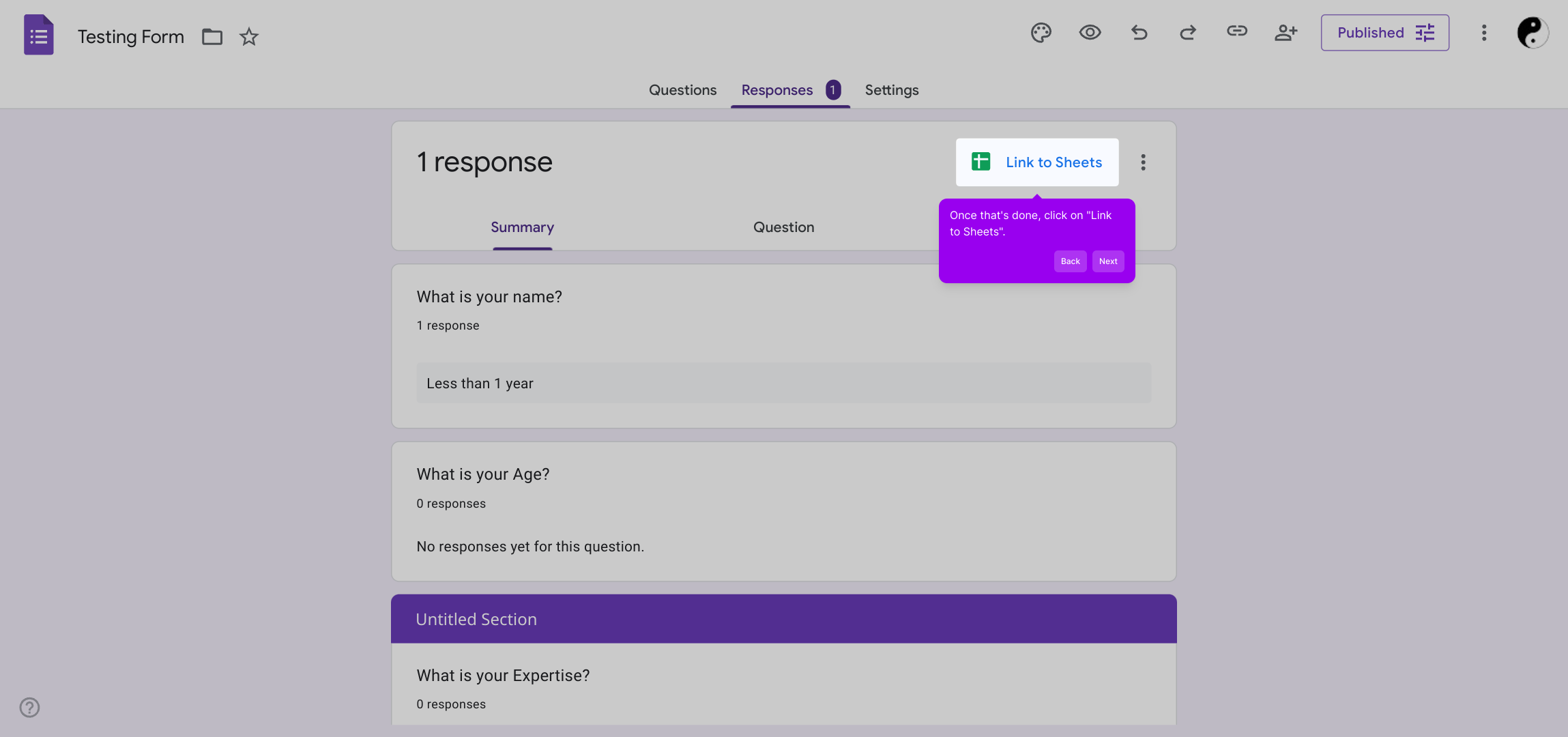
3. Once that's done, click on "Link to Sheets".

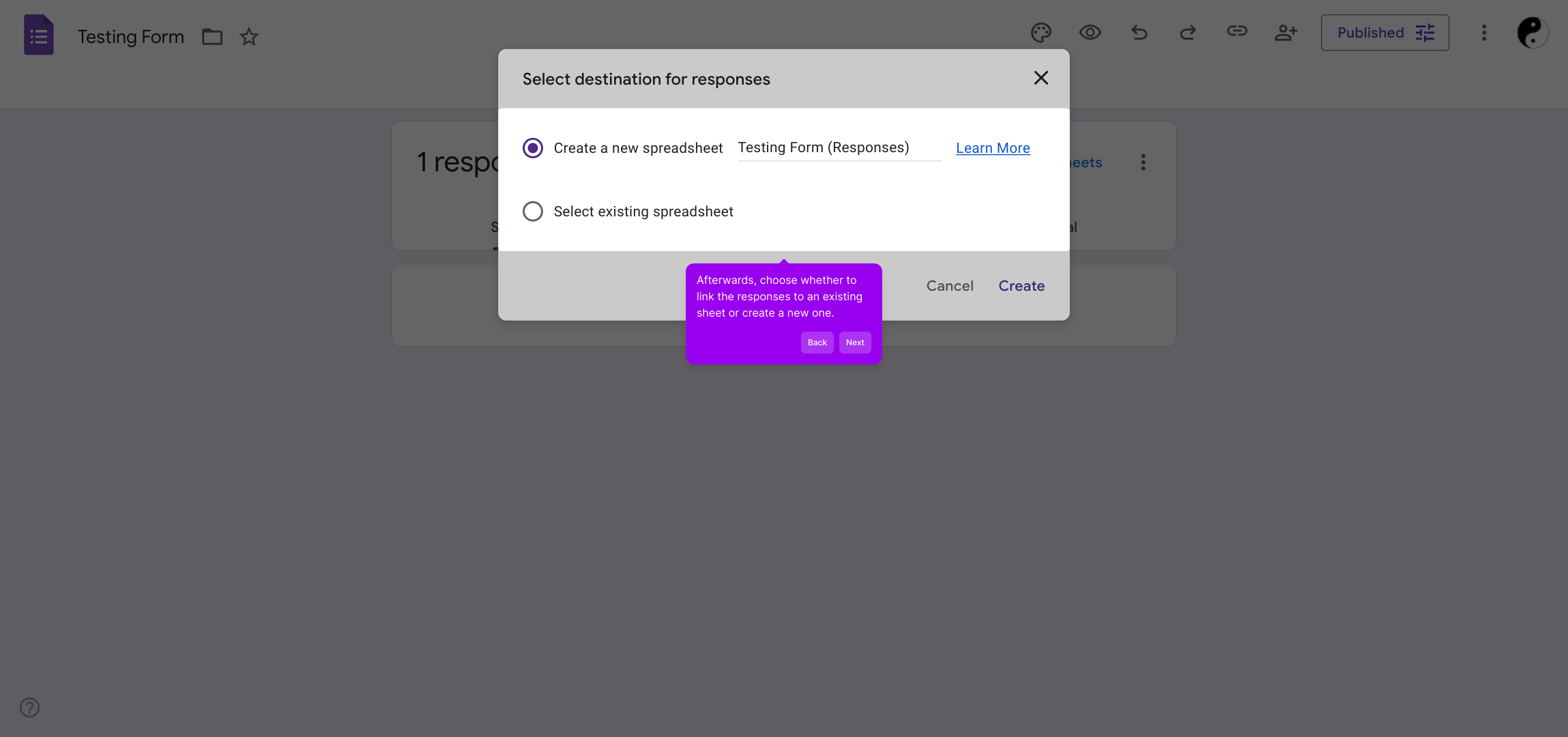
4. Afterwards, choose whether to link the responses to an existing sheet or create a new one.

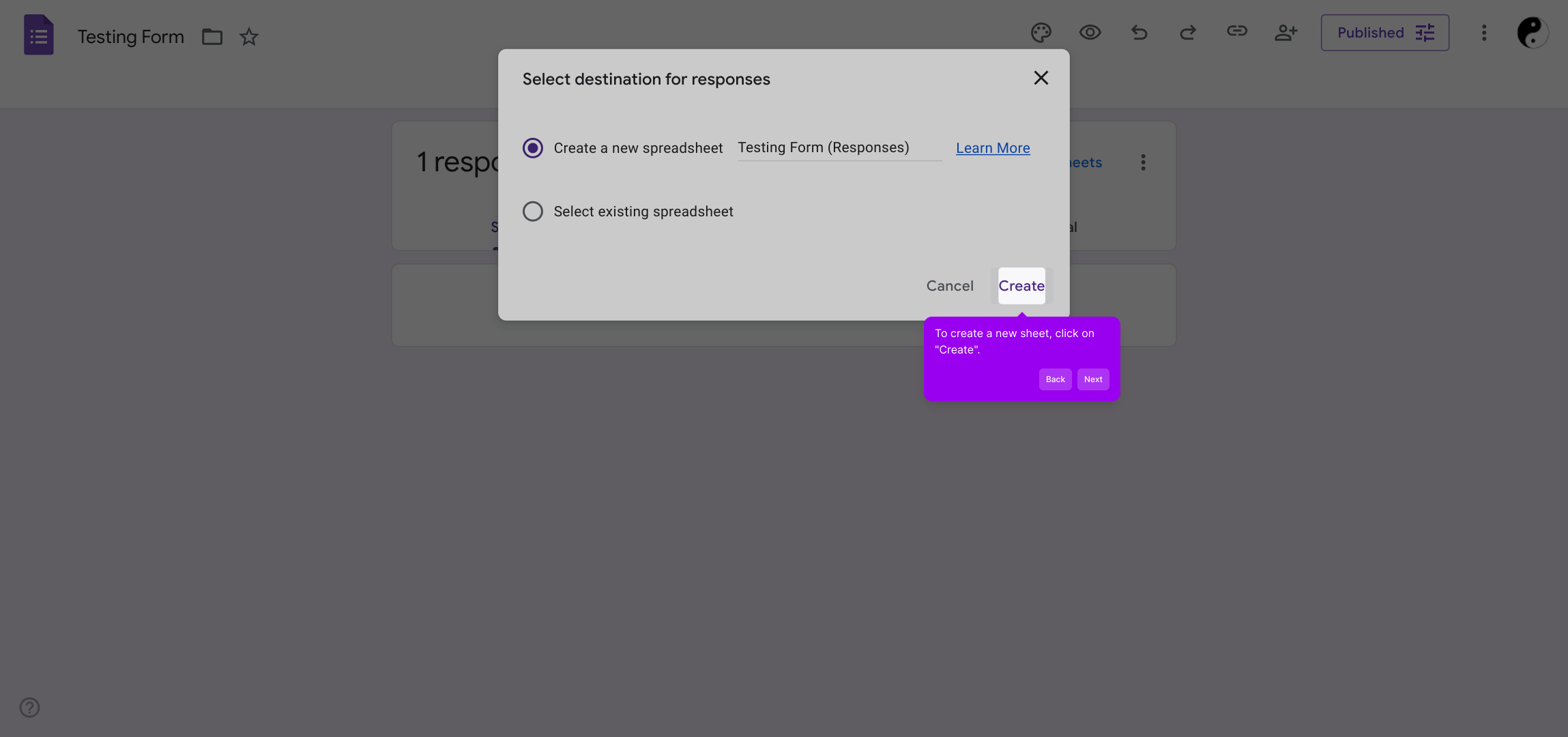
5. To create a new sheet, click on "Create".

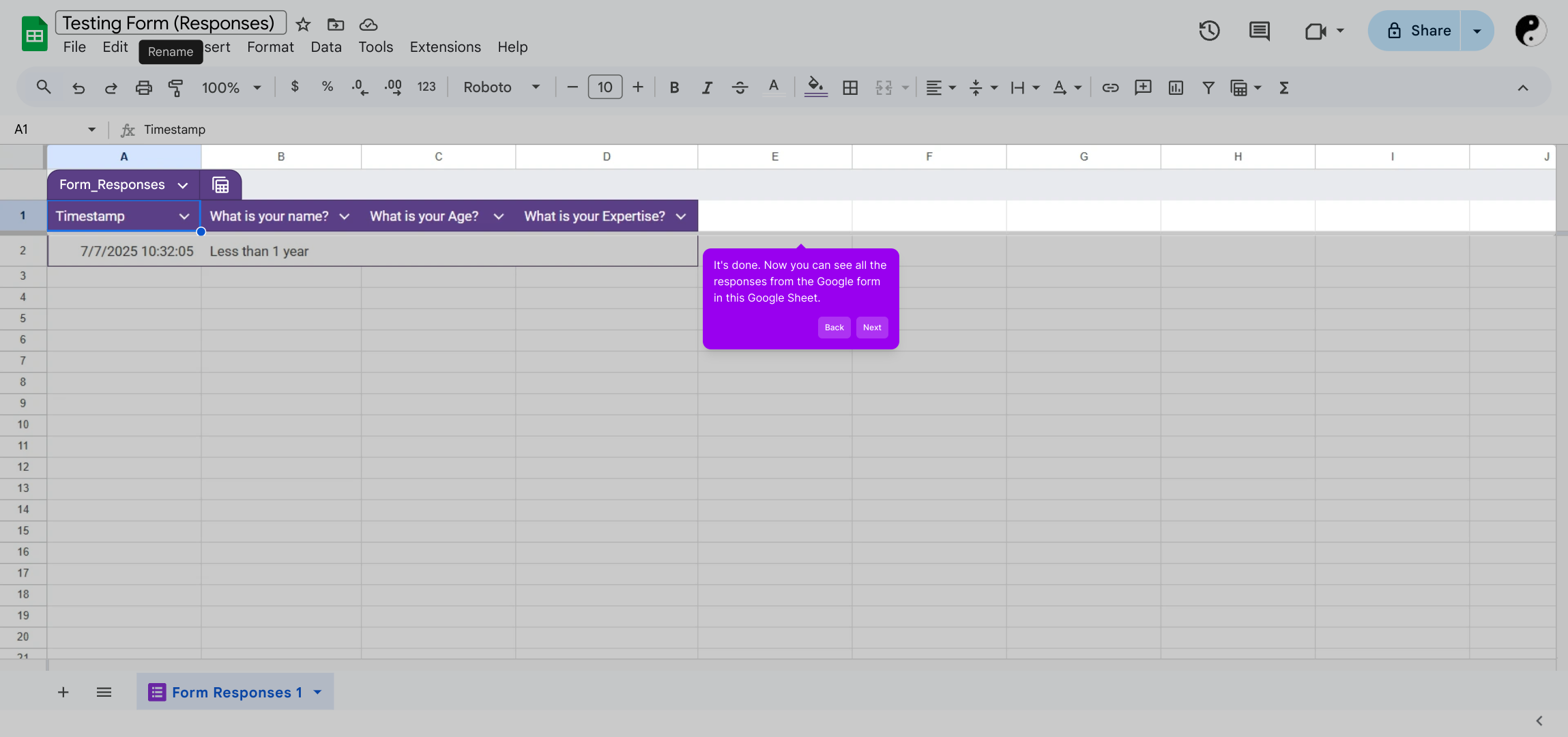
6. It's done. Now you can see all the responses from the Google form in this Google Sheet.

7. Create a Supademo in seconds

This interactive demo/guided walkthrough on How to Link Google Form Responses to Google Sheets was created using Supademo.


To get started, open the Google Form you’ve created or intend to use. This is where your survey or data collection begins, setting the stage for gathering responses.
1

Once your form is open, navigate to the "Responses" tab at the top. This area shows all the answers submitted by participants and is where we’ll link your data to a spreadsheet for easier analysis.
2

In the "Responses" section, look for the option labeled "Link to Sheets". Clicking this will begin the process of connecting your form responses directly to a Google Sheet, where you can manage and analyze the data more effectively.
3

At this point, you’ll be prompted to decide how you want to organize your response data. You can either connect the form to an existing Google Sheet or create a brand new one specifically for these responses—choose whichever best fits your workflow.
4

If you opt to create a new spreadsheet, simply click the "Create" button. This action generates a fresh Google Sheet ready to instantly capture and display incoming responses as they arrive.
5

With your spreadsheet linked, you’ll now see all the form submissions automatically populate this Google Sheet in real time. This setup makes tracking and working with your data straightforward and seamless.
6

Now that your responses are organized, you’re ready to create a Supademo quickly and easily—streamlining your workflow from form to data visualization in just moments.
7

Create your own interactive demos in < 5 mins with Supademo

You can create your own interactive product demo in minutes using Supademo. Drive growth, scale enablement, and supercharge product-led onboarding with Supademo. Sign up for free here with no credit card required.


FAQs

Commonly asked questions about this topic.

How do I link Google Form responses to a new Google Sheet?

You open your Google Form, go to the "Responses" tab, click the "Link to Sheets" icon, then select "Create" to generate a new Google Sheet where your form responses will be automatically recorded.

Can I connect form responses to an existing spreadsheet?

Yes, during the linking process, you can choose an existing Google Sheet to append responses, allowing you to manage data all in one place without creating a new sheet each time.

Will the responses update automatically in the linked Google Sheet?

Yes, once linked, all new responses submitted through the Google Form will populate the connected Google Sheet in real-time, making data monitoring seamless and immediate.

Is it possible to unlink the form from the Google Sheet?

Yes, you can unlink Google Form responses from a Google Sheet by going back to the "Responses" tab and choosing to unlink or deleting the linked sheet to stop syncing further responses.

Can multiple Google Forms be linked to the same Google Sheet?

No, each Google Form links to its own unique Google Sheet to avoid data conflicts. To combine responses, you can manually import or use add-ons to aggregate data.

Are there any limits to the number of responses sent to Google Sheets?

Google Sheets supports up to 10 million cells, but very large volumes of form responses may slow down performance. For very large datasets, consider using Google BigQuery or other platforms.

Can I customize how responses are displayed in the linked Google Sheet?

Directly, responses are logged as per the form’s structure. However, you can edit the sheet, add formulas, or create charts to better organize and analyze the data.

Do I need special permissions to link a Google Form to a Google Sheet?

You must have edit access on the Google Form and the Google Sheet (if linking to an existing one). Without proper permissions, linking will not be possible.

What happens if I rename or move the linked Google Sheet?

If you rename or move the linked Google Sheet within your Drive, the connection remains intact. However, deleting the sheet will sever the link and stop responses from syncing.

Can I link multiple forms to different tabs within the same Google Sheet?

Google Forms do not natively support linking to multiple tabs. Each form creates its own sheet within a workbook, but multiple forms cannot write to the same tab simultaneously without custom scripting.
Vimal Kumar

Vimal Kumar

Product Operations Associate

Vimal Kumar helps build and grow Supademo’s team and GTM efforts, with a focus on figuring out growth levers and improving product traction.

More from the blog

How to Remove 'Powered by Shopify'

How to Remove 'Powered by Shopify'

Learn how to easily remove the 'Powered by Shopify' text from your online store with step-by-step instructions and tips to customize your Shopify storefront.

Vimal Kumar
Vimal KumarJan 3, 2026
How to Add Products to Shopify

How to Add Products to Shopify

Learn step-by-step how to add products to your Shopify store effortlessly, including tips on product details, images, pricing, and inventory management to boost your online sales.

Vimal Kumar
Vimal KumarDec 17, 2025
How to Deactivate Your Shopify Store

How to Deactivate Your Shopify Store

Learn step-by-step how to deactivate your Shopify store easily, including important considerations and tips to pause or close your shop without losing data.

Vimal Kumar
Vimal KumarDec 17, 2025
How to Remove 'Powered by Shopify'

How to Remove 'Powered by Shopify'

Learn how to easily remove the 'Powered by Shopify' text from your online store with step-by-step instructions and tips to customize your Shopify storefront.

Vimal Kumar
Vimal KumarDec 17, 2025
How to Create a Shopify Account

How to Create a Shopify Account

Learn step-by-step how to create a Shopify account quickly and easily, set up your online store, and start selling your products in no time.

Vimal Kumar
Vimal KumarDec 17, 2025
How to Create a Stripe Account

How to Create a Stripe Account

Learn how to create a Stripe account quickly and easily with our step-by-step guide, perfect for beginners looking to start accepting online payments.

Vimal Kumar
Vimal KumarDec 17, 2025