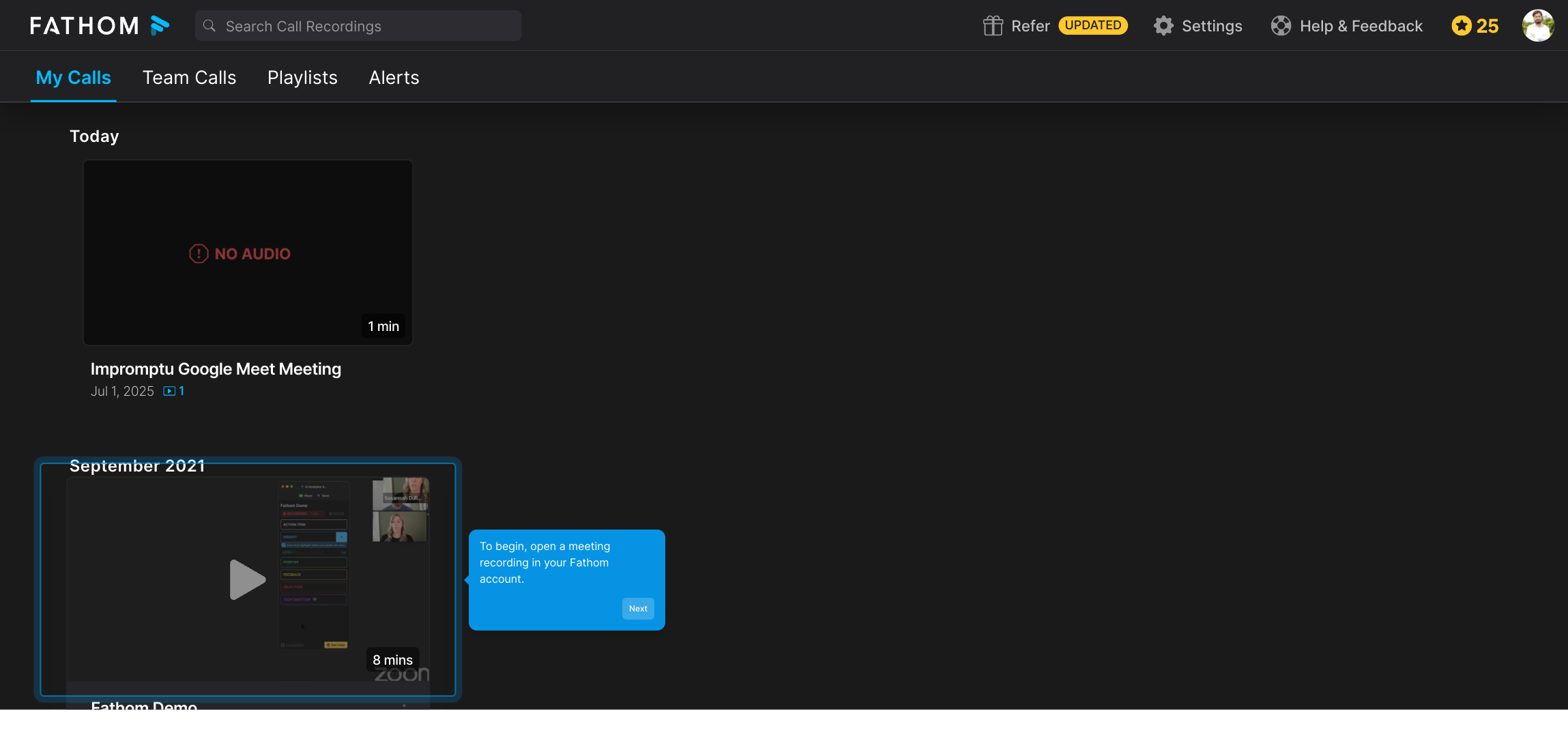
1. To begin, open a meeting recording in your Fathom account.
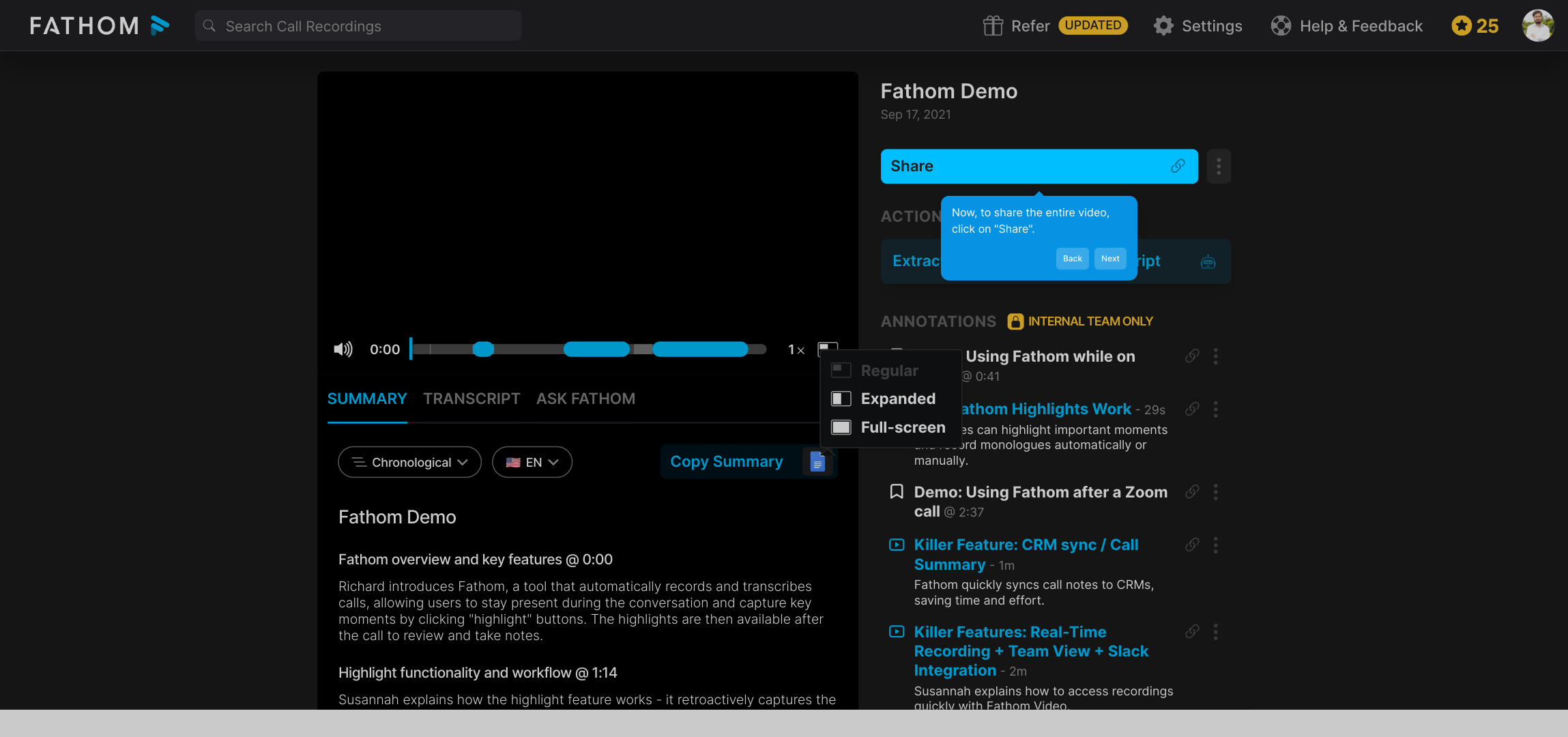
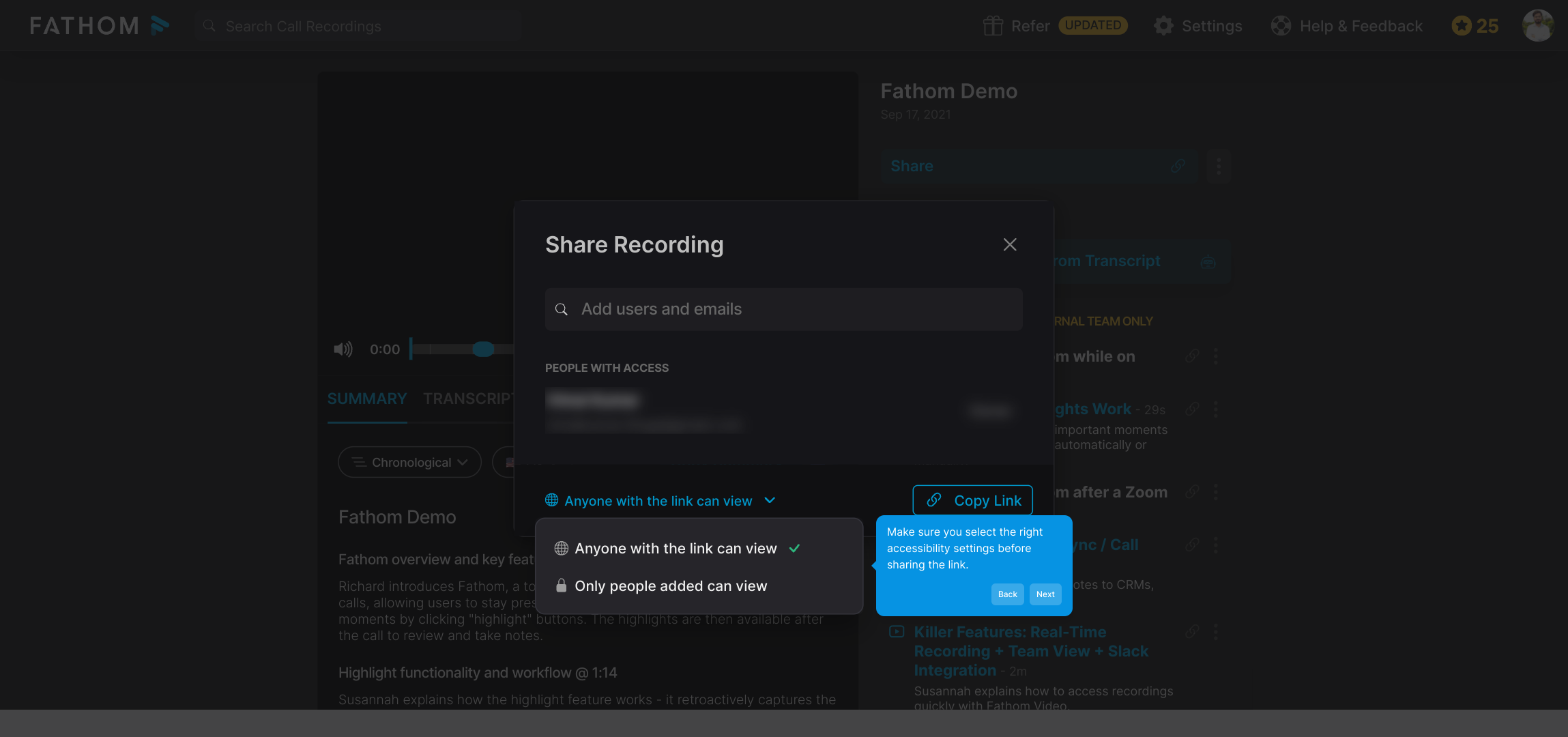
2. Now, to share the entire video, click on "Share".
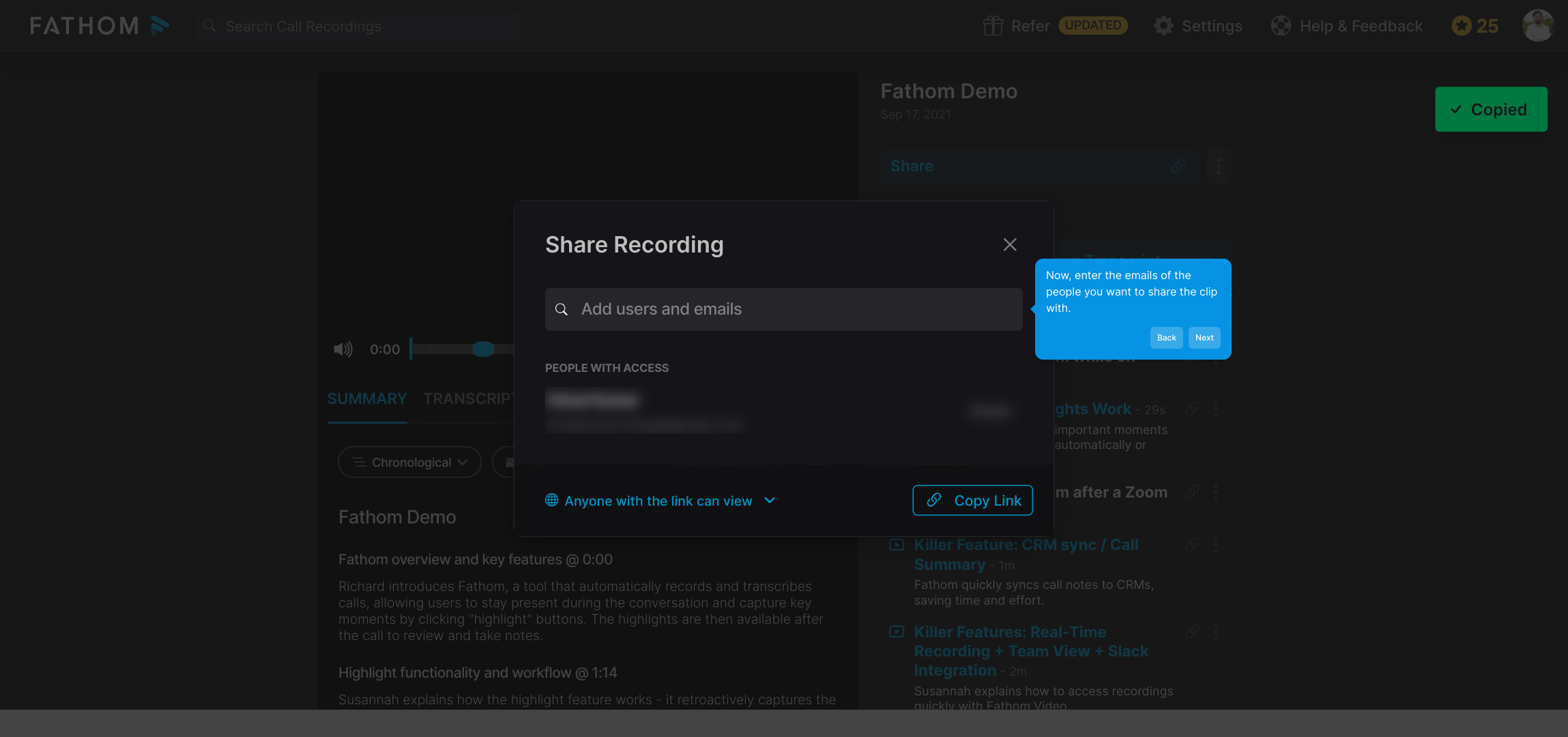
3. Now, enter the emails of the people you want to share the clip with.
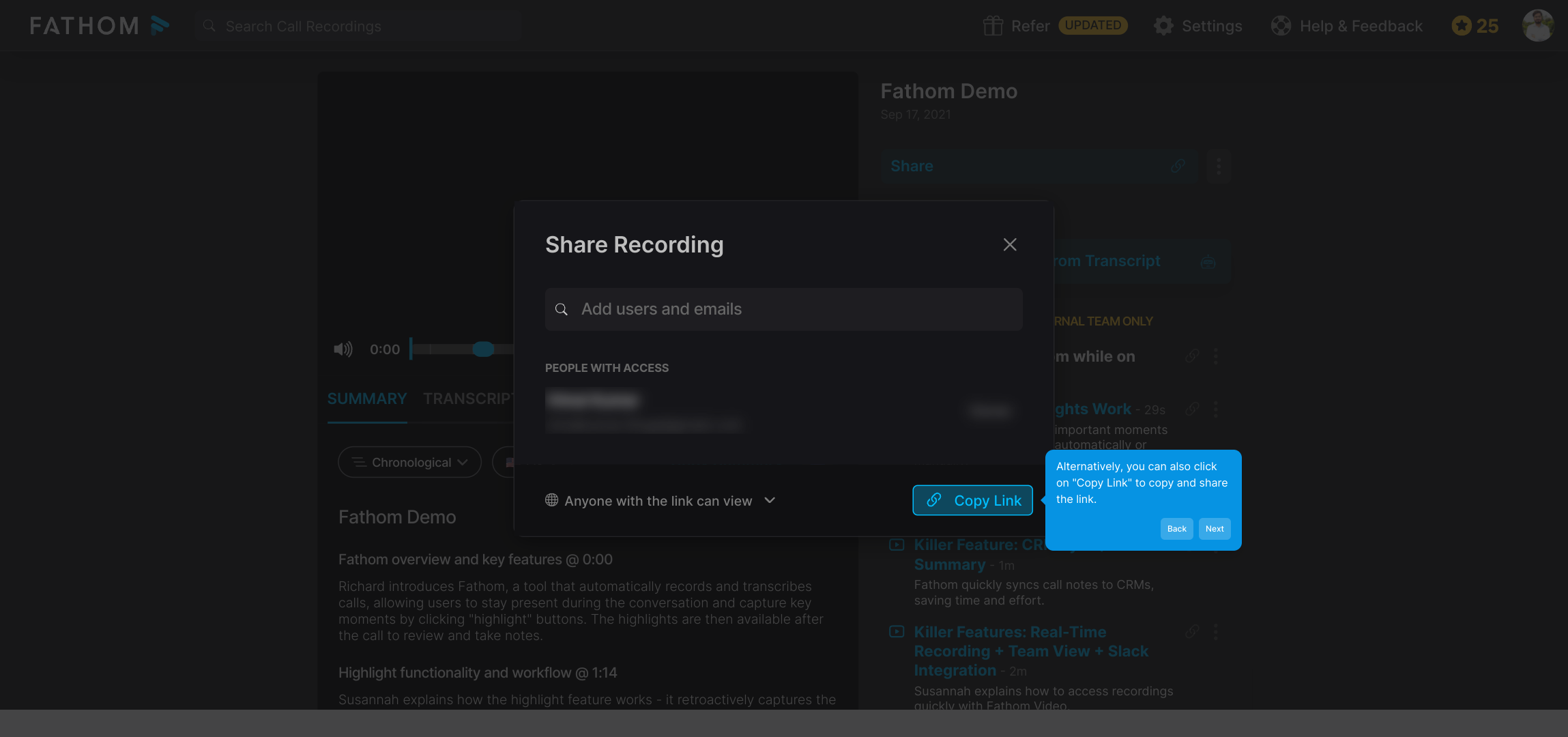
4. Alternatively, you can also click on "Copy Link" to copy and share the link.
5. Make sure you select the right accessibility settings before sharing the link.
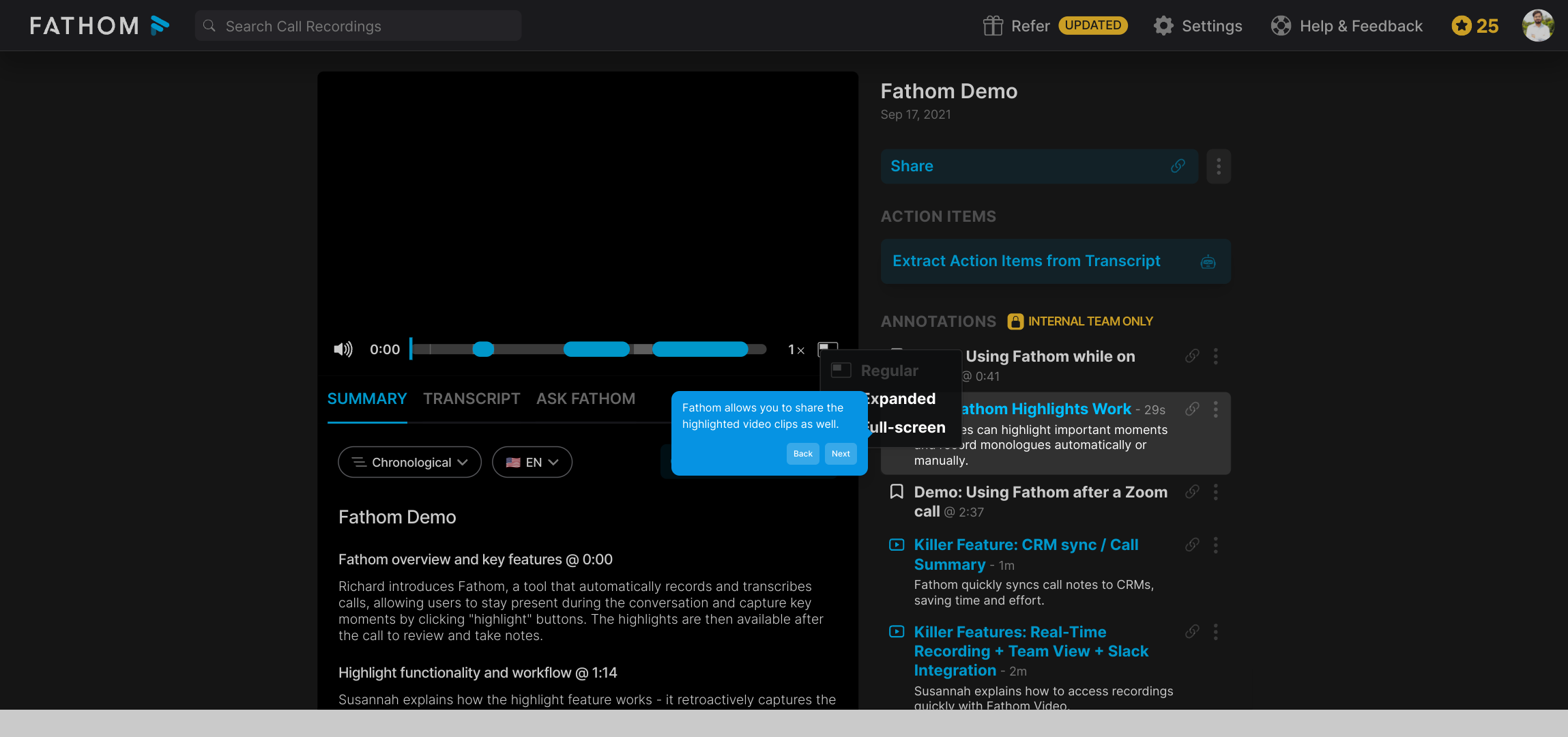
6. Fathom allows you to share the highlighted video clips as well.
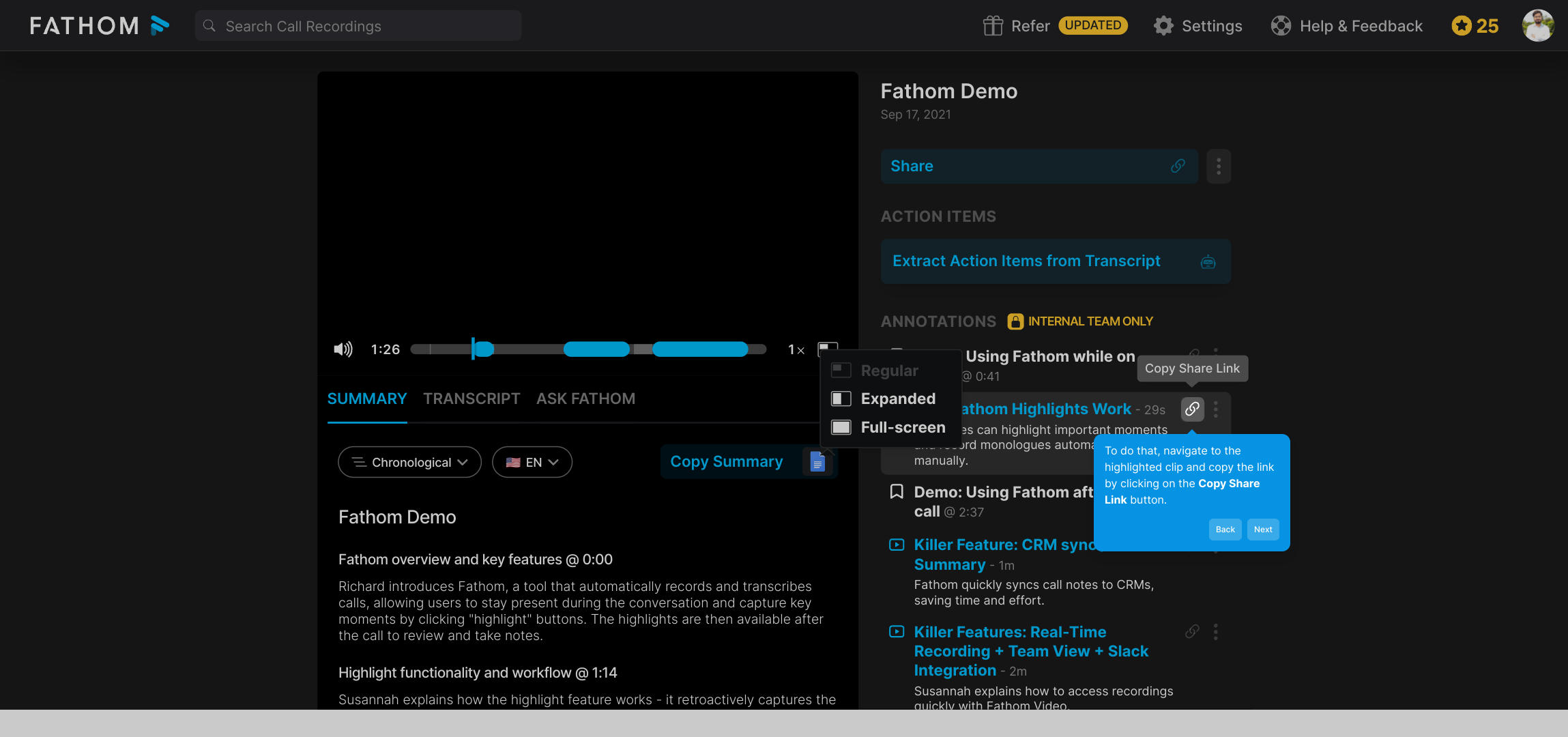
7. To do that, navigate to the highlighted clip and copy the link by clicking on the Copy Share Link button.
8. Create a Supademo in seconds
This interactive demo/guided walkthrough on How to Share Video Clips in Fathom was created using Supademo.
How to Share Video Clips in Fathom : Step-by-Step Guide
Start by navigating to your Fathom dashboard and selecting one of your recorded meetings. Opening the specific meeting recording will bring you to the video playback interface, where you can begin managing and sharing your content.
Once your video is open, look for the Share button prominently displayed near the playback controls. Clicking this allows you to share the full video with others, ensuring your recipients see the entire meeting without missing important details.
In the sharing interface, you’ll find a field where you can type the email addresses of colleagues or clients you wish to send the video to. Enter these addresses here to send out personalized invites that grant them access to the recording.
If you prefer a quicker way to distribute the video, you can choose the Copy Link option. This copies a shareable URL to your clipboard, which you can then paste into messages, documents, or anywhere else you want to share it.
Before sending or sharing your link, take a moment to review the accessibility settings. These options let you control who can view the video and how they interact with it, ensuring your shared content respects privacy and access preferences.
Besides sharing the entire recording, Fathom also offers the ability to share specific highlighted clips. This is perfect when you want to draw attention to key moments without sharing the full video.
To share a highlighted segment, find the clip you want within your recording timeline, then use the Copy Share Link button associated with that clip. This copies a direct link to just that moment, making it easy to spotlight important content.
With these tools at your disposal, you can quickly create and share a Supademo—a concise, engaging video demo crafted from your meetings that’s ready to distribute in just moments.
Create your own interactive demos in < 5 mins with Supademo
You can create your own interactive product demo in minutes using Supademo. Drive growth, scale enablement, and supercharge product-led onboarding with Supademo. Sign up for free here with no credit card required.
FAQs
Commonly asked questions about this topic.
What is Fathom used for?
How do I share an entire meeting video in Fathom?
Can I share just a portion of my meeting video?
Is it possible to control who views my shared videos?
How do I copy a shareable link for a meeting or clip?
Do I need an account to view shared Fathom videos?
Can I share Fathom videos externally outside my organization?
Are shared video links secure and private?
What file formats are used when sharing video clips?
Can I edit highlighted clips before sharing?

Product Operations Associate
Vimal Kumar helps build and grow Supademo’s team and GTM efforts, with a focus on figuring out growth levers and improving product traction.