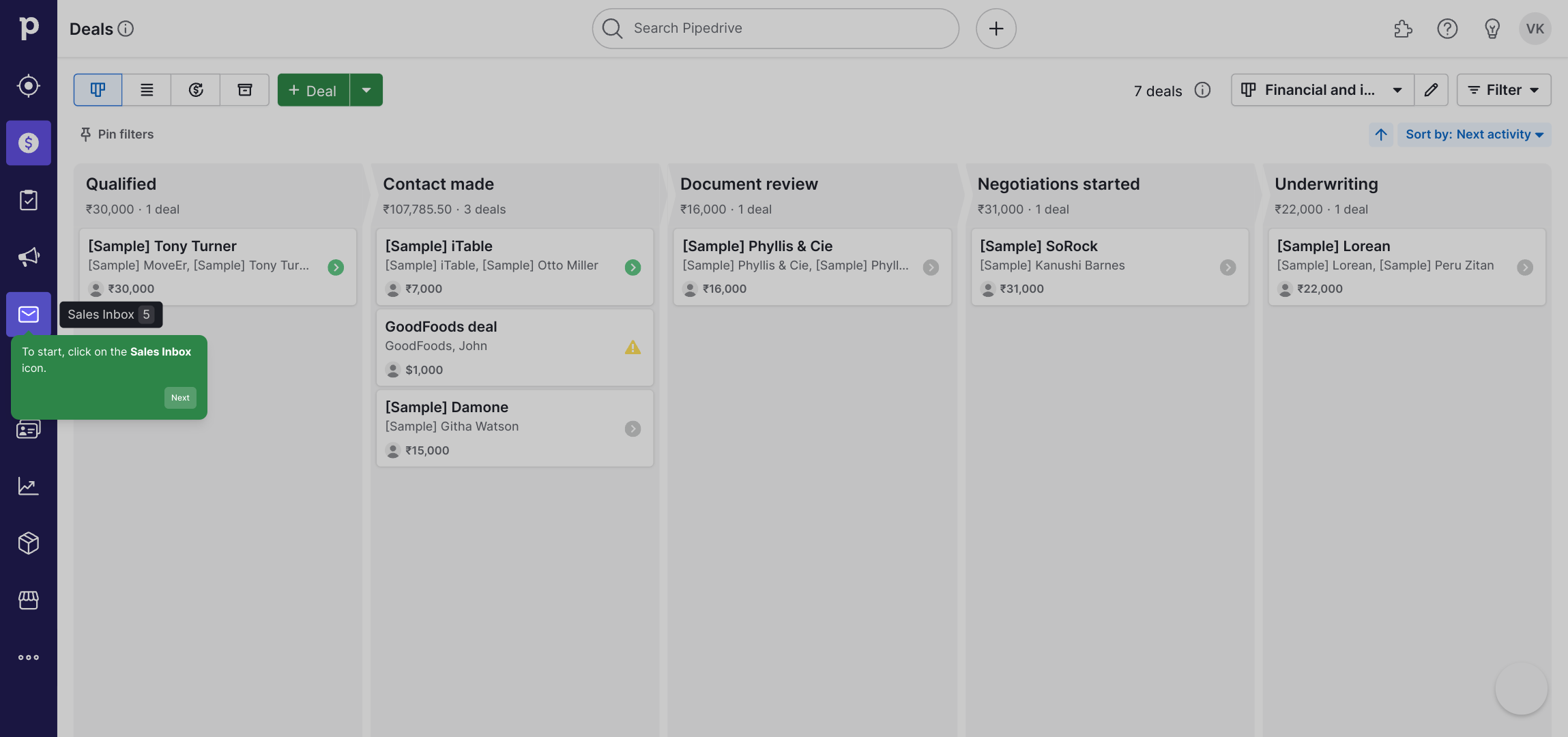
1. To start, click on the Sales Inbox icon.
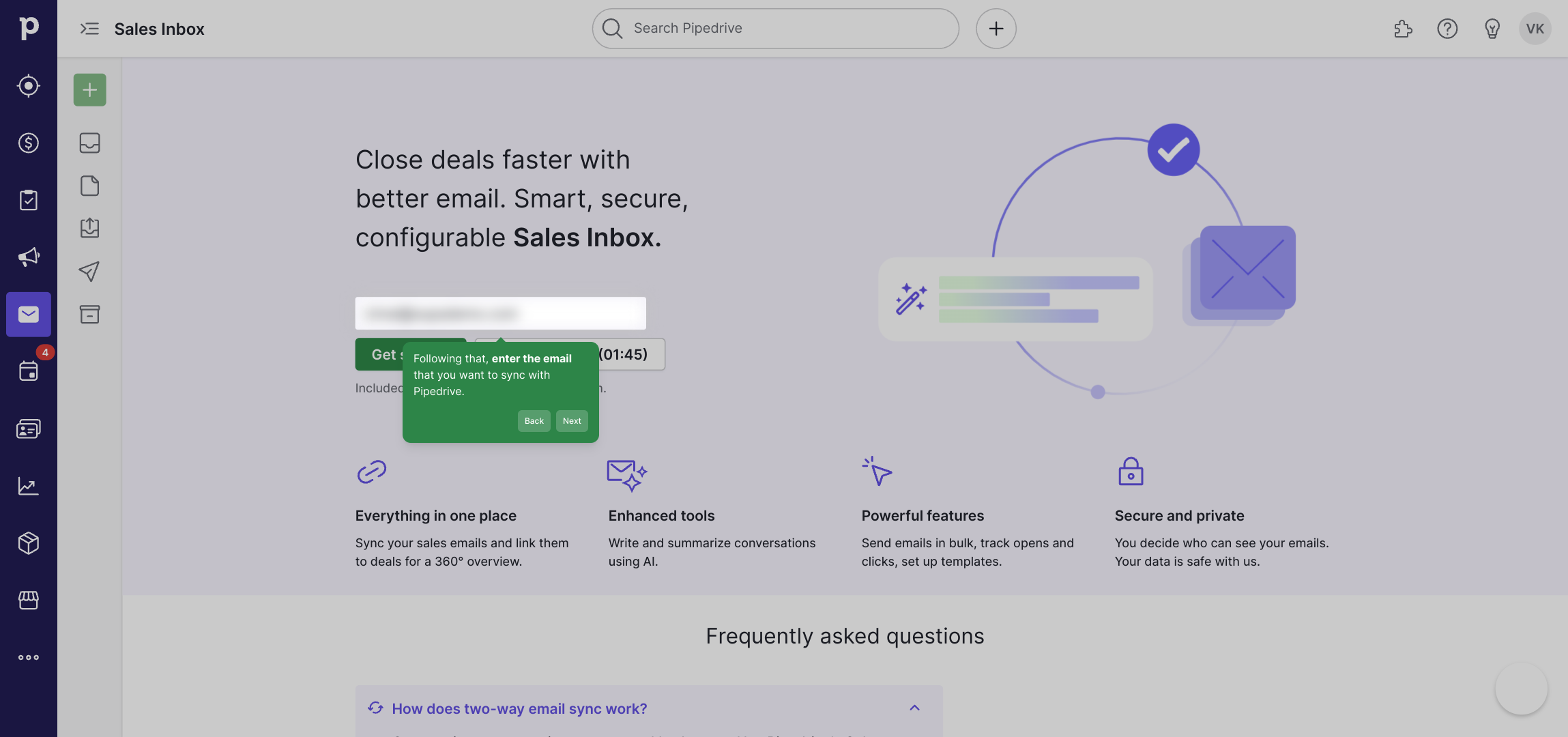
2. Following that, enter the email that you want to sync with Pipedrive.
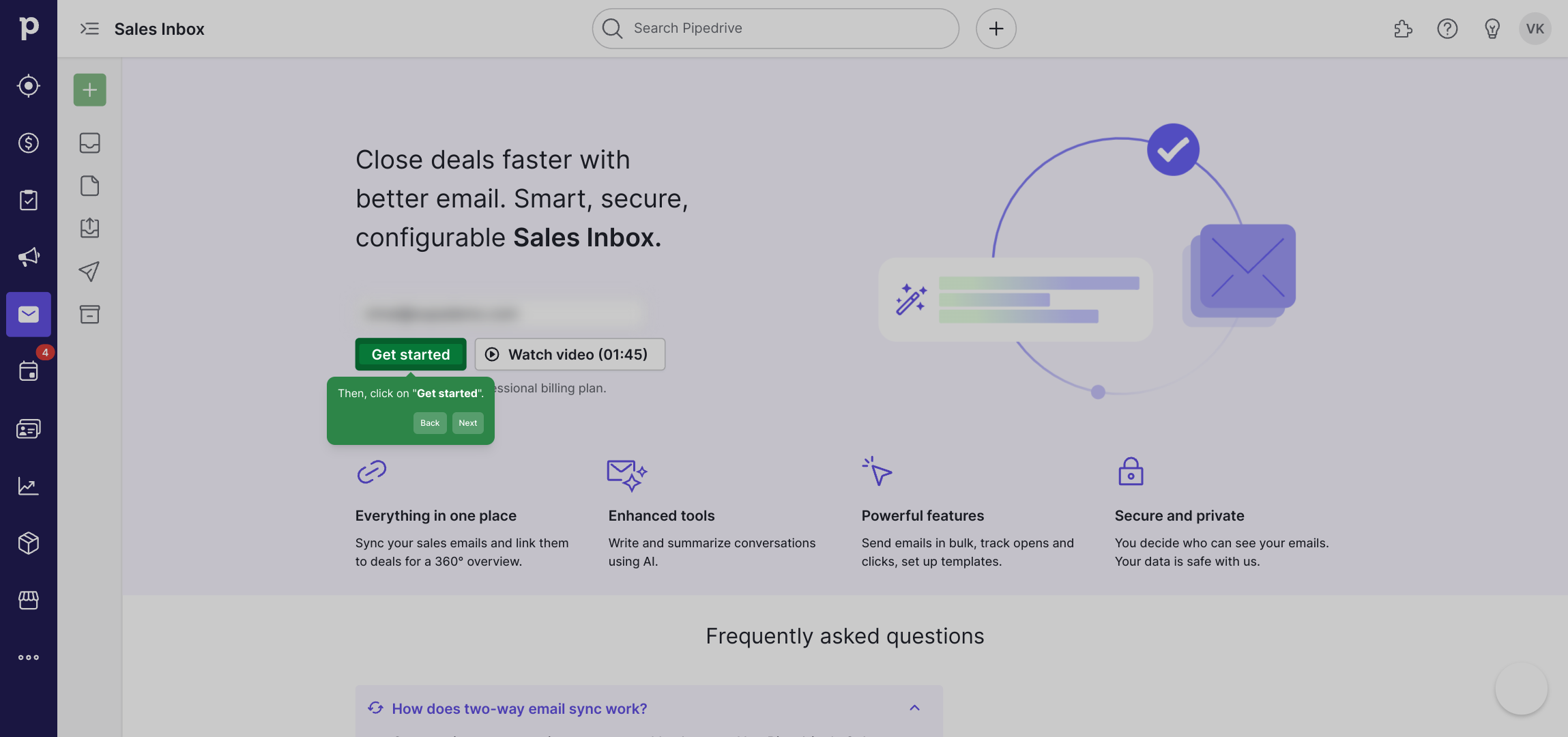
3. Then, click on "Get started".
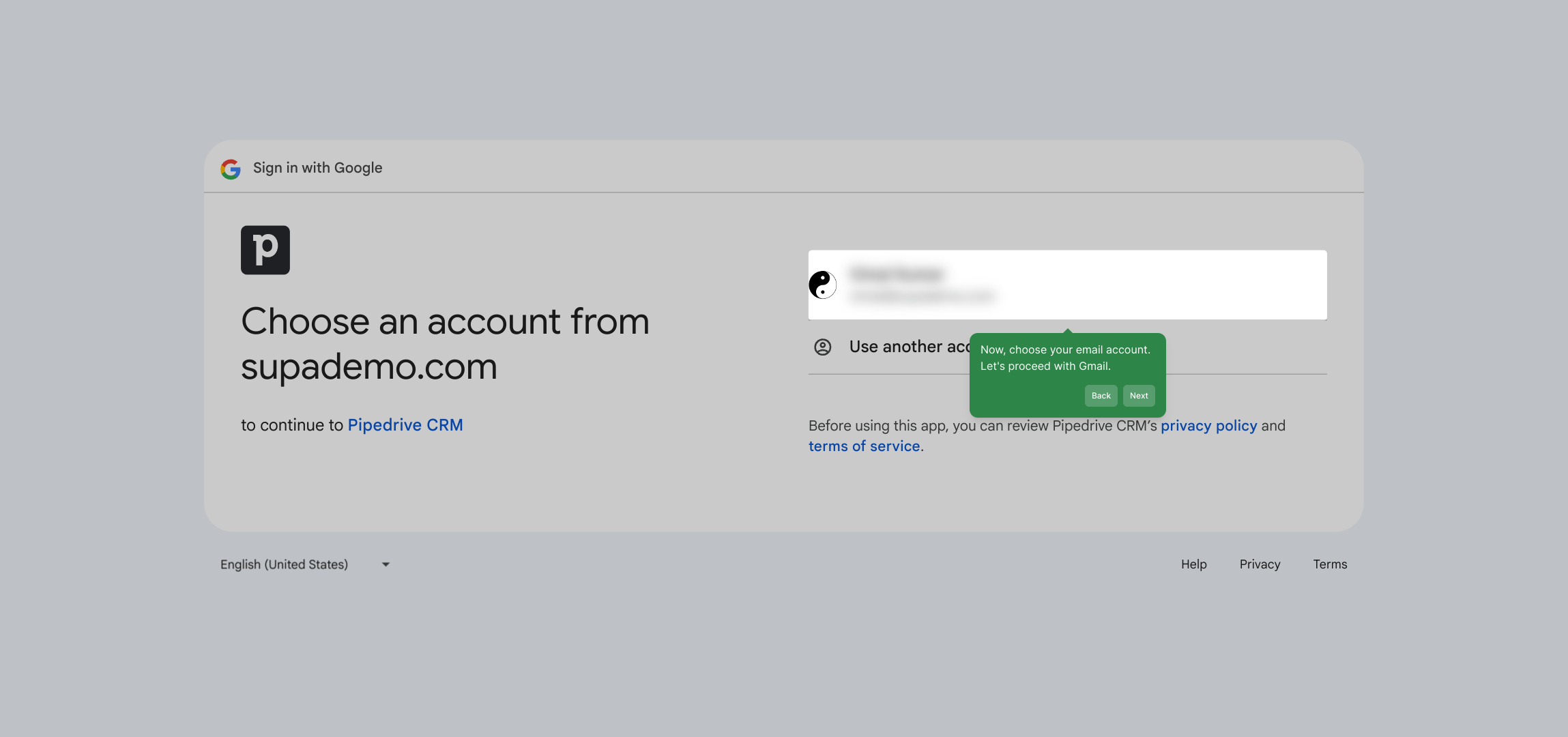
4. Now, choose your email account. Let's proceed with Gmail.
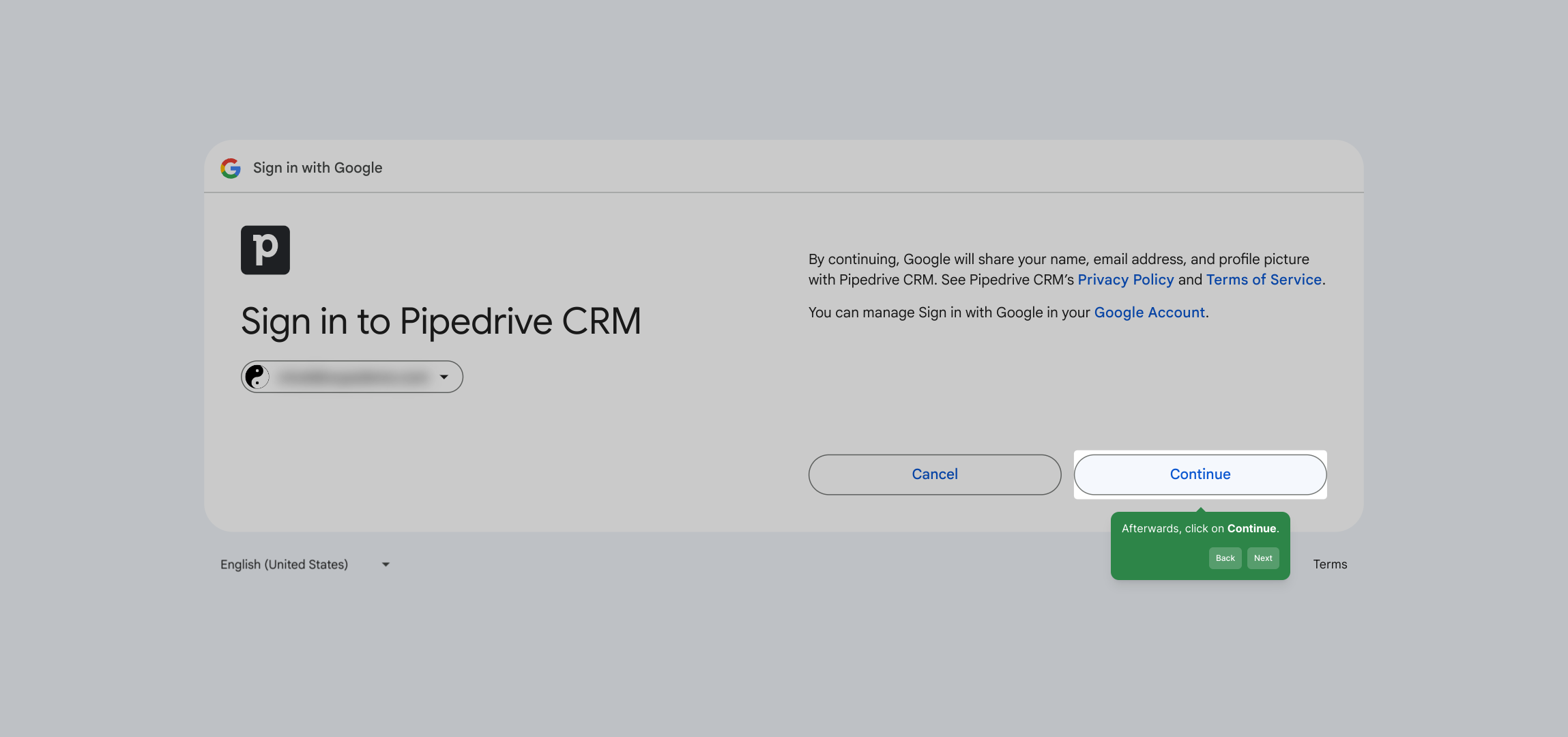
5. Afterwards, click on Continue.
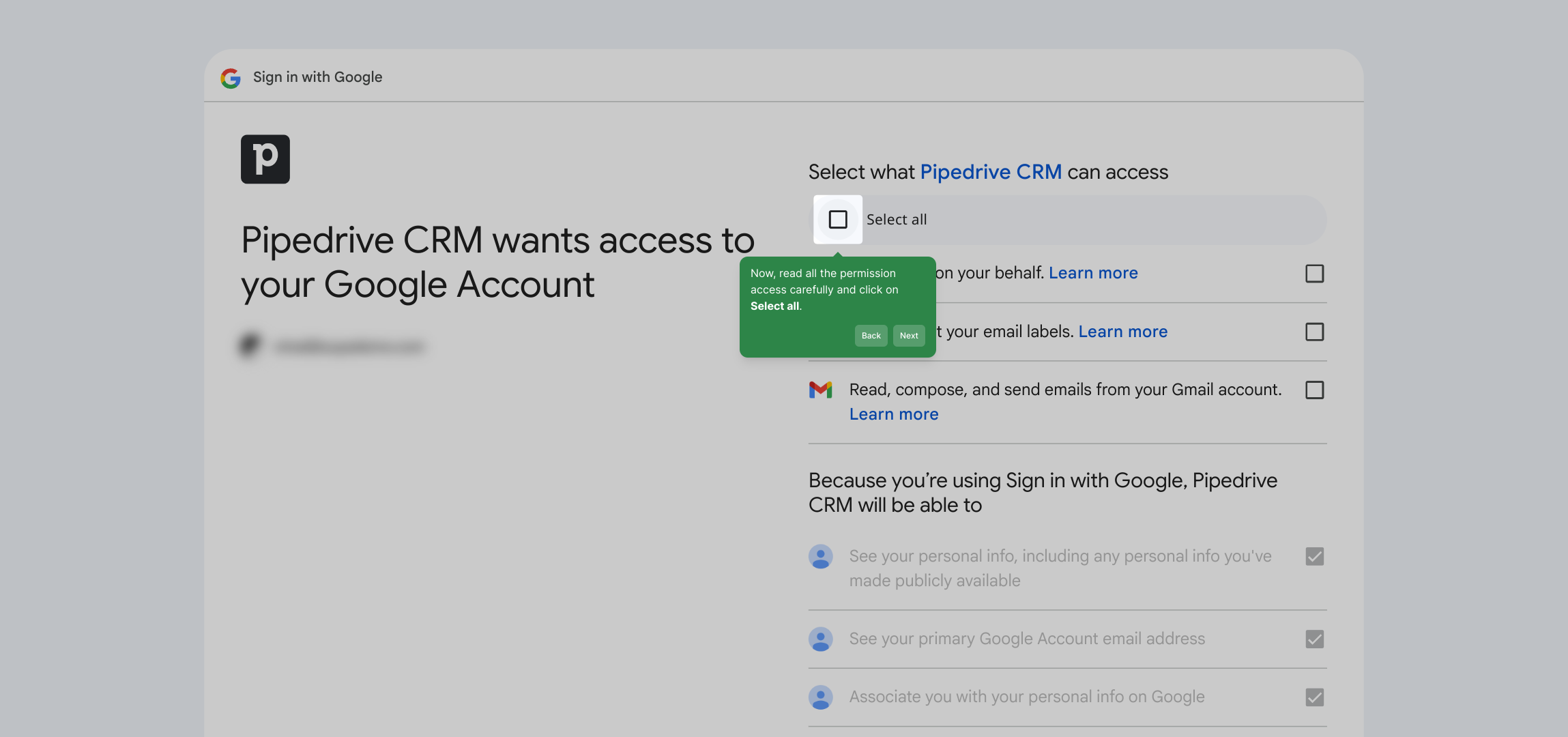
6. Now, read all the permission access carefully and click on Select all.
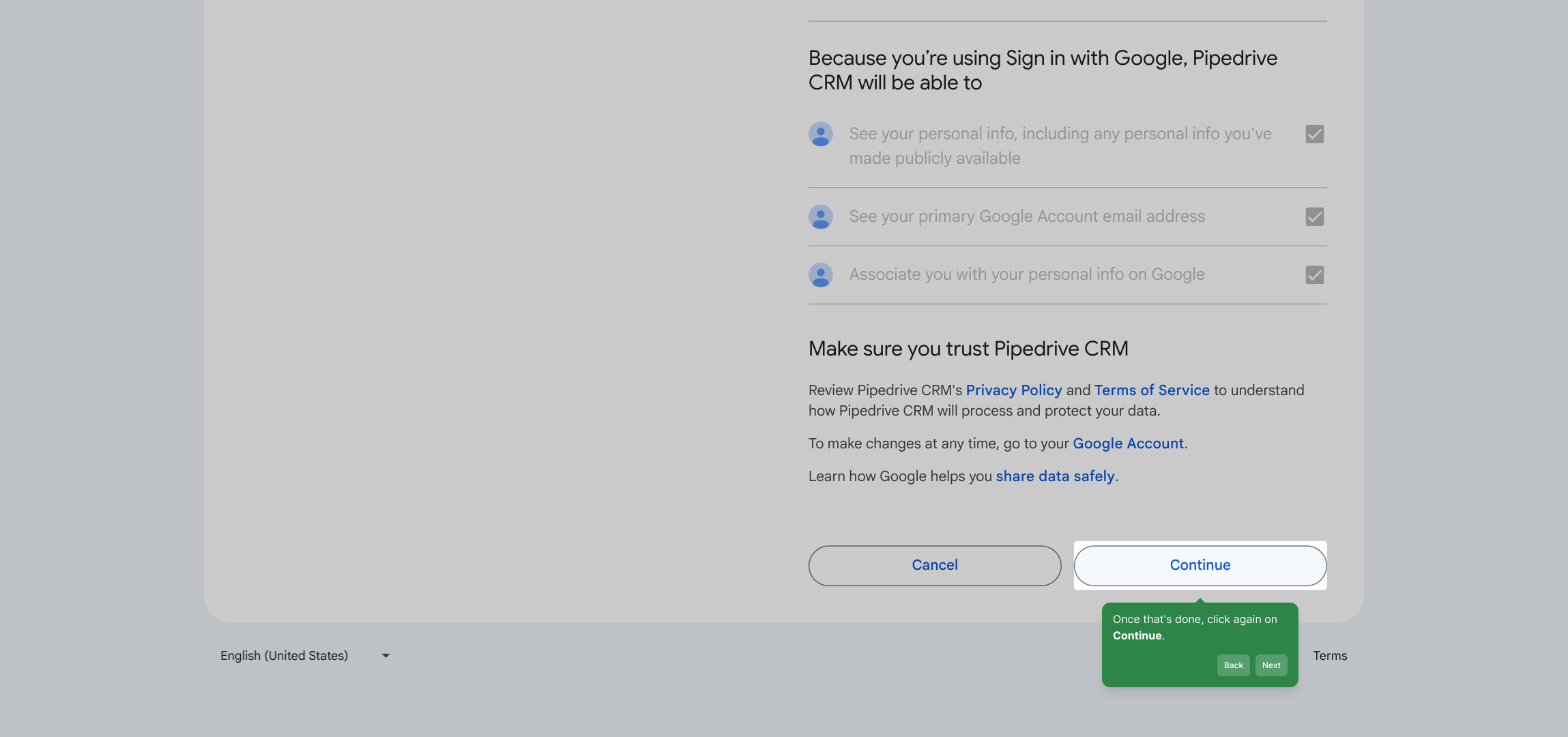
7. Once that's done, click again on Continue.
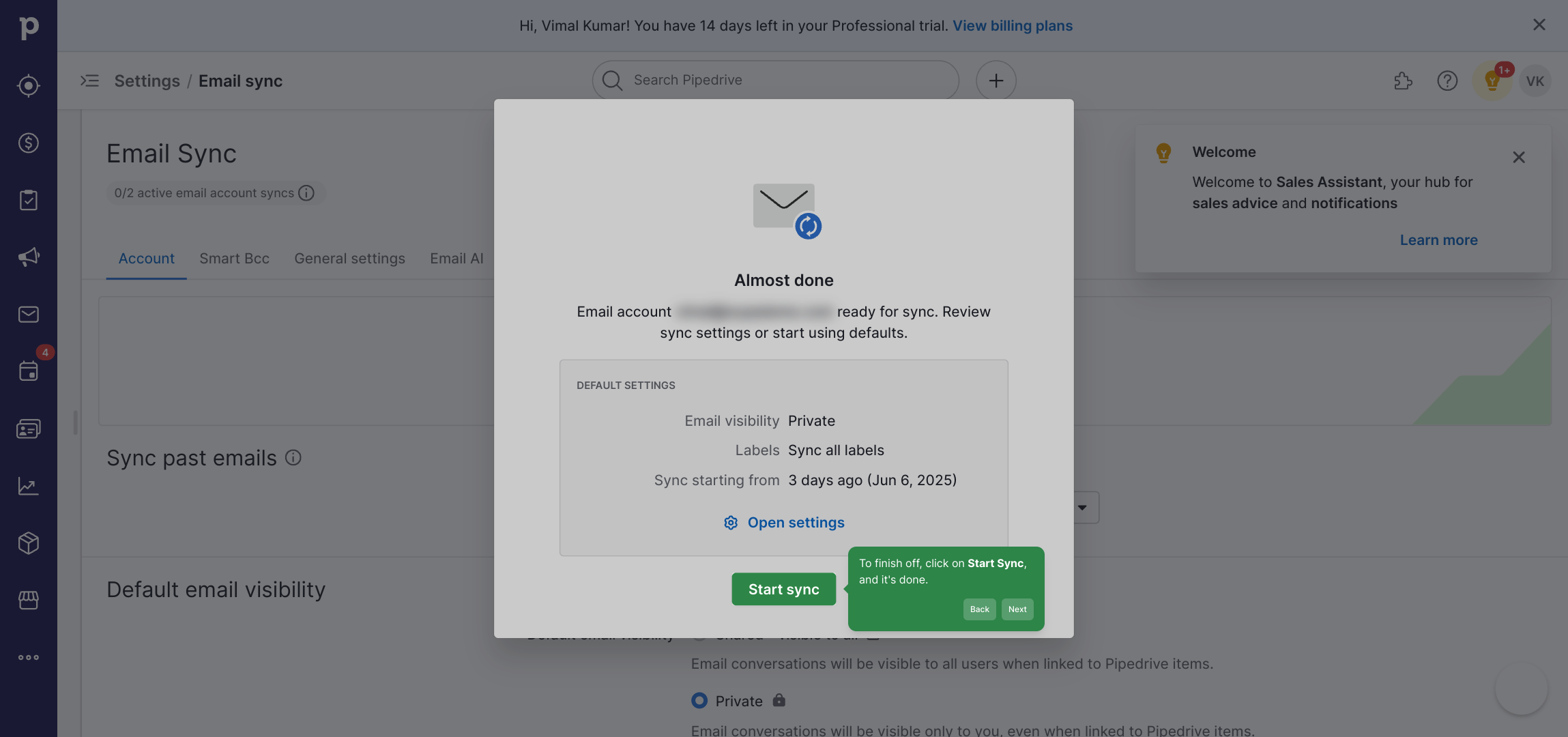
8. To finish off, click on Start Sync, and it's done.
9. Create a Supademo in seconds
This interactive guided walkthrough on How to Sync Email with Gmail or Outlook in Pipedrive was created using Supademo.
How to Sync Email with Gmail or Outlook in Pipedrive: Step-by-step guide
Begin by navigating to the Sales Inbox within your dashboard, indicated by the envelope-shaped icon. This is where all your sales communications are organized.
Next, enter the email address that you wish to connect and sync with Pipedrive. This ensures that all relevant communication is linked to your CRM seamlessly.
Once your email is entered, click the “Get started” button to initiate the synchronization process and move forward with the setup.
At this point, you’ll be prompted to select the email provider for your account. For this example, we’ll proceed by selecting Gmail as the email service to link.
After choosing your email provider, click the “Continue” button to advance to the next stage of permissions and configuration.
Carefully review the permissions requested, which allow the app to access necessary data. When you’re ready, select “Select all” to grant full access required for smooth functionality.
After adjusting the permissions, click “Continue” once more to confirm your choices and proceed with the setup.
Finally, initiate the synchronization by pressing the “Start Sync” button. This will connect your email with Pipedrive, completing the integration.
With sync set up, you’re all set to create a Supademo quickly and efficiently, streamlining your workflow right from the start.
Create your own interactive demos in < 5 mins with Supademo
You can create your own interactive product demo in minutes using Supademo. Drive growth, scale enablement, and supercharge product-led onboarding with Supademo.
Sign up for free here with no credit card required.
FAQs
Commonly asked questions about this topic.
How do I start syncing my email with Pipedrive?
Which email providers are supported for syncing with Pipedrive?
Can I sync multiple email accounts to Pipedrive simultaneously?
Are my email permissions safe during syncing?
What happens if I change my email password after syncing?
Can I sync my Gmail and Outlook emails in the same Pipedrive account?
How long does it take for emails to sync after setup?
Will syncing email with Pipedrive affect my email storage or inbox?
Do I need admin rights to connect my email to Pipedrive?
Can I stop syncing my email anytime?

Product Operations Associate
Vimal Kumar helps build and grow Supademo’s team and GTM efforts, with a focus on figuring out growth levers and improving product traction.