How to Set Up Email Notifications in Typeform

Vimal Kumar
Vimal Kumar·
How to Set Up Email Notifications in Typeform
Interactive demo powered by Supademo

1. First, open the form where you wish to set up email notifications.

2. Then, click on "Connect".

3. Now, search for Gmail.

4. Once you find Gmail, click on Connect.

5. Once that's done, add your email account.

6. Once you connect your Gmail account successfully, you will be redirected to Zapier.

7. After that, set up the Trigger event and link it to your Typeform account by clicking on the Sign in button.

8. After doing that, click on "Continue".

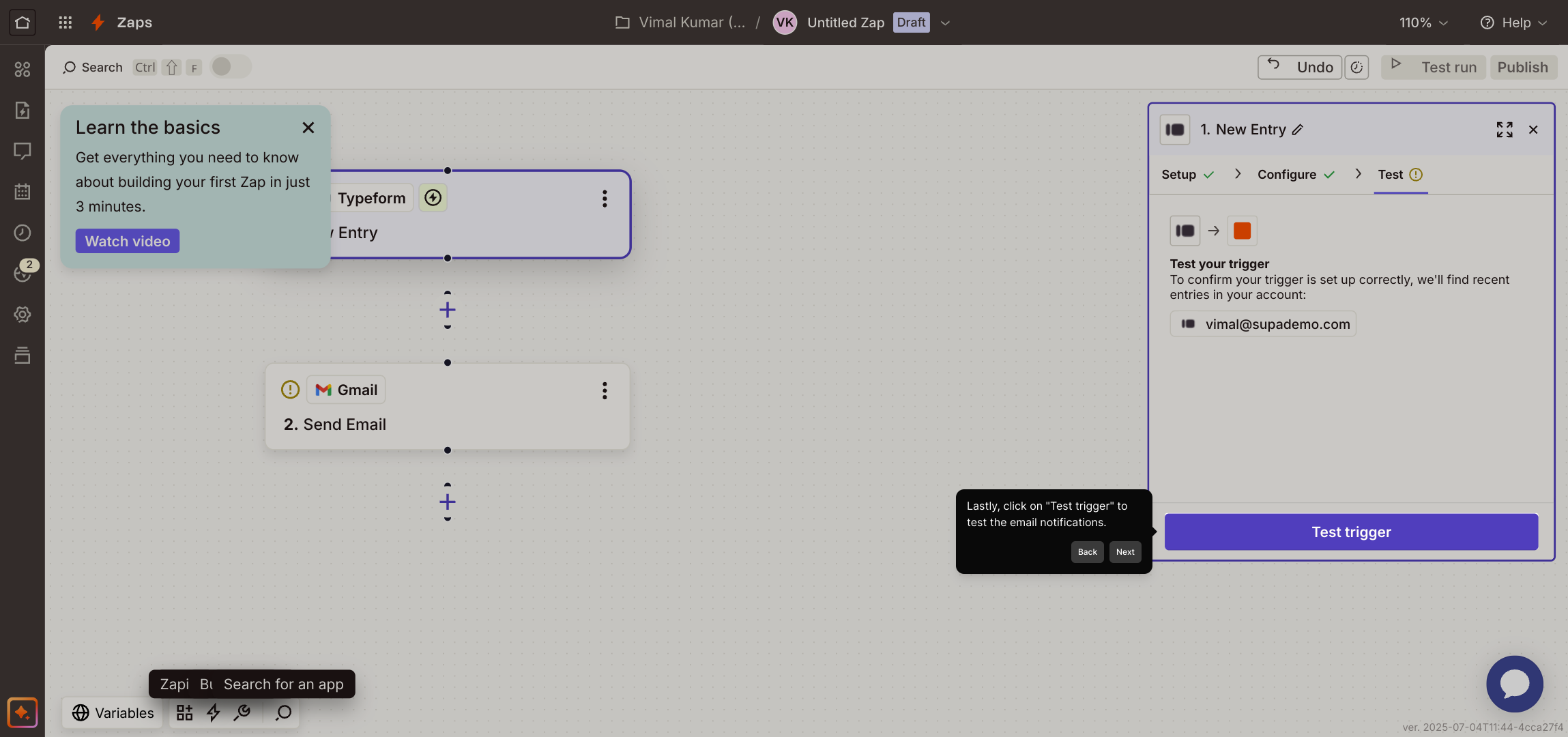
9. Lastly, click on "Test trigger" to test the email notifications.

10. Create a Supademo in seconds

This interactive demo/guided walkthrough on How to Set Up Email Notifications in Typeform was created using Supademo.


How to Set Up Email Notifications in Typeform : Step-by-Step Guide

To get started, navigate to the specific form where you want to activate email notifications. This is the foundation step before linking any email services.
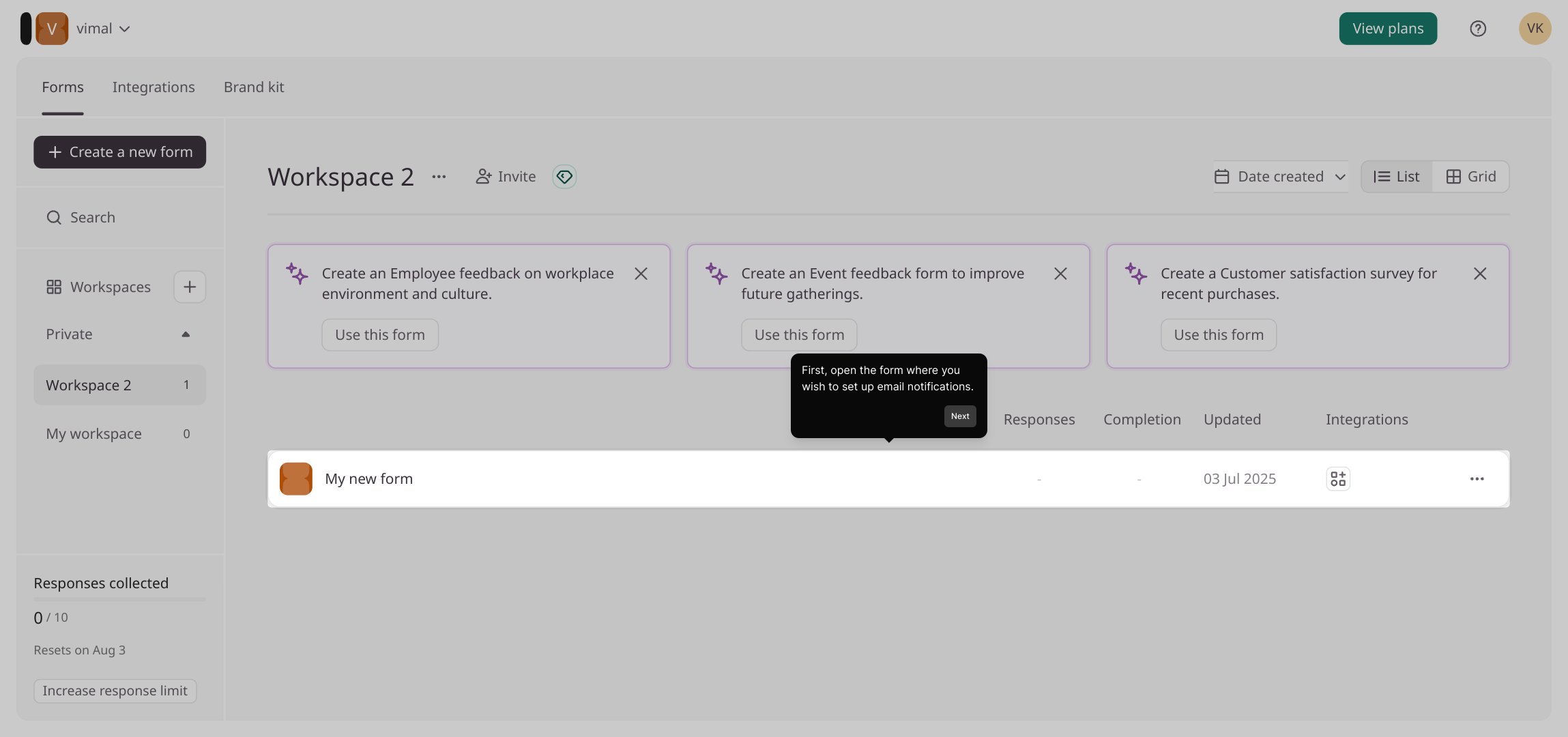
1

Next, look for the "Connect" option on the form’s settings page. Clicking this will begin the process of integrating your email service with the form.
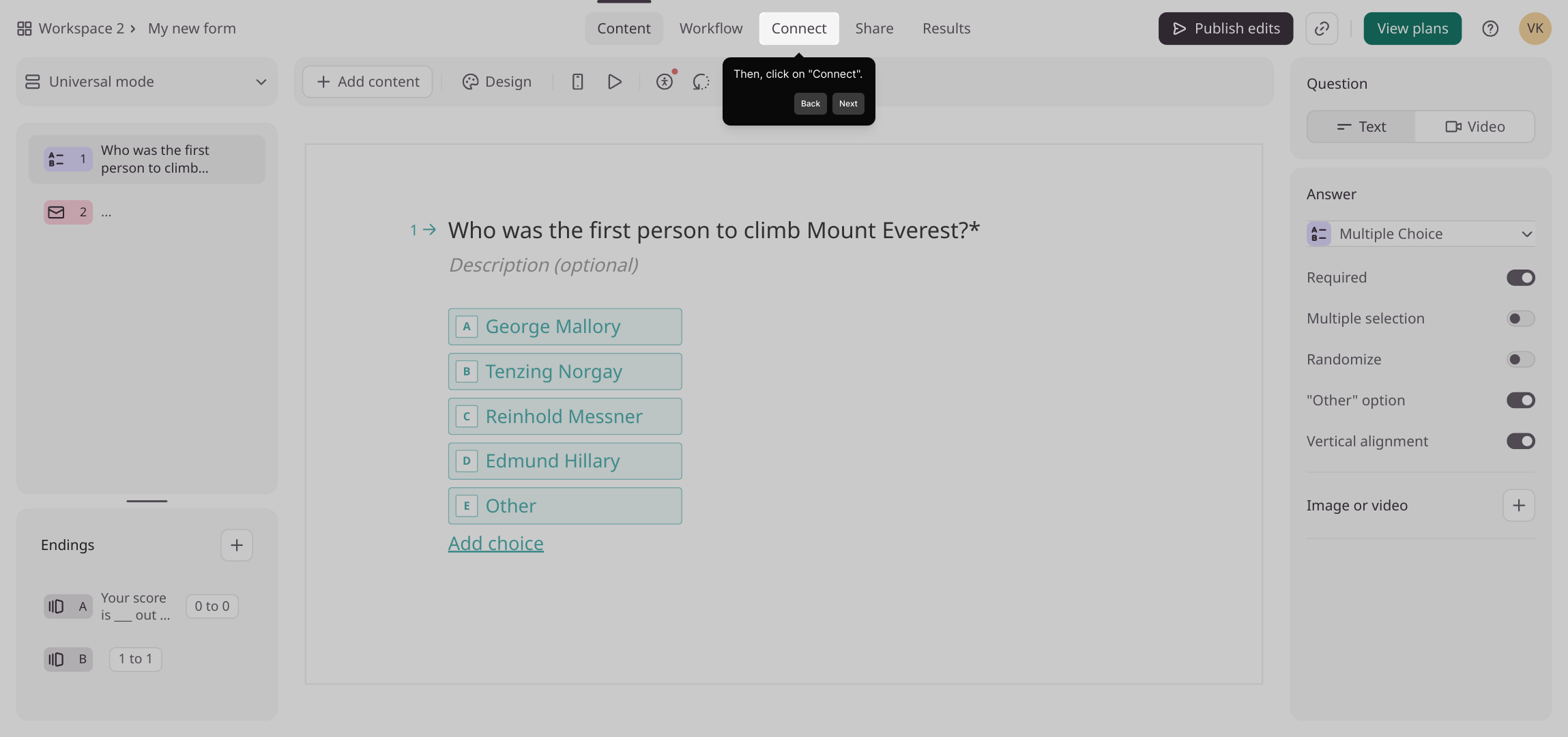
2

In the search field that appears, type in Gmail to locate the Gmail integration option quickly among available services.
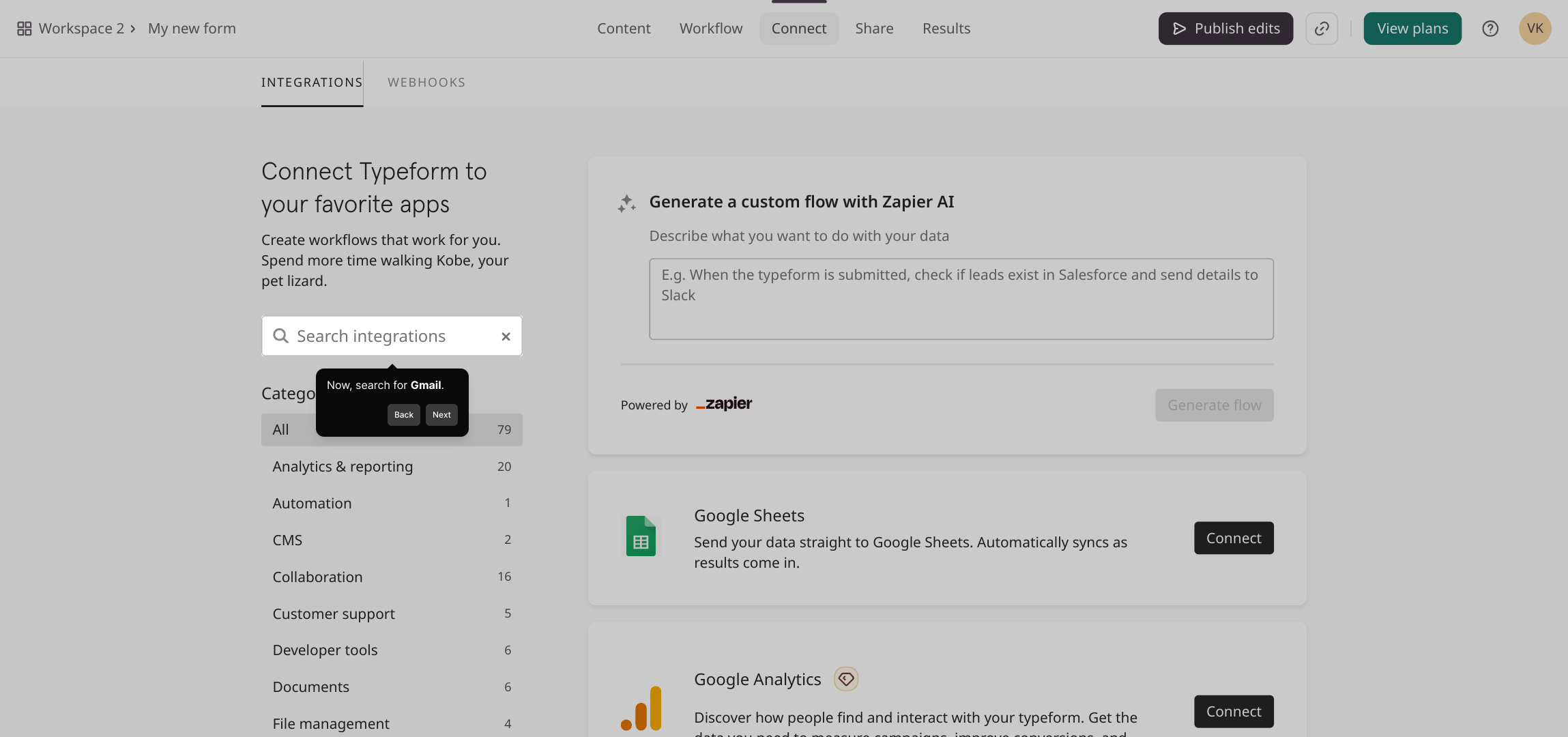
3

When you see Gmail in the list, select the Connect button next to it. This connects your Gmail account to the notification system.
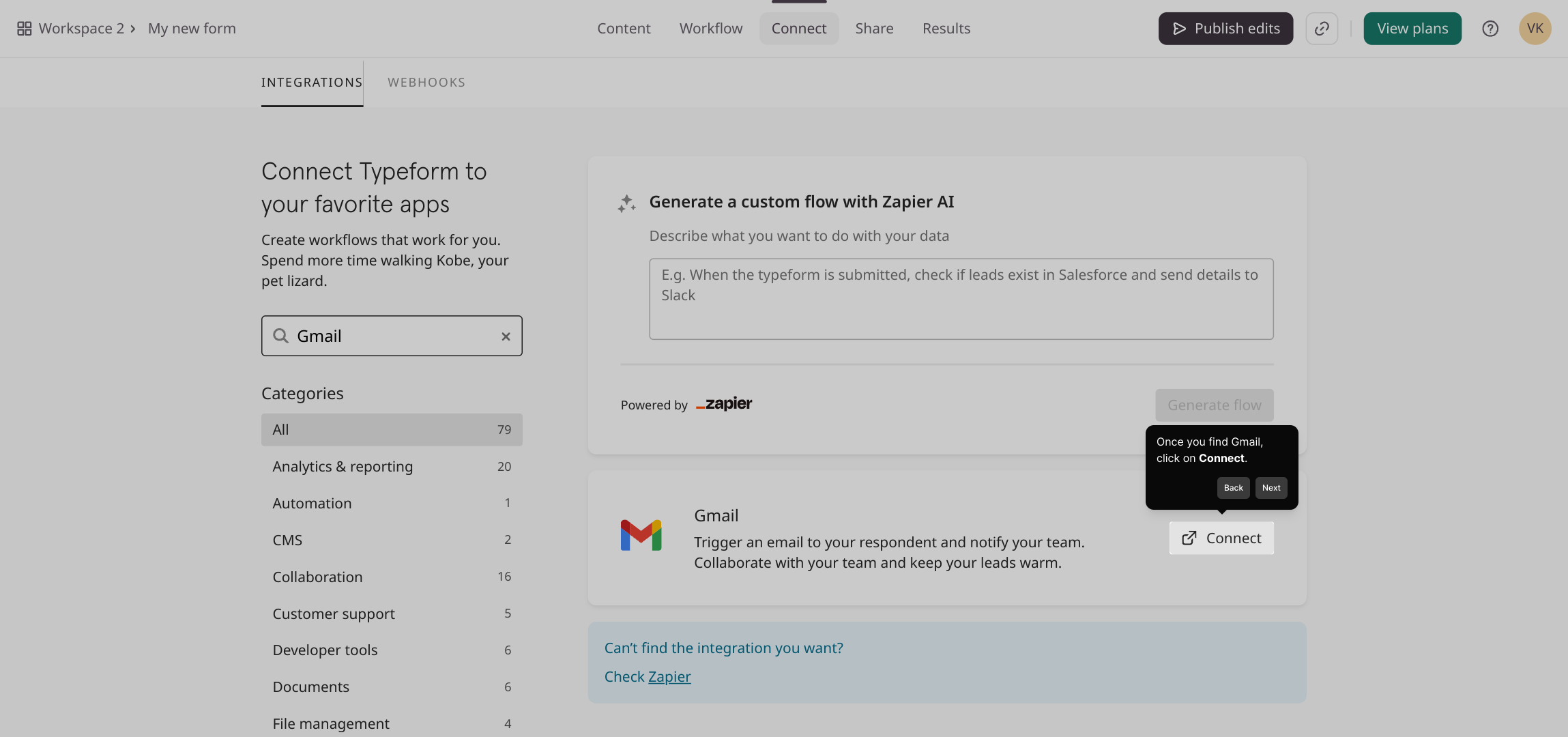
4

At this stage, enter your Gmail email address to link your account securely. This allows the system to send emails on your behalf.
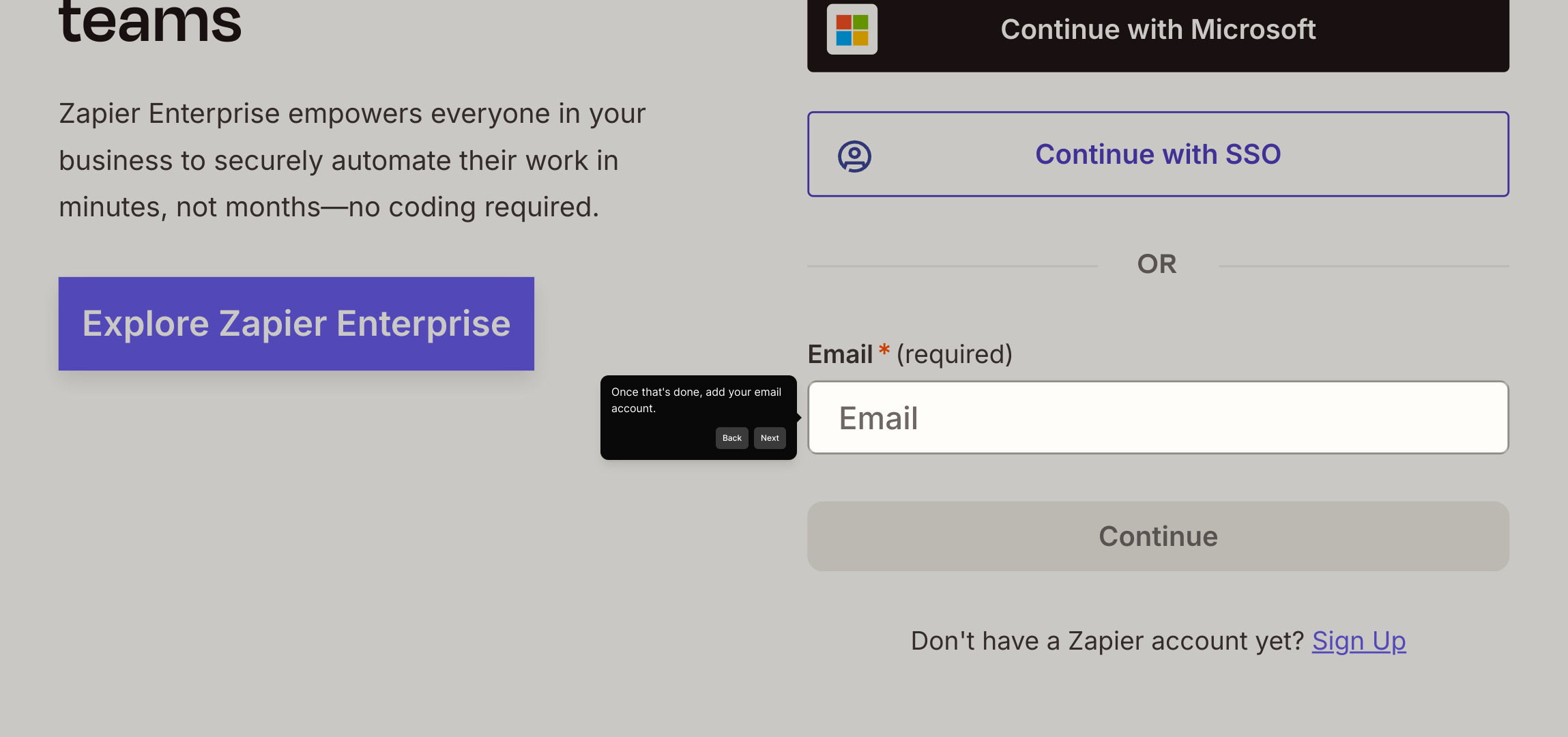
5

Once your Gmail account is successfully connected, you'll be automatically redirected to Zapier, where the next automation setup takes place.
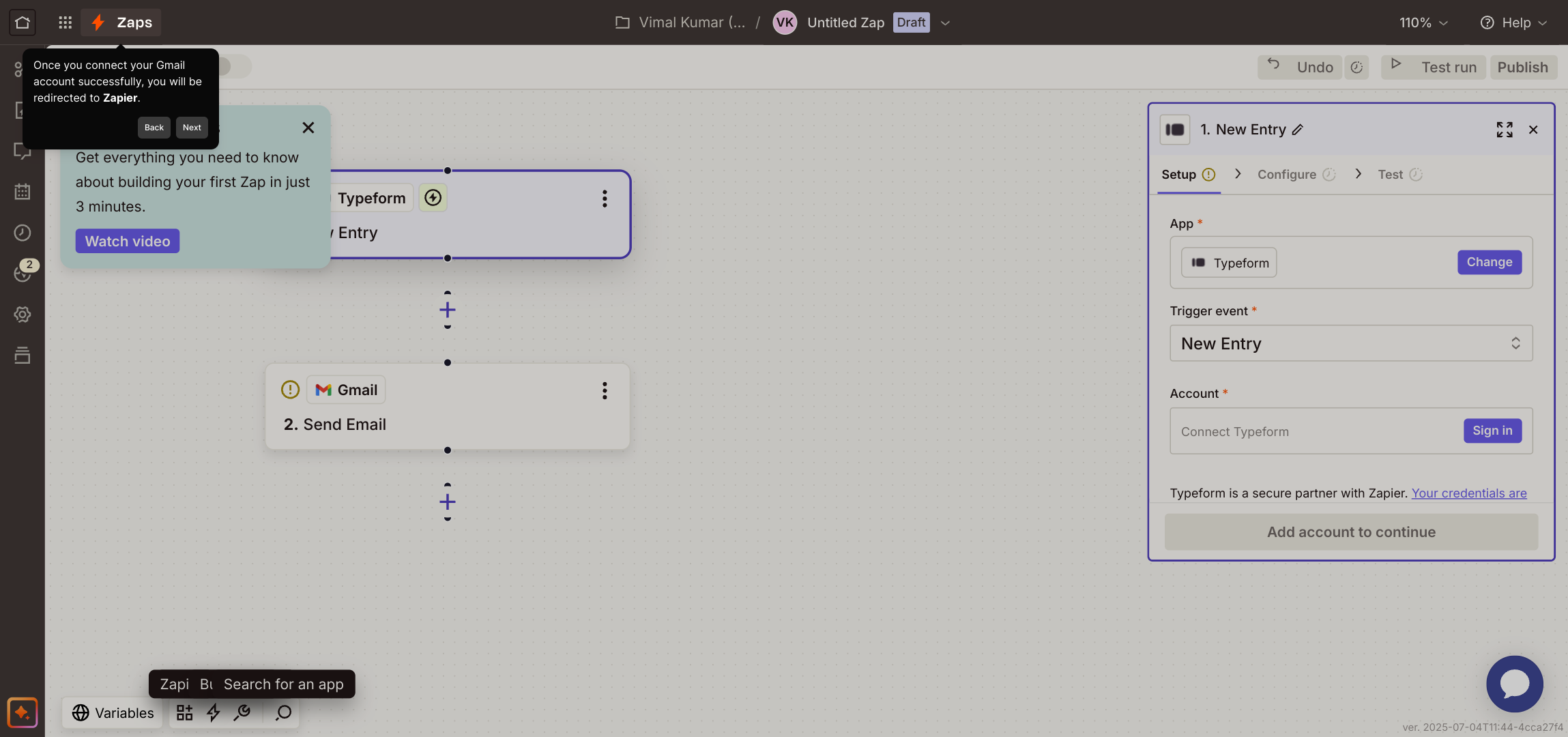
6

Here, you’ll set up a Trigger event that kicks off the notification process. Connect this trigger to your Typeform account by clicking the Sign in button so Zapier can receive responses.
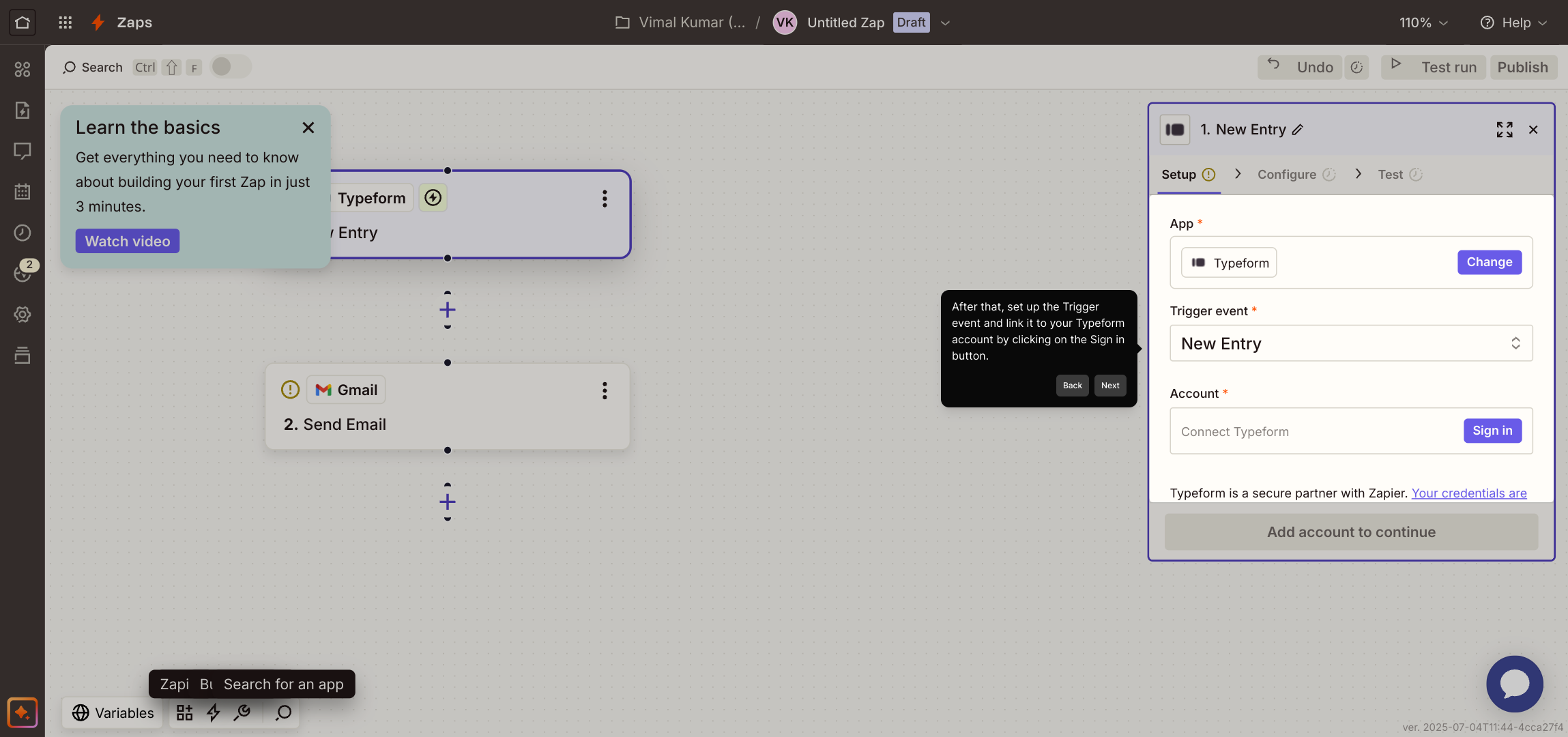
7

After configuring the trigger, proceed by clicking the "Continue" button to move forward with the integration setup smoothly.
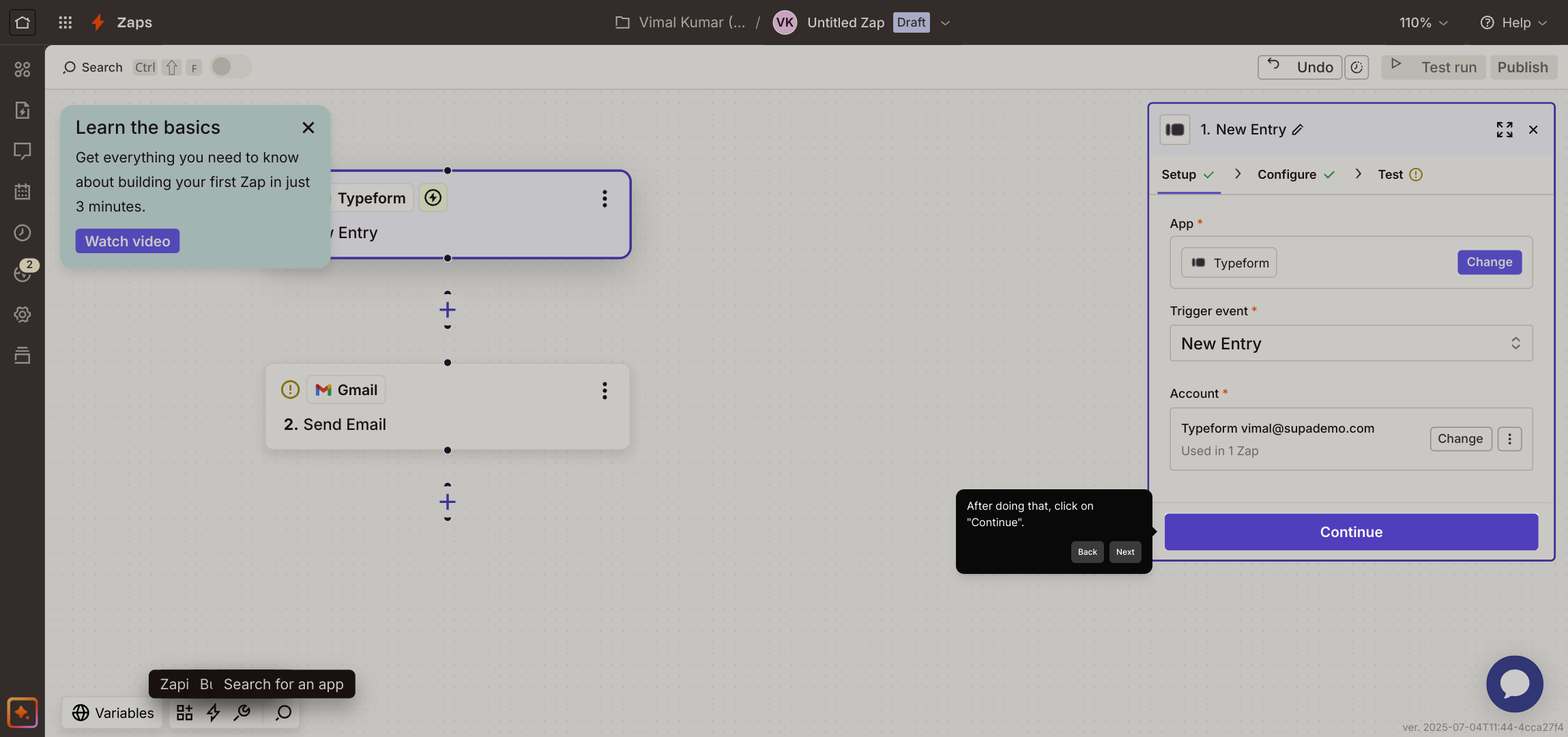
8

Finally, verify that everything is working by selecting the "Test trigger" option. This helps confirm that your email notifications will be sent correctly when the trigger activates.
9

With the setup complete, you can now efficiently create a Supademo in just a few seconds and enjoy automated email notifications working seamlessly.
10

Create your own interactive demos in < 5 mins with Supademo

You can create your own interactive product demo in minutes using Supademo. Drive growth, scale enablement, and supercharge product-led onboarding with Supademo.
Sign up for free here with no credit card required.


FAQs

Commonly asked questions about this topic.

What is the purpose of setting up email notifications in Typeform?

Email notifications in Typeform alert you instantly when someone submits your form. This helps you stay updated and respond promptly to new responses without regularly checking the form dashboard.

Do I need a Gmail account to set up email notifications in Typeform?

While Gmail is a common and easy-to-integrate option, you can also use other email services or automation platforms like Zapier. However, this guide specifically uses Gmail and Zapier integration for notifications.

Is Zapier required to enable email notifications from Typeform?

Zapier acts as an integration middleware that connects Typeform with Gmail for email notifications. While optional, using Zapier simplifies automation and supports triggering emails without coding.

Can I customize the email content sent through notifications?

Yes, when setting up Zapier’s email action, you can customize the email subject, body, and include specific form response details to tailor the notification content to your needs.

How do I test if email notifications are working correctly?

After setting up the integration, use the “Test trigger” feature in Zapier. This simulates a form submission and sends a test email, confirming that notifications are correctly set up.

Will email notifications work if my Typeform is embedded on my website?

Yes, email notifications trigger regardless of how the form is accessed, including embedded versions. The key is having the integration correctly configured within your Typeform account.

Are there limits on how many email notifications I can receive?

Email limits depend on your email provider and Zapier plan. Gmail, for example, imposes daily sending limits. Upgrading your plan or using paid tiers may increase your notification capacity.

Can I send email notifications to multiple addresses?

Yes, Zapier allows sending notifications to multiple email addresses by adding them in the recipients’ field. This way, multiple stakeholders can be informed simultaneously of new responses.

What should I do if I don’t receive email notifications?

Check your Gmail connection and Zapier workflows for errors. Also, verify that emails are not in your spam folder. Re-authenticate accounts if needed and ensure triggers are activated properly.

Can other email providers besides Gmail be used for notifications?

Yes, Zapier supports many email services such as Outlook and SMTP providers. You can replace Gmail with your preferred email provider within Zapier for notifications, depending on available integrations.
Vimal Kumar
Vimal Kumar

Product Operations Associate

Vimal Kumar helps build and grow Supademo’s team and GTM efforts, with a focus on figuring out growth levers and improving product traction.

More from the blog

How to Remove 'Powered by Shopify'

How to Remove 'Powered by Shopify'

Learn how to easily remove the 'Powered by Shopify' text from your online store with step-by-step instructions and tips to customize your Shopify storefront.

Vimal Kumar
Vimal KumarJan 3, 2026
How to Add Products to Shopify

How to Add Products to Shopify

Learn step-by-step how to add products to your Shopify store effortlessly, including tips on product details, images, pricing, and inventory management to boost your online sales.

Vimal Kumar
Vimal KumarDec 17, 2025
How to Deactivate Your Shopify Store

How to Deactivate Your Shopify Store

Learn step-by-step how to deactivate your Shopify store easily, including important considerations and tips to pause or close your shop without losing data.

Vimal Kumar
Vimal KumarDec 17, 2025
How to Remove 'Powered by Shopify'

How to Remove 'Powered by Shopify'

Learn how to easily remove the 'Powered by Shopify' text from your online store with step-by-step instructions and tips to customize your Shopify storefront.

Vimal Kumar
Vimal KumarDec 17, 2025
How to Create a Shopify Account

How to Create a Shopify Account

Learn step-by-step how to create a Shopify account quickly and easily, set up your online store, and start selling your products in no time.

Vimal Kumar
Vimal KumarDec 17, 2025
How to Create a Stripe Account

How to Create a Stripe Account

Learn how to create a Stripe account quickly and easily with our step-by-step guide, perfect for beginners looking to start accepting online payments.

Vimal Kumar
Vimal KumarDec 17, 2025